

Docker tutorial for beginners

In our Docker tutorial, we introduce you to the Docker virtualisation platform and show you how to use Docker on your Ubuntu 22.04 system using easy-to-follow instructions.
Try out your VPS for 30 days. If you're not satisfied, we'll fully reimburse you.
Structure and features of Docker
‘Build, Ship, and Run Any App, Anywhere’ – this is Docker’s motto. The open-source container platform offers a flexible, low-resource alternative for the emulation of hardware components based on virtual machines (VMs).
While traditional hardware virtualisation is based on launching multiple guest systems on a common host system, Docker applications are run as isolated processes on the same system with the help of containers. This is called container-based virtualisation, also referred to as operating-system-level virtualisation.
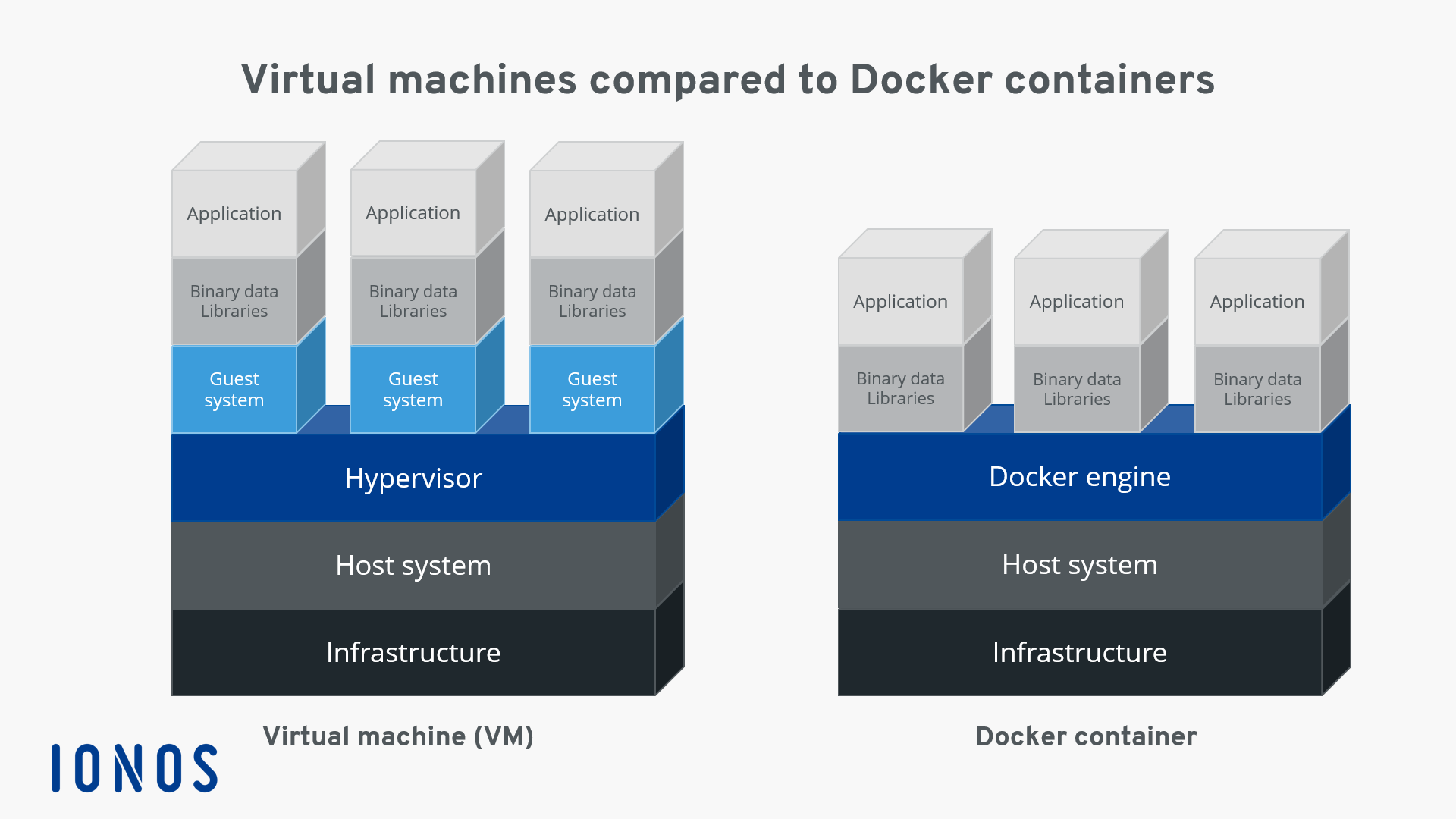
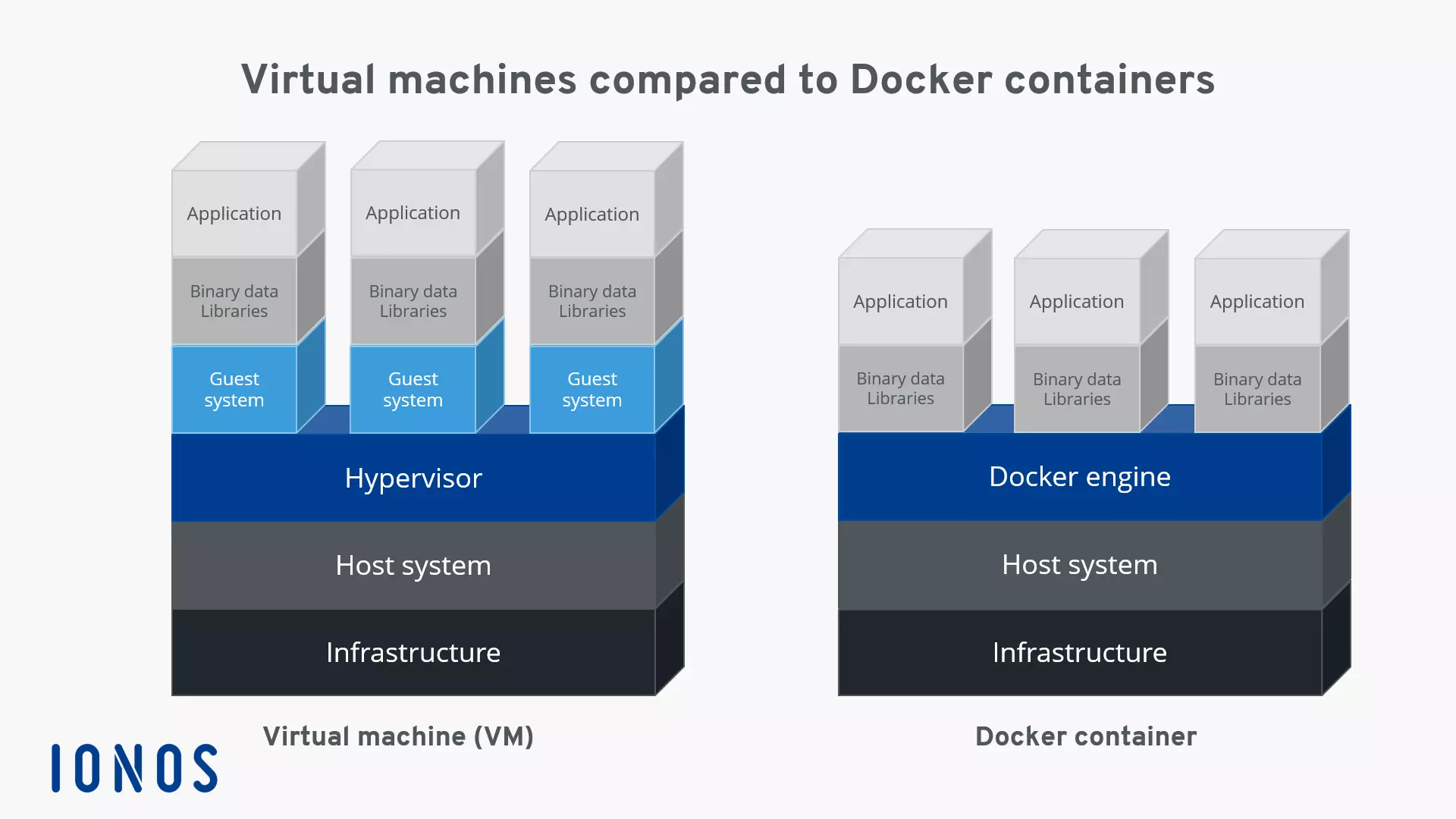
One big advantage of container-based virtualisation is that applications with different requirements can run in isolation from one another without requiring the overhead of a separate guest system. Additionally, with containers, applications can be deployed across platforms and in different infrastructures without having to adapt to the hardware or software configurations of the host system.
Docker is the most popular software project that provides users with container-based virtualisation technology. The open-source platform is based on three basic components. In order to execute containers, users only need the Docker engine as well as special Docker images, which can be obtained via the Docker hub or created themselves.
Docker containers and images are mostly generic, but can be highly customised as needed. You can read more about it in our article on Docker containers.
Docker images
Similar to virtual machines, Docker containers are based on Docker images. An image is a read-only template that contains all instructions that the Docker engine needs to create a container. A Docker image is described as a portable image of a container in the form of a text file, also called a Dockerfile. If a container is to be launched on a system, then first a package with the respective image is loaded, as long as it doesn’t exist locally. The loaded image provides the necessary file system including all parameters for the runtime. A container can be viewed as a running process of an image.
The Docker hub
The Docker hub is a cloud-based registry for software repositories, a type of library for Docker images. The online service is split between a public and a private section. The public section offers users the option to upload their own developed images and share with the community. Here, there are a number of official images available from the Docker developer team and established open-source projects. Images uploaded to the private section of the registry aren’t accessible publicly and so can be shared, for example, within a company’s internal circle or with friends or acquaintances. The Docker hub can be accessed on hub.docker.com.
The Docker engine
At the heart of the Docker project is the Docker engine. This is an open-source client server application, which is available to all users in the current version on all established platforms.
The basic architecture of the Docker engine is divided between three components: A daemon with server functions, a programming interface (API) based on the programming paradigm REST (Representational State Transfer), and the operating system terminal (command line interface, CLI) as a user interface (client).
-
Docker daemon: As a server for the Docker engine, a daemon process is used. The Docker daemon runs in the background of the host system, and is used for the central control of the Docker engine. This function creates and manages all images, containers, or networks.
-
REST-API: The REST-API specifies a set of interfaces that allow other programs to communicate with the Docker daemon and give it instructions. One of these programs is the terminal of the operating system.
-
Terminal: As a client program, Docker uses the operating system’s terminal. This, integrated with the Docker daemon via the REST-API, enables users to control it through scripts or user input.
In 2017, the Docker engine was renamed to Docker Community Edition (abbreviated to Docker CE), but the official documentation and Docker repositories mostly still use the old name. In addition to Docker CE, there is also Docker Enterprise Edition (Docker EE), which has some premium features. However, it is not free and is more suitable for enterprises.
With Docker commands, user software containers can be started, stopped, and managed directly from the terminal. The Daemon is addressed via the command docker and instructions like build, pull, or run. Client and server can be on the same system. Users are also given the option to access a Docker daemon on another system. Depending on the type of connection being established, communication between the client and the server takes place via the REST-API, via UNIX sockets, or via a network interface.
The following graphic illustrates the interplay of the individual Docker components with the example commands docker build, docker pull, and docker run:
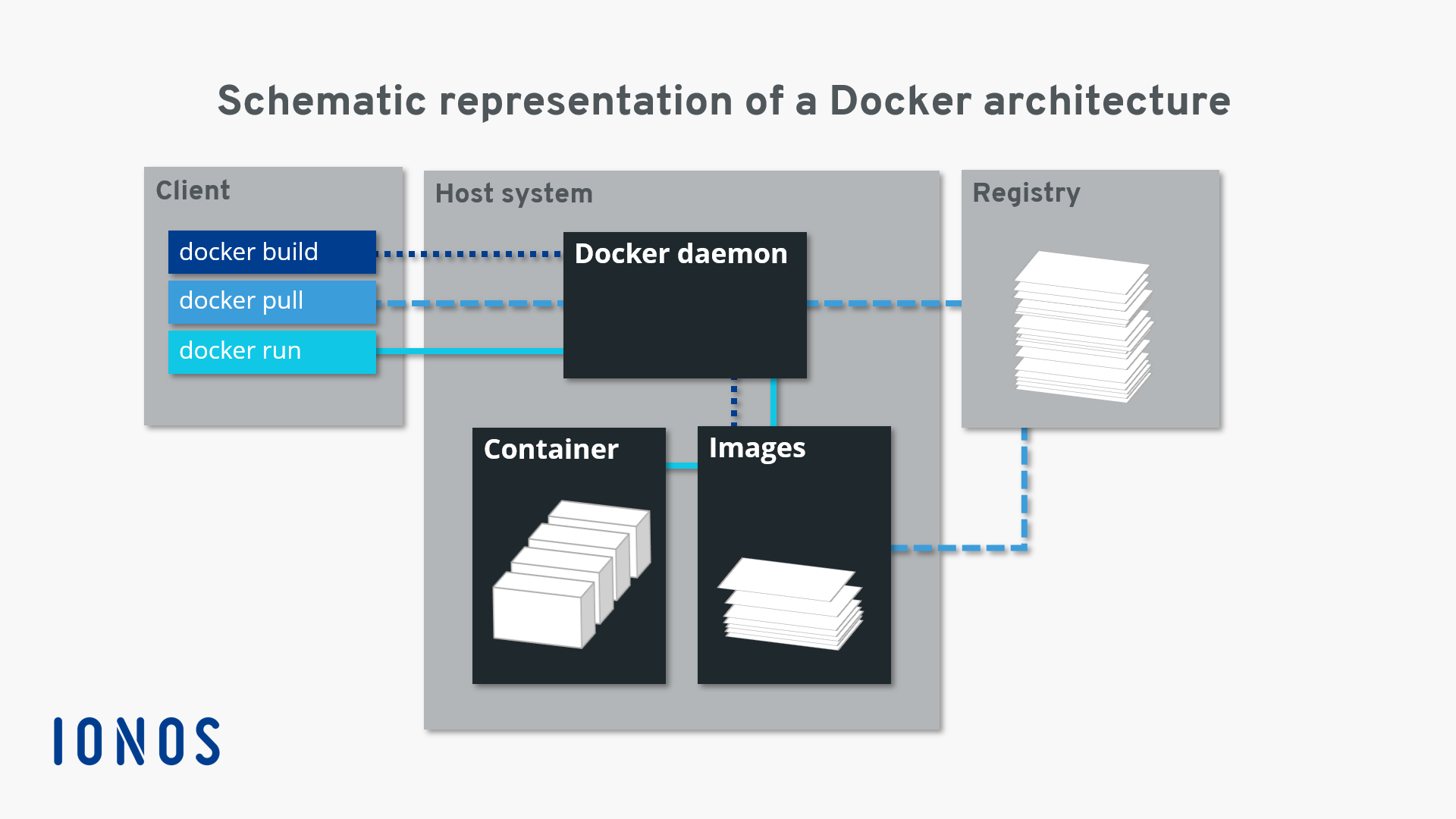
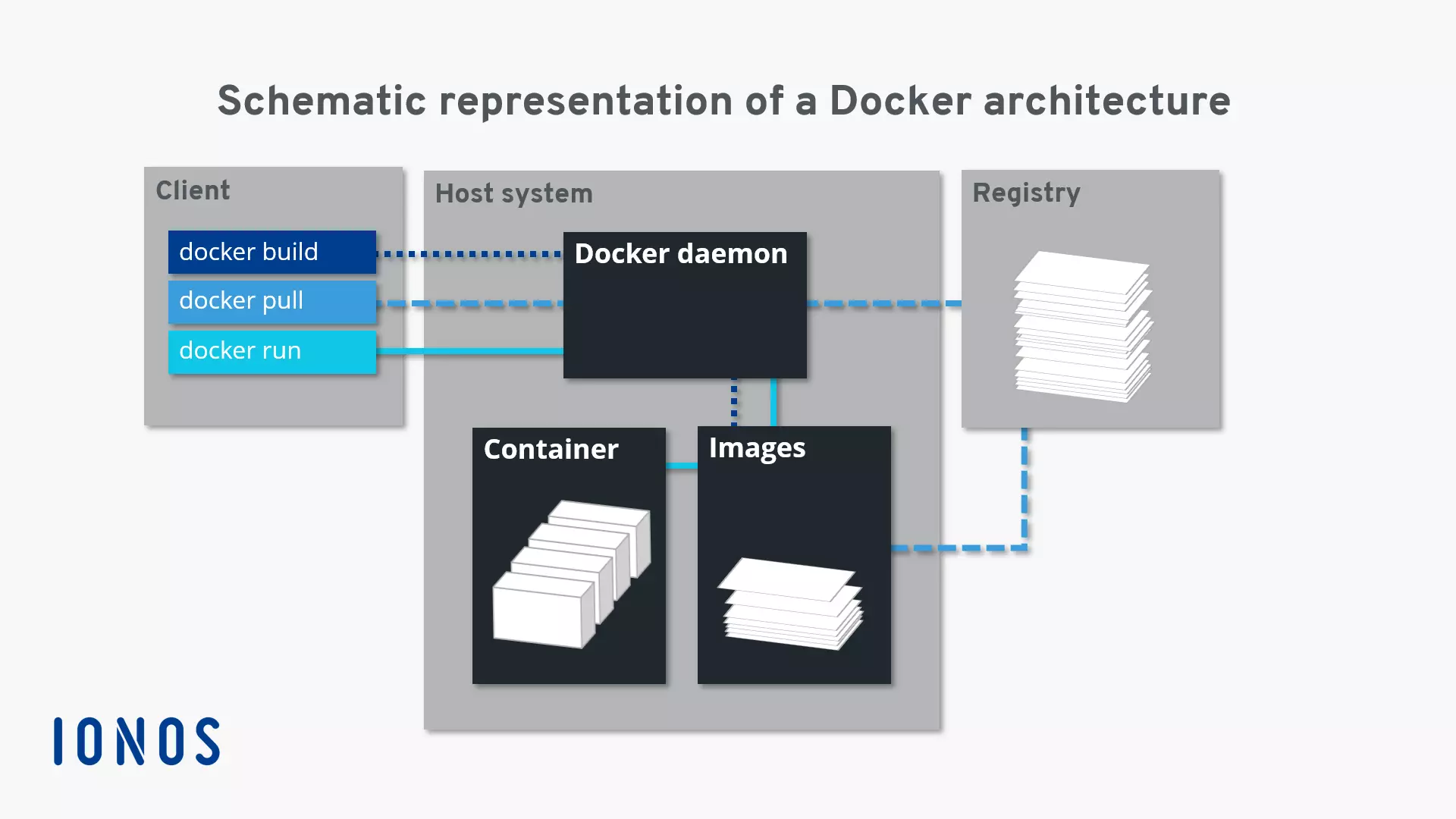
The command docker build instructs the Docker daemon to create an image (dotted line). For this, a corresponding Dockerfile needs to be available. If the image isn’t to be created, but instead loaded from a repository in the Docker hub, then the docker pull command is used (dashed line). If the Docker daemon is instructed via docker run to launch a container, the background program checks whether or not the corresponding container image is locally available. If it is, then the container is run (solid line). If the daemon can’t find the image, it automatically initiates a pull from the repository.
- Enterprise hardware
- Configurable hardware equipment
- ISO-certified data centres
Working with Docker
Now it’s time to get familiar with the container platform applications. If you have not yet installed the Docker engine, you can do so via the Linux Terminal. You can find instructions on how to do this in our article entitled ‘Install Docker on Ubuntu 22.04’. Learn below how to control the Docker Engine from the terminal, what the Docker Hub can do for you, and why Docker containers could revolutionise the way you work with applications.
If you want to install Docker on another Linux distribution or Windows, the following instructions will help:
How to control the Docker engine
Since version 16.04, Ubuntu has used the background program systemd(short for ‘system daemon’) to manage processes.Systemdis an init process, also used on other Linux distributions like RHEL, CentOS, or Fedora. Typically,systemreceives the process ID 1. As the first process of the system, the daemon is responsible for starting, monitoring, and ending all following processes. For previous Ubuntu versions (14.10 and older), the background programupstart takes over this function.
The Docker daemon can also be controlled via systemd. In the standard installation, the container platform is configured so that the Daemon automatically starts when the system is booted up. This default setting can be customised via the command line tool systemctl.
With systemctl, you send commands to systemd to control a process or request its status. The syntax of such a command is as follows:
systemctl [OPTION] [COMMAND]Some commands refer to specific resources (for example, Docker). In the terminology of systemd, these are referred to as units. In this case, the command results from the respective instruction and the name of the unit to be addressed.
If you would like to activate the autostart of the Docker daemon (enable) or deactivate it (disable), use the command line tool systemctl with the following commands:
sudo systemctl enable docker
sudo systemctl disable dockerThe command line tool systemctl allows you to query the status of a unit:
sudo systemctl status dockerIf the Docker engine on your Ubuntu system is active, then the output in the terminal should look like the following screenshot:
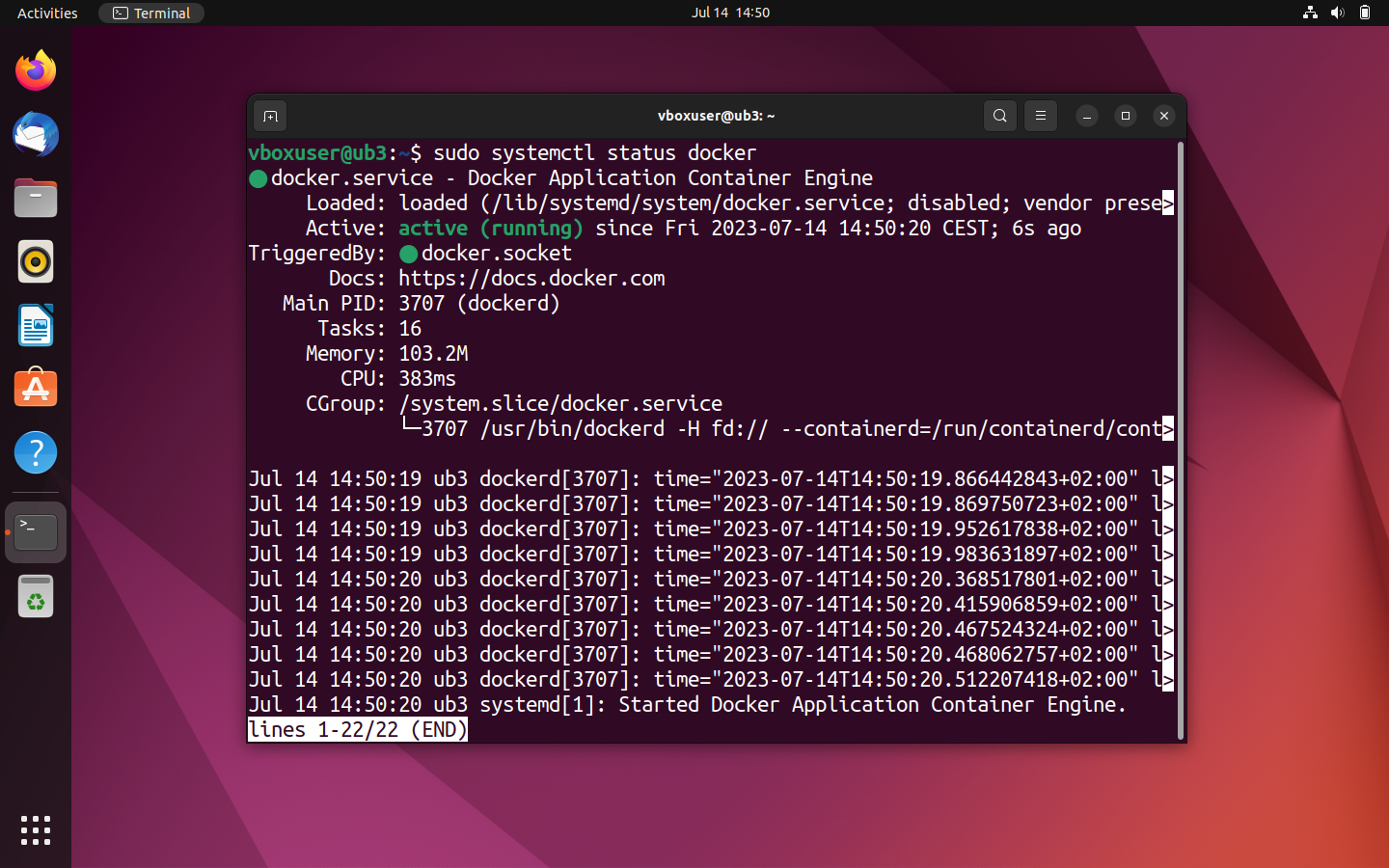
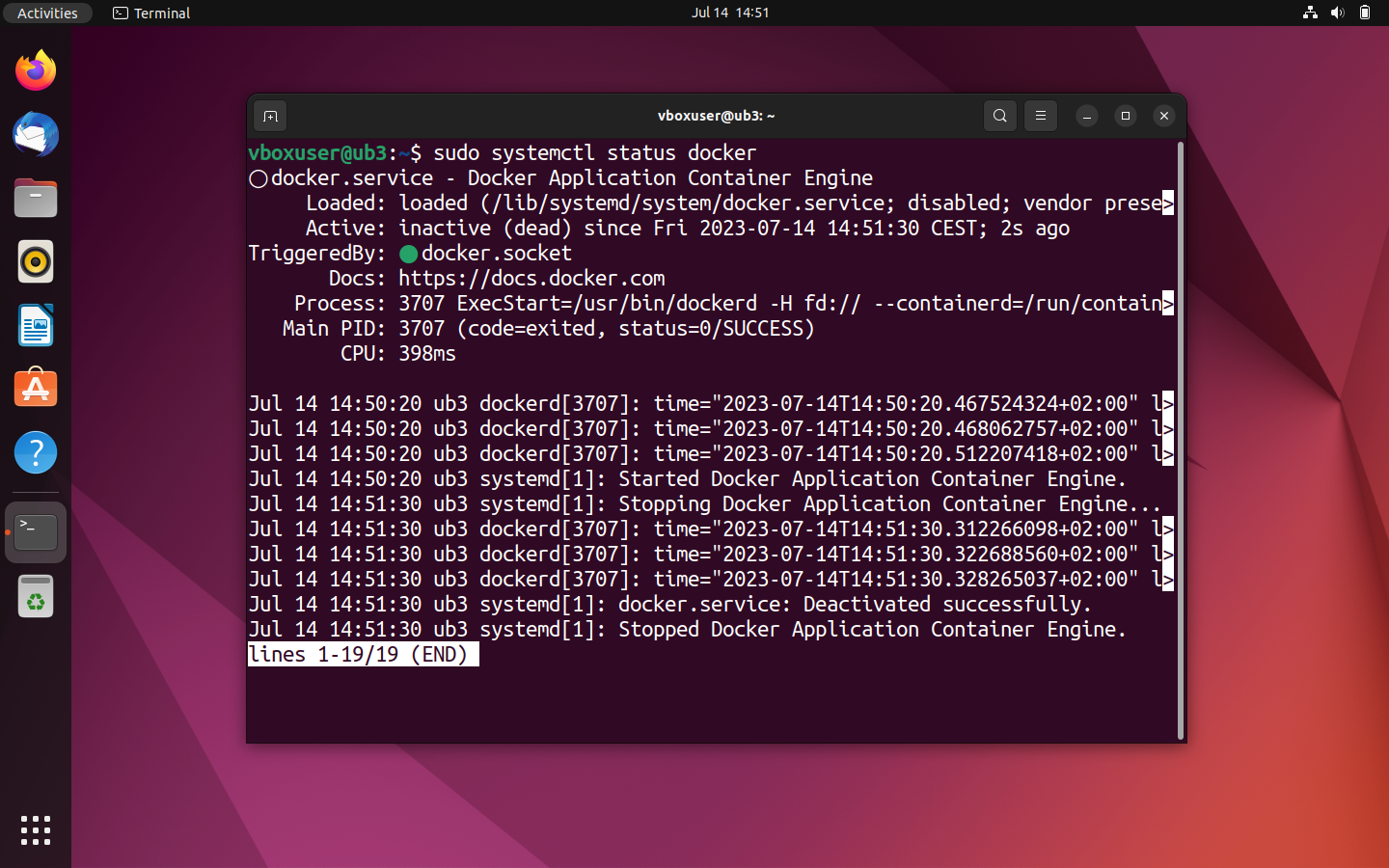
If your Docker engine is currently deactivated, then you’ll receive the status declaration inactive (dead). In this case, you need to manually launch the Docker daemon to run containers.
If you would like to manually start, stop, or restart your Docker engine, address systemd with one of the following commands.
To start the deactivated daemon, use systemctl in combination with the command start:
sudo systemctl start dockerIf the Docker daemon is to be ended, use the command stop instead:
sudo systemctl stop dockerA restart of the engine is prompted with the command restart:
sudo systemctl restart dockerHow to use the Docker hub
If the Docker engine represents the heart of the container platform, then the Docker hub is the soul of the open-source project. This is where the community meets. In the cloud-based registry, users can find everything that they need to breathe life into their Docker installation.
The online service offers diverse official repositories with more than 100,000 free apps. Users have the option to create an image archive and use them collectively with work groups. In addition to the professional support offered by the development team, beginners can find connections to the user community here. A forum for community support is available on GitHub.
Registering in the Docker hub
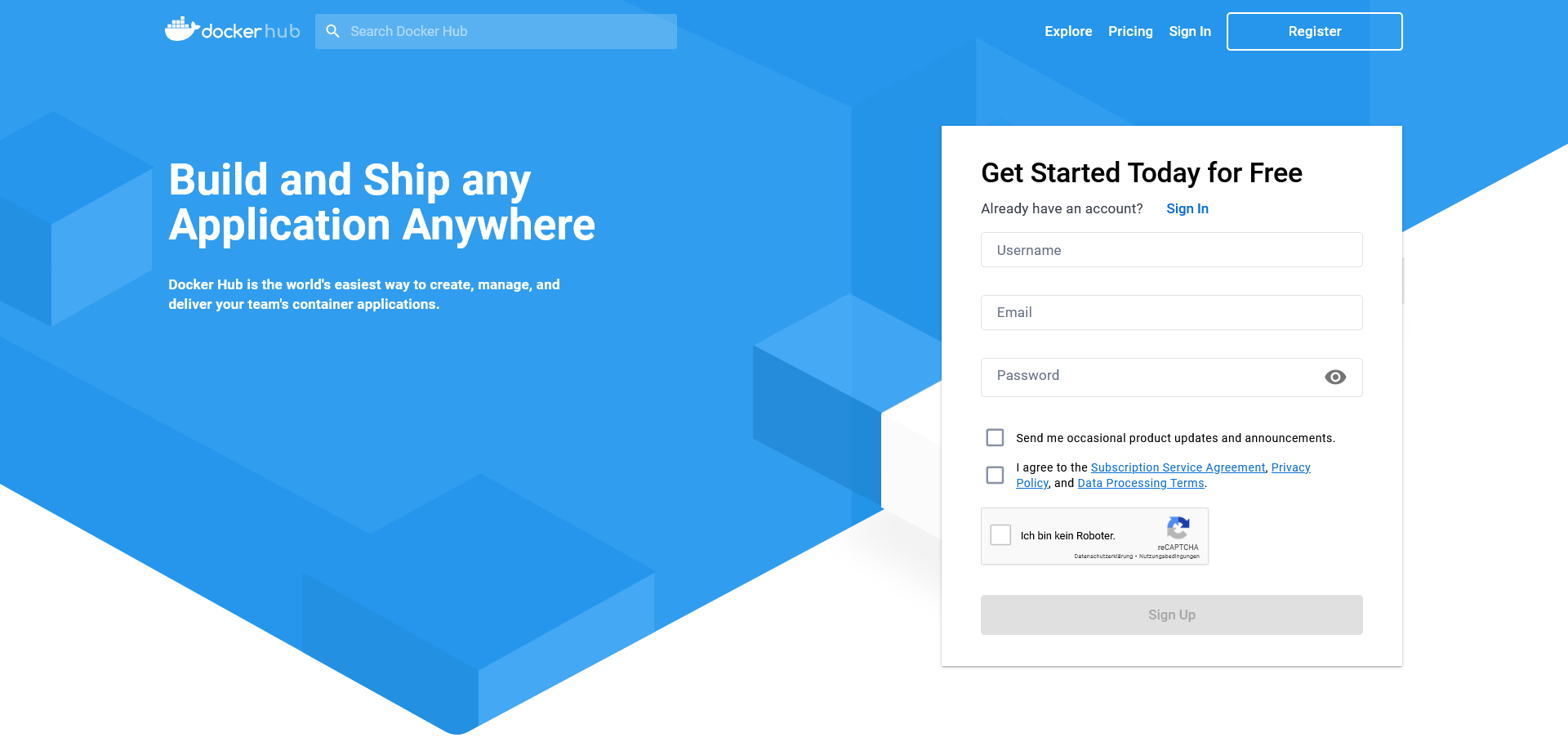
Registering in the Docker hub is free. Users just need an email address and their chosen Docker ID. This serves as a personal repository namespace later and grants users access to all Docker services. Currently, this offer includes the Docker cloud, Docker store, and selected beta programs in addition to the Docker hub. It also allows the Docker ID to be used as a log-in for the Docker support center as well as the Docker success portal and Docker forum.
The registration process is comprised of five steps:
- Choose your Docker ID: As the first part of the application, choose a username that will later be used as your personal Docker ID.
- Enter an email address: Enter your current email address. Note that you will have to confirm your registration with Docker hub via email.
- Choose a password: Choose a secret password.
- Submit your registration: Click on ‘Sign up’ to submit your registration. Once the data has been fully transmitted, Docker will send a link for you to verify your email address to your specified inbox.
- Confirm your email address: Confirm your email address by clicking on the verification link.
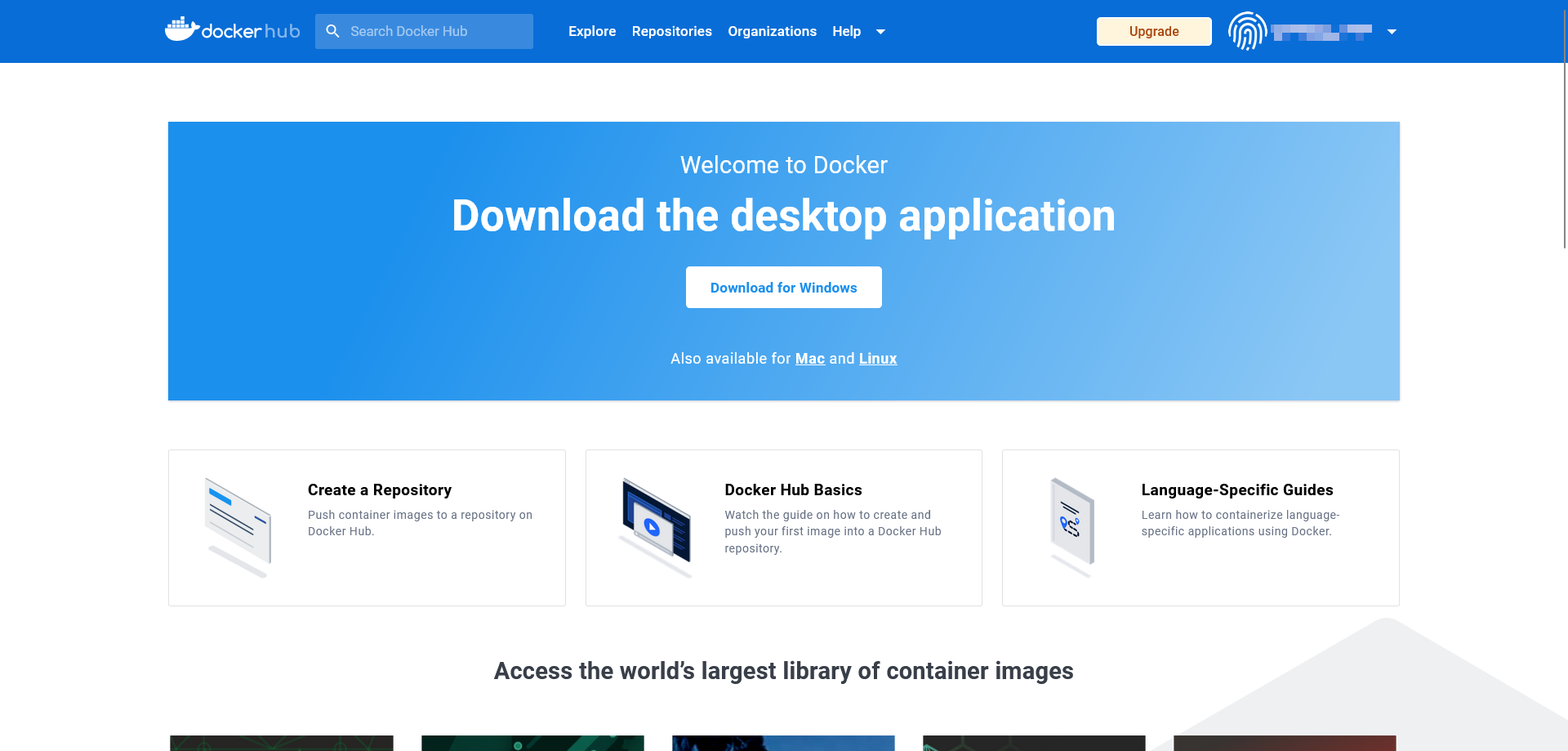
The online services of the Docker project are immediately available following your registration in the browser. Here you can create repositories and workgroups, or search the Docker hub for public resources using ‘Explore’.
You can also register directly on your operating system’s terminal via docker login. A detailed description of the command can be found in the Docker documentation.
In principle, Docker hub is also available to those without an account or Docker ID. In this case, though, only images from public repositories can be loaded. An upload (push) of your own images isn’t possible without a Docker ID.
Create repositories in the Docker hub
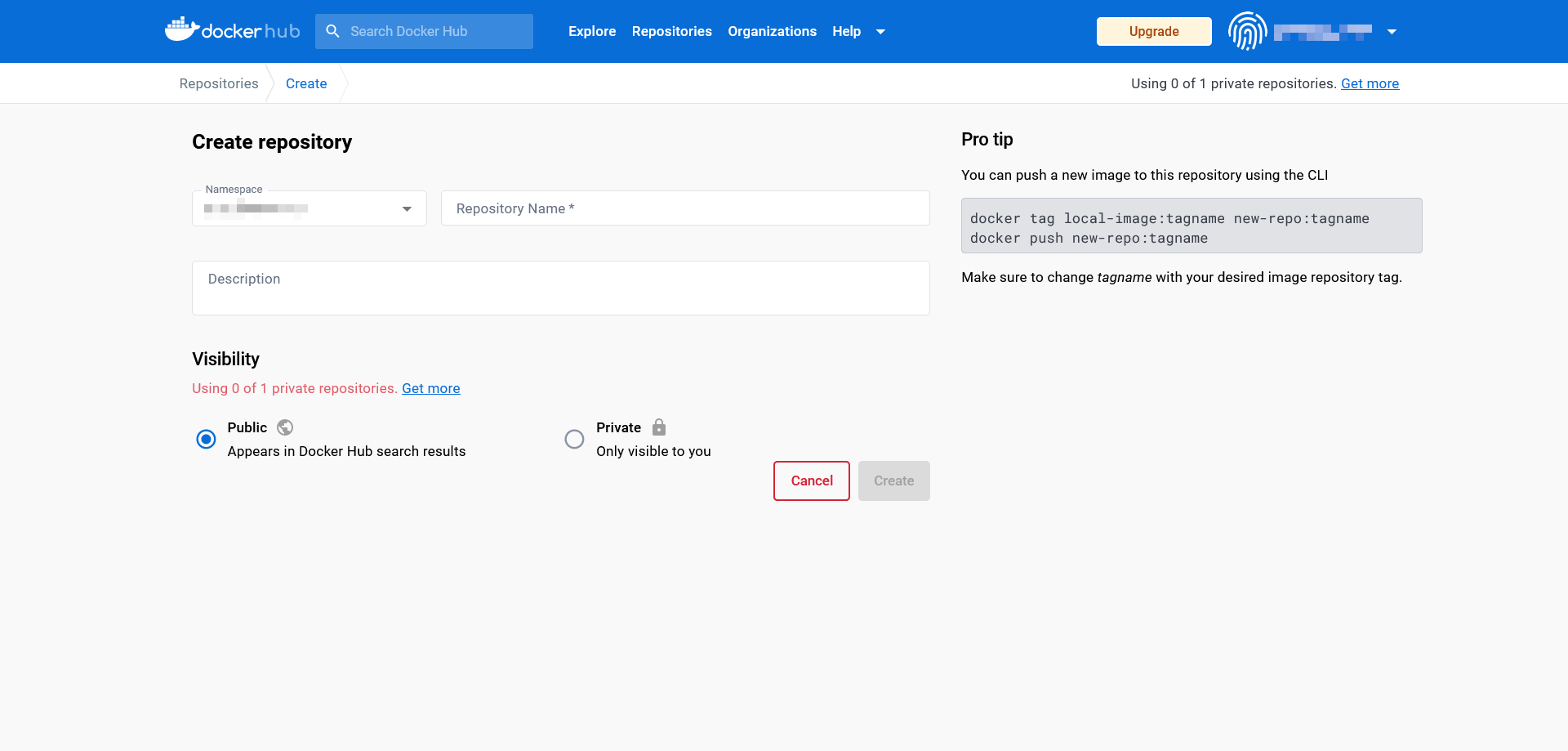
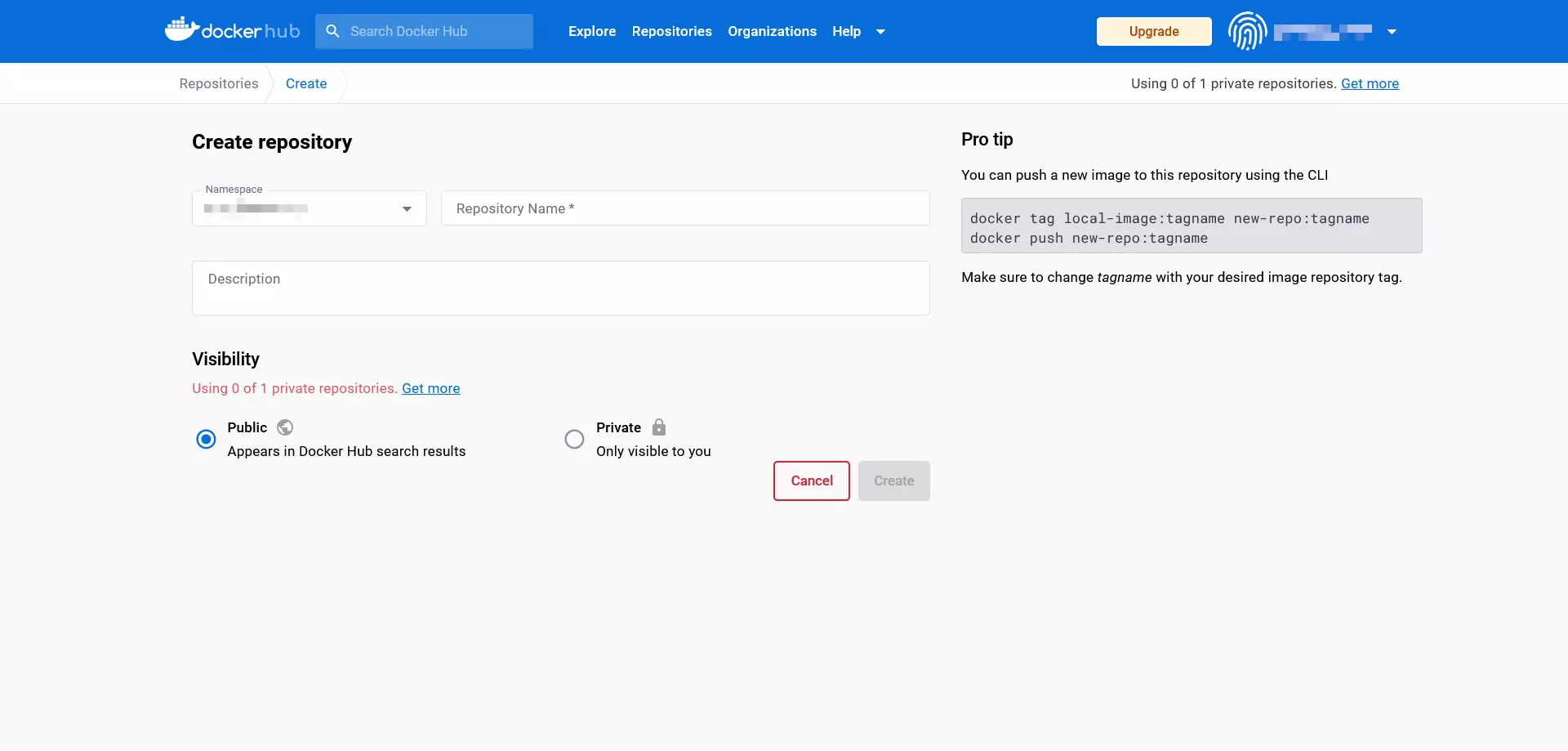
The free Docker hub account contains one private repository, and offers the possibility to create any number of public repositories. If you should need more private repositories, you can unlock these with a paid upgrade.
To create a repository, proceed as follows:
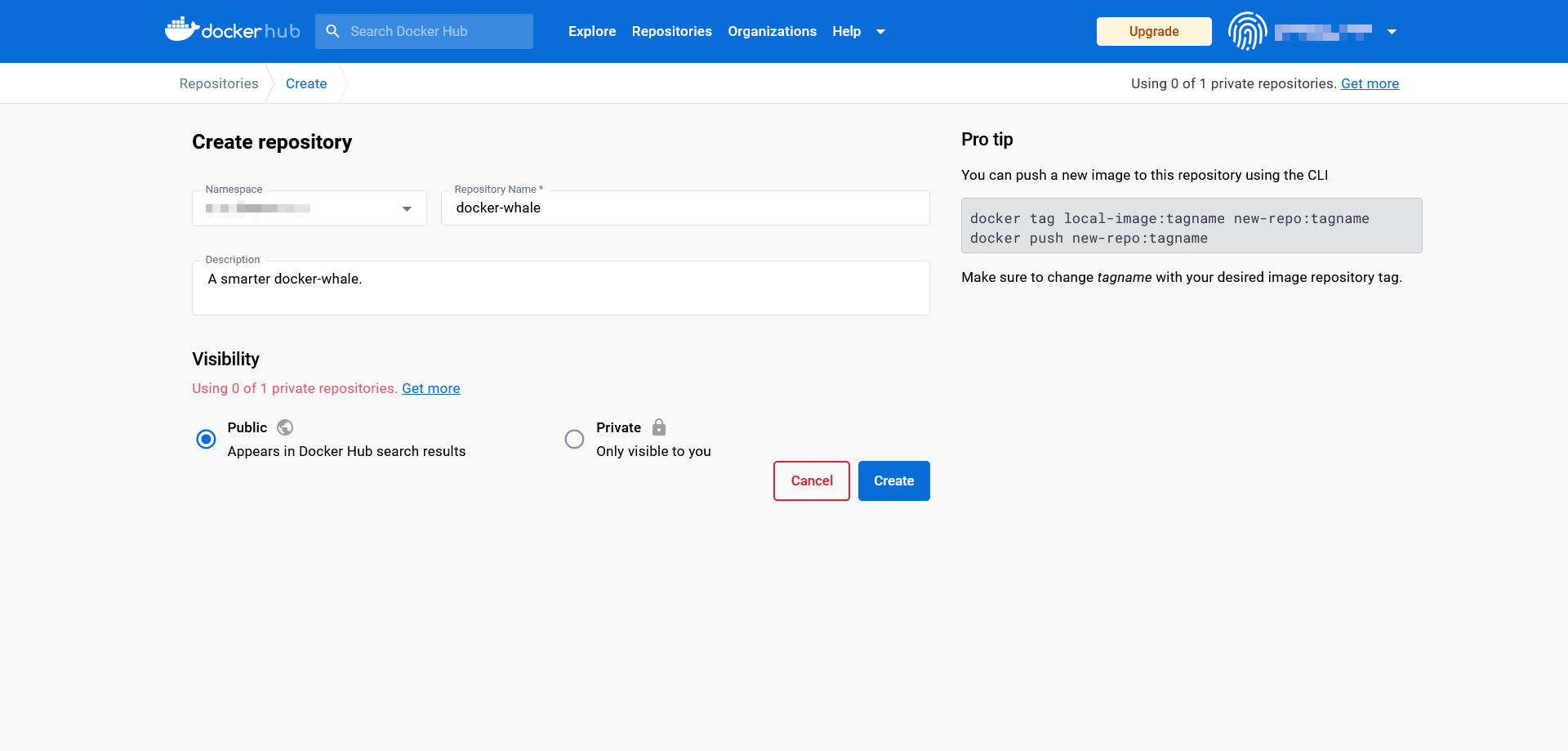
- Choose a namespace: Newly created repositories are automatically assigned to the namespace of your Docker ID. You also have the option to enter the ID of an organisation that you belong to.
- Label the repository: Enter a name for the newly created repository.
- Add a description: Add a short description for your repository.
- Set visibility: Decide whether the repository should be publicly visible (public) or only accessible by you or your organisation (private).
Confirm your entries by clicking ‘Create’.
Create teams and organisations
With the hub, Docker provides a cloud-based platform on which self-created images are centrally managed and conveniently shared with workgroups. In the Docker terminology, these are called organisations. Just like user accounts, organisations receive individual IDs via which images can be provided and downloaded. Rights and roles within an organisation can be assigned via teams. For example, users assigned to the ‘Owners’ team have the authority to create private or public repositories and assign access rights.
Workgroups can also be created and managed directly via the dashboard. Further information about organisations and teams can be found in the Docker documentation.
Working with images and containers
As the first point of contact for official Docker resources, the Docker hub is our starting point for this introduction to handling images and containers. The developer team has provided the demo image whalesay, which will serve as the basis for the following Docker tutorial.
Download Docker images
The whalesay image can be found when you visit the Docker hub website and enter the term whalesay in the search bar next to the Docker logo.
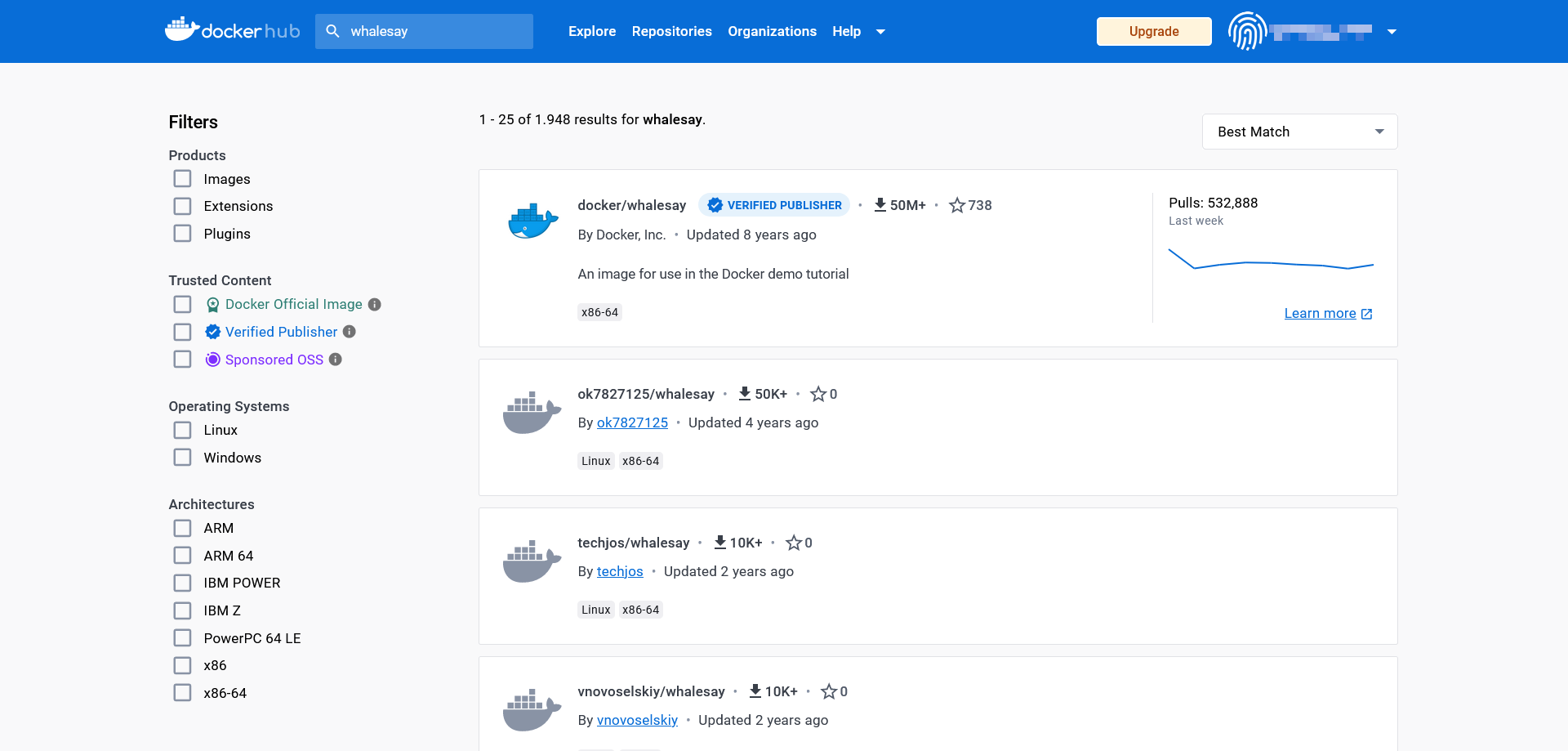
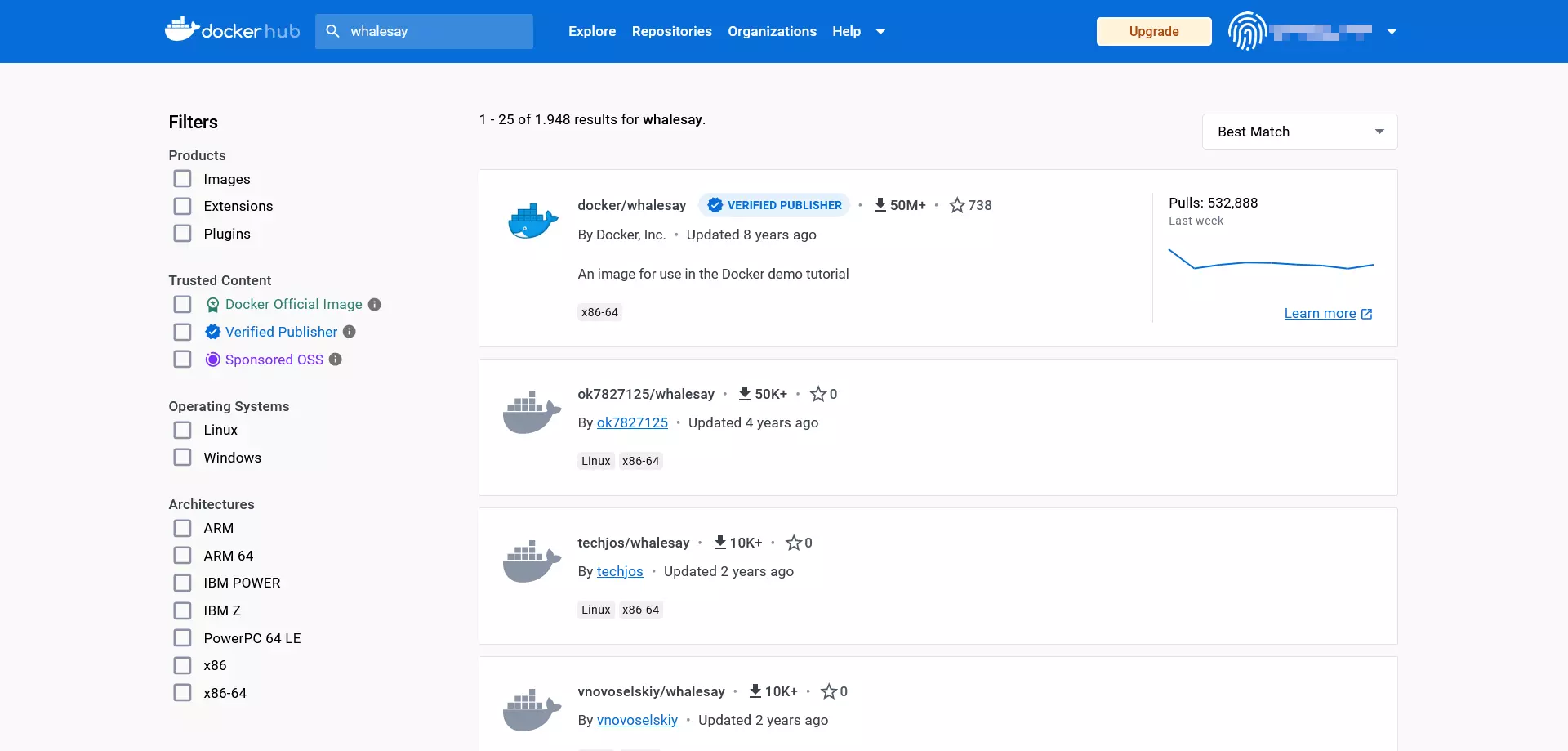
In the search results, click on the resource with the title docker/whalesay to access the public repository for this image.
Docker repositories are always built according to the same pattern. In the header of the page, users find the title of the image, the category of the repository, and the time of the last upload (last pushed).
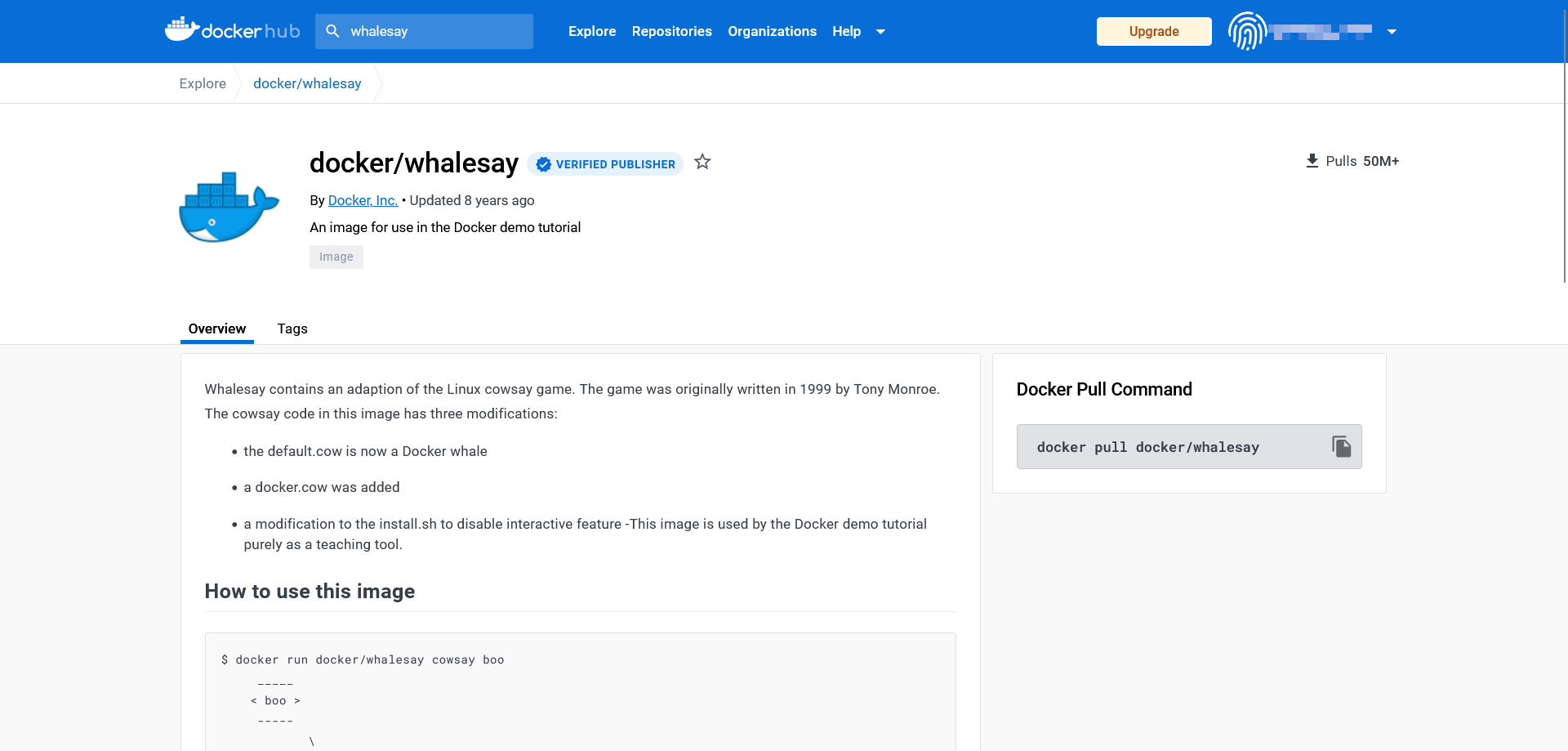
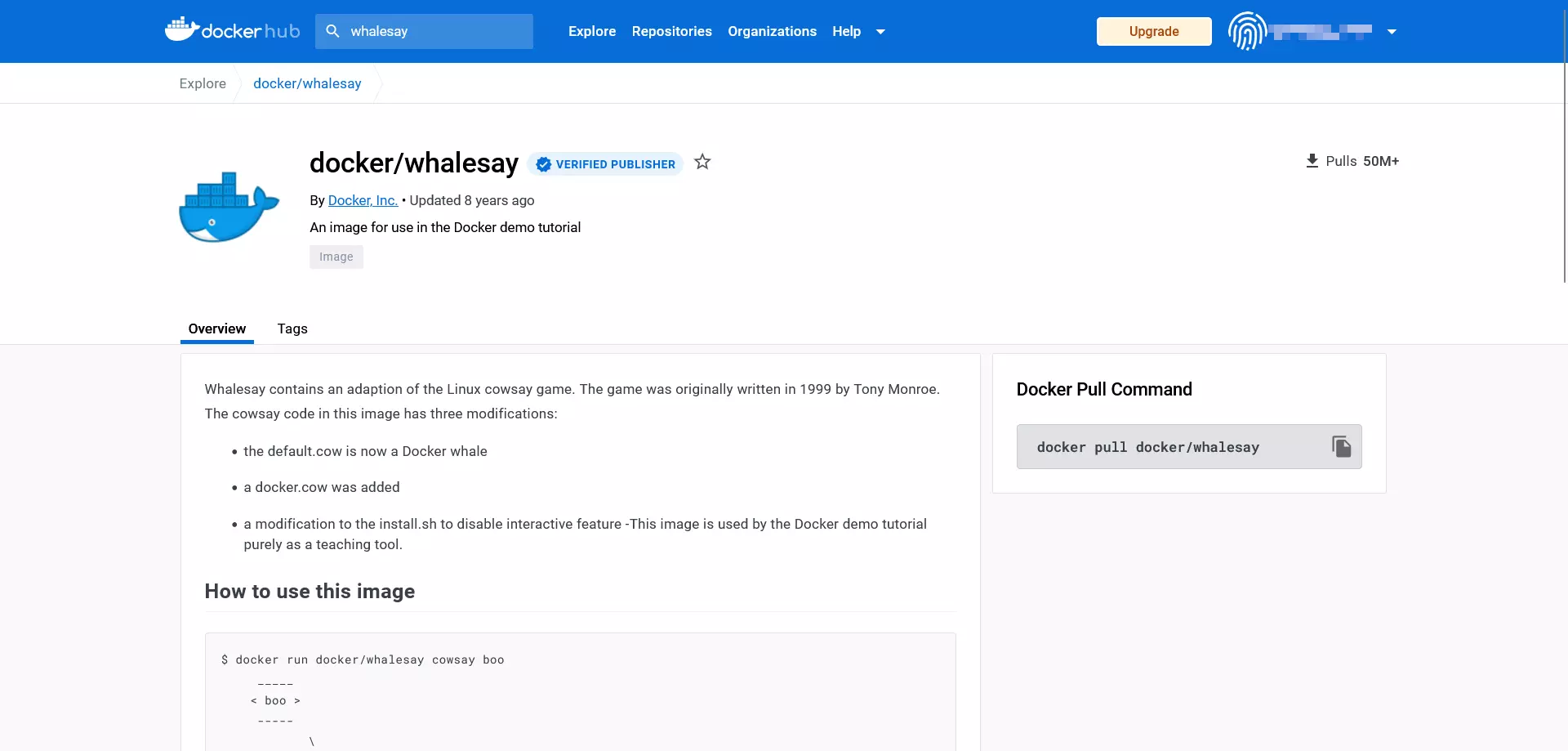
Each Docker repository also offers the following info boxes:
- Description: Detailed description, usually including directions for use
- Docker pull command: Command line directive used to download the image from the repository (
pull) - Owner: Information about the creator of the repository
- Comments: Comment section at the end of the page
The information boxes of the repository show that whalesay is a modification of the open-source Perl script cowsay. The program, developed by Tony Monroe in 1999, generates an ASCII graphic in the form of a cow, which appears along with a message in the user’s terminal.
To download docker/whalesay, use the command docker pull:
docker pull [OPTIONS] NAME [:TAG|@DIGEST]The command docker pull instructs the daemon to load an image from the repository. You specify which image this is by entering the image title (NAME). You can also instruct Docker on how the desired command should be carried out (OPTIONS). Optional input includes tags (:TAG) and individual identification numbers (@DIGEST), which allow you to download a specific version of an image.
A local copy of the docker/whalesay image is obtained with the following command:
docker pull docker/whalesayIn general, you can skip this step. If you’d like to launch a container, the Docker daemon automatically downloads the images from the repository that it can’t find on the local system.
Launch Docker images as containers
To start a Docker image, use the command docker run:
docker run [OPTIONS] IMAGE [:TAG|@DIGEST] [CMD] [ARG...]The only obligatory part of the docker run command is the name of the desired Docker image. But when you launch a container, you also have the chance to define extra options, TAGs, and DIGESTs. In addition, the docker run command can be combined with other commands that are run as soon as the container starts. In this case, the CMD (COMMAND, defined by the image creator and executed automatically when the container is started) is overwritten. Other optional configurations can be defined through additional arguments (ARG…). This makes it possible, for example, to add users or to transfer environment variables.
Use the command line directive
docker run docker/whalesay cowsay booto download the existing Perl script as an image and run in a container. You’ll see that whalesay differs significantly from the source script.
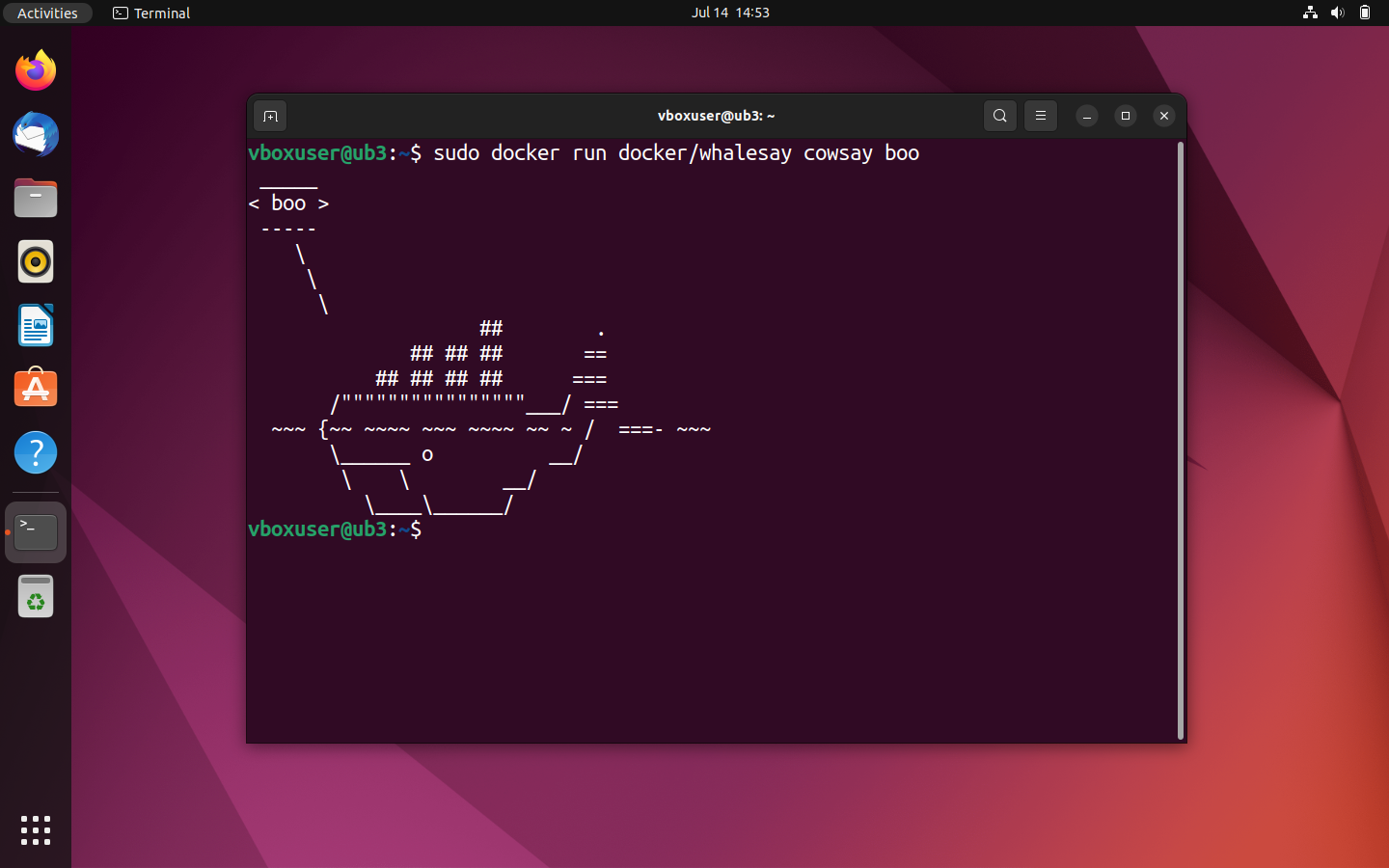
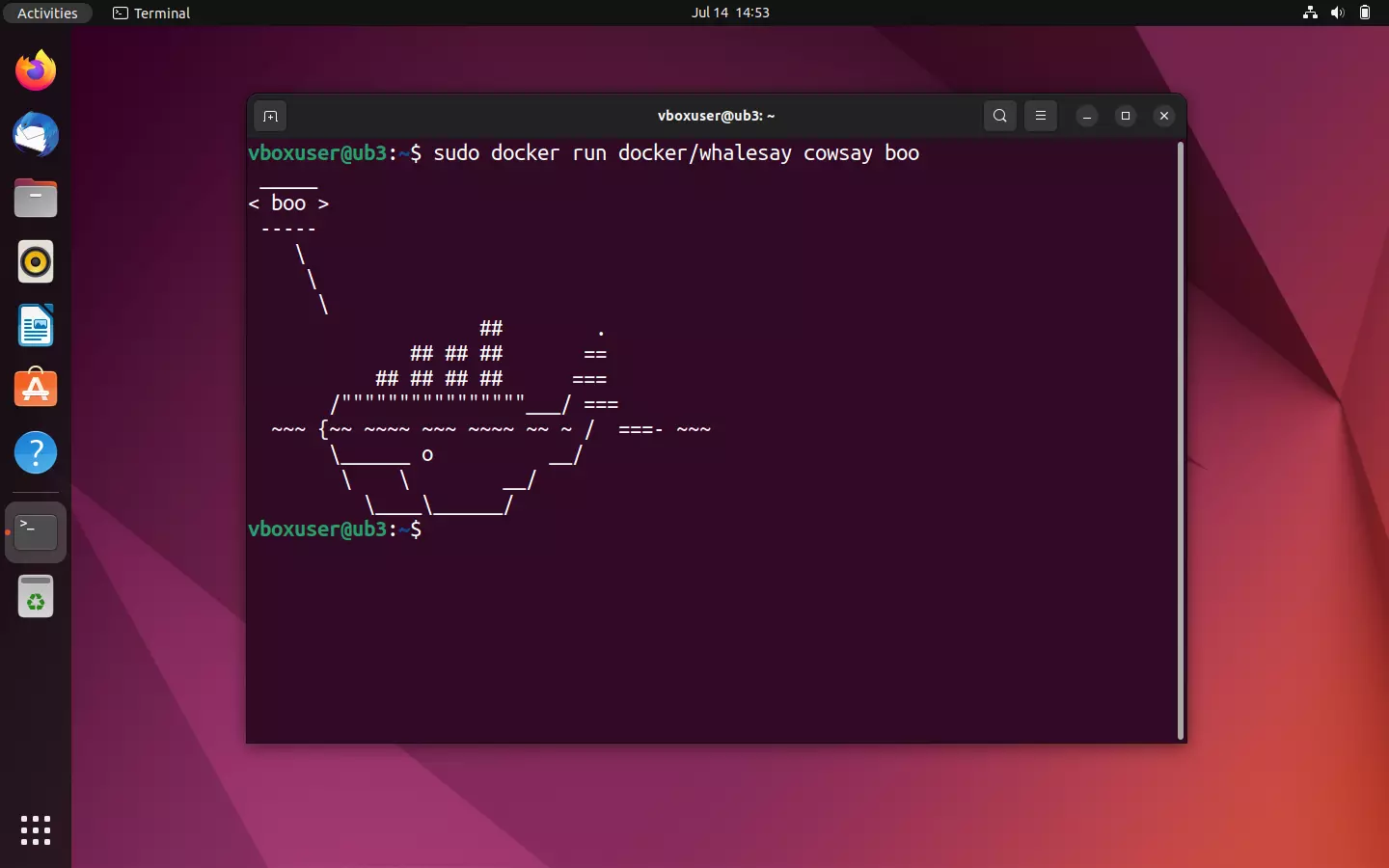
If the image docker/whalesay is run, the script outputs an ASCII graphic in the form of a whale as well as the text message ‘boo’, passed with the cowsay command in the terminal.
As with the test run, the daemon first looks for the desired image in the local file directory. Since there is no package of the same name, a pull from the Docker repository is initiated. Then the daemon starts the modified cowsay program. If this has run through, then the container is ended automatically.
Like cowsay, Docker’s whalesay also offers the option to intervene in the program sequence to influence the text output in the terminal. Test this function by replacing the ‘boo’ in the output command with any string or with a lame whale joke, for example.
sudo docker run docker/whalesay cowsay What did the shark say to the whale? What are you blubbering about?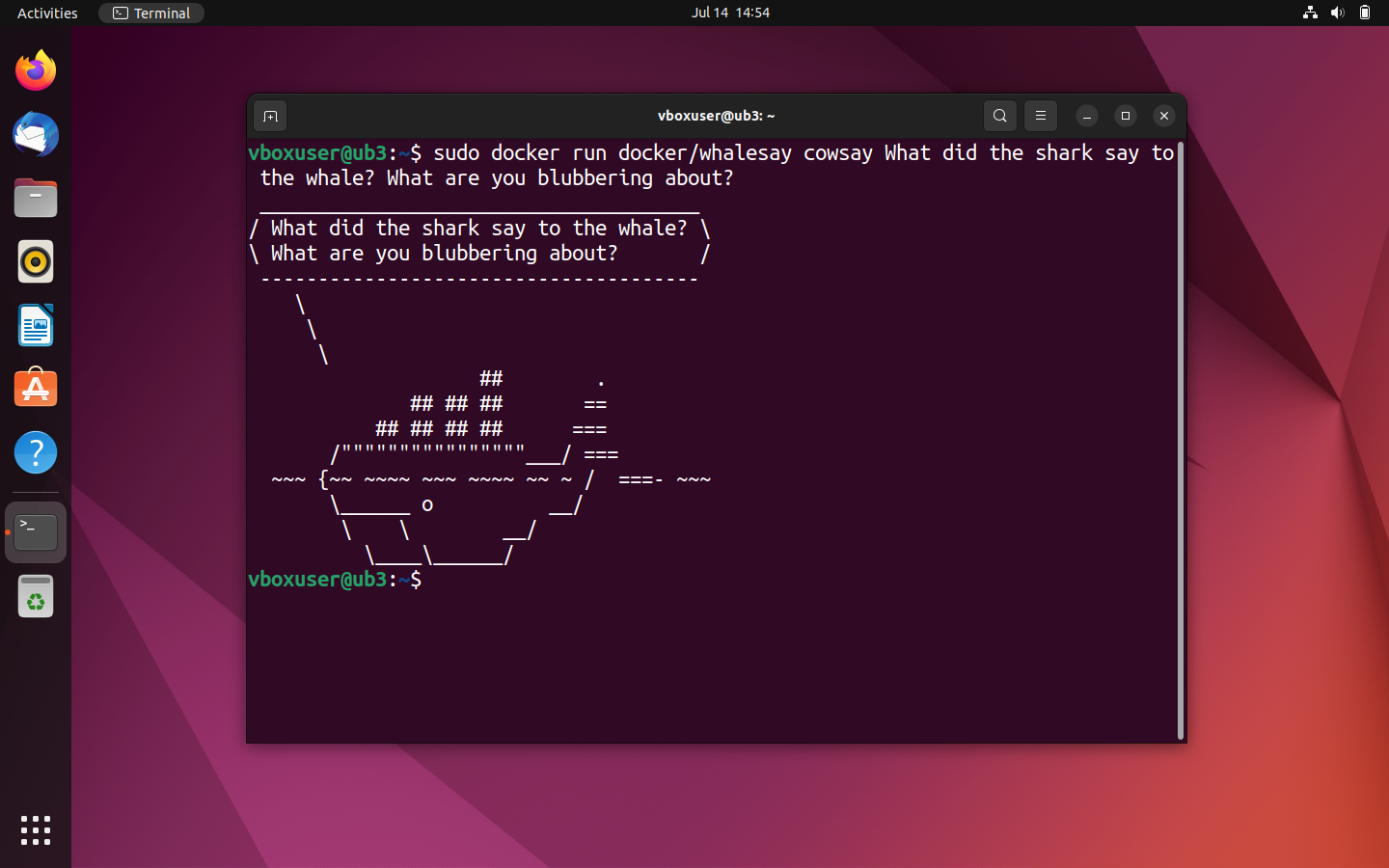
Display all Docker images on the local system
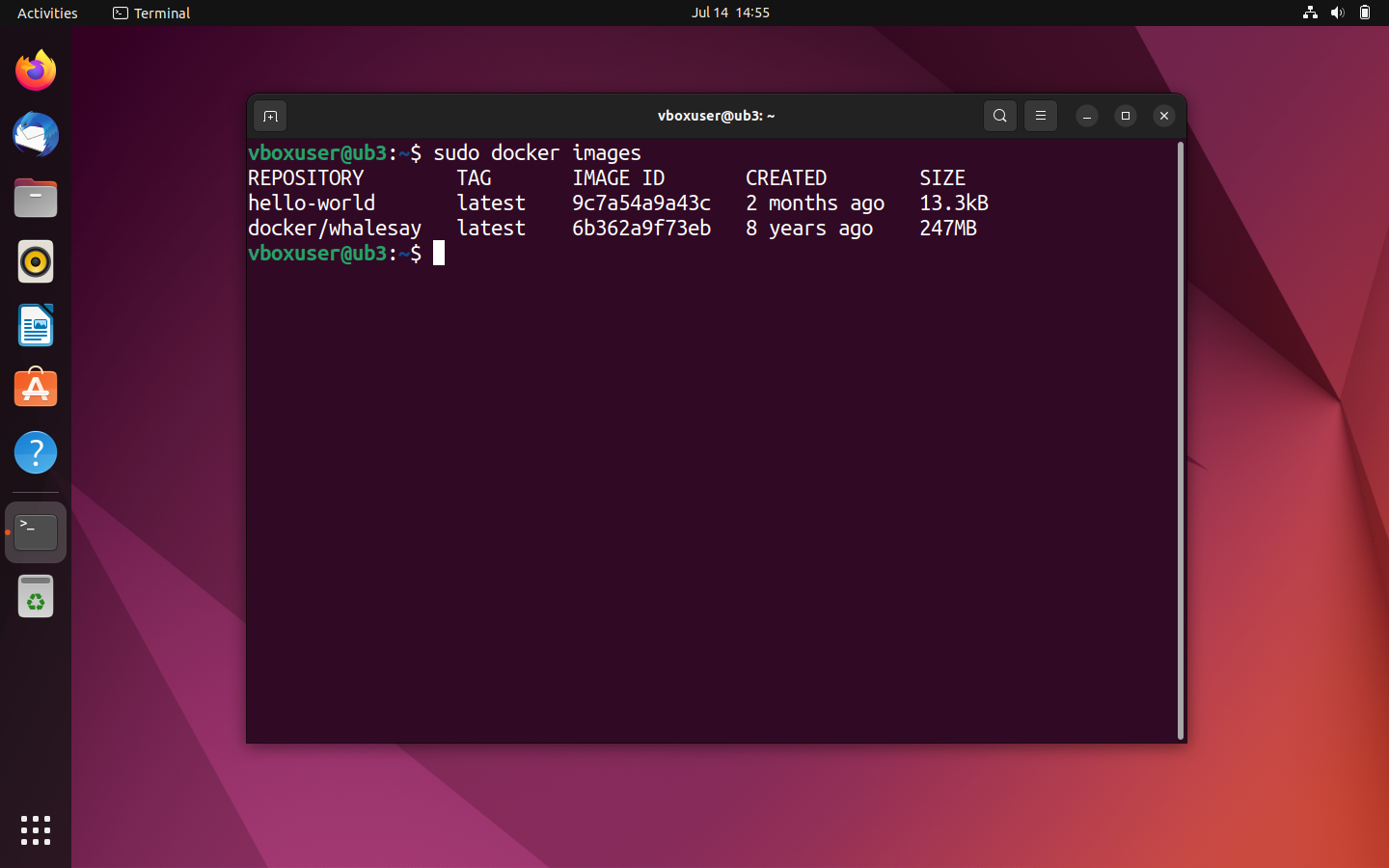
If you aren’t sure whether you’ve already downloaded a particular image, you can access an overview of all the images on your local system. Use the following command line directive:
sudo docker imageThe command docker images (alternative docker image ls) outputs all local images including file size, tag, and image ID.
If you start a container, the underlying image is downloaded as a copy from the repository and permanently stored on your computer. This saves you time if you want to access the image at a later time. A new download is only initiated if the image source changes, for example, if a current version is available in the repository.
Display all containers on the local system
If you want to output an overview of all containers that are running on your system or have been run in the past, use the command line directive docker ps in combination with the option --all (short: -a):
sudo docker ps -a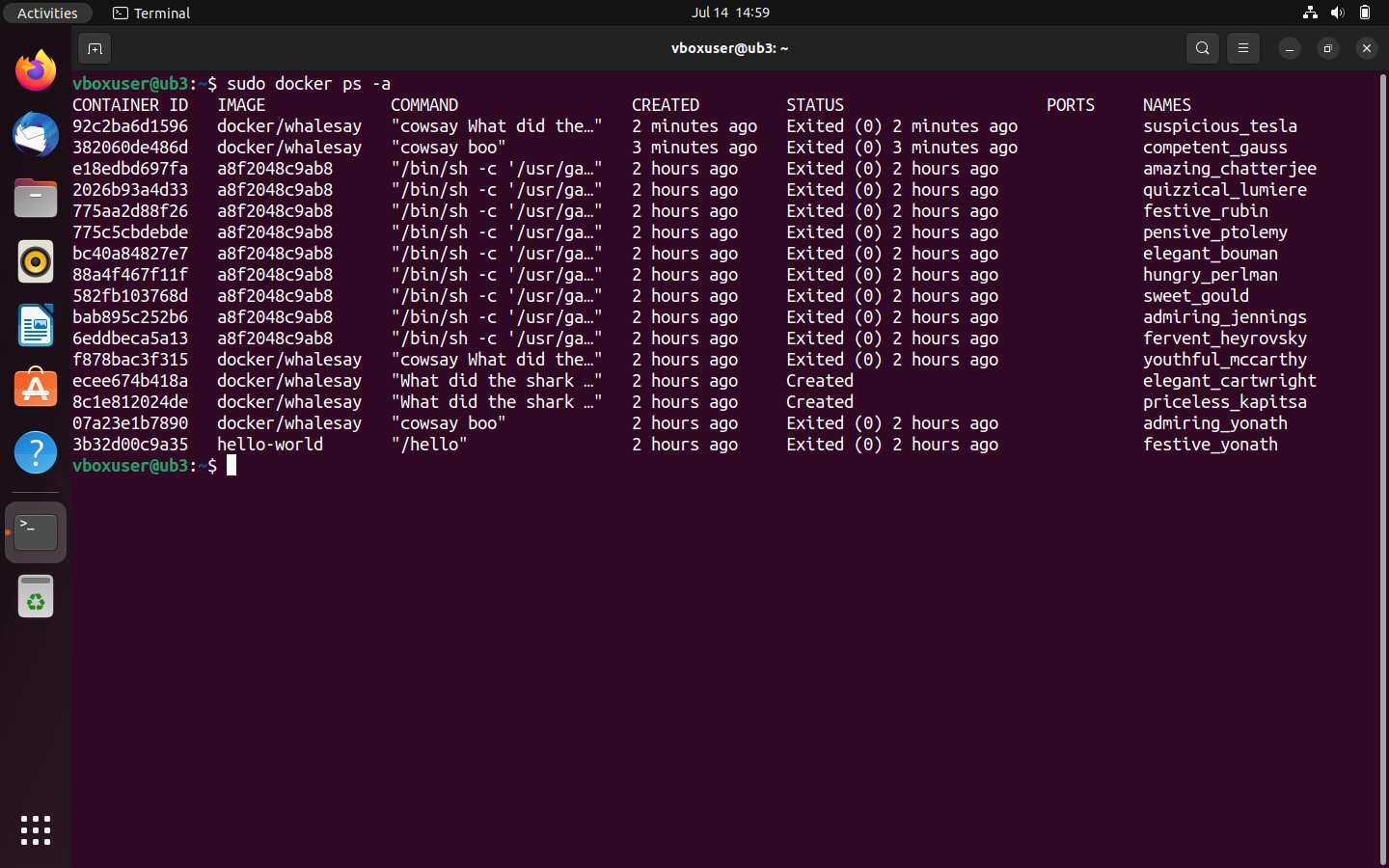
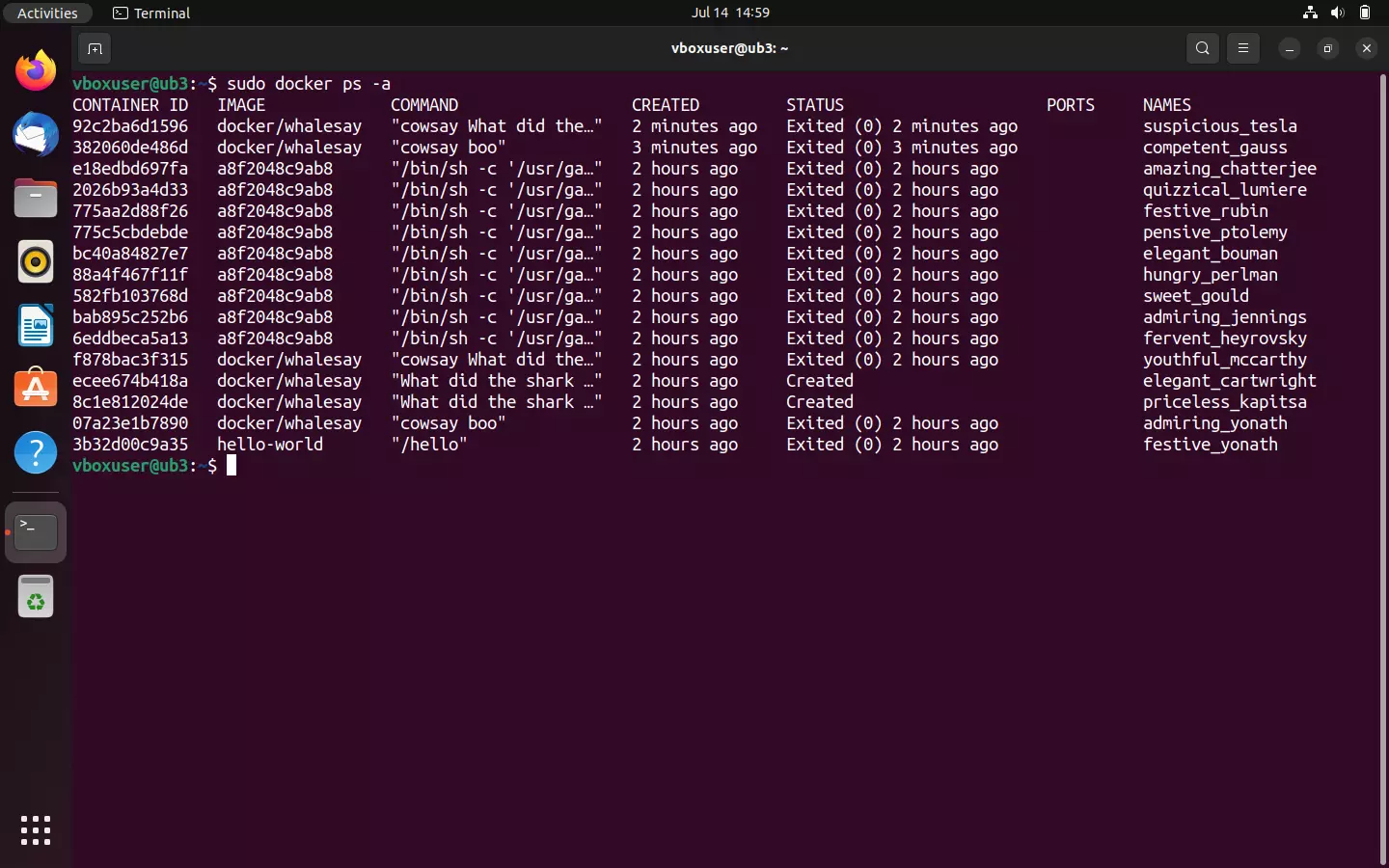
The terminal output contains information like the respective container ID, the underlying image, the command run when the container was started, the time when the container was started, and the status.
If you only want to show the containers that are currently running on your system, use the command line directive docker ps without any other options:
sudo docker psCurrently, though, there should be no running containers on your system.
Create Docker images
Not that our Docker tutorial has shown you how to find images in the Docker hub, download them, and run them on any system with the Docker engine installed. But with Docker, you won’t only be able to access the extensive range of apps available in the registry. The platform also offers a wide range of options for creating your own images and sharing them with other developers.
In the introductory chapters of this Docker tutorial, you already learned that each Docker image is based on a Dockerfile. You can imagine Dockerfiles as a kind of building template for images. These are simple text files that contain all the instructions Docker needs to create an image. In the following steps, you’ll learn how to write this type of Dockerfile and instruct Docker to use this as the basis for your own image.
- Create new directory: The Docker developer team recommends creating a new directory for each Dockerfile. Directories are easily created under Linux in the terminal. Use the following command line directive to create a directory with the name mydockerbuild:
mkdir mydockerbuild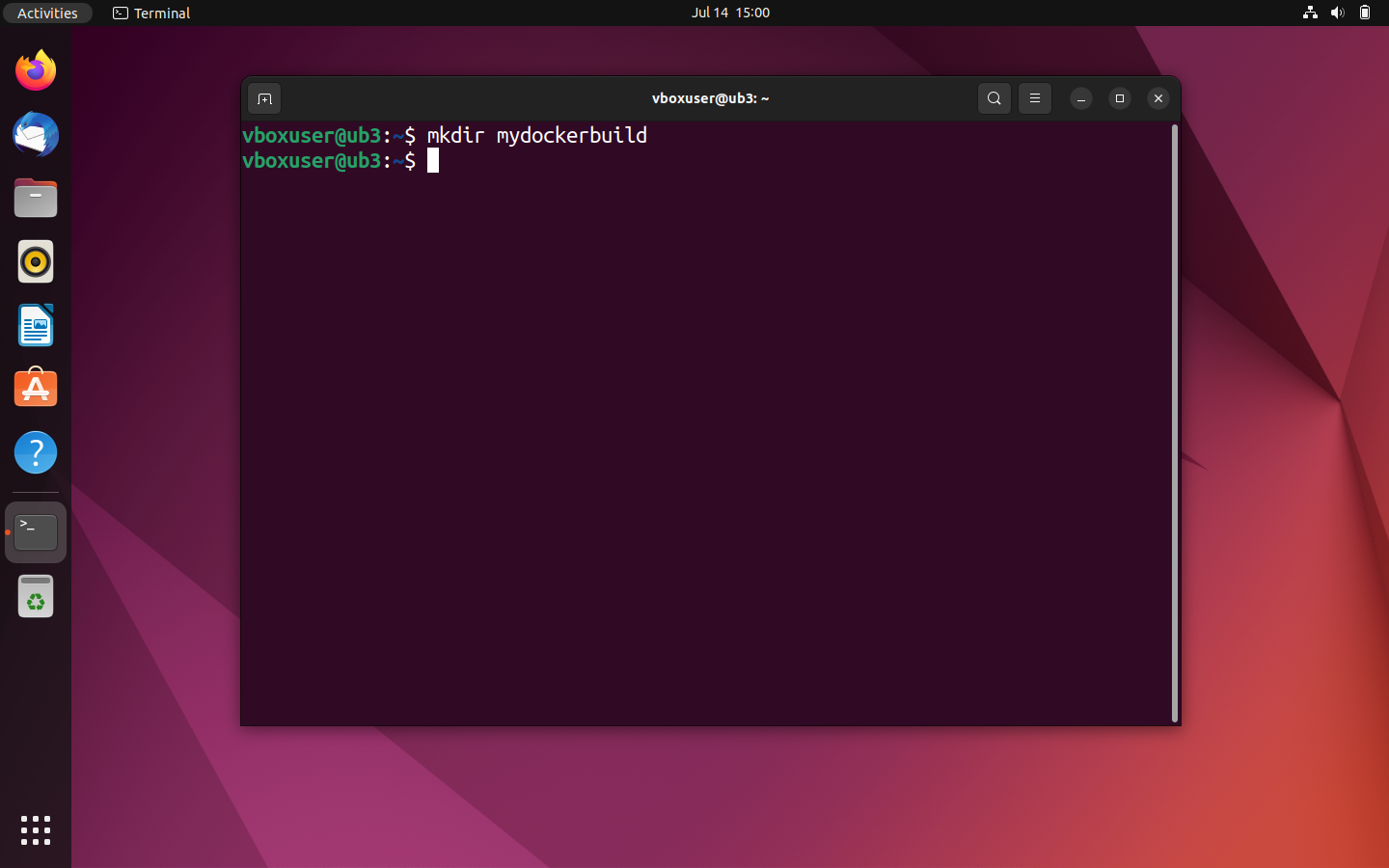
- Navigate in the new directory: Use the command
cdto navigate in the newly created working directory.
cd mydockerbuild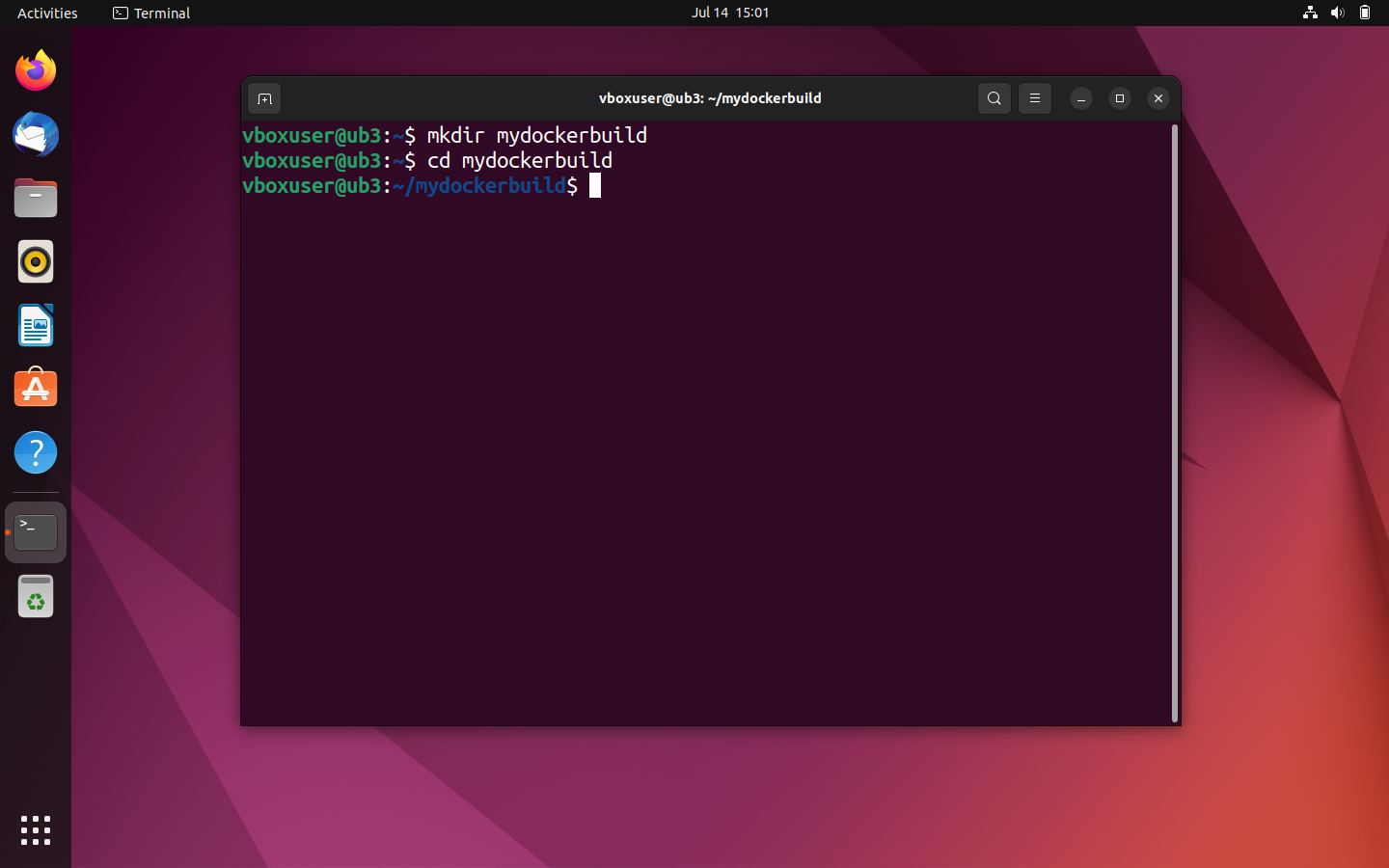
- Create new text file: You can also easily create text files via the terminal with Ubuntu. To do this, use an editor like Nano or Vim. Create a text file with the name Dockerfile in the mydockerbuild directory.
nano Dockerfile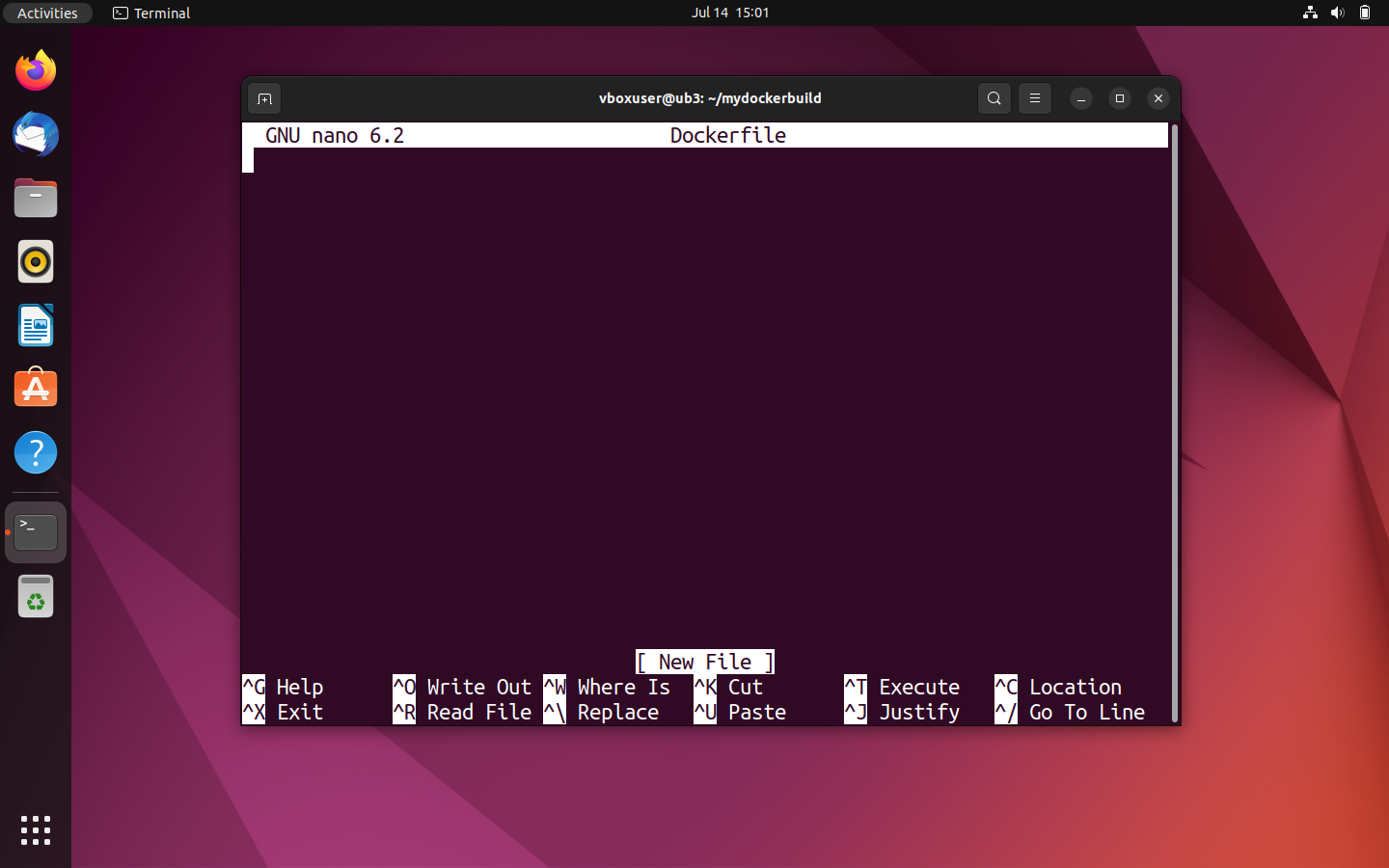
- Write Dockerfile: The newly created text file serves as a building plan for your self-developed image. Instead of programming the image from the ground up, in this Docker tutorial we’ll use the demo image docker/whalesay as a template. This is integrated using the command FROM in your Dockerfile. Use the tag :latest to refer to the newest version of the image.
FROM docker/whalesay:latestSo far, the way that docker/whalesay works is by you putting words into its mouth. In the terminal, the exact text that you entered is displayed in combination with the command to start the container. But it would be more interesting if the script automatically generated new text output. This can be done, for example, by using the fortunes program available on every Linux system. The basic function of fortunes is to generate fortune cookie sayings and humorous aphorisms. Use the following command to update your current local package index and install fortunes:
RUN apt-get -y update && apt-get install -y fortunesThen define a CMD statement. This is executed after the RUN command, unless it’s been overwritten by the call (docker run image CMD). Use the following command to run the fortunes program with the -a option (‘Choose from all databases’) and display the output via the cowsay program in the terminal:
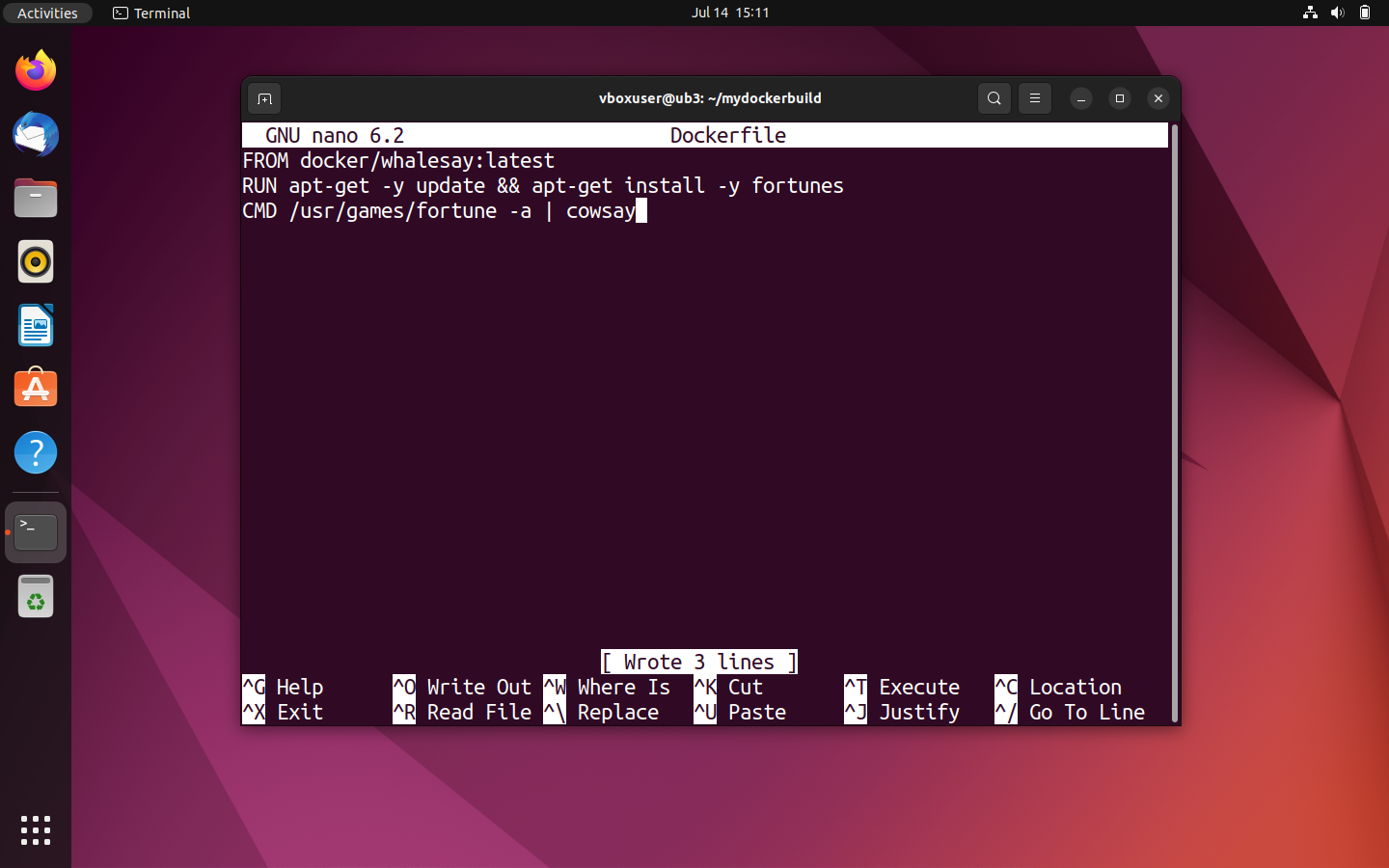
CMD /usr/games/fortune -a | cowsayYour Dockerfile should look as follows:
FROM docker/whalesay:latest
RUN apt-get -y update && apt-get install -y fortunes
CMD /usr/games/fortune -a | cowsay
Note: Commands within a Dockerfile are always single-spaced and always start with a keyword. The underlying syntax is case-insensitive so it doesn’t matter whether you write in upper- or lowercase. A consistent capitalisation of keywords has been established, though.

-
Save text file: Save your entry. If you’re using the Nano editor, save with the key combination [CTRL] + [O] and confirm with [ENTER]. Nano gives you the message that three lines have been written to the selected file. Close the text editor with the key combination [CTRL] + [X].
-
Create image as Dockerfile: To create an image from a Dockerfile, navigate first to the directory where the text file is located. Start the image creation with the command line directive
docker build. If you want to individually name the image or provide it with a tag, use the option-tfollowed by the desired combination of label and tag. The standard format isname:tag.
In the current example, an image with the name docker-whale should be created:
docker build -t docker-whale .The final period indicates that the underlying Dockerfile is found in the selected directory. You also have the option to specify a file path or a URL for the source files.
The build process starts as soon as the command is confirmed with [ENTER]. First, the Docker daemon checks whether it has all the files it needs to create the image. In Docker terminology, this is summarised under the term ‘context’.
Then, the docker/whalesay image with the tag :latest is located:
If the required context for the image creation already exists in its entirety, then the Docker daemon starts the image templated attached via FROM in a temporary container and moves to the next command in the Dockerfile. In the current example, this is the RUN command, which causes the fortunes program to be installed.
At the end of each step of the image creation process, Docker gives you an ID for the corresponding layer that’s created in the step. This means that each line in the underlying Dockerfile corresponds to a layer of the image built on it.
When the RUN command is finished, the Docker daemon stops the container created for it, removes it, and starts a new temporary container for the layer of the CMD statement. At the end of the creation process, this temporary container is also terminated and removed. Docker gives you the ID of the new image:
Successfully built a8f2048c9ab8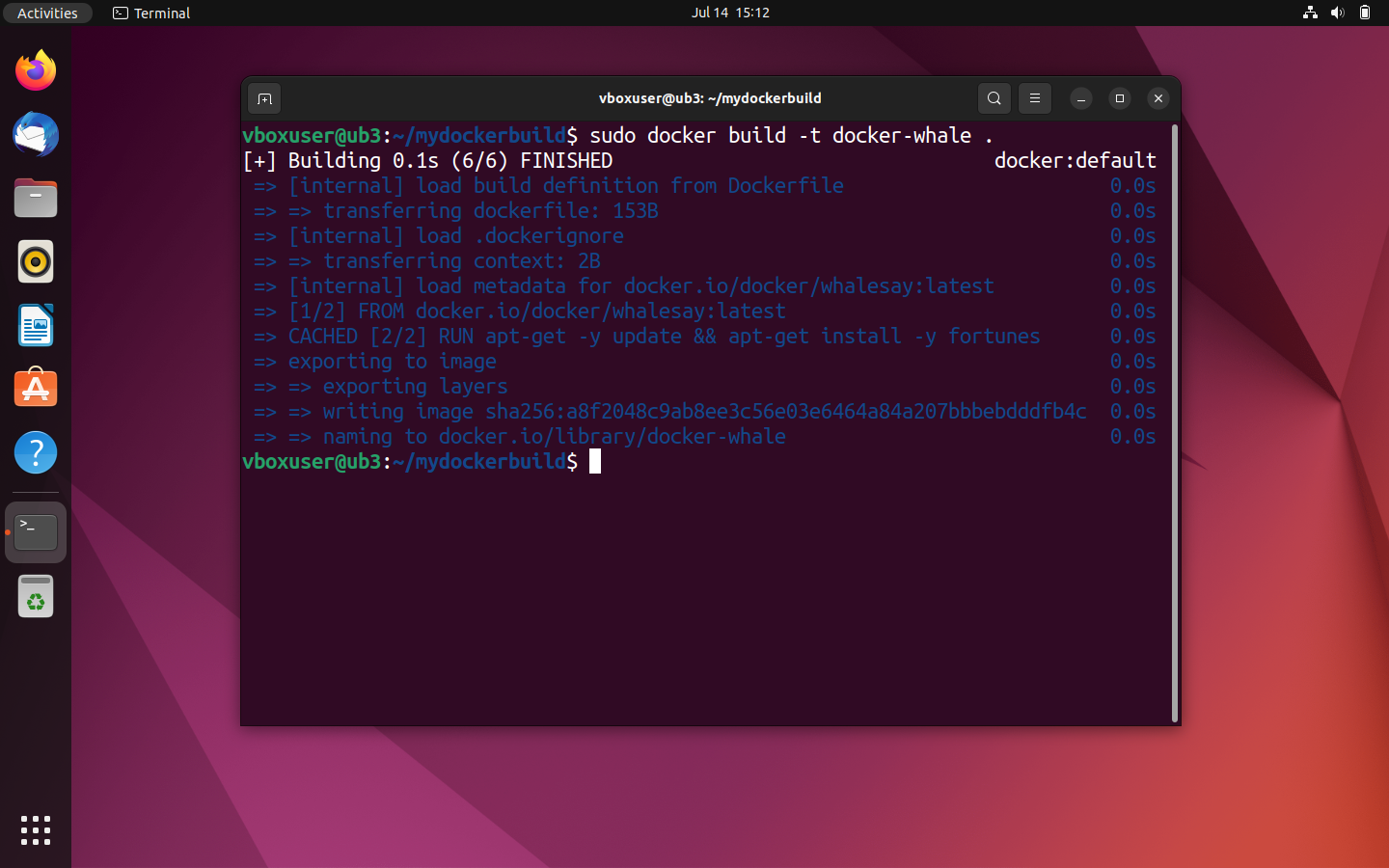
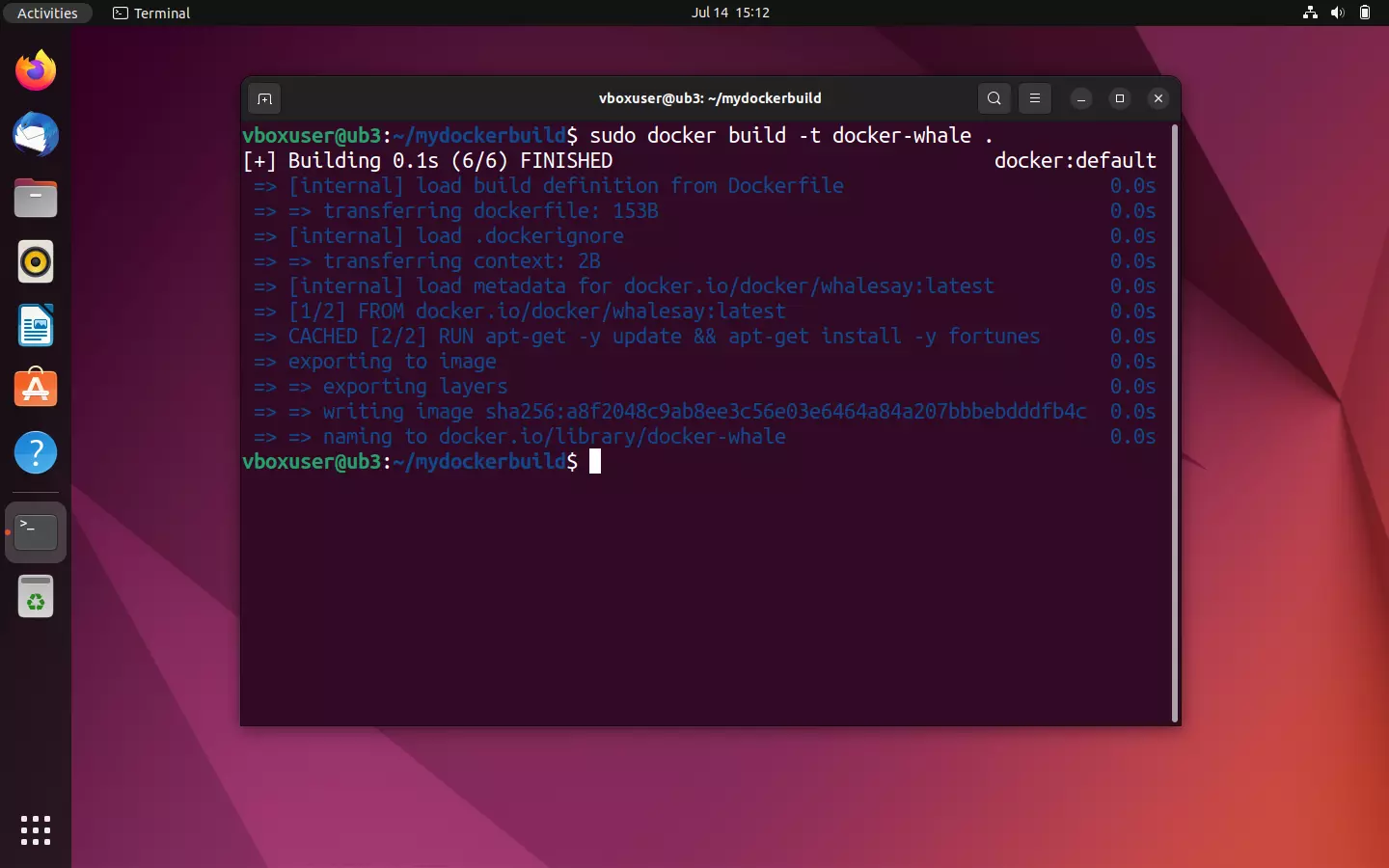
Your newly created image can be found under the name docker-whale in the overview of your locally saved images.
sudo docker images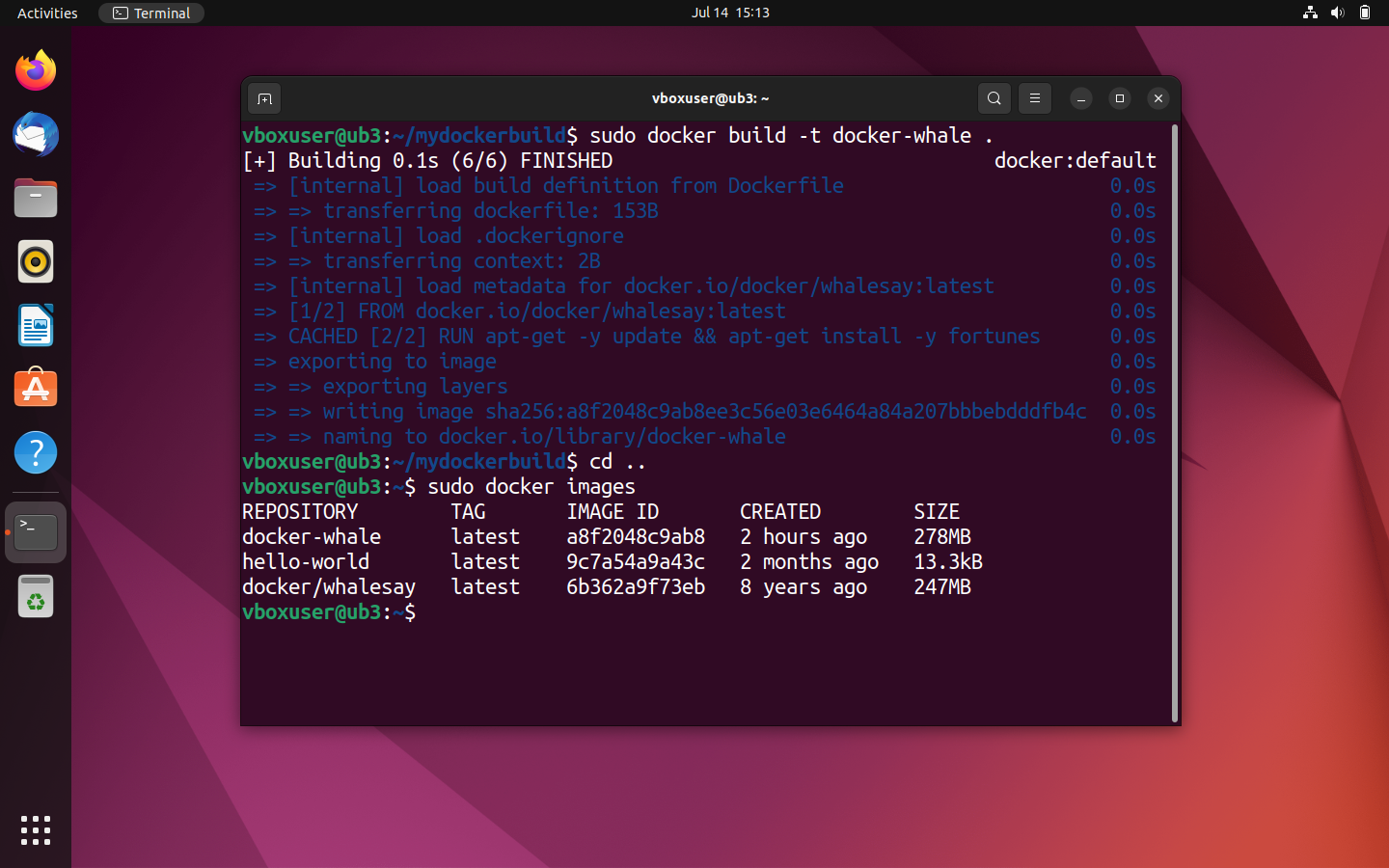
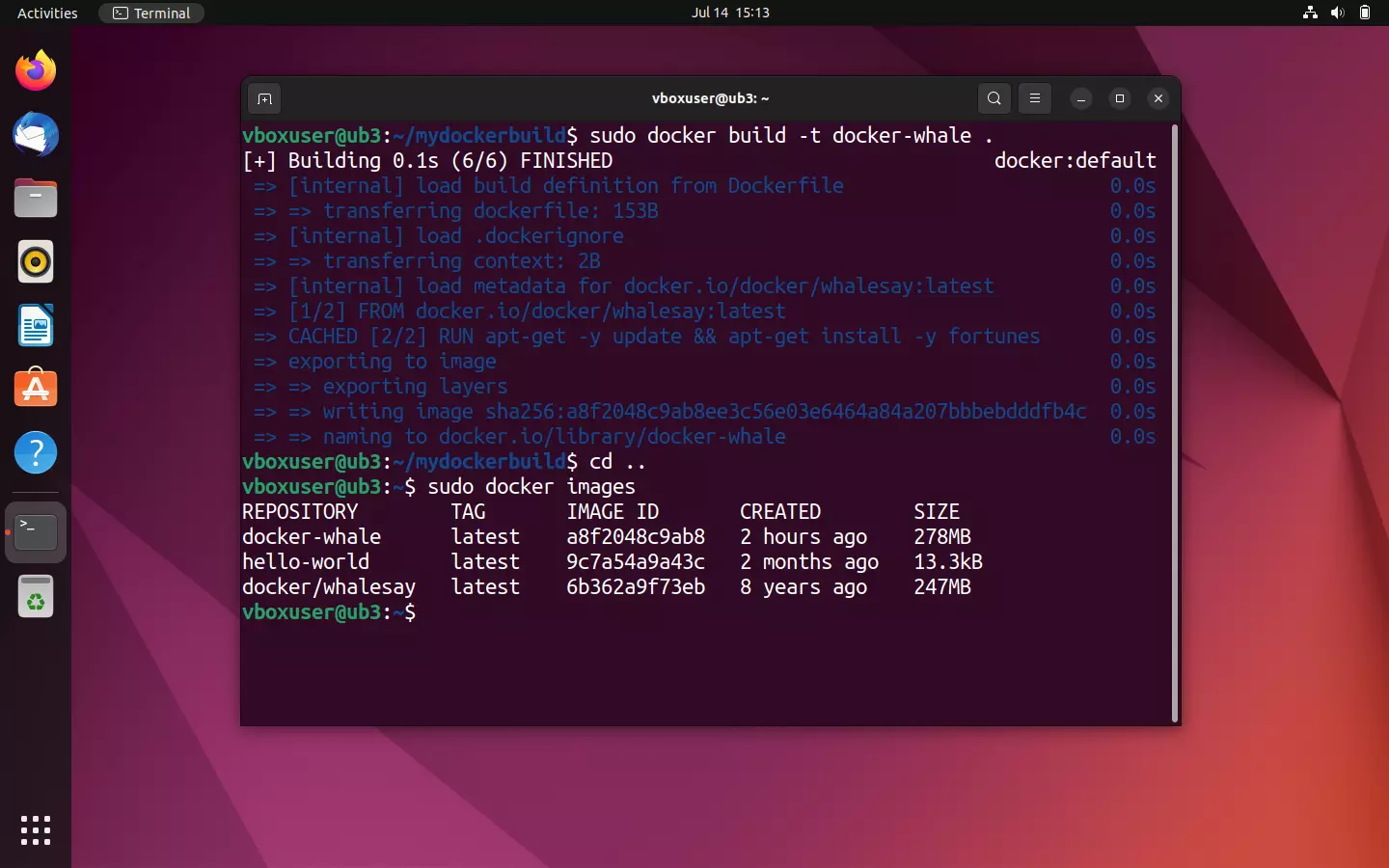
To start a container from your newly created image, use the command line directive sudo docker run in combination with the name of the image:
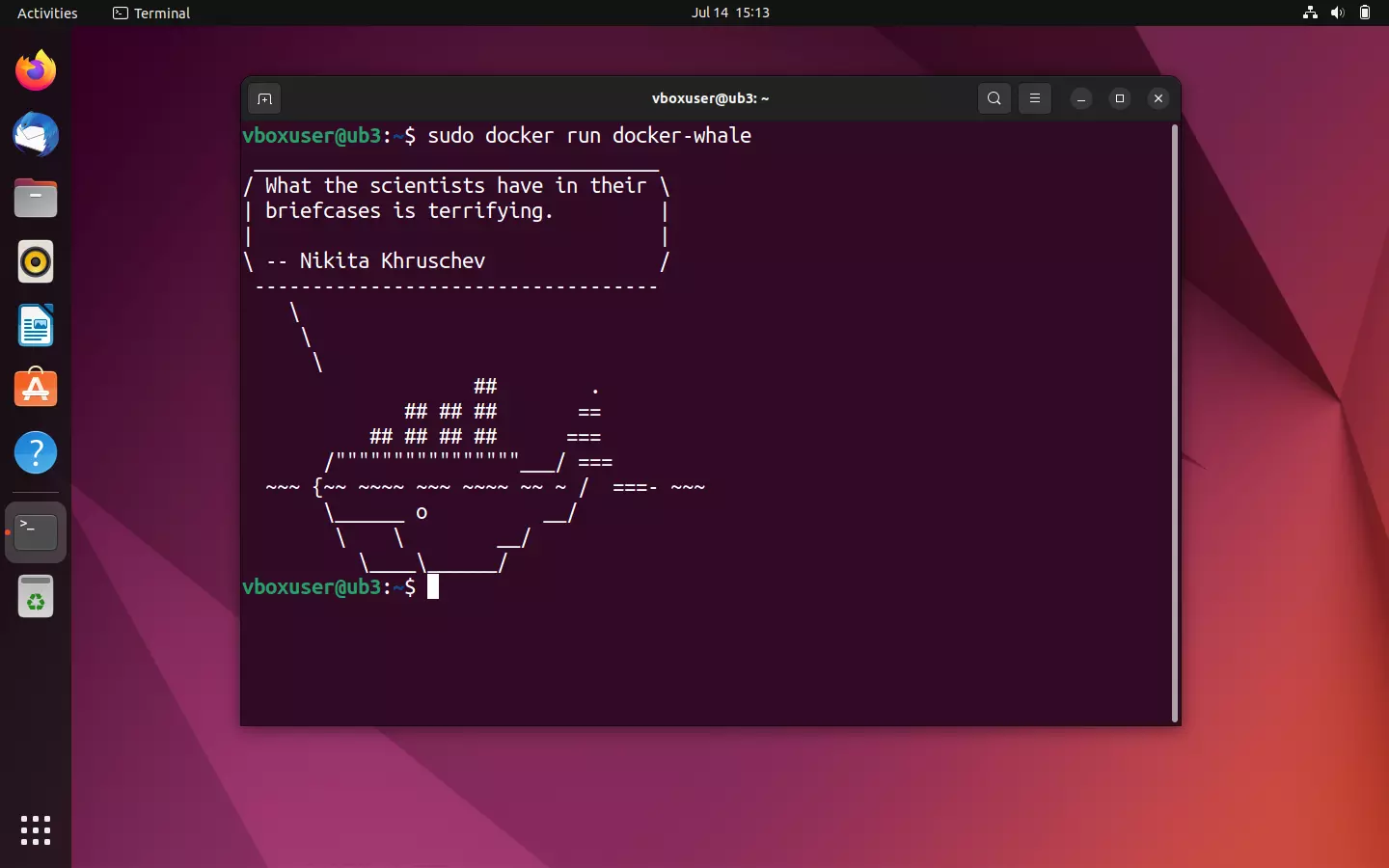
sudo docker run docker-whaleIf the image was created correctly from the Dockerfile, your whale should now inspire you with more or less wise words. Note: Every time you restart the container, a new phrase is generated.
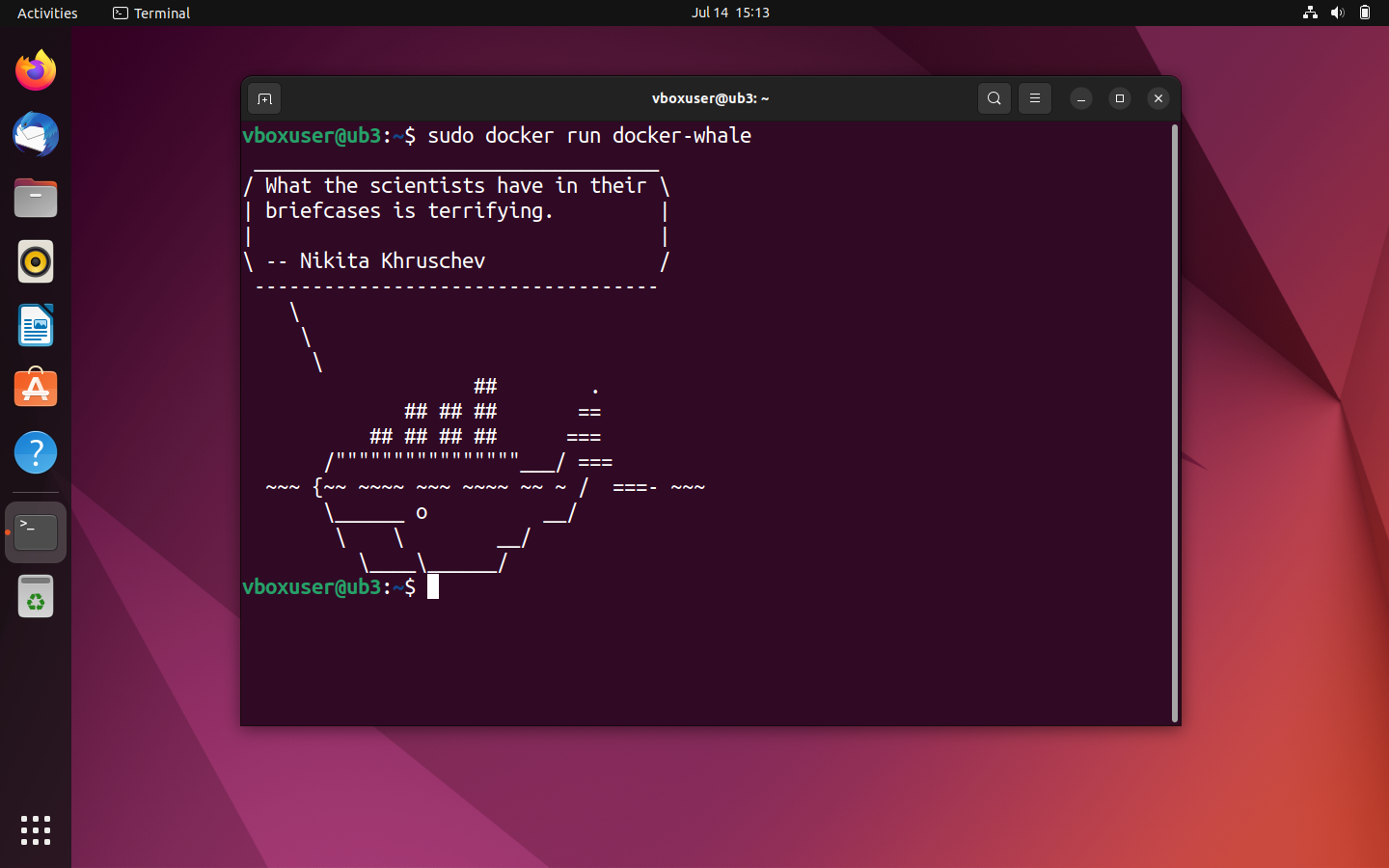
You can learn how to create Docker images in even more detail in our separate article on the topic.
Tag Docker images and upload them to Docker hub
If you want to upload your custom docker-whale image to the hub and make it available to either the community or a workgroup, you first need to link it with a repository of the same name in your own personal namespace. In the Docker terminology, this step is known as tagging.
To publish an image in the Docker hub, proceed as follows:
- Create a repository: Log in to the Docker hub using your Docker ID and personal password and create a public repository with the name docker-whale.

- Determine the image ID: Determine the ID of your custom image docker-whale using the command line directive
docker images.
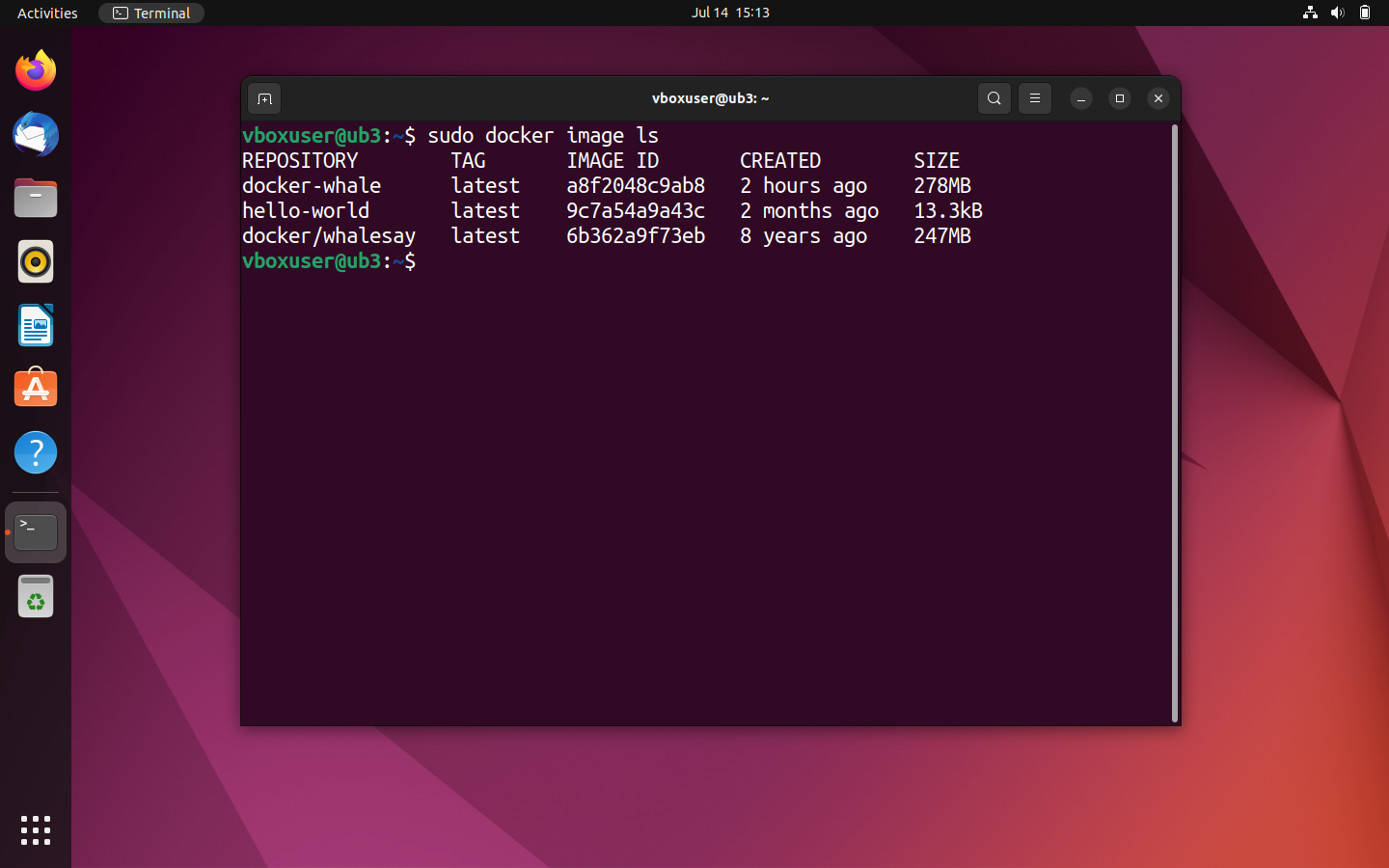
In our case the image ID is a8f2048c9ab8. We need this for tagging in the next step.
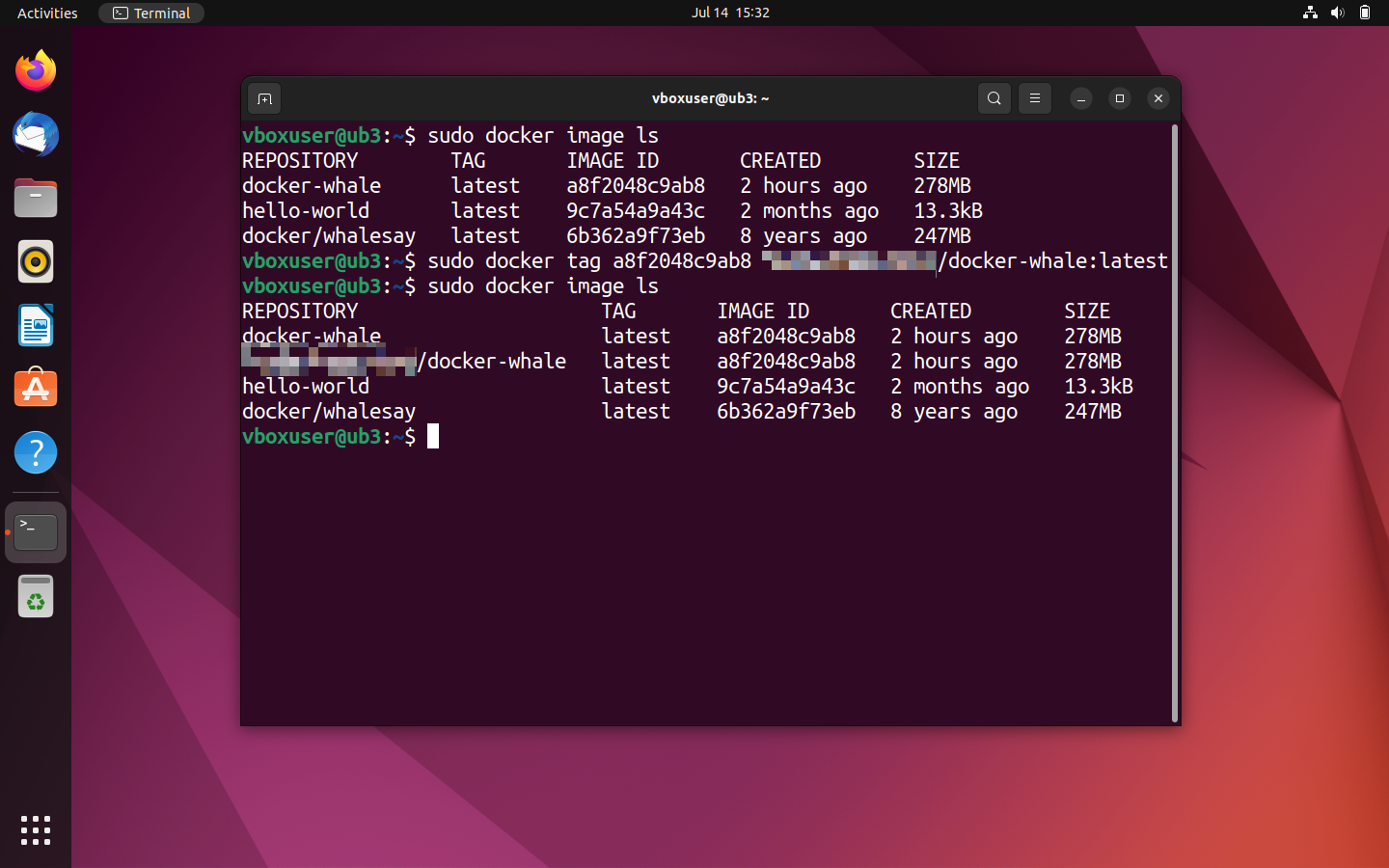
- Tag the image: Tag the docker-whale image using the command line program
docker tagaccording to the following:
sudo docker tag [Image-ID][Docker-ID]/[Image-Name]:[TAG]For the current example, the command line directive for tagging reads:
sudo docker tag a8f2048c9ab8 [Namespace]/docker-whale:latestYou can check whether you’ve correctly tagged your image or not using the docker images overview. The name of the repository should now include your Docker ID.

- Upload the image: To upload the image, you first need to log in to the Docker hub. This can be done using the
docker logincommand.
sudo docker loginThe terminal then prompts you to enter your username (Docker ID) and password.
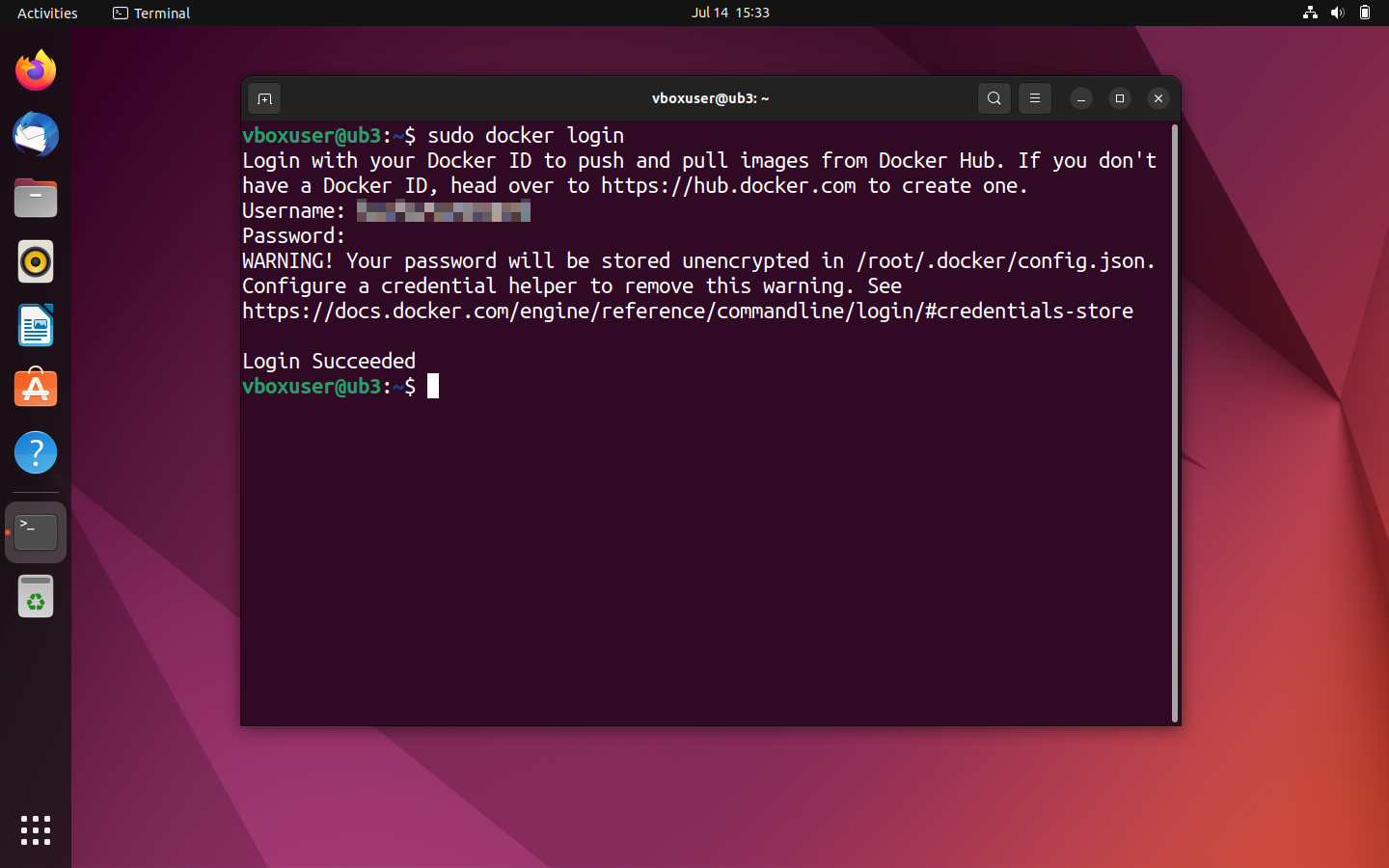

If the login was successful, then use the command line directive docker push to upload your image into the newly created repository.
sudo docker push [Namespace]/docker-whaleThe upload process should only take a few seconds. The current status is shown in the terminal.
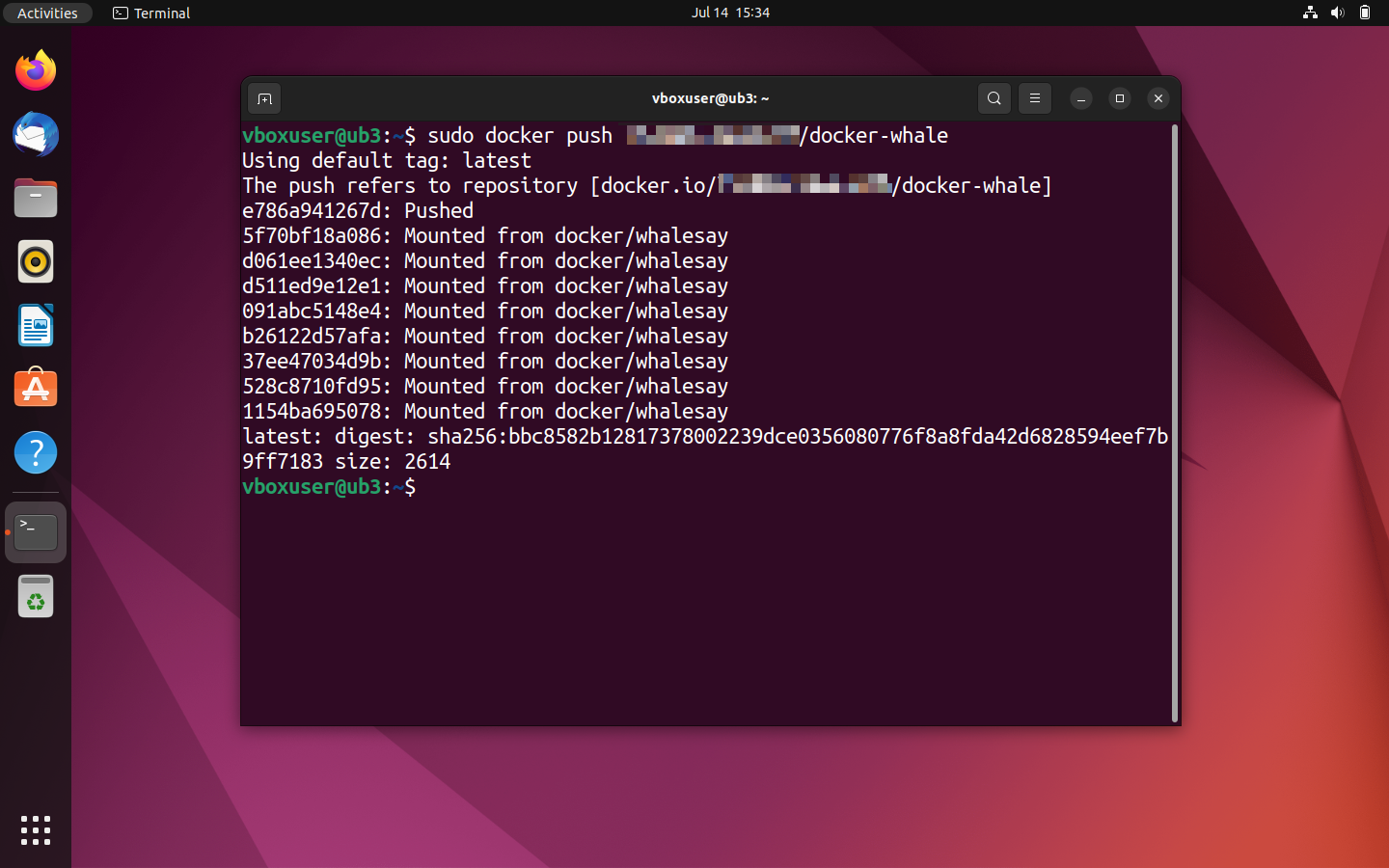
Log into the Docker hub via the browser to view the uploaded image.
![Image: Docker hub: The repository [Namespace]/docker-whale in the detailed view](https://www.ionos.co.uk/digitalguide/fileadmin/DigitalGuide/Screenshots_2023/docker-hub-push-result.png "Docker hub: The repository [Namespace]/docker-whale in the detailed view")
![Image: Docker hub: The repository [Namespace]/docker-whale in the detailed view](https://www.ionos.co.uk/digitalguide/fileadmin/_processed_/5/e/csm_docker-hub-push-result_56530d8ebc.webp "Docker hub: The repository [Namespace]/docker-whale in the detailed view")
If you want to upload more than one image per repository, use varying tags to offer your images in different versions. For example:
[Namespace]/docker-whale:latest
[Namespace]/docker-whale:version1
[Namespace]/docker-whale:version2
An overview of the various image versions can be found in the Docker hub repository under the ‘Tags’ tab.
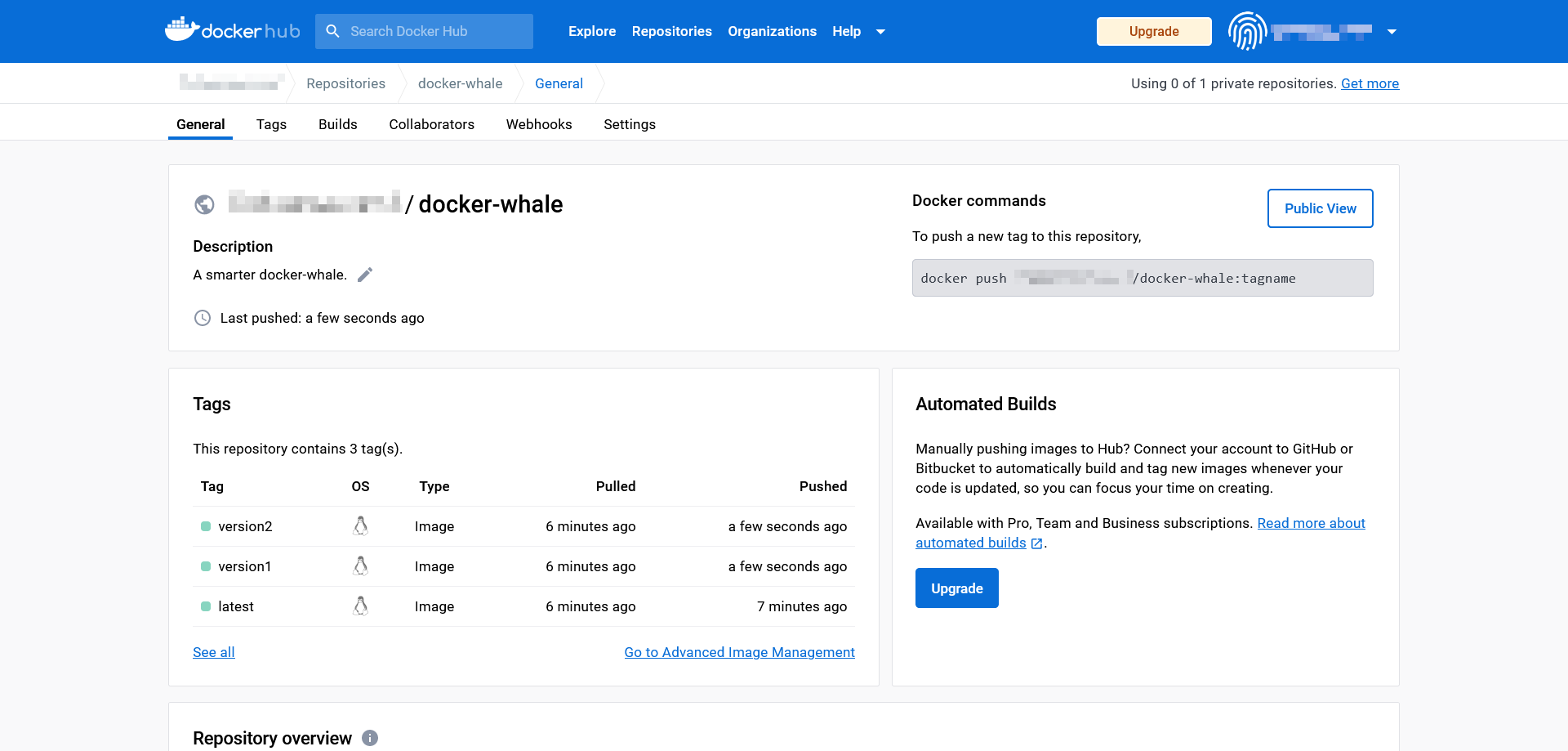

Images of different projects should be offered in separate repositories, though.
If the upload was successful, your custom image will now be available in the public repository to every Docker user across the globe.
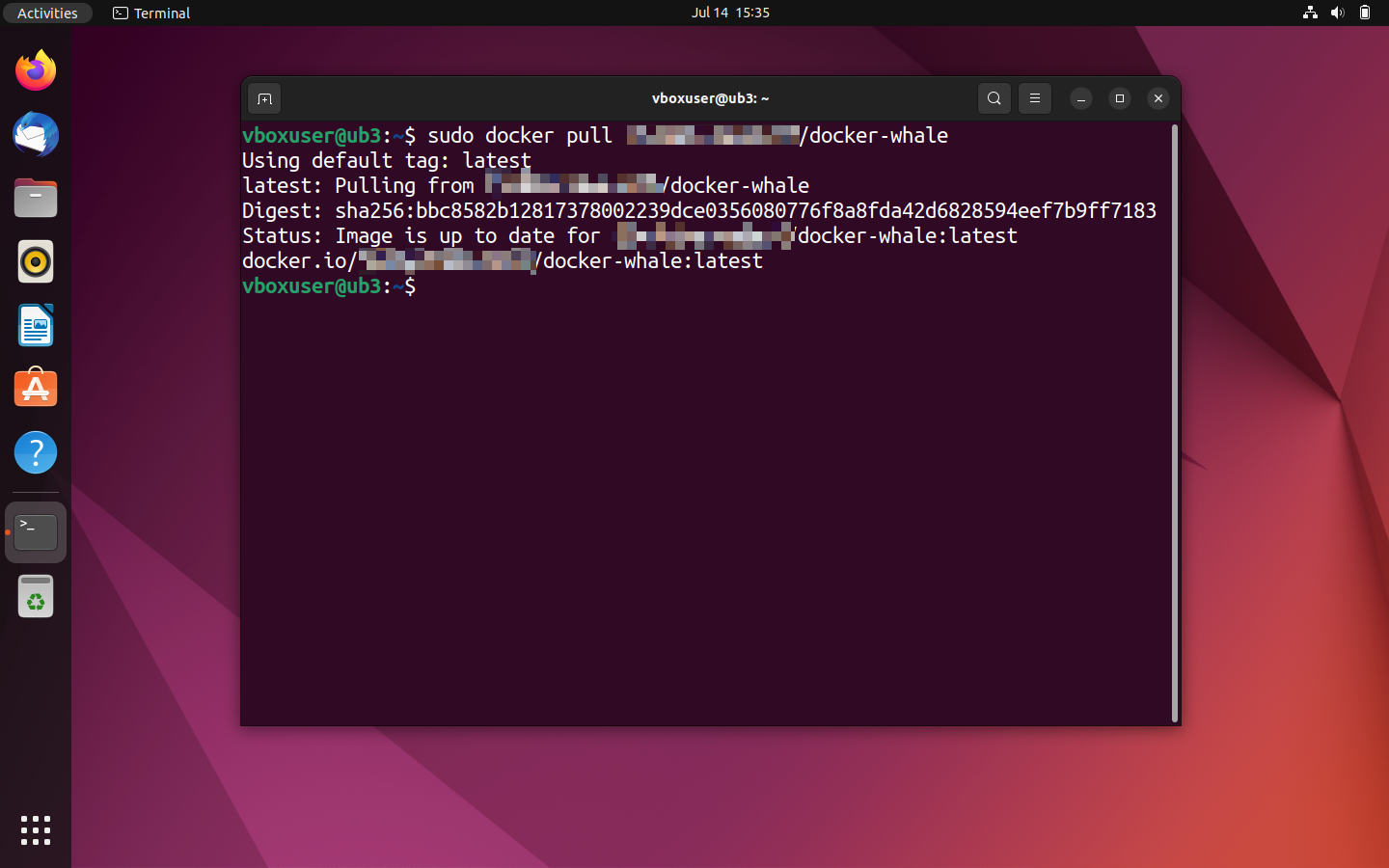
- Test run: Test the success of the upload by attempting a download of the image.
Note that the local version of the image needs to first be deleted in order to download a new copy with the same tag. Otherwise, Docker will report that the desired image already exists in the current version.
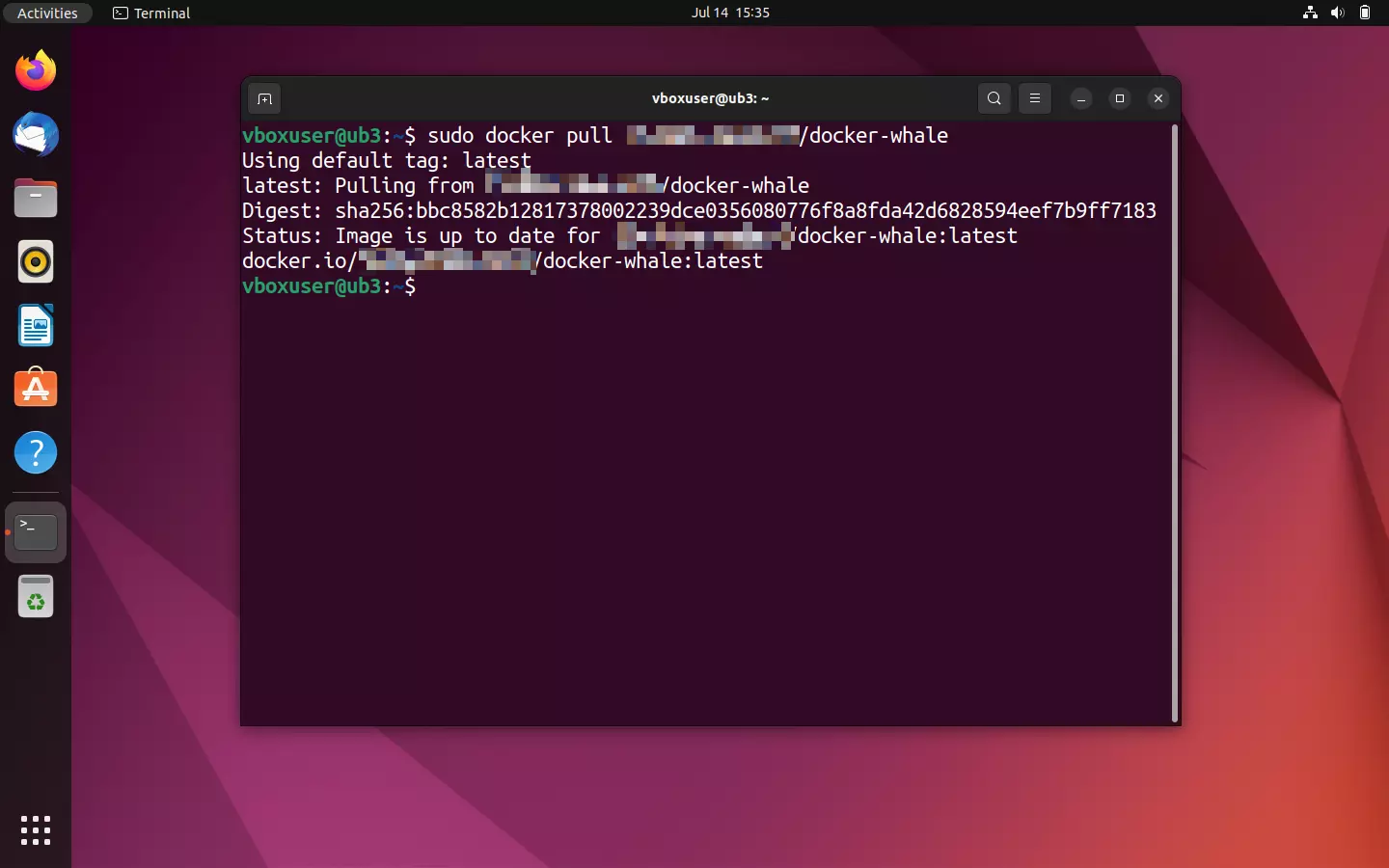
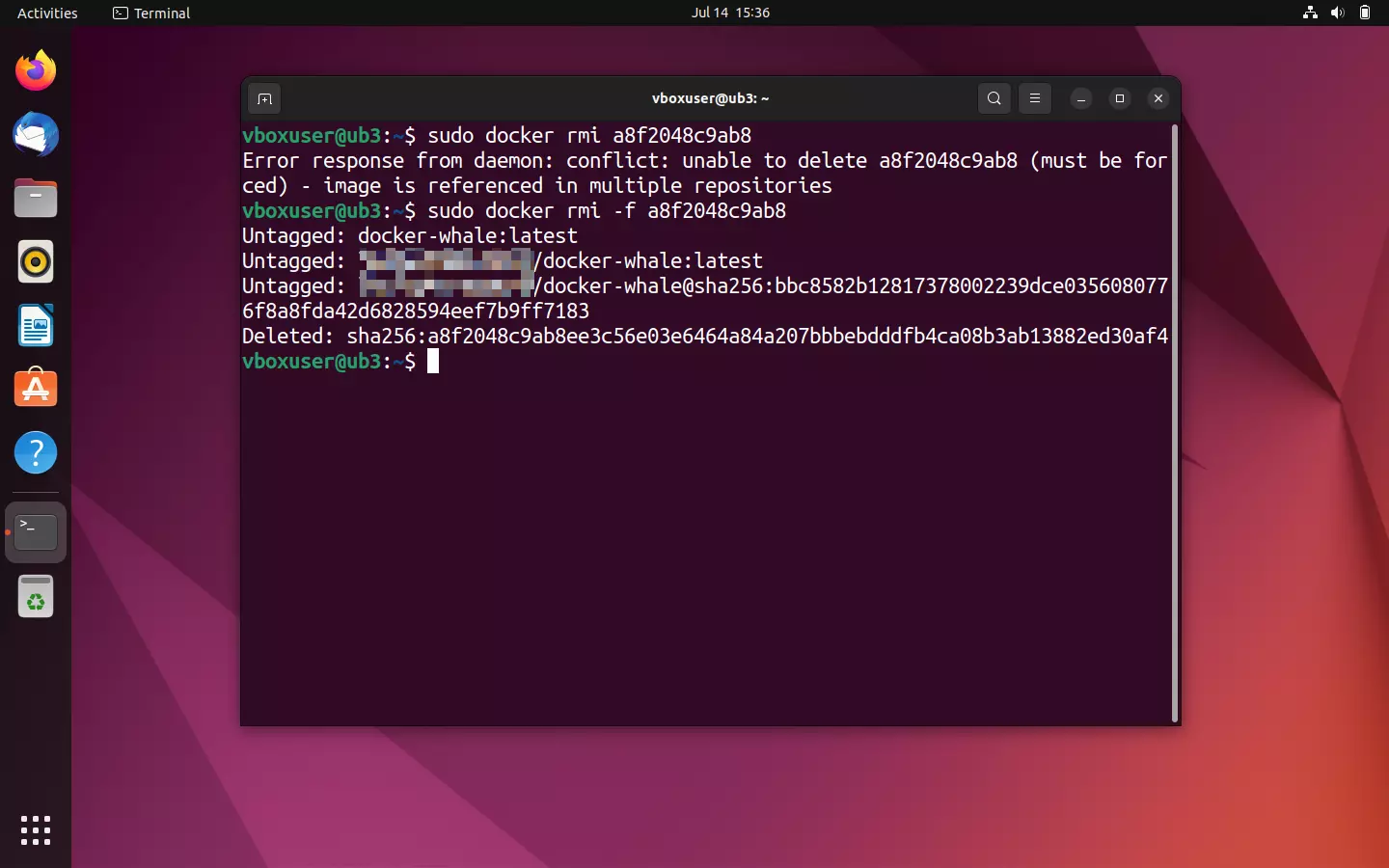
To delete the local Docker image, use the command line directive docker rmi in combination with the corresponding image ID. This is determined, as usual, via docker images. If Docker logs a conflict, e.g. because an image ID is used in multiple repositories or is used in a container, reiterate your command with the option --force (-f for short) to force a deletion.
sudo docker rmi -f a8f2048c9ab8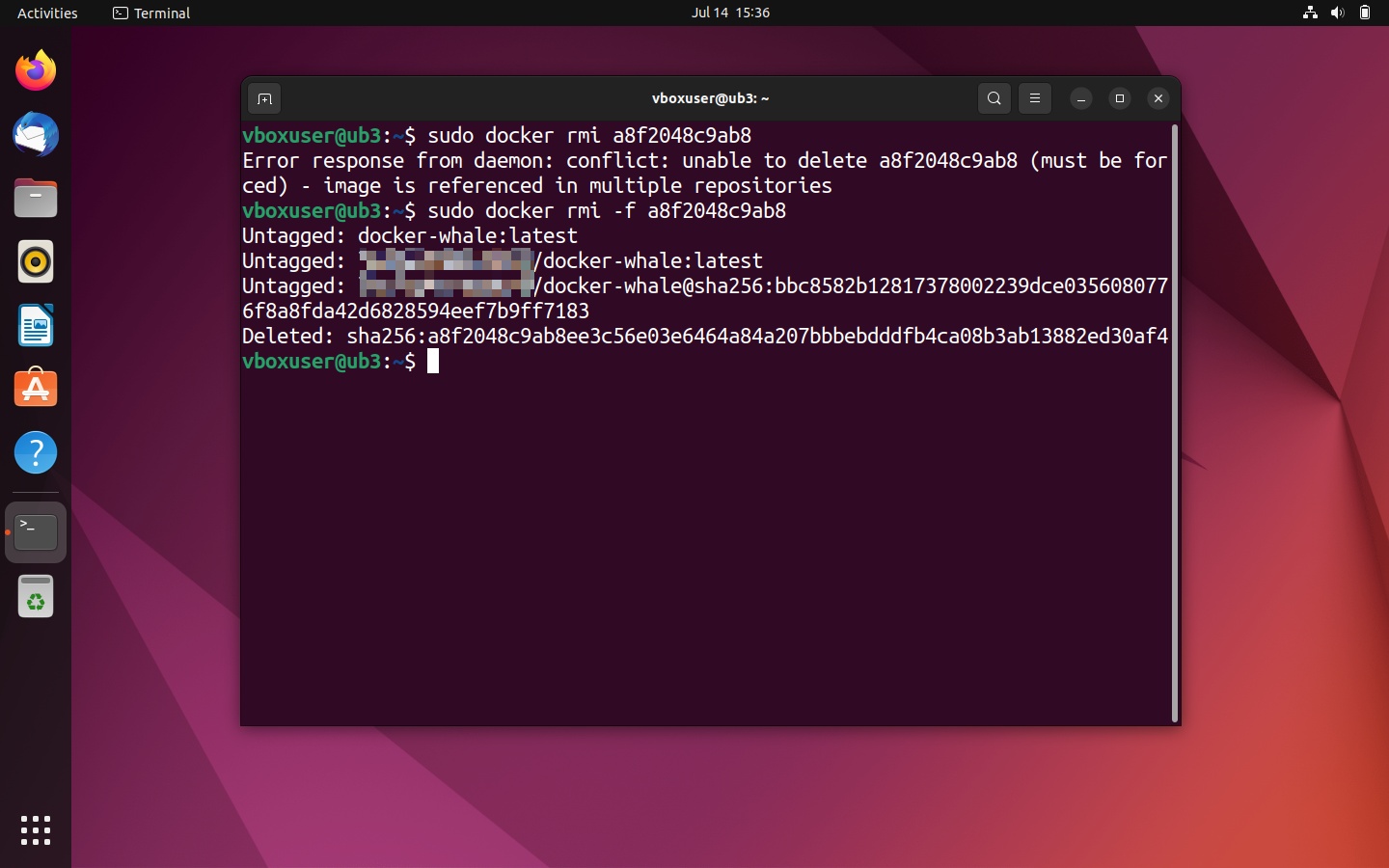
Display an overview of all local images again:
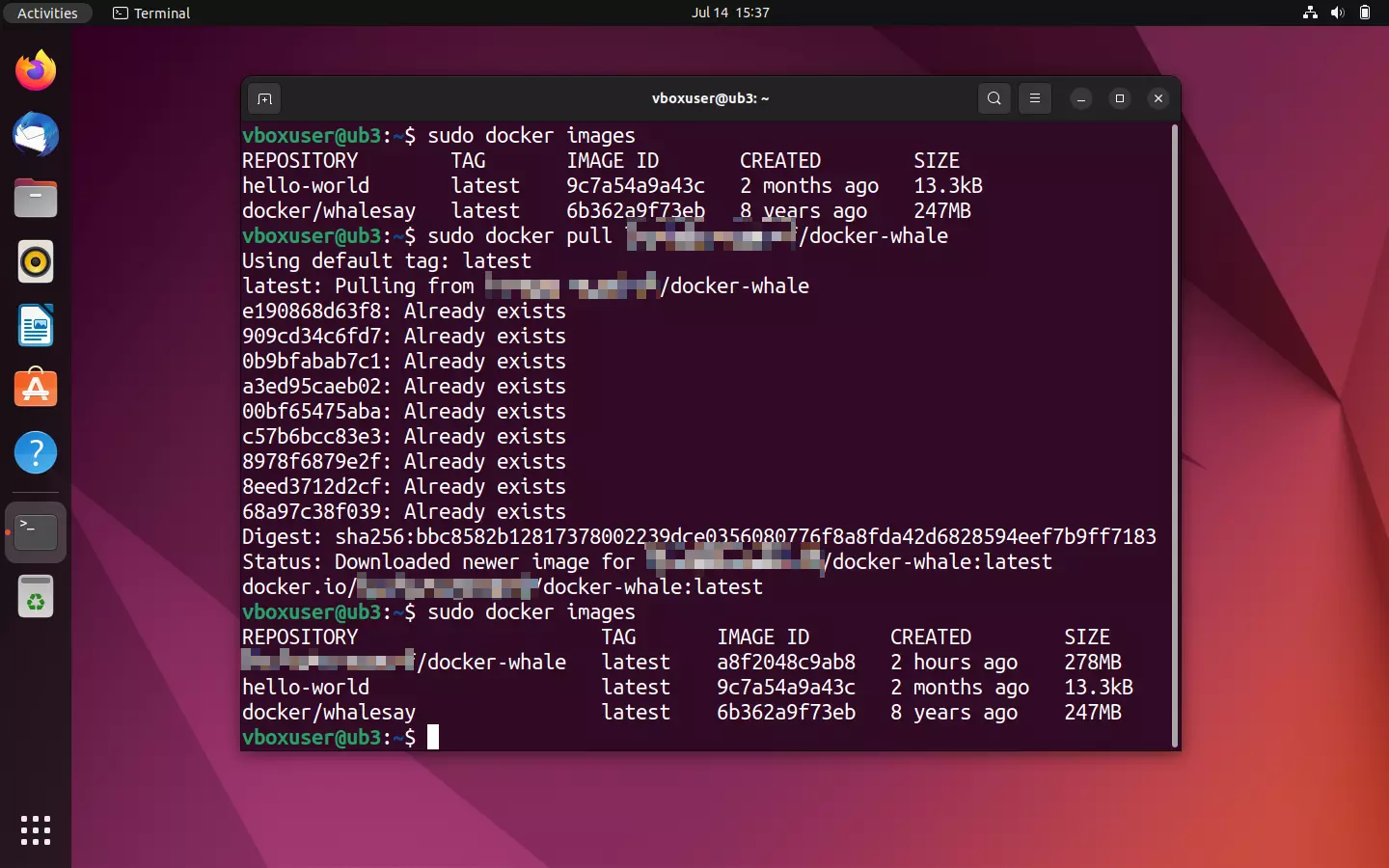
sudo docker ImagesThe deleted elements should no longer appear in the terminal output. Now use the pull command given in the repository to download a new copy of the image from the Docker hub.
sudo docker pull [Namespace]/docker-whale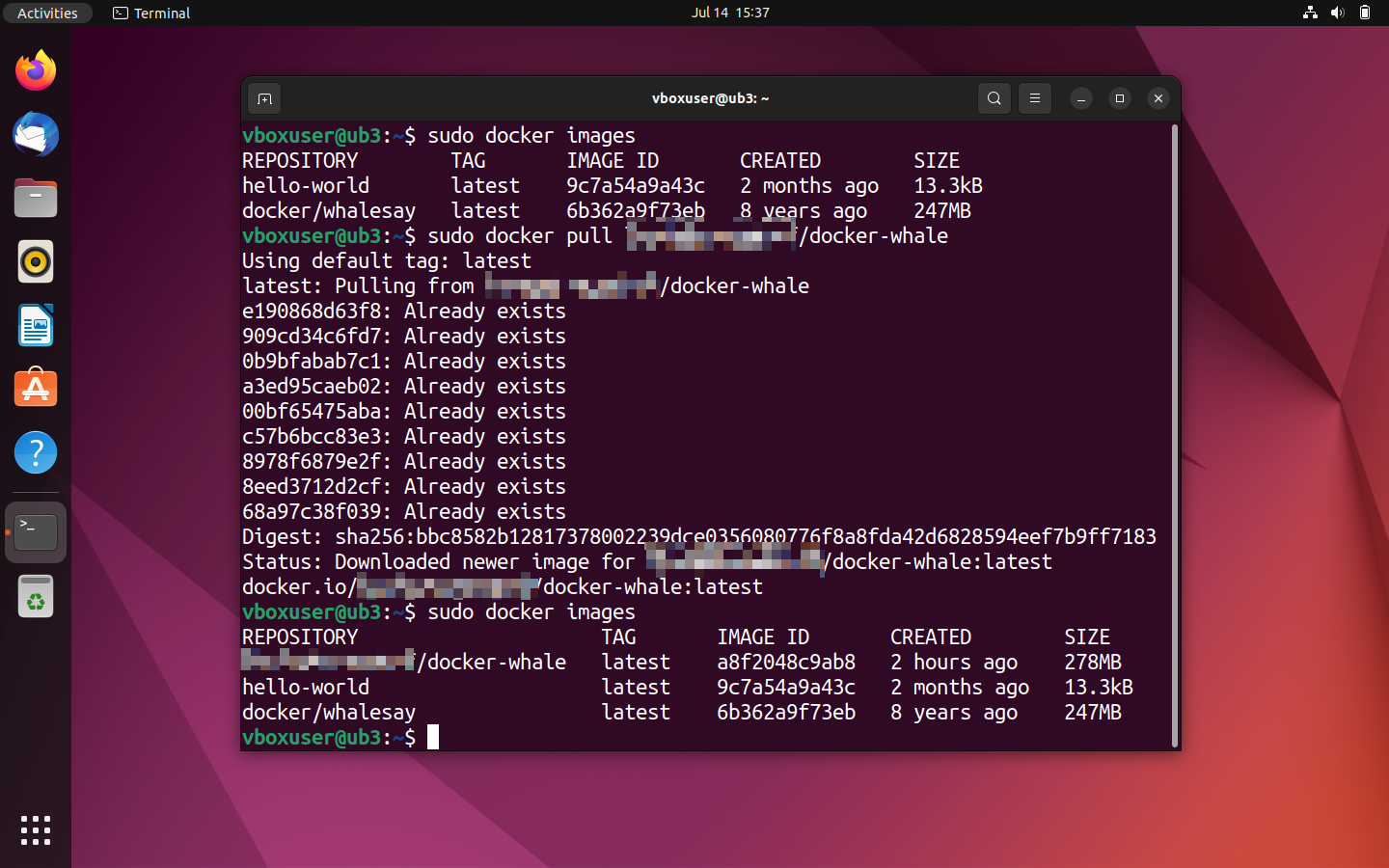
Additional Docker topics and tutorials
The Docker universe is large and over time, a living ecosystem has developed from Docker tools. Docker is particularly useful for administrators, especially if they’re operating complex applications with multiple containers in parallel on different systems. Docker offers diverse functions for the orchestration of clusters like these. You can find more information about this in our article on Docker orchestration with Swarm and Compose.
The Digital Guide has additional tutorials for working with Docker:
- Setting up a Docker Repository
- Docker Container Volumes
- Docker: Backup and restore
- Installing and running Docker on a Linux server
- Docker Compose tutorial
Docker is suitable for various application scenarios. You can find the following tutorials in the Digital Guide:
- Deploying WordPress in Docker containers
- Run a VPN in a Docker container using SoftEther
- Nextcloud installation with Docker
- Install Portainer under Docker
- Redis in Docker Containers
- Valheim Docker server
Docker is not always the best choice for every application. One of our articles covers the most popular Docker alternatives. In addition, we have many articles available that compare Docker with other platforms: