

How to install Debian 13 step by step

Debian 13 is a stable and popular Linux distribution that works well for both beginners and advanced users. You can install Debian 13 in just a few steps, even without prior experience. Follow our step-by-step guide to install Debian 13 smoothly and efficiently.
Step 1: Preparations for installing Debian 13
Before you install the Linux distribution Debian 13, it’s important to make a few preparations to ensure a smooth setup.
Start by checking whether your computer meets the minimum system requirements for Debian 13. For the desktop version, Debian recommends the following specifications for new installations as well as for Debian 13 upgrades:
- Processor: at least 1 GHz
- Memory (RAM): at least 1 GB (recommended: 2 GB)
- Hard drive space: at least 10 GB
A stable internet connection is especially useful if you want to install additional software packages during or after the Debian 13 installation.
- Intel Xeon E Raptor Lake
- Windows Server 2025
- Configurable hardware equipment
- ISO-certified data centres
Step 2: Back up data
If your computer already contains data, be sure to create a backup before you install Debian 13. You can save your files on an external hard drive, a USB stick, or in the cloud. Keep in mind that installing Debian may reformat your hard drive and erase all existing data. A proper backup ensures that important files are not lost.
Step 3: Create installation media
To install Debian 13, you will need a bootable medium, such as a bootable USB stick with Debian 13. Follow these steps to create one:
- Download the Debian 13 ISO image from the official website.
- Prepare the USB stick and make sure it is properly formatted and bootable so that your computer can start from it.
- On Windows: Use tools like Rufus.
- On macOS: Use the Terminal or applications like balenaEtcher.
- On Linux: Use
ddor tools such as Etcher.
Step 4: Boot from USB stick
After preparing your installation media, configure your computer to boot from it. This step, called booting, is required to start the Debian 13 installation. Insert the prepared USB stick into an available USB port on your computer, and make sure no other external drives are connected to avoid confusion.
Restart your computer and press the key that opens the boot menu during startup. The exact key depends on the manufacturer and is usually shown briefly on the screen; common options are F12, F10, Esc, or Del. In the boot menu, select the USB stick as the startup medium and confirm with Enter. After a short moment, the installation menu will appear, and you can continue with the Debian 13 installation.
Step 5: Select language and region
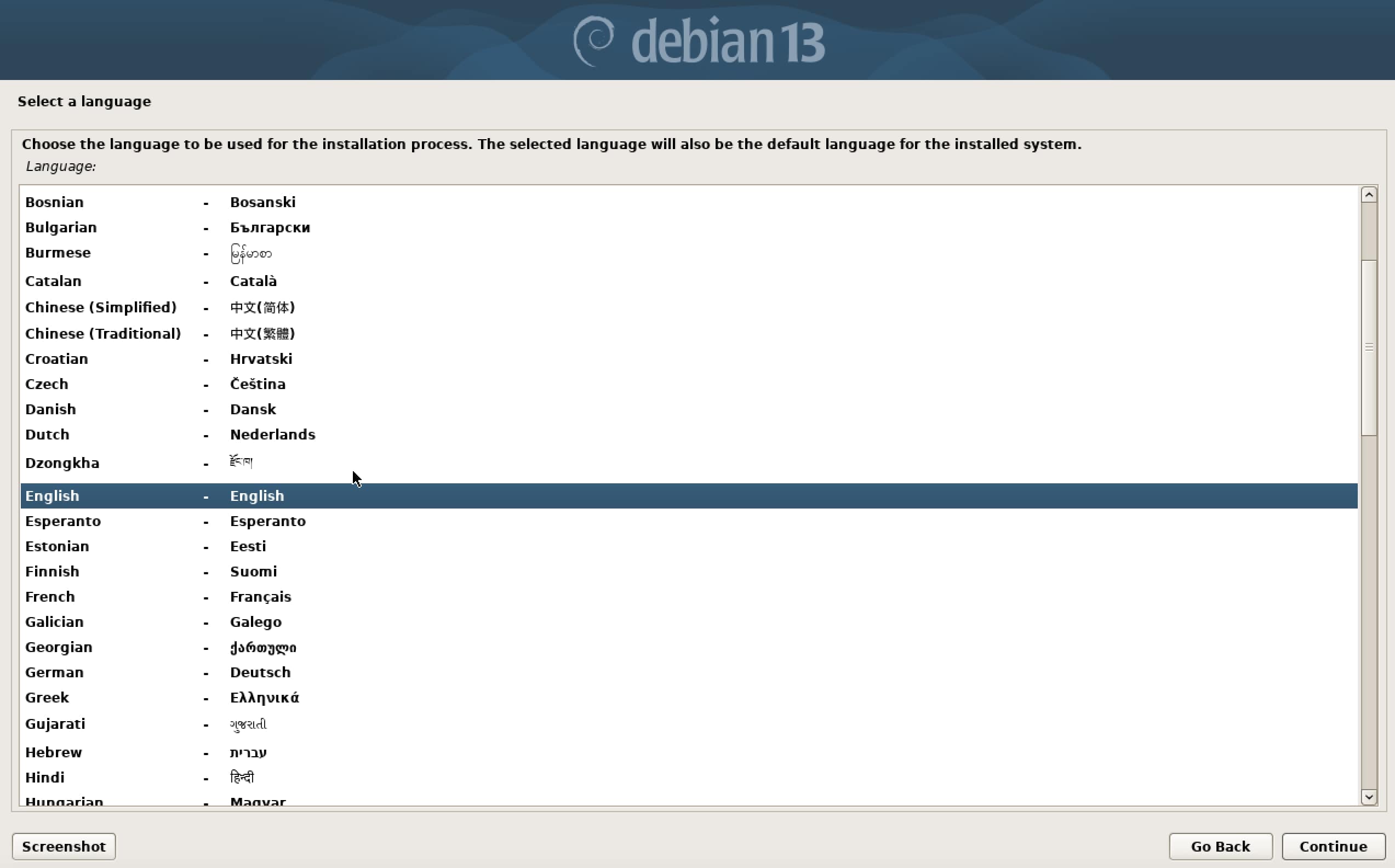
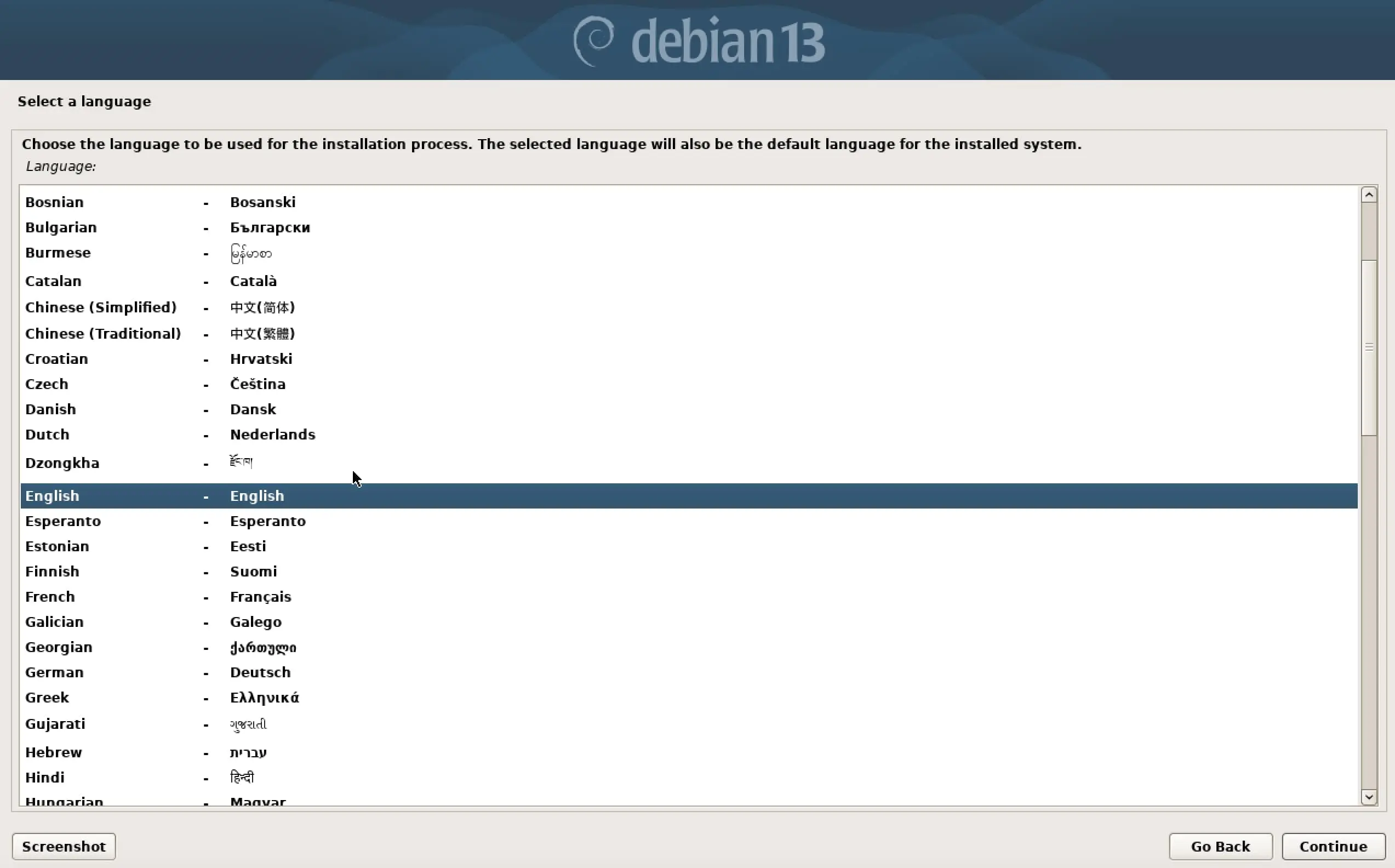
Once the Debian installation menu appears, the first step is to choose the installation language. This language will also be applied to the system’s user interface after installation.
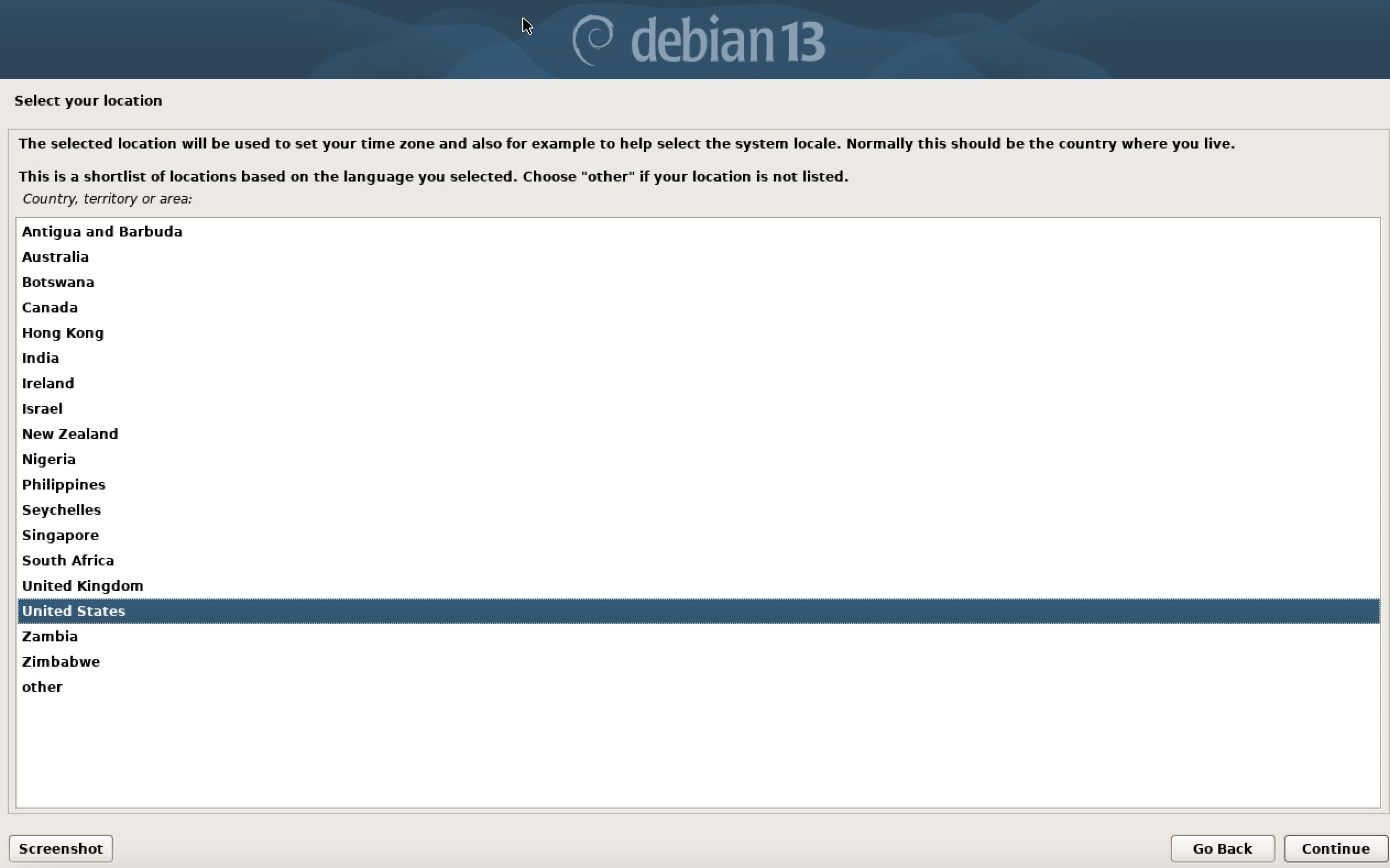
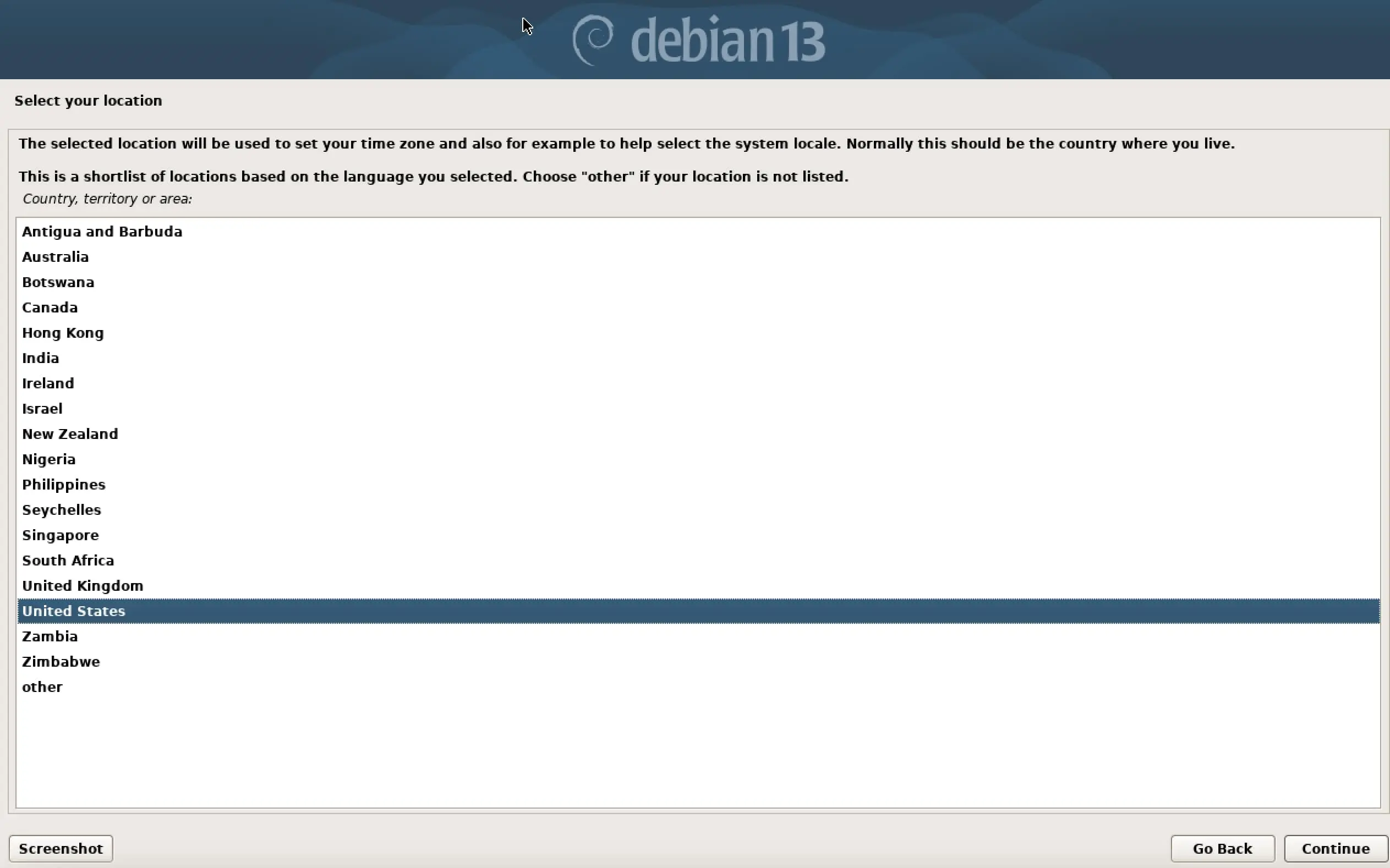
Next, select your country and region. Debian uses this information to set the correct time zone and recommend suitable default settings for your system. After making these selections, you can continue to the next step.
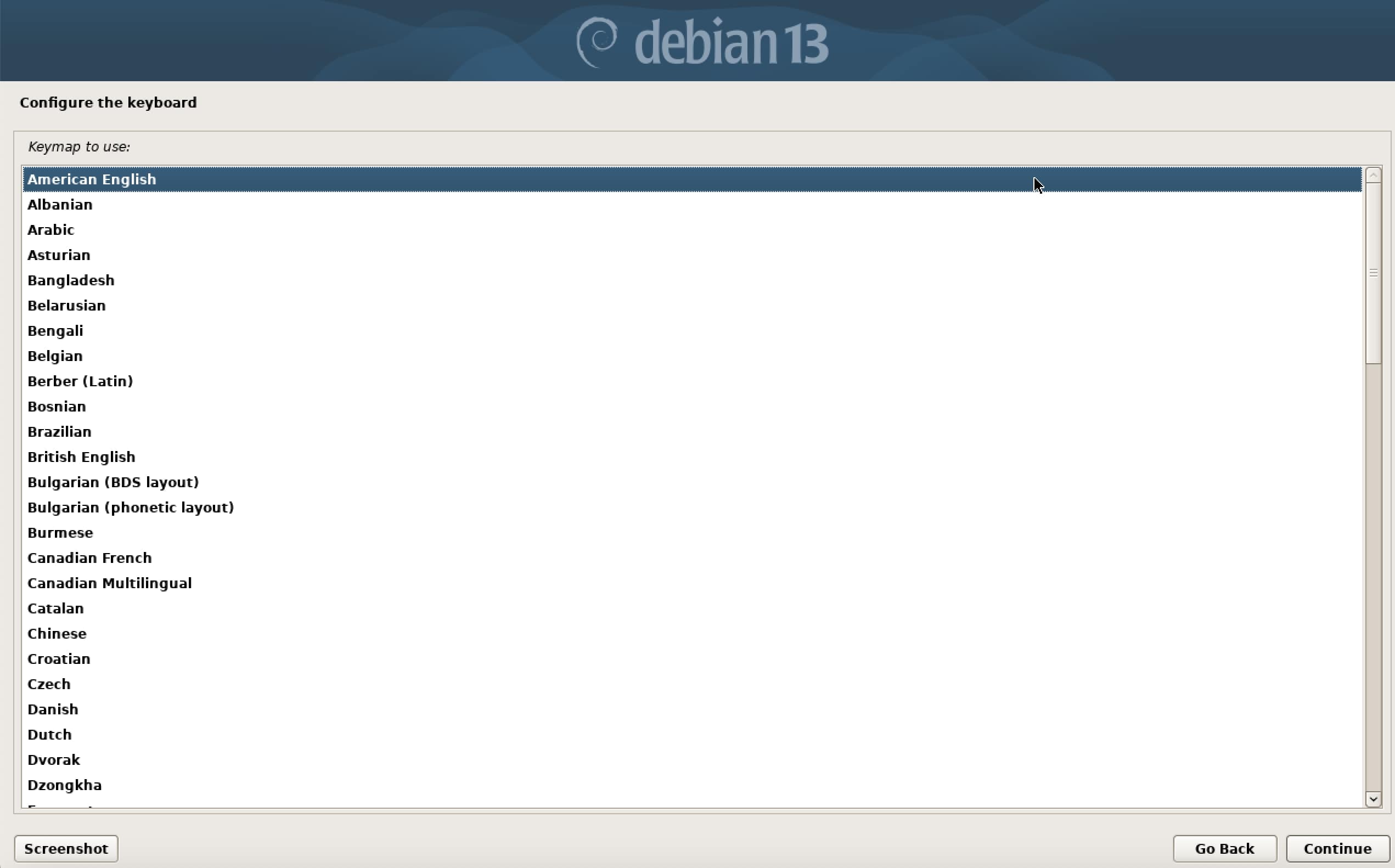
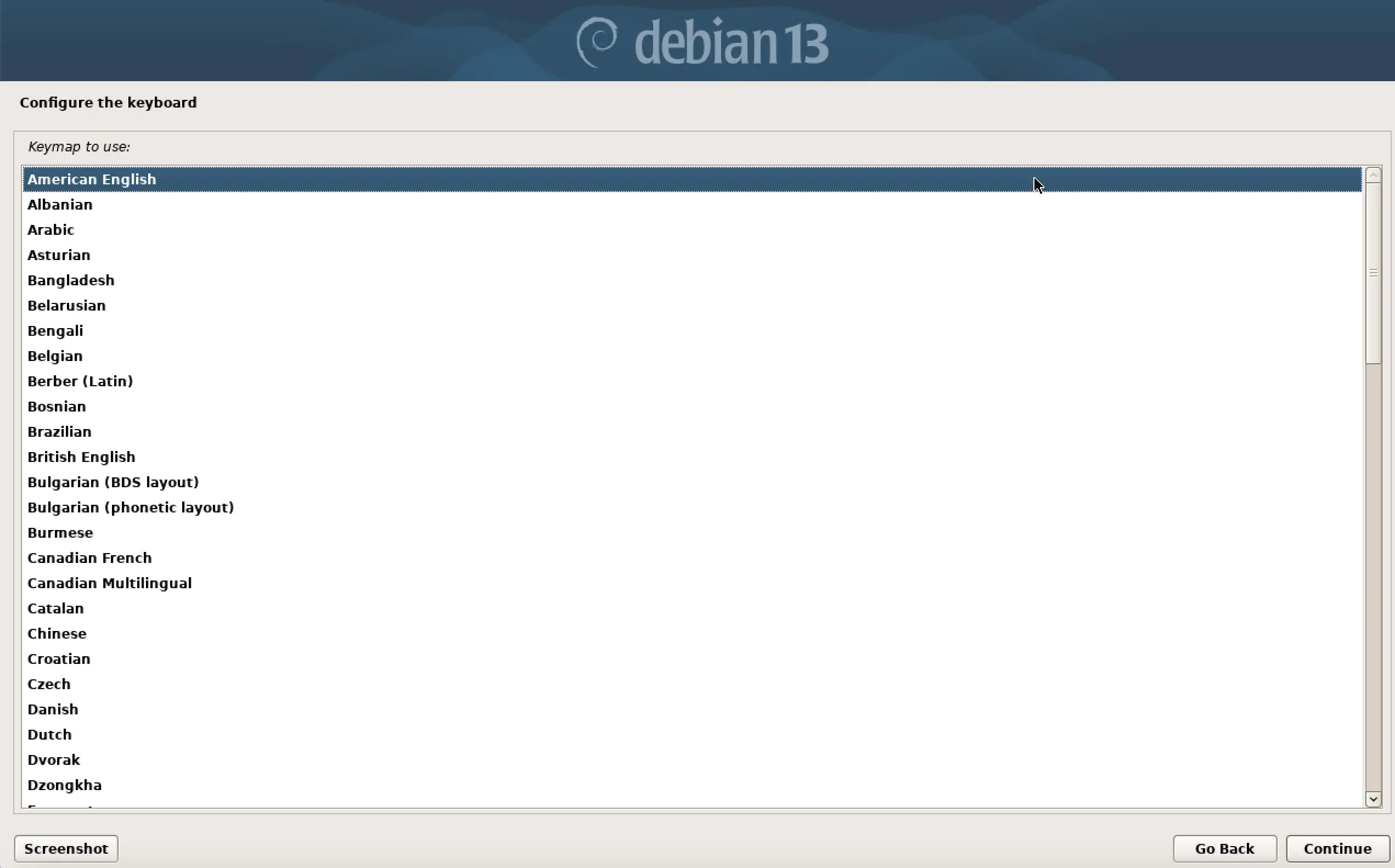
Step 6: Select keyboard layout
In the next step, you will be asked to choose your computer’s keyboard layout. The layout defines which characters appear when you press specific keys, so select the one that matches your physical keyboard.
You can test the layout directly by typing a few characters in the test field. Make sure that special characters such as ‘@’ or ‘£’ are displayed correctly. This way, you can be confident that typing will work smoothly once the system is installed.
Step 7: Set up network
After setting the keyboard layout, the Debian install process will guide you through configuring the network connection. While an internet connection is optional, it makes installing updates and additional programs much easier.
If you are using a wired connection (LAN), it is usually detected automatically and requires no further action. For a wireless connection (Wi-Fi), all available networks will be shown. Select your Wi-Fi from the list and enter the password to connect.
If no internet connection is available, you can skip this step and configure the network manually after the Debian 13 installation is finished.
Step 8: Create user and password
At this stage, you will be asked to create a root password and set up a regular user. The root account serves as the system’s administrator and has full access to configure settings and install software. It is therefore essential to choose a secure password. Be sure to remember it, as you will need it for administrative tasks.
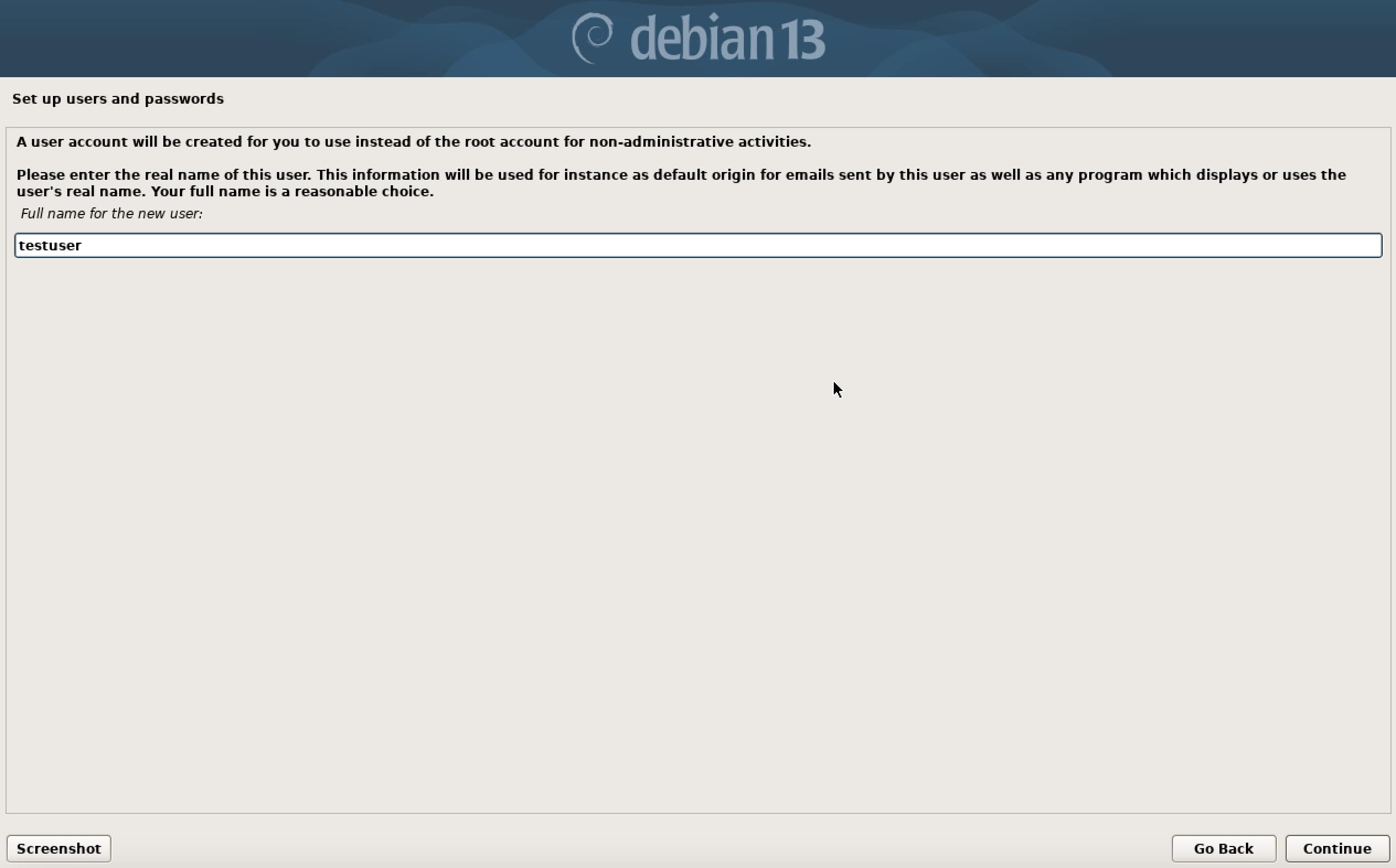
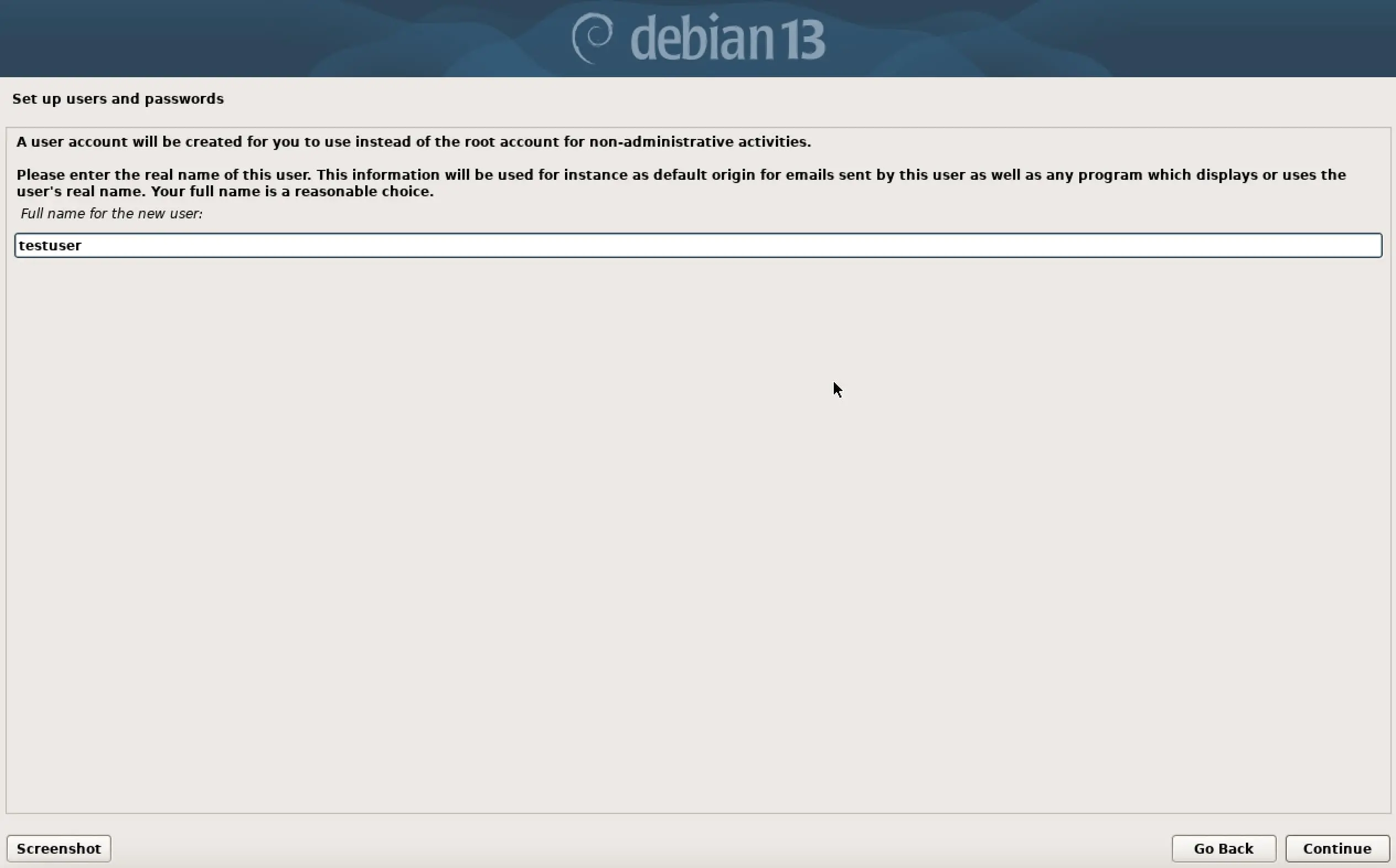
After that, Debian will guide you through creating a regular user for everyday use. Start by entering the full name of the user (for example, your own name). Then, define a username that you will use to log in later.
In the next step, assign a password for this user.
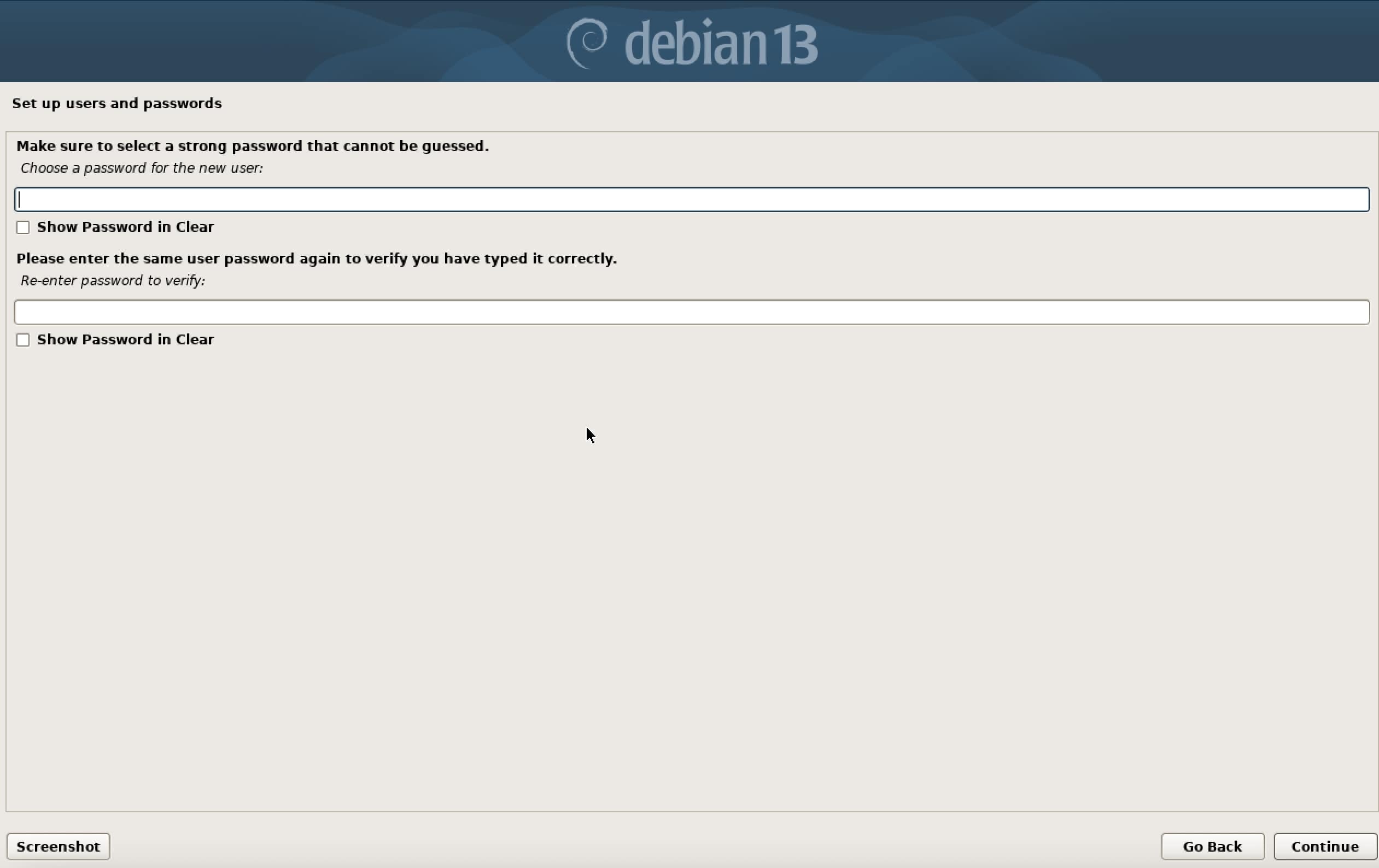
With this step, you have created the essential accounts for your system. The regular user is recommended for daily tasks, while the root account is specifically used for administrative tasks.
Step 9: Partition the hard drive
Next, you need to prepare the hard drive for installing Debian 13. Debian provides several options for partitioning the drive. For beginners, the option ‘Guided – use the largest continuous free space’ is recommended, as it automatically creates all required partitions without manual setup.
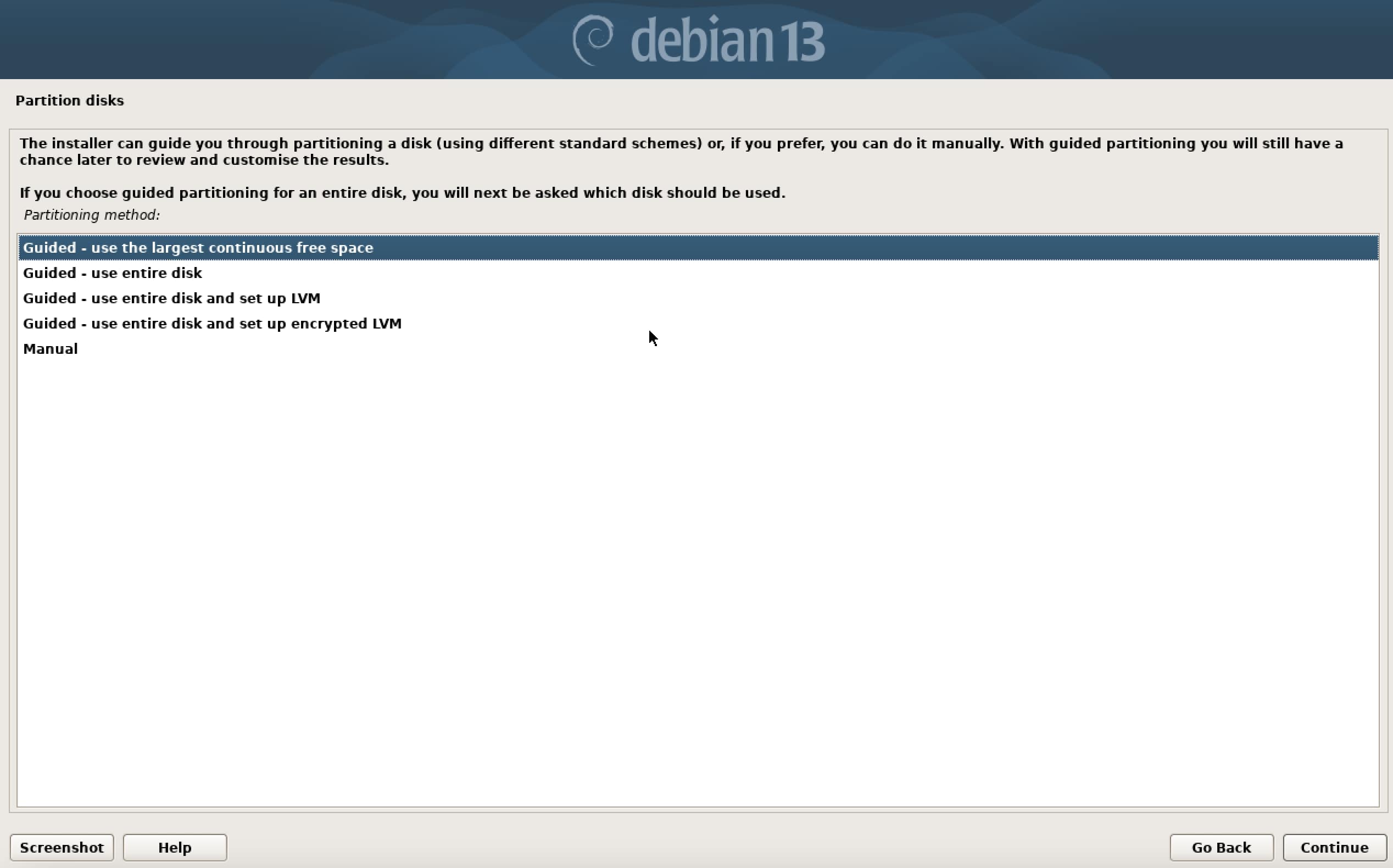
In the next step, choose the hard drive on which Debian will be installed and select a partitioning scheme. Debian will then automatically create the necessary partitions. After confirming your choice, the hard drive will be formatted and prepared for installation. This process may take a few minutes.
Be sure to select the correct hard drive, especially if more than one drive is connected. All data on the selected drive will be permanently erased.
Step 10: Choose software
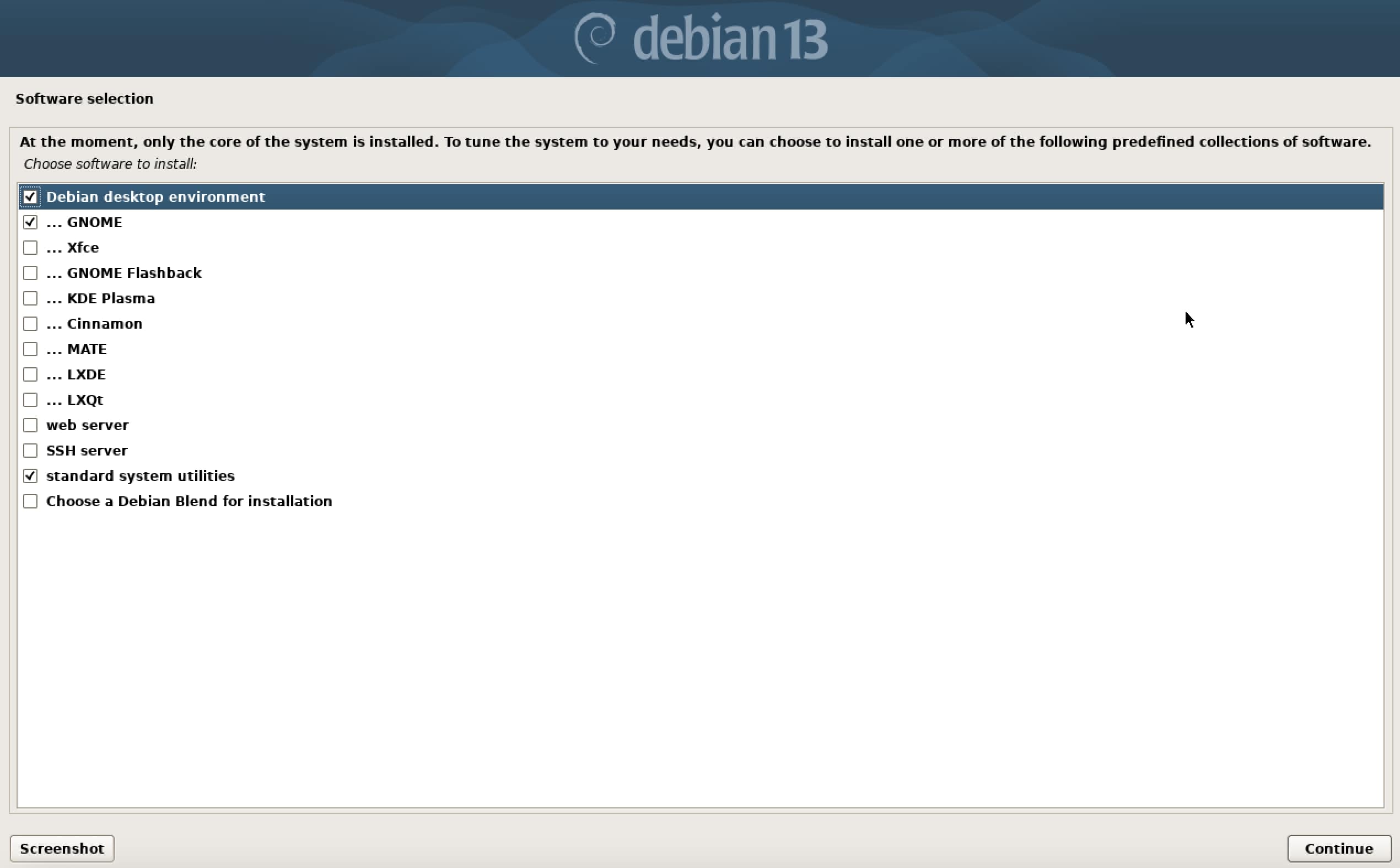
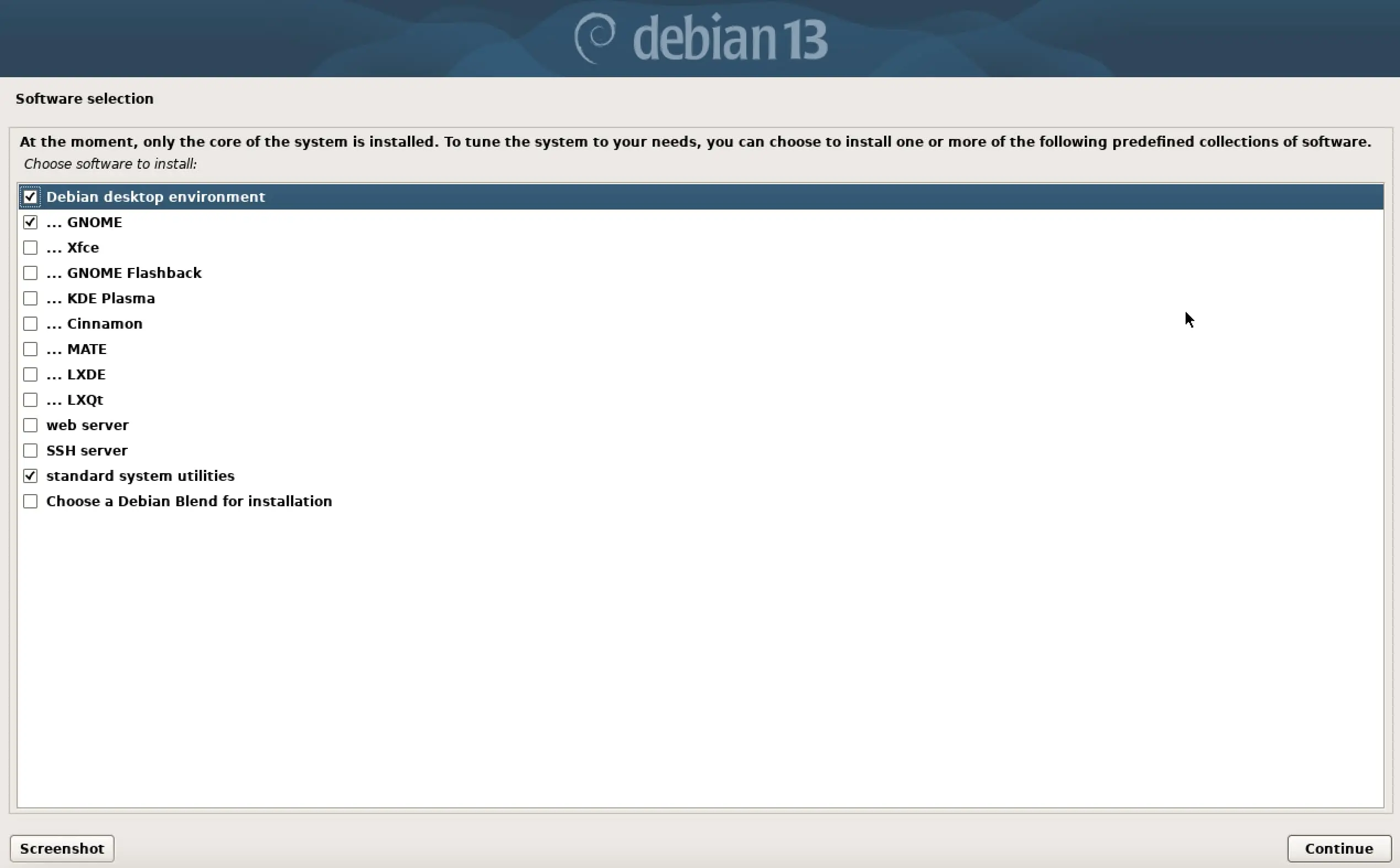
In the next step, you will decide which software to install with Debian 13. Here you can choose the components and desktop environments you want. For beginners, it is recommended to keep the default settings, as they already provide all the essential programs and tools.
You can also select a desktop environment such as GNOME, Xfce, KDE, or LXDE. GNOME is the default for Debian and offers a modern, user-friendly interface. The standard system tools should stay enabled since they provide important features like file management, network configuration, and terminal access.
Optionally, you may include additional software packages, such as office applications or server tools. If you are uncertain, you can skip these for now, as more software can always be installed later via the package manager. Once you’ve made your selections, Debian continues with the installation process.
Step 11: Install bootloader
After the software installation, you need to configure the bootloader GRUB. The bootloader is a critical program that enables your computer to start Debian 13. Without GRUB, the system would not know which hard drive or partition to use for booting the operating system.
Debian will ask whether you want to install GRUB. Confirm with ‘Yes’, as the bootloader is required for a functioning system. You will then be prompted to choose the hard drive where GRUB should be installed—usually, this is the primary hard drive.
Once confirmed, Debian installs and configures GRUB automatically, ensuring that your computer boots directly into Debian at the next startup. After this step, the installation can be completed.
Step 12: Complete the installation of Debian 13
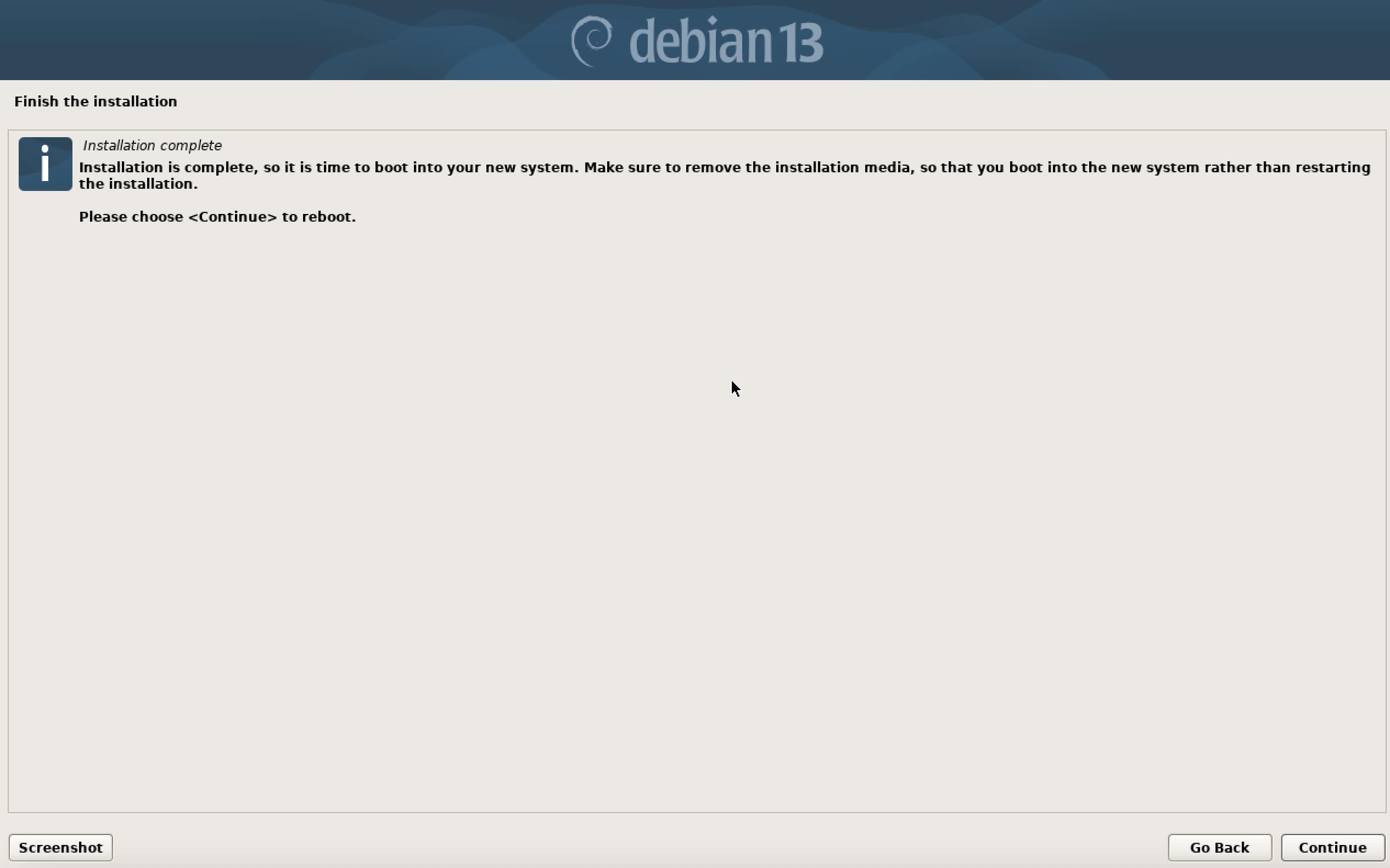
After the bootloader is installed, Debian finalises the setup by configuring all selected software packages and completing the system installation. This step may take a few minutes, depending on your computer’s speed. When the Debian 13 installation is finished, a message will appear indicating that the system can be restarted. Remove the USB stick to prevent booting again from the installation media, then press Enter to restart the computer.
After restarting, Debian 13 will display the login screen. Sign in with the user account you created earlier. You will then see the desktop environment you selected during installation, such as GNOME. At this point, your system is fully operational and ready to use.
As a final step, update your system to the latest version. Open a terminal and run the following commands:
sudo apt update
sudo apt upgrade
These commands will download the current package list and install all available updates. Your Debian 13 system is now fully installed, up to date, and ready to use. From here, you can start working with the operating system and add additional tools and programs, such as installing PostgreSQL on Debian 13.
Reviewer

Christian Heldmaier
Christian Heldmaier is an experienced online marketing and SEO specialist from Karlsruhe. He has been working as an SEO Manager at IONOS since July 2020.