

How to install Docker on Ubuntu 22.04 in 5 simple steps

Ubuntu 22.04 is the current LTS version of the popular Linux distribution and can be used for many applications. Installing the virtualisation software Docker is also simple on Ubuntu 22.04 and can be done in just a few steps.
What are the system requirements?
To successfully install Docker, your Linux system running Ubuntu 22.04 needs to meet a few requirements. Since Docker is an off-the-shelf software that is especially popular in software development, the requirements aren’t very high:
- 64-bit kernel and CPU support for virtualisation
- KVM virtualisation support
- QEMU version 5.2 or newer
- Gnome, KDE or MATE desktop environment
- At least 4 GB RAM (especially important if you want to install Docker on a Linux virtual machine)
What types of servers can you use for a Linux server?
If you want to install Docker on Ubuntu 22.04, you don’t have to use your local computer or a virtual machine. You can also set up a Docker environment on your very own Linux server. Here, you need to make a choice between different server types.
A basic distinction is made between cloud-based and dedicated server solutions. Cloud servers and virtual private servers (vServer) are both cloud based. The former is billed by the minute and according to usage. With a vServer, you can choose between different monthly packages. Both server types offer highly scalable resources, allowing for flexible adaptability to changing resource needs.
A dedicated server is also billed by the minute but isn’t a cloud-based system. It provides dedicated enterprise hardware that meets the highest system requirements.
No matter what type of server you choose, you get to decide which operating system you use. With IONOS, you have the choice between Windows and different Linux distributions. Additionally, each server comes with excellent availability and a broadband connection of up to 400 Mbps.
Which IONOS package is right for you?
In order to determine which server is the right one for you, you need to think about what the server will be used for. Below are three common usage scenarios for a Linux server with Docker. Taking a look at these scenarios can help you to figure out which option will be best for you:
| Scenario | Server recommendation |
|---|---|
| A server to implement and develop your own projects. | Cloud Server XL |
| Deploy various applications to clients using your Linux server. | VPS Linux L |
| A server for deploying virtual environments. | VPS Linux XL |
If you’re not satisfied with your Ubuntu version, you can install Docker on Ubuntu 20.04. The virtualisation software is compatible with different Linux distributions.
How to install Docker on Ubuntu 22.04: a step-by-step tutorial
You can install Docker on Ubuntu 22.04 directly in the terminal. As long as you have basic knowledge of writing terminal commands, you shouldn’t encounter any problems.
Step 1: prepare system
First, make sure that all packages and your system are up to date. You can do this by using the following two commands:
sudo apt-get update
sudo apt-get upgradeStep 2: remove Docker residue
If you’ve previously used beta versions of Docker or installed previews of the virtualisation software, you need to remove them before installing Docker. Not removing them can cause errors.
sudo apt remove docker-desktop
rm -r $HOME/.docker/desktop
sudo rm /usr/local/bin/com.docker.cli
sudo apt purge docker-desktopStep 3: download Docker repository
Docker uses an installation repository, so you need to store it in your system. To work with the repository, install the following packages:
sudo apt-get install \
    ca-certificates \
    curl \
    gnupg \
lsb-releaseYou can then add Docker’s GPG key to your system:
sudo mkdir -p /etc/apt/keyrings
curl -fsSL https://download.docker.com/linux/ubuntu/gpg | sudo gpg --dearmor -o /etc/apt/keyrings/docker.gpgSet up the Docker repository with the following command:
echo \
    "deb [arch=$(dpkg --print-architecture) signed-by=/etc/apt/keyrings/docker.gpg] https://download.docker.com/linux/ubuntu \
$(lsb_release -cs) stable" | sudo tee /etc/apt/sources.list.d/docker.list > /dev/nullStep 4: install Docker Engine
You can download Docker Engine directly in the terminal in Ubuntu 22.04. The commands you need to do this differ depending on whether you need a specific Docker version or the current one.
To download a specific version of Docker, use the following command to list all available versions:
apt-cache madison docker-ce | awk '{ print $3 }'Pick a version from the list and enter the version as the version string. Then install it as follows:
VERSION_STRING=5:20.10.13~3-0~ubuntu-jammy
sudo apt-get install docker-ce=$VERSION_STRING docker-ce-cli=$VERSION_STRING containerd.io docker-compose-pluginInstalling the current Docker version is even easier:
apt-cache madison docker-ce | awk '{ print $3 }'Step 5: check installation
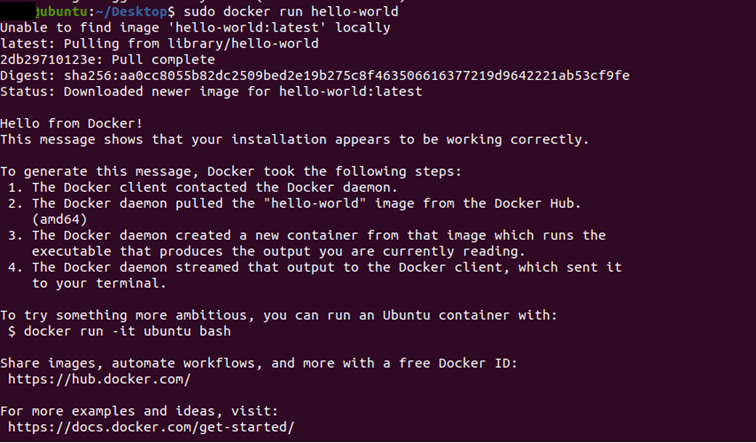
After the installation, you can use the following command to start a ‘Hello World’ Docker container and check if the installation was successful:
sudo docker run hello-worldIf everything worked correctly, you should see the following output:
Step 6 (Optional): run Docker as a non-root user
To run Docker, you need root privileges. That’s why you need to start all your commands with ‘sudo’. If you want to run Docker as a user without root privileges, you need to create a Docker group.
Step 6.1: create a group named ‘Docker’
Create a group named ‘docker’ that you can assign users to with the following command:
sudo groupadd dockerStep 6.2: add users
With a simple command, you can add users to the Docker group you created, allowing them to run Docker without root privileges:
sudo usermod -aG docker $USERRemember that $USER is just a placeholder and must be replaced with a user’s name. For the changes to take effect, you need to log out and then log back in. After you have done this, you can access Docker without using sudo.
Using Windows, too? We have further manuals for installing Docker on Windows 10 and Docker on Windows 11.