

How to set up an Apache reverse proxy

By incorporating a reverse proxy as an extra layer of security, you can bolster the resilience of your web application and mitigate the chances of potential attacks. The Apache HTTP Server offers a wide range of modules and extensions specifically designed to support various proxy functions. In our comprehensive guide, we will walk you through the step-by-step process of setting up and configuring an Apache reverse proxy.
What is mod_proxy?
Apache is a well-known and widely used open source web server that’s used to provide web content on the internet. It’s available on many operating systems such as Windows, Linux and macOS and can be flexibly extended via plugins and modules.
The mod_proxy module allows the Apache web server to act as a reverse proxy by forwarding requests to another server and returning the response to the client. This proves valuable in scenarios where multiple web servers are present and there’s a need to distribute the workload among them. It enhances performance and constructs a high availability architecture for your web infrastructure.
Apache mod_proxy consists of several modules, each with its own functionality. Here are some of the most important modules:
- mod_proxy: Provides the core functionality of the reverse proxy and forwards requests to another server.
- mod_proxy_http: Provides proxy functionality for HTTP and HTTPS protocols.
- mod_proxy_ftp: Provides proxy functions for the FTP protocol.
- mod_proxy_connect: For SSL encrypted connections.
- mod_proxy_ajp: Used to forward requests to AJP-enabled application servers.
- mod_proxy_wstunnel: For the use of web sockets
- mod_proxy_balancer: Provides load balancing capabilities.
- mod_cache: Supports various cache methods.
- mod_headers: For modification of HTTP header lines.
- mod_deflate: Compresses HTTP responses.
Linux Hosting from IONOS supports a wide range of Apache modules that allow you to quickly and effectively configure your own Apache reverse proxy. Benefit from flexibly scalable performance, DDOS protection and top PHP features.
Set up an Apache reverse proxy step by step
This tutorial assumes that you’ve got Apache installed on your system. For detailed information on how to set up an Apache web server, check out our guide.
Step 1: Update the package index
Firstly, you should update the list of available packages. Enter the following command into the terminal:
$ sudo aptitude updateNow update the installed packages on your system:
$ sudo aptitude upgrade -yStep 2: Download Essential Build Tools
Next, let’s install the Essential Build Tools. This group of tools and libraries is needed to build and compile applications on Linux.
$ sudo aptitude install -y build-essentialStep 3: Install modules and dependencies
Now let’s download and install the modules and libraries needed for the Apache reverse proxy.
$ sudo aptitude install -y libapache2-mod-proxy-html libxml2-devStep 4: Enable modules
Before enabling the extensions, it is crucial to verify their correct installation. You can use the following command to display a list of the available modules:
$ a2enmod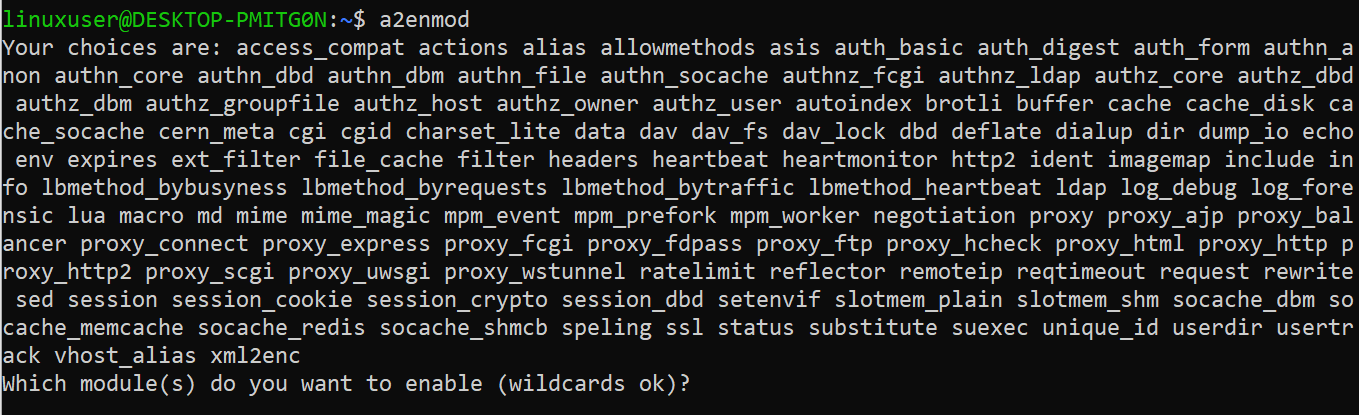
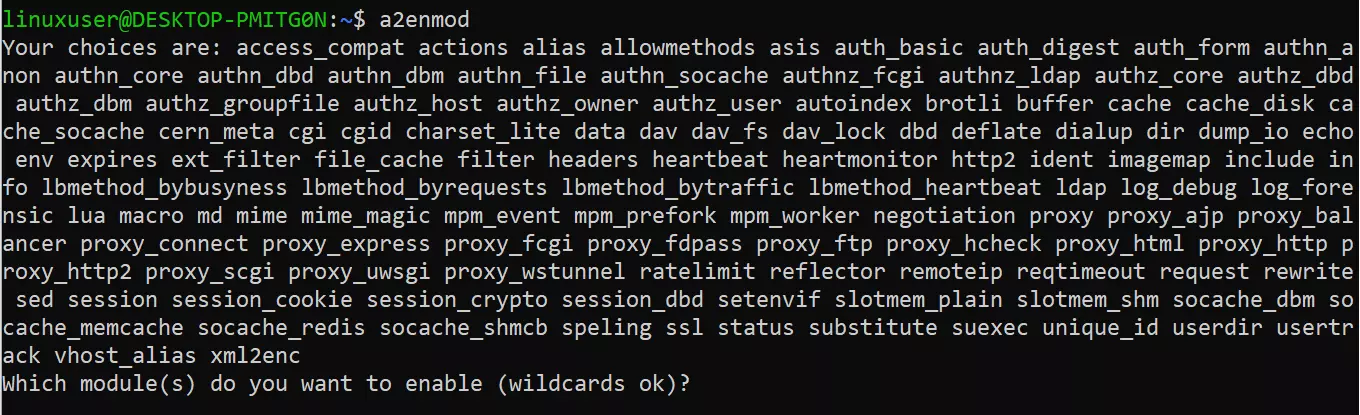
When executing the a2enmod command, you will be prompted to select the modules you want to enable. To streamline the process and specify multiple modules in a single command:
$ proxy proxy_ajp proxy_http rewrite deflate headers proxy_balancer proxy_connect proxy_htmlYou can also activate each module individually:
$ a2enmod proxy
$ a2enmod proxy_http
$ a2enmod proxy_ajp
$ a2enmod rewrite
$ a2enmod deflate
$ a2enmod headers
$ a2enmod proxy_balancer
$ a2enmod proxy_connect
$ a2enmod proxy_htmlSome modules are active by default. Use a2enmod to ensure that they’re truly enabled.
Step 5: Change the default configuration
To implement the Apache web server proxy functions, we need to edit the default configuration file 000-default.conf in the /etc/apache2/sites-enabled directory.
$ nano /etc/apache2/sites-enabled/000-default.confWe set up a virtual proxy host using the mod_virtualhost and mod_proxy extensions. You can customise the code according to your needs.
<VirtualHost *:*>
        ProxyPreserveHost On
        # Servers to proxy the connection, or;
        # List of application servers:
        # Usage:
        # ProxyPass / http://[IP Addr.]:[port]/
        # ProxyPassReverse / http://[IP Addr.]:[port]/
        # Example:
        ProxyPass / http://0.0.0.0/
        ProxyPassReverse / http://0.0.0.0/
        ServerName localhost
</VirtualHost>Press Ctrl + X and Y to save the changes and close the text editor.
Step 6: Configure load balancing
If you run multiple backend servers, it’s recommended to distribute the load using load balancing.
You can use the following code as a template for this and insert it into the standard configuration file:
<Proxy balancer://mycluster>
        # Define back-end servers:
        # Server 1
        BalancerMember http://0.0.0.0/
        # Server 2
        BalancerMember http://0.0.0.0/
    </Proxy>
    <VirtualHost *:*>
        # Apply VH settings as desired
        # However, configure ProxyPass argument to
        # use "mycluster" to balance the load
        ProxyPass / balancer://mycluster
</VirtualHost>Step 7: Set up SSL support
To use Apache SSL for encrypted connections and certificates, you must enable a second virtual host.
Listen 443
    NameVirtualHost *:443
    <VirtualHost *:443>
        SSLEngine On
        # Set the path to SSL certificate
        # Usage: SSLCertificateFile /path/to/cert.pem
        SSLCertificateFile /etc/apache2/ssl/file.pem
        # Servers to proxy the connection, or;
        # List of application servers:
        # Usage:
        # ProxyPass / http://[IP Addr.]:[port]/
        # ProxyPassReverse / http://[IP Addr.]:[port]/
        # Example:
        ProxyPass / http://0.0.0.0/
        ProxyPassReverse / http://0.0.0.0/
        # Or, balance the load:
        # ProxyPass / balancer://balancer_cluster_name
</VirtualHost>Step 8: Reboot Apache
Once you’re all done with configuration, restart the Apache web server for the changes to be applied.
$ service apache2 restartNow the Apache reverse proxy should forward requests to your backend servers.