

How to install and set up an Ubuntu server

You can start installing an Ubuntu server as soon as you have created a bootable medium containing the installation image of the open-source operating system. The installation assistant then guides you through the setup process. We have summarised the most important information and the initial configuration steps for you.
Try out your VPS for 30 days. If you're not satisfied, we'll fully reimburse you.
How to install Ubuntu Server and set it up step by step
The server edition of the popular Linux distribution Ubuntu offers a lean, minimalist foundation for a wide range of server use cases—whether as an email server, a web hosting platform, or a file server. Because Ubuntu Server Edition runs without a graphical user interface, it is especially resource-efficient and well suited to performance-focused server environments:
- At least a 1 GHz CPU (recommended: 2 GHz dual-core or better)
- At least 1 GB of memory (RAM) (recommended: 3 GB RAM or more)
- At least 5 GB of hard drive space (recommended: 25 GB or more)
The following section provides all the essential information you need to install and configure an Ubuntu server. This guide uses version 22.04 as an example.
Step 1: Create an Ubuntu server boot medium
The easiest way to get the installation of the Ubuntu Server Edition underway is to create a boot medium. For this, you can use a CD/DVD or, more traditionally, a USB flash drive with at least 4 gigabytes of available storage capacity. You’ll also need the image file for the Ubuntu server application, which you can download in the first step from the official Ubuntu website.
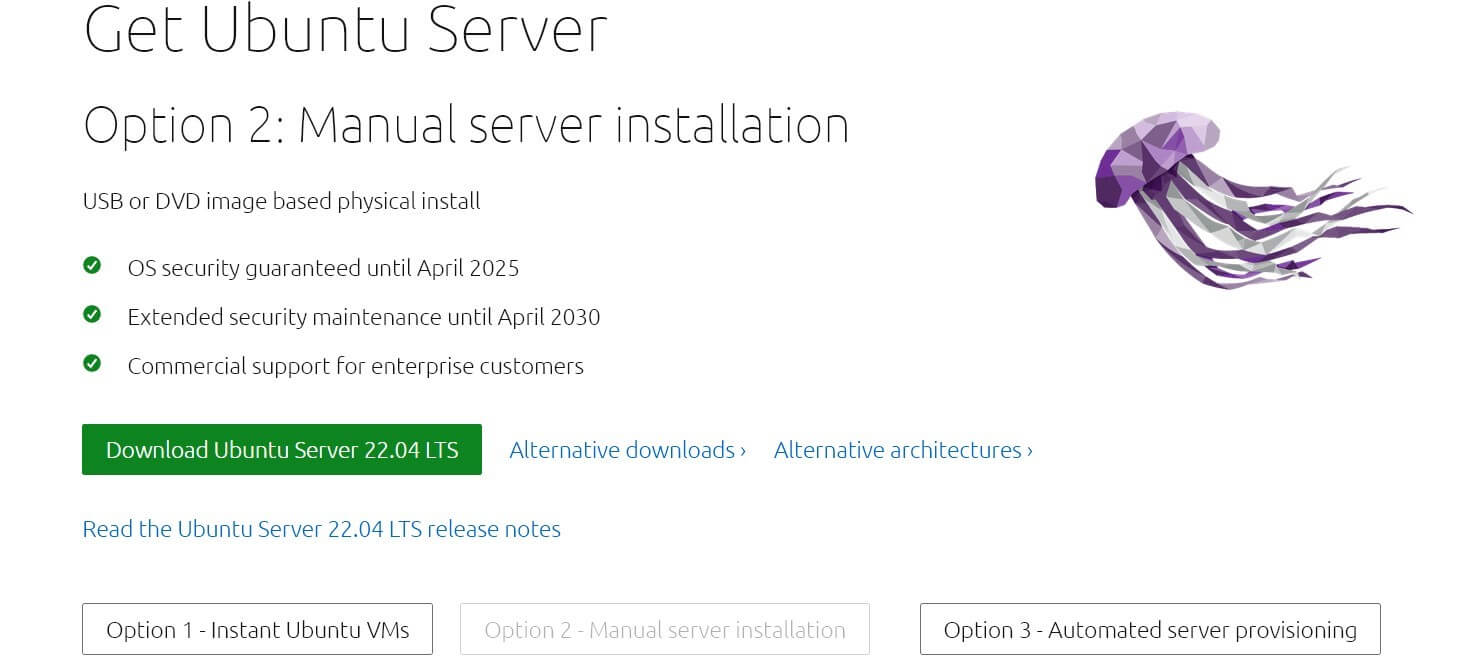
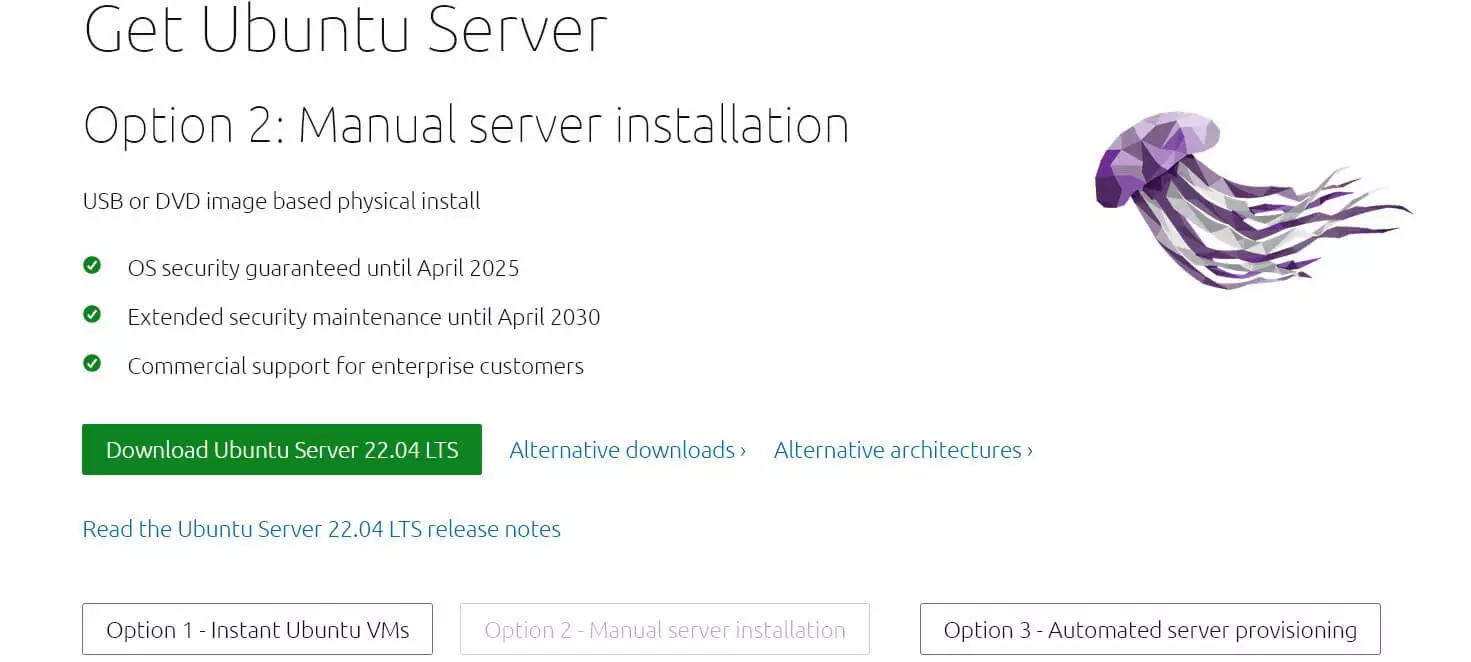
After downloading, copy the ISO file to the selected medium.
Don’t know how to create a bootable medium on your current system? Developer Canonical provides detailed instructions on the official website for creating an Ubuntu server bootable USB drive on Windows, macOS, and Linux!
Step 2: Start the installation
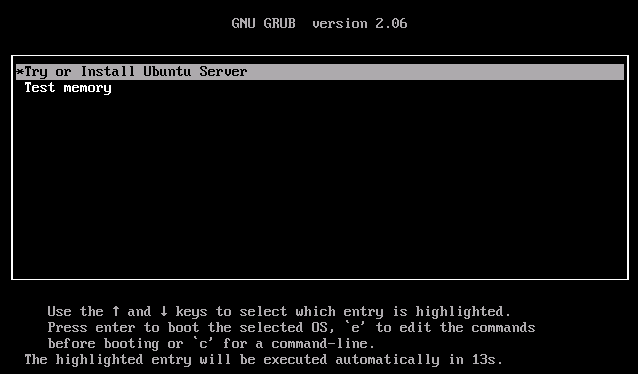
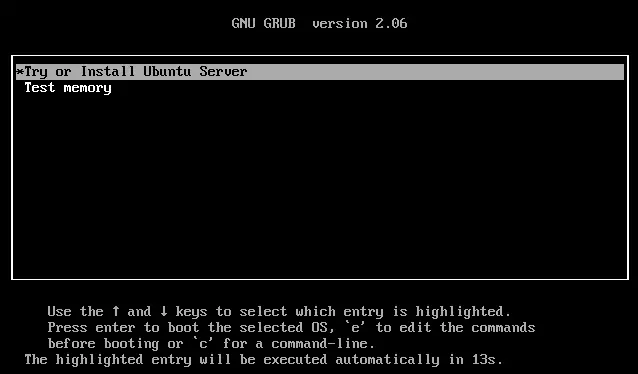
Once you have created a boot medium, you can set up or install Ubuntu Server. To do so, connect your server to the bootable USB drive and start the device. If you are using a CD or DVD, insert the disc and reboot the server. As soon as the image file has been read, your server will display a window from the GNU GRUB bootloader. Confirm the selected entry ‘Try or Install Ubuntu Server’ to begin installing Ubuntu Server.
Step 3: Select the system language and keyboard layout
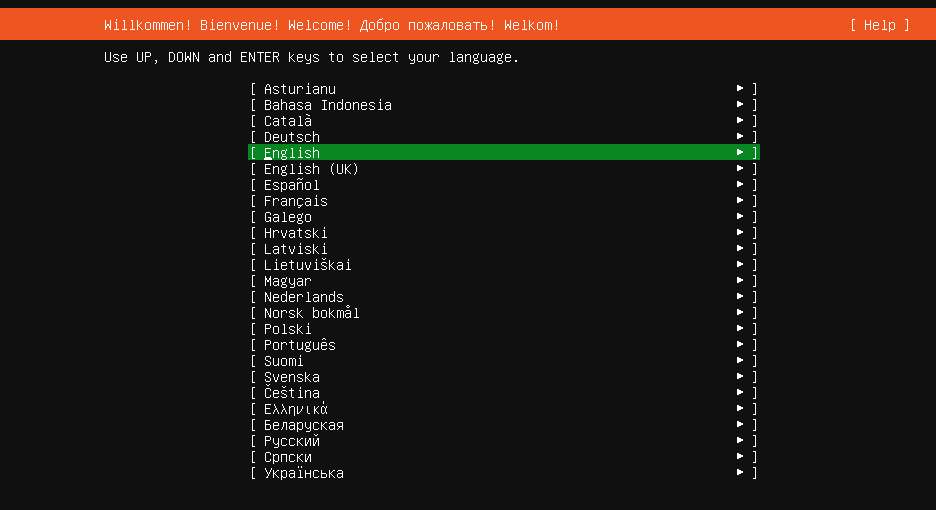
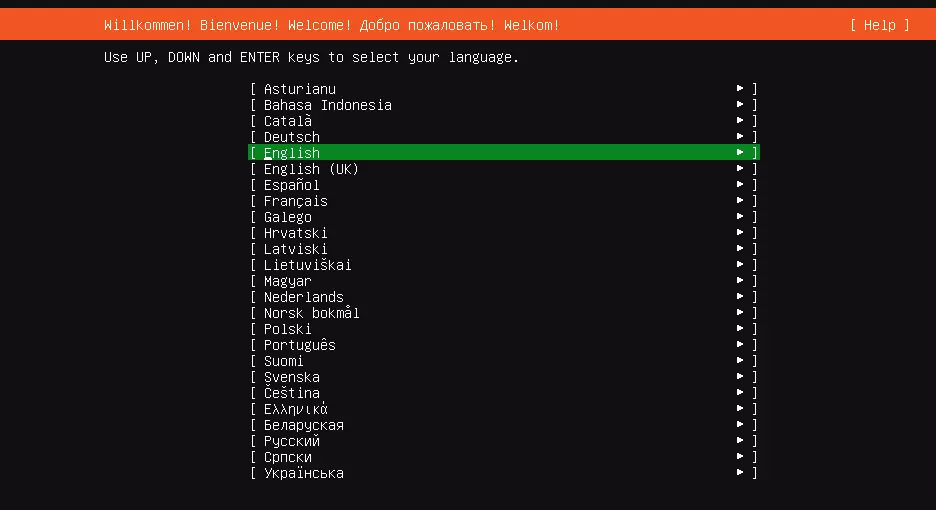
After a brief pre-configuration, the installation wizard for Ubuntu Server will launch. The process is straightforward. Use the arrow keys to move between the available options and press the Enter key to confirm your selection. In the first step, choose the system language, which will also be used throughout the rest of the installation.
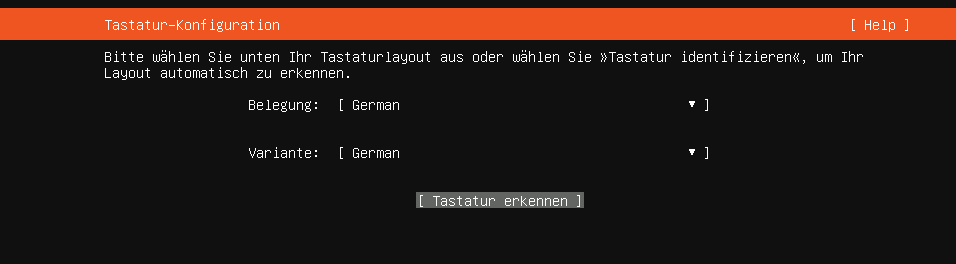
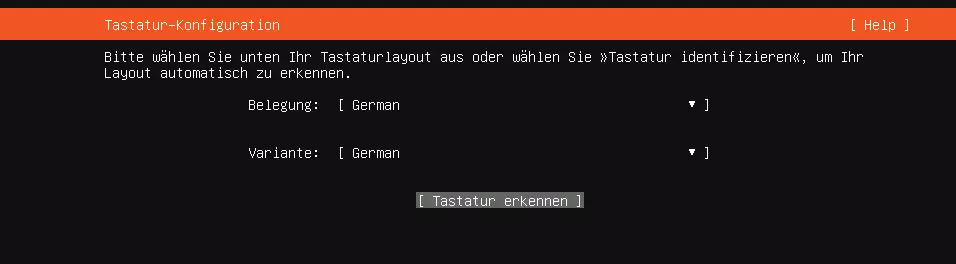
After you’ve selected the general system language, continue with configuring the keyboard layout by either selecting the desired keyboard language manually from the available list or using the ‘Identify keyboard’ option to have the wizard detect the layout.
Step 4: Select the Ubuntu server variant
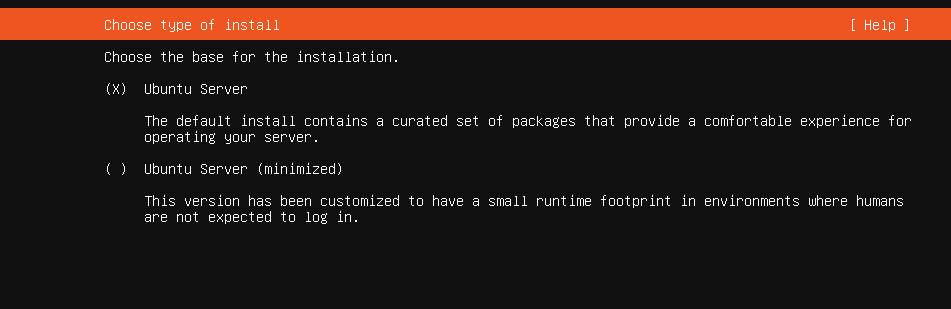
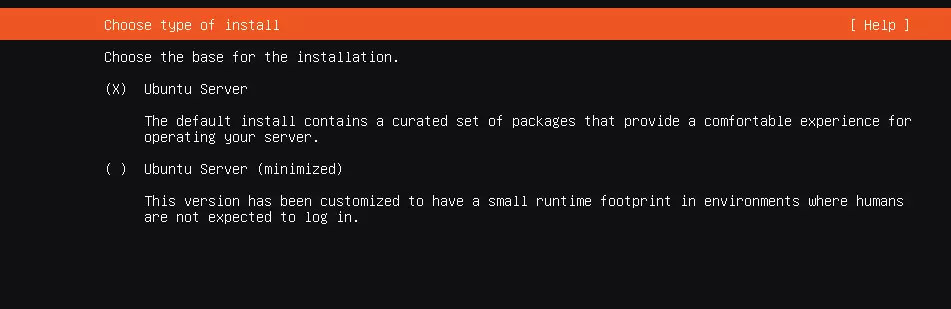
In the next step, you define the base configuration for the installation. If you choose the standard option, ‘Ubuntu Server’, a basic set of software packages will be installed. These packages provide all the essential tools needed to work with Ubuntu Server comfortably in everyday use.
Alternatively, selecting ‘Ubuntu Server (minimized)’ installs a reduced system in which many user tools are omitted. This resource-saving option is best suited for scenarios where you expect very little direct interaction with the server.
To choose between the two options, press the Enter key to place an X next to the desired option.


Step 5: Network and proxy settings
Next come the settings options for the network connection and proxy server.
If your Ubuntu Server is already connected to a network with an active DHCP service, the appropriate network adapter is usually configured automatically. If you cannot or do not want to establish a network connection at this stage, you can continue the installation by selecting ‘Continue without network’.
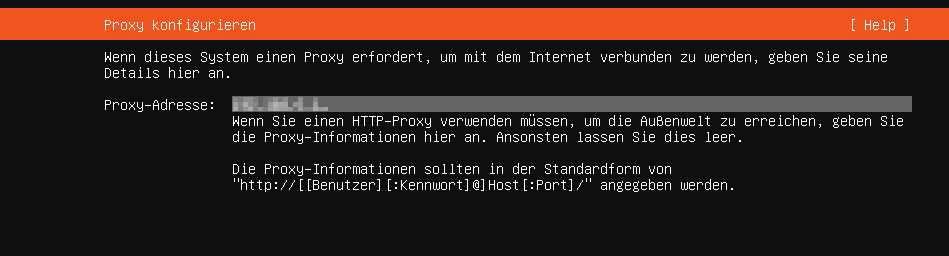
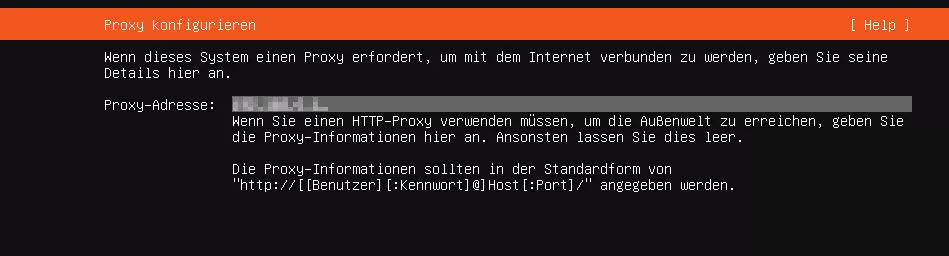
If your Ubuntu server is supposed to use a proxy server to connect to the internet, enter the individual address of the HTTP proxy in the following dialog.
Step 6: Configure the Ubuntu archive mirror
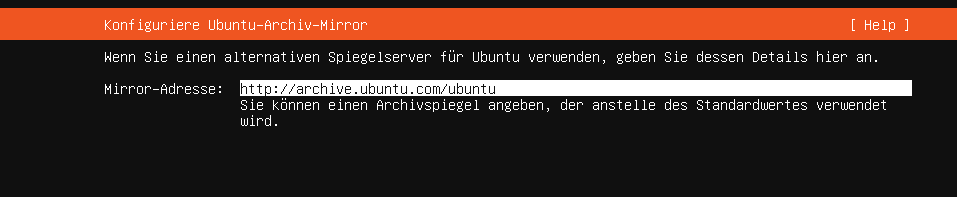
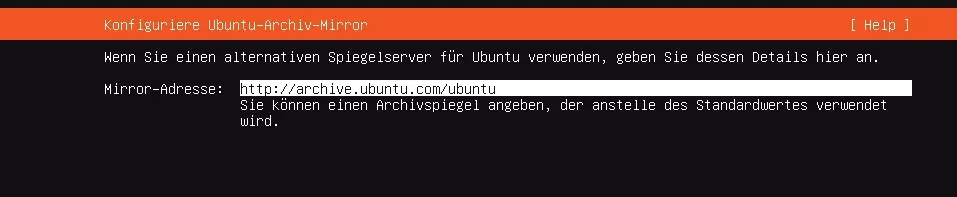
The many software packages included in the Ubuntu distribution are updated regularly and stored in the public archive at archive.ubuntu.com/ubuntu. However, you are not limited to this single source. Numerous copies of the archive exist in the form of so-called Ubuntu archive mirrors, also known as Ubuntu mirror servers. These mirrors provide redundancy and help distribute server load. If you prefer to use a different source, you can enter the address of an alternative mirror instead of the default archive.
Step 7: Manage storage space
One large hard drive or multiple partitions? You’ll make this decision in the next step of the setup, under ‘Guided storage configuration’. In most cases, the preselected option to use the entire disk is the best choice for an Ubuntu server.
In the following screen, the wizard displays a summary of the file system. Even if you chose not to create multiple partitions, you may still see several listed. This is normal, as Ubuntu automatically creates small partitions for essential system files and the bootloader.
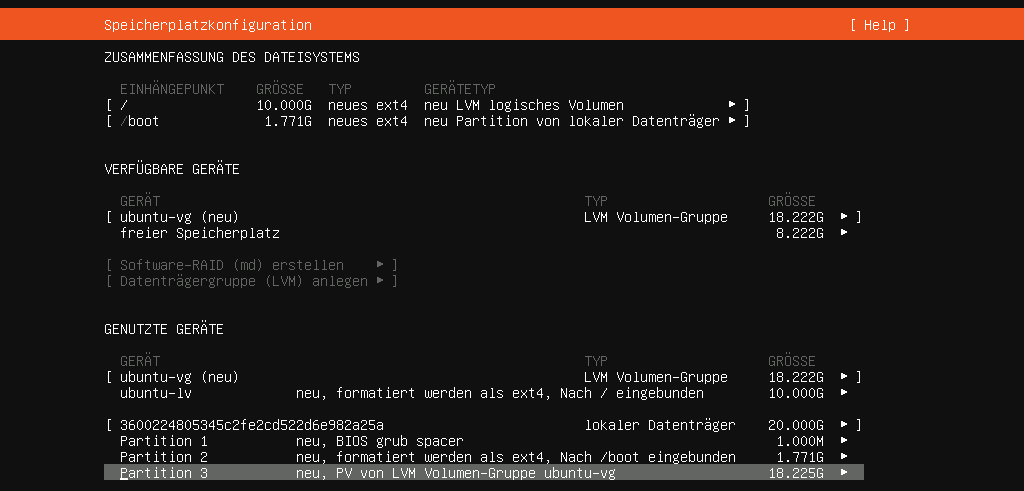
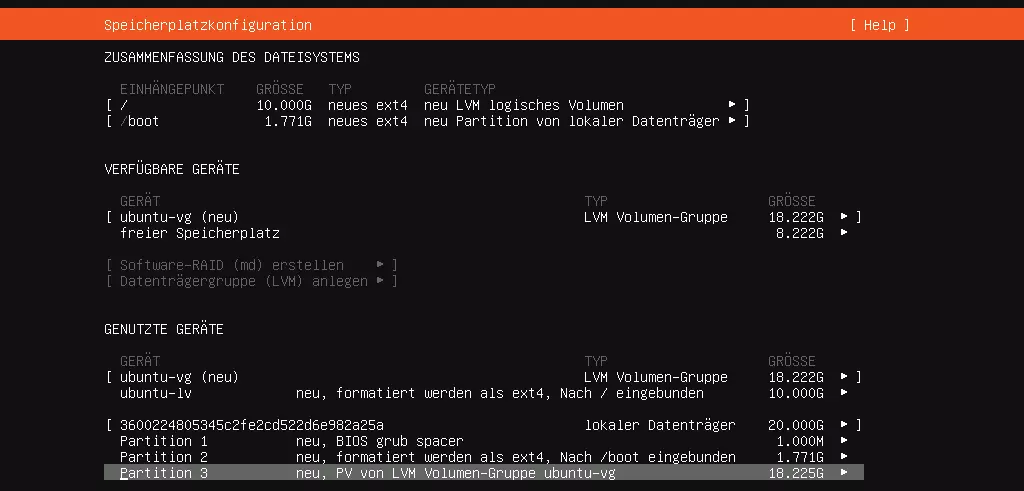
Once you confirm the storage configuration, you’ll be informed that all existing data on the selected drive will be deleted. To proceed with the installation, you must confirm and agree to this deletion.
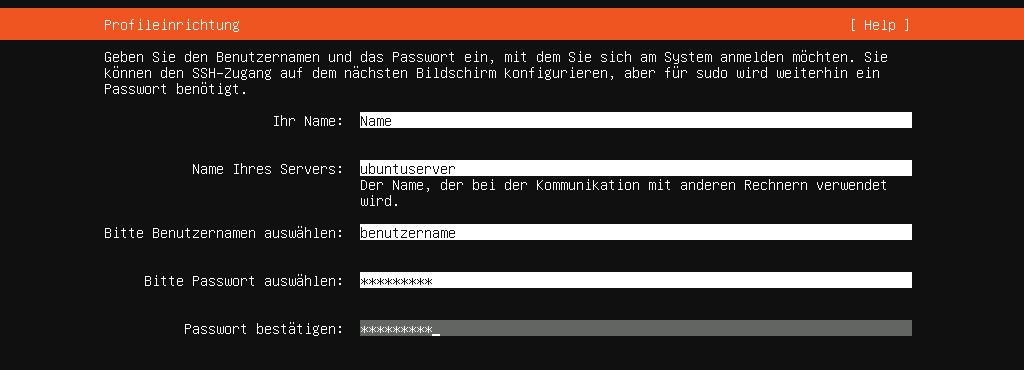
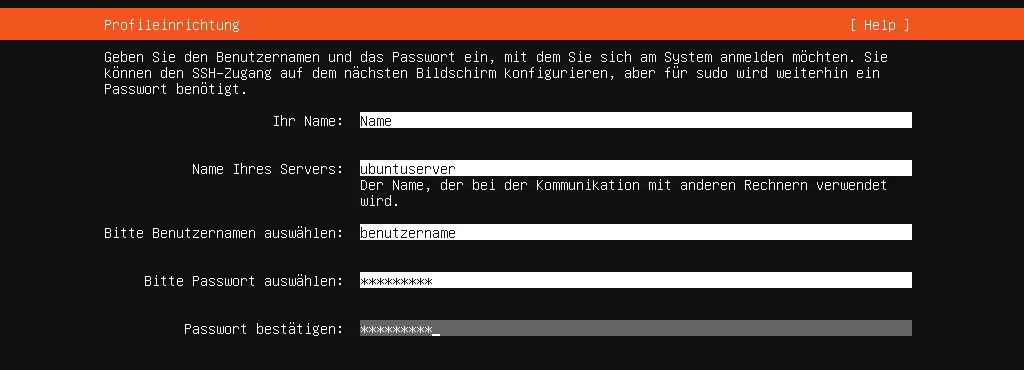
Step 8: Set up your profile
Create the user account for logging in to your Ubuntu server by entering your name, your desired username, and a password. You can also specify the name of your server, which will later be used when communicating with other computers.
Step 9: Set up SSH
SSH is an important technology for secure remote access to your server. During the installation process, you can install the OpenSSH package by simply selecting the appropriate checkbox. If you already have SSH keys stored with GitHub or Launchpad, you can import them directly at this stage.
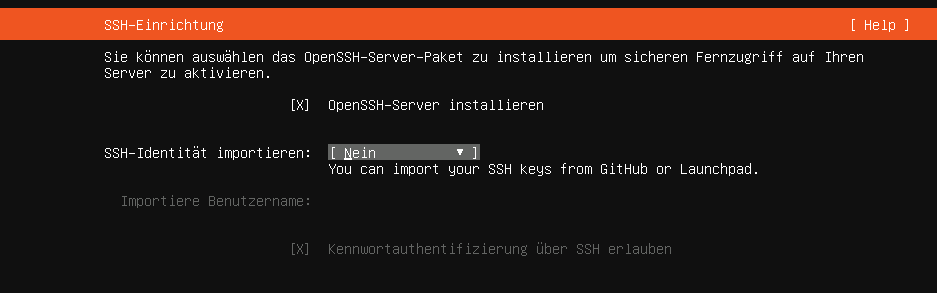
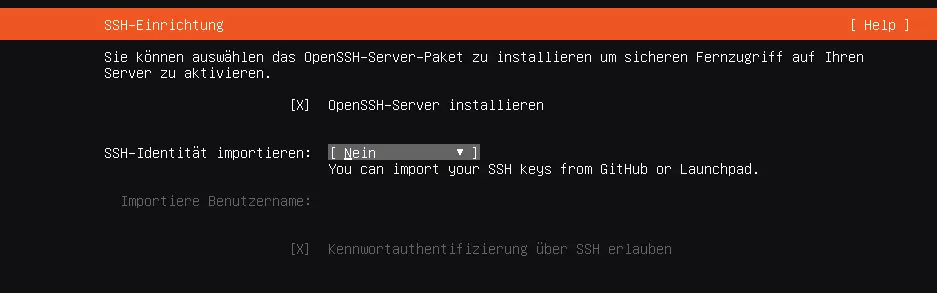
You can also set up SSH in Ubuntu at a later time if you skipped this option during installation.
Step 10: Complete the Ubuntu server installation
After setting up SSH, the wizard automatically starts the actual installation. If it was successful, you’ll see the message ‘Install complete!’
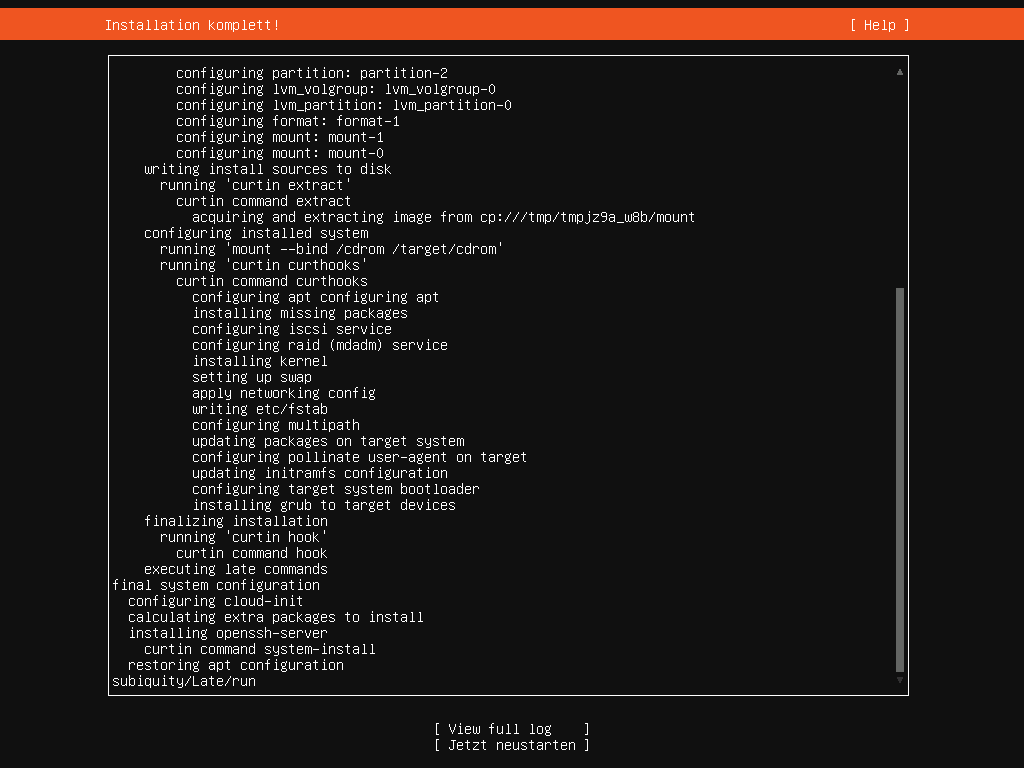
Remove the boot media and select ‘Reboot now’ to complete the installation.
Set up an Ubuntu FTP server to upload files conveniently and securely to the webspace of your choice.
Reviewer

Christian Heldmaier
Christian Heldmaier is an experienced online marketing and SEO specialist from Karlsruhe. He has been working as an SEO Manager at IONOS since July 2020.