

How to manage Passwords in Google Chrome

Google Chrome allows you to store passwords and manage them across devices. With Google’s built-in password management, you specify which passwords you store and for which websites you want automatic login.
- Regular virus scans
- Automatic backups and simple file recovery
Quick guide: How to use Google password manager
- In Google Chrome, click the three-dot icon to go to Settings > Autofill > Passwords.
- In Google Chrome’s password manager, set whether you want Chrome to store passwords and log you in to websites automatically.
How to use Google Chrome password manager
You don’t necessarily need external browser extensions and apps to manage your passwords. Google Chrome has useful password management features that save passwords as desired, automatically log you in to desired websites and apps, or verify saved passwords. Google Password Management is especially handy if you don’t want Chrome to ask you to save your credentials every time you log in, or if you don’t always want to actively log in to frequently used accounts.
Google Workspace from IONOS gives you centralised, cross-device access to all Google Apps for optimal teamwork.
Here’s how the password manager works in Google Chrome
Adhere to the following steps to store and manage passwords in Google Chrome.
Step 1: Open the Chrome browser and click the three-dot ‘More’ icon on the top right corner. After that, go to ‘Settings’.
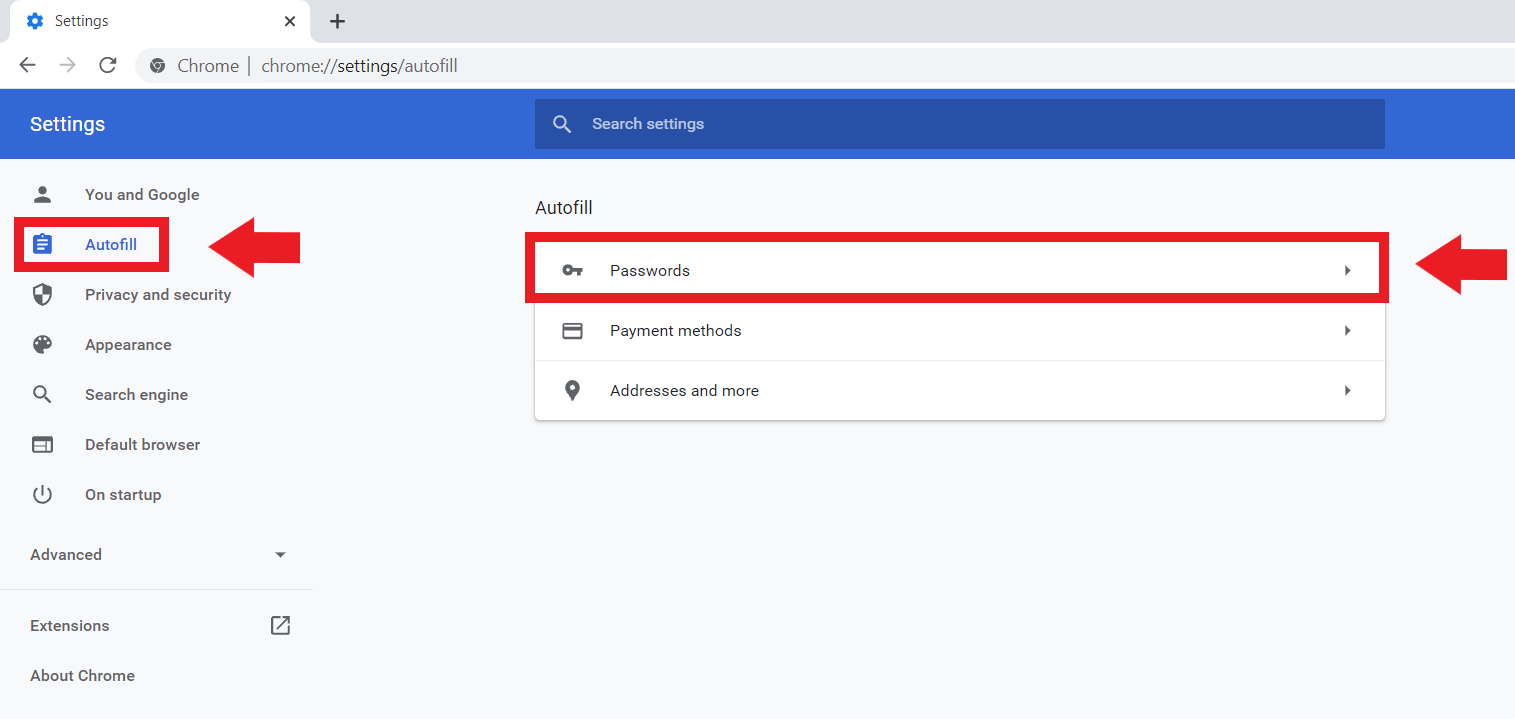
Step 2: In the settings menu on the left, click ‘Autofill’ and click ‘Passwords’ to go to Google’s password management.
Step 3: Now set the password settings according to your needs. First, under ‘Offer to save passwords’, you can instruct Google Chrome to save credentials and remember them for the next time you visit a website.
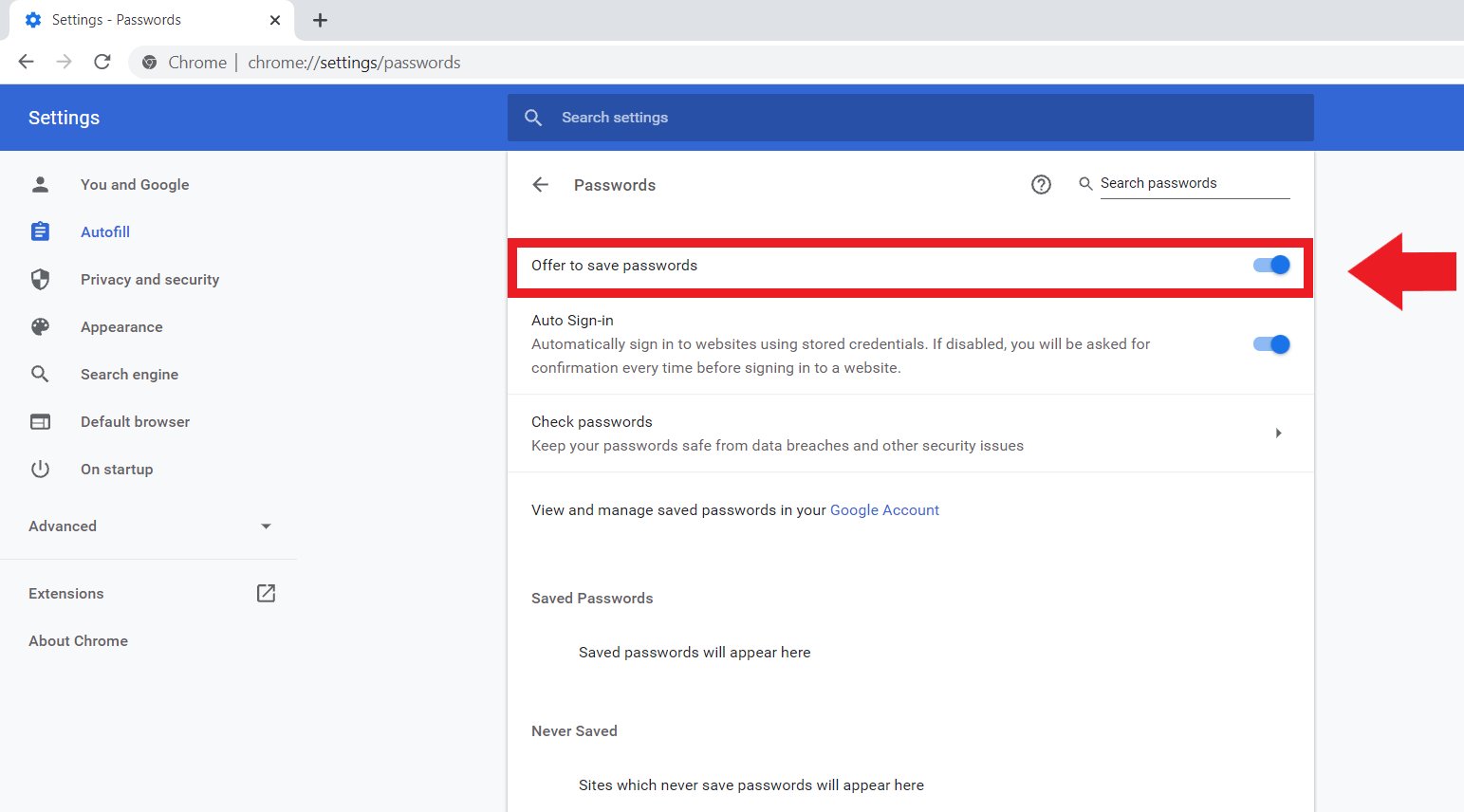
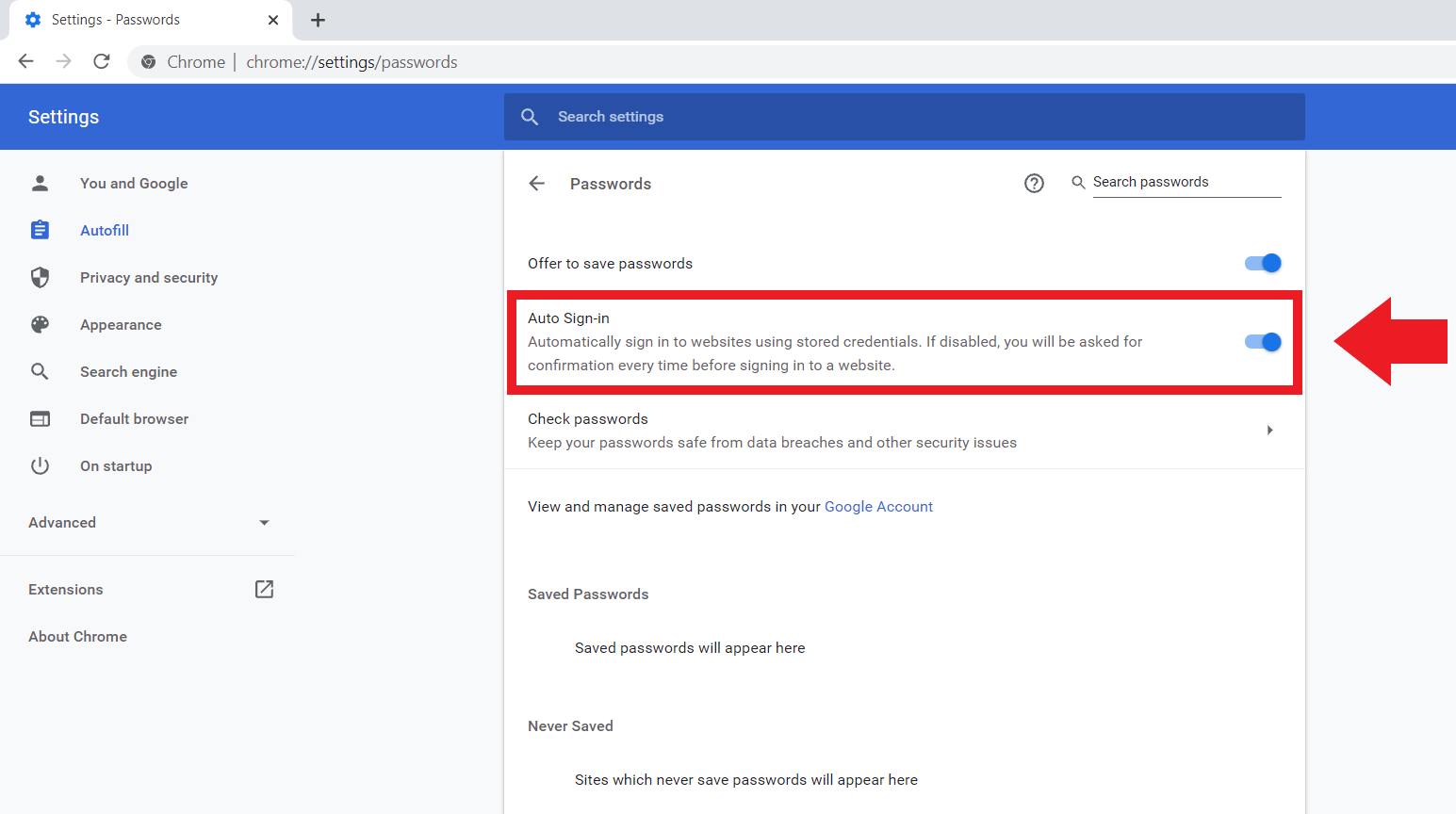
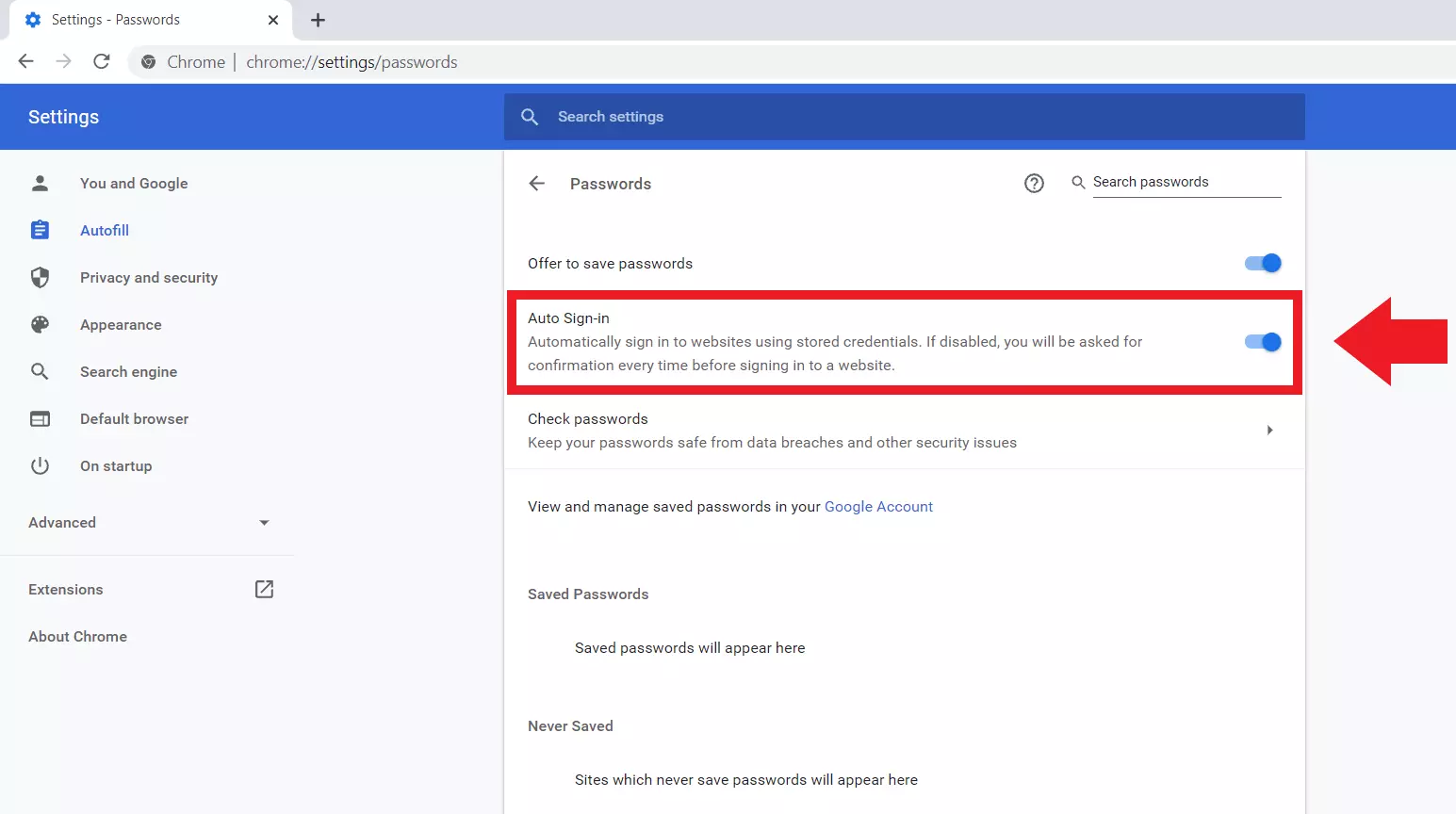
Step 4: If there are already saved passwords, you can tell Chrome to automatically log you in when you visit a website under ‘Auto Sign-in’. To do this, activate the blue switch. Deactivate the switch if you want Chrome to ask you for an automatic login every time you log in.
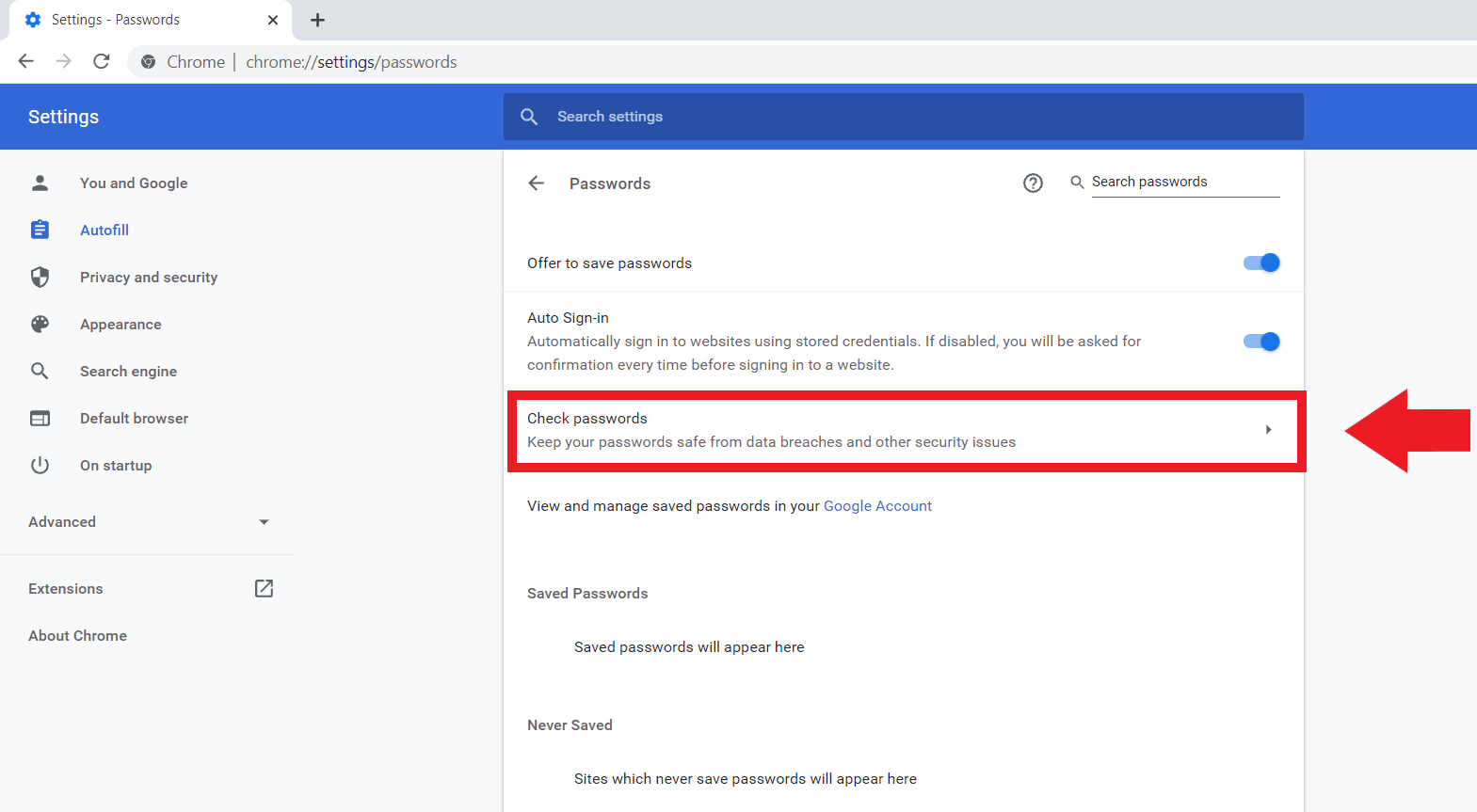
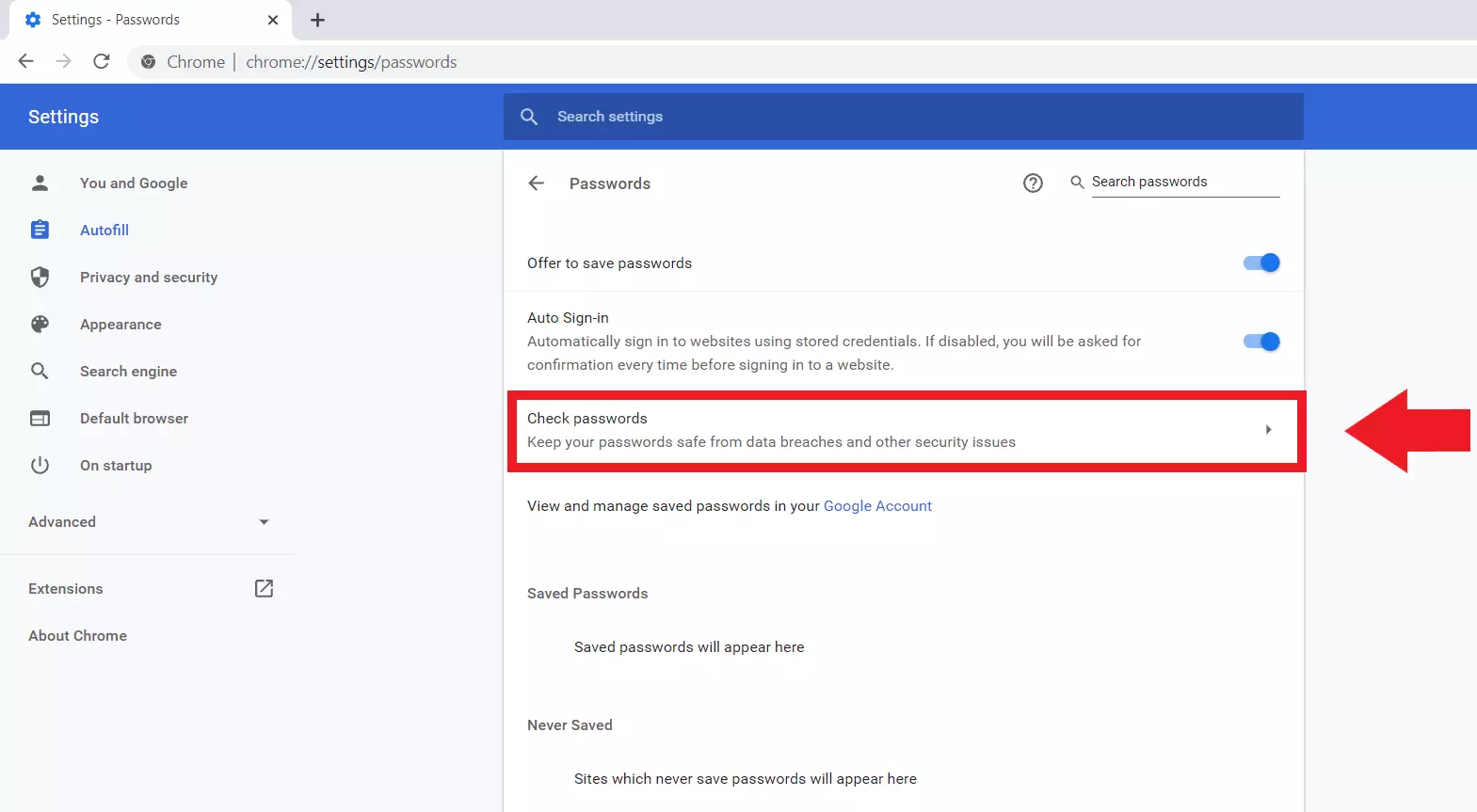
Step 5: With the ‘Check passwords’ item, Chrome offers you to check already saved passwords for current security standards such as optimal password strength.
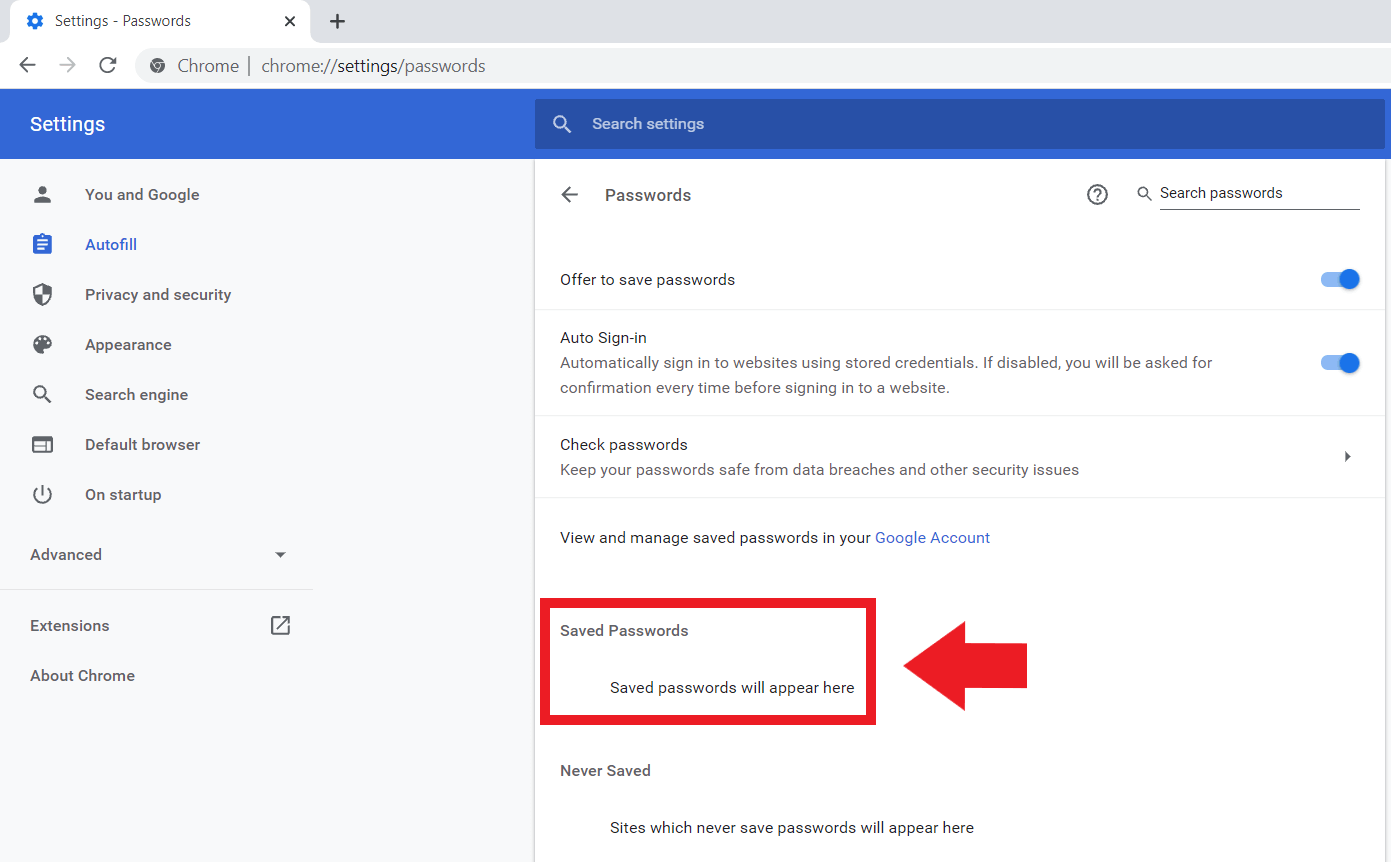
Step 6: Passwords that you have already saved Chrome will display under ‘Saved Passwords’. For saved passwords, you can make further changes or remove saved websites.
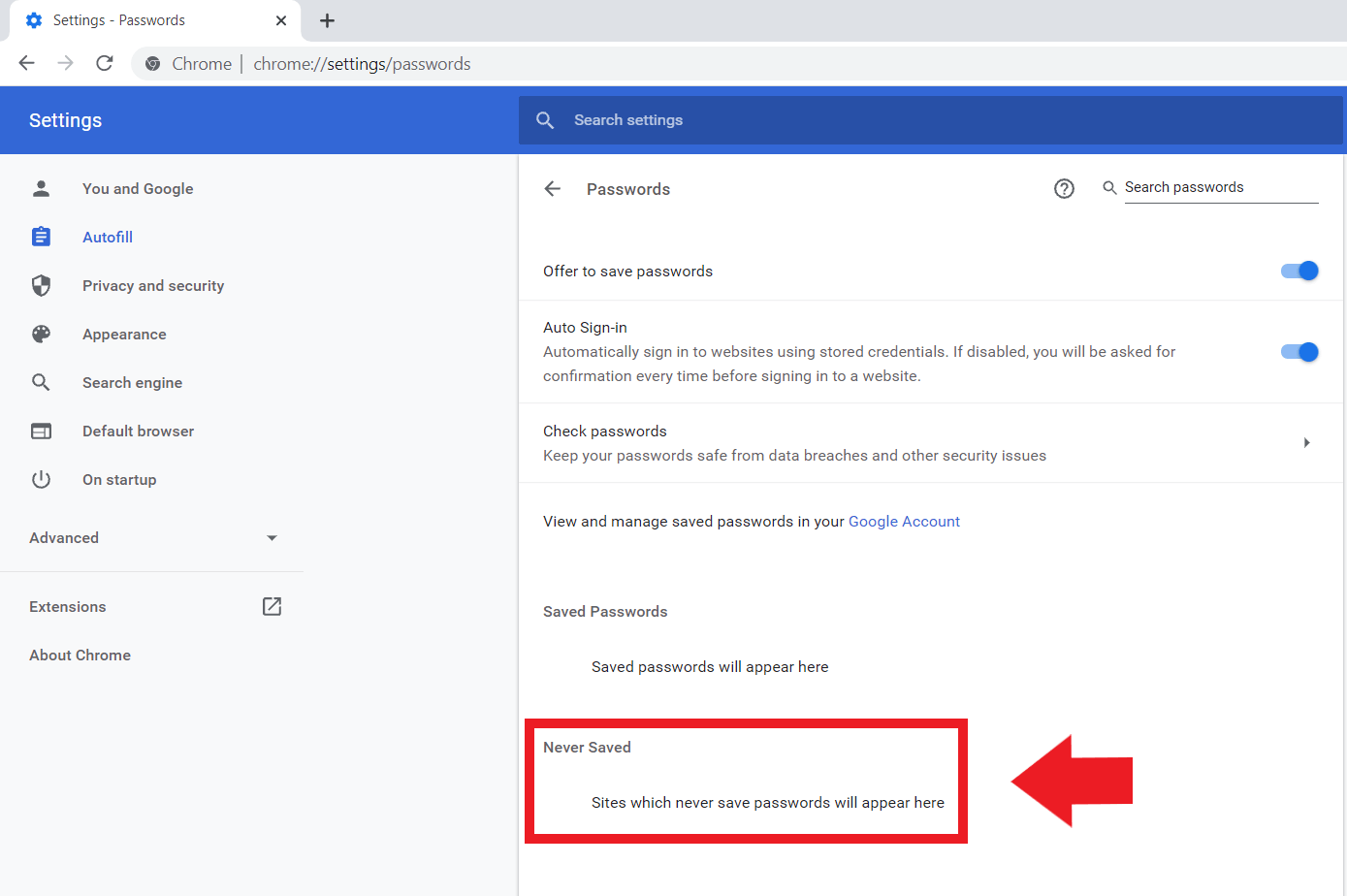
Step 7: If you would like to save passwords but exclude certain websites from this function, enter the relevant URLs under ‘Never Saved’. This is especially recommended for sensitive credentials, such as bank or insurance accounts.
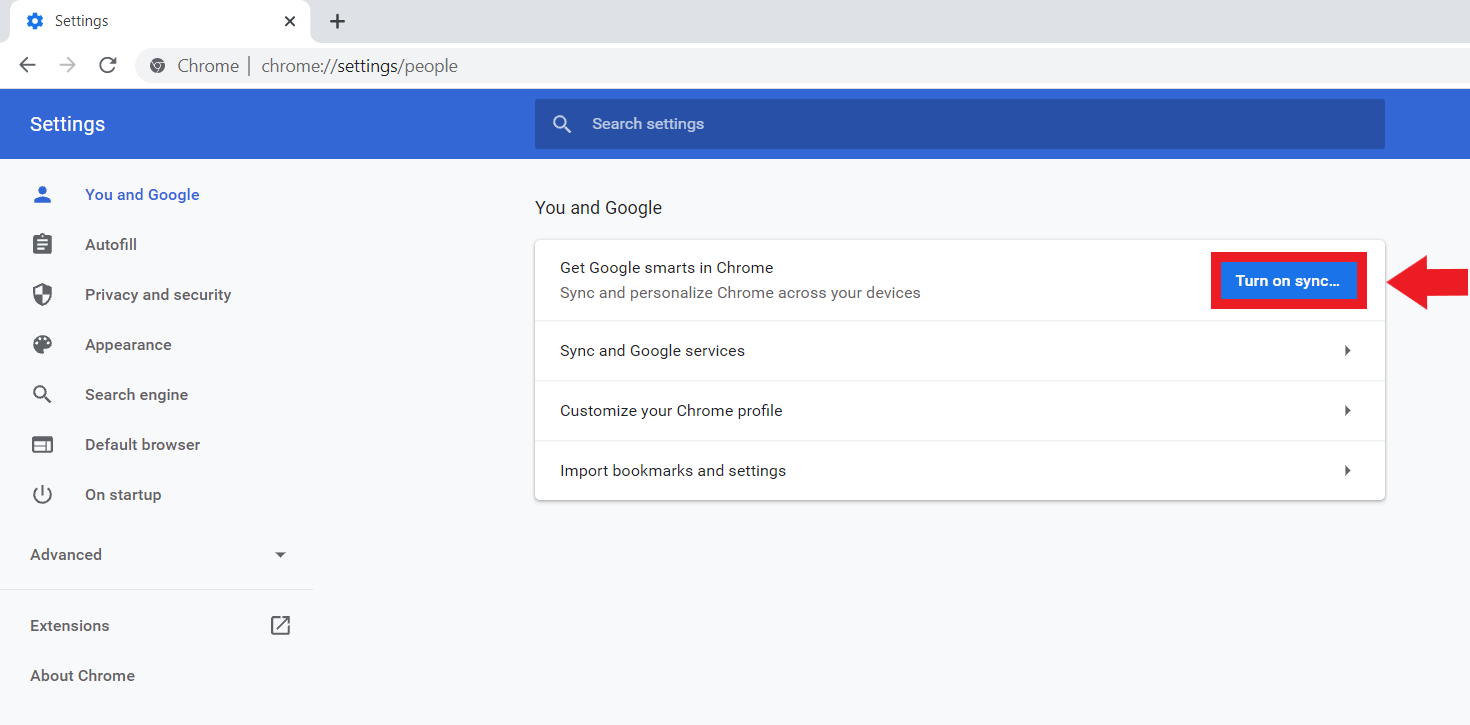
Step 8: If you want to use passwords across devices, enable Chrome syncing. This will save passwords to your Google account and sync them across all your devices. To do this, go to the ‘Turn on sync…’ item under ‘You and Google’.
Alternatives to Google Chrome Password Manager
An alternative to password management with Google are external password manager tools, with which you manage or share passwords across devices and even users. This also includes features like storing SSH keys or a password-protected file manager.
Versatile paid password manager tools include:
- 1Password
- Password Safe (MATESO)
- Dashlane (premium version)
Free alternatives to 1Password and other password manager tools:
A professional business email from IONOS ensures secure communications, a distinctive web presence, and real-time synchronisation.
Reviewers

Melissa Senn
Melissa Senn has been with IONOS since 2016 and focuses on website, e-commerce, social media, and AI in the Digital Guide. As a digital strategist, she uses her extensive SEO and GEO experience to transform complex technological trends into practical content.

Christian Heldmaier
Christian Heldmaier is an experienced online marketing and SEO specialist from Karlsruhe. He has been working as an SEO Manager at IONOS since July 2020.