

The most popular file managers for Windows, Linux, and Mac

Whether you prefer Windows, Linux, or Mac, every operating system comes with a pre-installed file manager. This is a program that displays the contents of data media on your computer and allows you to edit them if necessary. The basic functions of each file manager include navigating in the file directory and listing, creating, moving, copying, renaming, and deleting folders and files. In addition, the file manager enables you to manage file or directory attributes within the scope of your user rights.
How efficient these steps are depends, among other things, on which program you use to manage your file system. You are not restricted to the default file manager of your Windows, Linux, or Mac operating system. Over the years, several alternatives have been established to make working with folders and files as easy as possible using a customised user interface and additional features.
We have compiled a list of the most popular file managers for Windows, Linux, and macOS.
- Set it up effortlessly and start saving files straight away
- Your data is available anywhere and on all devices
- 100% GDPR compliant in European data centres
Alternative file manager for Windows
Explorer has been the standard file manager of the Microsoft Windows operating system family since Windows 95. The program provides users with basic functions for managing files and directories via an organised user interface.
Explorer’s window is divided into two areas. On the left-hand side, you will find your file directory in the form of a tree structure, while the field on the right side is used to display folder contents. If required, a third field, the preview window, can be displayed. In addition, Windows Explorer provides the desktop – the workspace in the background – as well as icons displayed on it, the taskbar, and the start menu.
This means that the explorer’s range of functions is basically sufficient to professionally manage your computer’s file system. However, especially experienced Windows users don’t want to settle for these basic features, and instead choose alternative programs that can do what Windows Explorer doesn’t:
- Multi-window views
- Tabbed browsing
- Access to remote file systems
- Advanced search functions
- Comparison and syncronisation of directories
- Filters, and lots more
Interesting alternatives to Windows Explorer are the freeware solutions, FreeCommander and Q-Dir, as well as the file managers SpeedCommander and Total Commander, which are available as shareware.
FreeCommander XE 2017
FreeCommander XE 2017 is the latest version of the popular freeware file manager from Marek Jasinski for Windows versions XP, Vista, 7, 8, and 10. FreeCommander is an impressive alternative to Windows Explorer with various additional functions.
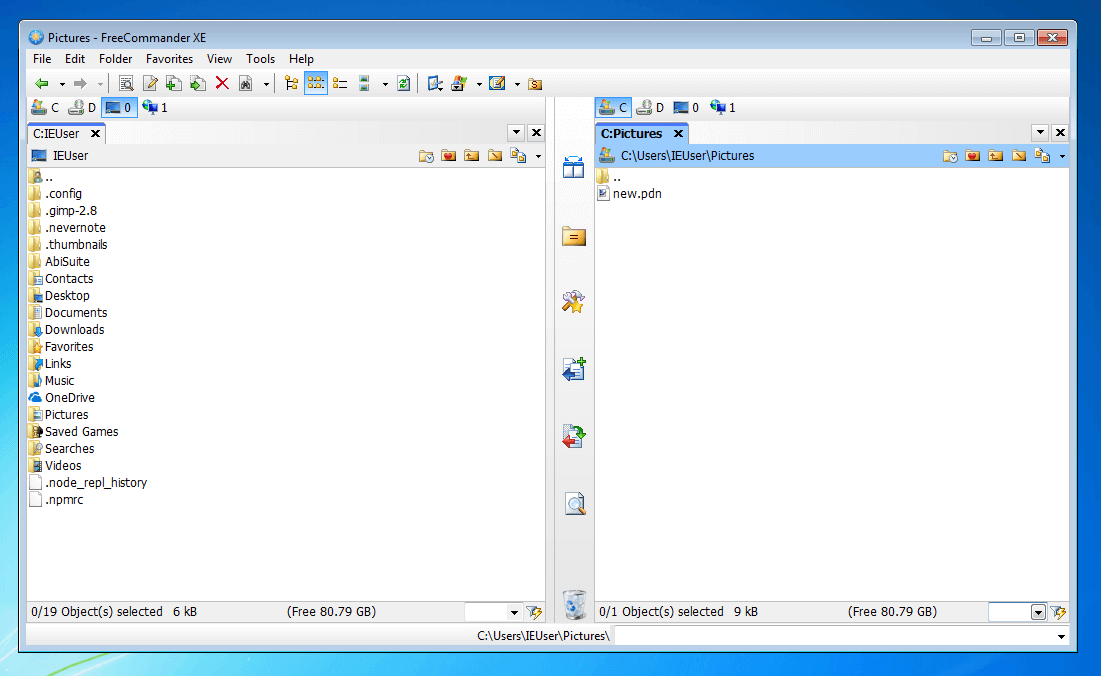
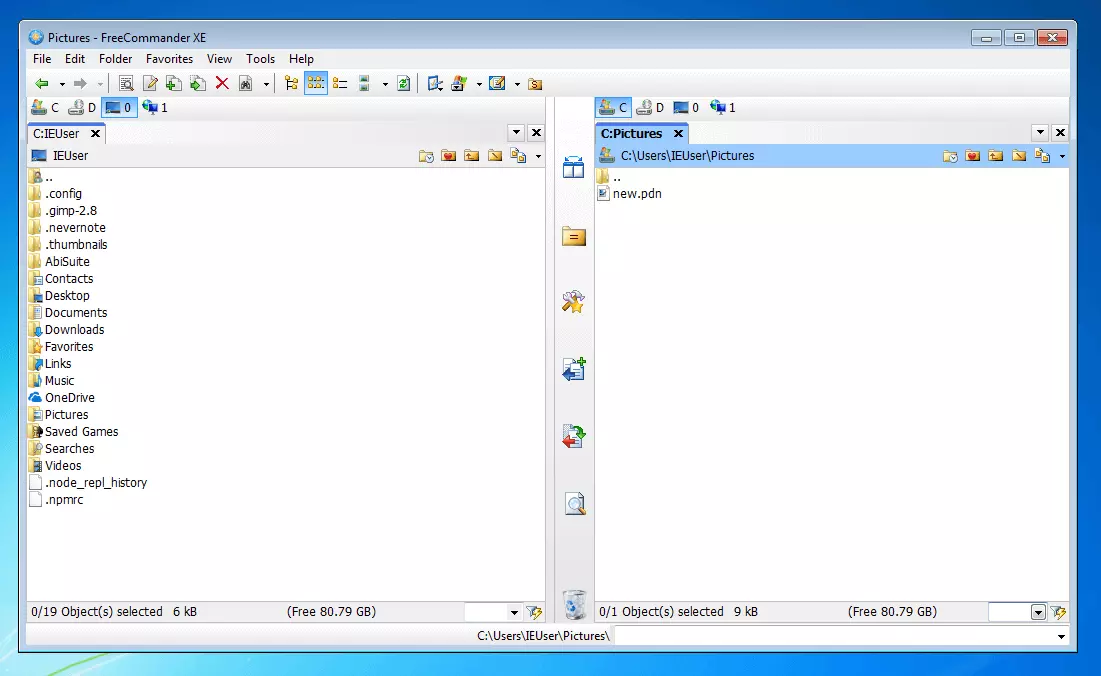
The program’s underlying two-window technology enables parallel work in two file windows. Files and directories are displayed on both sides in a clear tree structure. Additional file windows can be attached as tabs. As usual with Windows Explorer, you can perform file operations conveniently by dragging and dropping files, using the menu bar or the context menu. Alternatively, you can control the program using self-defined shortcuts. Standard operations can therefore be carried out particularly effectively. In addition, FreeCommander supports various additional functions that speed up your workflow. Rename, compare, or synchronise multiple files at the same time, and filter the file view according to user-defined criteria. The folders and programs you use the most often can be labeled as 'favorites'. The program includes an integrated packing function, a file viewer with preview view (even for archived files), and FTP support. Further archive formats such as RAR or 7z can be implemented via a plugin. FreeCommander XE 2017 is available to download for free on the provider’s website and can be adapted to the user’s language thanks to the various language files. The developer provides users with comprehensive documents. You can also find help in user forums.
| Advantages | Disadvantages |
|---|---|
| ✓ Two-window view | No considerable disadvantages |
| ✓ Tabs | |
| ✓ Integrated packing function | |
| ✓ Possible to synchronise directories | |
| ✓ FTP support | |
| ✓ Support forum | |
| ✓ Free |
Q-Dir
The freeware Q-Dir from SoftwareOK is available for users of Windows versions XP, Vista, 7, 8, 8.1, and 10, as well as for Microsoft Server 2000 up to 2016. The main advantage of Windows Explorer is its layout, which enables you to manage your file system in a four-window view.
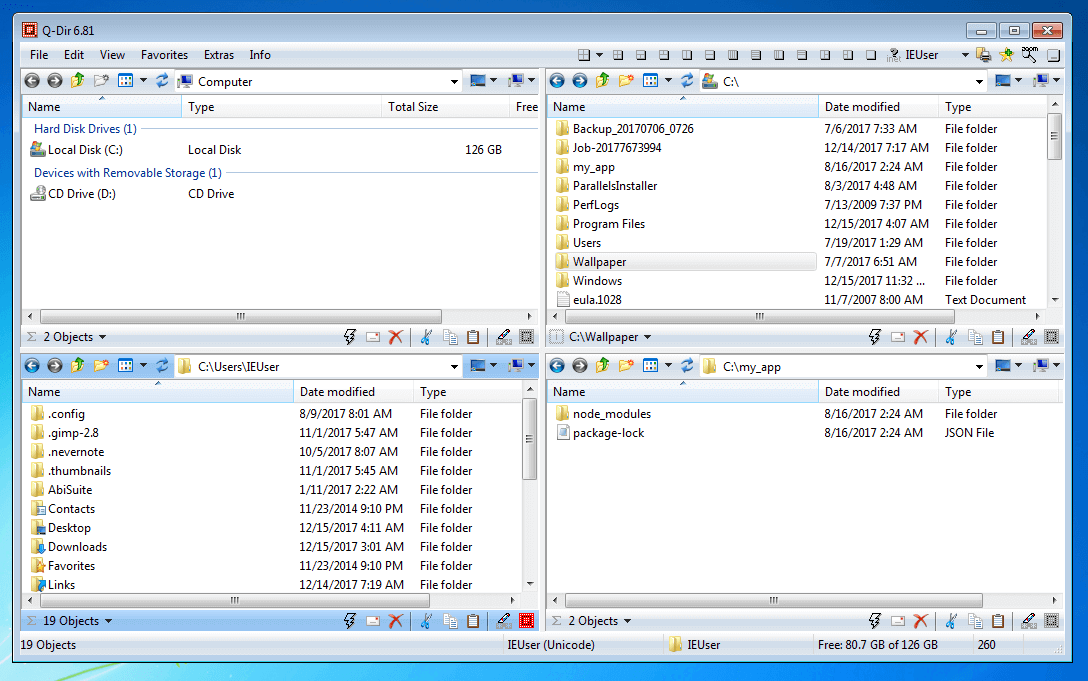
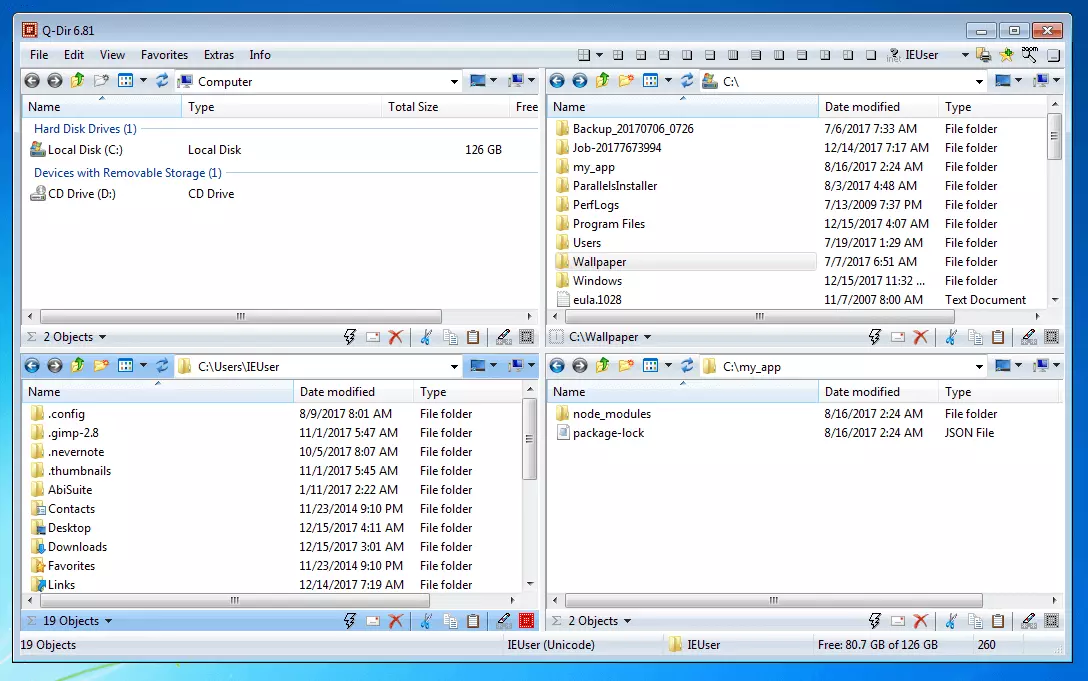
In each window of the file manager, you can create up to four tabs and work with up to 16 file folders at the same time. This means that Q-Dir is especially suitable for users who want to perform file operations across various hard disks or removable media. As with Windows Explorer, it can be operated via the menu bar, the context menu, or conveniently by drag-and-drop. Key combinations and quicklinks are available for standard operations.
Q-Dir offers additional functions such as image preview and the possibility of attaching folders that are used regularly as favorites. In addition, different file types can be colour coded. In comparison, however, Q-Dir’s functional range is much smaller than that of other Windows file managers on the market.
Q-Dir can be obtained free of charge from the provider’s website.
| Advantages | Disadvantages |
|---|---|
| ✓ Four-window view | ✗ No FTP support |
| ✓ Tabs | ✗ No synchronisation function |
| ✓ Colour filter | ✗ No integrated packing function |
| ✓ Favourites | |
| ✓ Free |
SpeedCommander
The shareware file manager SpeedCommander from SpeedProject offers a clear two-window view and enables you to manage folder windows as tags. The program is available in 12 different designs based on the Microsoft products Windows XP, MS Office, and Visual Studio. In addition, users can choose between Windows Explorer-style and Norton Commander-style views.
Norton Commander is a legendary DOS file manager from 1984 whose layout serves as a model for many file managers (known as Norton Commander clones) – including the shareware file managers SpeedCommander and Total Commander introduced here. The classic three-window layout can also be found in FTP clients such as FileZilla.
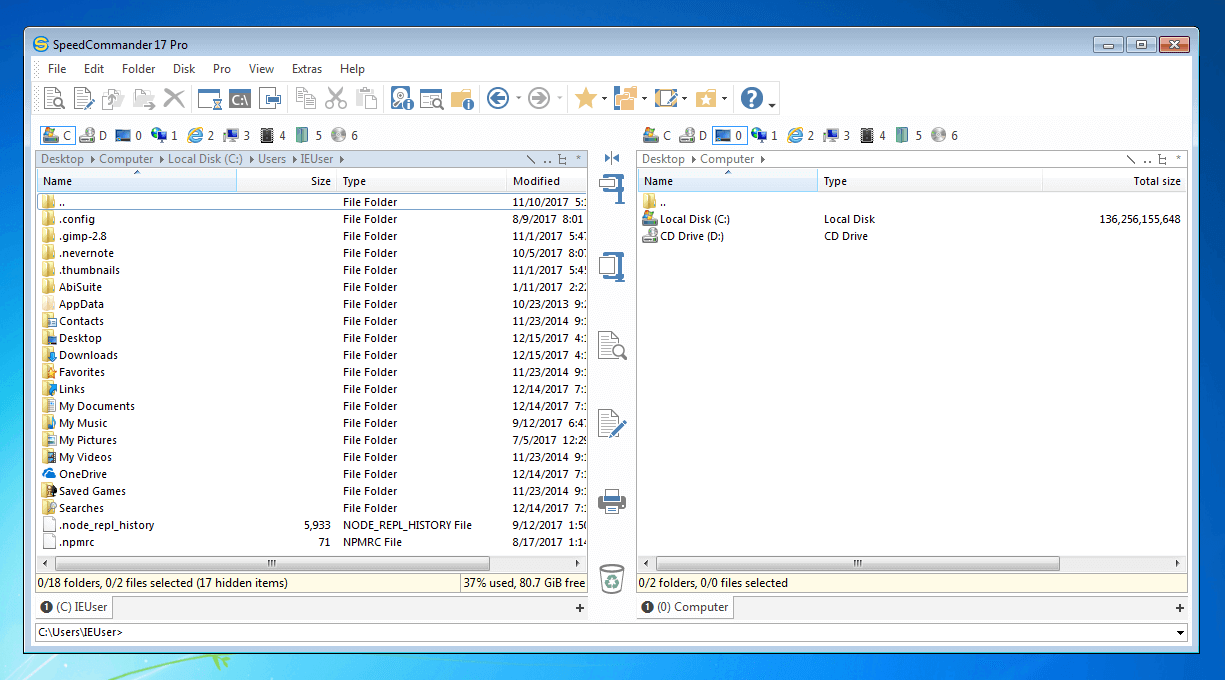
Like other Explorer alternatives, SpeedCommander wants to make workflows more efficient. Users benefit from a file repository for quick access to frequently used files, as well as folder and application favourites. The range of functions also includes an integrated preview mode for more than 80 file formats, functions for simultaneous renaming of multiple files, and a text editor with syntax highlighting.
The integrated packing program supports 13 archive formats as well as FTP and FTP via SSL protocols. If required, you can access an FTP server with SpeedCommander and manage your files remotely, just like on the local hard disk. FileSync is a synchronisation program for folders and files. Routine tasks can be automated with macros. The tool also provides a macro editor. Users who require additional functions have the option of implementing self-written extensions as in-process COM servers via an integrated AddIn interface.
In addition to the standard version, the file manager is also available with extended functionality in the form of SpeedCommander Pro, but this is fee-based. This includes a burning program for CDs, DVDs, and Blu-rays, a tool for managing image files (ISO/BIN), as well as interfaces to the cloud providers: Dropbox, Google Drive, and OneDrive.
SpeedCommander and SpeedCommander Pro are distributed as shareware. Users can test both versions for free without obligation for 60 days, and are able to make use of the full range of functions. The full version is available from the provider’s website and comes with a fee.
| Advantages | Disadvantages |
|---|---|
| ✓ Two-window view | ✗ Shareware (Test version: free for 60 days) |
| ✓ Tabs | |
| ✓ Integrated packing function | |
| ✓ Text editor with syntax highlighting | |
| ✓ File storage | |
| ✓ Possible to synchronise directories | |
| ✓ Macros | |
| ✓ FTP support |
Total Commander
The Windows file manager, Total Commander, is distributed by Ghisler Software GmbH as shareware. Like other alternatives, the tool distinguishes itself from Windows Explorer with its numerous additional functions.
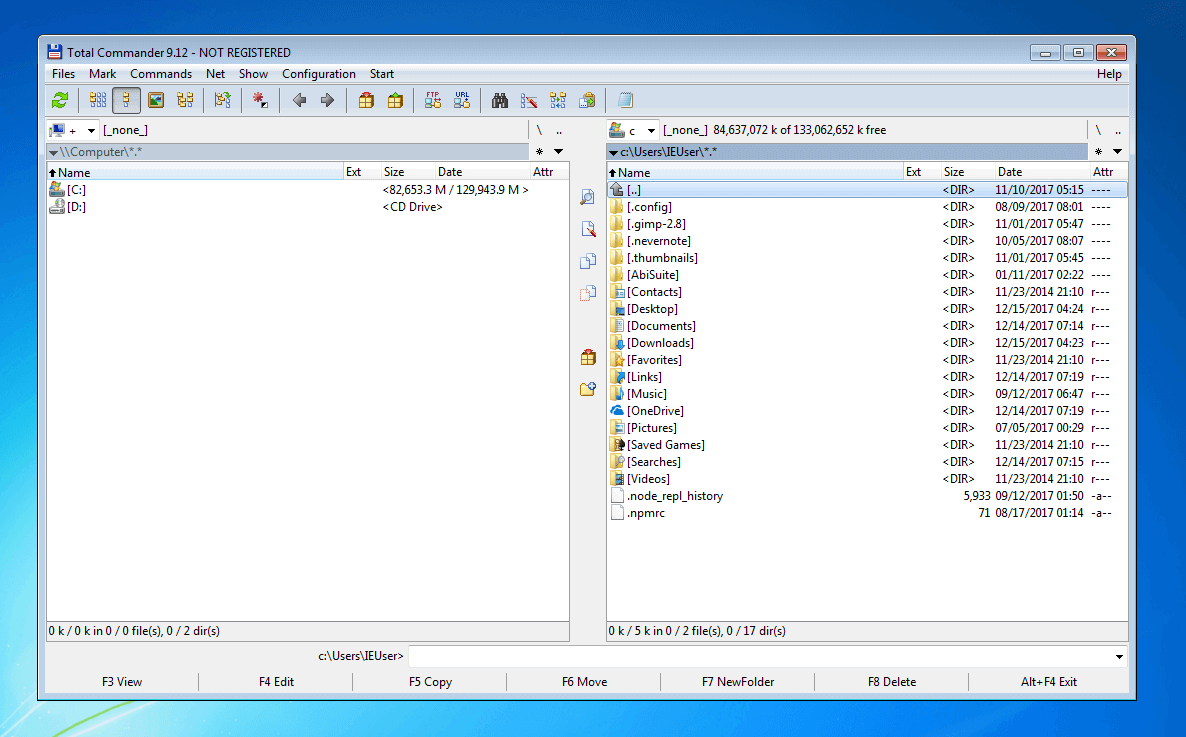
Total Commander also uses a multi-window view to display two file windows simultaneously. The tool’s design is based on Windows Explorer. A menu bar, context menu, and drag-and-drop functions are available for file operations. No additional programs are required for file archiving and FTP; the tool comes with corresponding functions. It also provides users with a quick view, an advanced search function, and functions for comparing and synchronising directories. Favourites, history, and password protection for selected directories round off the range of functions.
Like SpeedCommander, Total Commander is only available for free in the trial version. After 30 days, an upgrade to the fee-based full version is required.
| Advantages | Disadvantages |
|---|---|
| ✓ Two-window view | ✗ Shareware (Test version: free for 30 days) |
| ✓ Possible to synchronise directories | ✗ No tabs |
| ✓ Integrated packing function | |
| ✓ FTP support | |
| ✓ Favourites | |
| ✓ Password protection for directories |
Comparison of Windows file managers
Alternative file managers offer numerous additional functions and help speed up workflows when using Windows. We have compared the functional spectrum of tools presented in this article. Make your choice!
| Range of functions | FreeCommander | Q-Dir | SpeedCommander | Total Commander | |
|---|---|---|---|---|---|
| Current version | XE 2017 | 29738 | 17 | 43443 | |
| Developer | FreeCommander | SoftwareOK | SpeedProject | Christian Ghisler | |
| Ghisler Software GmbH | |||||
| License | Freeware | Freeware | Shareware | Shareware | |
| Price | Free | Free | Fee-based | Fee-based | |
| Platform | Windows XP, Windows Vista, Windows 7, Windows 8, Windows 10 | Windows XP, Windows Vista, Windows 7, Windows 8, Windows 10, Windows Server 2000 up to 2016 | Windows 7, Windows 8, Windows 10 | Windows 95, Windows 98, Windows ME, Windows NT 4.0, Windows 2000, Windows XP, Windows Vista, Windows 7, Windows 8 Windows 10 | |
| Drag-and-drop | Yes | Yes | Yes | Yes | |
| Multi-window view | Yes | Yes | Yes | Yes | |
| Tabs | Yes | Yes | Yes | No | |
| Integrated packing function | Yes | No | Yes | Yes | |
| File viewer | Yes | Yes | Yes | Yes | |
| Integrated editor | No | No | Integrated editor | No | |
| Directory synchronisation | Yes | No | Yes | Yes | |
| Access to remote file systems | Yes | No | Yes | Yes | |
| Favourites/bookmarks | Yes | Yes | Yes | Yes | |
| Plugins | No | No | Yes | No |
Alternative file managers for Linux
The default file managers available to Linux users depends on which distribution and which desktop environment is being used. The following table shows the most popular environments for Linux systems and their default file managers.
| Desktop environment | File manager |
|---|---|
| GNOME | Nautilus |
| KDE Plasma | Dolphin |
| Xfce | Thunar |
| LXDE | PCMan File Manager |
| Cinnamon | Nemo |
GNOME is the standard desktop environment for Fedora, Debian, Ubuntu, SUSE Linux Enterprise, Red Hat Enterprise Linux, CentOS, Oracle Linux SteamOS, Tails, and Kali Linux.
The programs listed can be installed on any distribution with a simple command line. In addition, the Linux universe offers numerous file managers, some of which offer a much wider range of functions. We introduce you to the popular standard tools Nautilus, Dolphin, Thunar, PCmanFM, and Nemo as well as alternatives such as SpaceFM and Krusader.
Nautilus
Nautilus is the standard file manager of the GNOME desktop environment and the user interface, Unity, which is used up to version 17.0 on Ubuntu. From version 3.6 onwards, the file manager has been reduced to its basic functions – a decision that caused a great deal of controversy in the Linux community and led to splits, such as in the Nemo software project. Many Linux users have decided to replace Nautilus with one of the following alternatives. In addition to basic file management functions, Nautilus offers tabs, image previews, a search function, and access to remote shares via Samba, FTP, SFTP, WebDAV, or SSH. Elements can be displayed as icons (with file preview), in a tile grid or as a list of details. User-defined extensions can be integrated via plugin via an integrated interface. Use the following command to install the Nautilus package on Linux:
sudo apt-get install nautilus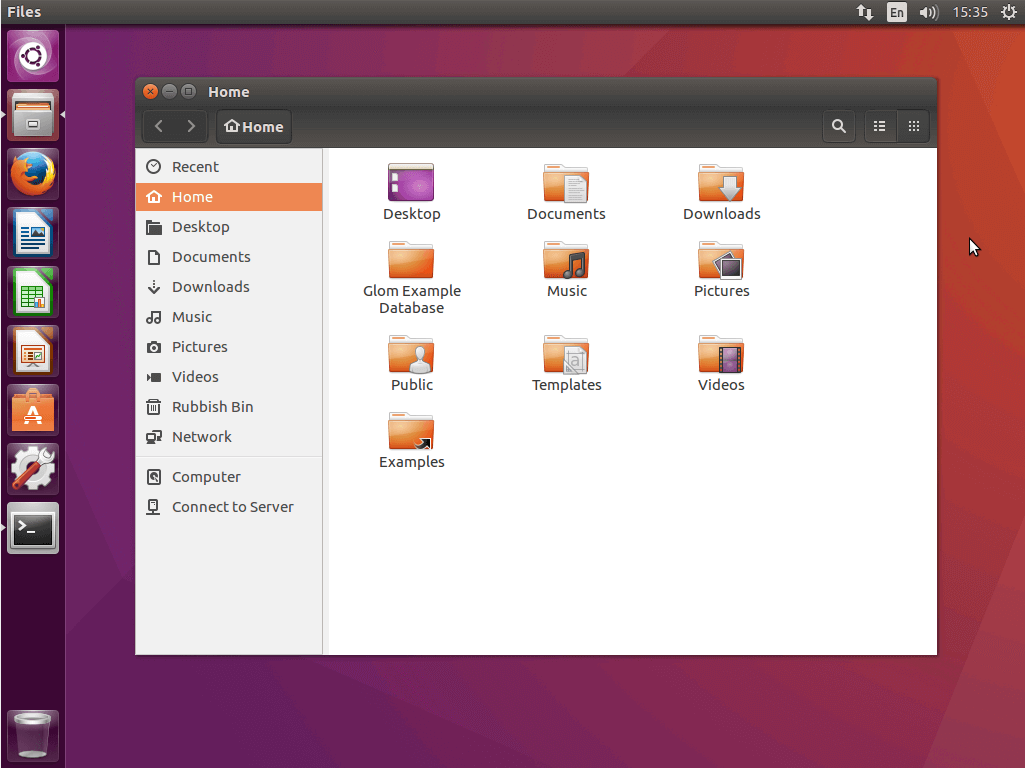
| Advantages | Disadvantages |
|---|---|
| ✓ Tabs | ✗ Significantly reduced range of functions from versions 3.6 onwards |
| ✓ Integrated packing function | ✗ No multiple-window view |
| ✓ Access to file systems on the network | ✗ No integrated file viewer |
| ✓ Extendable through plugins | ✗ No function for synchronising directories |
Dolphin
Dolphin is the default file manager of the desktop environment KDE. Dolphin stands out from Nautilus with its breadcrumb-style navigation bar and display of available storage space. The window view can be split if required. There are also three view modes to choose from: icons, details, and columns. File operations that can be performed with Dolphin include moving, copying, renaming, deleting, managing properties and permissions, as well as selecting files. In addition, the file manager offers functions for hidden files, shortcuts, and access to servers on the network (e.g. Samba, FTP, SSH, or WebDAV). Additional functions can be integrated via plugin if required. Use the following command to install the Dolphin package:
sudo apt-get install dolphin kde-service-menu-fuseiso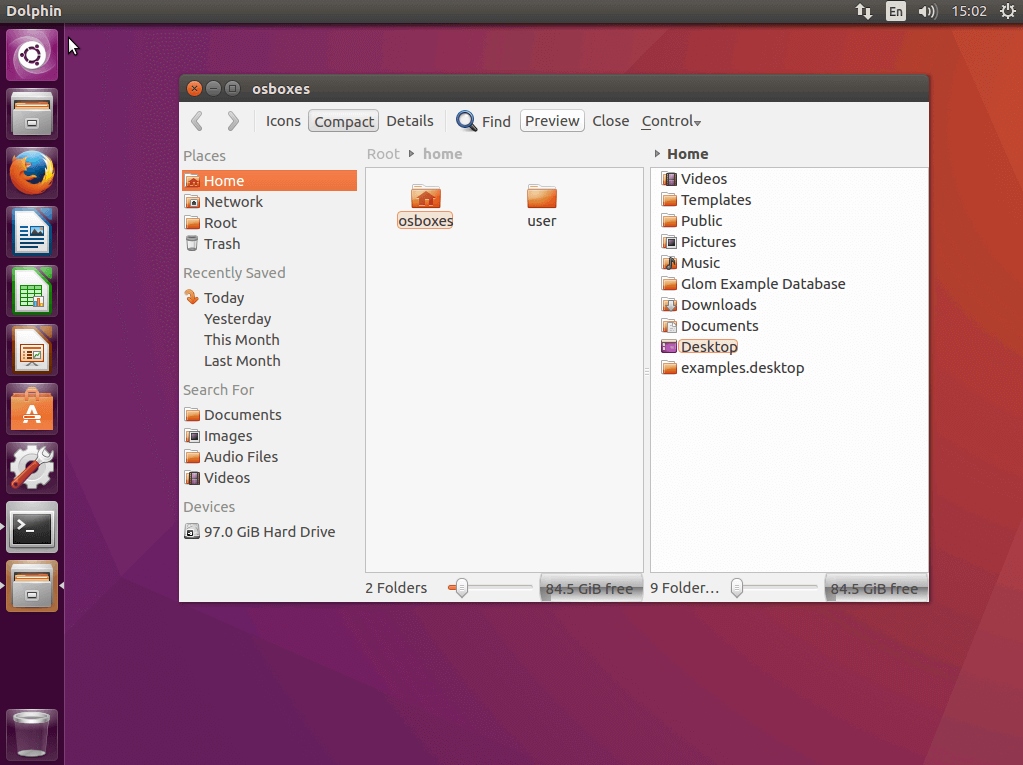
| Advantages | Disadvantages | |
|---|---|---|
| ✓ Two-window view | ✗ No integrated file viewer | |
| ✓ Tabs | ✗ No function for synchronising directories | |
| ✓ Breadcrumb-style navigation bar | ||
| ✓ Access to file systems on the network | ||
| ✓ Packing function (requires ark) | ||
| ✓ Diverse plugins |
Thunar
Thunar, the default file manager of the Linux desktop environment Xfce, is similar to Nautilus. The minimalist program provides basic functions for local file and directory management as well as remote access to remote shares via FTP, SAMBA, WebDAV, and other protocols. A highlight of the software is the menu item 'custom actions', which makes it possible to extend Thunar according to individual ideas. Users simply add the functions they really need. However, the file manager lacks a multi-window view. Install the file manager on Linux using the following command:
sudo apt-get install thunar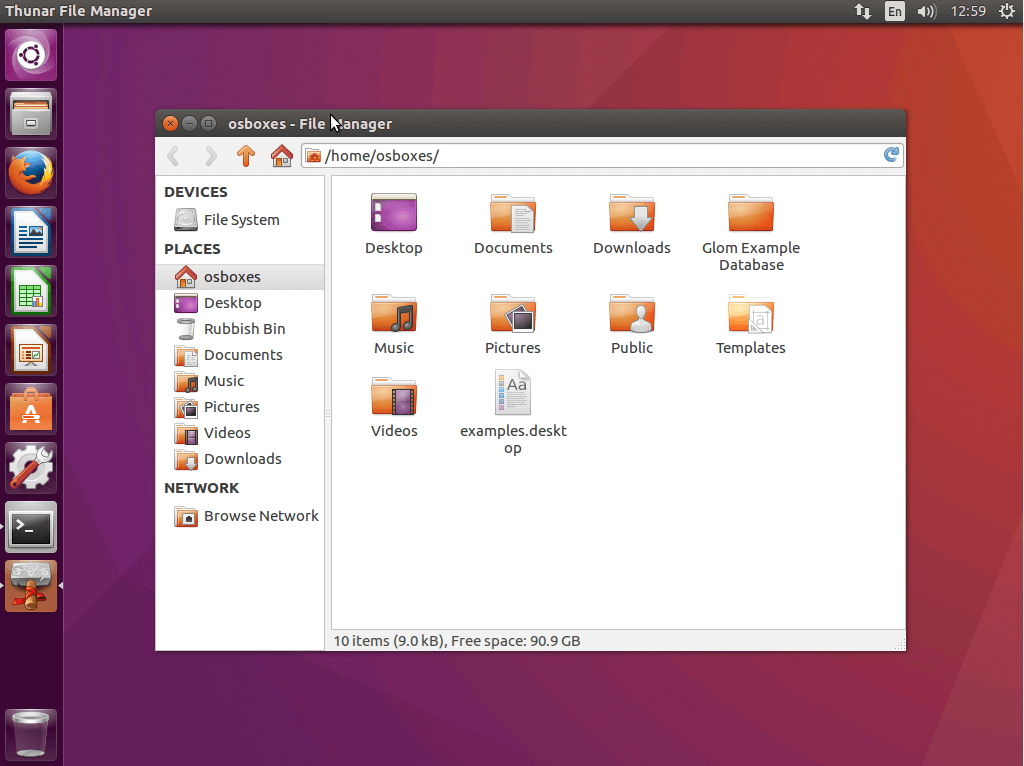
| Advantages | Disadvantages |
|---|---|
| ✓ Tabs | ✗ No multi-window view |
| ✓ Access to file systems on the network | ✗ Packing function only via plugin |
| ✓ Diverse extensions via 'custom actions' | ✗ No function for synchronising directories |
PCMan File Manager
PCMan File Manager, the default file manager of the LXDE desktop environment, is a compact alternative to Nautilus, and aims to impress with its speed. The slim program from the Taiwanese software developer, Hong Yen Jee, offers users an interface with up to two file windows, tabbed browsing that allows users to open different file folders in separate tabs, a preview function for images, and a directory view in a tree structure. In addition, PCManFM also manages with non-UTF8 compliant character sets.
Functions for packing and unpacking files are already integrated, as well as remote access to remote file systems. PCManFM differs from other Linux file managers because of its user interface, which was developed according to accessibility criteria and therefore takes the needs of people with disabilities into account.
If you want to install PCManFM on your Linux distribution, execute the following command on the terminal:
sudo apt-get install pcmanfm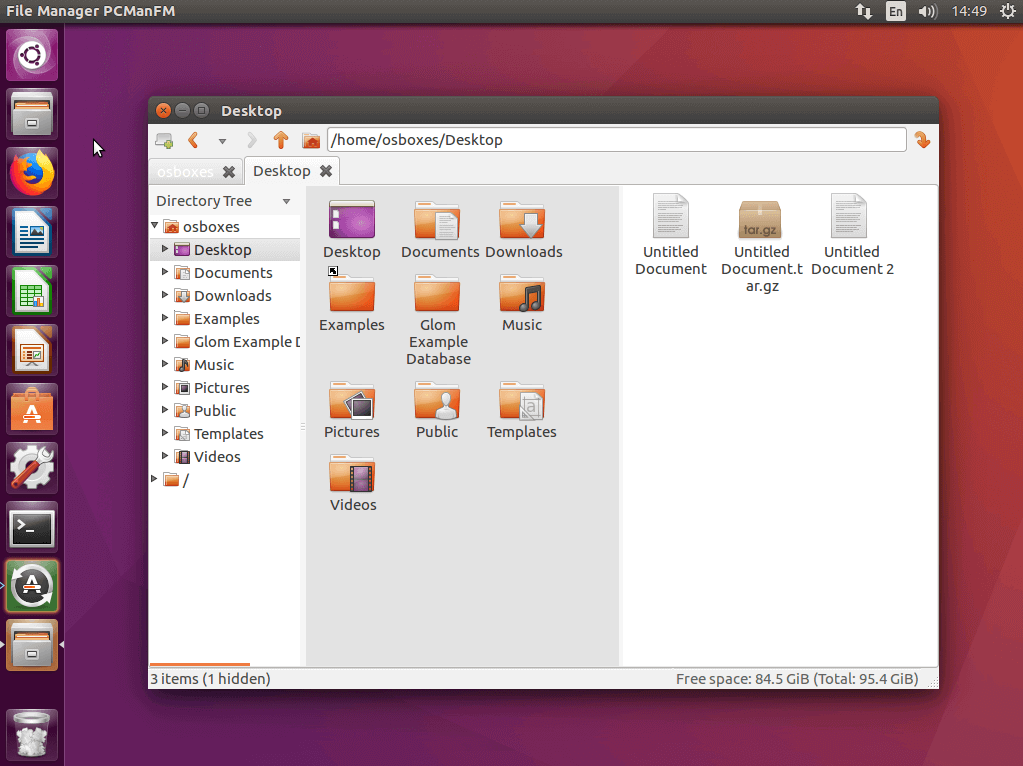
| Advantages | Disadvantages |
|---|---|
| ✓ Multi-window view | ✗ No function for synchronising directories |
| ✓ Tabs | |
| ✓ Accessibility | |
| ✓ FTP support | |
| ✓ Expandable through plugins | |
| ✓ Integrated packing function |
Nemo
Nemo, the default file manager of the desktop environment, Cinnamon, is a split from Nautilus 3.4, and unlike the source software, which is continued with significantly reduced functionality, Nemo users retain the original features. If required, a two-window view and tabs for managing separate directory views are available. Like Nautilus, Nemo can be extended with numerous plugins. Use the following command to install Nemo on Linux:
sudo apt-get install nemo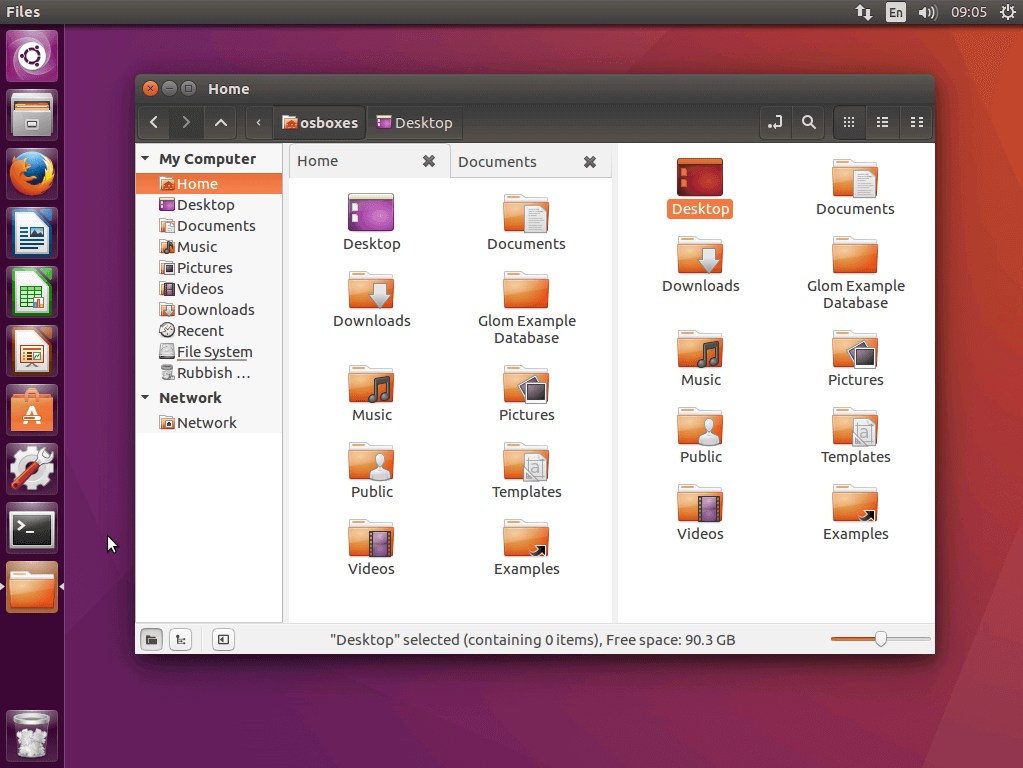
| Advantages | Disadvantages |
|---|---|
| ✓ Multi-window view | ✗ No function for synchronising directories |
| ✓ Tabs | |
| ✓ Breadcrumb-style navigation bar | |
| ✓ Access to file systems on the network | |
| ✓ Integrated packing funtion | |
| ✓ Expandable through plugins |
SpaceFM
SpaceFM is a split of the LXDE standard file manager PCManFM. While SpaceFM has relied on a slim design since version 0.9.x to enable fast and efficient workflows, SpaceFM’s focus is on the flexibility of the software and its expandability.
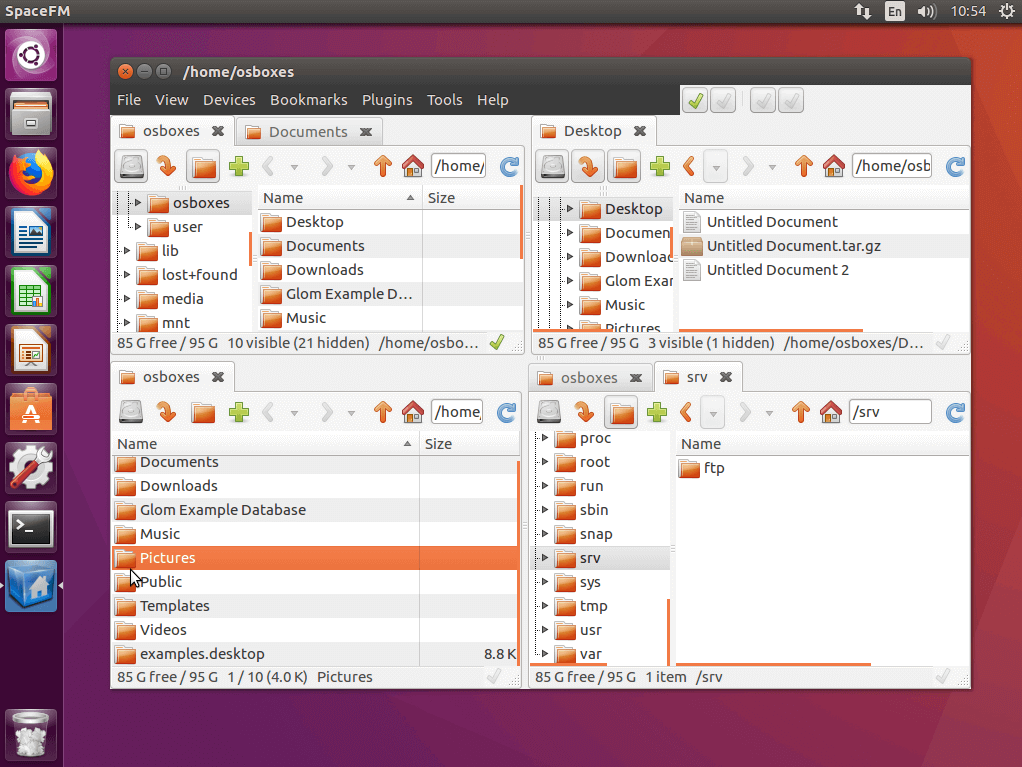
The program enables you to display up to four folders in parallel thanks to the multi-window view. File folders can also be attached as tabs. Each window of the user interface can be configured independently from others. The program offers thumbnails for image and video files, an advanced search function, bookmarks, and an integrated packing function. In the bookmarks menu, you not only link to folders and files, but also to custom commands and applications you run regularly. Remote connections to remote networks can be established via NFS, FTP, SMB, and SSH. However, the unique selling point of the file manager is its adaptability. Almost every menu item can be renamed, hidden, or linked to a custom shortcut. Users who would like to equip SpaceFM with additional functions will find them on the provider’s site of GitHub. On your Linux distribution, install SpaceFM with the following command:
sudo apt-get install spacefm| Advantages | Disadvantages |
|---|---|
| ✓ Multi-window view | ✗ No function for synchronising directories (available via plugin) |
| ✓ Tabs | |
| ✓ Integrated packing function | |
| ✓ Access to file systems on the network | |
| ✓ Expandable through plugins | |
| ✓ Individually customisable user interface |
Krusader
The most powerful Linux file manager in our comparison is called Krusader. The program, which was originally developed for KDE, is based on the layout of the Norton Commander and offers a range of functions that leaves nothing to be desired.
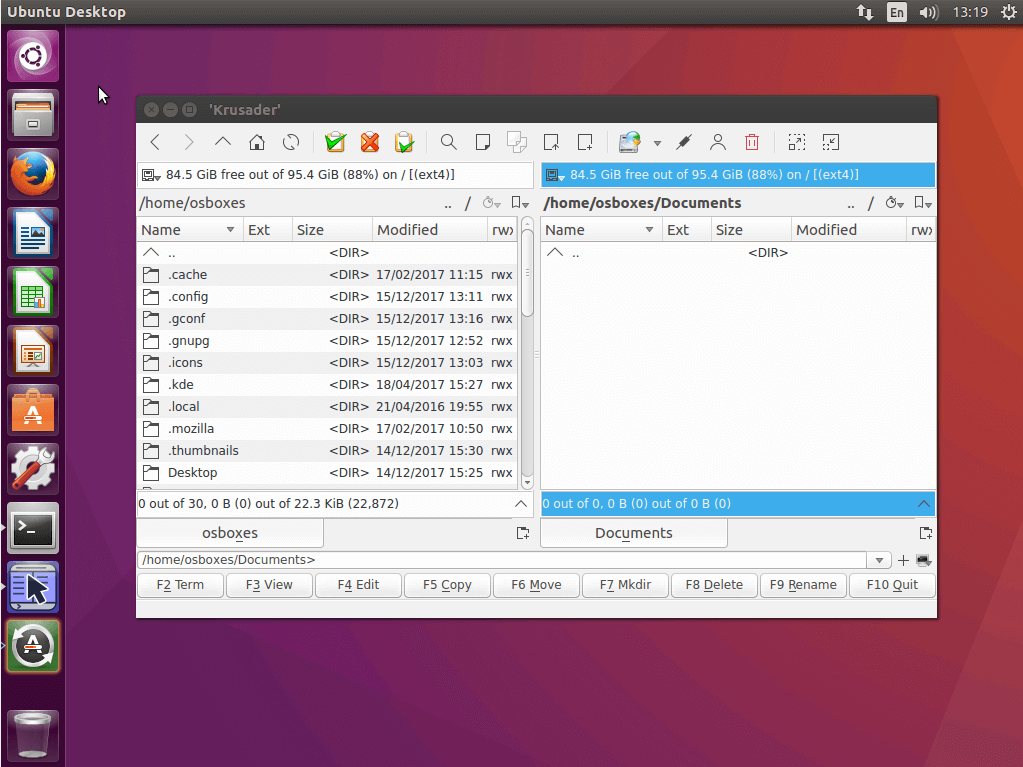
The file manager offers you a two-column, detailed view of your file system. If desired, you can attach directories in both windows as tabs. As a KDE application, Krusader supports all protocols of the virtual file system KDE Input/Output (KIO) including FTP, SMB, and NFS. With the integrated archive manager, you can pack and unpack files and directories in various archive formats. In addition to the usual basic actions of copying, cutting, deleting, and moving, Krusader offers functions for comparing and synchronising files and directories, creating and verifying checksums as well as renaming masses. A file preview, an integrated viewer including editor, and an extended search function round off the range of functions. If required, you can also extend Krusader with custom actions. Krusader also offers a user interface with buttons and menus that you can customise to suit your needs. For the Linux file manager, detailed documentation and a comprehensive manual are available. Krusader can be installed conveniently via the terminal of your Linux distribution:
sudo apt-get install krusader| Advantages | Disadvantages |
|---|---|
| ✓ Multi-window view | No considerable disadvantages |
| ✓ Tabs | |
| ✓ Integrated packing function | |
| ✓ Possible to syncronise directories | |
| ✓ Access to file systems on the network | |
| ✓ Integrated file viewer and editor | |
| ✓ Expandable through plugins |
Comparison of Linux file manager
A direct comparison of the presented programs shows which file manager for Linux best meets your requirements.
| Range of functions | Nautilus | Dolphin | Thunar | PCManFM |
|---|---|---|---|---|
| Current version | 3.26.0 | 43329 | 36708 | 38384 |
| Developer | Eazel | KDE | Xfce | Hong Jen Yee |
| License | GPL | GPL | GPL | GPL |
| Price | Free | Free | Free | Free |
| Platform | All Linux distributions | All Linux distributions | All Linux distributions | All Linux distributions |
| Drag-and-drop | Yes | Yes | Yes | Yes |
| Multi-window view | No | Yes | No | Yes |
| Tabs | Yes | Yes | Yes | Yes |
| Integrated packing function | Yes | Yes | No | Yes |
| File viewer | No | No | No | No |
| Integrated editor | No | No | No | No |
| Directory synchronisation | Yes | Yes | Yes | Yes |
| Access to remote file systems | No | No | No | No |
| Favourites/bookmarks | Yes | Yes | Yes | Yes |
| Plugins | Yes | Yes | Yes | Yes |
| Range of functions | Nemo | SpaceFM | Krusader |
|---|---|---|---|
| Current version | 38080 | 1.0.5 | 36679 |
| Developer | Linux Mint Community | IgnorantGuru | Krusader Krew |
| License | GPL | GPL | GPL |
| Platform | All Linux distributions | All Linux distributions | All Linux distributions |
| Drag-and-drop | Yes | Yes | Yes |
| Multi-window view | Yes | Yes | Yes |
| Tabs | Yes | Yes | Yes |
| Integriated packing function | Yes | Yes | Yes |
| File viewer | No | No | Yes |
| Integrated editor | No | No | No |
| Access to remote file systems | Yes | Yes | Yes |
| Directory synchronisation | No | No | Yes |
| Favourites/bookmarks | Yes | Yes | Yes |
| Plugins | Yes | Yes | Yes |
Alternative file manager for macOS
The standard program for managing the file system under macOS is Finder. You can use it to organise files and directories and display items as icons, in list or column format, and as cover flow. In addition, Finder provides you with the folder 'Desktop', whose contents are displayed in the background of your operating system’s user interface.
Finder is clearly laid out, but just like Windows Explorer, it’s rather weak when it comes to the functional spectrum. In addition to functions for basic file operations, this includes Spotlight (a limited search function), favourites, colour labels, tags for folders and files, a comment function and QuickLook (a preview program). In addition, Air Drop implements a WiFi ad hoc service for file exchange between macOS and iOS devices.
This is not enough for many Apple users. Do you long for an alternative to the standard file manager for your Mac? With ForkLift, Path Finder, TotalFinder, and Commander One, we’ve found four impressive Finder alternatives.
ForkLift
ForkLift combines the features of a Mac file manager with those of a client program for FTP, SFTP, WebDAV, Amazon S3, and iDisk. The software stands out from Finder with a two-window layout on Norton Commander. In addition, the shortcuts of the legendary model have also been adopted, but users are not defined to these. All standard operations can be performed with custom shortcuts.
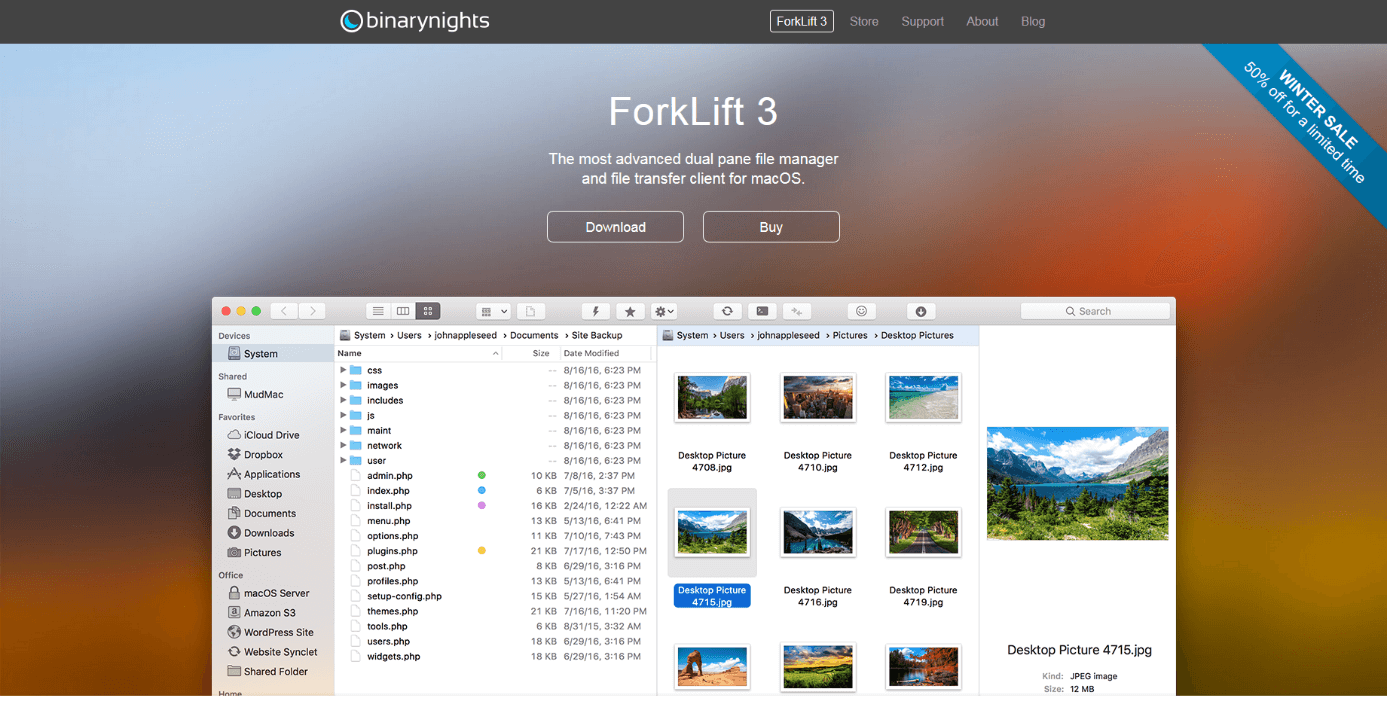
The functional range of this Finder alternative goes far beyond that of a standard file manager. Synchronisation, mass renaming, file sharing, and archiving are just as possible with ForkLift as remote access to remote file systems and integrating network drives. In addition, data transfer from server to server is supported – as long as these are FXP compatible.
Other software highlights include tabbed browsing, a favourites manager, advanced search, QuickLook, and an app deleter that enables you to completely remove applications from your hard drive. Virtual stacks can be used to combine and manage files from different directories as if they were in a single folder. Droplers, disklets, and synclets make recurring tasks easier.
ForkLift version 3 is currently only available on the provider’s site. The download comes at a price. However, those interested can make use of the free trial. In the App Store, BinaryNights only offers the previous version, ForkLift 2, but this version is free of charge.
| Advantages | Disadvantages |
|---|---|
| ✓ Two-window view | ✗ Current version is fee-based |
| ✓ Tabs | ✗ Current version is not currently available via the App Store |
| ✓ Integrated packing function | |
| ✓ Possible to synchronise directories | |
| ✓ Access to file systems on the network | |
| ✓ Client for Amazon S3 |
Path Finder
Path Finder from Cocoatech presents itself as a function-loaded alternative to the macOS standard file manager. The program also impresses users with its speed and flexibility. The file manager’s user interface offers six configurable views and eight extension modules. These allow you to adapt the program to your individual needs and only integrate necessary functions.
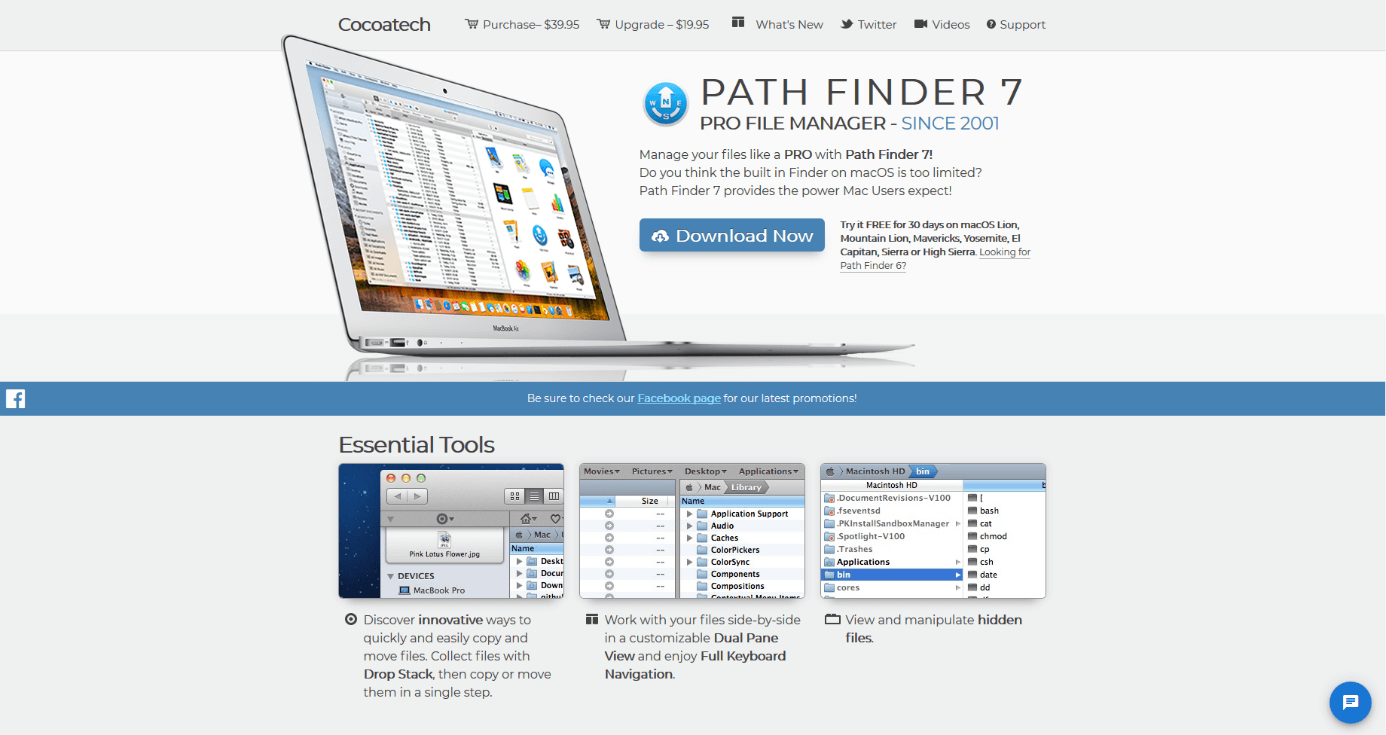
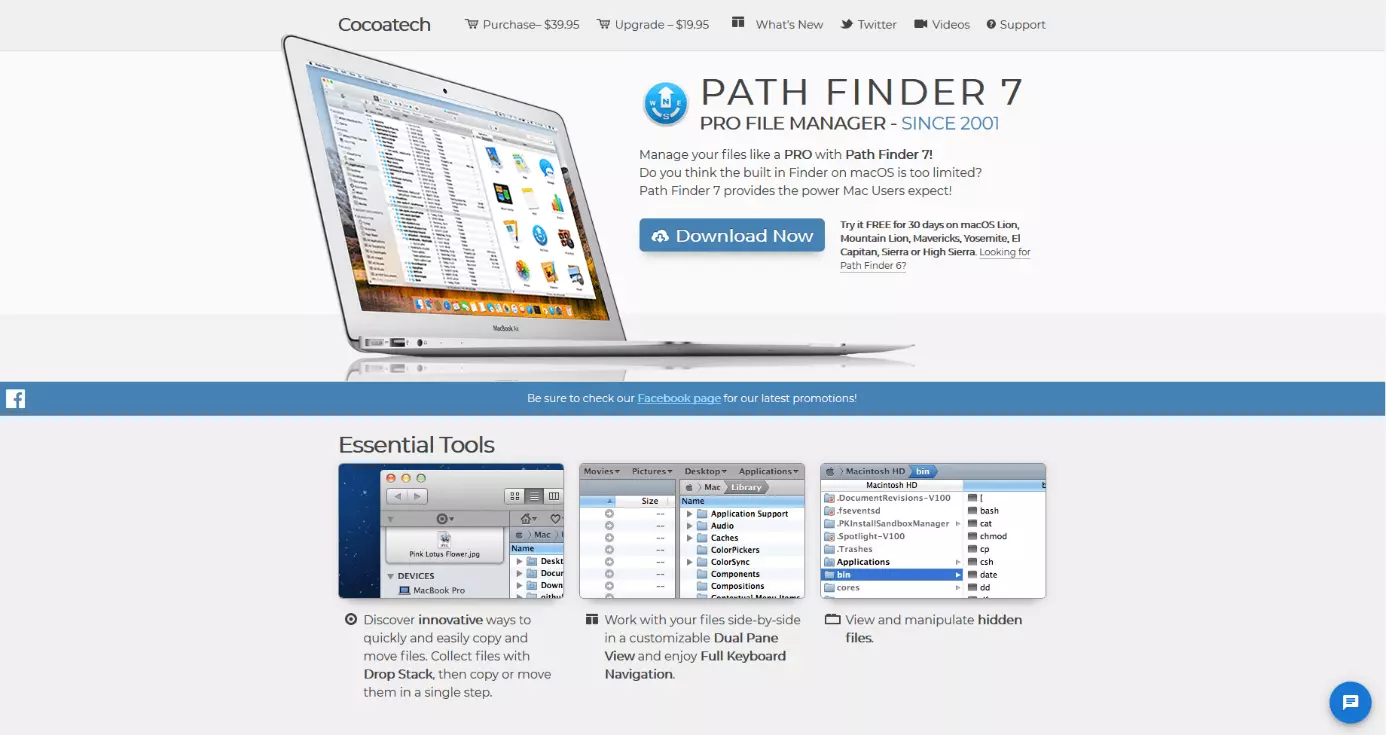
Path Finder’s unique selling point is a feature that automatically exits the default Mac file manager when you start the program. Users no longer have to run two file managers simultaneously. Path Finder is the only Finder alternative that can completely replace the macOS standard desktop.
Path Finder’s features include the two-window, Norton Commander-style view, tabs, Quick Look, cover flow, built-in text and image editors, an archive manager, bookmarks, custom shortcuts, filter and sorting functions, a hex editor, and advanced search options.
The biggest flaw in the software, however, is the lack of remote access to remote file systems. An integrated client for FTP, SFTP, or WEBDav, which is part of the standard features of other Finder alternatives, isn’t to be found in Path Finder version 7.
| Advantages | Disadvantages |
|---|---|
| ✓ Two-window view | ✗ Fee-based |
| ✓ Tabs | ✗ Significantly more expensive than alternative file managers for Mac |
| ✓ Expandable with modules | ✗ The complex user interface requires a lot of familiarisation |
| ✓ Individually configurable user interface | ✗ No integrated client for remote access to file systems on the network |
| ✓ Text and image editor | ✗ Not available via the App Store |
| ✓ Integrated packing function |
TotalFinder
The plugin TotalFinder is for users who want to avoid installing a second file manager on their Mac. Instead of an additional program, BinaryAge offers an extension for the native file manager of macOS with TotalFinder.
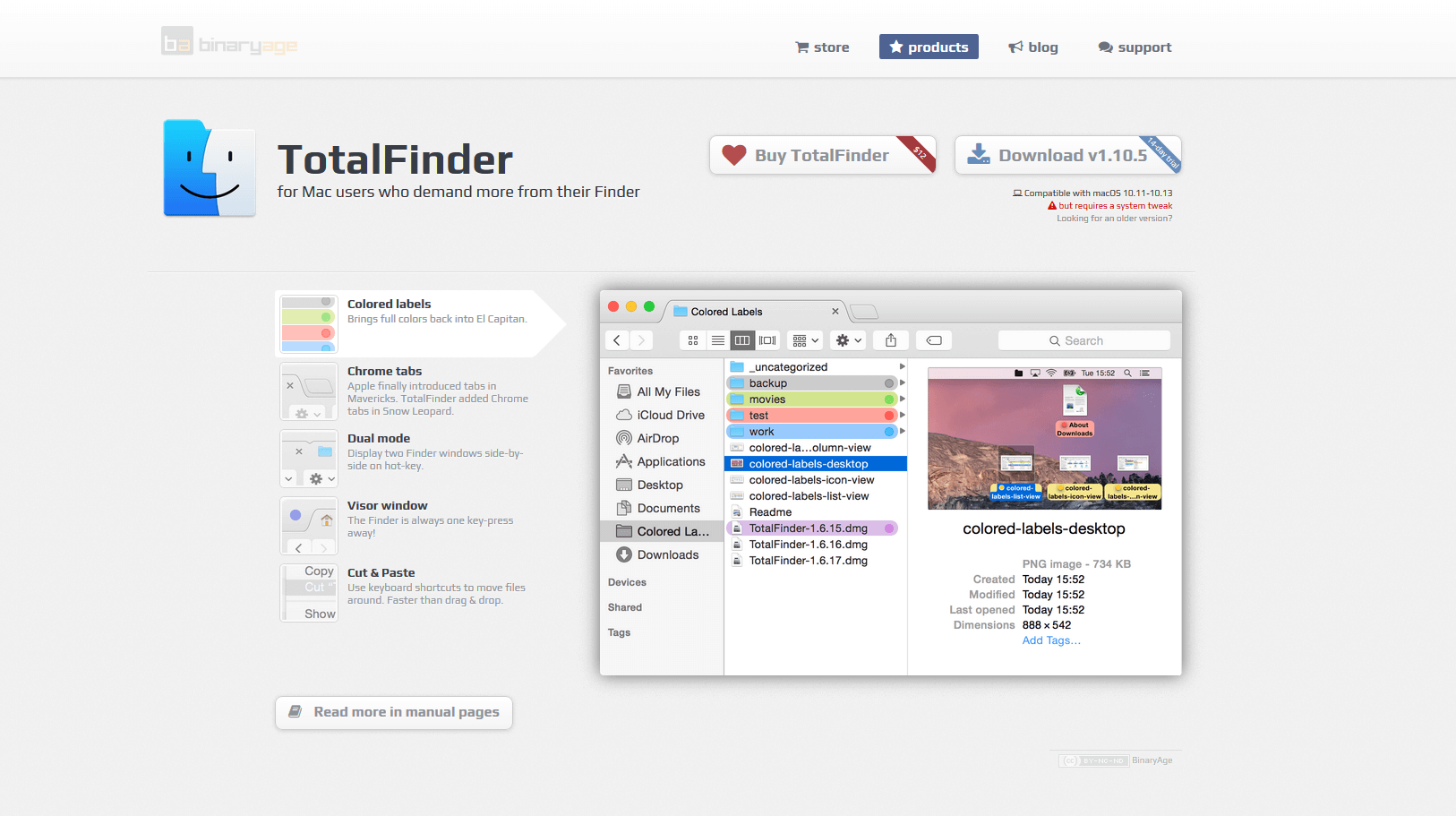
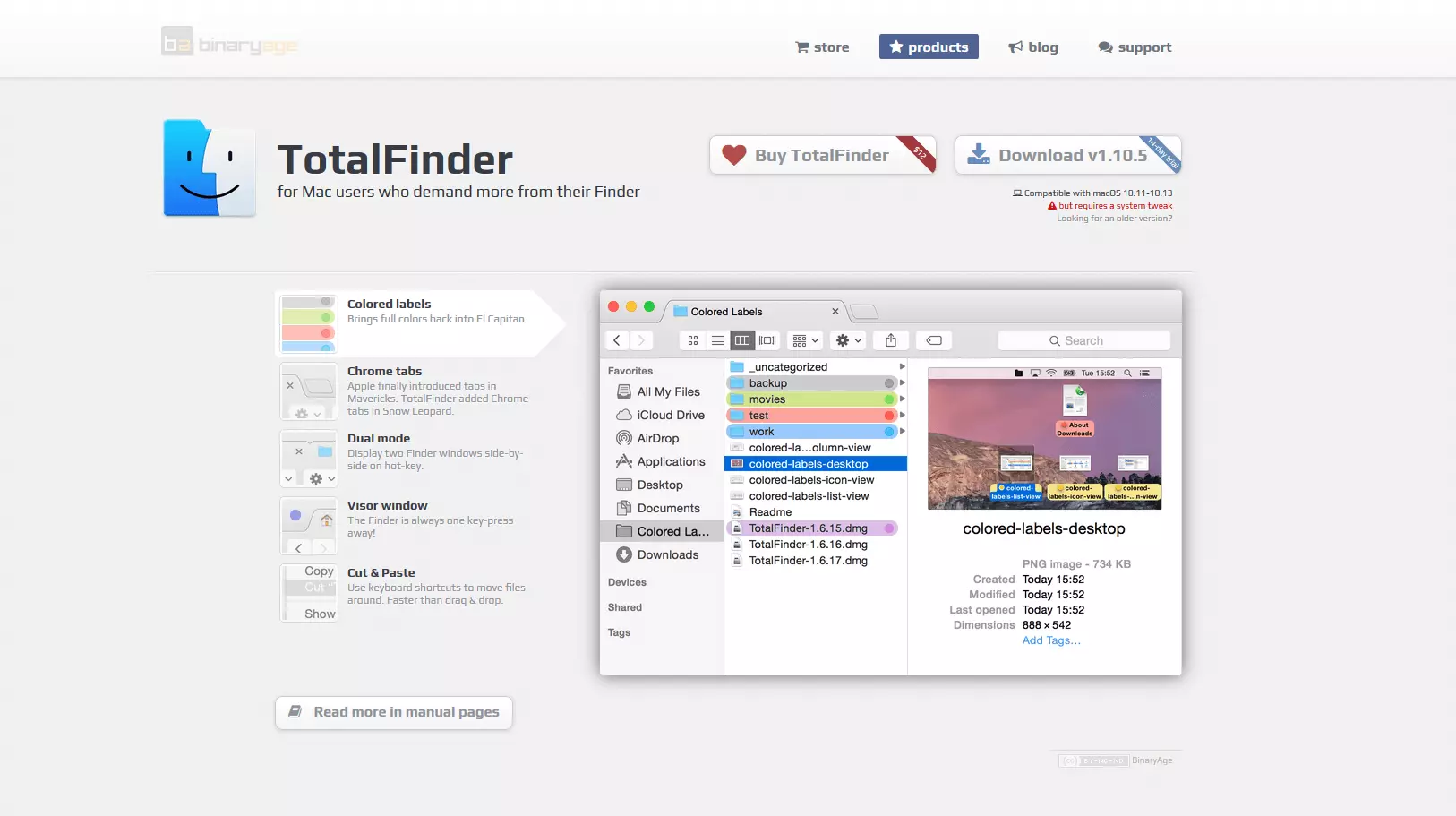
TotalFinder adds a two-window view and tabs to the Mac File Manager. Additional functions include extended colour labels and cut-and-paste via keyboard.
Tabbed file browsing was introduced by Apple from OS X Mavericks onwards. With TotalFinder you can also use Finder tabs on older operating systems.
| Advantages | Disadvantages |
|---|---|
| ✓ Finder plugin: an additional file manager is not required | ✗ Fee-based |
| ✓ Two-window view | ✗ Comparatively small range of functions |
| ✓ Tabs | ✗ Uninstalling requires a supplied uninstaller script |
| ✓ Extended colour labels | ✗ Not available via the App Store |
Comparison of macOS file manager
In our comparison table containing the most popular Finder alternatives, we compare all presented programs and extensions with the most important functions. Find the right file manager for your Mac!
| Range of functions | ForkLift | Path Finder | TotalFinder * |
|---|---|---|---|
| Current version | 3.0.9 | 7 | 38626 |
| Developer | BinaryNights, LLC | Cocoatech | BinaryAge |
| License | Proprietary | Proprietary | Proprietary |
| Price | Fee-based | Fee-based | Fee-based |
| Platform | macOS | macOS | macOS |
| Drag-and-drop | Yes | Yes | * |
| Multi-window view | Yes | Yes | Yes |
| Tabs | Yes | Yes | Yes |
| Integrated packing function | Yes | Yes | * |
| File viewer | Yes | Yes | * |
| Integrated editor | No | Yes | No |
| Access to remote file systems | Yes | No | No |
| Directory synchronisation | Yes | Yes | No |
| Favourites/bookmarks | Yes | Yes | * |
* TotalFinder is a plugin for the macOS standard file manager. Functions marked with an asterisk (*) are already provided by Finder.
Reviewer

Christian Heldmaier
Christian Heldmaier is an experienced online marketing and SEO specialist from Karlsruhe. He has been working as an SEO Manager at IONOS since July 2020.