

Free Microsoft Access alternatives

Processing data is an important part of business life. Whether it’s a customer register, your private address book, accounting, or inventory: with digitalisation ever increasing, it is becoming more and more important to organise and manage records as quickly, flexibly, and clearly as possible. This is achieved using database management systems (DBMS) that organise data and display it (e.g., a list of contacts’ locations sorted by postcode).
Microsoft Access (also known as MS Access) is a popular DBMS. The programme is used in many small to medium-sized companies as well as by private users. The advantage over other DBMS: programming skills are not required to operate Microsoft Access. In addition to MS Access, there are other tried and tested database management systems that enable you to work in a similar way — some of them are also compatible with other operating systems such as macOS or GNU/Linux. There are even some free alternatives to Microsoft Access. We provide you with three of the best Microsoft Access alternatives that you can download for free.
Why are MS Access alternatives needed?
But why would you need to look for an alternative to Microsoft Access? Its popularity would suggest that it’s a very capable and well-developed DBMS. In fact, MS Access does a fair amount of advantages — it is suitable for beginners as well as those who have more experience dealing with databases. However, it is only available for Windows and comes at a cost.
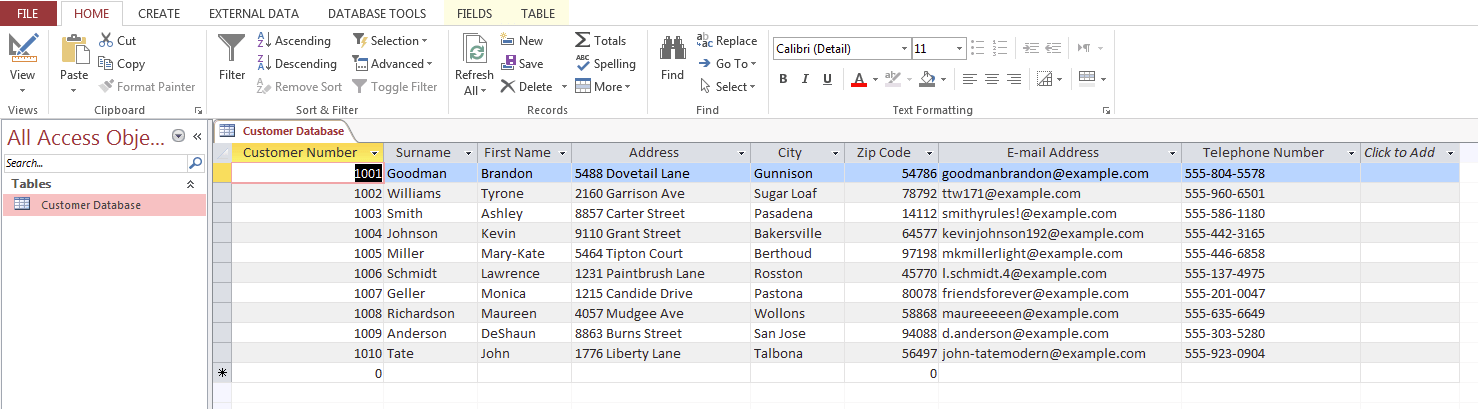
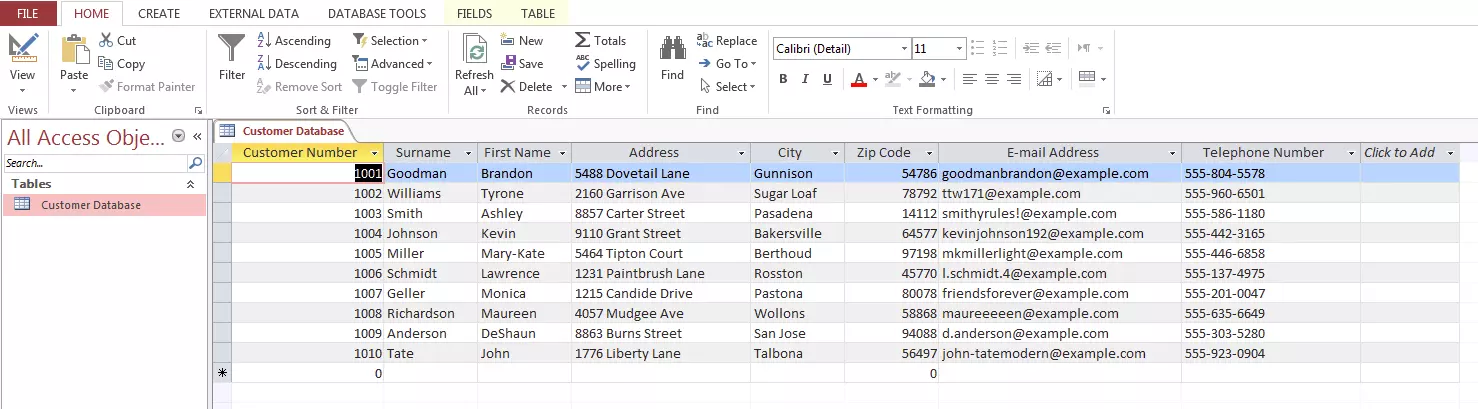
Microsoft Access is a relational database management system (RDBMS) that supports the input, storage, processing, evaluation, and presentation of data. The relational database model employed by the software is the most widely used form of database management systems — with an RDBMS, the data sets of different tables can be compared with one another.
The software provides a graphical user interface so you can easily manage databases. The front end not only allows you to request data but also directly change it, etc. By default, MS Access saves data sets in its backend using the Microsoft Jet Engine. Microsoft Access can also be connected to an SQL server database in which case Access only functions as a front end/GUI.
Unlike many database management systems that work according to the client-server principle (such as MySQL or its spin-offs MariaDB, PostgreSQL, Microsoft SQL Server, Oracle Database , etc.), Microsoft Access uses a desktop database management system. This means that the server doesn’t necessarily need to be connected to a network to be able to work on a database with MS Access.
Databases can be fully created as desktop applications. However, there is also the possibility to design a database as a web app but it must be hosted via a SharePoint web application from Microsoft and has fewer options than the desktop app. You can then view and edit a web database developed with MS Access in your browser.
Whether you are using MS Access to create a desktop or web application, MS Access databases are saved by default in a single file (in .mdb or the newer .accdb file format). This is the difference between desktop database management systems (such as MS Access) and server-database management systems (such as MySQL or MS SQL Server): a server DBMS typically creates one file for each database, as well as one entire folder, where the contents and design of the database are distributed over multiple files.
Advantages of MS Access
The software is particularly suited to beginners in database management: you don’t need any programming skills for producing simple databases since this is also relatively easy using the graphical user interface. Various assistants and templates (e.g., for contact administration, project tasks, etc.) make everything a lot easier. However, it is possible to freely define the data fields and to adapt the data model’s characteristics to specific requirements. Data sets or tables can be created, edited, and linked with each other quickly and easily in MS Access. If you want to use the programme to implement extensive applications, there’s no way you can get around programming with VBA (Visual Basic for Applications) — although the effort required is usually less than with other database management systems. Using macros, you can also automate various tasks relatively easily.
It’s not only creating or administrating data sets that is often easier with MS Access than with other database management systems, but it’s also easier to analyse them. With the help of various assistance functions, it’s possible to analyse databases that have already been created, request databases according to certain characteristics, and also create reports without further ado.
By saving an MS Access database in a single file, you can easily share it with other people or transfer it to other devices. If you want to use the database in another DBMS (or you want to open other database files in MS Access), there are many interfaces at your disposal. In addition to other MS Office file formats (like Excel), you can import and export various other formats, e.g., ODBC databases (MySQL, Microsoft SQL Server, PostgreSQL, etc.), HTML documents, XML files as well as Dbase files. You can easily move tables and forms from one programme to another.
Disadvantages of MS Access
The software’s simplicity also has its downside. Microsoft Access’ database system is far less powerful compared to a server database system: MS Access is more suitable for implementing lean databases, which don’t have several hundred thousand entries (a server DBMS is used for this). Processing large amounts of data takes a lot of juice with MS Access - hence the long loading times. This is the downside of a file-based database: the database is searched for the complete file, meaning that the larger it is, the longer it will take. The programme is also limited in capacity, depending on the size of the database: the maximum file size is 2GB. However, as long as you don’t store large amounts of images, this limitation shouldn’t be a problem. There are also significantly fewer functions available compared to an average server DBMS. In addition, there are shortcomings when several people are using the programme at once, compared to a DBMS based completely on SQL: on the one hand, the SQL standard works with a much more differentiated authorisation concept than MS Access, but on the other hand, the Microsoft programme encounters performance problems quite quickly when a database is being used simultaneously by more than one or two people. Even with just a handful of users, Microsoft Access will start to run noticeably slower. At around ten users, the programme has often reached its limit. MS Access is only available for Windows operating systems and was an integral part of the Microsoft Office Suite in the past. After introducing the Cloud version of the Office Suite, it started to be released in various Microsoft 365 plans. In addition, you can also purchase the programme individually. Fortunately, users who still have a classic version of MS Office installed on their Windows computer (as opposed to the Cloud version of Microsoft 365) can still install this programme. This is because Microsoft hasn’t made any major changes to the programme for a long time. The current MS Access 2016, as well as the 2010 and 2013 versions, are best suited for typical database tasks.
Microsoft Access: pros and cons at a glance
| Advantages | Disadvantages |
|---|---|
| Thanks to its advanced graphical interface, MS Access is ideal for quickly creating, managing, and analysing databases, as well as producing simple reports. | Compared to database systems that follow the client-server model, MS Access is more unstable, only really suited for smaller and/or specific database requests. It also offers much less functionality. |
| It’s suitable for any level of knowledge: both inexperienced as well as professional and experienced database managers can work with MS Access – with macros, you can combine various commands without programming knowledge and therefore automate tasks. | Because all the information is saved in only one file, MS Access has limited performance and capacity; the processing of large files slows the programme down considerably and makes it unstable (usually around upwards of 1GB in data volume) — in addition, a file can’t be larger than 2GB. |
| Uncomplicated operation that is easy to learn; assistants also explain many functions. | Simultaneous use only possible with additional software (SharePoint) and only to a limited extent |
| By using a SharePoint web application, databases can be implemented as web apps. | Performance decreases noticeably when multiple users access the same database at the same time |
| Many import and export possibilities to other database systems and MS Office products via ODBC | Fee-based and only available for Windows |
| Widely used as part of Microsoft Office |
What are the free alternatives to Microsoft Access?
Microsoft Access as a desktop DBMS doesn’t provide the same opportunities that server database management systems do. But MS Access isn’t aiming to compete with programmes like these: it’s because the server DBMS is on another scale among database management systems and conforms to a different target group (the operation and setup of the connected server both require SQL knowledge). Microsoft (with the MS SQL server) offers independent software in this class of database management systems while acknowledging MS Access is a product for users who are less tech savvy.
If you are looking for Microsoft Access alternatives, you have to compare the DBMS with other desktop database management systems. One of the most widely used alternative programmes is FileMaker, which operates on Windows, macOS and even iOS. However, FileMaker is paid software and, therefore, not a free Microsoft Access alternative. The following programmes can be used free of charge and without any prior SQL knowledge. This, in turn, distinguishes them from open source systems such as MySQL, MariaDB, and PostgreSQL. All three database management systems — just like MS Access – are not designed to work with very large chunks of data since the database is saved in a single file.
Base (available in LibreOffice and Apache OpenOffice)
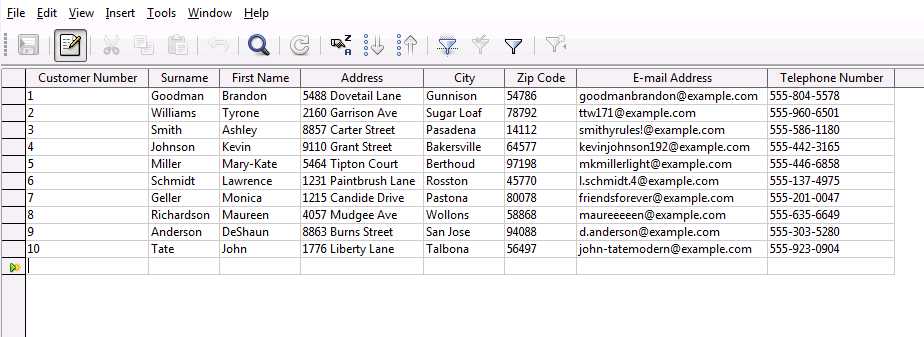
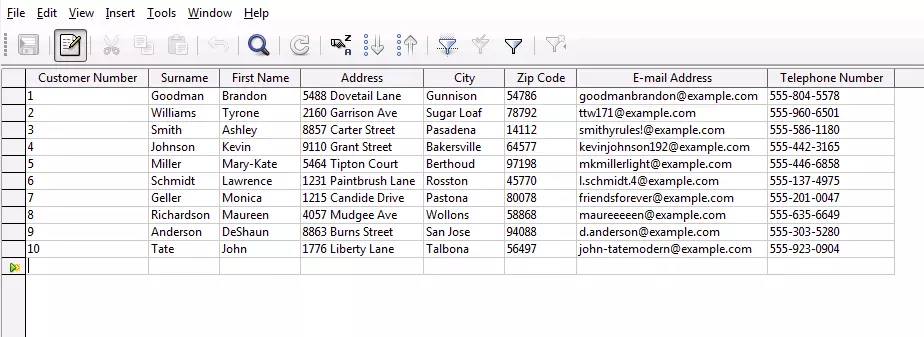
Both LibreOffice and Apache OpenOffice are known for imitating programmes from the Microsoft Office Suite and offering them as free software – Base is the equivalent alternative to Microsoft Access. The functions and characteristics of LibreOffice Base and OpenOffice Base barely differ from one another. This isn’t surprising since LibreOffice has been distributed as a spinoff to OpenOffice since 2010, and both Office Suites are based on the same source code. However, regular updates are released for LibreOffice. Base is a Java-based RDBMS that is similar to its role model, MS Access: it works with a graphical user interface and provides the same basic functions for database generation and management. Programme assistants are available to help you use different functions. However, Base differs significantly from its Microsoft role model, as is the case with the LibreOffice and OpenOffice copies of Word, Excel, or PowerPoint. For example, it doesn’t contain as many advanced features as MS Access and it’s somewhat more complicated to use. In particular, users who are accustomed to working with Microsoft Access are likely to encounter problems with this programme (e.g., macros and reports are much more complicated). Nevertheless, Base’s functionality is amazing — especially considering that it is a completely free programme. Base’s backend is based on HSQLDB (Hyper Structured Query Language Database), which can be used to back up a database as a Base file as well as a dBase file. Since an HSQL database does not allow any contending writing access, this means that multiple users cannot work on one Base database at the same time. However, many database systems with multi-user access such as MS Access, MySQL, PostgreSQL, and Adabas D are supported. Being compatible with other databases is generally one of the biggest advantages of the programme. Thanks to the ODBC and JDBC database interfaces, you can connect Base to many other databases. Another great advantage compared to MS Access is its availability: Base (just like Windows) is also available for macOS and GNU/Linux, Unix, as well as BSD.
| Advantages | Disadvantages |
|---|---|
| Available for Windows, macOS, GNU/Linux, Unix, BSD | Offers fewer functions than MS Access |
| Supports the standard database interfaces ODBS and JDBC, which you can use to establish a connection with various other databases | Reports and macros are more difficult to create compared with MS Access |
| Supports many database systems, such as MS Access, MySQL, PostgreSQL, and Adabas D, which can be used to set up multi-user access | Base is not user-friendly for multi-access as a desktop application (in combination with the standard HSQL database) — this is only possible by linking up with an appropriate database server |
Kexi (available in Calligra Suite)
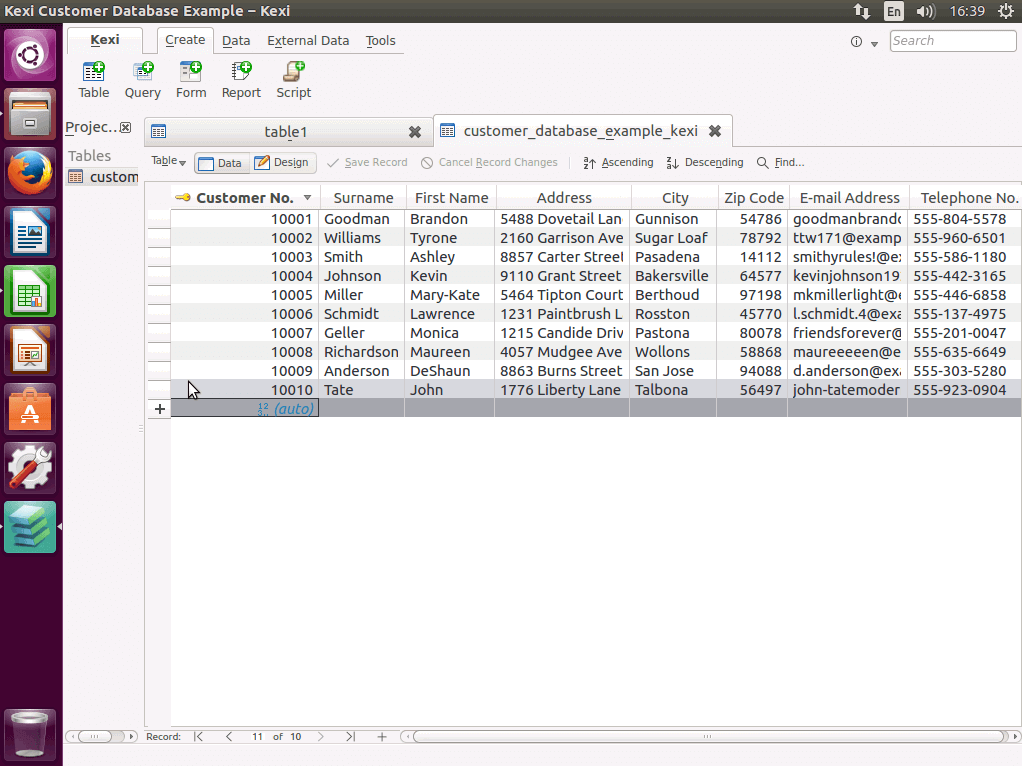
Kexi is part of the Calligra Suite, an office software compilation similar to Microsoft Office, OpenOffice, and LibreOffice. It contains design applications such as an image processing programme and a vector graphics programme. The Calligra Suite developed from the now discontinued Office package KOffice, which was initially only operable on Unix-like operating systems such as Linux. Meanwhile, the Calligra Suite is also available for Windows and macOS with some limitations, but Kexi is not included in this. The DBMS is therefore only available for GNU/Linux, but a Windows version is being planned. If you use it as a pure desktop DBMS, the programme will access SQLite as a database. Alternatively, you can also use an SQL database server such as MySQL, PostgreSQL, Microsoft SQL Server, or dBase. Kexi supports the import of MS Access and dBase files. Classic DBMS tasks, such as generating and modifying tables and requests can easily be performed with the software. You can also work with forms and create reports — the latter, however, are less detailed than they would be when using Microsoft Access. However, you cannot use macros at all (this is planned for future versions). In addition, the desktop application does not provide the option for multiple people to work simultaneously in a database. Kexi’s functional range can’t keep up that of Microsoft Access, but in spite of this, various database management tasks can be managed perfectly well with this software. Kexi is a good choice if you want to create address books, product lists, and simple tables, but it isn’t a full-fledged replacement for MS Access.
| Advantages | Disadvantages |
|---|---|
| File import of MS Access and dBase possible | Offers far fewer features and fewer options than MS Access |
| Supports database server MySQL, PostgreSQL, MS SQL Server, and dBase | Macros are not (yet) supported |
| No multi-user access on desktop DMBS | |
| Currently only available for GNU/Linux |
Glom
The open source software, Glom, is also a good substitute for Microsoft Access. The RDBMS is available for GNU/Linux and Windows, but the Windows version hasn’t had any further developments since 2010.
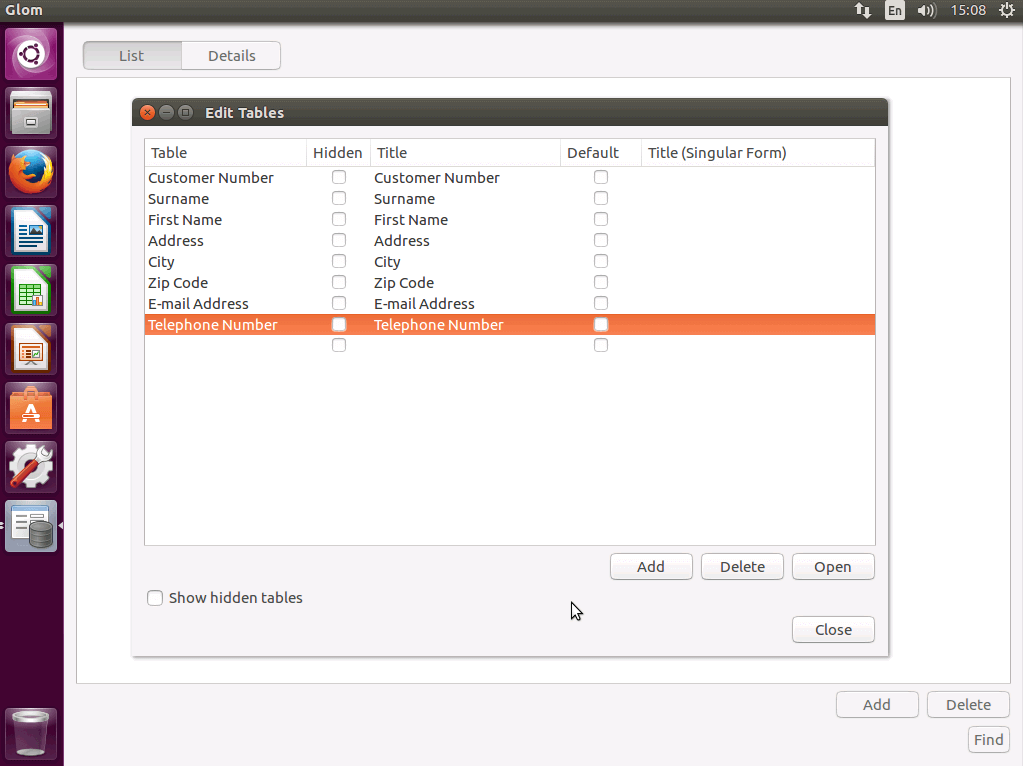
You can create a database in a short time thanks to Glom’s clever user interface and clear functions. It’s possible to request data sets via the search function and compare them with one another. The programme also offers the option of creating reports. Compared to Microsoft Access or LibreOffice Base or OpenOffice Base, however, the functionality is far more limited.
PostgreSQL is used as the database format. Glom is especially suited to smaller databases and projects such as contact lists and product lists, which can be created quickly thanks to the simple means of operation. However, Glom isn’t a fully developed MS Access alternative.
| Advantages | Disadvantages |
|---|---|
| The clear user interface makes it extremely easy to use – databases can be quickly created and analysed | Contains significantly less features than MS Access or Base |
| Current version is only available for GNU/Linux (Windows version is from 2010) | |
| Can no longer be used on desktop versions of Windows |
Summary: can free Microsoft Access alternatives replace the original?
The bottom line is that there is only really one free alternative to Microsoft Access in database management that offers roughly the same possibilities: LibreOffice/OpenOffice Base. But even with Base, you have to accept that there will be a few drawbacks compared to MS Access, especially regarding the database’s request possibilities and the general functional range. In addition, MS Access appears to be more stable and reliable: the programme crashes very rarely and doesn’t need fixing often.
Glom and for the most part, Kexi, are more likely to use the database frontend concept, which additionally requires a database management system to be installed or at least collaborated with. This is useful because it solves some common problems associated with classic desktop database systems and provides a stable and multi-user database. However, the range of functions and the possibilities of the two database management systems are really quite limited, meaning that the two programmes are only really suitable for a small number of tasks.
The advantage that MS Access has over the free, file-based database management systems is, among other things, the long development period that the programme has already undergone as part of the MS Office Suite. Even though only a few new features have been introduced in recent versions, the software has been constantly improved since its release in the early 1990s and any errors encountered have been fixed. FileMaker is the only (fee-based) programme that has a longer development history than the desktop database management system from Microsoft. If you are looking for a fully developed desktop DBMS with a great variety of functions, you should consider purchasing Microsoft Access (or the FileMaker software for macOS).
It could be that the other programmes are right for you; it just depends on your requirements and your operating system. Base from LibreOffice and OpenOffice has the largest range of features out of all the free alternatives to Microsoft Access, followed by Kexi. On the other hand, Glom has the clearest frontend and is the easiest to use, thanks to its minimalistic layout. The type of software you go for can be dependent on how many user interfaces to other database systems are available or whether full multi-user features are included. The final overview presents all the important features of the three desktop database management systems that have been introduced in this article.
Overview: Microsoft Access compared with other desktop databases
| Operating system(s) | Operation simplicity | Range of functions | Import/export options of other file formats | Special features | Multi-user access | Free | |
|---|---|---|---|---|---|---|---|
| Microsoft Access | Windows | ↗ | ↑ | ↗ | All-rounder among desktop DBMSs: has many features and interfaces to other databases | Yes (with limitations) | No |
| LibreOffice Base/Apache OpenOffice Base | Windows, macOS, GNU/Linux | → | ↗ | ↑ | Available for all current operating systems and offers many interfaces to other databases | Only in combination with a database server | Yes |
| Kexi | GNU/Linux | ↗ | → | ↗ | Supports various SQL databases | Only in combination with a database server | Yes |
| Glom | GNU/Linux (and Windows with limitations) | ↑ | ↘ | → | Very clear and easy-to-use DBMS, suitable for simple databases | With GNU/Linux only in combination with a database server | Yes |