

How to organise your photos and videos using Nextcloud Memories
Nextcloud Memories is an app designed to simplify managing your photos and videos. It offers a wide range of features, including auto-upload, automatic sorting, AI tagging and video transcoding. The app can be installed through the Nextcloud App Store.
What is Nextcloud Memories?
Nextcloud Memories is an app for managing photos and videos within the Nextcloud interface. As a self-hosted app, it ensures your media is stored in your own cloud and not on an external service’s server. The app also supports data encryption, providing the highest levels of security and privacy.
The app offers a flexible and secure platform for organising media content, making it easy to store, manage and access large volumes of photos and videos. Whether for professional media projects, organising large media libraries, or simply for personal memories, Nextcloud Memories is ideal for both professional and personal use.
What features does Nextcloud Memories have to offer?
Nextcloud Memories provides users with a variety of features. What’s more, its innovative technologies are designed to streamline the organisation of media libraries. Usability, security and performance are prioritised alongside the app’s flexibility. Its key features include:
- Automatic upload: Photos and videos can be automatically uploaded to your cloud server using the mobile Nextcloud app. The app also extracts EXIF metadata such as date, time and GPS location during the upload process.
- Timeline view: Nextcloud Memories organises photos and videos by their creation date. The timeline view makes it easy for you to jump back to any point in your photo library.
- Create and share albums: You can create albums for your photos and videos, which can be kept private or shared with others. Multiple people can also collaborate on an album, which is particularly useful for group projects.
- Automatic tagging: With AI support, Memories automatically tags photos with keywords and recognises faces. You can also add tags manually.
- Editing metadata: Titles, descriptions, and other EXIF metadata of your photos can be edited. You can also adjust multiple files simultaneously.
- Video transcoding: The app features a video transcoder that ensures maximum compatibility and performance, enhanced by hardware acceleration via VA-API or NVENC.
- Map view: Nextcloud Memories uses GPS data to automatically read and display the precise geolocation of photos and videos on an interactive map.
- Open data structure: As the EXIF metadata is stored directly in the file headers, you can easily migrate your files to other platforms without losing any data.
- Keep your data safe with industry-leading security
- Save time on updates and maintenance
- Easily add apps and online office tools
How to install Nextcloud Memories
Installing the Memories app is straightforward and is done through the Nextcloud App Store.
- Log in to Nextcloud: Sign in as an administrator to your Nextcloud instance.
- Open the Nextcloud App Store: Click on your account icon and select Apps from the dropdown menu.
- Search for the Memories app: Use the search function to quickly and easily find the Memories app.
- Install Nextcloud Memories: To install, simply click on Download and enable.
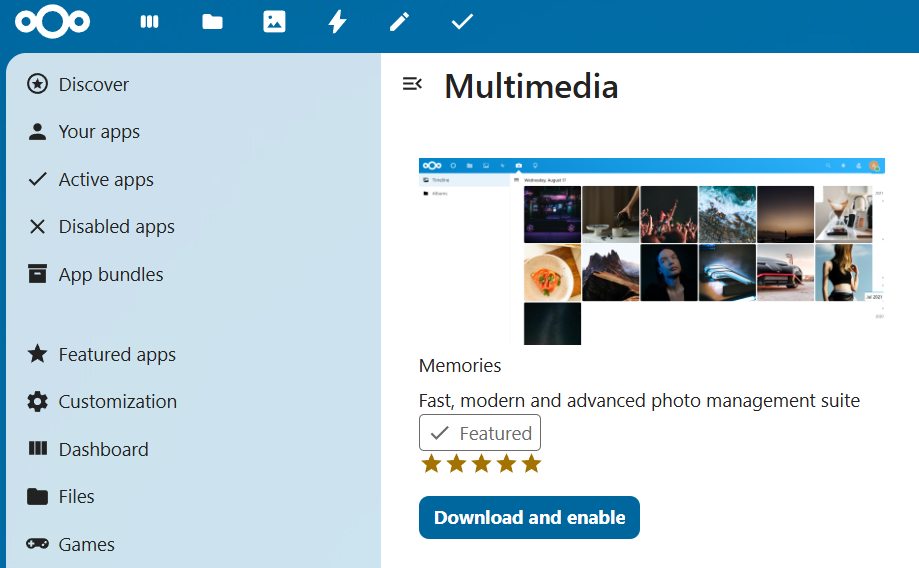
Since version 5.0.0, you can fully configure the Memories app via the administration area. Go to Administration -> Memories. For optimal use of all features, it’s a good idea to install the following Nextcloud apps:
- Preview Generator: For image previews (improves performance)
- Recognize: For AI-powered tagging of images and people with facial recognition
- Photos: For album support
To automatically upload images and videos, you’ll need the mobile Nextcloud app. The Android version is available on the Google Play Store and on F-Droid, and you can download the iOS app from the App Store. For Android, a Memories app is also available via Google Play, F-Droid, and GitHub.
How to get started with Nextcloud Memories
Once installed and activated, the Memories icon will appear in the top menu bar of the Nextcloud interface. You can use this button to manage your photos and videos at any time. Below we’ll cover some basic features of the app.
How to upload photos and videos
- Click the upload button (Upload) in the top-right corner of the Nextcloud interface.
- In the pop-up window, select the files you want to upload and click Open.
- Choose the directory where the files should be saved. You can also add them to an album or tag them at this point.
- Once you’re ready, click Upload to begin the upload process.
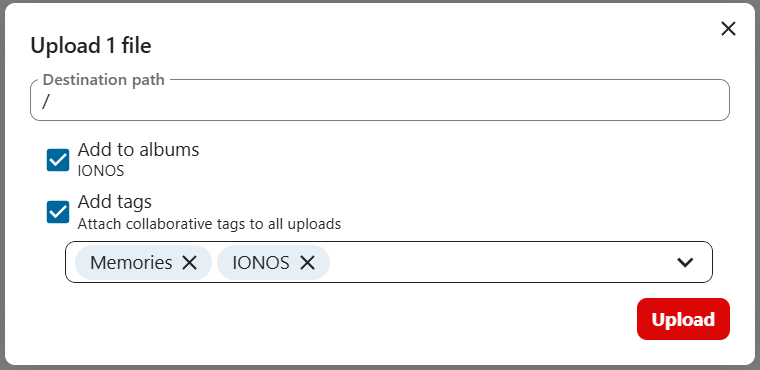
To automatically upload photos and videos from your smartphone or tablet, you need to enable the Automatic Upload option in the Nextcloud app.
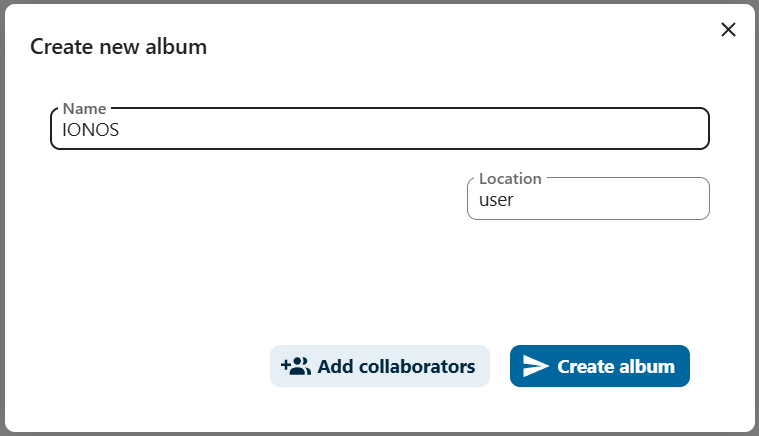
How to create an album
- Click on the Albums section within the Memories app.
- Click on the
+symbol (‘Create new album’) located at the top right under the profile icon. - Give the album a name and set its file path. You can also assign specific individuals or groups who will have access to the album.
- Click on Create album.
How to share an album
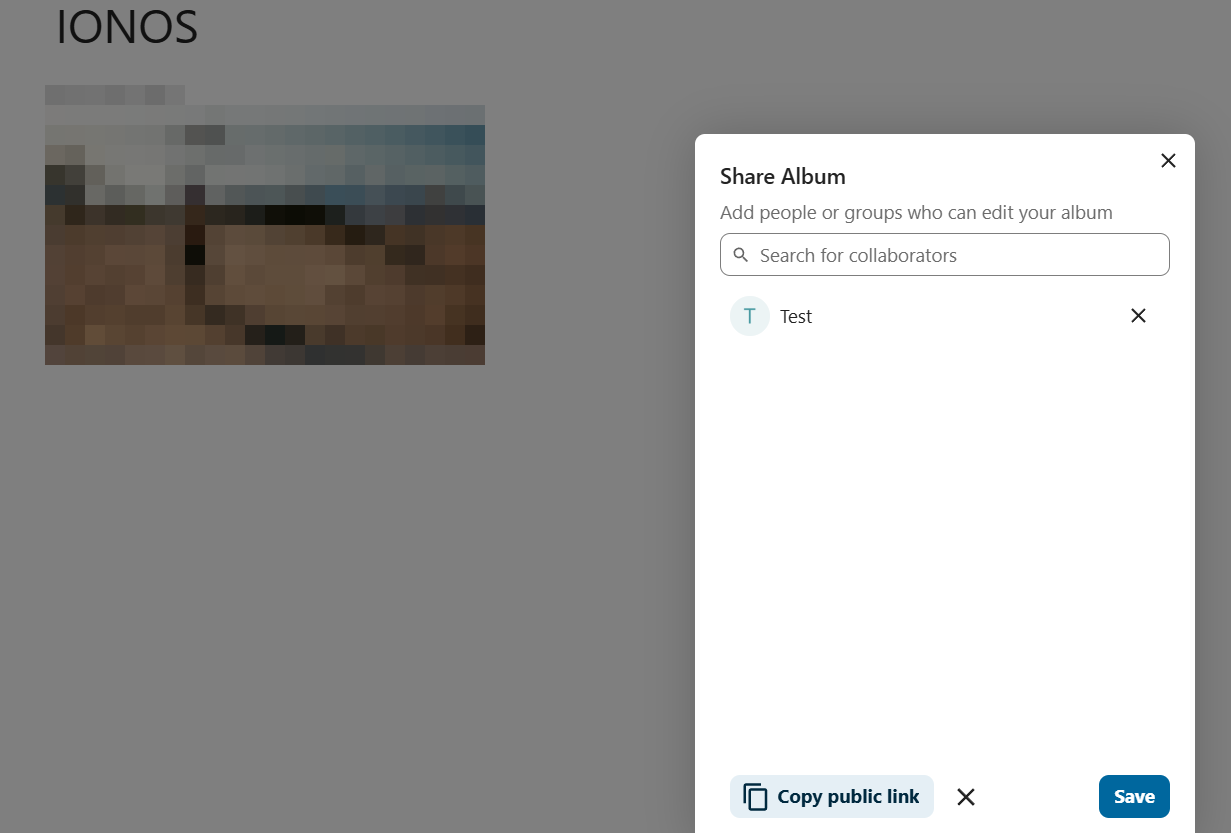
- Click on the Albums section within the Memories app.
- Tap the album you wish to share.
- Click the share button (top right under the profile icon).
- Specify which users should have access to the album or create a public link for sharing.
- Press Save to confirm the settings.
You can share your images and videos organised with Memories on Nextcloud via Nextcloud Group Folders.
- Keep your data safe with industry-leading security
- Save time on updates and maintenance
- Easily add apps and online office tools
Reviewer

Jeanna Raffa
With over 18 years of experience in online marketing, Jeanna Raffa possesses extensive expertise in digital marketing. Since 2020, her focus has been on providing practical information regarding email, office, and cloud storage solutions.