

How to manage your RSS feeds using Nextcloud News
Nextcloud News is an app designed to help you manage your RSS feeds. It allows you to easily subscribe to feeds, organise them, and access content whenever you need it. The app can be installed in just a few clicks via the Nextcloud App Store and is compatible with various sync clients through the REST API.
What is Nextcloud News?
RSS feeds are a popular way to automatically retrieve content from websites like news portals, blogs or podcasts. Nextcloud News brings this functionality directly to your Nextcloud instance, eliminating the need for external services that may not be as privacy-conscious as Nextcloud. As an open-source application, it is also free from ads and paid features.
The Nextcloud News app is available on both PCs and mobile devices. The Android app can be found on the Google Play Store and F-Droid. The iOS version is available on the App Store.
What features does Nextcloud News offer?
Nextcloud News combines simplicity with all the essential features you’d expect from an RSS organiser. Here’s an overview of its key functions:
-
Central management of RSS feeds: You can subscribe to and organise your feeds directly within the Nextcloud ecosystem. This makes keeping track of all your subscribed content easy.
-
Automatic update of news feeds: Once new articles become available, the app automatically updates your feeds and sends you a notification.
-
High privacy protection: Unlike third-party RSS services, Nextcloud News doesn’t share any of your data with external parties. The app also benefits from Nextcloud’s strong security features.
If you opt for Managed Nextcloud by IONOS, you don’t have to worry about installing, maintaining, or updating your server. You’ll still have full control over your data, which is securely stored on servers in Germany.
What are the requirements for using Nextcloud News?
To ensure the Nextcloud News app runs smoothly, a few system requirements need to be met. These include the operating system, the Nextcloud instance, as well as the necessary PHP versions and extensions. The details are listed below:
System requirements:
-
A 64-bit operating system
-
The latest stable version of Nextcloud
-
libxml version 2.7.8 or higher
PHP version and extensions:
-
PHP version 8.2 or higher
-
Required PHP extensions: json (for processing JSON data), simplexml and xml (for XML data), dom (for document object model manipulation), curl (for communication with external servers and data sources), iconv (for character encoding)
Supported databases:
-
PostgreSQL from version 10
-
MariaDB from version 10.2
-
MySQL from version 8.0
-
SQLite (technically possible, but not recommended)
Which clients are compatible with Nextcloud News?
Nextcloud News connects with a variety of sync clients through the REST API. It also gives you the option to integrate your own applications. Here is an overview of the compatible clients:
| Client | Platform | Licence |
|---|---|---|
| RSS Guard | Windows, Linux, OS/2, macOS | GPL-3.0 Licence |
| Fluent Reader | Windows, Linux, macOS | BSD-3-Clause Licence |
| Communique | Linux | LGPL-2.1 Licence |
| NewsFlash | Linux | GPL-3.0 Licence |
| Nextcloud News Reader | Android | GPL-3.0 Licence |
| OCReader | Android | GPL-3.0 Licence |
| Newsout | Android | Apache-2.0 Licence |
| Readrops | Android | GPL-3.0 Licence |
| CloudNews | iOS | BSD-2-Clause Licence |
| Fiery Feeds | iOS, macOS | - |
| Nextnews | iOS | - |
| Newschecker | Google Chrome | - |
| FeedSpider | Firefox OS, webOS, LuneOS | MIT Licence |
| py3status | i3wm | BSD-3-Clause Licence |
| newsboat | Unix Terminal | MIT Licence |
| Newsie | Ubuntu Touch | GPL-3.0 Licence |
| Fuoten | Sailfish OS | GPL-3.0 Licence |
- Keep your data safe with industry-leading security
- Save time on updates and maintenance
- Easily add apps and online office tools
How to install Nextcloud News
To install the Nextcloud News app, you have several options. Like with all Nextcloud apps, the easiest way is to download it from the Nextcloud App Store. But it’s also possible to install Nextcloud News from an archive or via Git. Below, we’ll walk you through the installation process via the app store:
- Log in to Nextcloud: Log in as an administrator to the Nextcloud interface.
- Go to the Nextcloud App Store: Open the app store by clicking on the account icon (top right) and selecting the Apps option from the dropdown menu.
- Find the News App: Use the search function to locate the app.
- Install Nextcloud News: Click on Download and Enable to install the app.
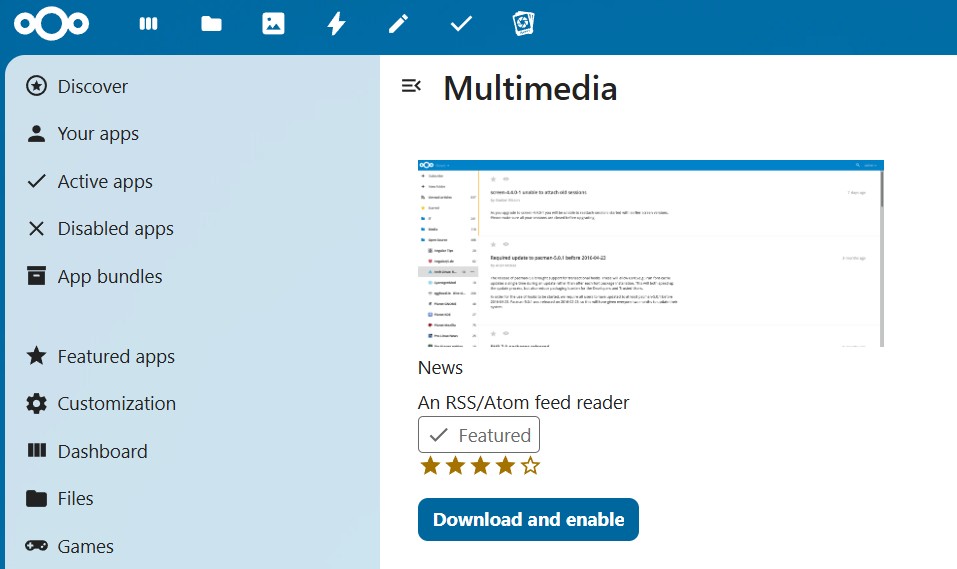
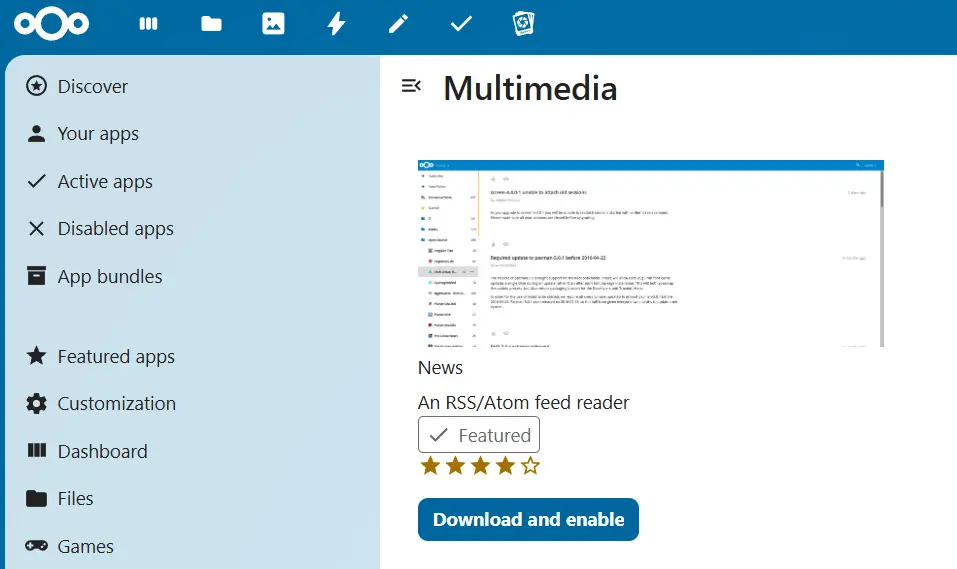
Before installing the News App, make sure your installation meets all the app’s requirements. To enable feed updates, you’ll need to set up Nextcloud CronJobs. CronJobs can be configured, for example, using Cron or WebCron.
How to use Nextcloud News
The app has an intuitive, user-friendly interface, making it easy to use even if you have no prior experience. Here’s a quick guide to getting started:
How to subscribe to a feed
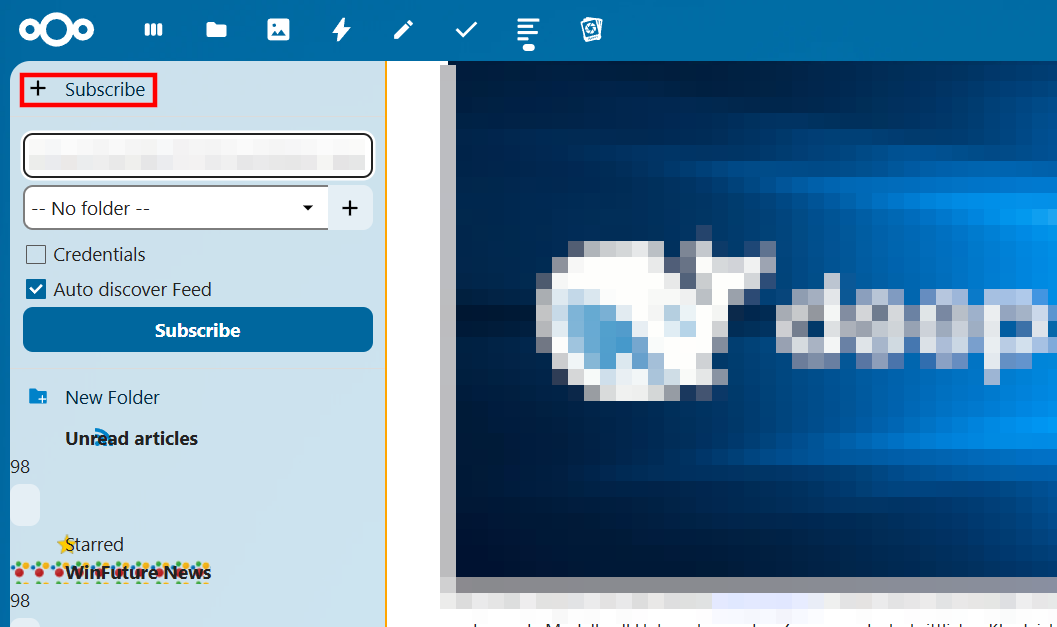
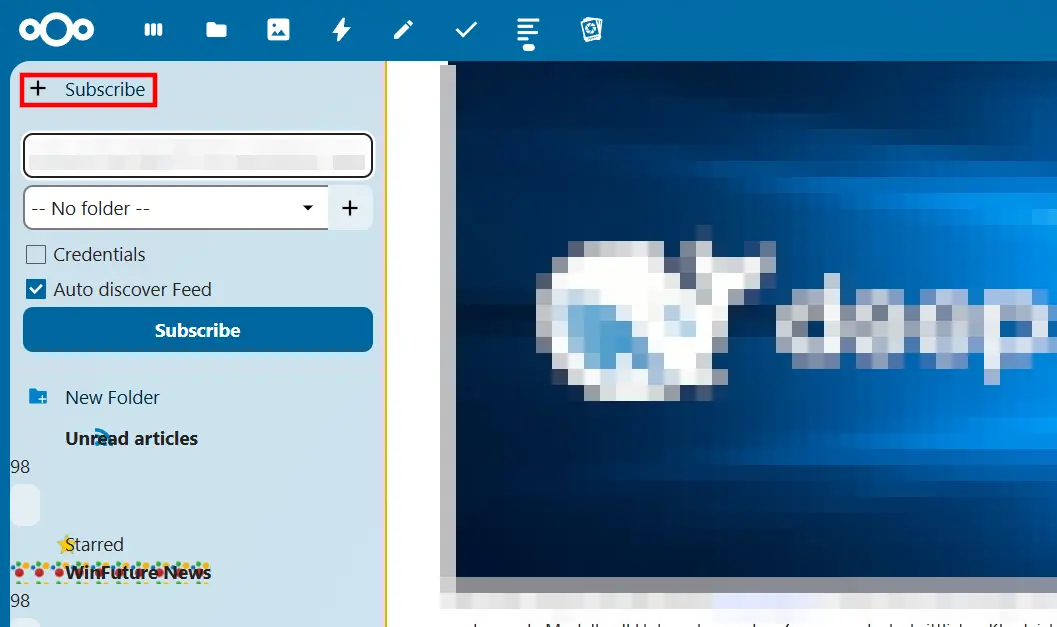
- Copy the link of the RSS feed you want to subscribe to. You can usually find the URLs of relevant feeds using a search engine.
- Open the News App by clicking on the app icon in the Nextcloud menu bar.
- Click on the “+ Subscribe” button in the left sidebar and then paste the link of the RSS feed.
- Finally, click the blue “Subscribe” button to add the feed.
How to access unread articles
Once you open the app, click on the Unread Articles section to view posts you haven’t read yet. This will work on both computers and mobile devices.