

Hoes does the Nextcloud Flow app work and what does it offer?
Nextcloud Flow is a workflow app that allows you to optimise processes within your cloud environment through automation. It boasts a wide range of features designed to save time and improve team collaboration. The app integrates easily with Nextcloud and can be customised to suit your specific needs.
What is Nextcloud Flow?
Nextcloud Flow is a powerful automation and workflow app that serves as an integrated workspace, offering an intuitive interface and innovative features. The app allows you to structure and execute actions or tasks through predefined rules. Within Nextcloud, Flow acts as the central hub, linking specific events in the cloud with desired responses.
Flow is fully integrated into the Nextcloud ecosystem, fitting perfectly within its existing architecture. Not only does the app help users streamline tasks and automate repetitive processes, but it also helps boost communication and collaboration within teams.
What’s more, Nextcloud Flow supports Nextcloud’s role as the first open-source platform for implementing the Online Access Act (OZG), which requires authorities to offer all administrative services online as well. This flexible solution allows administrations to digitise and automate government services, providing citizens with easier access to public services.
Managed Nextcloud from IONOS is ideal for those seeking a powerful cloud solution without the hassle of setup and configuration. It provides you with access to a secure server infrastructure, with IONOS handling installation, maintenance and updates. Enjoy the benefits of a centralised cloud!
What features does Nextcloud Flow offer?
Nextcloud Flow has a range of practical features designed to optimise both simple and complex workflows. The key features include:
-
Create workflows via drag and drop: Flow’s intuitive drag-and-drop interface makes it easy to create or customise workflows. Whether you’re managing documents, setting up team notifications, or defining bespoke processes, the Workflow Builder allows for simple and efficient setup.
-
Automation of repetitive tasks: Nextcloud Flow allows recurring tasks to be automated, using predefined rules. These rules can be tailored to meet specific requirements, reducing the need for manual input.
-
Flexible triggers: Users can link specific events - known as ‘triggers’ - such as uploading a file, with actions like sending a notification. These actions can be scheduled to run at specific times or at regular intervals, depending on your needs.
-
Integration with other Nextcloud apps: Flow integrates seamlessly with other Nextcloud apps such as Files, Deck, or Talk. For instance, you can automatically organise files in Files, update cards in Deck, or send messages in Talk, all without leaving the Flow app.
-
Real-time monitoring of workflows: Flow provides detailed dashboards and analytics to track the progress of your workflows in real-time. You can also set up customised notifications to alert users immediately about events happening within their workflows.
What are the benefits of using Nextcloud Flow?
There are several good reasons to automate your work processes with Nextcloud Flow. The app’s main benefits include:
-
Optimising workflows: Automating repetitive tasks through customisable rules not only saves time but also ensures processes are carried out consistently and without error. This allows teams to focus more on strategic tasks, ultimately boosting overall productivity.
-
Improving teamwork: Integrating Flow with other Nextcloud apps helps improve communication and collaboration within teams. All authorised users are kept up to date on progress and changes, boosting transparency and reducing the risk of misunderstandings.
-
Enhancing security: As part of the Nextcloud ecosystem, Flow benefits from a robust data protection framework. Data is transmitted with end-to-end encryption, and access can be tightly controlled through detailed permission settings.
How to install Nextcloud Flow
Nextcloud Flow has been included in the standard installation since version 18. In older versions, the app must be added and activated through Nextcloud’s integrated app store. Here’s how to do it:
-
First log in: Log in as an administrator to your Nextcloud account.
-
Open the Nextcloud App Store: Go to the ‘Apps’ section in the menu to access the Nextcloud app store. Type ‘Flow’ into the search bar to find the app.
-
Install Nextcloud Flow: To install the app, simply click on ‘Enable’. After installation, Flow will be available through the Nextcloud interface.
To access Flow, you will need to have the Nextcloud app ‘AppAPI’ installed and enabled. You will also need to have a standard deploy daemon configured and deployed.
How to get started with Nextcloud Flow tutorial
With the Flow app, Nextcloud offers an easy-to-use and flexible platform, allowing you to quickly create your own workflows. The following tutorial will guide you through the basics of using the app:
- Open the Flow App: Log in to your Nextcloud instance, go to the admin settings, and select the ‘Flow’ option from the left-hand sidebar.
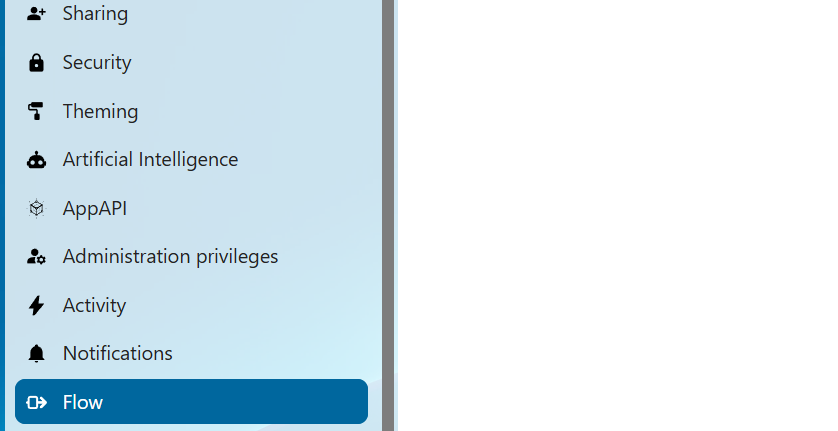
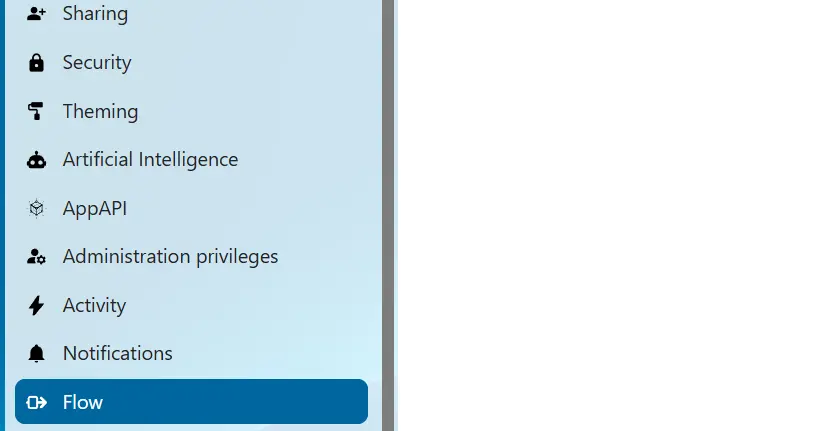
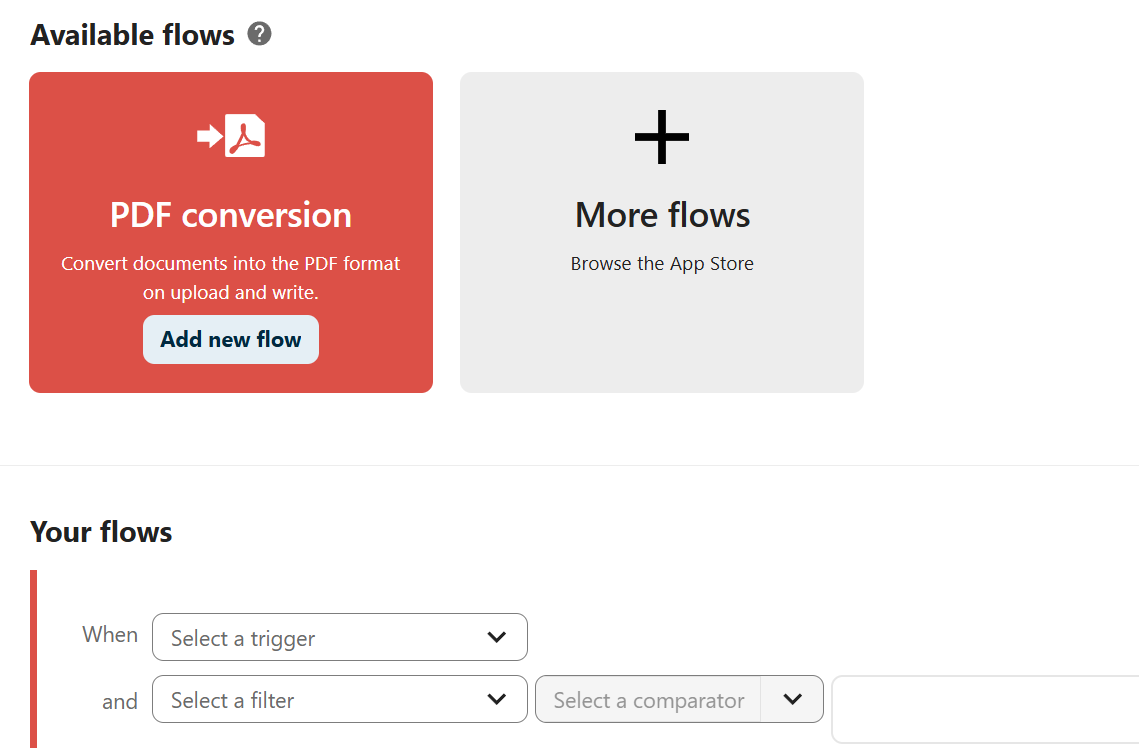
- Create a New Workflow: In the Flow tab, you’ll see the available workflows. If you haven’t created a workflow yet, you’ll only see the ‘More Flows’ button. Clicking this take you to the store, where you can download and install available flows, such as ‘Automated PDF conversion’ (for automatically converting documents into PDF format).
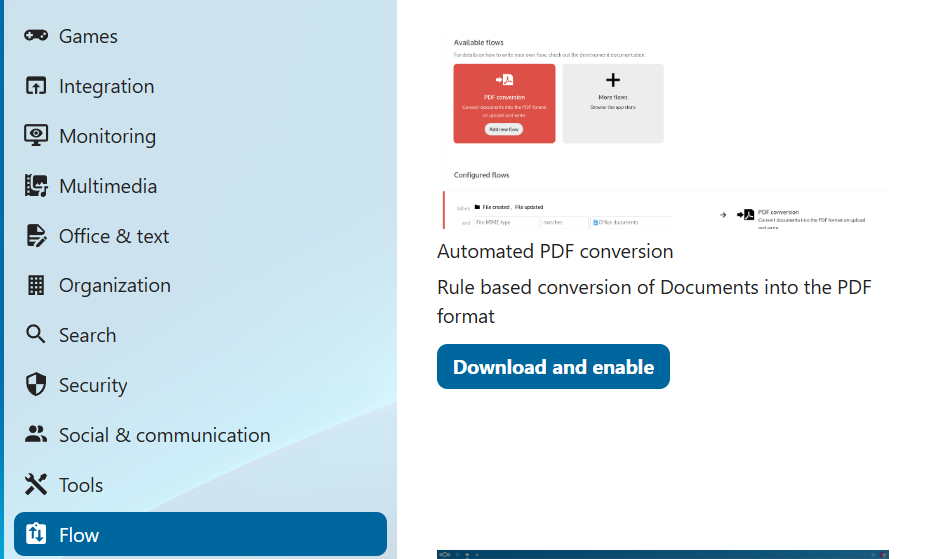
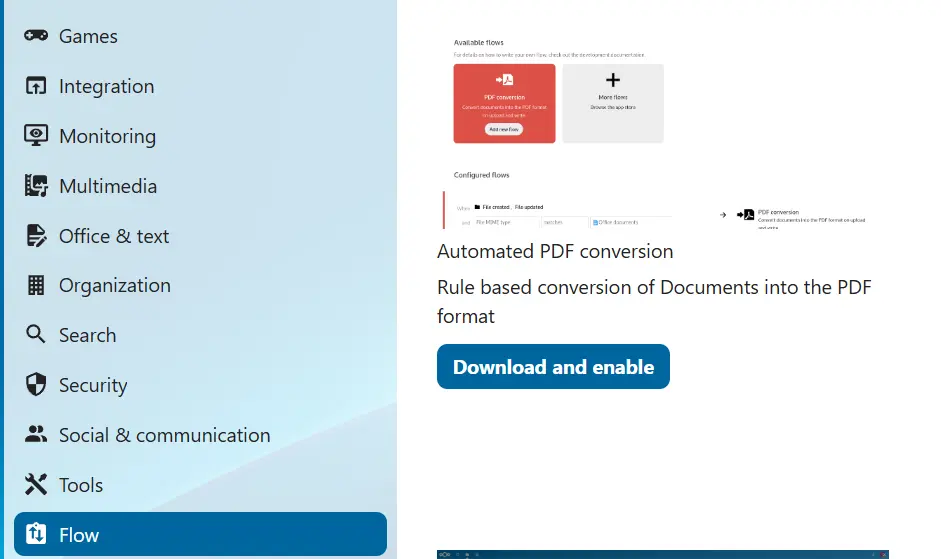
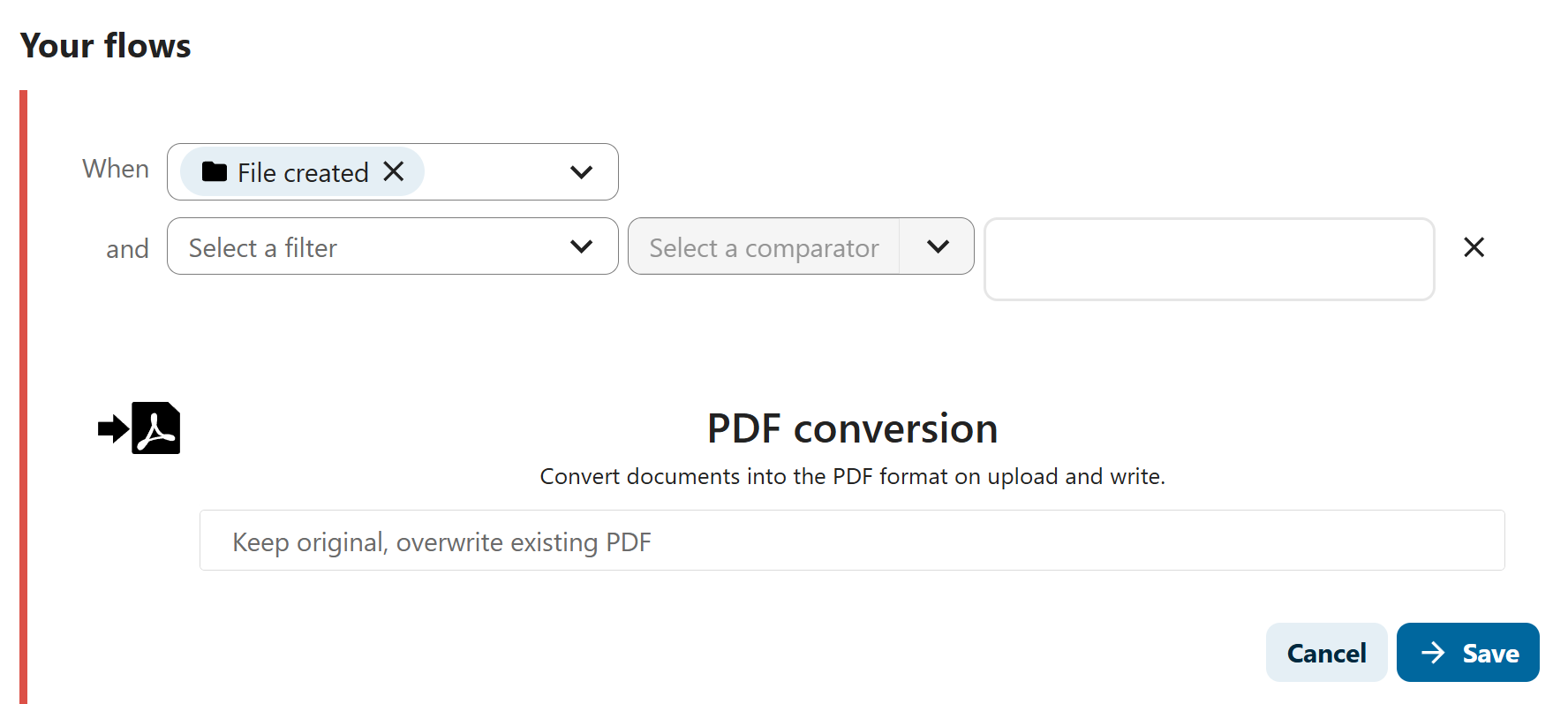
- Add Trigger: Go back to the Nextcloud Flow menu and click on ‘Add flow’. Under ‘Select a trigger’, you’ll find various triggers, such as ‘File created’ or ‘File updated’. You can add optional conditions under ‘Select filter’.
- Define an Action: Next, choose an action to be executed when the trigger occurs. For example, with PDF conversion, you can choose to keep the original document and convert the file stored in Nextcloud to a PDF. Finally, click ‘Save’.
- Keep your data safe with industry-leading security
- Save time on updates and maintenance
- Easily add apps and online office tools
Reviewer

Jeanna Raffa
With over 18 years of experience in online marketing, Jeanna Raffa possesses extensive expertise in digital marketing. Since 2020, her focus has been on providing practical information regarding email, office, and cloud storage solutions.