

5 free Lightroom alternatives

The photo storage and management software Adobe Lightroom seems almost indispensable due to its extensive functions and capacities, but the downside is that it is relatively expensive. There are, however, free photo management tools that are adequate Lightroom alternatives. Let’s take a look at the best Lightroom alternatives.
Why do I need a photo management tool?
In contrast to pure image processing programs such as Photoshop, the focus with photo management tools is less on the creative design and more on the correct archiving, adjustment and presentation of the images. With digital image formats, a distinction is always made between compressed and raw image files.
The most common compressed format for digital images is JPEG (‘Joint Photographic Experts Group’ format, usually written as .jpg or .jpeg); other very well-known formats include PNG, GIF and the container format, TIFF.
On the other hand, there are also raw files. They contain the unprocessed image information of the original file and are therefore of the highest quality. Raw files are very large and therefore take up considerably more storage space, which often makes them impractical to use. For this reason, photo management software are ideal for creating storage-friendly formats.
- Store, share and edit data easily
- ISO-certified European data centres
- Highly secure and GDPR compliant
A comparison of free Lightroom alternatives
| Program | Operating system | Browser/desktop | File format |
|---|---|---|---|
| Raw Therapee | Windows, macOS, Linux | Desktop | Opens: HDR DNG (16, 24 and 32 bit), JPEG, PNG (8 and 16 bit) and TIFF files (8, 16 and 32 bit) Saves as/exports: JPEG, PNG (8 and 16 bit) and TIFF (8 and 16 bit) |
| darktable | Windows, macOS, Linux | Desktop | Opens/saves as/exports: JPEG, PNG, 16-bit PPM/TIFF formats, PFM, EXR files |
| LightZone | Windows, macOS, Linux | Desktop | Opens/saves as/exports: JPG and TIFF files |
| Google Fotos | Web, Windows, iOS, Android | Browser & Desktop | |
| PhotoScape | Windows, macOS | Desktop | Opens/saves as/exports: Raw formats in JPEG, PNG, GIF, BMP and TIFF files |
RawTherapee – the flexible all-rounder
Raw Therapee is a convenient alternative software to Adobe Lightroom. The open-source software is available for Windows, macOS, and Linux. It offers many functions for archiving, converting, and processing raw data and other image formats. This useful tool makes it incredibly simple to implement colour correction, saturation, brightness, contrast, and sharpness, as well as crop and orient images. RawTherapee’s main strength, however, is the noise reduction function. Furthermore, the preview tool allows less experienced users to edit files securely without damaging the original file. Users can easily return to older versions of the file, which are all stored in the cache history.
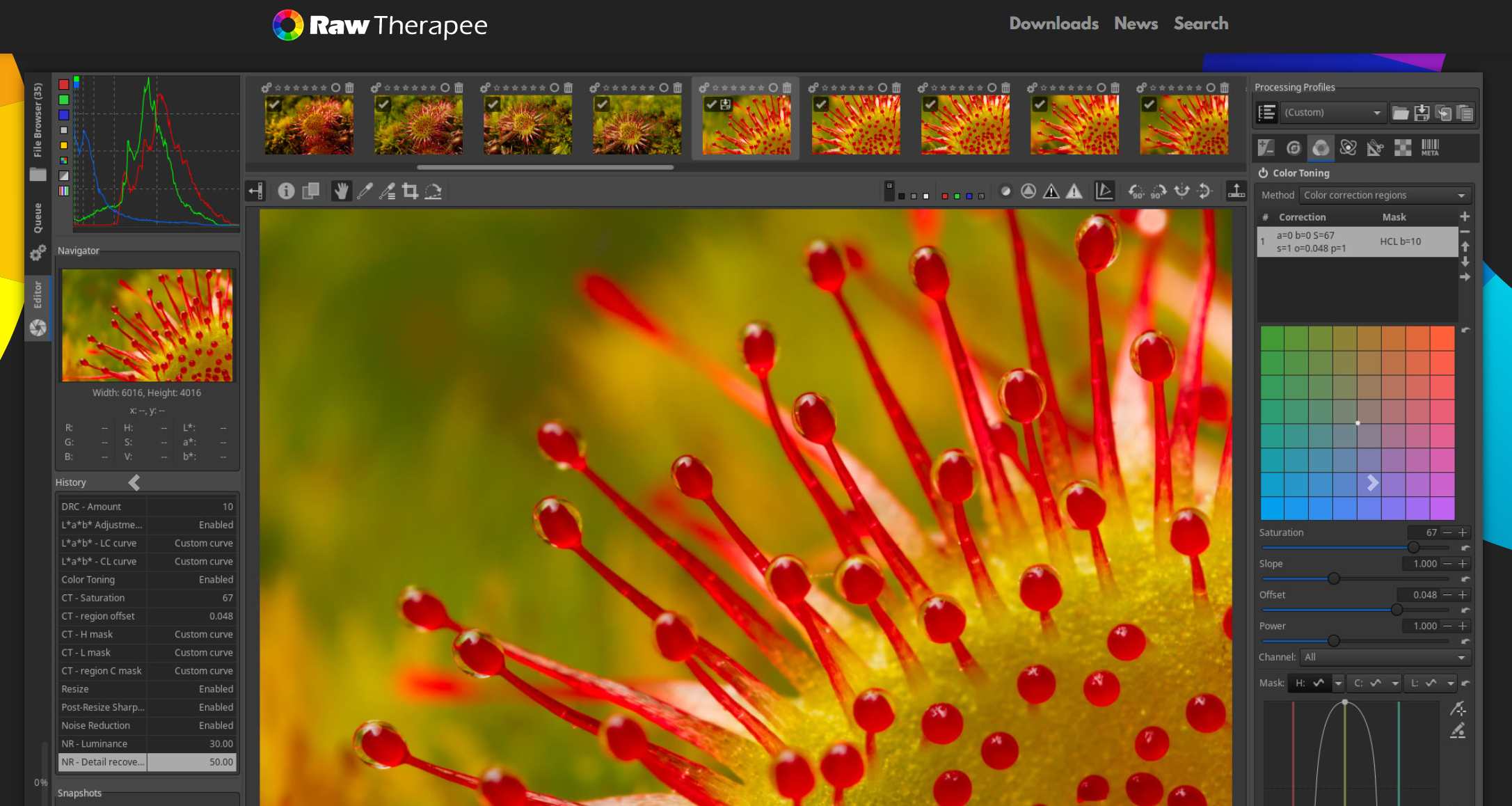
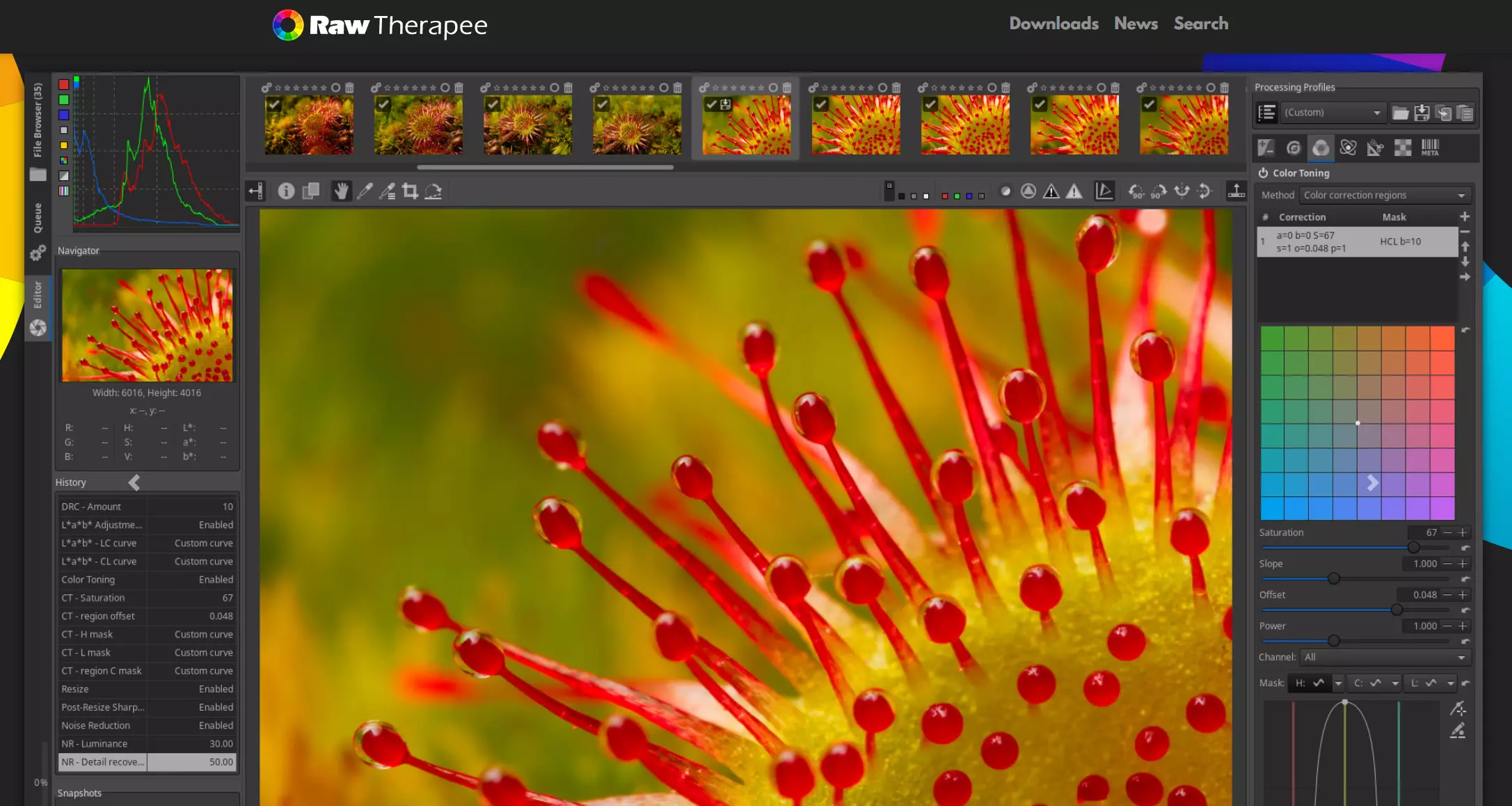
Raw Therapee’s user interface may seem a little cumbersome for beginners. One reason is that the save and settings functions, for example, are hidden at the bottom of the image view. The program is available for a total of 15 languages and has a wide range of practical functions, including the creation of fixed processing profiles and batch processing, which means several files can be optimised at once. It also uses popular file formats such as HDR DNG (16, 24, and 32 bit), JPEG, PNG (8 and 16 bit), and TIFF files (8, 16, and 32 bit). The Lightroom alternative loads common file formats such as JPEG, PNG, (8 and 16 bit), and TIFF (8, 16 and 32 bit). After familiarising yourself with the software and overcoming a few minor flaws in terms of editing and speed, the free Raw Therapee offers helpful options, especially when converting raw files.
Summary: With its far-reaching functions and flexible operation, RawTherapee is especially recommended for its sophisticated image management. Its user-friendly interface alone only has a few small faults. Otherwise, it makes a perfectly adequate free Lightroom alternative.
| Pros | Cons |
|---|---|
| ✓ Compatible with Windows, macOS, and Linux | ✗ User interface takes a while to get used to |
| ✓ Secure preview mode (original version can be recovered at any time) | |
| ✓ Practical application such as stacking function and autosaved processing profiles |
darktable – intuitive and highly functional
Another bona fide, free alternative to Lightroom is the open source program, darktable. Experienced Lightroom users will immediately notice darktable’s similar black and grey design as well as the user interface with folding control panels, making work a lot easier. However, the tool is mostly managed from the pure control panels, which requires some getting used to. Unlike its costly counterpart, however, darktable does not allow users to create manual compilations, and instead automatically imports image galleries. darktable is fully compatible with Linux, macOS and Windows (64-bit).
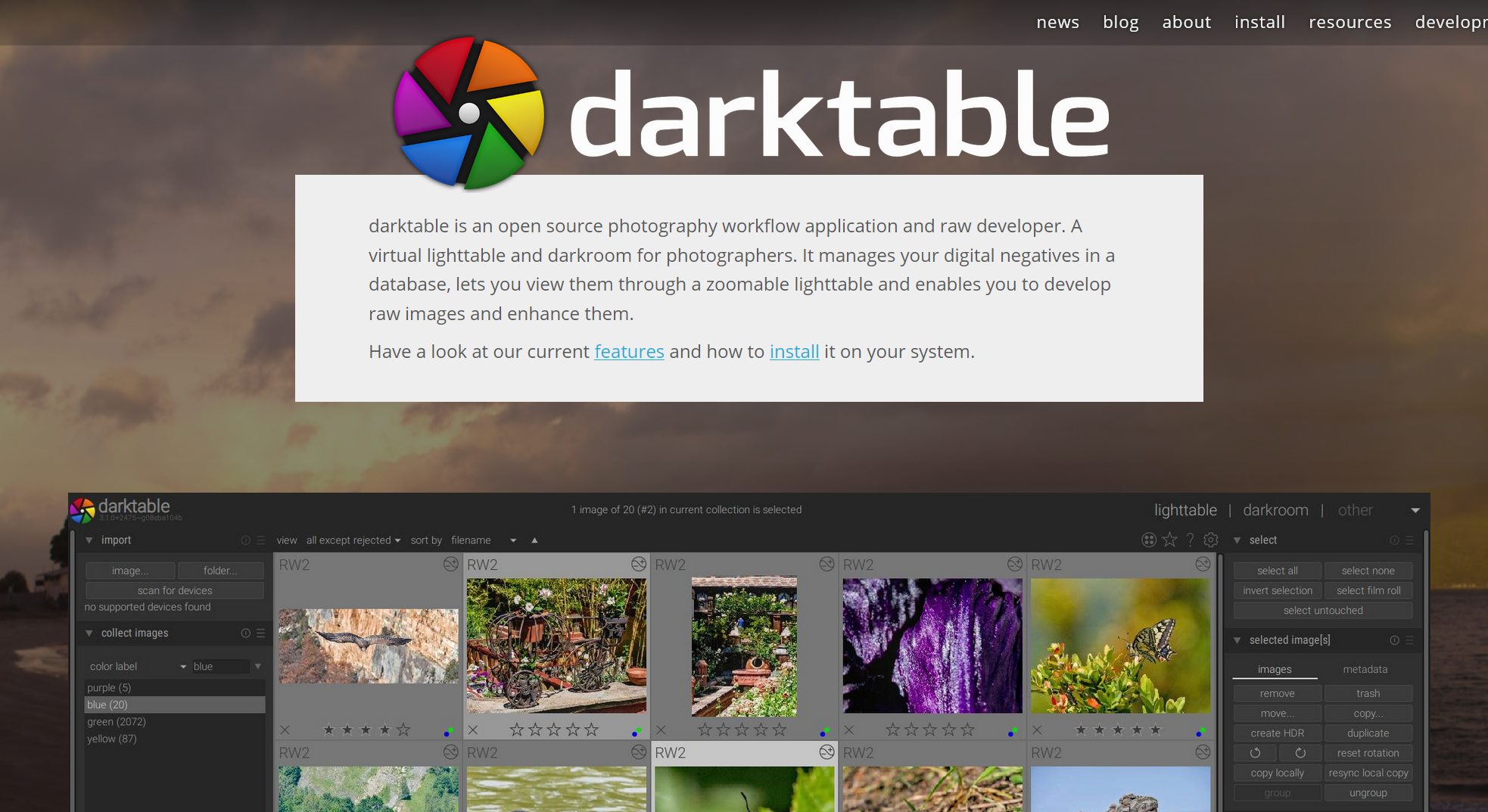
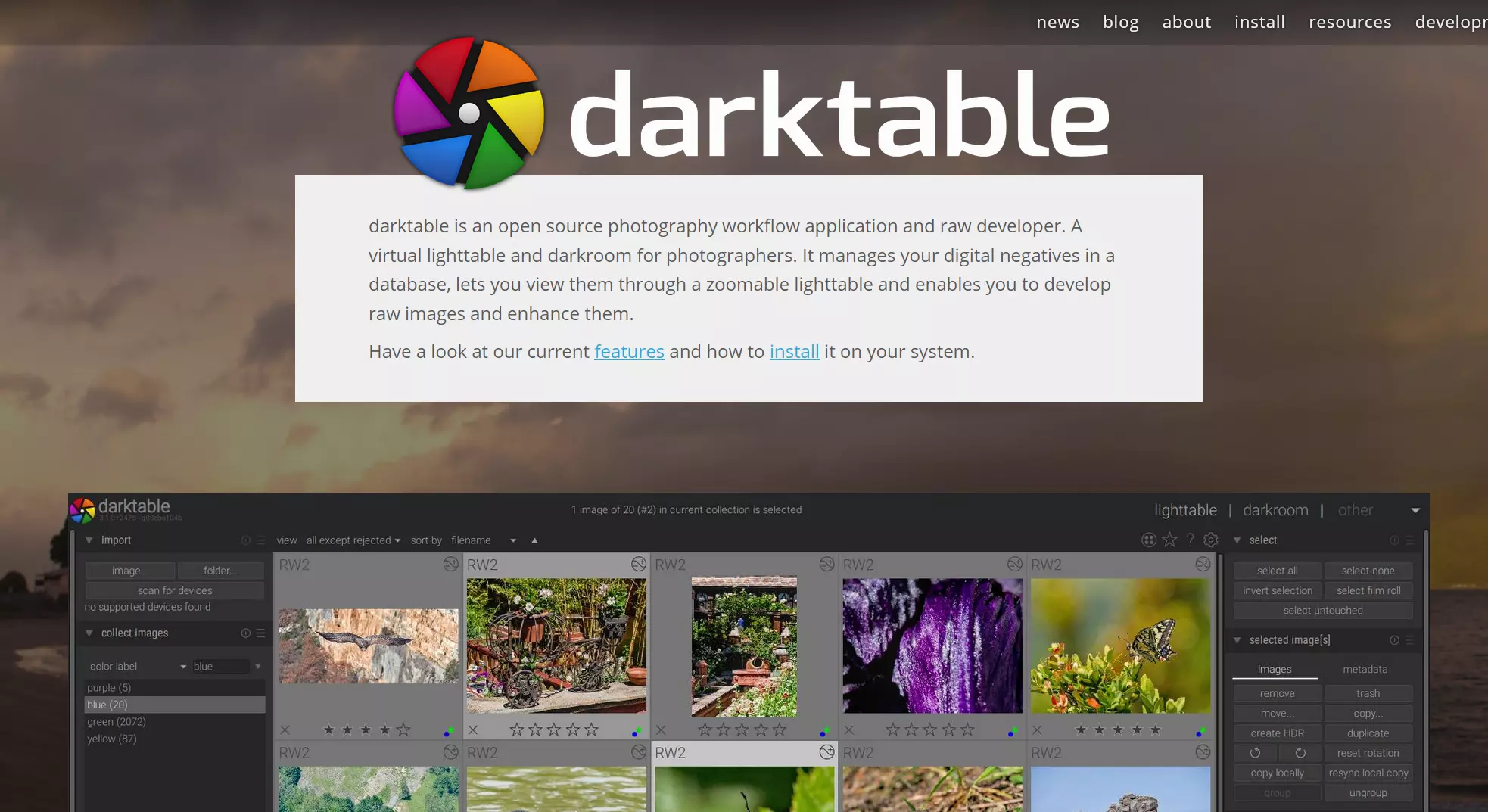
With basic optimisation - from cropping and rotating to gradation curves, colour correction and some image effects, darktable users benefit from extensive functions. The tool also facilitates the creation, cropping, and adjustment of slideshows. Despite this, the software does lack some practical automation functions. You therefore need to save individual presets as a profile, which makes it easier to adapt to your favourite styles. Furthermore, the live preview function enables users to see any changes in advance. The application is somewhat cumbersome in certain areas, which means users need to spend some time to figure out and get used to the functions. With darktable, it’s possible to organise photos, adjust their metadata, and export them in the correct file folder – as JPEG, PNG, 16-bit PPM, and TIFF formats as well as PFM and EXR files. This way, everything can be compactly found in one place in your computer.
Summary: darktable is a great free alternative to Lightroom, in terms of its design as well as its functions. In comparison to Lightroom, the user interface and functions are similar, although the full range of tools is not entirely available. Furthermore, when it comes to processing raw files, darktable is a reliable option for beginners and offers an enormous number of options for a free program.
| Pros | Cons |
|---|---|
| ✓ Operation and design similar to Lightroom | ✗ Workflow cumbersome in places |
| ✓ Live preview including changes | ✗ Weakness regarding noise filter |
- Up to 50 GB Exchange email account
- Outlook Web App and collaboration tools
- Expert support & setup service
LightZone – multifunctional tool with an eye for detail
With the photo tool LightZone, which is now released as unrestricted open source software, users can optimise raw data loss-free as well as edit and export JPEG and TIFF files. It pays to be a little more experimental with the Lightroom alternative – the original images are automatically saved while editing and can be accessed at any time. In this way, you can design several versions without losing the original. In the flexible image view, you can either display all versions next to each other and compare them or simply keep the original view of the image folder.
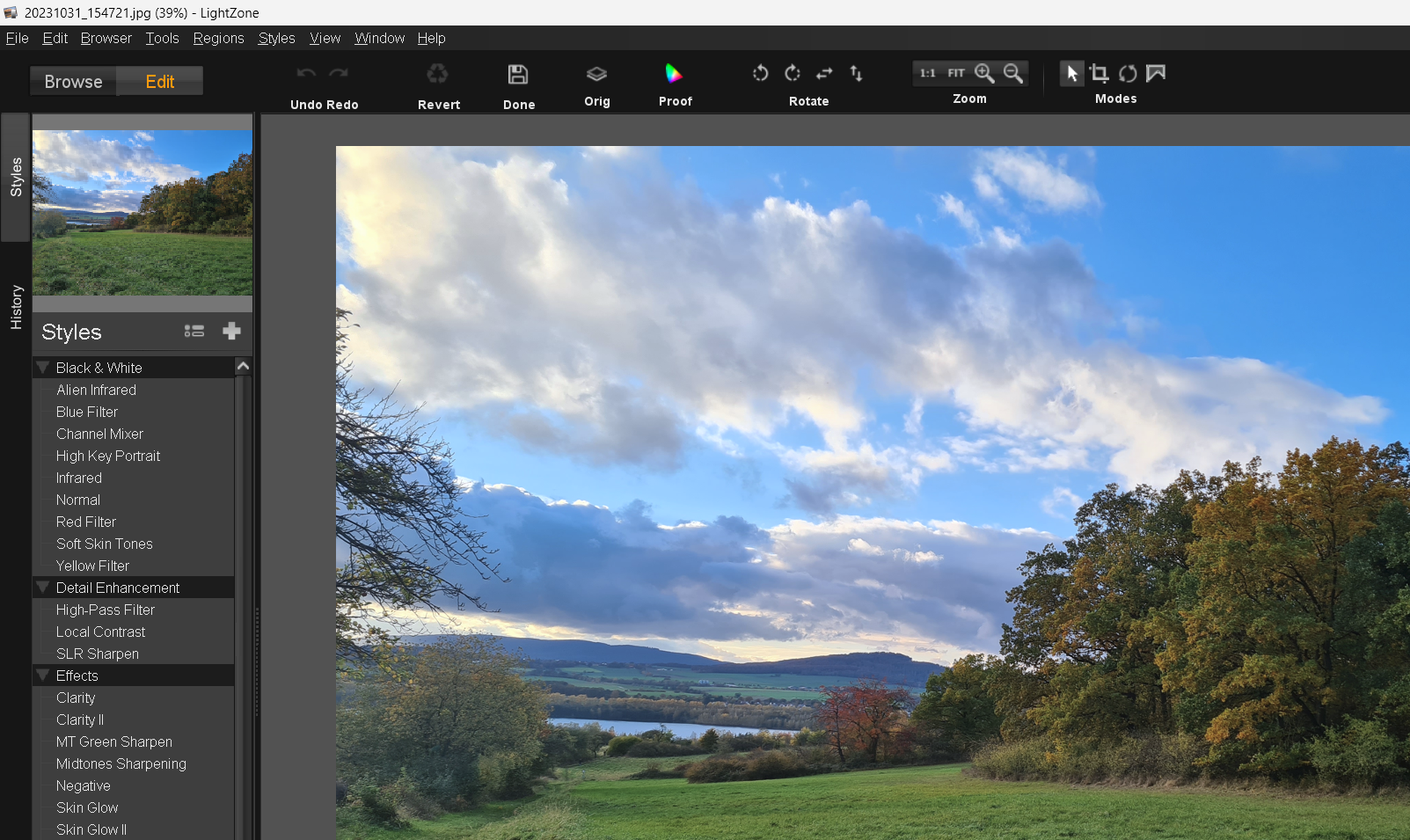
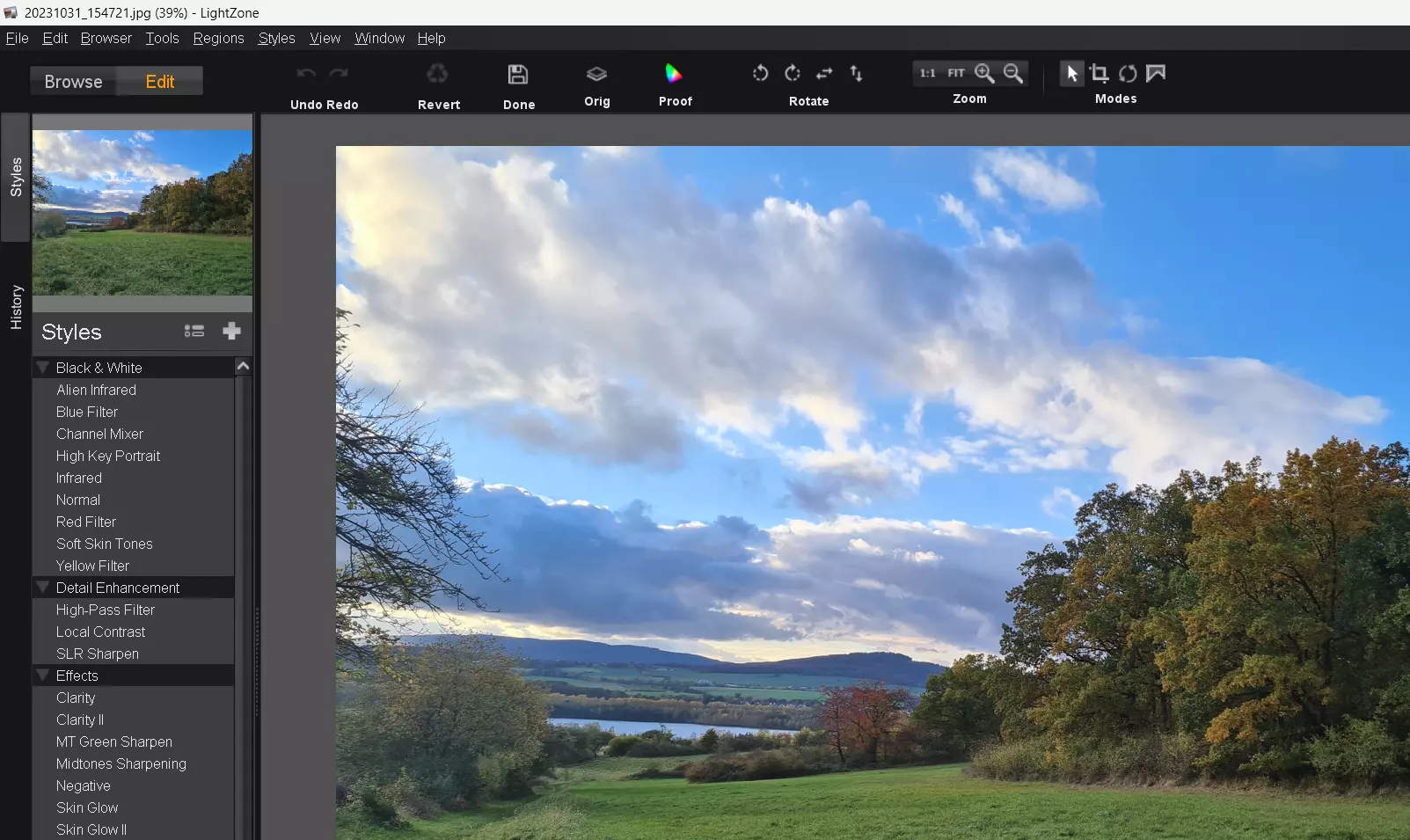
With several practical style profiles, LightZone makes lightwork of optimising several photos in the same way. This is particularly helpful if the group of images should have the same format and look as it means you don’t have to start from scratch each time. Rather than gradation curves, LightZone offers the ZoneMapper as a special feature that can identify 16 brightness zones in a photo and adjust contrast or colour values using a preview image. With collapsible sidebar menus, you can easily integrate your images into your desktop’s folder structure and change your metadata (i.e. title, value, image description, author, and location). LightZone enables a loss-free optimisation of raw data as well as the processing and exportation of JPEG and TIFF files.
Summary: LightZone is a sophisticated image management program that can satisfy practically every requirement. Its menus offer both a wide range of uses and are displayed clearly. The ZoneMapper is a unique addition, offering the targeted processing of tonal values, which can satisfy the needs of both amateur and professional photographers or designers. This free Lightroom alternative therefore makes it a solid all-rounder option for those with only a little prior experience.
| Pros | Cons |
|---|---|
| ✓ Compatible with Windows, macOS, and Linux | ✗ Loading delays possible |
| ✓ Original file is automatically saved | ✗ Interface slightly outdated |
| ✓ ZoneMapper enables specific tonal value optimisation | |
| ✓ Preset style profiles simplify design process |
Would you like to create your own logo? With the Logo Maker from IONOS you can create and download your own logo for your website, search listings, business cards and more for free!
Google Photos – mobile, simple, and playful
Google’s browser-based image organising tool, Google Photos, presents a rather more simplistic Adobe Lightroom alternative with its more whimsical display. As part of the Google Cloud plan, this program enables registered users to archive, organise, and edit their images for free. An additional benefit is its relative simplicity compared to the previously mentioned desktop programs. The tool’s primary focus is on sharing and storing images of up to 16 megapixels and HD videos of up 1.080p. The software is accessible on mobile devices, so it’s quick and easy to integrate photographs taken on smartphones and tablets. Users also benefit from the fact that the images are available via a server, meaning they can safely delete pictures from their mobile device as soon as they need the space. Photos saved on the computer can be automatically transferred to the cloud.
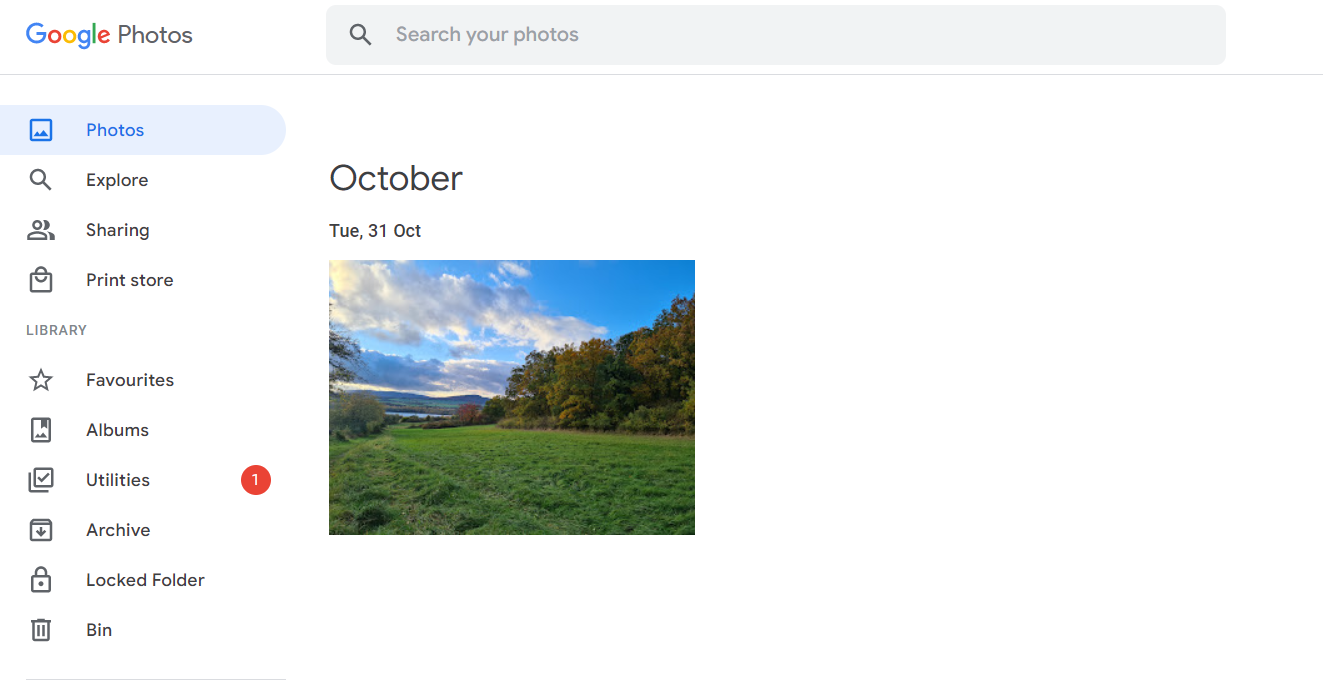
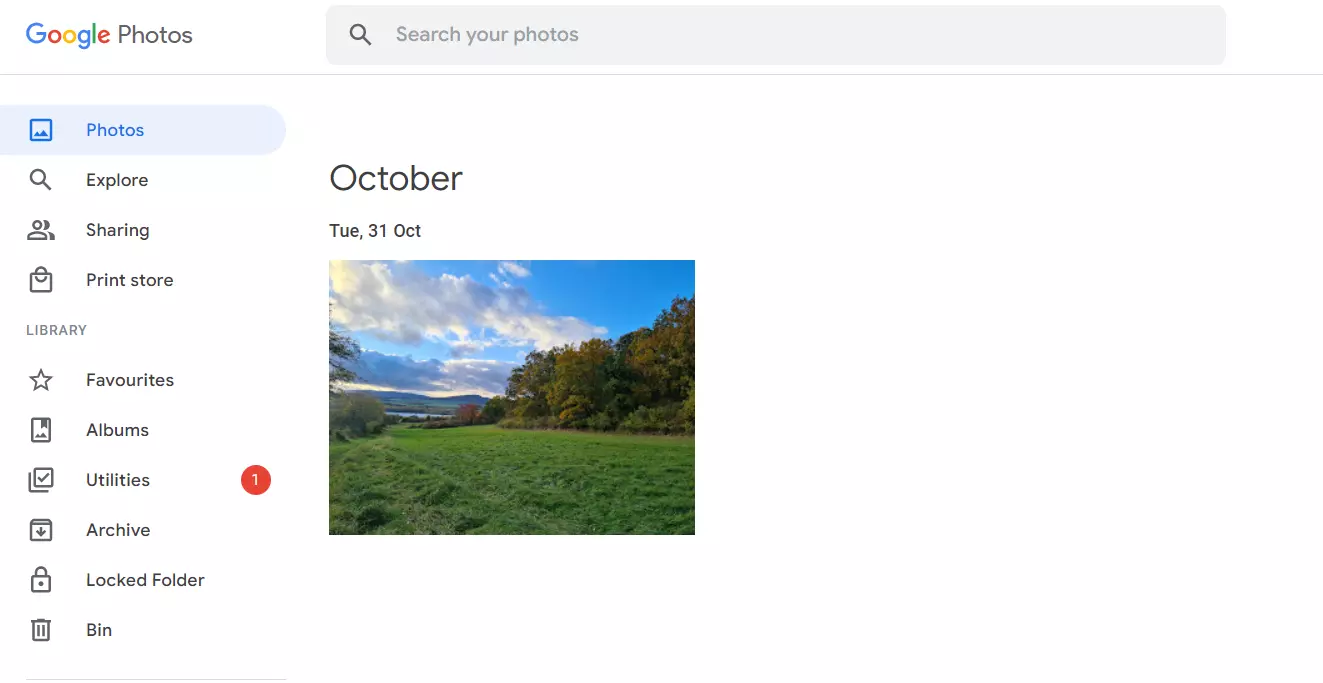
The photos from this Lightroom alternative are saved to the Google Cloud and are made available for albums, collages, animations, and panorama photos. Users can crop and rotate images and change the brightness, colour, and sharpness with simplified but intuitive tools. It’s also possible to add your images to a selected shared album, if you wish to share your snapshots with friends. The software even has a visual image search for facial recognition, which makes it easier to organise and name groups of smartphone images. One major disadvantage is that Google collects a certain amount of user data to make this possible.
Summary: Google Photos is a great option if you just want a platform to edit, organise, and share photos quickly and easily. It’s an especially practical tool for users with mobile devices. However, users who want to edit their images on a professional level, or make extensive changes to their files will quickly discover that Google Photos has its limits.
| Pros | Cons |
|---|---|
| ✓ Available as a web application | ✗ Only rudimentary image editing tools available |
| ✓ Very easy to operate | ✗ Only available to users with a registered Google account |
| ✓ Very easy to share images | ✗ Primarily suited to recreational use |
| ✓ Very easy to create collages and animations |
PhotoScape – perfect for amateur photographers
No-frills freeware PhotoScape is the perfect Adobe Lightroom alternative for those who are unfamiliar with photo editing programs. With its clear, pre-set functions, you can easily manage your photos and optimise them with various features. With basic functions such as retouch, crop, effect filters, colour, and brightness correction, you can achieve everything that is necessary to edit an image quickly and simply. As well as this, there are other fun effects, such as collages, adding text, frames, and speech bubbles. Photos can also be edited by batch processing using the window menu integrated into the desktop view.
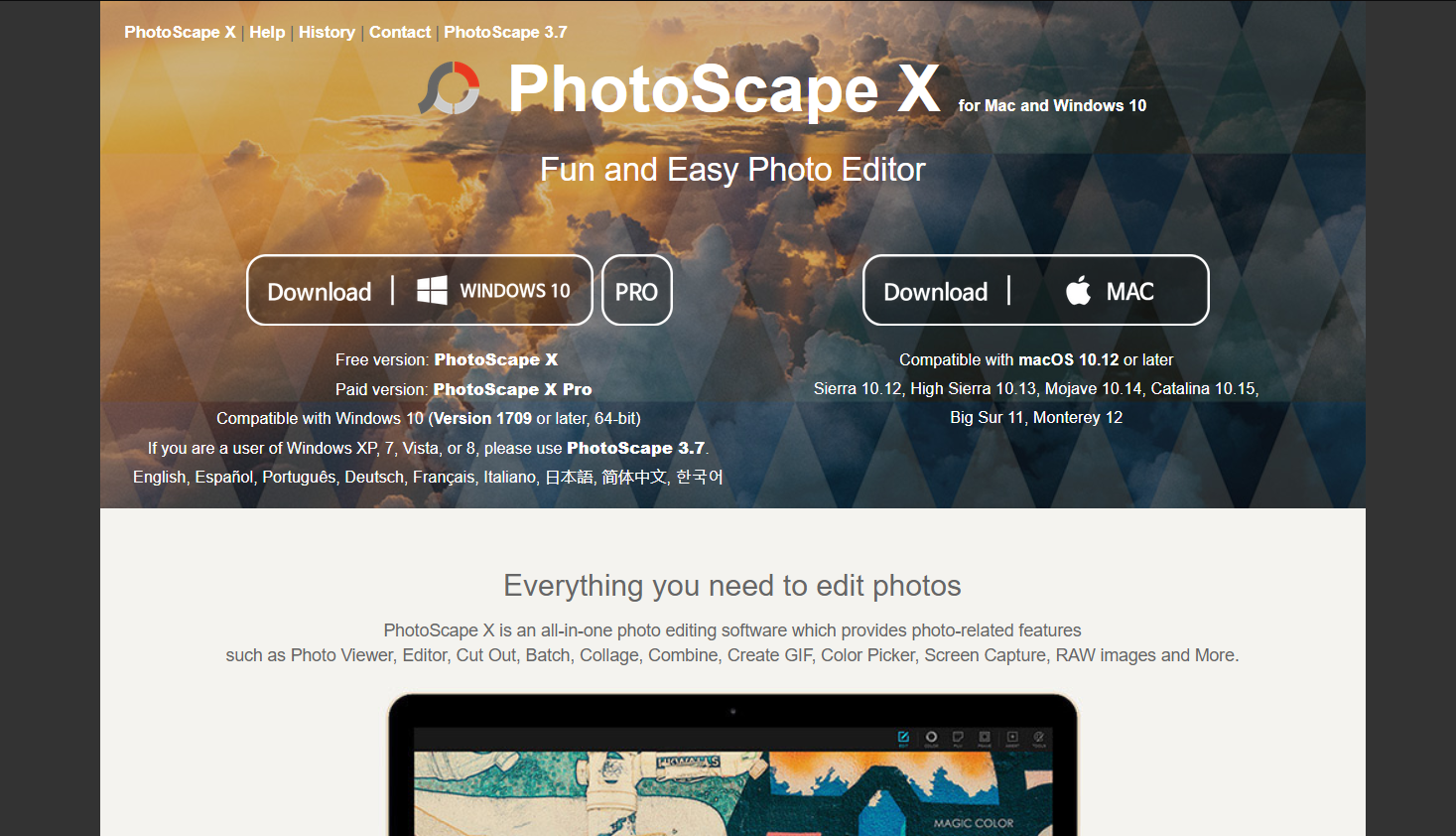
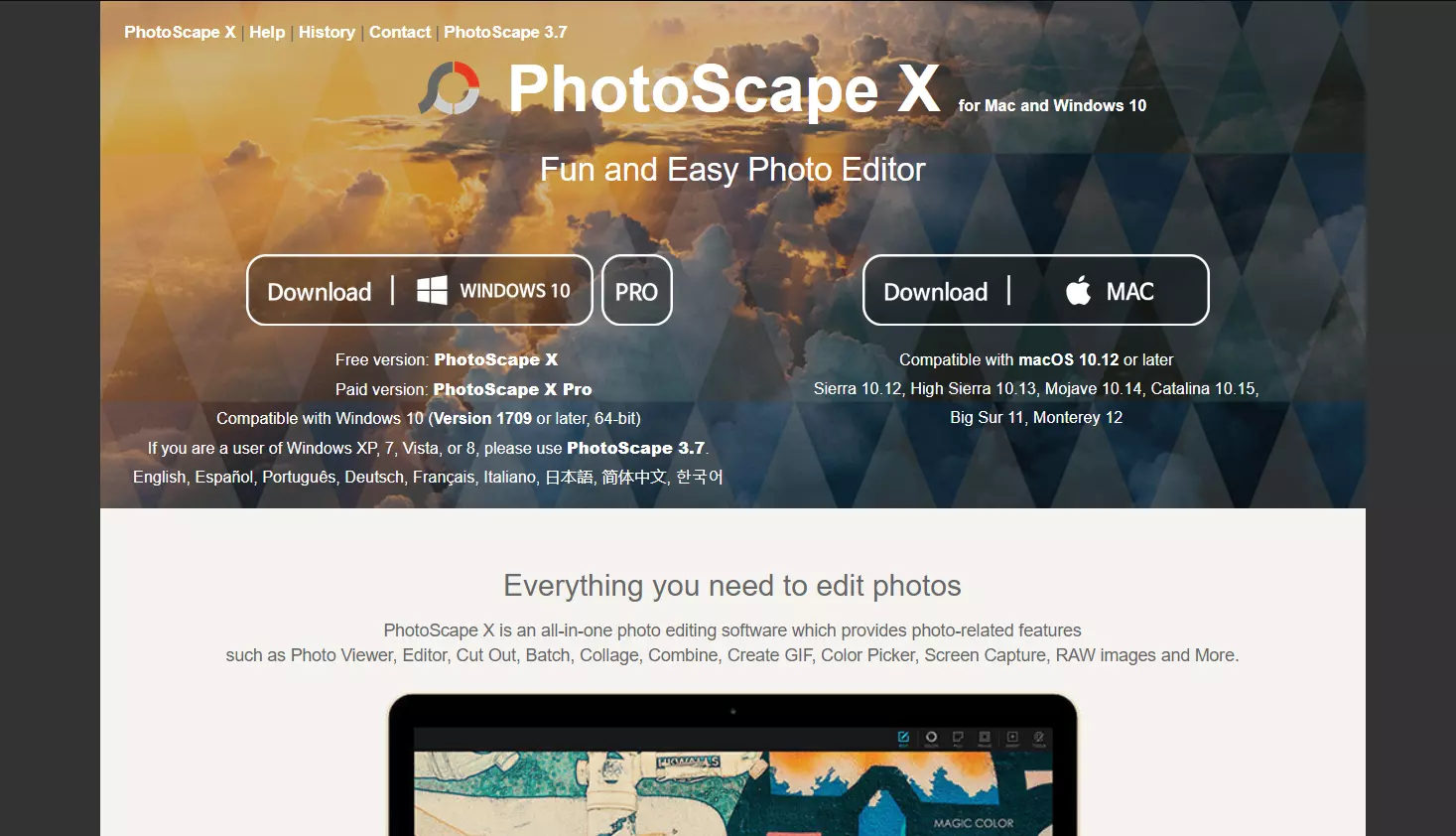
PhotoScape may be of particular interest to users of image sharing social media platforms, as the program enables users to create simple GIF files. It is also practical that photos can easily be dragged and dropped into different collage templates and individually arranged with the combine function – ideal for presenting photos of friends, family, and holiday snapshots. Thanks to its easy-to-use interface integrated into the desktop, inexperienced users can get to grips with PhotoScape in next to no time. Furthermore, PhotoScape is compatible with both Windows and Mac (as PhotoScape X) and the Lightroom alternative opens and converts raw formats into JPEG, PNG, GIF, BMP and TIFF files.
Summary: Simple and fast: these are without a doubt PhotoScape’s defining features. If you just want to use your photos for limited, private use, and prefer an intuitive design rather than more complex functions, you’ll find all the necessary tools here. For professionals or experienced hobbyists, however, the tool is perhaps somewhat basic.
| Pros | Cons |
|---|---|
| ✓ Simple user interface for beginners | ✗ Not compatible with Linux |
| ✓ Collage function (drag-and-drop) | ✗ Not suitable for more complex image optimisation |
| ✓ Simple GIF animations |
In the Digital Guide you will find many more exciting articles on the subject of image editing and management: