
Free Android emulators

Want to use Android apps from your smartphone or tablet on your Windows PC as well? That’s easy to do with Android emulators. In this article, we compare three Android emulators for Windows 10 and earlier Windows versions that let you add games and productivity tools from the Google Play Store to your desktop PC.
What is an emulator and what is the technology behind it?
As the name suggests, emulators make it possible to digitally emulate and simulate a wide variety of systems. A well-known example is a flight simulator, which imitates real conditions in pilot training and thus allows for more practical training. Emulators are comparable imitators. They suggest a ‘familiar’ operational environment for application programs (e.g. game apps) and operating systems, in which they can be executed without any problems.
Emulations can operate across platforms and overcome the boundaries of system architectures. With the help of an emulator, a Linux application can be explored and tested in a Windows environment, for example. The practice uses different procedures for emulations. Often emulators work on the basis of virtualisation and with so-called virtual machines. A program like Oracle’s Virtual Box, for example, is able to simulate a Linux system as a guest system on a Windows host using special virtualisation technology.
Emulators can be used in many ways. For example, an emulated operating system is a safe and virus-free environment for testing apps from unknown sources. Users can also produce learning videos and tutorials in the virtual system environment. Developers can try out how and whether their app designs work. Browsing is generally safer with emulation, since the primary operating system is not directly exposed to viruses and malware.
Android emulators
IT experts and software developers are no longer the only ones using emulators because technical advances have overcome limitations and optimised operation. Emulators that simulate virtual Android devices and bring smartphone and tablet applications to Windows PCs and notebooks are now in high demand worldwide. During app tests, it is even possible to virtually emulate different Android versions and mobile devices.
An advantage of Android emulators is that some systems enable direct access to the Google Play store that offers a large selection of programs. One of the most popular uses is the simulation of smartphone games so users can play games across multiple platforms and without battery limits on large screens. Emulations of gaming classics from the early days of computer gaming (retro games) and well-known game consoles such as Xbox (Microsoft) and PlayStation (Sony) are also currently in vogue.
Android emulators for Windows 10, for example, are useful in professional environments, since popular mobile productivity tools can be used on other devices. This app transfer is supported by most common operating systems. Besides Windows, Linux and macOS are often supported. Best of all, many Android emulators are available free of charge.
In the following, we will introduce you to three Android emulators that you can download for free, and discuss their pros and cons and security features. Unfortunately, with increasing popularity security risks tend to increase. For example, a Bitcoin mining software was embedded into the well-known Android emulator AndY in order to secretly divert expensive computing power from users to generate Bitcoins. The popular NoxPlayer recently infected computers with malware after hackers abused the update function of the Android emulator for this purpose.
Because of security risks, it’s advised that you only download Android emulators from trusted sources. During the installation process, select the custom installation where possible (to exclude installations of unwanted software). You can also check the downloaded file using online virus scanners like VirusTotal.
BlueStacks
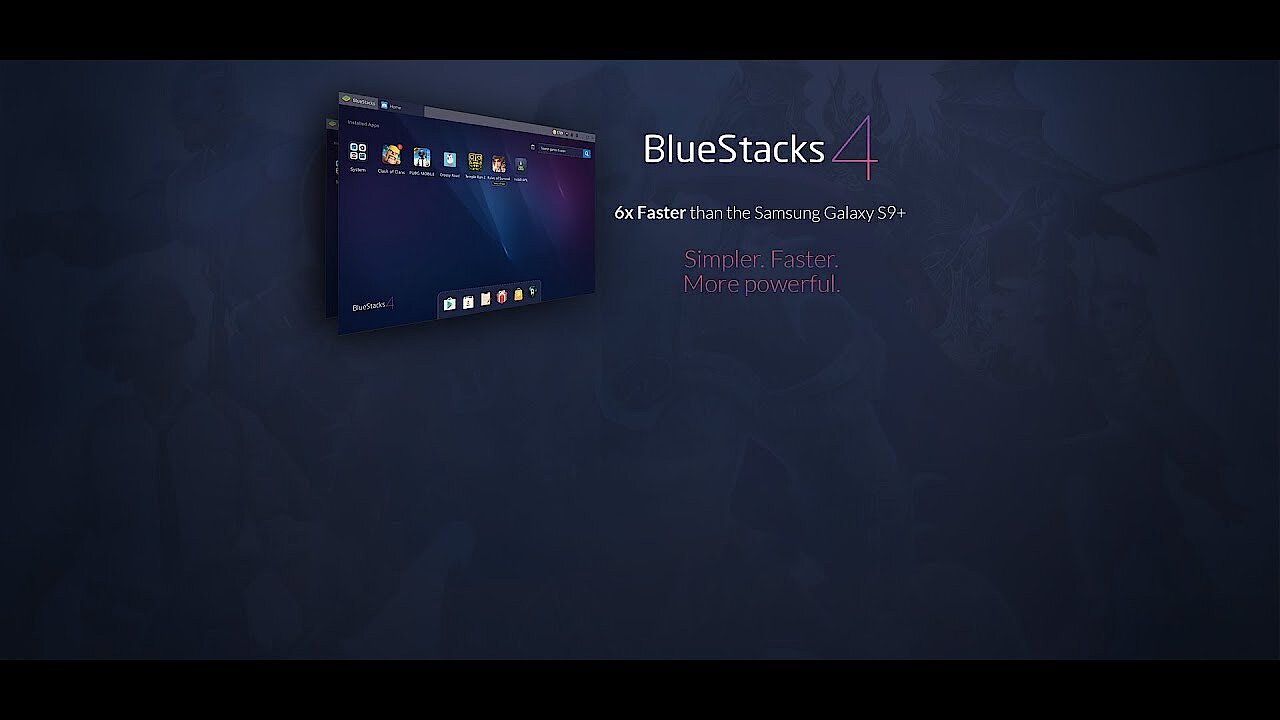
BlueStacks (available since 2011) is the best-known and probably most-used Android emulator worldwide. The US emulator scores points because of its product maintenance tools and continuous updates. In addition, it is easy to install and intuitive to use. If you encounter problems with the software, the BlueStacks community on Reddit boasts over 25,000 members that offer help. In addition, the official website provides access to many help articles (e.g. instructions on how to use and how to optimally configure the emulator).
Like most Android emulators, BlueStacks specialises in games that can be played smoothly in high resolution even on larger screens and can be controlled using a mouse and keyboard. When creating game controls, users can rely on basic configurations. In addition, you can use your own gamepad and adapt it to your individual needs (for example, by keymapping). Familiar touchscreen functions can be simulated on a PC (tapping, swiping, shaking, zooming, tilting, etc.). BlueStacks’ multitasking capability allows you to switch apps and be active across several applications at the same time.
You can quickly find popular top games via the App Center. You can also download books, music, and movies, and install interesting apps as well as programs you’ve already purchased from the Google Play Store. The Android emulator is known for its broad support of Android apps. Installation and compatibility problems are rare.
Access to the Play Store and subsequent synchronisation with an existing account (e.g. to download apps you have already purchased) are only possible with a Google login. Thus, you’ll need to register with Gmail and be able to access a corresponding email address. This registration requirement is often interpreted as a disadvantage of BlueStacks. However, most users already have a Google account, which is mandatory for using the Play Store on Android smartphones and tablets.
For special applications and games, you can bypass the Google Store and directly install so-called APK files (APK = Android application package). The files are available from special websites, but you should definitely check how reputable they are before installing them. You can install APK files conveniently via drag-n-drop by simply dragging the setup file into the emulator window. If BlueStacks is already installed and linked to .apk files in the system, double-clicking the installation file is sufficient.
BlueStacks – like most emulators – runs best on Windows 10 (64 bit) but supports versions beginning from Windows 7 (32 or 64 bit versions). You should have at least 2GB RAM available. 32- and 64-bit versions are available for download. Those who use a 64-bit Windows PC can even download an installation version for 64-bit Android apps (advantageous for performance-hungry games). The current version (BlueStacks 4) emulates Android Nougat – not the latest version, but most current apps and games will still run smoothly on the OS.
One of the disadvantages of the Android emulator is that only the ad-supported version is available for free (with sponsored ads and ad breaks). The ad-free premium subscription costs only a few punds per month. However, you will still encounter ads within the Play Store apps (in-app ads) irrespective of your subscription. The community repeatedly complains that BlueStacks installs games, bloatware, and adware in the background without consent. The manufacturer asserts in its blog that the official version does not contain any hidden malware, spyware, or other undesirable additional software. A scan of the current official installation file by VirusTotal did not reveal any anomalies.
The manufacturer also mentions in its privacy policy that it complies with the data protection regulations applicable in Europe. However, the US company discloses collected data to third parties and is obligated to adhere to the Cloud Act (in some cases, collected data must be made available to US investigative authorities).
Users have repeatedly reported performance issues. Such problems are not uncommon for emulators in general, since they run as ‘system-in-system’ and require a lot of resources, especially for gaming. However, there are also sources that classify BlueStacks as a particularly powerful and fast emulator that is characterised by good performance and low latencies.
Much like other Android emulators, BlueStacks has some options that can improve performance (e.g. flexible allocation of computing and system resources, enabling virtualisation). Ultimately, the performance depends on the resources that are available. Of course, the performance of the network plays a role. This can be used to play live with other users (BlueStacks supports numerous team and online games).
 To display this video, third-party cookies are required. You can access and change your cookie settings here.
| Advantages | Disadvantages |
|---|---|
| ✓ Most popular Android emulator (with largest community) | ✗ Free version contains advertisements, repeated rumours of hidden program components (spy- and bloatware) |
| ✓ Good product maintenance and regular updates | ✗ Weaknesses in data protection (US company subject to Cloud Act) |
| ✓ Many features (multitasking, detailed customisation of game controls, fake GPS). | ✗ Screen Recorder must be installed later |
| ✓ Gaming possible on large screens in high resolution | ✗ Older Android version (7.1/Nougat) |
| ✓ Multitasking possible | |
| ✓ Supports app installation via Google Play Store and APK files | |
| ✓ GPS can be activated (e.g. fake GPS can be used for games) |
We recommend the secure download directly from BlueStacks.
MEmu
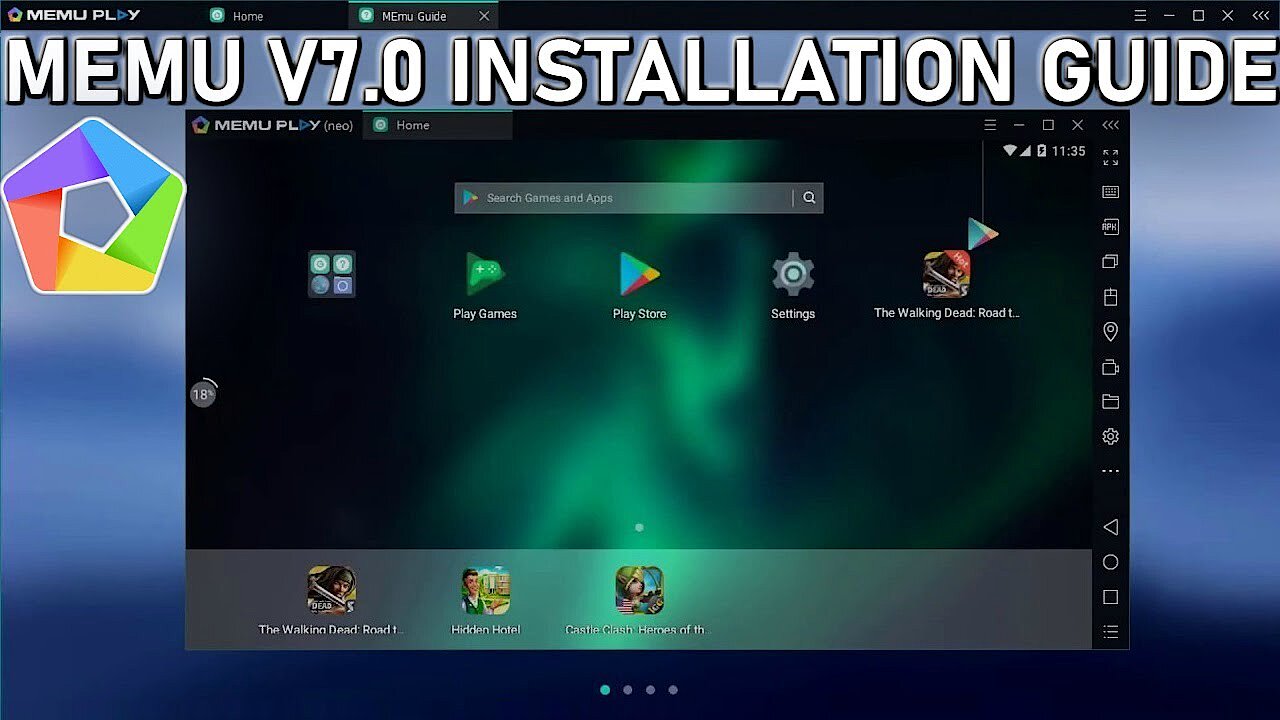
MEmu is made for gamers. However, the Android emulator also lets you use other Android apps on your Windows computer. In a special section on the website the maker shows business options for MEmu beyond gaming.
Once MEmu is installed via a simple setup file and configured accordingly, you have access to the Google Play Store. MEmu also offers direct access to an extensive game selection via its Games Center. APK files can be used to install additional apps (drag-and-drop is supported).
The operation of MEmu is not particularly difficult. You can access control functions via a control bar from the side menu in the Android emulator. Games are controlled with a connected console controller or mouse and keyboard. Typical touchscreen inputs or special actions can be simulated efficiently via individually defined key combinations (keymapping). A screen recorder lets you record gameplay. Screenshots are also possible.
The Android emulator enables the use of automation and macro scripts. An integrated macro recorder can record keyboard sequences. Furthermore, MEmu has a multiplayer mode. This lets you run multiple MEmu instances and play the same game with different Google accounts. You can also launch multiple apps and games with one account in multiplayer mode.
Not only can you select the desired mobile device when configuring the Android emulator, screen size and orientation can also be defined, and you can specify whether the camera and microphone should be used. Users can even play some games in top resolution of 4K (approx. 4000 × 2000 pixels). HD playback of videos is possible. If an app requires a GPS location, it can be simulated virtually. You can then change the virtual GPS location to install apps from Google stores in other countries.
The choice of operating system is flexible. For example, you can choose between Android Lollipop (Android 5.1) and the newer Android Nougat (Android 7.1). Windows users will welcome broad support. Windows 10, Windows 8, 7, Windows Vista, and even Windows XP (Service Pack 3 and higher) are supported.
One of the disadvantages of the Android emulator for Windows 10 is that it contains ads. If sponsored ads bother you, an ad-free and paid Premium version (annually: $29.98 (around £21.50), monthly: $2.99 (around £2.15) can be purchased (ads within games are not covered by this, though). The manufacturer points out that disabling ads speeds up gaming performance (by reducing the load on network and hardware resources). The premium version also offers different skins and better premium support.
The privacy policy page details that the Chinese manufacturer Microvirt commits to the EU General Data Protection Regulation (GDPR) and guarantees appropriate data protection. At the same time, however, it also states that the Shanghai-based company collects personal data and passes it on to third parties.
 To display this video, third-party cookies are required. You can access and change your cookie settings here.
| Advantages | Disadvantages |
|---|---|
| ✓ Most versatile Android emulator in comparison (focuses on games and utility aps) | ✗ Contains advertising in the free version (paid premium version is ad-free) |
| ✓ Easy installation, good ease of use | ✗ Latest Android version is not emulated |
| ✓ Flexible configuration especially for games (extensive key mapping for optimal gameplay) | |
| ✓ 4k resolution possible for photo-realistic graphics | |
| ✓ Many functions (multitasking, screenshots, screen recording, fake GPS) | |
| ✓ Supports easy app installation via Google Play Store and APK files |
We recommend securely downloading the Android emulator from the manufacturer’s web page.
Android Studio
Android Studio is a developer tool that includes, among other things, an Android emulator (Android Virtual Device Manager). Developers, app, and usability testers as well as users of productivity tools will appreciate the program offering plenty of functions and possibilities to simulate recent Android versions (e.g. Android 11). If you select a newer Android version with an integrated Google Play Store in the configurator, you can rely on your usual apps.
Since Android Studio is not primarily intended for normal users and gamers, you have to accept certain disadvantages when it comes to ease of use. Configuration options for gamers are more extensive in other emulators. Users also have to make concessions when it comes to usability of this Android emulator for Windows 10. The interface of the development environment seems a bit cluttered and overloaded at first glance.
The installation procedure to access the Google Play Store is more extensive. You will need to install Java (if it has not been installed before) and possibly adjust settings in the BIOS (activation of hardware acceleration: VT-x). Once the program is ready to start and you have gotten used to the interface, operation is simple. Apps are controlled with a mouse and keyboard here as well.
The biggest advantage of the emulator is security. Android emulators are often criticised because synchronisation with the Google account to use the Play Store poses a security risk. Since the emulator and Play Store come from the same developer, security risks are minimised. Also, the emulator offers ‘pure Android’, which means it is free of ads and sponsored content. Unwanted additional programs (bloat, malware, and adware) aren’t a problem. In addition, the collection of usable and sellable user data is less of an issue here. However, Google is a US company that is subject to the Cloud Act and does collect some user data.
The rules apply to this emulator too: the more power and system resources (CPU power, RAM, powerful graphics card, memory, etc.) are available, the more stable and smoothly the applications run. For the OS, Google recommends the latest Windows version (Windows 10, 64 bit), but downloads are also available for older variants. Android emulators for macOS and Linux can also be downloaded.
| Advantages | Disadvantages |
|---|---|
| ✓ Most secure Android emulator comparison | ✗ Weaknesses in data protection (Google product from USA is subject to the Cloud Act) |
| ✓ Particularly suitable for utility apps | ✗ No PC-optimised gameplay (due to flexible key mapping) |
| ✓ Ad-free | ✗ Complicated installation |
| ✓ The current Android version can be emulated | ✗ Weaknesses in the ease of use and configuration (especially fewer special functions for gaming on the PC). |
Download the emulator securely directly from the Android Developer Studio.
Reviewer

Christian Heldmaier
Christian Heldmaier is an experienced online marketing and SEO specialist from Karlsruhe. He has been working as an SEO Manager at IONOS since July 2020.