

Create your own app – Part 5.2: Upload an iOS app to the App Store

In the previous parts of our article series about developing a native mobile app, we discussed the conception and design of an application as well as app testing. The fifth chapter addresses the question of how to publish an app in the App Store. In the previous subchapter (5.1), we already discussed how to upload an Android app to the Google Play Store. But if you’ve created an iOS app instead, you’ll need to upload it to Apple’s App Store. How to submit an iOS app to the App Store and make it available for download as well as what you need to consider will be discussed in the following paragraphs.
How to publish an iOS app in the App Store
The Apple App Store is the only official platform for the presentation and download of iOS apps. For submission to the App Store you need two basic services: the Apple Developer Program (a platform that provides help with the development of an application for the App Store) and the associated iTunes Connect. These two services form the interface of Apple’s App Store. Publishing an app in the App Store takes more time than in the Google Play Store. Therefore, this article can’t explain the registration of all necessary services and the preparation of the app for upload step-by-step like the previous subchapter did. That would be beyond the scope of the article, so instead we will give you an overview of the various processes required to publish an iOS app in the Apple App Store. Even so, we’ll be sure to highlight important events in detail and provide a brief guide for the necessary settings. On Apple’s website, you can find extensive information and explanations regarding publishing an app in the App Store. References available there include not only the “App Distribution Guide”, but also the “iTunes Connect Developer Guide”.
Prerequisites for submitting an app to the App Store
In addition to a publishable iOS app, you will also need a Mac computer with an internet connection. A Mac is necessary because you have to format your application into a binary file for the App Store using a programme called Xcode and the software is only available for macOS. Xcode is the official IDE (Integrated Development Environment) of Apple. It allows you to create iOS apps, among other things. If you haven’t installed the software yet, the latest version of Xcode can be downloaded for free from the Apple Developer website. Beside the technical equipment mentioned, you’ll also need a credit card and a little budget. Registration with the Apple Developer Program is technically free, but publishing an application requires a membership, which costs $99 a year. As soon as you have met all of the prerequisites, you can begin with the Apple Developer Program.
The Apple Developer Program
First, visit the Apple Developer website and click on “Account” in the top menu bar. You’ll have to log in with an Apple ID. If you don’t have an ID yet, you can register for a new one on the site. Even if you do have an Apple ID though, it’s recommended to create another one so that your app project has its own identification number. When you generate a new ID, you’re prompted to provide some information about yourself as well as a valid e-mail address. A confirmation code for your registration will be sent to this address. After you have verified your registration for a new Apple ID using the code, use it to log in the Apple Developer. Once you accept the “Legal Agreement”, your new account is ready to use. To register your iOS app and submit it to Apple, you’ll need to apply for the $99 per year paid membership. For the registration, go to the “Enroll” site of the Apple Developer Program, where you can begin by clicking “Start Your Enrollment”. During the registration process you have the option to register yourself either as “Individual” or “Organization”.
Registering as an individual or an organization
If you’re a self-employed developer, register with the Development Program as an individual. You only need a credit card. The registration can be done immediately – after confirming and sending all of the required information you just have to wait for Apple’s e-mail to confirm your membership. With a successful registration to the Apple Developer Program you also gain access to iTunes Connect, where you can, for example, set and change the appearance of your app in the App Store. It’s important to note that if you are registered as an individual with the Apple Developer Program, you are solely responsible for the user account.
If you want to create an account for a company, it’ll take a little more effort. For example, you don’t just need a credit card, but also a tax ID and a D-U-N-S number. The nine-digit number provided by Dun & Bradstreet (D&B) is an identification number for companies, traders, and other economic operators located in the D&B database. You can request a D-U-N-S number for free on the D&B website. A big advantage of the organization user account is the possibility to allow other users to access the account. Users who log on as a company’s employee also have access to iTunes Connect.
Acquiring an Apple Certificate for the app
After registration with the Apple Developer Program you will need to define some settings for your app. For example, every iOS application offered by the App Store requires multiple signed Apple certificates. These can be created either through the Xcode programme or your Apple Developer account. The following is a list of the most important steps within the Apple Developer Program which will help you better understand the entire publishing process.
To produce a certificate in the Apple Developer Program, log in to the website and open the “Member Center”. Click on “Certificates, Identifiers & Profiles” and make sure that “iOS, tvOS, watchOS” is selected in the drop-down menu at the top left. To be able to publish your app in the App Store, you need the following two certificates: a development certificate and a distribution certificate (also known as a production certificate). These are created by selecting “All” under the “Certificates” menu on the left-hand side of the menu bar, and then clicking on the plus sign in the upper right corner and following the steps listed below:
- In the window that appears, select “iOS App Development” as the certificate and click “Continue”.
- For the next steps you need the programme Keychain Access, which can be found on any newer Mac computer. Using the software, you generate a CSR file (Certificate Signing Request). As soon as you’ve opened Keychain Access, choose “Keychain Access” → “Certificate Assistant” → “Request a Certificate From a Certificate Authority” from the menu list at the top, and enter your e-mail address and name in the window that opens. Choose to save the file to your hard drive and define the exact save location.
- After saving the CSR file, access the Apple Developer Program again. In the “Creating a Certificate Signing Request” (CSR) window, click “Continue” to go to the next item and upload the CSR file you just created to your Apple Developer account. Afterward, generate the certificate.
- Now download your iOS Development Certificate, double-click it, and confirm that you want to add the certificate to a keychain. The certificate is now stored in Keychain Access.
- The creation of the development certificate is now completed. Since you still need a distribution (or production) certificate, click “Add Another” and select “App Store and Ad Hoc” from under “Production”. Then repeat the entire process to create the second certificate.
Register your device
Next, you have to register an Apple device to your Apple Developer Account. This is especially necessary if you want to test your application with a tool from Apple’s Developer Program. You can also register a device using Xcode as well as your Apple Developer account. To start the setup in your Developer account, click “All” under “Devices” and then click on the plus symbol again.
- To register a device, you need its Unique Device Identifier (UDID), which you can view using the iTunes programme, for example. To do this, open iTunes and connect your iPhone or iPad to the Mac.
- Select the connected device from the drop-down list in iTunes. Click on the serial number to reveal the UDID of the device. Copy this.
- Access the Apple Developer Program again and name the connected device with a name of your choice under “Register Device”. In the “UDID” box, insert the copied number sequence.
- After clicking on “Continue” you can now register the device, at which point it’s recorded in your device list.
- If you want to register additional devices, you can simply repeat this process. You can register up to 100 devices per year in your Developer account.
Generate an app ID for the application
Another requirement for the upload of an iOS app is an app ID. This identification number represents an individual recognition feature of an application and consists of two parts: an automatically assigned identifier and an ending that you specify. Basically, you can create either an “explicit app ID” or a “wildcard app ID”. An explicit app ID has to be generated again for every new app, but enables push notifications, in-app purchases, and other features within an application. If you create a wildcard app ID instead, then you can’t use these functions. However the app ID can be utilised by many more apps.
For the creation of an app ID, you go back to the menu section “Certificates, Identifiers & Profiles” and start under “Identifiers” → “App IDs” and once again click the plus symbol.
- Under “App ID Description” enter your app name. Below you’ll find the prefix given by Apple for your app ID.
- In the following field, you define the suffix for your app ID. This is also where you select whether you want to create an explicit app ID or a wildcard app ID. Regardless of which ID type you want to publish your app in the App Store with, you still have to register a “Bundle ID”. Consider the recommendation from Apple that you should create the bundle ID in the style of a redirected domain (for a wildcard app ID as de.domain-name and for an explicit app ID as de.domain-name.app-name).
- Finally, click on “Continue” and, after checking the specified data, on “Register”. You have finished generating your app ID.
Create a provisioning profile
Now it’s time to look at the last outstanding menu item in the Apple Developer Program: the iOS provisioning profile. This combines all of the previously configured settings (the certificates, device recognition, and app ID) into one single profile and connects the Developer account, app ID, and registered test devices. With the downloaded certificate you can sign the app’s code in Xcode. Without this step, an app can’t be installed on an iOS device or uploaded to the App Store. To create a provisioning profile, go to “Provisioning Profile” → “All” in the menu on the left and initiate the addition of a profile by once again clicking the plus symbol.
- There are also development and distribution versions for provisioning profiles. The former is intended for use during the development process of an app, and the latter for the finished application that’s read for release (“Distribution” → “App Store”).
- To set up a development provisioning profile, select “Development” → “iOS Development App” and click through to the next window by pressing “Continue”.
- Next, choose the app ID for the profile. You’ll find the previously created identification number in the drop-down menu. Select this and continue by clicking “Continue”.
- The next steps for generating the provisioning profile happen in a very similar fashion: In the next window, you use the checkbox to determine which certificates should be part of the profile.
- Use the same process to select the registered devices that you want to connect to the profile.
- Lastly, name the development provisioning profile and download it.
- Via “Add Another”, repeat the process to set up a distribution provisioning profile. Start by selecting “Distribution” → “App Store”. The procedure from here is the same as for the development provisioning profile already created.
- After creating and downloading the two provisioning profiles, you have to verify them in Xcode. Double-click the profiles in Xcode, and then either create a new project for them or use an existing one. Select the appropriate project in the left menu bar. Then under the menu “Build Settings” → “All” select “Code Signing”. Here, in the “Provisioning Profile” entry, you can control whether your profiles are listed under “Automatic”.
Once you can see your profiles in Xcode, then follow the iTunes Connect section below.
Publish an iOS app via iTunes Connect: A short guide
iTunes Connect is an integral part of your Apple Developer account, and is essential for the process as you upload your app to the App Store. You can access iTunes Connect either through the menu of your Developer account or on the iTunes Connect website.
Agreements, taxes, and bank connections
If you want to sell a paid app in the App Store, you have to first set up the “Agreements, Tax, and Banking” section in iTunes Connect (if you’re offering your app for free, you can skip this paragraph). To sell an application in the App Store, you have to apply for a corresponding contract in advance – there are a variety of versions available in iTunes Connect from which you can choose. Note that you can only request and conclude a new contract with the team agent position in iTunes Connect. For the conclusion of a digital contract, Apple requires some additional information about you as a contract partner – such as information on the bank account where 70% of your app sales will be transferred (Apple itself retains 30% of sales) and the contact information for the person who handles the billing and legal aspect of the app sales. You can manage all existing contracts at any time in the menu. Further information about the “Agreements, Tax, and Banking” settings options are available in the iTunes Connect guide.
Create iTunes Connect record
To be able to publish your iOS app, you need an individual iTunes Connect record for your application that contains all of the information for the deployment and maintenance of your app in the App Store.
If you want to edit the app record in iTunes Connect at a later time, you can save your intermediate progress by clicking the “Save” button (at the top right of each menu window).
- On the start screen of iTunes Connect, click on the menu item “My Apps”. There you’ll find a plus symbol in the top left, from which you can upload your app. Click this and then click “New App”.
- In the next window, choose iOS as the platform and then enter the name of your app, the primary language of the application, the bundle ID (that you previously registered), and the SKU (an identification number that you can set yourself) into the following blanks.
- After clicking “Create”, you’ll be asked to specify the categorization of your app in the next window. Here, you define a main category and can set a second category as well as one or two subcategories. This is recommended to make your app easier to find later in the App Store. Depending on the content of your app and what data it collects, additional settings are required. You end the entry in this window by clicking “Save” in the upper right corner.
- Next, open the “Pricing and Availability” section of the menu found in the list on the left. Here you define whether your app is paid or free in the App Store. If your application costs something, this is where you’ll specify the relevant details. Once again, save the settings with the “Save” button at the top right.
Set the app details page for the App Store
At this point you’ve created an entry for your app, which can be found in the menu under “My Apps”. Next, you need to provide all of the information in iTunes Connect that you’ll need for the app page of your application in the Apple App Store (such as a description of app content, screenshots of the application, keywords for App Store searches, etc.). That means yet more work for you – a detailed description of all of the necessary steps can be found in the iTunes Connect Developer Guide under “Identifying Your App in iTunes Connect”. We have summarised the most important steps for you below.
- Under “My Apps” in the menu on the left-hand side, select “Prepare for Submission”.
- In the window that appears, first upload the screenshots of the app. You need at least one screenshot for each supported Apple device – the resolution between the devices can vary greatly. An iPhone has a smaller display than an iPad, and consequently the resolution of the screen is different. With iPhones and iPads, the model determines how large the screen is: Here, too, there are different specifications for the resolution. A detailed overview of the various resolutions can be found in the “Platform Version Information” section of the iTunes Connect Developer Guide in the table labeled “Screenshot Properties”. The photos can be uploaded in either the JPEG or PNG format.
- In the next field, enter a description of the app under “Description” and name the keywords in the field following. These keywords describe the content of the app in an abbreviated form – when a user searches for one of these terms in the App Store search function, your app will appear in the search results. You should plan the selection of the keywords accordingly, because they cannot be changed afterwards. In addition, a “support URL” is mandatory. This is a specified web page where app users can find an e-mail address and/or phone number to reach your app’s customer service.
- To upload the build file (also known as binary file or binary) to your app, use the Xcode programme
- Open your Xcode app project – if you didn’t create your app with Xcode, you can import your app file as an .xcodeproj file.
- In Xcode, select “Generic iOS Device” in the upper bar next to the play and stop buttons as the target. Then open “Product” → “Archive” in the menu bar. This creates the binary file for the App Store.
- Your app file should open in a new window. To be added to the App Store, your app needs a verification from Apple. Click on “Validate”, select your Developer account, and confirm the validation in the next window.
- After successfully validating your app you can upload it. To do this, click on “Upload to App Store”, select your iOS Developer account, and click “Upload”. As soon as the confirmation of the upload appears, switch back to your iTunes Connect account.
- It can take a minute before the build file is displayed in iTunes Connect. In the meantime, continue to the uploading of your app icon. This icon also serves as a start button for the app on user devices and must be uploaded in the resolution 1024 x 1024 pixels.
- On the right-hand side, next to the field for the app icon, enter the required copyright information for your app, including the app’s year of appearance and contact details.
- Under the app icon, enter the version number of the app. Again, set the “Rating” classification related to the age restrictions decided upon earlier.
- Now only a few details are still missing under “App Review Information”. Here it’s important that you specify the contact details of the person who serves as the app’s contact for Apple. Under “Notes” you can also provide Apple with some details about your app – for example, if the application has specific requirements. Last but not least, you can specify under “Release Version” whether your app is to be released immediately following examination by Apple or at a later date.
- Scroll to the top of the page and click on “Save”. If you haven’t forgotten any of the required information, you can now click the “Submit for Review” button to submit your app to the Apple App Store.
What happens after you’ve submitted the iOS app?
The successful submission of an application to the Apple App Store doesn’t mean that you iOS app will immediately be published. First, Apple reviews each app’s content, malware, and so on. As opposed to the Google Play Store, Apple does this traditionally by hand – in the past, it took an average of one week for an iOS app to become available in the App Store. But Apple has done a good job to drastically reduce this processing time: Now, the review process generally takes around two days. However, this process can’t really be generalised – the more objections Apple has to an application, the longer the process will take.
The current status of the review can be checked at any time in iTunes Connect. In the “My Apps” section of the menu, you can find information about the status of the app under “iOS App” on the left-hand side. Even after your app is published in the App Store you should keep this in mind for the future. App crashes and programming errors are among the factors that can hinder the success of an app - only a properly functioning app can be successful. The Apple Developer account and Xcode can help to minimise errors, since they allow you to view certain “crash reports” sent to Apple. However, you’ll only be informed of error messages from users who have given consent for their reports to be transmitted to the app developers. Ratings in the App Store can also help you understand what problems users are having with your app.
If you locate and fix app errors, then you should publish a new version of your iOS app in the store. You can do this by uploading a new build file to iTunes Connect. In this way, you simply use the same app entry with which you’ve already published the previous versions of your application – which ensures that your app retains the same app ID and all other features. But it’s still possible to change the definition and whatever metadata you want.
Besides updating your app, you should also consider App Store optimization (ASO). This is an effective means for placing an application more prominently in the App Store. The last chapter of our app article series delves into this topic: The first subchapter will discuss the improvement of app ranking in the Google Play Store, and the second part will cover the same topic for applications in the Apple App Store. Better visibility in the app stores increases an application’s download figures and should not be underestimated when it comes to the marketing of an app.
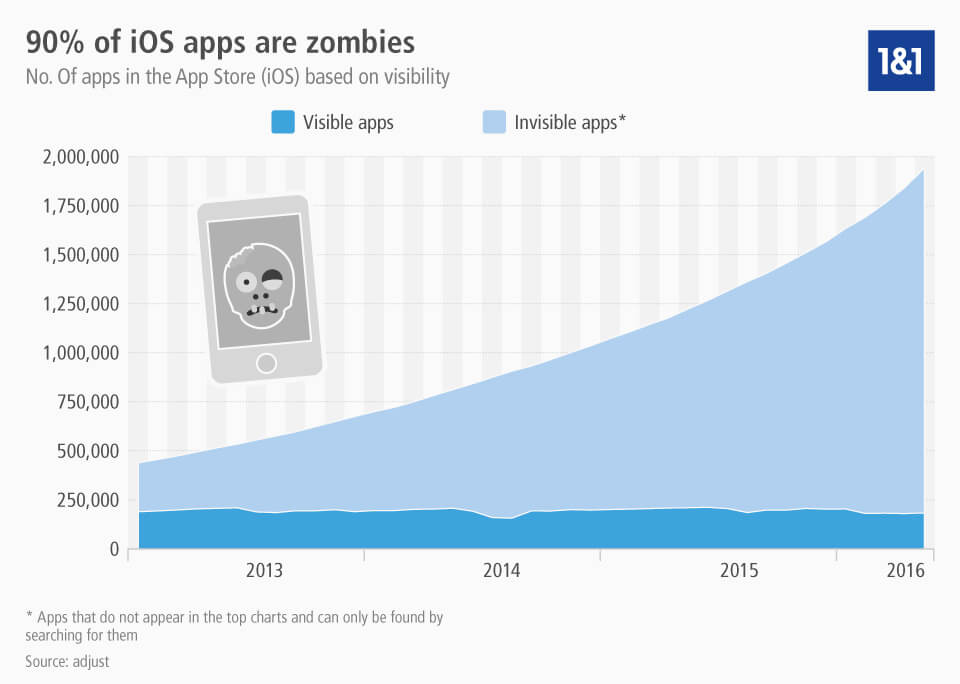
A study, in which the app analyst Adjust evaluated almost 2 million iOS Apps, revealed that almost 90% of all smartphone applications can only be found via the direct search function and are therefore considered as "zombie apps", as shown on the infographic below.
Click here to download the infographic on iOS app visibility.