

Jenkins Tutorial

If you want to use Continuous Integration (CI) in your team, you should use a simple but powerful CI tool. With Jenkins this kind of tool is at hand: The open source software offers an enormous number of possibilities, especially through plug-ins, and for making the continuous integration process more efficient.
Jenkins is based on Java and therefore runs on every platform. Since the software is shipped with Winston, a servlet middleware, there is no need for additional servers, such as Tomcat. In order for you to work successfully with Jenkins, we will first explain how to install and configure the program. We will then show you an example of how to take the first steps in a project.
Installation of the software
Jenkins is available in many different versions. You can either choose a weekly version - Jenkins releases an update every week – or you can get the Long-Term-Support (LTS), in which a new version is released every three months. Under these two branches you have the choice between different releases. In addition to installation packages for the usual operating systems (Windows, macOS, Ubuntu/Debian), a version for Docker and a web archive (.war) are also available.
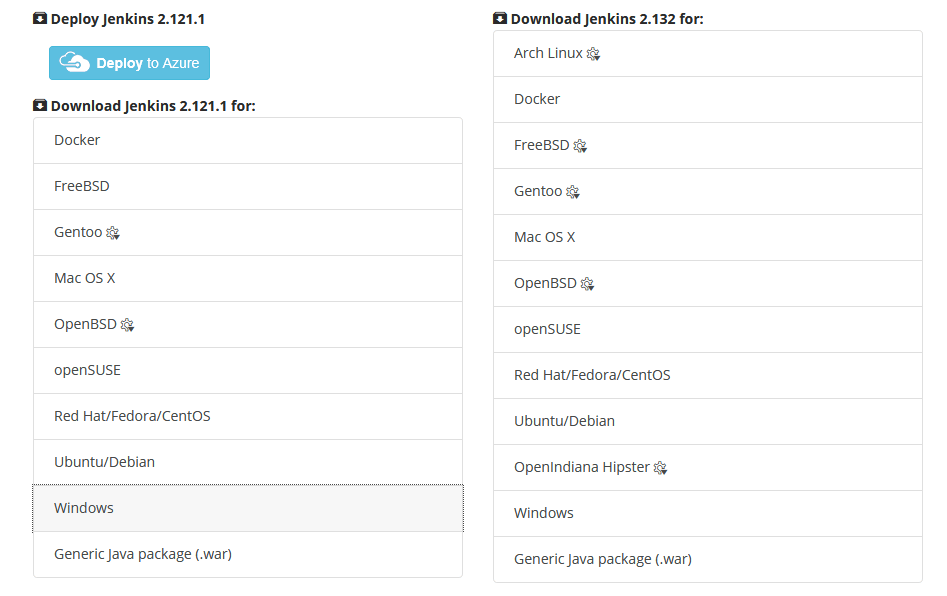
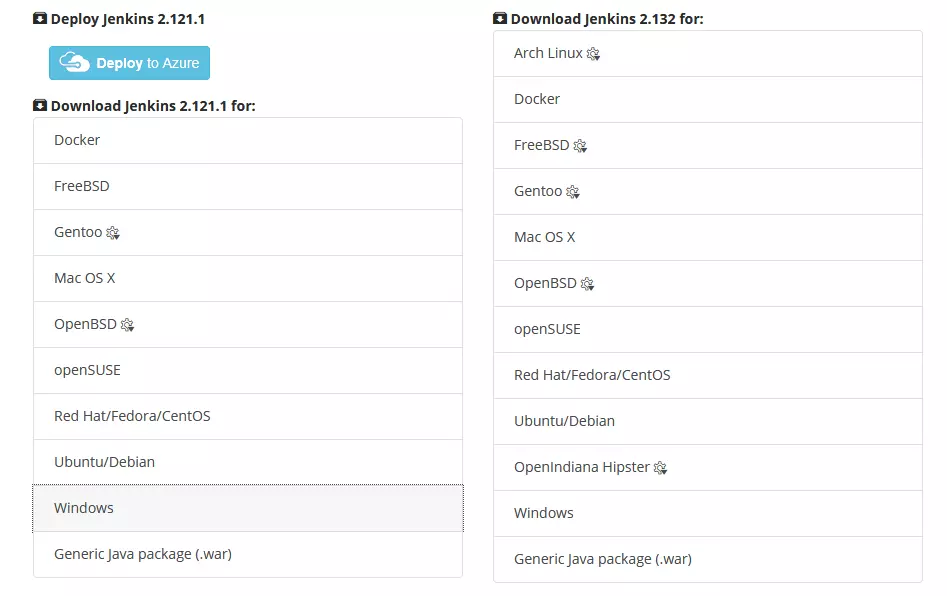
In our example, we use the Windows Installer version 2.121.1 (LTS) under Windows 7. If you are using a different version or operating system, the setup process may be different. Since Jenkins is based on Java, you must have a current version of the Java technology installed.
The Windows Installer will guide you through the installation process. All you have to do is specify the desired installation directory and start the installation.
Jenkins setup
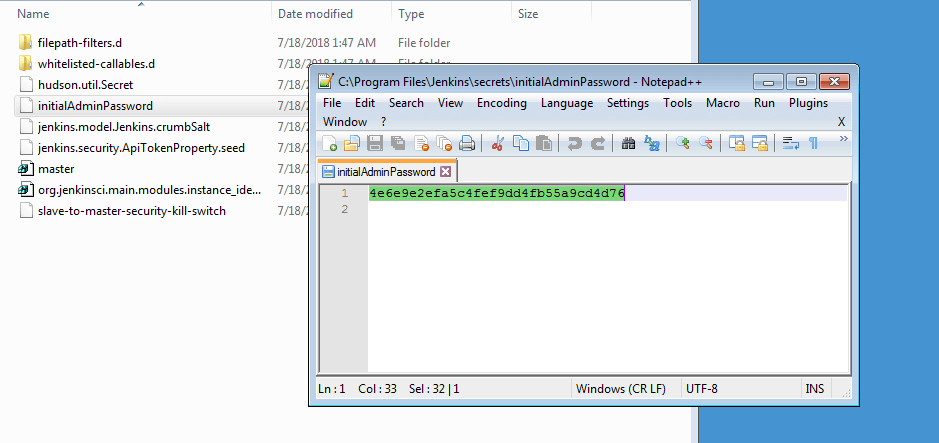
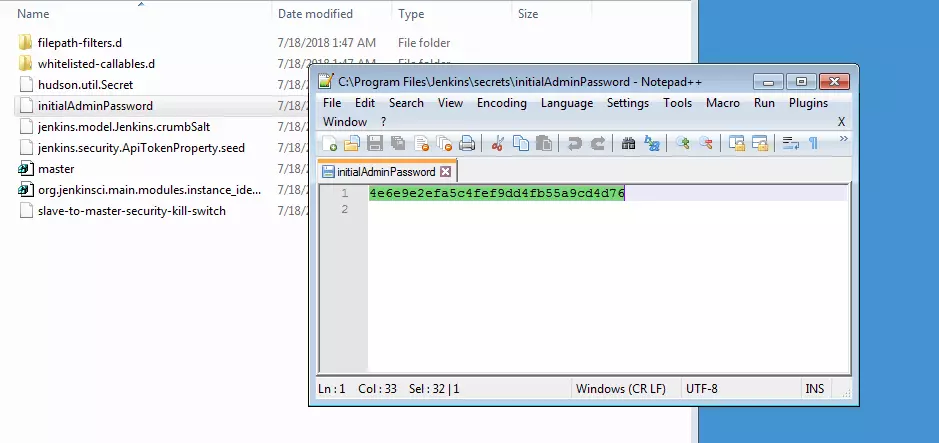
The installation should only take a few seconds. Immediately afterwards, the program will open your preferred browser, and load localhost:8080. Then you’ll find the web interface to operate Jenkins. But first you have to take a step for security’s sake. Jenkins will have generated a random password for you. This can be found in the Jenkins directory, in the secrets folder, and in the initialAdminPassword file. The file can be opened with any text editor. Copy the string, and paste it into the field in the web interface.
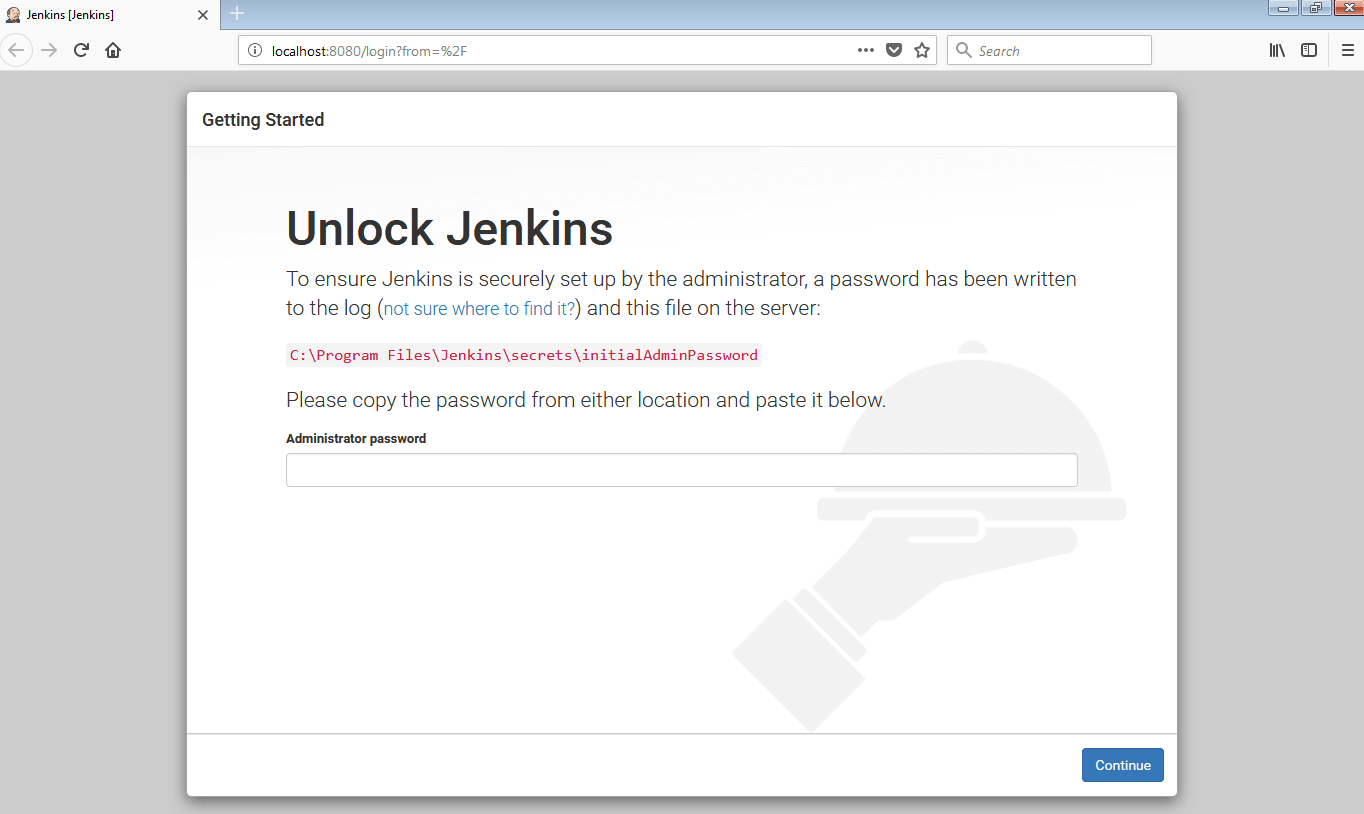
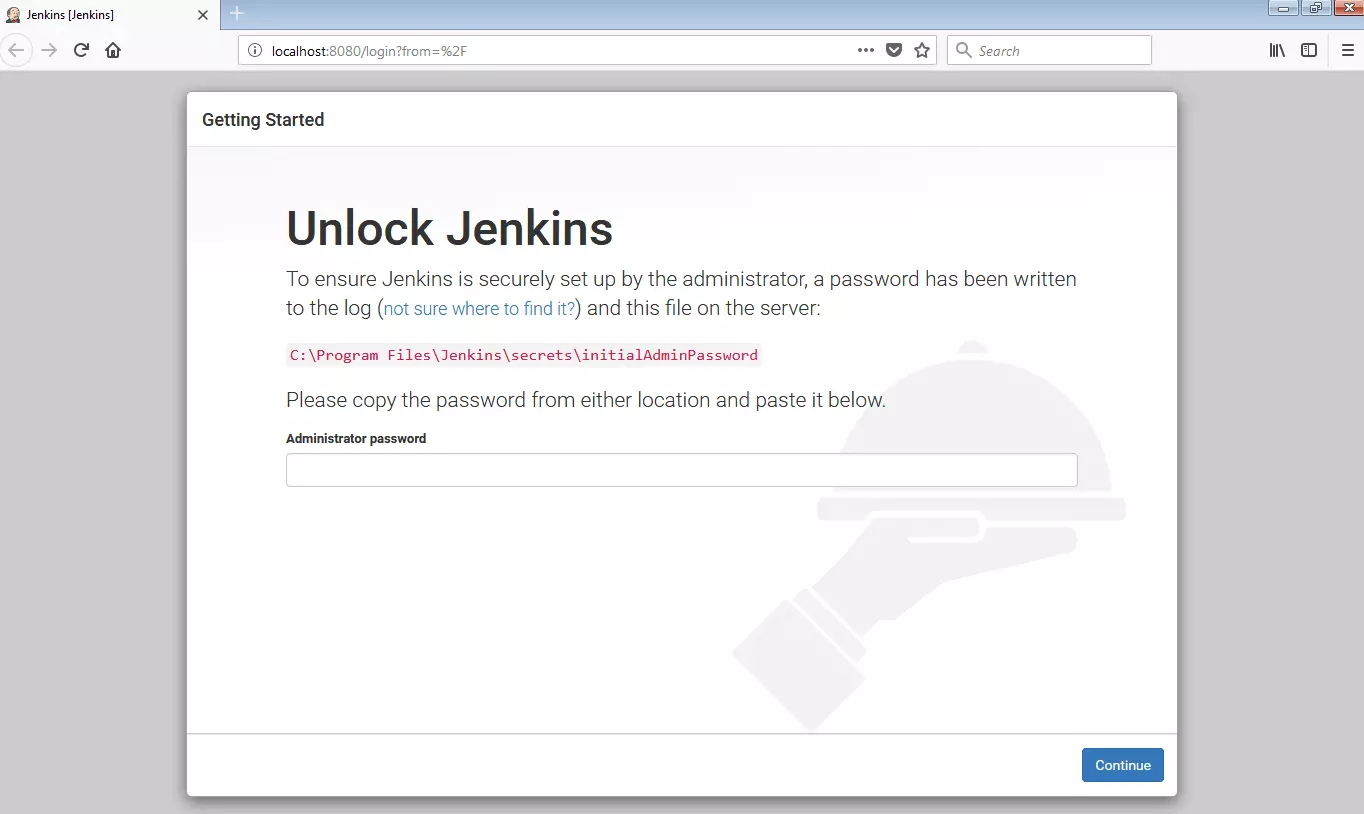
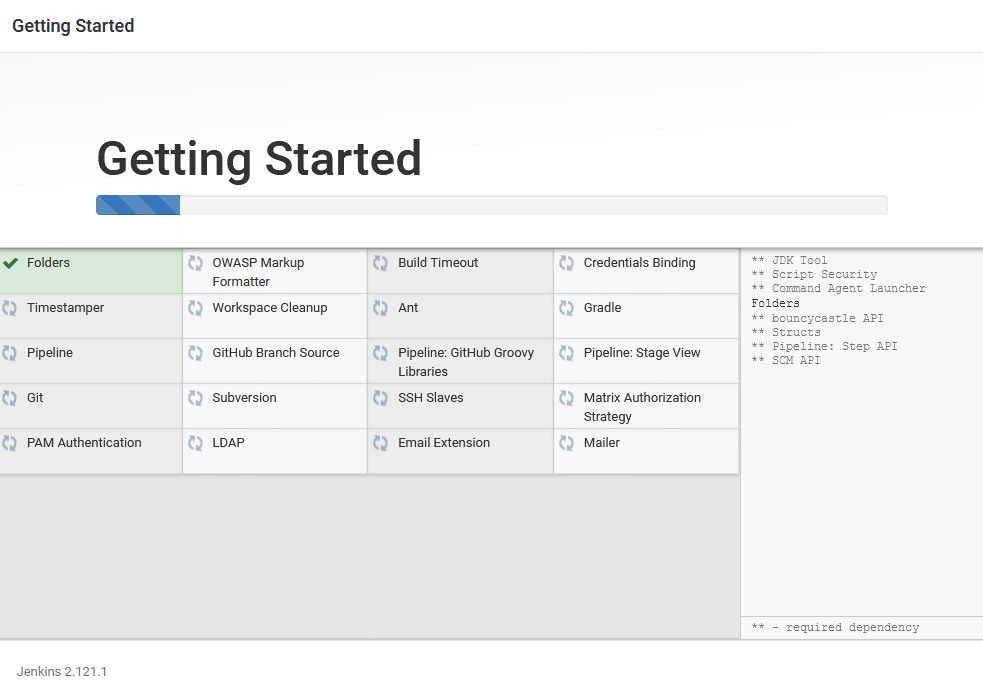
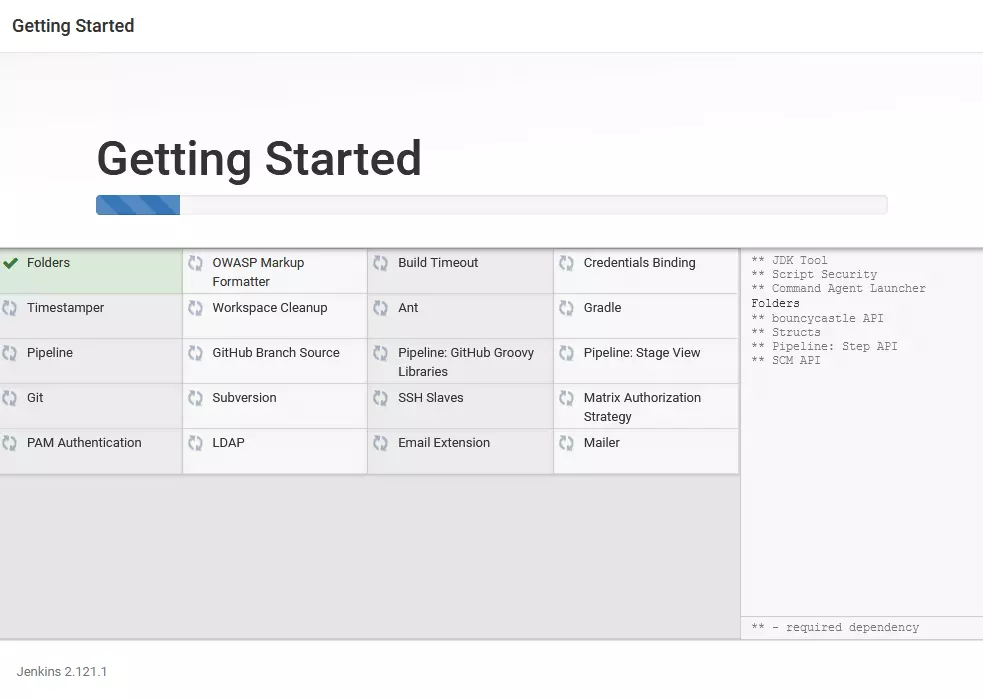
Now it's time to get going. The setup wizard will ask you if you want to choose which plug-ins to install, or if you prefer to use a default setting that has all the important extensions already integrated. If you're new to Jenkins, this option should be fine. And don't worry - additional plug-ins can be installed at any time, easily and without any issues.
Then create a first user. If you are working on your project alone, you can skip this step and simply use Jenkins as admin - in the Jenkins settings, you can still create new users with different rights later. In the final setup step, you still have the possibility to enter a Jenkins URL. The corresponding field has already been entered in localhost:8080. If you have installed Jenkins on a server (which should be the case in a professional work environment), enter the correct path to the Jenkins directory here. Save your entries and complete the setup.
Further settings can also be made later in the Jenkins configuration menu.
Jenkins - introduction to the way it works
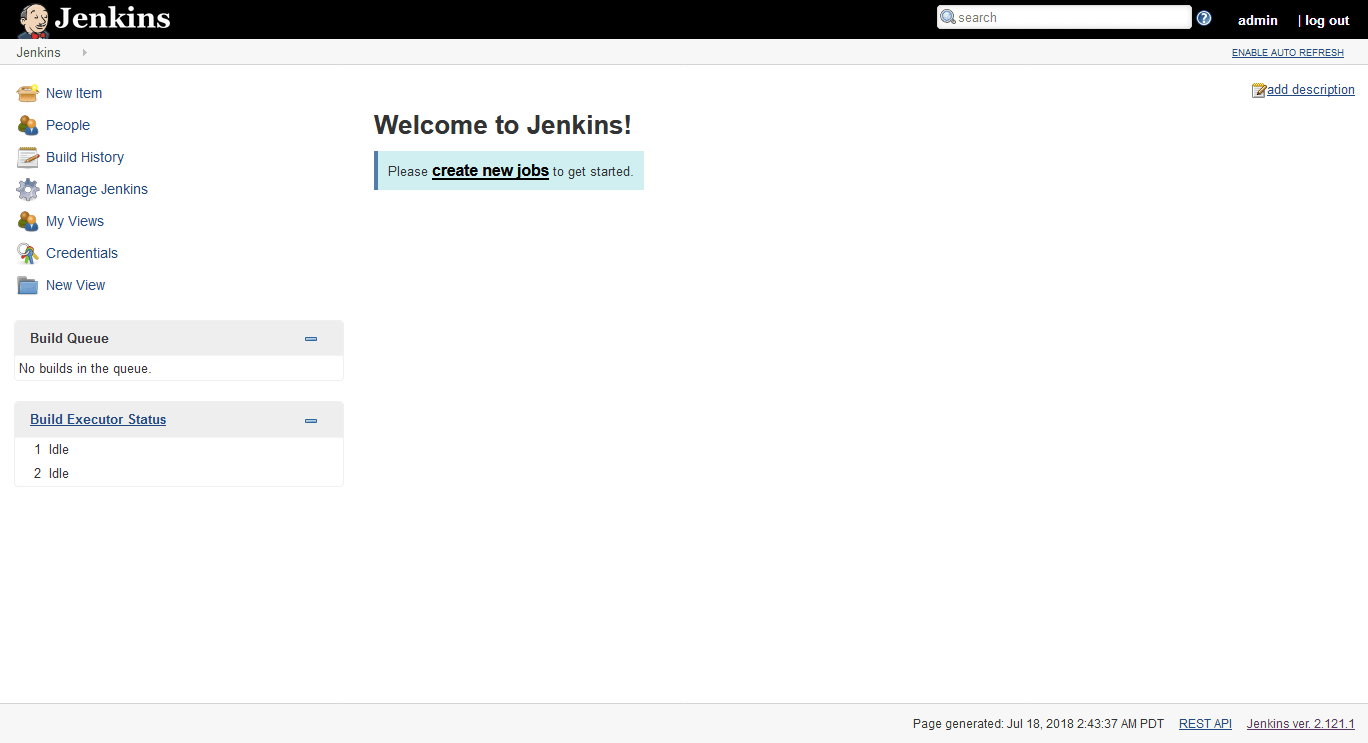
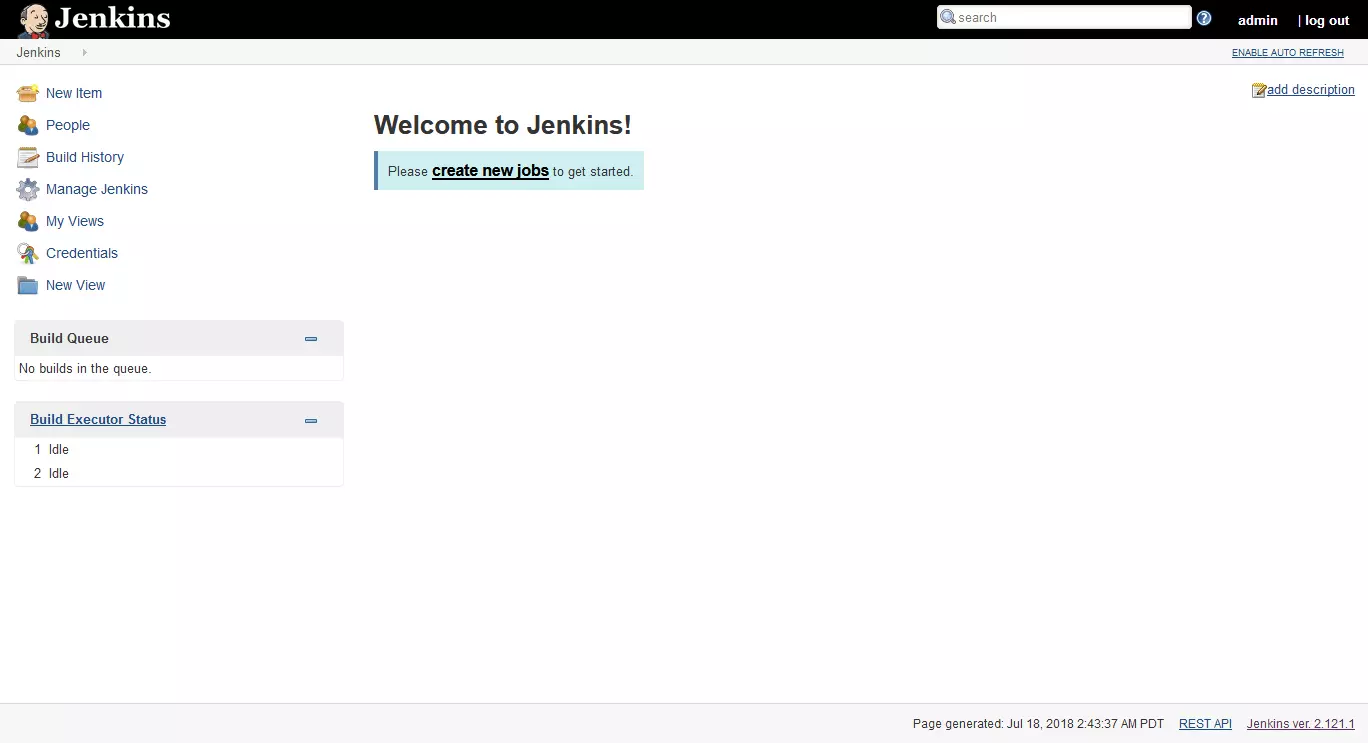
You may find that starting a project gives you the best insight into how Jenkins works. Here is our step-by-step tutorial for creating a project in Jenkins. You start Jenkins with a completely empty working environment. To start a new CI project, you must create a new job. This is done via the prominent notice in the middle of the window ("create new jobs") or via the menu item "new item" on the left side.
The next step is to give your project a name, and select what you want to achieve:
- Freestyle project: Jenkins connects a version control system to a build system.
- Pipeline: This creates a pipeline across multiple build agents.
- Multi-configuration project: If you have a project that requires different settings, for example, because you use different test environments, select this option.
- Folder: A folder is a container in which you can store nested objects.
- GitHub Organisation: This option searches all repositories of an account for GitHub.
- Multibranch Pipeline: This allows you to create several pipelines directly.
Jenkins focuses on freestyle projects, which is why we will create one in our example.
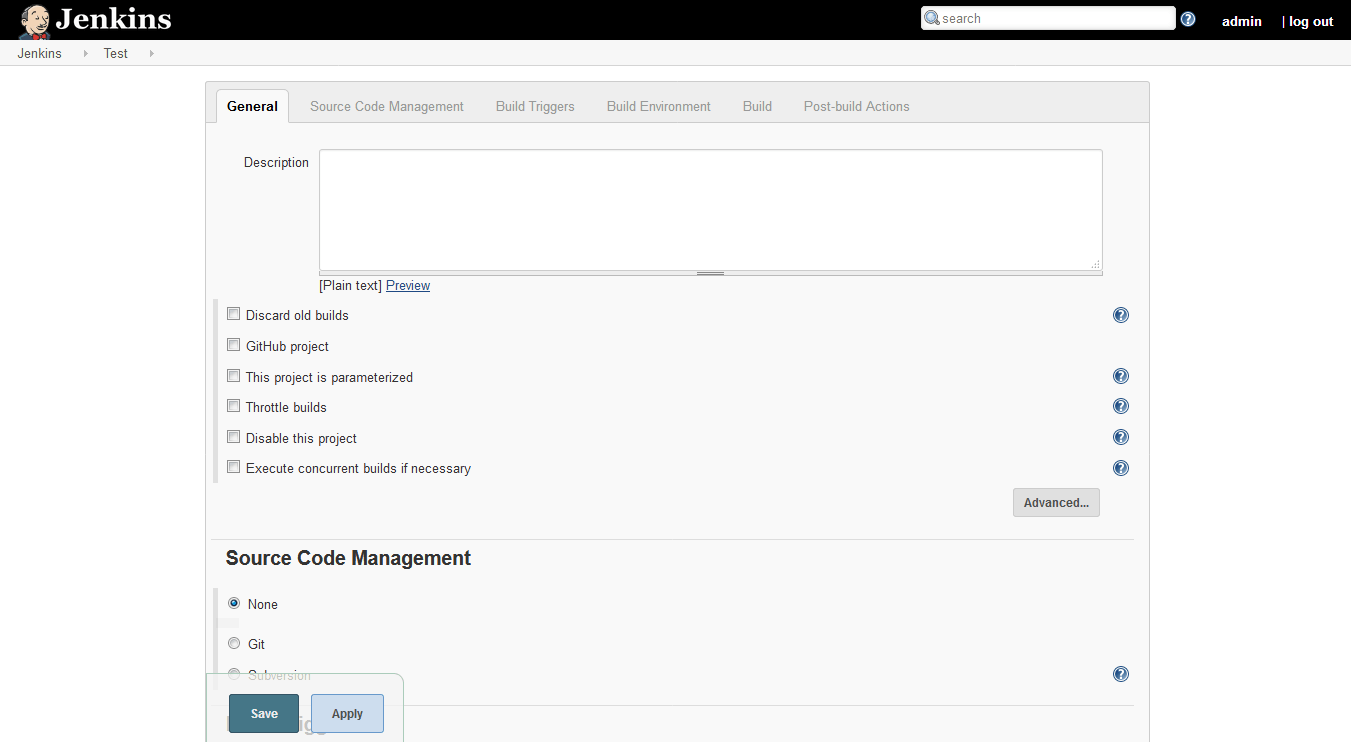
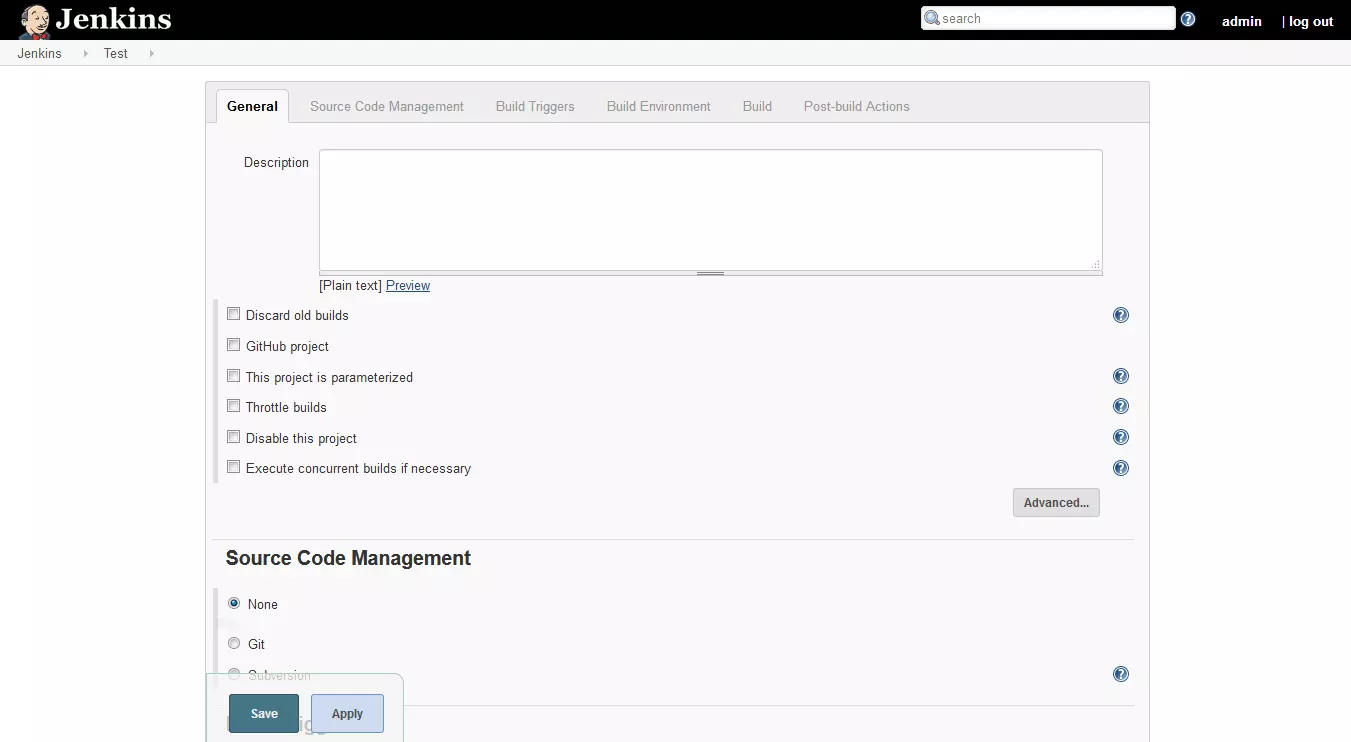
On the following page you have numerous setting options. You configure your project in six categories. Suppose you write a program in Java and want to use Continuous Integration. First, we will deal with source code management. The sample program is located in a Git repository on your computer (it is also possible to connect Jenkins to GitHub, for example). Therefore, enter the correct directory under the item "Git". You can also work with a Subversion.
The next step is to select the build trigger. This determines the situations in which Jenkins should start a build. This is possible, for example, by a special script of another program after another build has been completed, or regularly at certain time intervals. You can also trigger a build manually when you are ready - as we will do in our example.
The build environment that Jenkins lets you configure next contains more options around builds: Should it be aborted, for example, if the process hangs? Or do you want to print a timestamp in the console? None of the options are mandatory.
After all, it's all about the build: Here you determine what your program should be built with. Since you have already integrated connections to Ant and Gradle in the standard selection of plug-ins, you can choose one of these programs. However, it is also possible to use simple command line commands. Select the option for batch commands and let your program compile:
javac MyProgram.java
java MyProgram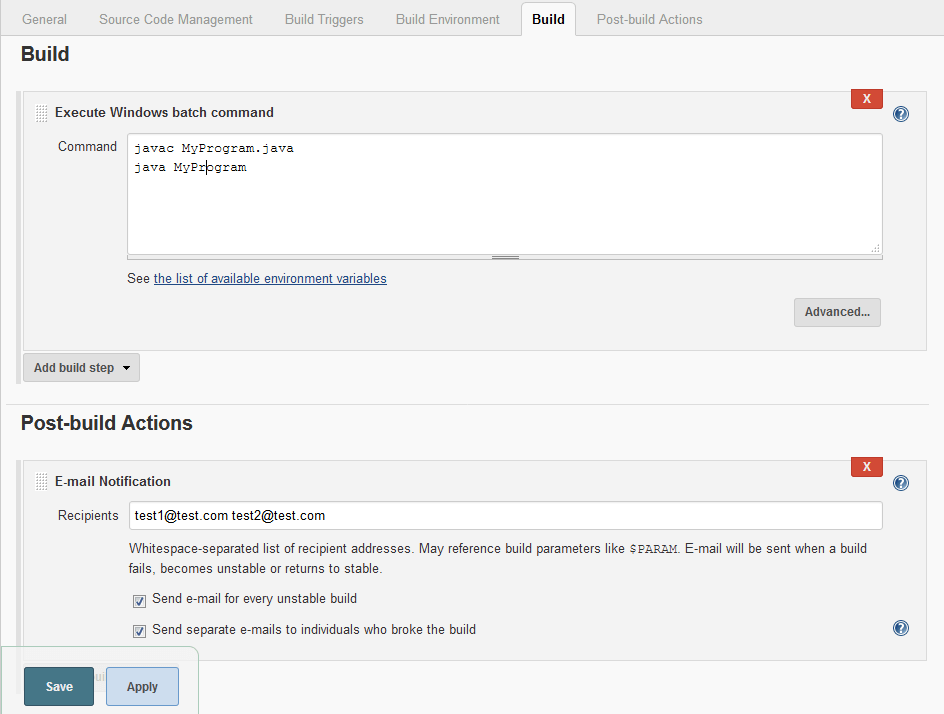
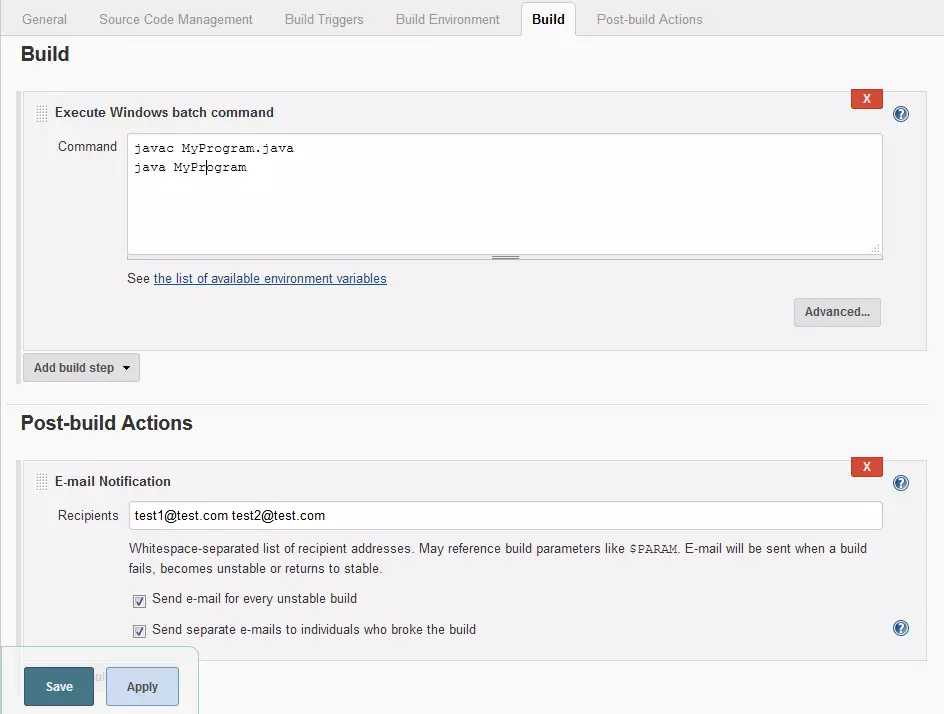
After that, Jenkins gives you the ability to perform actions after the build. Testing is an important factor here. Use the "Publish JUnit test result report" option to connect Jenkins and JUnit to integrate results from the Java test framework. With additional plug-ins you can also connect Jenkins to other test environments. You can even run automatic tests using Jenkins. Emailing yourself and others about the status of the build is also an option. The final step is simple: save the information and you have created your first job.
If you want to install plug-ins, you should restart the Jenkins server. You can do this by logging out and adding safeRestart to the URL in the address bar of the browser (e.g. localhost:8080/safeRestart). If you now log in again, you can confirm that you want to restart.
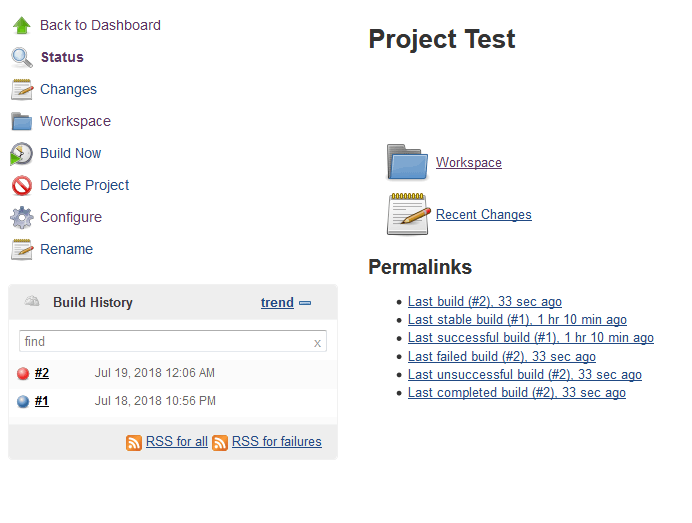
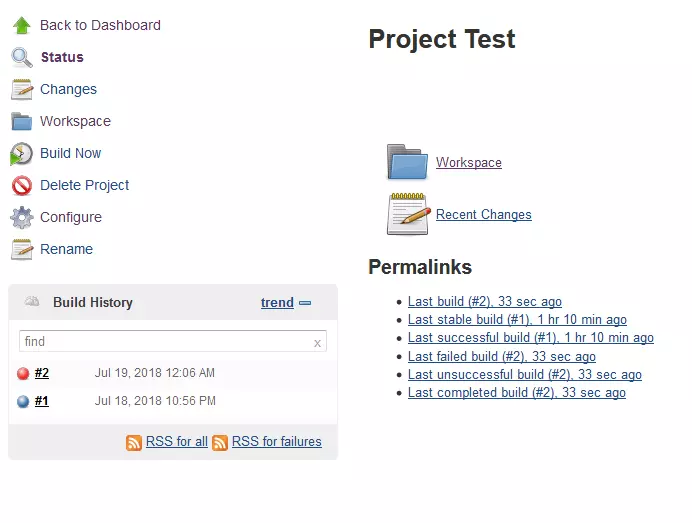
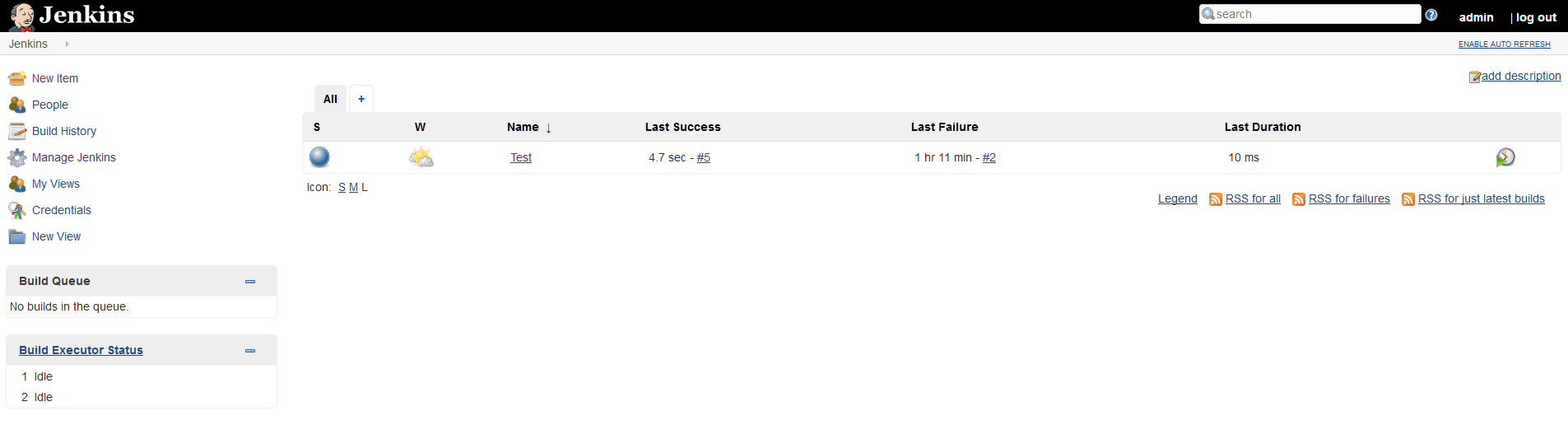
Each project has its own subpage in Jenkins. Here you can trigger a build, change the settings again and see the status. On the “status” page, Jenkins also shows you the build history. Was the last build successful or not? Blue dots show that it was successful, red dots mark an error – and you should fix this straight away. At this point, you can also see when a build is being created. A click on the build number takes you to a detail page where you can also view the console output.
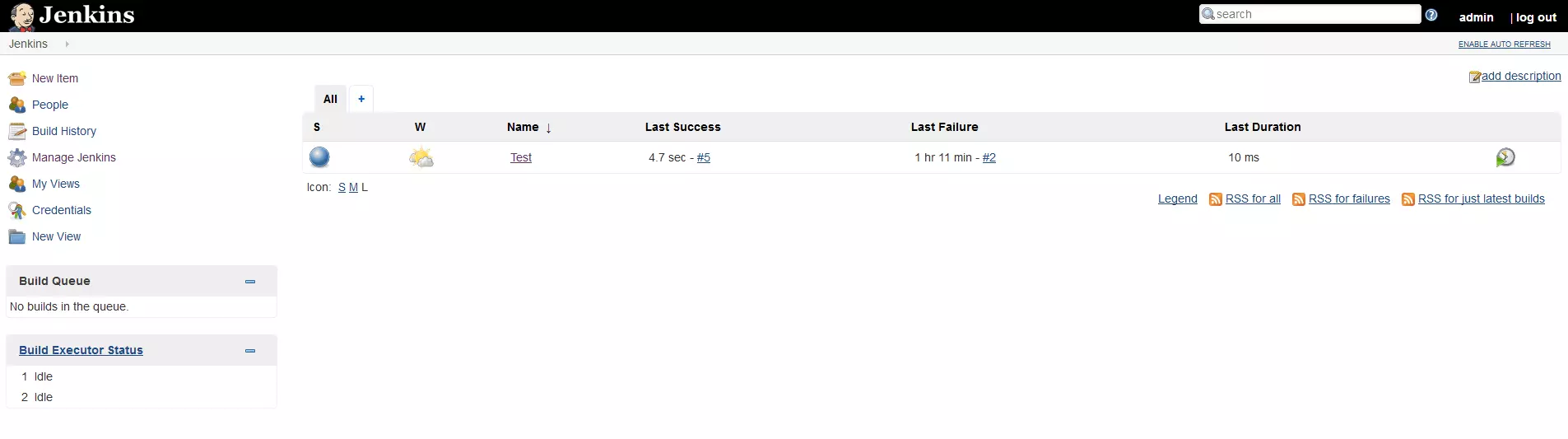
The Jenkins Dashboard shows you all the projects you're working on. Here, too, the program highlights the status of the project in colour. You will also receive information about the build stability in the form of a weather report. This is a statistic how stable the builds of the project are on average. If more than 80 percent of your builds are successful, you will see a sun. Below this value, the symbolic weather gets worse and worse.
 To display this video, third-party cookies are required. You can access and change your cookie settings here.
 Jenkins gives you many more ways to customise the program to your working conditions and simplify your continuous integration process. You will find a suitable solution for most situations, in particular if you use the various plug-ins.