

How to submit a URL to Google

Being visible on search engines is one of the most important success factors for any website. To appear on Google, your website must first be included in its index. In this article, we’ll explain how to submit your URL to the search engine giant.
- Free website protection with SSL Wildcard included
- Free private registration for greater privacy
- Free Domain Connect for easy DNS setup
How to submit a website to Google step by step
For operators of professional online projects, being visible in Google search results is a basic requirement for running a successful online business. If you also want your site to be included in the database, Google offers you two options:
- Wait for the search engine’s crawler to find your project via external links.
- Take indexing into your own hands by submitting your website.
All you need for Google indexing is a Google account and your project’s URL. The registration process takes just three steps and only a few minutes.
Step 1: Create a Google account
Open the Google website and create a free account. Use the ‘Sign in’ button and click on ‘Create account’. Google will then guide you through the registration process. Skip this step if you have already created a Google account.
Step 2: Access Google Search Console
Open the Google Search Console using the following address:
https://search.google.com/search-console/about
Sign in here with the Google account you previously created.
Step 3: Specify URL
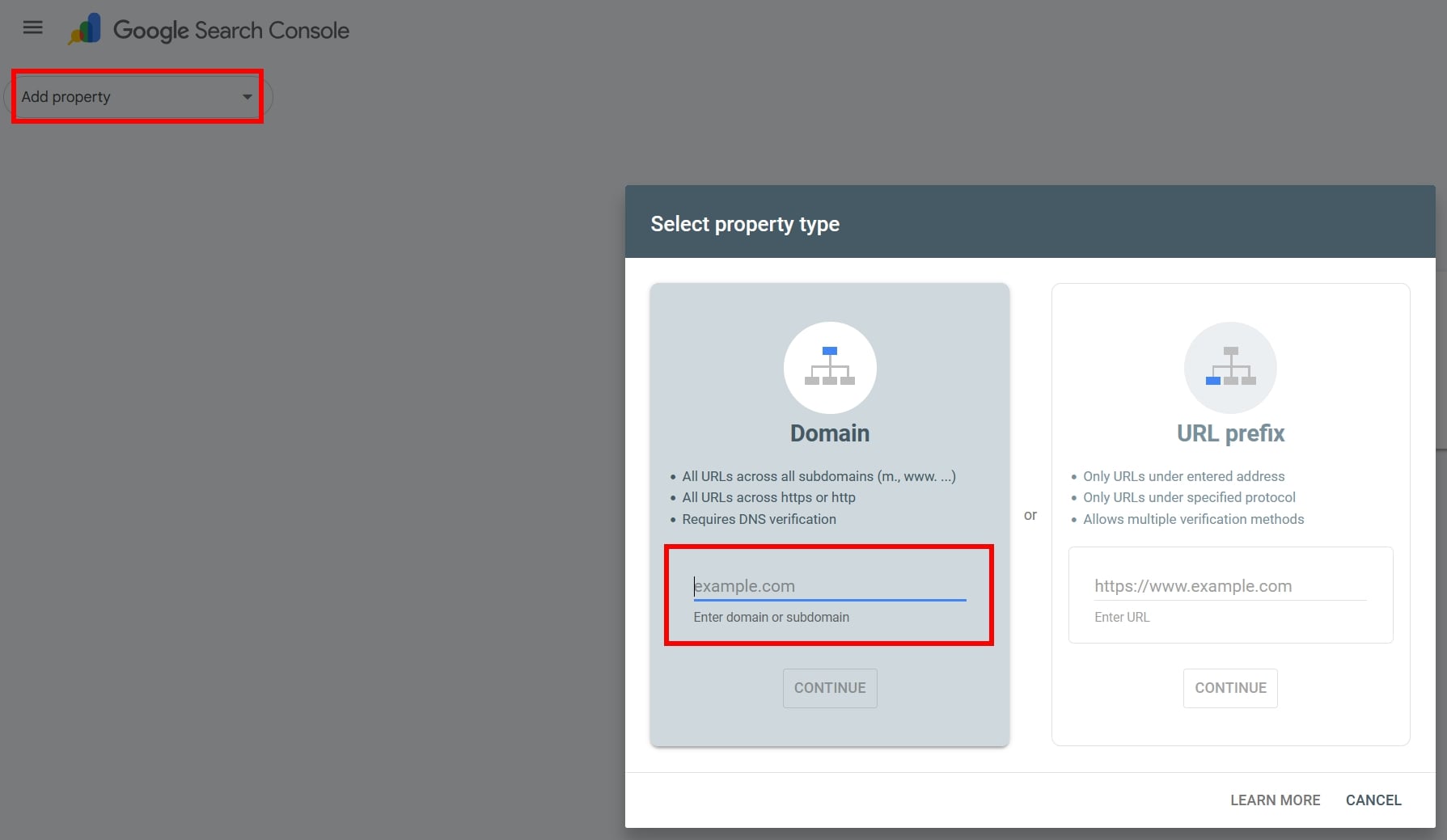
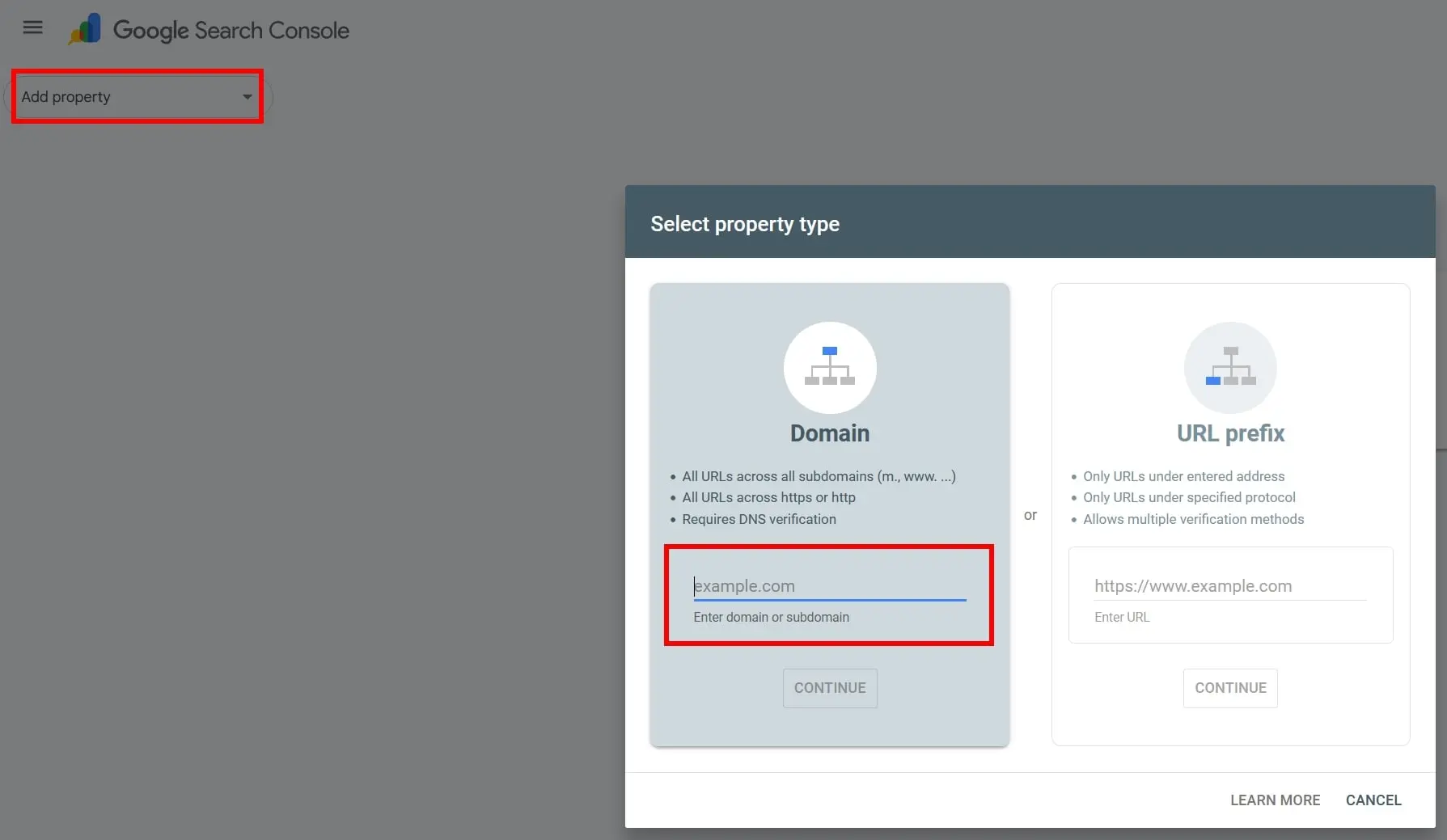
You register your website in the left sidebar. Click on the ‘Add property’ button. In the window that appears, enter your website’s full URL in the left field. Then click the ‘Continue’ button to submit your indexing request.
Step 4: Verify domain ownership
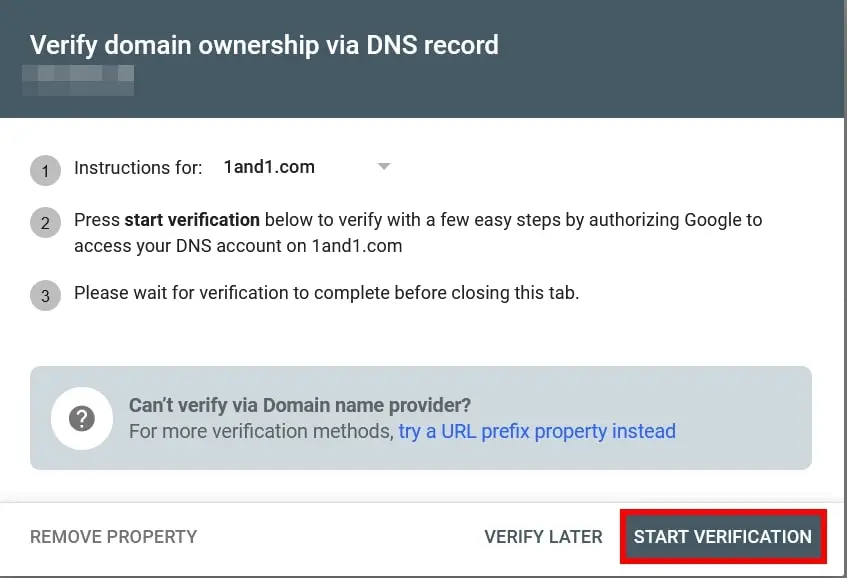
In the next step, you’ll need to verify that the domain belongs to you. The exact process can vary depending on your domain provider. If your provider supports guided setup, the Search Console will automatically select the appropriate assistant. For a domain registered with IONOS, simply click ‘Start Verification’ to begin the process.
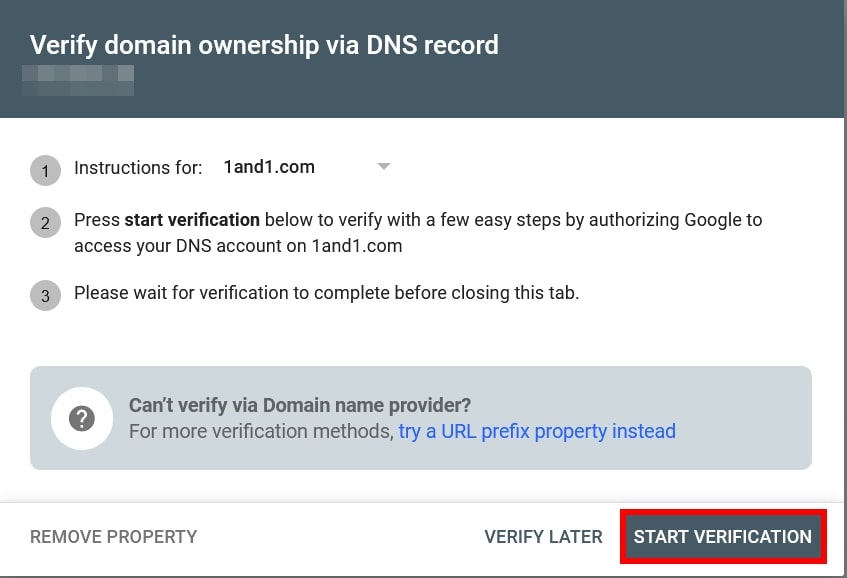
You’ll then be automatically redirected to the customer login page, where you can sign in with your usual credentials. After logging in successfully, click the ‘Connect’ button, and in the next window, select ‘Allow’ to grant Google access to connect with your domain.
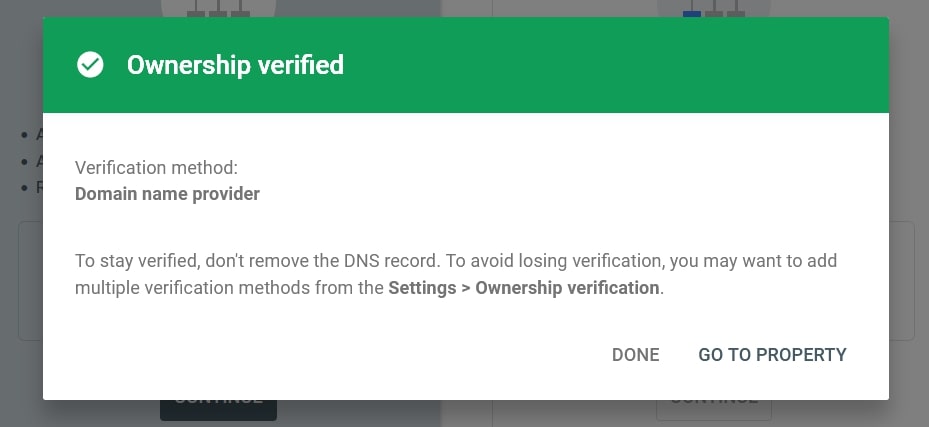
After a brief check, the domain ownership is verified, and you will receive a success message.
Step 5: Submit Sitemap
Websites change over time. While Google does regularly crawl your domain once it’s registered, a sitemap systematically informs the crawling system about new web pages. It also provides metadata that helps crawlers detect changes and errors more quickly. Once you’ve registered your website as described, there are two ways to ask Google to index your sitemap:
- Open your robots.txt file and add the following instruction at any point in the file:
Sitemap: https://www.domain.de/sitemap.xml - Submit your sitemap via the Search Console by creating a sitemaps report for your property.


What are the chances of success for a manual indexing request?
When you submit a request, Google makes it clear that submitted URLs are not automatically added to the search index. However, URLs sent to Google are usually crawled by search bots within a few days and then evaluated for relevance. If your website follows the Google Search Essentials, there’s generally nothing preventing it from being indexed. To check whether your URL has been added to Google’s index, you can run a simple site query by entering the following search command into the Google search bar:
site:www.yourdomain.com
The Google search operator site instructs Google to display all indexed URLs for the specified domain in the search results. If the site query does not return the desired results despite submitting an indexing request, check whether a technical issue is preventing successful indexing. Common causes include the robots.txt file, the HTML meta tag noindex, and the canonical tag.
Take control of your website’s visibility
Being visible on the web—especially on Google—is essential for your website’s success. While you could wait for search engine bots to automatically index your site’s URLs, this process can take time, particularly for smaller projects. Since manually submitting your site requires very little effort, we recommend taking control of the indexing process to help your website become visible online as quickly as possible.