

How to create rules in Outlook step by step

More than 280 billion emails are sent every day—most of them in a professional context. If you have lots of unread messages piled up and want more organisation for your Outlook mailbox, why not try Outlook’s rules? These automatic rules for sorting incoming and outgoing messages can help to keep your inbox organised and keep you up to date. We show you how to create Outlook rules, both with and without a template.
How to create Outlook rules quick guide
- Open the Start tab and click on Rules under Move.
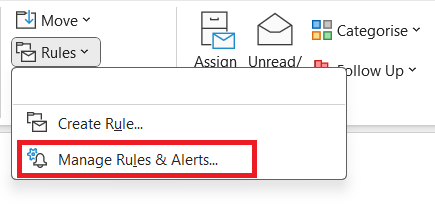
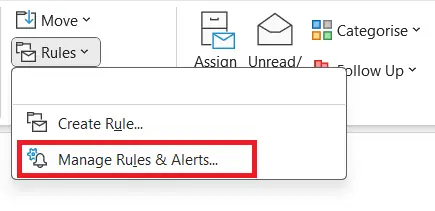
- Select the Manage Rules & Alerts option.
- Click on New rule to create individual rules or on Change rule to edit an existing rule.
- Up to 50 GB Exchange email account
- Outlook Web App and collaboration tools
- Expert support & setup service
How to create Outlook rules
With Outlook, you can easily create email rules using preset choices. To start the Rules Wizard, follow these steps.
Step 1: Navigate to the Start tab and click the Rules button in the Move panel.
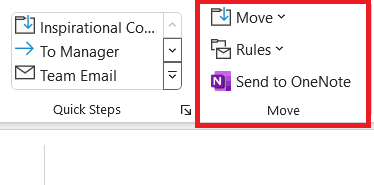
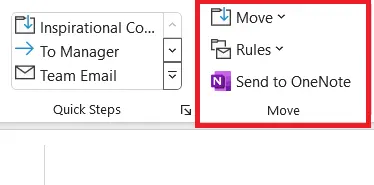
Step 2: Select the Manage Rules & Alerts option. Outlook will then open the Rules and Alerts dialog box.
Step 3: Click on the New Rule… button in the E-mail Rules menu to start the Rules Wizard.
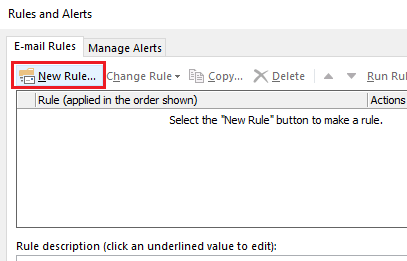
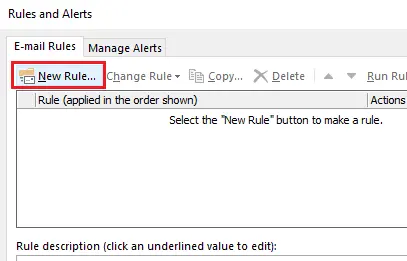
With the Rules Wizard, you can create Outlook rules to fit your preferences and needs, with or without a template.
Create an Outlook rule without a template
The Rules Wizard allows you to create individual email rules based on predefined modules. First, you need to consider whether you want to create an inbox rule or an outbox rule.
Inbox rules
Inbox rules are applied to the messages you receive, provided they meet the conditions you define. To create an inbox rule without a template, follow these steps.
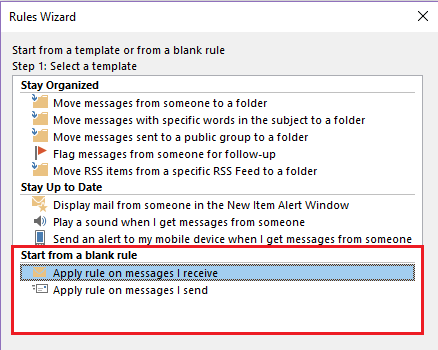
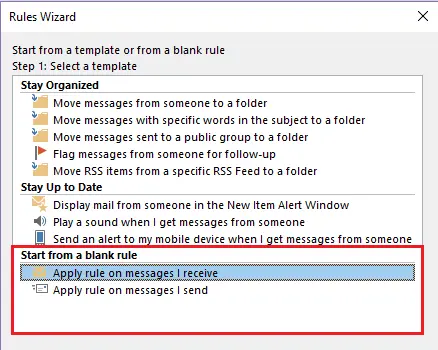
Step 1: Under Start from a blank rule, select Apply rule on messages I receive and click Next.
Step 2: Outlook will now ask you which condition(s) you want to attach to your inbox rule. To do this, the Rules Wizard offers the following options. Select at least one condition:
- From people or public group
- With specific words in the subject
- Through the specified account
- Sent only to me
- Where my name is in the To box
- Marked with importance
- Marked with sensitivity
- Flagged for action
- Where my name is in the Cc box
- Where my name is in the To or Cc box
- Where my name is not in the To box
- Sent to people or public group
- With specific words in the body
- With specific words in the subject or body
- With specific words in the message header
- With specific words in the recipient’s address
- With specific words in the sender’s address
- Assigned to category category
If required, you can combine several conditions.
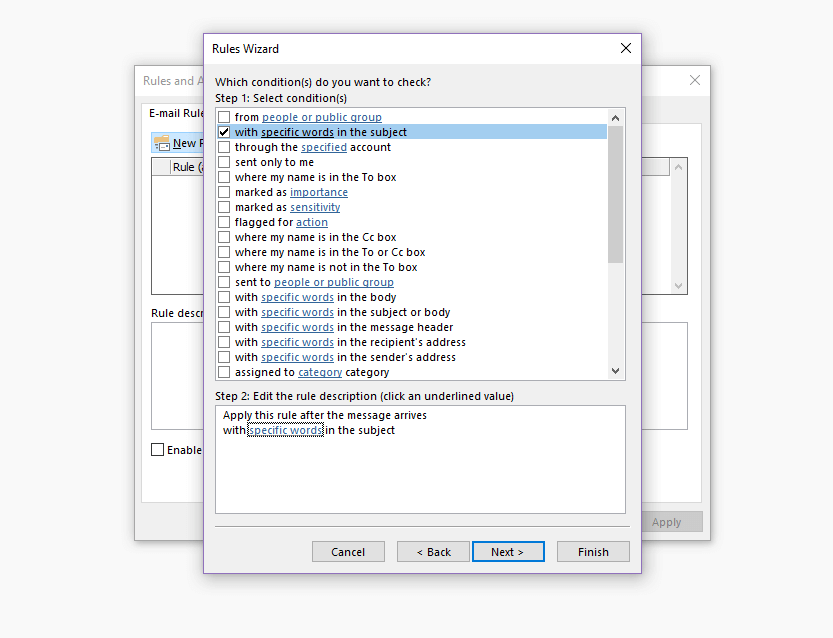
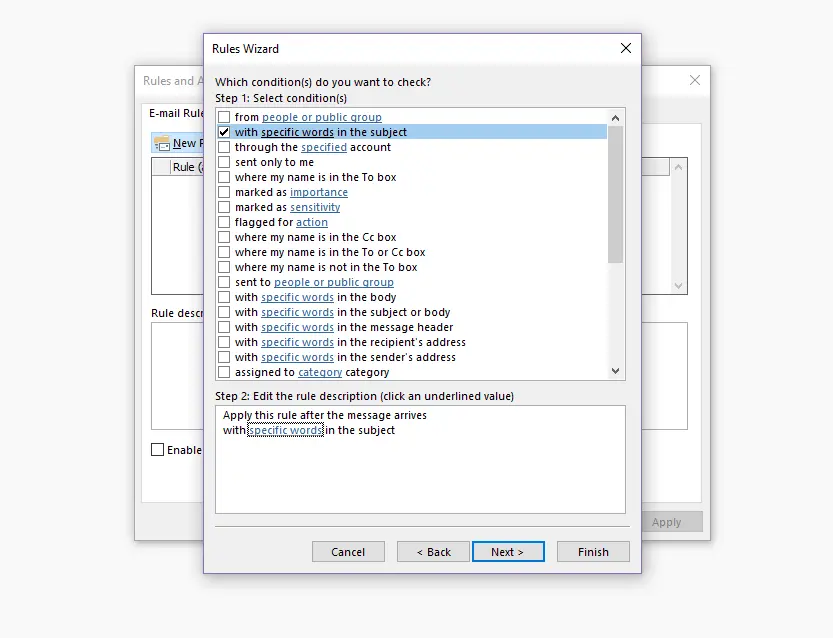
Step 3: Edit the selected condition(s) according to your needs or your personal wishes by clicking on the blue highlighted word groups in the rule description.
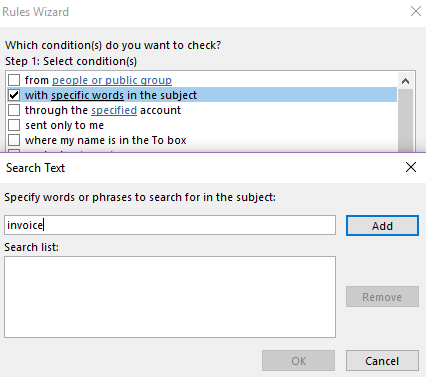
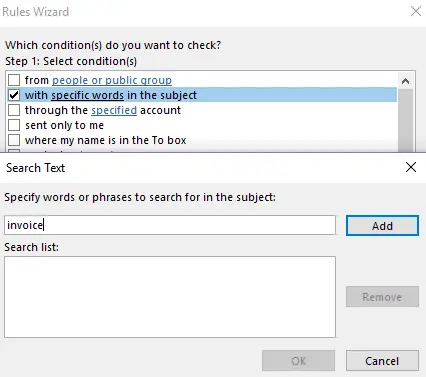
Click Add:
Step 4: Specify what should happen to messages that meet the condition(s) you have defined. You can choose one or more of the following actions:
- Move it to a specified folder
- Assign it to a category
- Delete it
- Permanently delete it
- Move a copy to a specified folder
- Forward it to people or public group
- Forward it to people or public group as an attachment
- Redirect it to people or public group
- Have the server reply using a specific message
- Reply using a specific template
- Flag message for follow up at this time
- Clear the Message Flag
- Clear message’s categories
- Mark it with importance
- Print it
- Play a sound
- Mark it as read
- Stop processing more rules
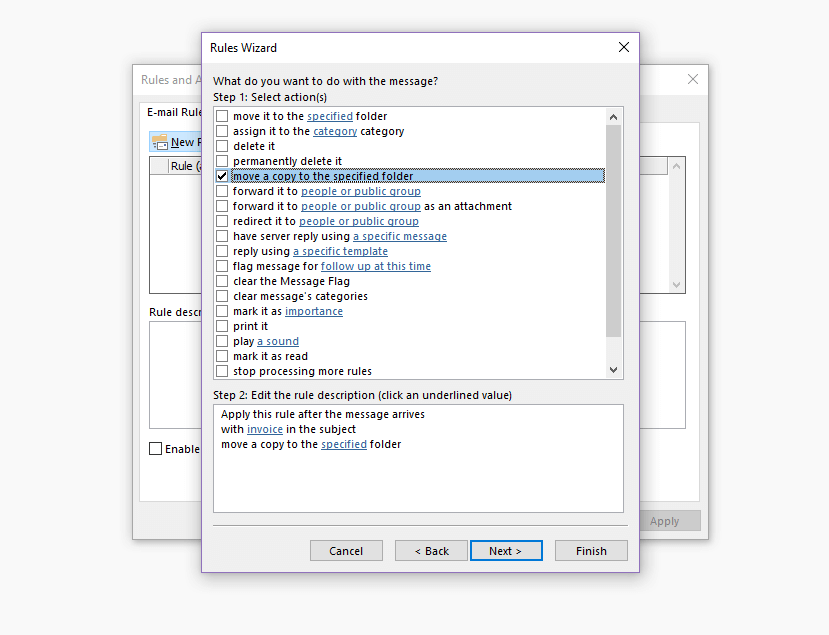
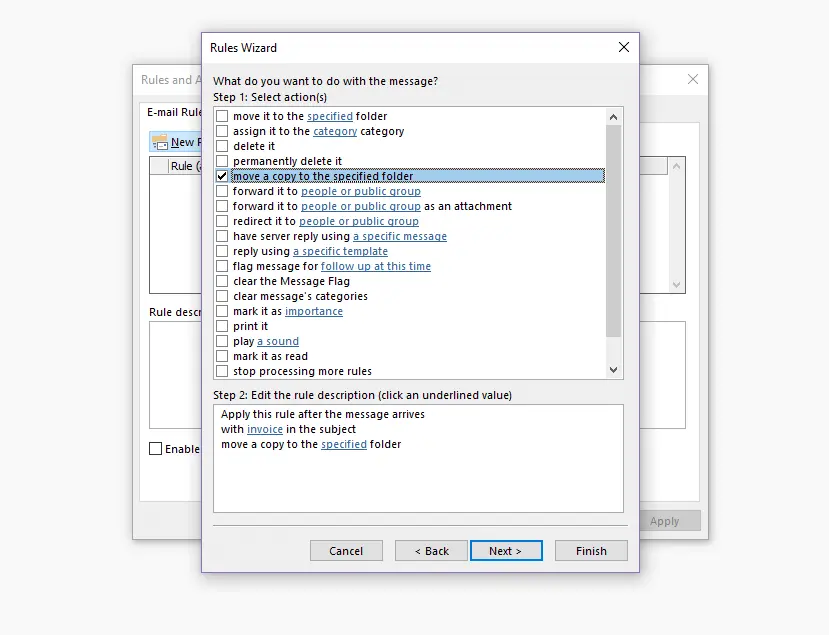
Step 5: Edit the selected action(s) by clicking on the blue highlighted word groups in the rule description.
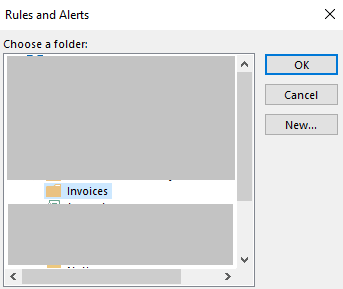
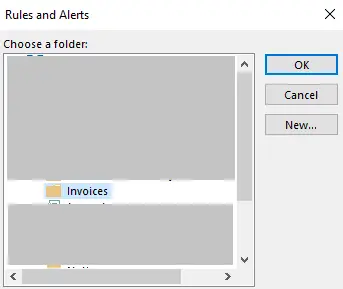
Click OK.
Step 6: Define exceptions if required. You can also choose from the conditions listed above. Once again, you can combine several conditions together.
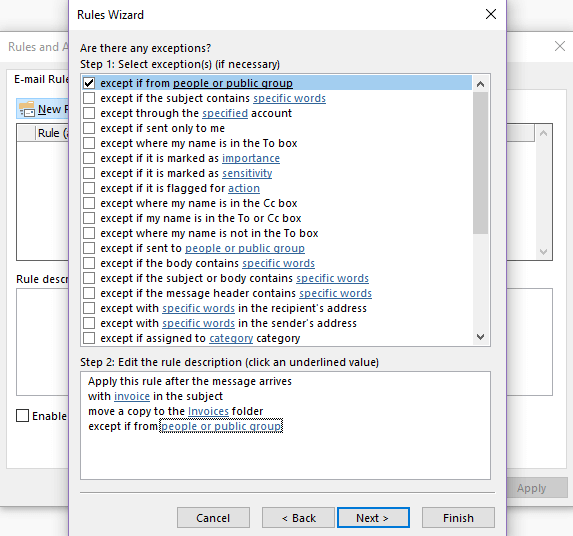
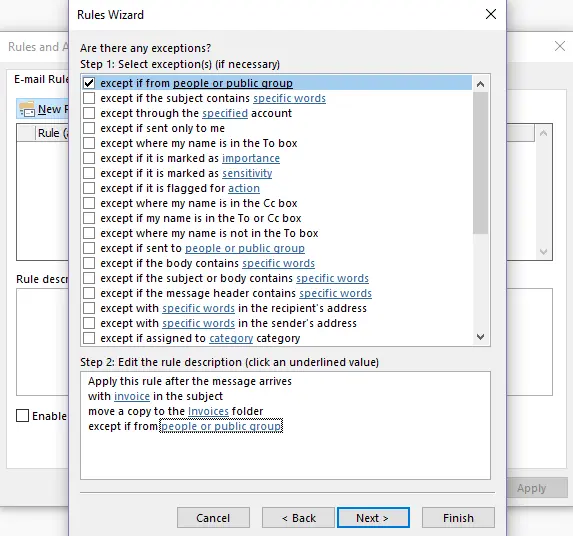
Step 7: Configure the conditions for an exception by clicking the blue phrases in the rule description. Click on Next.
Step 8: Give your new inbox rule a name and specify whether to apply the rule retroactively to all messages in the inbox folder. Activate the rule by ticking the corresponding box and clicking Finish.
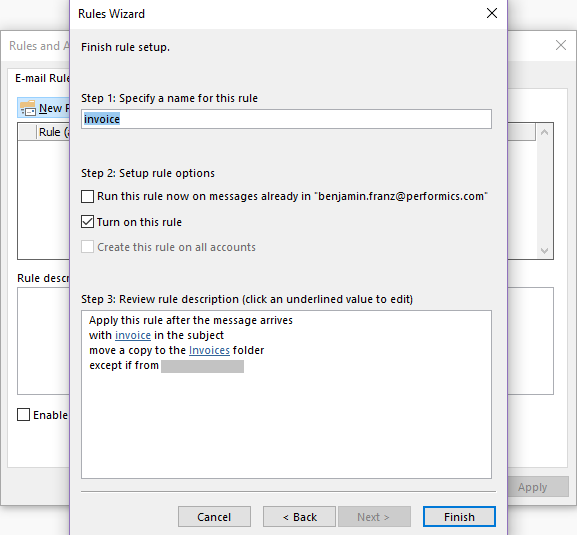
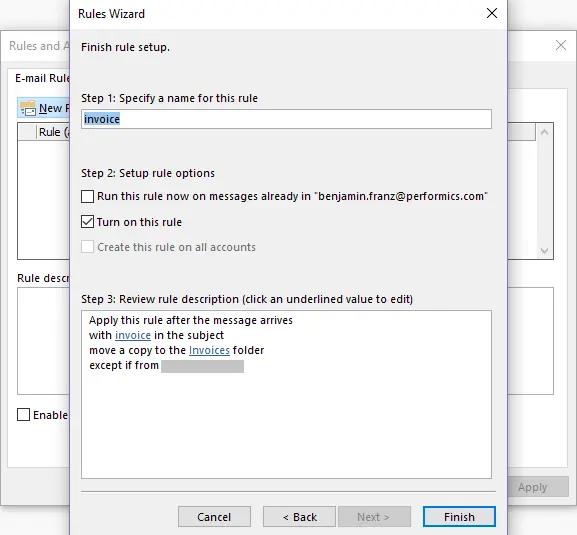
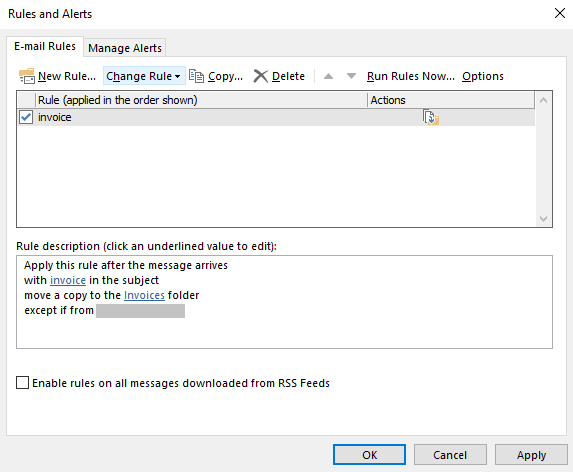
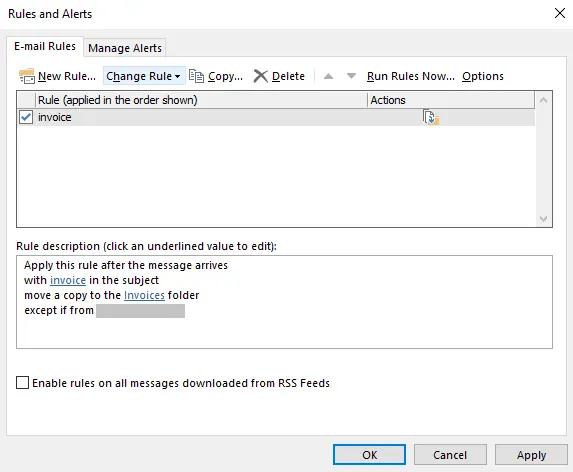
Your new inbox rule will now appear in the Rules and Alerts dialog box. Close it by clicking on Apply.
- Write perfect emails with optional AI features
- Includes domain, spam filter and email forwarding
- Best of all, it's ad-free
Outbox rules
Outgoing mail rules apply to all messages you send, provided they meet the conditions you define. To configure an outgoing mail rule, follow these steps.
Step 1: Under Start from a blank rule select Apply rule on messages I send.

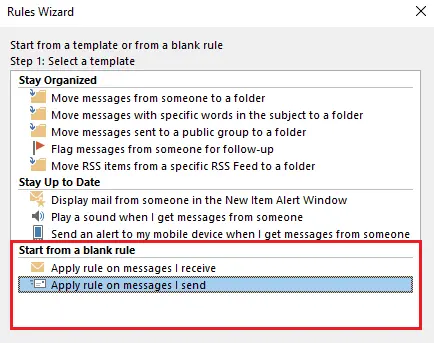
Click Next to start the configuration process.
Step 2: Define conditions for your outgoing mail rule. Outlook gives you several options to choose from, and you can also combine them.
- The message contains certain keywords in the subject line
- The message was sent from a specific account
- The message has been assigned a specific priority
- The message was sent to a specific person or group
- The message contains certain keywords in the text
- The message contains certain keywords in the subject or text
- The message contains certain keywords in the recipient address
- The message has been assigned to a specific category
- The message contains an attachment
- The message has a certain size (in kilobytes)
- The message uses a specific form
- The message has certain document or form properties
- The message is a meeting request or update
- The message was sent from a specific RSS feed
- The message was sent from any RSS feed
- The message corresponds to a specific form type
If required, you can link several conditions together.
Step 3: Edit the condition(s) you have selected by clicking on the word groups highlighted in blue in the rule description. Then click on Next.
Step 4: Specify which action Outlook should perform with messages that meet the conditions you define. Select as many of the options as you wish.
Step 5: Edit the selected action(s) in the rule description and click Next.
Step 6: Define exceptions (if necessary). You can choose from the same conditions that are listed in step 2.
Step 7: Name the rule and specify whether it should be replied retroactively to all messages in your inbox folder. Tick Activate this rule and complete the configuration by clicking Finish.
Your outgoing mail rule now appears in the Rules and Alerts dialog box. Click Apply to close the window.
Create Outlook rules with a template
Outlook offers preconfigured templates for the most common email rules. A total of 8 rule templates are available in the ‘keep track’ and ‘keep up to date’ categories. The configuration process is similar to the procedure described above:
Step 1: Select the desired rule.
Step 2: Adjust the rule description according to your requirements.
Step 3: If necessary, add additional conditions or define exceptions.
Step 4: Name the rule and click Finish.
Move messages from a specific sender to a folder
This template is an inbox rule that moves all the messages that someone sends to a specific destination folder.
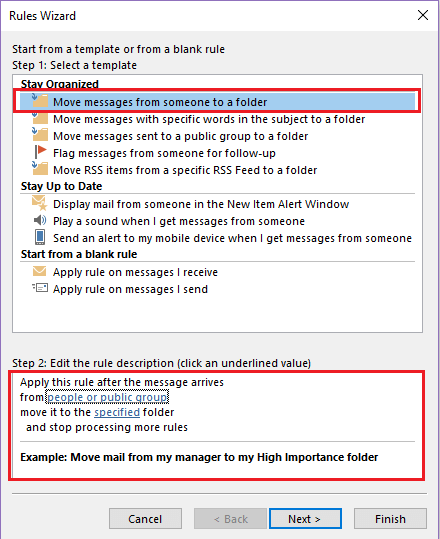
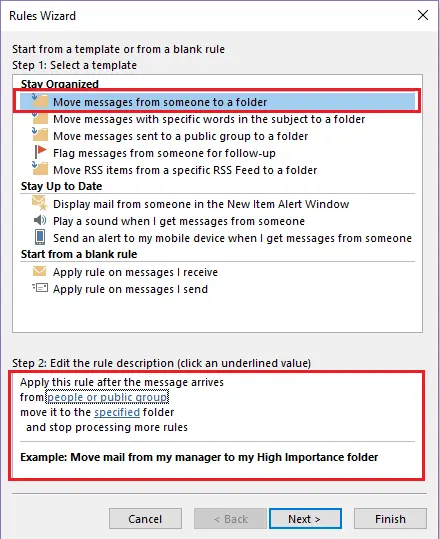
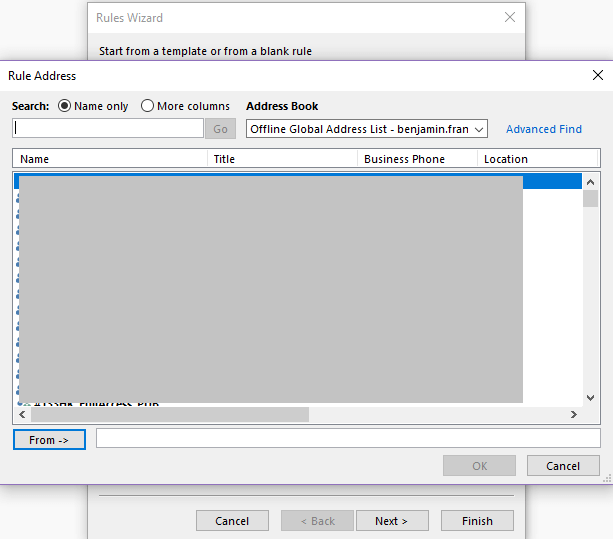
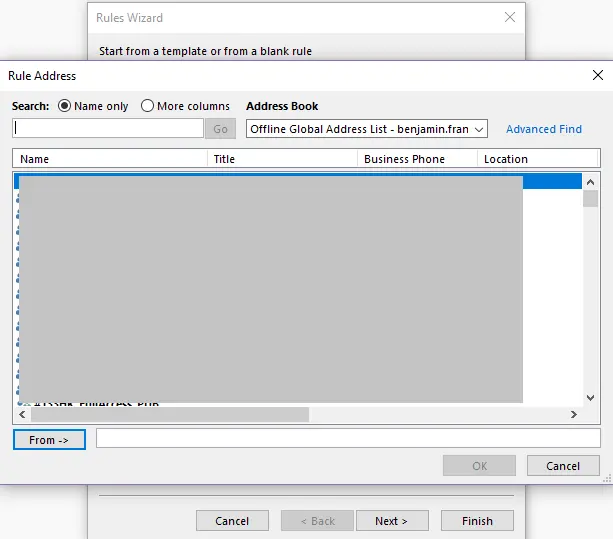
To automatically move messages coming from a particular email address, the email address needs to be stored in your address book.
Find out how to transfer address information to your Outlook address book in this article about importing Outlook contacts.
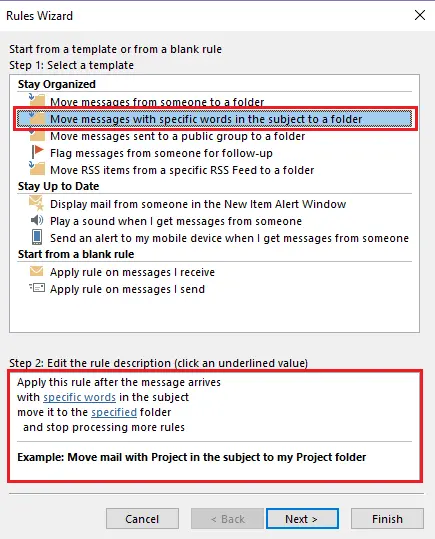
Move messages with certain words in the subject to a folder
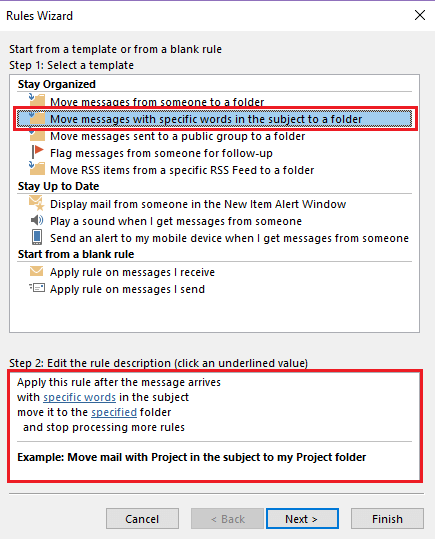
Use this template to create an Outlook rule that automatically moves messages with certain keywords in the subject to a destination folder.
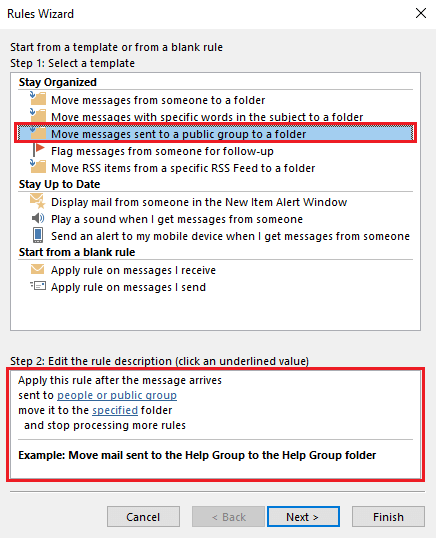
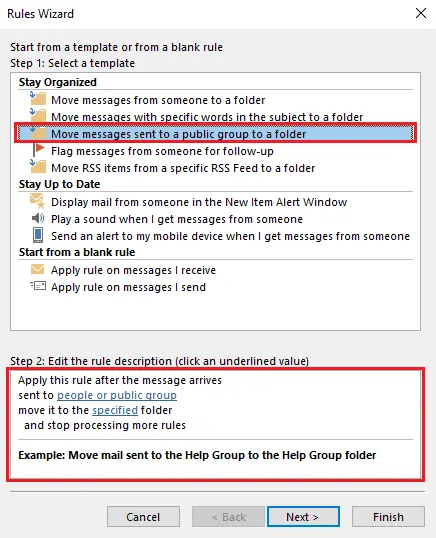
Move messages sent to a public group to a folder
Select this rule template to automatically move messages addressed to one of your public groups to a folder in your mailbox.
Mark messages from a specific person for tracking
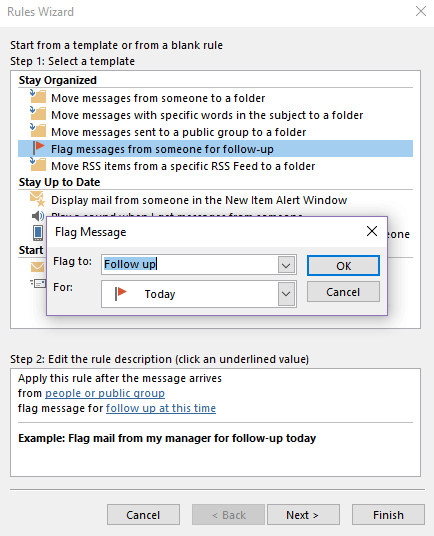
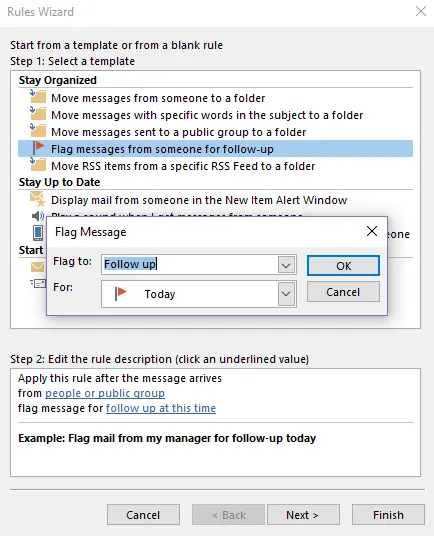
This inbox rule ensures that messages sent by a person or group you specify are automatically flagged for tracking.
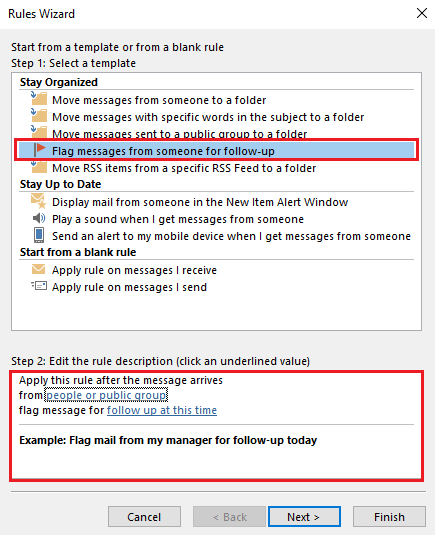
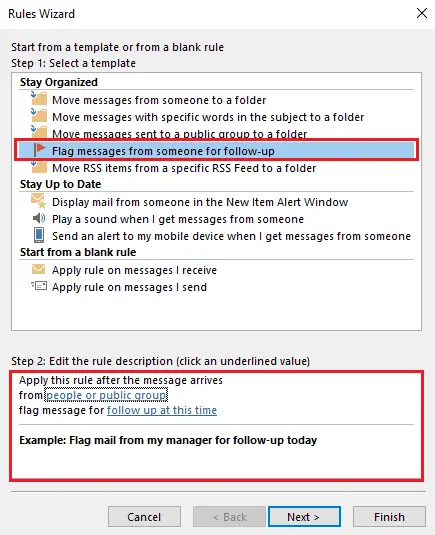
Emails that you have flagged for tracking will appear in your task overview.
The tracking feature is useful for being reminded of messages that you want to reply to at a later time.
Move RSS items from a specific RSS feed to a folder
Use this rule template to sort RSS feeds you’ve subscribed to. Elements of the selected RSS feed are automatically moved to a destination folder of your choice.
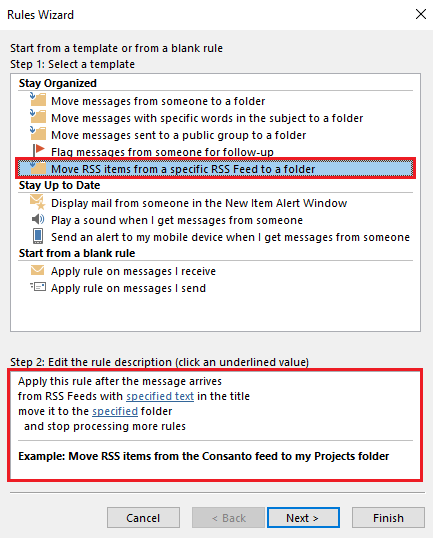
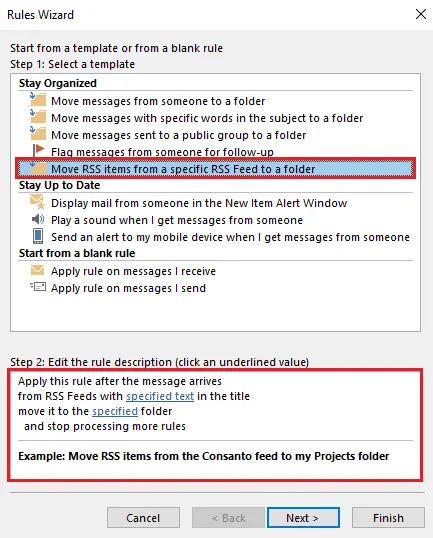
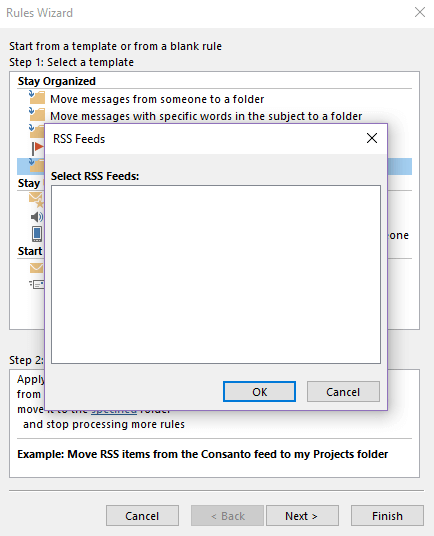
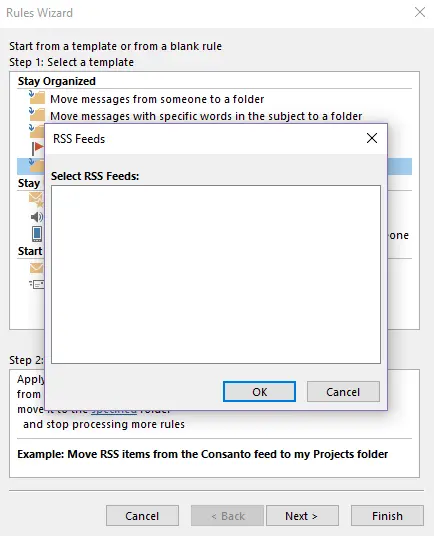
If you’ve subscribed to RSS feeds, the titles of those feeds will be displayed in the RSS Feeds dialog box.
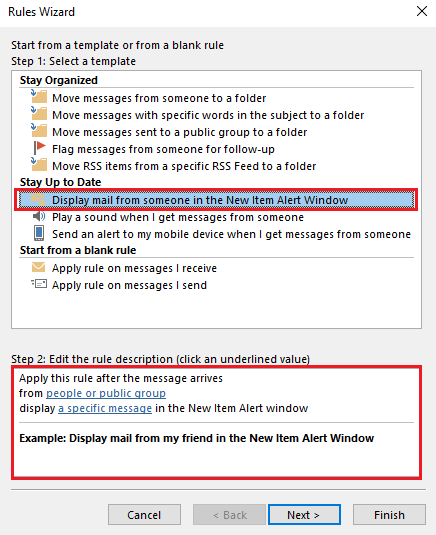
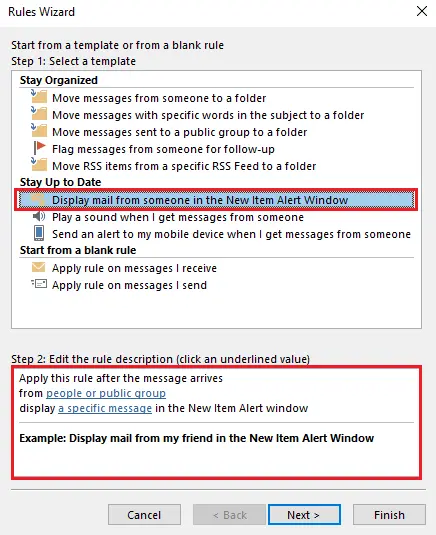
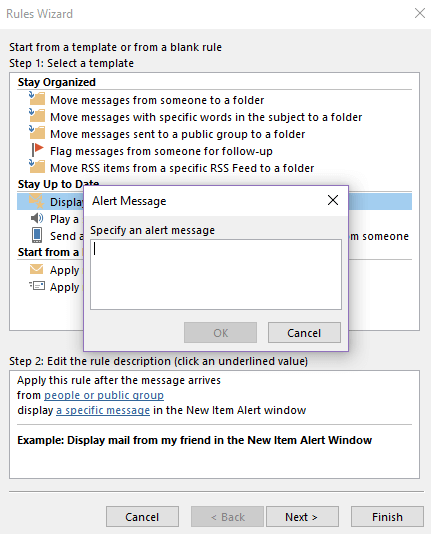
Viewing a message from a specific person in the New Item Alert window
Use this rule template to define text that should be displayed in the New Item Alert window when messages from a specific sender are received.
Play a sound when messages from a specific person are received
You can use this rule template to play different beeps when you receive messages from different people.
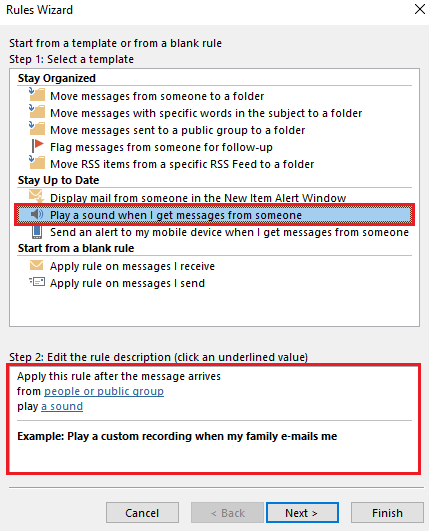
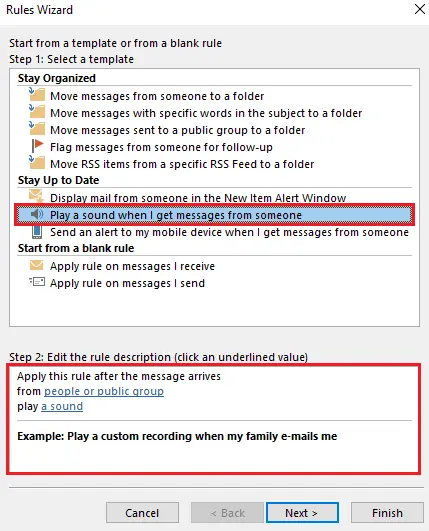
Specify a person or group of people from your Outlook address book and assign a sound file to them on your hard disk. In the Windows media files, you’ll find a range of signal tones for email notifications. Alternatively, you also have the option of using your own audio files.
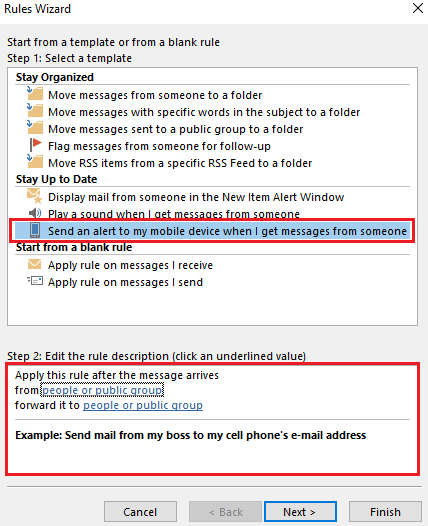
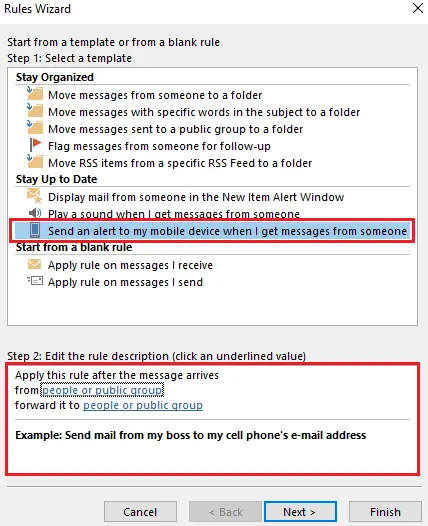
Send an alert to my mobile device when I receive messages from a specific person
With this rule template, you can keep track of your inbox on the go. Receive email alerts from selected contacts via a mobile device.
How to edit an Outlook rule
You can also edit existing Outlook rules in the Rules and Alerts dialog box. Follow the steps below:
Step 1: Select the Outlook rule that you want to edit.
Step 2: Click on Change rule and select Edit rule settings … in the context menu. Outlook will then open the selected email in the Rules Wizard.
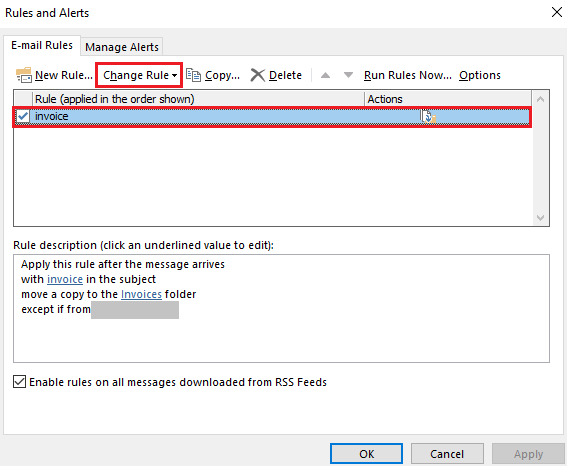
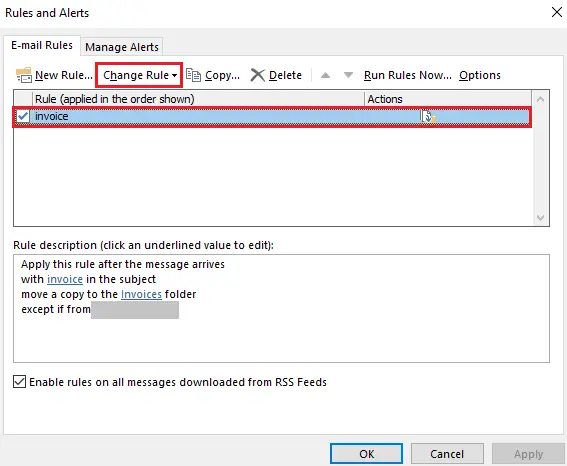
Step 3: Modify the Outlook rule in the Rules Wizard. Similar to creating a new rule, you can add conditions or exceptions. You can also edit the rule description too.
Step 4: Confirm the adjustments by clicking on OK.
Then close the Rules and Alerts dialog box by clicking Apply.
If you want to delete an Outlook rule you have created, mark it and then click Delete. The rule is deleted as soon as you have accepted the changes in the Rules and Alerts dialog box.
Find more useful tips for Outlook in other articles in our Digital Guide. For example, you can learn how to set Outlook as your default mail client, add a new account to Outlook, add an Outlook mailbox or share your Outlook calendar and appointments.
- Fast drag and drop editing
- AI-powered text generation
- Seamless syncing with IONOS eCommerce
Reviewer

Jeanna Raffa
With over 18 years of experience in online marketing, Jeanna Raffa possesses extensive expertise in digital marketing. Since 2020, her focus has been on providing practical information regarding email, office, and cloud storage solutions.