

WordPress table plugins: 6 solutions for your website

With WordPress tables plugins you can add tables on WordPress sites. Examples of these plugins include TablePress, Ninja Tables Pro, wpDataTables, WP Table Builder, Visualizer, and the Data Tables Generator, some of which are free and some of which are fee-based. Simple tables can be included on a WordPress site without using a plugin thanks to the Gutenberg editor.
- Free website protection with SSL Wildcard included
- Free private registration for greater privacy
- Free Domain Connect for easy DNS setup
Why should you use a table plugin?
Using a WordPress plugin to create tables makes sense as soon as you have content that you want to display in a sorted or juxtaposed way. Although it is also possible to insert tables on WordPress without a plugin, this endeavour is very limited in terms of design. With the help of a table plugin, you can create visually appealing tables and can also make use of additional features, such as add-ons, filters, and import/export functions.
Setting up your own website isn’t difficult: With Hosting for WordPress from IONOS you can create an individual website in just a few steps — it also includes a professional email address, SSL wildcard certificate, and your own domain.
An overview of the WordPress table plugins
| Plugin | Provider | WordPress version | No. of installations | Price |
| TablePress | Tobias Bäthge | 5.6 or higher | 800,000+ | Free |
| Ninja Tables Pro | WPManageNinja LLC | 4.5 or higher | 70,000+ | Free version & pricing models from around £40 annually |
| wpDataTables | TMS-Plugins | 4.0 or higher | 60,000+ | Free version & pricing models from around £45 annually |
| WP Table Builder | WP Table Builder | 4.9 or higher | 50,000+ | Free version & pricing models from around £30 annually |
| Visualizer | ThemeIsle | 3.5 or higher | 40,000+ | Free version & pricing models from 99€ (around £85) annually |
| Data Tables Generator | Supsystic | Compatible up to 5.9.3 | 30,000+ | Free version & pricing models from round £35 annually |
TablePress
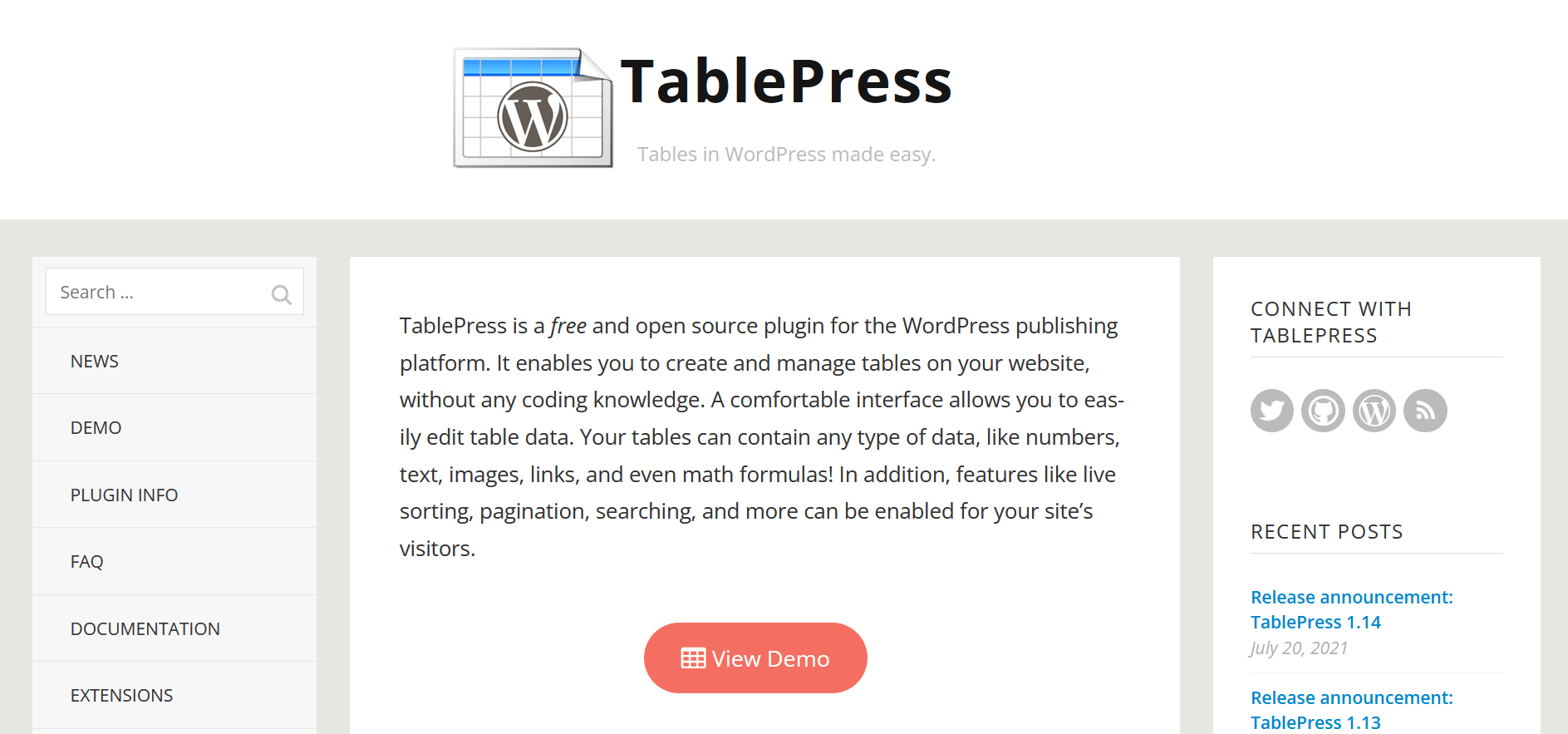
The table plugin TablePress is an internationally popular tool that enables the user to add and edit tables on a WordPress website. The table can be inserted via shortcode, while the editing takes place on a separate interface. This means that no programming knowledge is required.
If you decide to use TablePress, you will need at least WordPress version 5.6. The plugin is free and has the following additional features, among others:
- Content such as text, images, numbers, links, and formulas can be inserted
- JavaScript library meaning users can search, filter, sort etc. content — TablePress example table for illustration purposes
- (Bulk) import and (bulk) export of tables
- Design changes e.g. colour and size are possible via CSS code
- Preview of table available
| Advantages | Disadvantages |
| ✓ Simple table creation without programming knowledge | ✗ CSS coding is needed for colour and size changes |
| ✓ Positive reviews & over 800,000 active installations | ✗ Not suitable for too large data volumes |
| ✓ Active support help | ✗ Only limited design options |
| ✓ Many additional features like JavaScript library and import/export |
Ninja Tables Pro
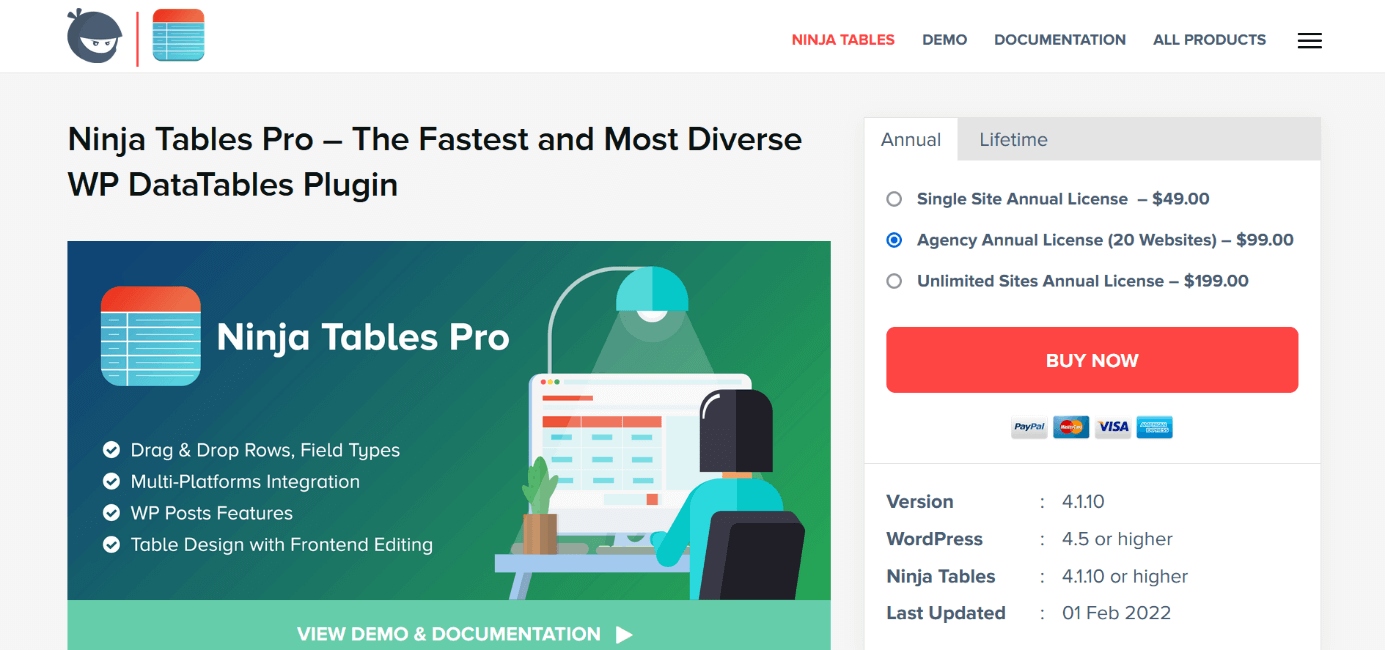

The WordPress tables plugin Ninja Tables Pro is one of the most popular products from the provider WPManageNinja. Advanced customisation features, filtering options, and a user-friendly layout are just a few of the things that make the plugin stand out. WooCommerce and Google Sheets can be linked to Ninja Tables Pro. This way, for example, products can be clearly presented in your own online shop.
Besides the Pro version of Ninja Tables, there is also a free version that you can download on WordPress. However, this plugin has significantly fewer features. In contrast, Ninja Tables Pro’s single-site offer costs around £40 per year, but offers numerous additional features like these:
- Media files (photos and videos) attachment
- Cell connection
- Extensive table design, including colour customisation — for comparison, see the sample tables from Ninja Tables
- Import and export (also in the free version)
- Custom CSS & SQL
| Advantages | Disadvantages |
| ✓ Numerous customisation features | ✗ Pro version costs around £49 per year or around £160 for lifetime use (for one website) |
| ✓ Media attachments (images and videos) possible | ✗ Free plugin version with very limited functionality |
| ✓ WooCommerce and Google Sheets integration | ✗ Support speed often criticised |
| ✓ Export and import |
wpDataTables


wpDataTables is a WordPress plugin that allows you to create tables and charts. The showcase page on the official website shows the various options available to you in terms of design. From schedules to price tables, everything is possible. Other plus points of the plugin are, for example, its responsive design and the transformation of data from Excel, CSV, etc. into table format.
The basic version of wpDataTables costs around £45 per year and £150 for lifetime use. There’s a free plugin variant, but it is only suitable for simple tables. Additional functions that wpDataTables offers, for example, include:
- Advanced filter functions
- Formidable and Gravity form add-ons
- Integration with Elementor, Gutenberg, and more
- Various column types can be configured
- Inline table editing
- Create and edit charts
| Advantages | Disadvantages |
| ✓ Many design options for diverse purposes | ✗ Basic version costs £45 per year or £150 for lifetime use (for one domain) |
| ✓ Turn Excel files and other data into tables | ✗ Free variant only suitable for simple tables |
| ✓ Integrations and add-ons | |
| ✓ Create and edit diagrams |

WP Table Builder
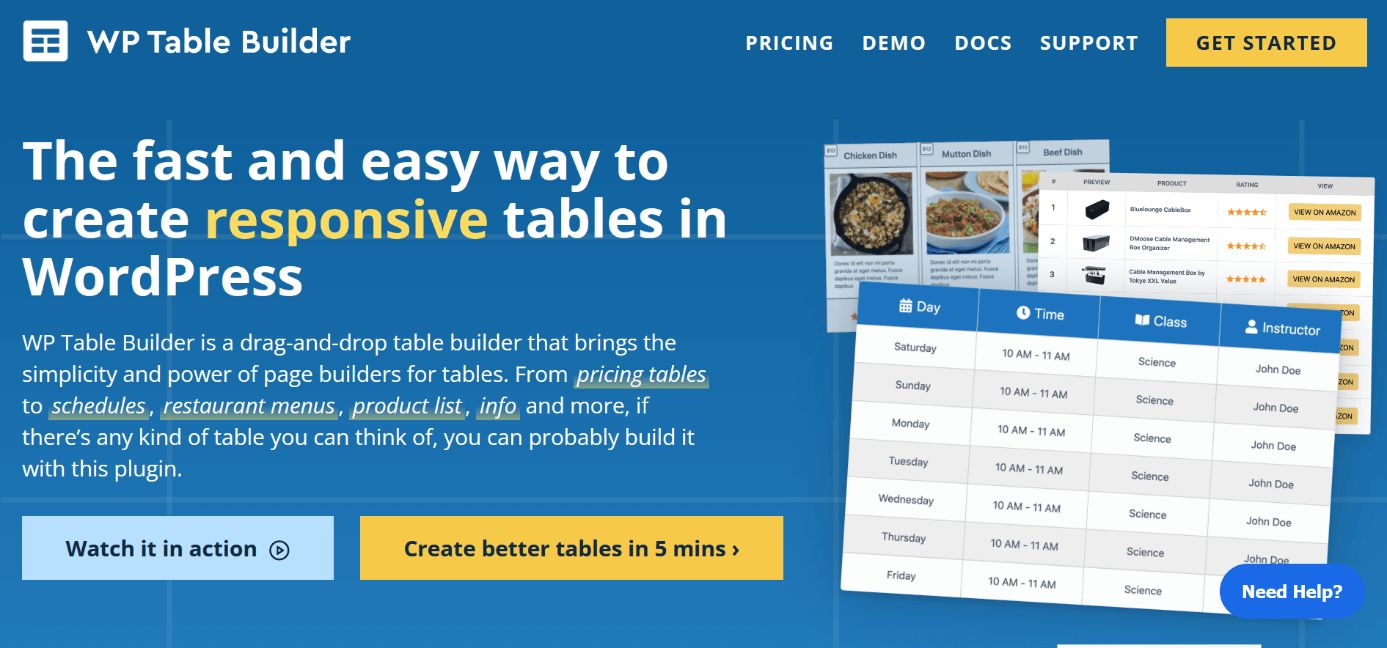

The WordPress table plugin WP Table Builder provides you with a tool to create tables and place them on the website using drag-and-drop. As with other plugins of this kind, no manual programming is required. The creation process is simple and is explained in detail on the website in a how-to video. Simply click on the ‘Watch it in action’ button.
WP Table Builder has a free version that has the most important features like inserting images as well as cell design. If that is not enough, you can use the starter offer for one website. This costs around £30 per year and boasts the following additional functions, for example:
- Arrange/organise with drag-and-drop
- Predefined templates
- Duplicate/split columns and rows
- Various frame colours
- Priority support
| Advantages | Disadvantages |
| ✓ Drag-and-drop interface | ✗ Starter offer costs around £30 per year |
| ✓ Simple creation process | ✗ Many features not included in free version |
| ✓ Good selection of insertable content | |
| ✓ Cell design and even more |
Visualizer


If you use the plugin Visualizer from the software developer ThemeIsle, you can construct not only individual tables, but also relatively diverse charts. A great advantage is the fact that you can automatically synchronise with online files (e.g. from Google Sheets), which ensures that your content stays in the same state. You can choose how often this process should take place.
The free variant of Visualizer has a clear selection of table and chart options. If you want access to a wider range — especially in terms of graphics — you will have to purchase the paid version, as is the case with other plugins. The private offer for website owners and bloggers costs around £85 per year and includes the following:
- Design various diagram types — for comparison see the Visualizer demo page
- Live editor and option to preview tables
- Cross-browser compatibility
- Data import and synchronisation
- (Email) support and updates for one year
| Advantages | Disadvantages |
| ✓ Diagrams possible as well as tables | ✗ Private offer costs £85 per year |
| ✓ Import and synchronise data | |
| ✓ Live editor & preview option | |
| ✓ Free version offers a lot |
Data Tables Generator
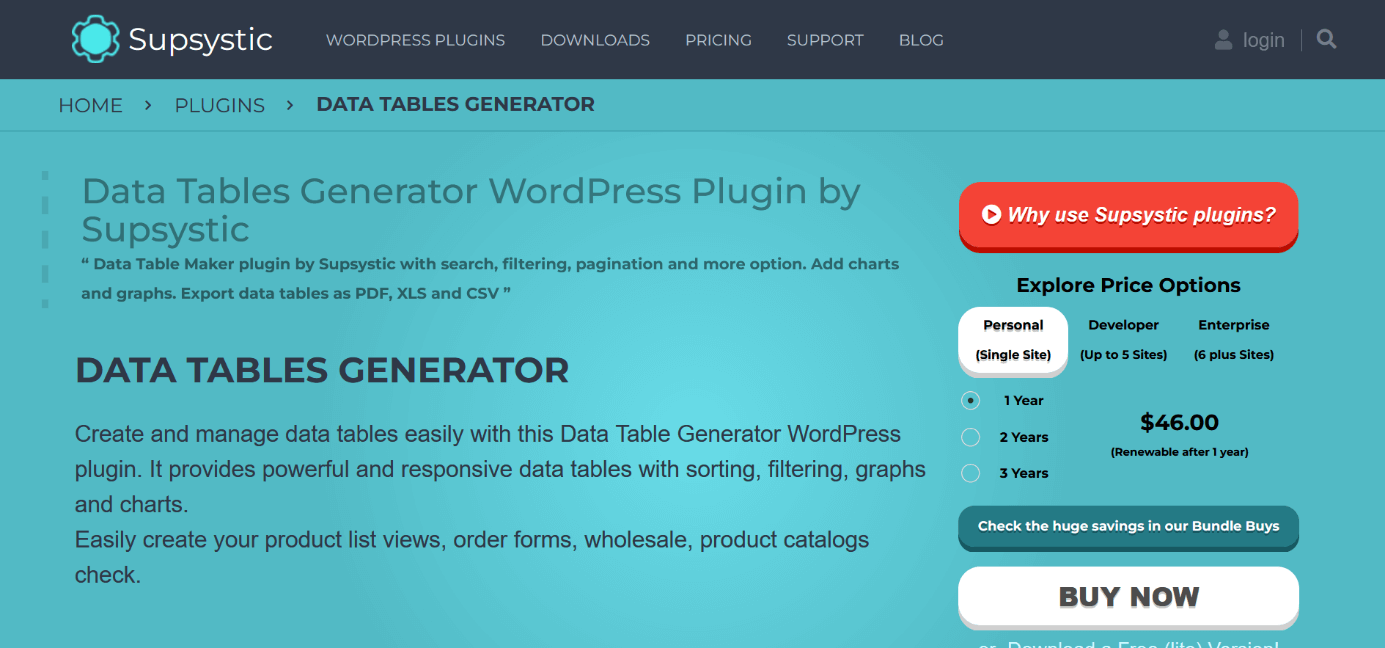
The Data Tables Generator by Supsystic is a WordPress table plugin that enables you to create data tables. The provider also has a ‘Pricing Table Builder’ plugin on offer, which is specifically for pricing tables. Create unlimited table rows and columns, add content like texts, images, etc., use the CSS editor and much more. You can get a good first impression from the plugin’s introduction page by looking at the sample table and video tutorial.
The free version of Data Tables Generator comes with a wide range of features, including those already mentioned above. If that is not enough, you can take advantage of the package that costs around £35 per year and benefit from the following additional features, among others:
- Import and export tables
- Create diagrams
- Print button
- Edit and save fields
- Specify who can edit tables, for example
| Advantages | Disadvantages |
| ✓ Extensive free version | ✗ Private offer costs around £35 per year |
| ✓ Unlimited rows and columns | ✗ Some features only available in paid version — e.g. import and export |
| ✓ Various contents can be inserted into cells | |
| ✓ CSS editor and lots more |
Are you looking for a suitable domain extension for your website? If you register your own domain with IONOS, you will have a wide range to choose from. In addition, you can benefit from various advantages such as an SSL wildcard certificate, domain lock, and 24/7 customer service.
Insert table with plugin: Example TablePress
To create WordPress tables using a plugin, follow these steps:
- Log into WordPress to access the dashboard of your WordPress website. In the left sidebar, first click ‘Plugins’ and then ‘Install’.
- You will now be shown a list of various plugins. Enter the tool you are looking for — e.g. TablePress — in the search bar at the top right.
- Select ‘Install’ and then ‘Activate’ to add the plugin to your website tools. It can be found in the left column of the next page.
- When it comes to TablePress, the option ‘New table’ will be available. The table can be titled and captioned as well as customised in terms of columns and rows.
- Click on ‘Add table’. Your table will now be displayed under ‘Table contents’ and can be filled with the desired contents. Under ‘Edit functions’ and ‘Table settings’, you can make any further adjustments.
- Save your result at the very bottom with ‘Save changes’. Then copy the shortcode of your table named at the very top: [table id=1 /]
- Next, go to the WordPress page where you want to place your table. In the appropriate place, type /shortcode and in the new search bar, enter your previously copied table shortcode.
- Last but not least, click on ‘Publish’ and ‘View post’. Your created table is now visible online.
- Stress-free, no matter your skill level with easy AI tools
- Full customisation with themes and plugins
- Hassle-free updates and less admin
Insert table without plugin: WordPress Gutenberg
It is also possible to insert tables on a WordPress site without using a plugin. The solution is: WordPress Gutenberg. With this editor (which replaced the former standard editor TinyMCE as of WordPress version 5.0), you can insert tables in the form of content blocks. To do this, proceed as follows:
- Open your WordPress site and click on the area where you want to place the table.
- Select the black icon with the plus sign. A new window will open where you can search for the table block. Alternatively, it is possible to enter the following shortcode in a new block directly on the page: /table
- Now set the number of rows and columns that you want your table to have. There are also various customisation options available in the toolbar and the right editor sidebar.
- While creating the table, you can fill it with the desired content, or alternatively wait until it’s fully completed. Click on ‘Publish’ or ‘Update’ to put your table online.
Table plugins are just one of many practical plugin variations with which you can optimise your WordPress website. Also recommended are, for example:
- WordPress social media plugins
But beware: if you use too many plugins, your website performance may suffer. Fortunately, there are various tools that can be used to make WordPress faster.
The WordPress table plugins we’ve introduced here are handy tools that you can use to increase the clarity and user-friendliness of your website. Do you have an online store? List your items with appealing product pictures and all-important info in a structured way. Do you have events planned? Inform users about times, locations, and ticket prices. Even simple tables can make a big impact.