

How can you change a WordPress URL? Three methods

If you’re moving a WordPress installation to a new domain or transferring it to a different directory, you’ll need to update the WordPress URL. Below, we show you three easy ways to do this.
Ask, create and research with the European alternative to ChatGPT. Robust security and unlimited chats give you peace of mind.
What’s the difference between a WordPress address and a website address?
WordPress uses two different URLs: the WordPress address and the website address:
- The WordPress address is the URL where the WordPress installation and core files are stored.
- The website address is the URL visitors use to access the website.
In most standard installations, both addresses are the same. However, they may differ if the WordPress files are stored in a subdirectory while the website remains accessible through the main domain.
When should you change a WordPress URL?
Although it’s best to choose a URL that you can use long term, there are several situations where you may need to change your WordPress URL. The most common reasons include:
- You’re moving your WordPress website from a local server or test environment to a live site.
- You want to move the WordPress core files to a separate subdirectory while keeping the website accessible via the main domain.
- You’re carrying out a WordPress domain move.
- You’ve obtained an SSL certificate and are switching your website to HTTPS.
If you’re moving a WordPress domain or switching your website to HTTPS, it’s important to set up redirects in WordPress so that visitors are automatically forwarded from old URLs to the new ones.
For a complete domain change, you should also update any old URL references stored in the database, including those in posts, pages, media paths and internal links. Plugins such as Better Search Replace or WP-CLI with wp search-replace can be used for this. Afterwards, go to ‘Settings’ → ‘Permalinks’ and save the existing permalink structure again without making any changes. This refreshes the rewrite rules.
Finally, clear any existing caches, for example in your WordPress caching plugin, with your hosting provider or in the CDN, so that outdated content or redirects are no longer served.


How to change a WordPress URL
Below, we explain three different ways to change your WordPress URL.
Before making any changes, create a backup of your database and WordPress files. If anything goes wrong, you can restore the previous version by uploading the original files to the server and importing the database backup. The quickest way to create a backup is to use a suitable WordPress backup plugin.
Changing the WordPress site URL in the admin dashboard
The most common and easiest way to change your WordPress URL is through the admin dashboard. Go to ‘Settings’ → ‘General’. Here, you’ll find the fields for changing the WordPress address and the website address.
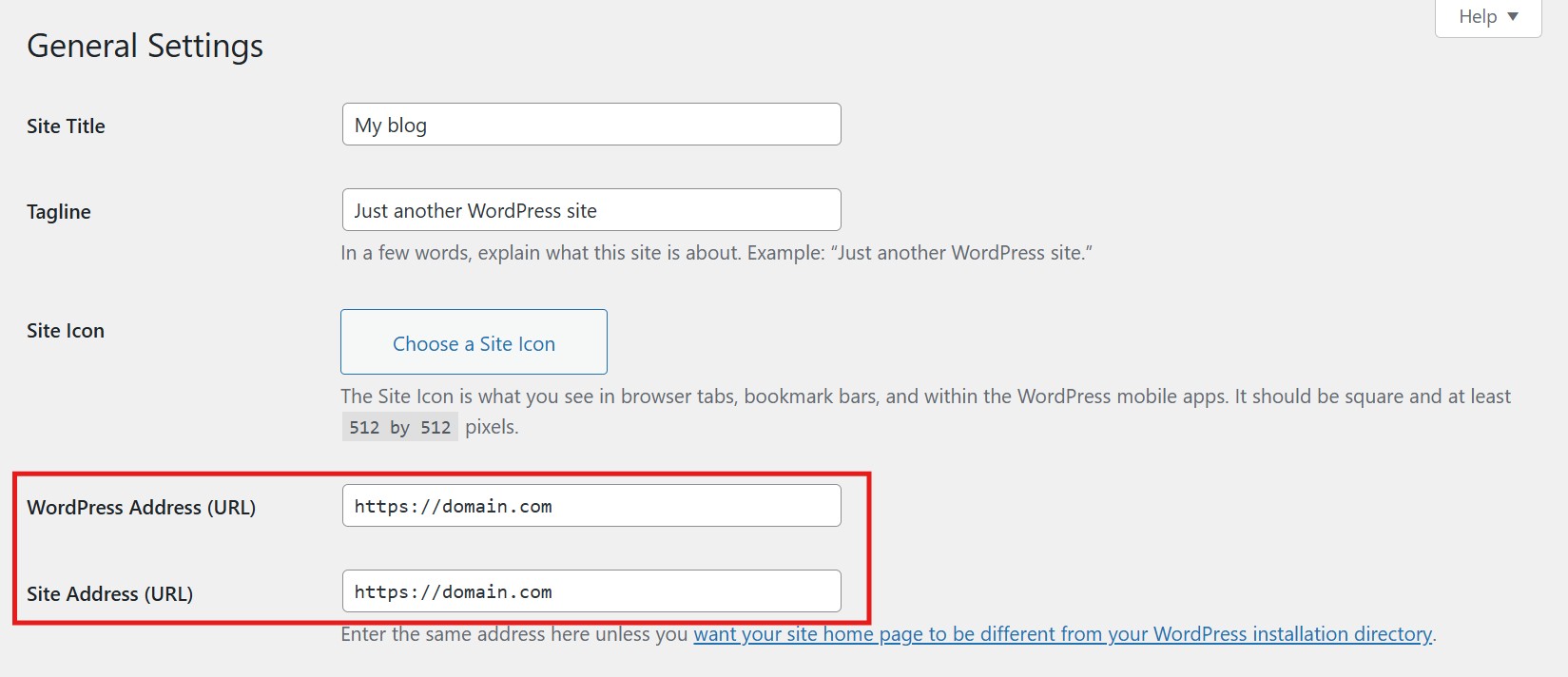
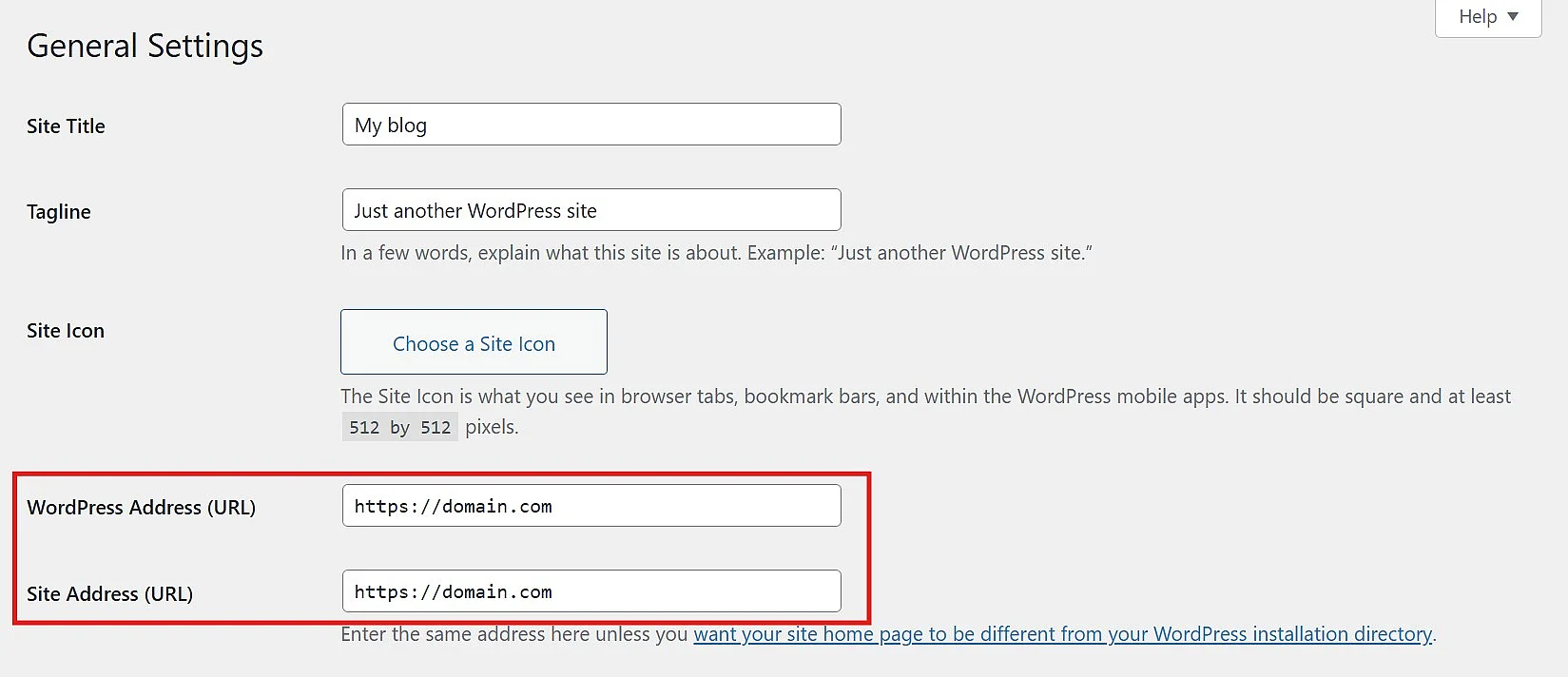
In most cases, both URLs are identical. If you want to move the WordPress installation to a different directory while keeping the website accessible at the same address, you only need to change the WordPress address. Once you click ‘Save’, the dashboard will be accessible under the new URL.
If you make a typo in the new URL and can no longer access the dashboard, you can correct the WordPress URL via the wp-config.php file.
Using wp-config.php to change WordPress URL
A second way to change your WordPress URL is via the wp-config.php file, located in the root directory of your WordPress installation. The easiest way to access this file is with an FTP client such as FileZilla. You can then edit the file using a text editor.
To change the WordPress URL, add the following code before the line /* That's all, stop editing! Happy publishing. */:
define('WP_HOME', 'https://www.new-domain.com');
define('WP_SITEURL', 'https://www.new-domain.com');If you define WP_HOME and WP_SITEURL in the wp-config.php file, these values override the settings in the WordPress dashboard. This is particularly useful if you entered an incorrect URL and can no longer access the dashboard. The corresponding URL fields will be greyed out and cannot be edited there. To make further changes, update the values directly in wp-config.php.
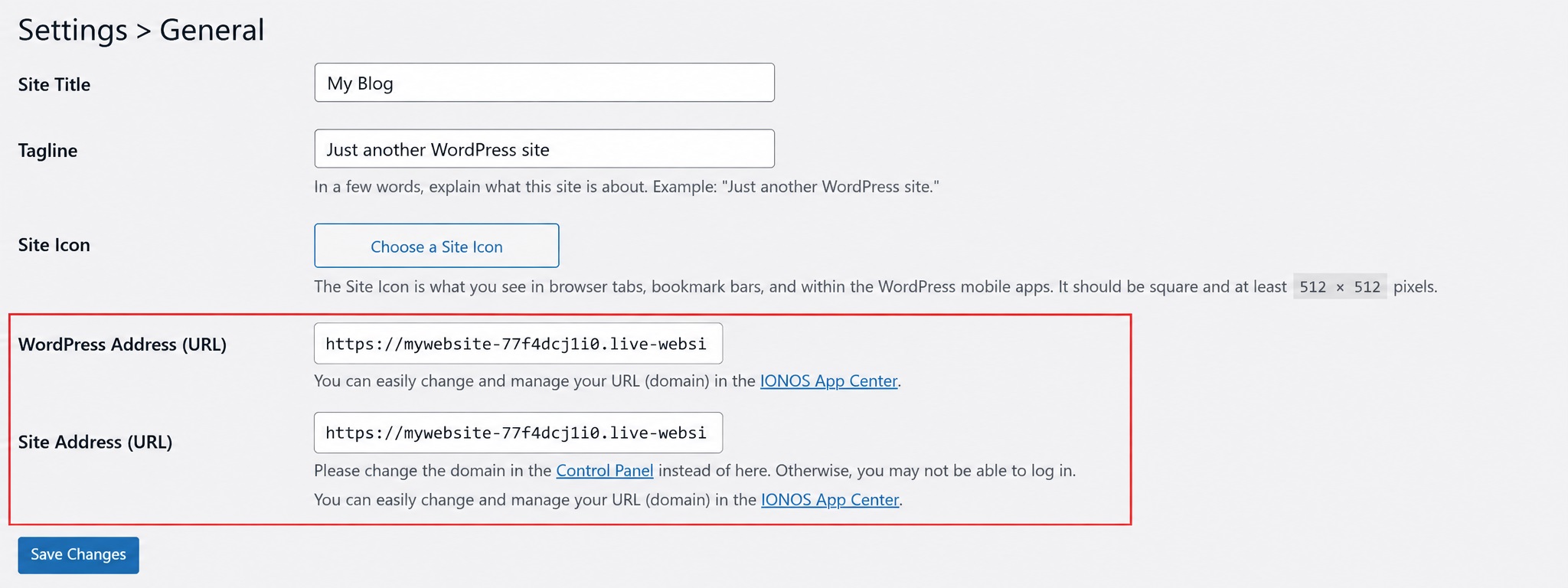
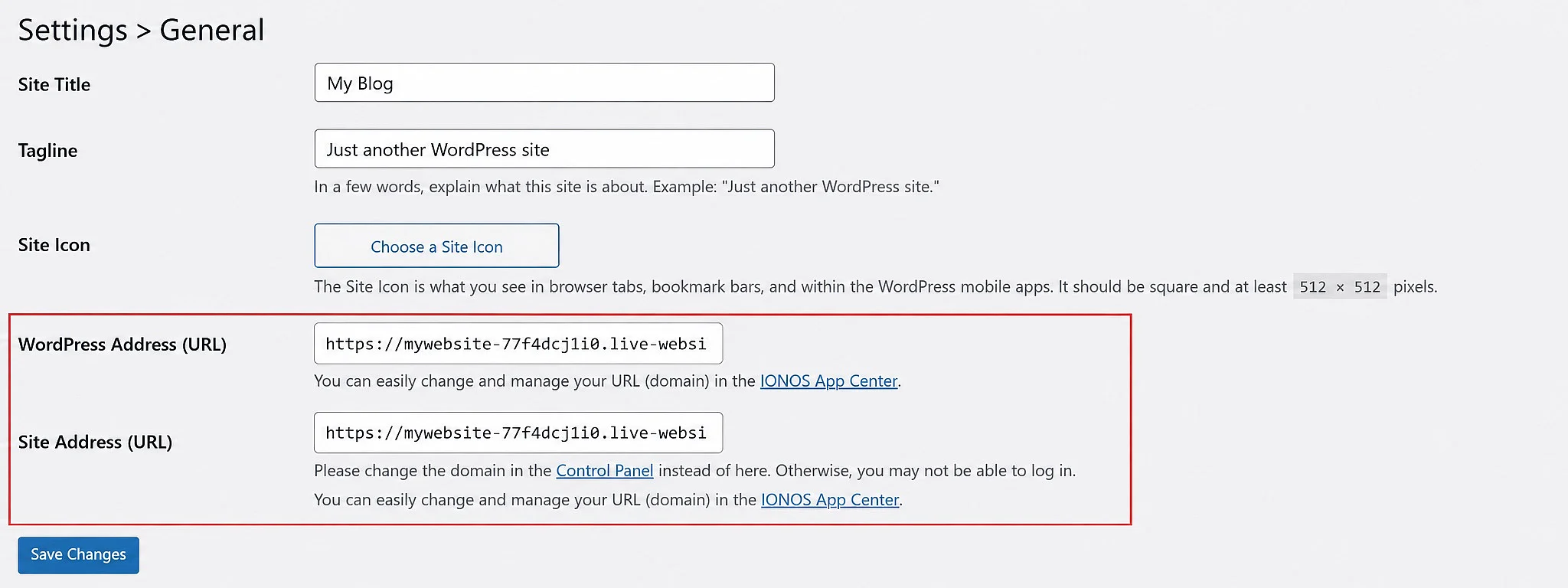
Important: The URL you enter must not end with a trailing slash (/).
Changing WordPress URL in the database
The third way to change your WordPress URL is directly in the database. To do this, log in to phpMyAdmin through your hosting provider. In the WordPress database, the relevant URL entries are stored in the wp_options table (the wp_ prefix may differ) under siteurl and home.
Click the current value in the option_value column for the relevant row (siteurl or home). An input field will open where you can enter the new URL.
Reviewers

Melissa Senn
Melissa Senn has been with IONOS since 2016 and focuses on website, e-commerce, social media, and AI in the Digital Guide. As a digital strategist, she uses her extensive SEO and GEO experience to transform complex technological trends into practical content.

Julia Hertler
With over 18 years of experience in content marketing, Julia Hertler has deep expertise in digital communications. For the past 10 years, she has specialised in the areas of domains and hosting at the IONOS Digital Guide, making complex technical topics easy to understand.