

How to create WooCommerce invoices with plugins

WooCommerce users can create and send invoices right in the WooCommerce backend. If you have the right plugin, you can even do away with external invoicing software. So how do you install an invoicing plugin and which extensions should you invest in? Keep reading to find out.
Why create invoices in WooCommerce?
In its default settings, WooCommerce only allows you to create order confirmations, not professional invoices. For creating proper invoices, you’ll need some external help, either in the form of invoicing software or a WooCommerce plugin. With a plugin, you can create invoices right in the WooCommerce backend, which comes with the following pros:
- All data stays within the system.
- You won’t need the interfaces necessary for invoicing software.
- Plugins are usually cheaper than external programs, helping you keep your WooCommerce costs to a minimum.
- Menu navigation is easy and well-integrated in WooCommerce, meaning the learning curve will be less steep.
Still looking for the right server environment for your WooCommerce project? Check out WooCommerce hosting by IONOS for a safe, fast, and optimised solution.
A step-by-step tutorial on how to create an invoice in WooCommerce
Below we will show you step by step how to create and send invoices in WooCommerce. We use the plugin ‘WooCommerce PDF Invoices & Packing Slips’ by WP Overnight, which offers a large number of features in its free version.
Step 1: Install plugin
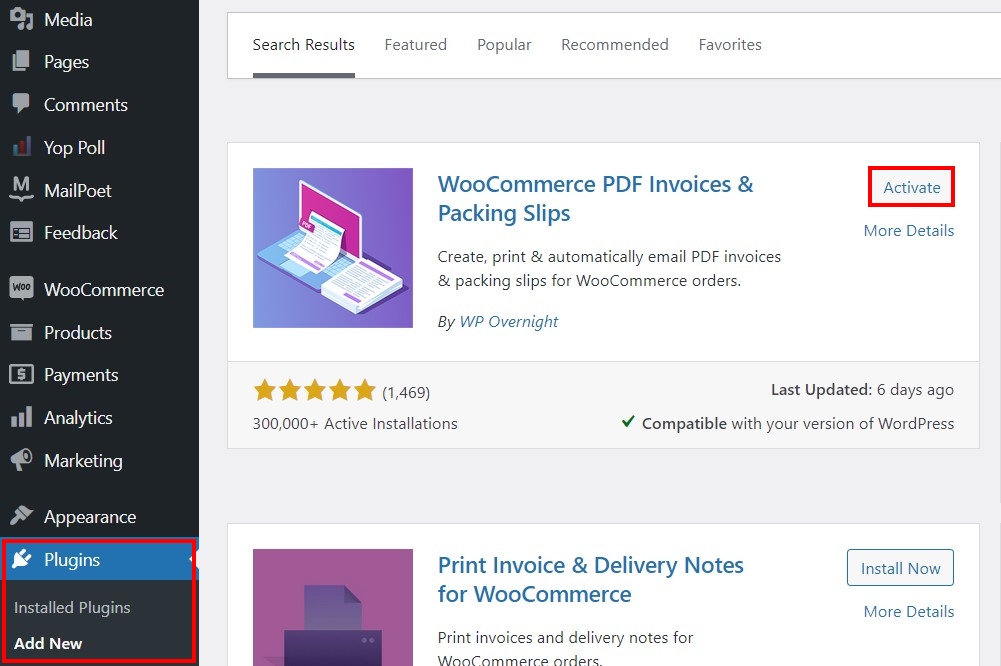
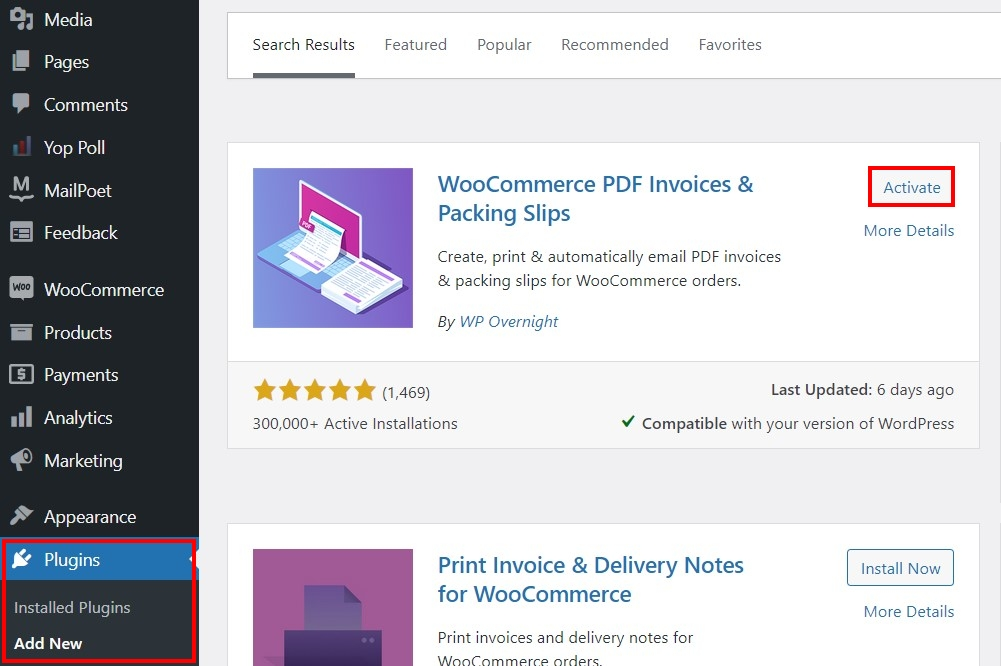
The first step is to log in, navigate to the WooCommerce backend, and install the plugin of your choice. To do this, go to the menu on the left and select ‘Plugins’ and then ‘Add New’.
You can click on ‘Upload plugin’ if you’ve already saved the installation file for the plugin on your device. Otherwise, use the search tool: Enter the name of the plugin you want to download, then once you’ve found the plugin click ‘Install now’. After the installation is finished, click on ‘Activate’ to turn the plugin on.
Step 2: Choose settings for WooCommerce invoice plugin
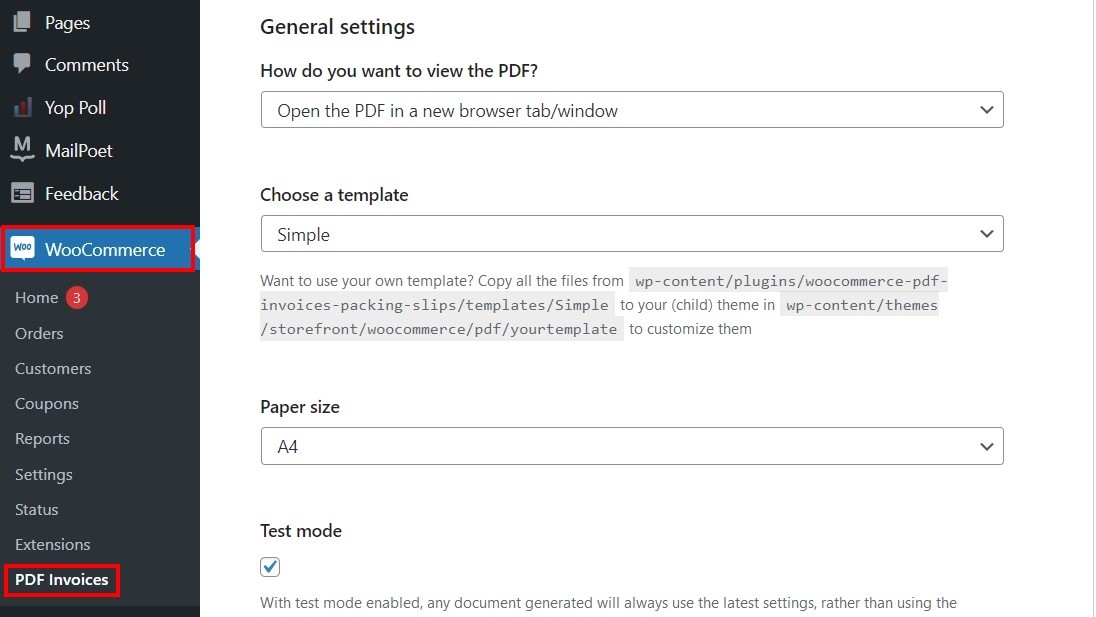
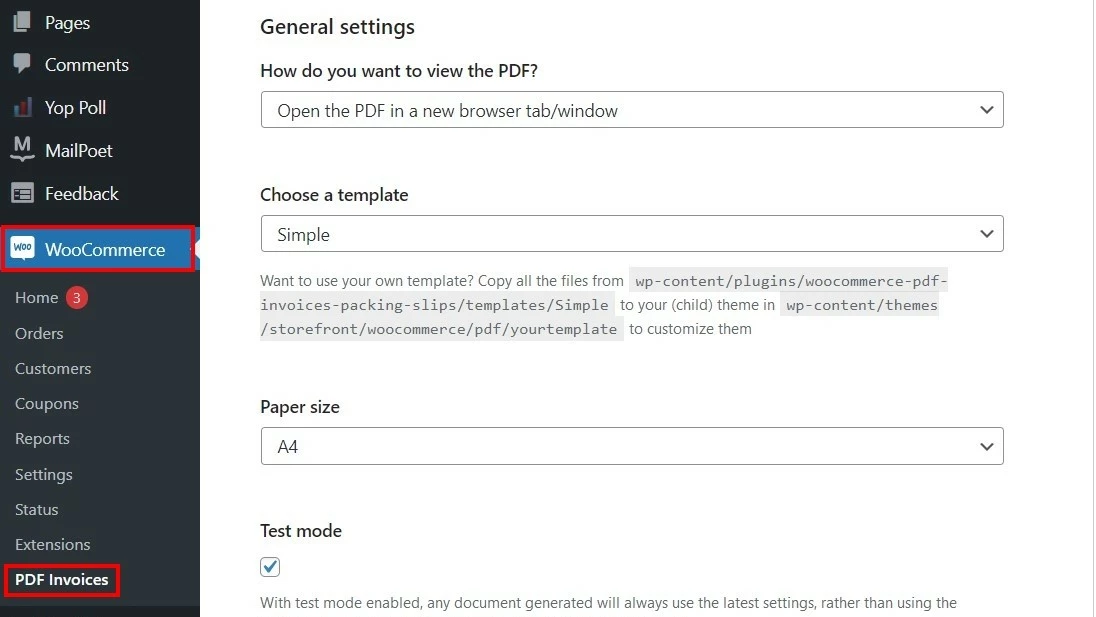
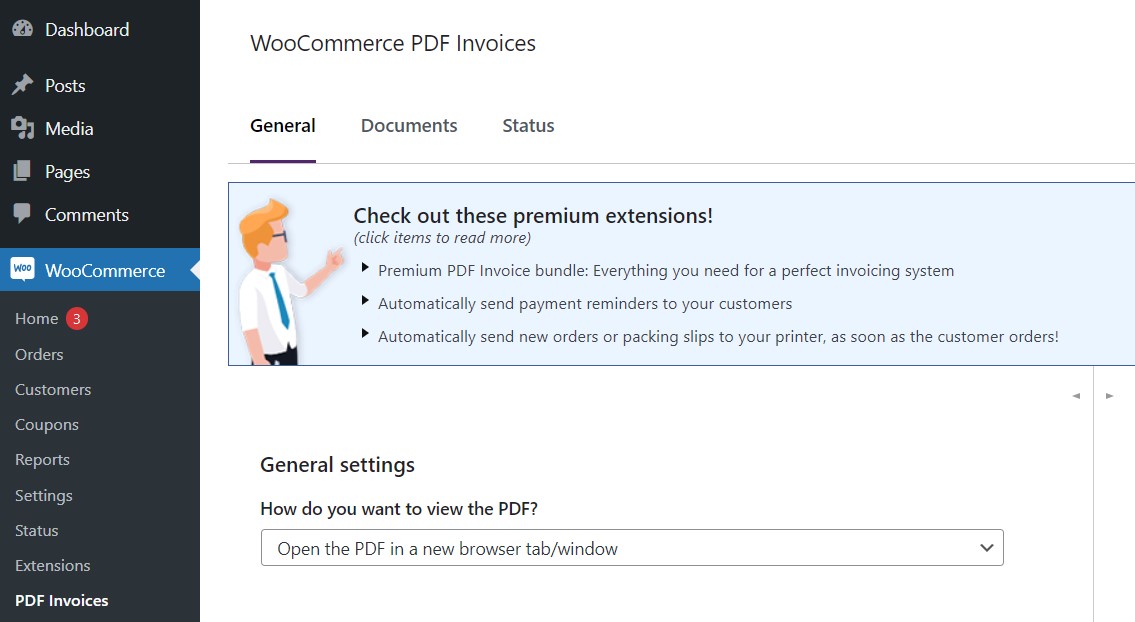
After you’ve installed the plugin, you can open it in the WooCommerce backend. Click on ‘WooCommerce’ in the menu on the left and choose ‘PDF Invoices’.
That will take you to the menu for general settings. The first setting to decide on is whether PDF invoices will be downloaded or opened in a new tab. You can also choose from different invoice templates, decide on a paper size, activate support for other currency symbols, and enable font subgroups in order to reduce the file size. You’ll want to activate test mode so that the latest settings are always used to create invoices.
Step 3: Design the store header for your WooCommerce invoices
The next step is to design the store header for your WooCommerce invoices. You’ll first want to insert your company’s logo using the ‘Set image’ button. Then enter the height of your logo in inches, cm or mm.
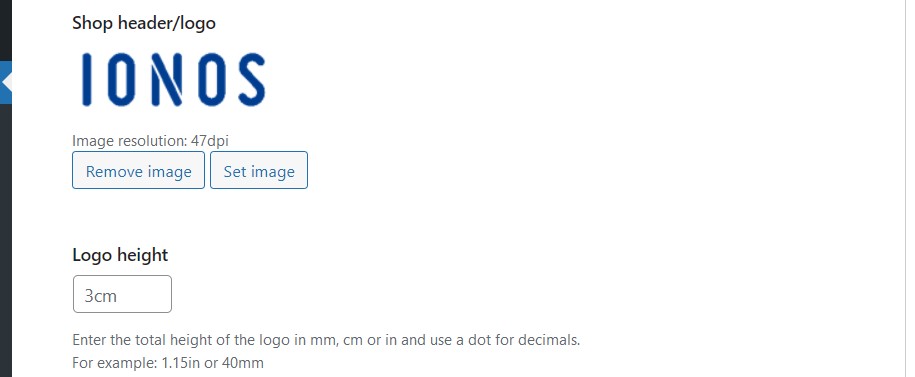

After you’ve uploaded your logo, enter the name and address of your store. Under ‘Footer’, you can enter any additional information like conditions of sale. The three additional optional fields are only available for premium users. They can be used to add additional columns to the footer. Once you’ve edited all the settings, click on ‘Save changes’.
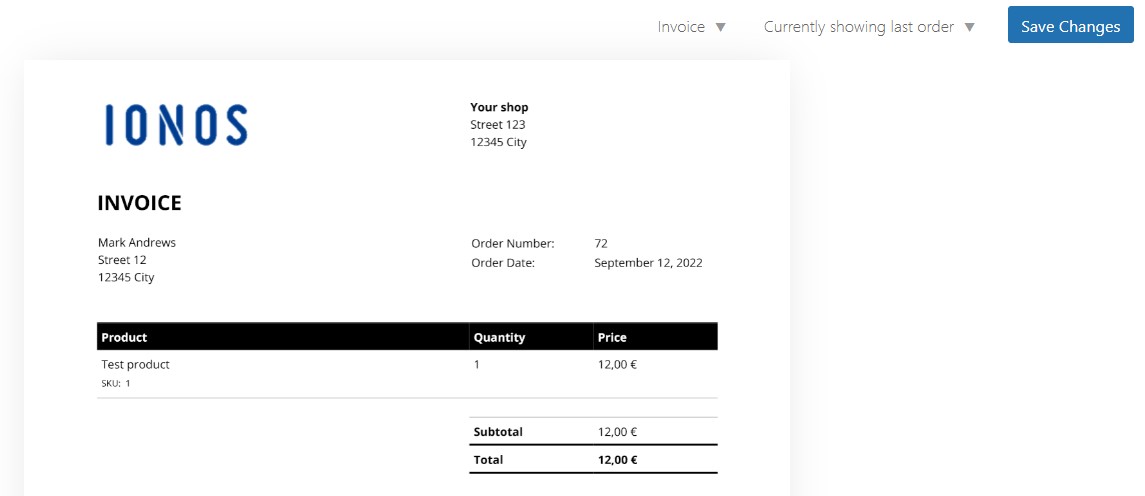
In the preview on the right next to the menu, you can see how your changes look on the page.
Step 4: Configure automated invoicing
The next step is to configure your settings so that your WooCommerce invoices are automatically created and sent. To do this, click on the ‘Documents’ tab and decide when the invoice should be sent (for example, right after the order is placed or when the order status changes to “completed”). You can also define what information appears on the invoice, including:
- Delivery address
- Email address
- Phone number
- Other information entered by the customer
- Invoice date
- Invoice number
Then, in the second part of the ‘Documents’ tab, you can define how the invoices are stored in your system, i.e. the invoice format. If you haven’t created a filter for your own format, you can create a prefix or suffix for the invoices. Then, if you want to restart the numbering for your WooCommerce invoices at the beginning of the year, put a check in the corresponding box.
Step 5: Manually create a WooCommerce invoice
Don’t want to automatically create and/or send your invoices? If you want to create invoices manually, follow these steps:
- In the WordPress backend, click on ‘WooCommerce’ in the menu on the left.
- Click on ‘Orders’.
- Choose the order that you want to create an invoice for.
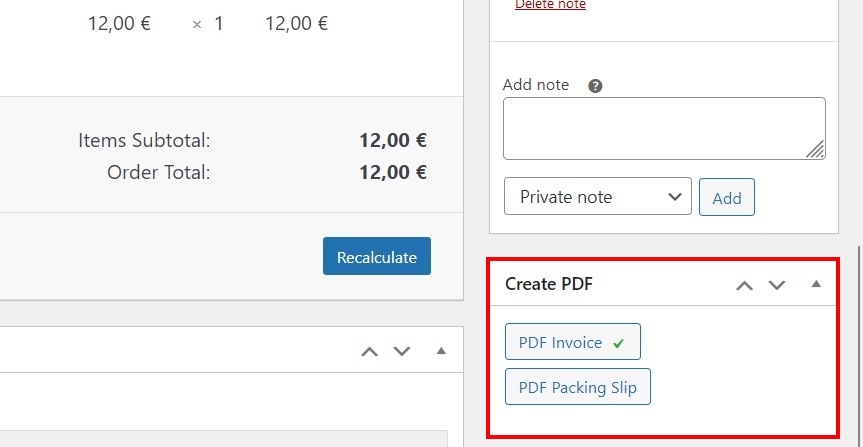
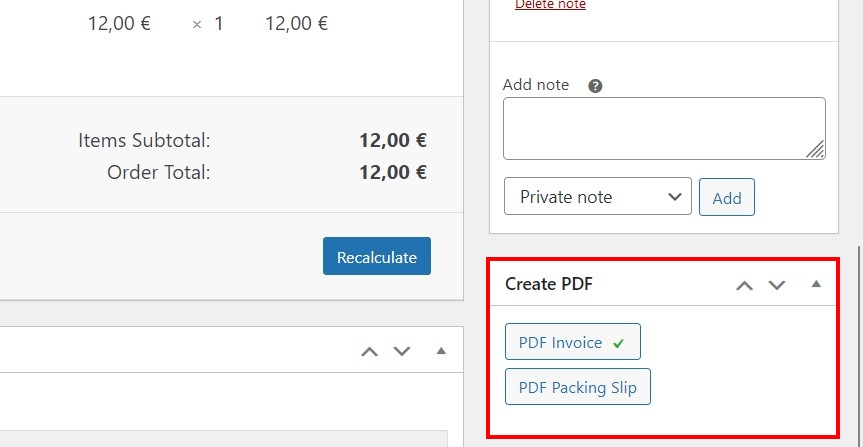
- Check the address and then in the ‘Create PDF’ menu click on ‘PDF invoice’.
- The invoice will open, and you can save and send the PDF.
Already have your WooCommerce store set up, but still looking for the right domain? Register your custom domain with IONOS. Then you can send out your next WooCommerce invoice from a professional email address!
The best WooCommerce invoice plugins
There are a variety of WooCommerce invoice plugins each offering a different range of features. Below we sum up four of the best options.
| Developer | Active installations | WP version | |
|---|---|---|---|
| WooCommerce PDF Invoices & Packing Slips | WP Overnight | 300,000+ | 3.5 or higher |
| Invoices for WooCommerce | Bas Elbers | 20,000+ | 4.0 or higher |
| WooCommerce PDF Invoices, Packing Slips, Delivery Notes and Shipping Labels | WebToffee | 40,000+ | 3.0.1 or higher |
| YITH WooCommerce PDF Invoice and Shipping List | Yith | n/a | 5.9 or higher |
Which features should a WooCommerce invoice plugin have?
The most important factors in deciding on a WooCommerce invoice plugin will be cost and range of features. To make writing invoices for your business as easy as possible, you should look out for the following features:
- Customisable invoice designs (including logo, header, footer)
- Automatically creating and sending invoices
- Generating consecutive invoice numbers
- Support for different currencies and languages
- Preview feature
- Individualised naming
Wondering what components should be in all of your invoices? Check out our article on writing a proper invoice, and then make sure that your chosen WooCommerce invoice plugin supports each of those components.
A quick guide to the four WooCommerce invoice plugins
What sets each of these plugins apart? Below we sum up the main features of each plugin and discuss their pros and cons.
WooCommerce PDF Invoices & Packing Slips
The plugin WooCommerce PDF Invoices & Packing Slips is available in a basic free version and in a paid premium version. The paid version includes features like export functionality and compatibility with Dropbox. The main features of this plugin include:
- Automatically add PDF invoices to WooCommerce emails
- Fully customisable invoices (PDF or HTML)
- Invoices can be downloaded and sent manually
- Customisable invoice numbering
- Available in over 18 languages
| Pros | Cons |
|---|---|
| ✓ Free basic version with a lot of features | ✗ Only one invoice template available in free version |
| ✓ Excellent support |
Invoices for WooCommerce
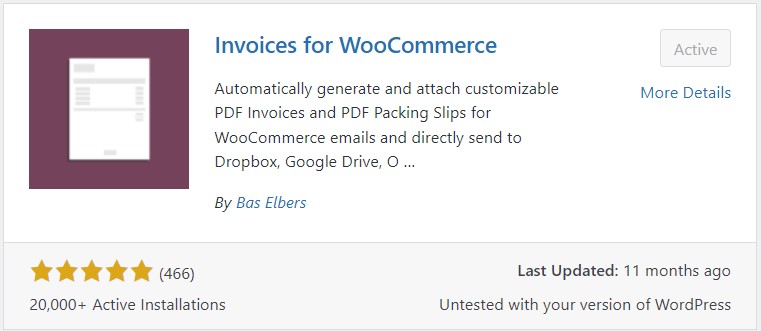
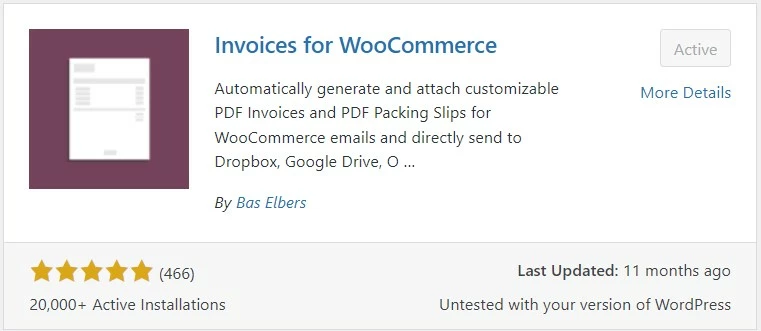
The open-source plugin Invoices for WooCommerce has two standard templates (‘micro’ and ‘minimal’) for WooCommerce invoices. After upgrading to the paid premium version, you can customise your invoices by, for example, changing the font and column format. Other features of this plugin include:
- Automatically adding PDF invoices to WooCommerce emails
- Downloading invoices
- Cloud storage option (Dropbox, OneDrive, Google Drive, or Egnyte)
- Customisable invoice numbering
- Integrated error search
| Pros | Cons |
|---|---|
| ✓ Free basic version | ✗ No preview feature |
| ✓ Many options for invoice numbering |
WooCommerce PDF Invoices, Packing Slips, Delivery Notes and Shipping Labels
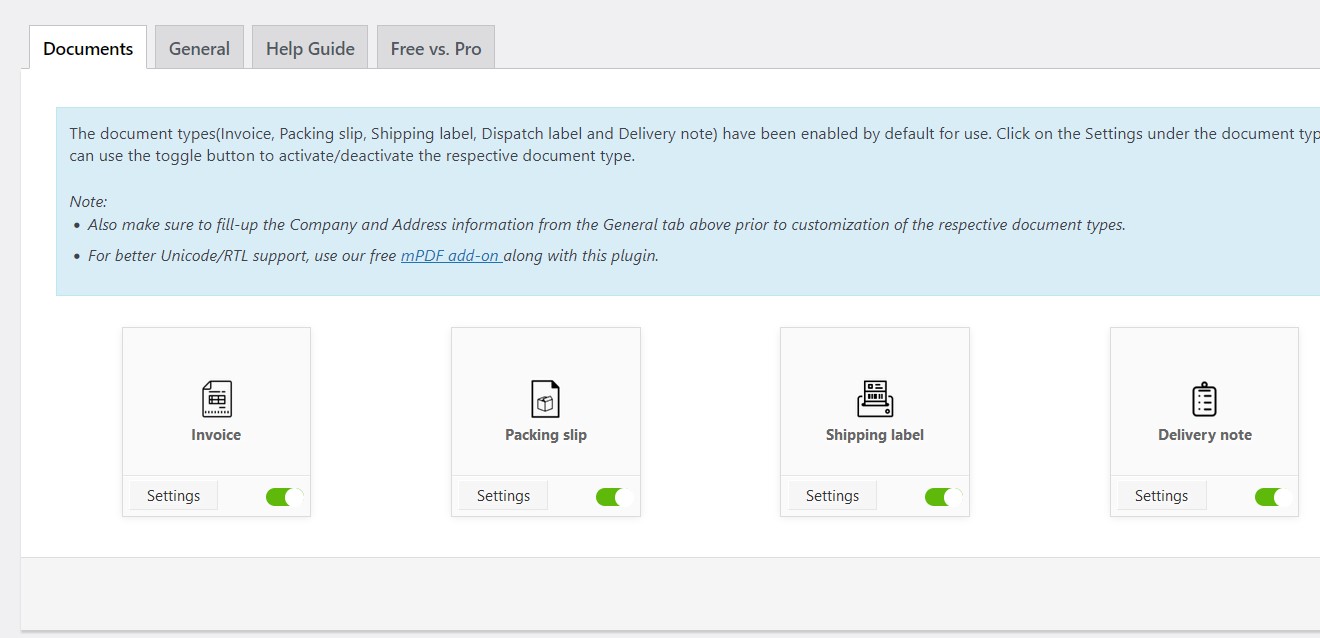
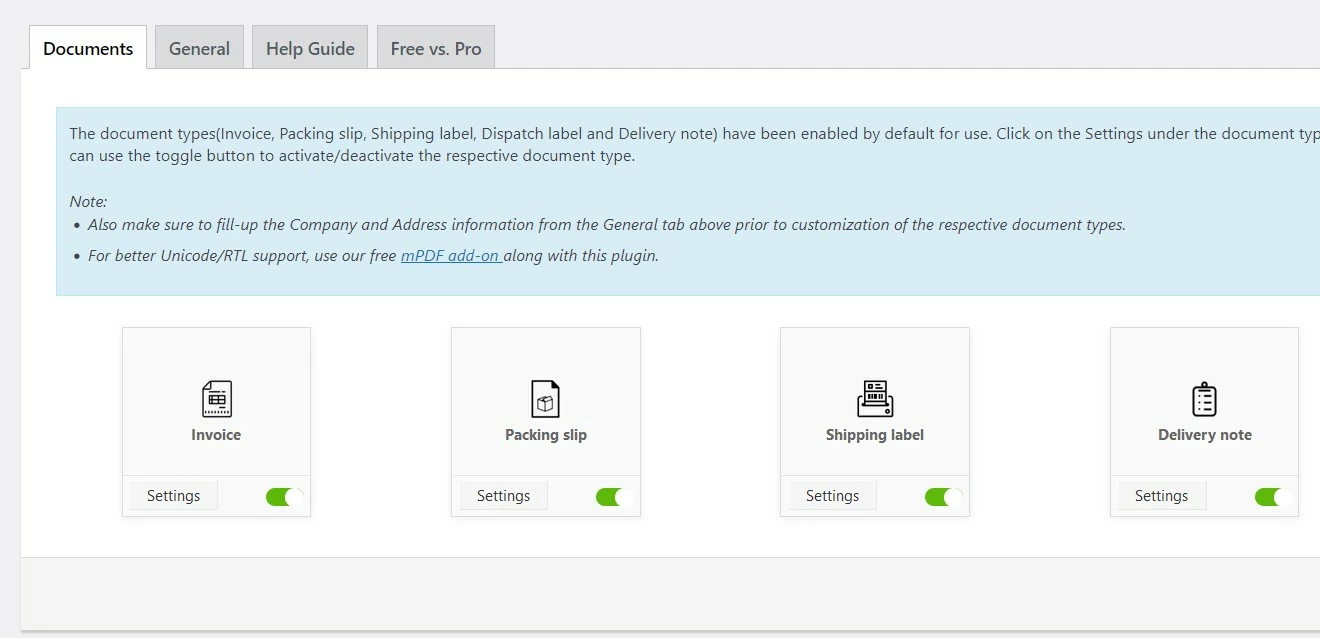
The WooCommerce plugin WooCommerce PDF Invoices, Packing Slips, Delivery Notes and Shipping Labels is the perfect solution if you also need to make packing slips, shipping labels, and delivery notes. The premium version offers numerous features including invoices with signature. Other features include:
- Automatically add PDF invoices at any point in the payment process
- Fully customisable invoices (PDF)
- Customisable invoice numbering
- Barcode feature
- Available in over 10 languages
| Pros | Cons |
|---|---|
| ✓ Free basic version with many features | ✗ Paid version slightly more expensive than alternatives |
| ✓ Invoices highly customisable |
YITH WooCommerce PDF Invoice and Shipping List
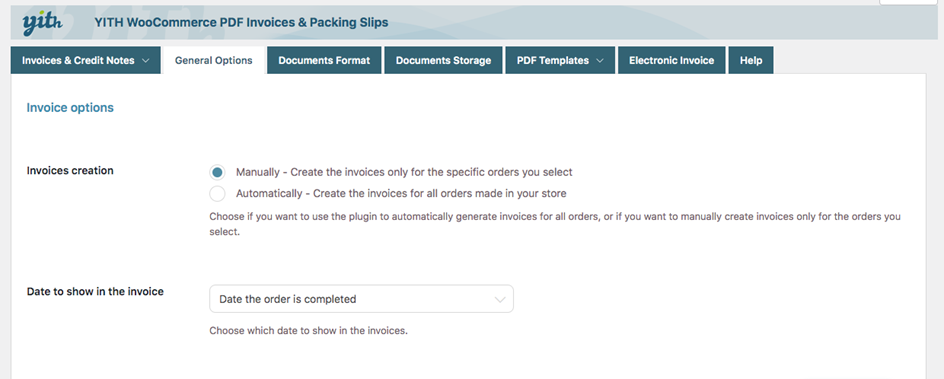
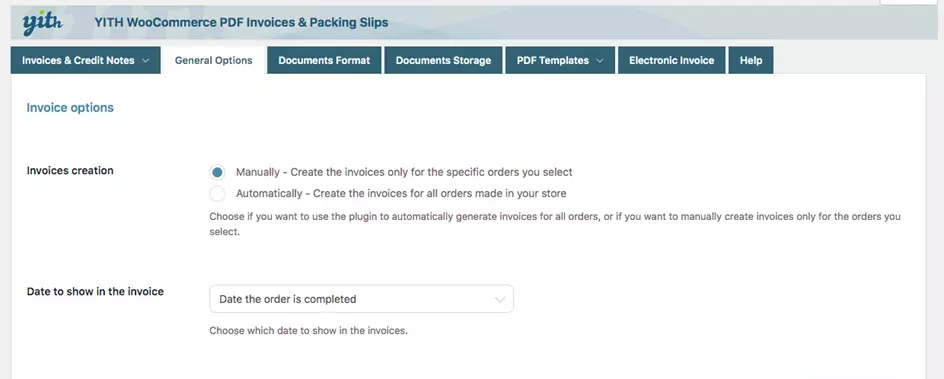
The plugin YITH WooCommerce PDF Invoice and Shipping List is known for its user friendliness and straightforward setup. The biggest downside to this plugin is that it doesn’t offer a free version, and the paid version is relatively expensive. It offers a wide variety of features, including:
- Automatically adding PDF invoices to WooCommerce emails
- Customers can download invoices anytime
- Customisable invoices
- Customisable invoice numbering
- Print invoices and packing slips simultaneously
| Pros | Cons |
|---|---|
| ✓ Create bulk invoices | ✗ No free version |
| ✓ Invoices highly customisable |
Want to learn more about WooCommerce? Check out our other articles on the topic:
Reviewer

Julia Hertler
With over 18 years of experience in content marketing, Julia Hertler has deep expertise in digital communications. For the past 10 years, she has specialised in the areas of domains and hosting at the IONOS Digital Guide, making complex technical topics easy to understand.