

FIND function in Excel explained

If you work a lot with Microsoft Office, you will know how useful the numerous Excel functions can be. To simplify handling large data collections, it helps to be familiar with the FIND function.
- Up to 50 GB Exchange email account
- Outlook Web App and collaboration tools
- Expert support & setup service
Excel FIND function quick guide
- Select any empty cell in your Excel document.
- Type
=FIND(search text, text), passing the text to be searched as the first parameter and the cell or text to be searched as the second parameter.
The instructions and commands shown here work in Excel versions from Office 2016 and in Microsoft 365.
What is the Excel FIND formula used for?
It’s easy to lose track of things when working in large spreadsheets with hundreds of rows. While Excel, like all other Office products, includes a built-in search function, it isn’t always the ideal solution since it searches the entire document by default.
If you want to search within specific cells and integrate the search directly into your worksheet, you can use the FIND function. Combine FIND with other functions to unlock its full potential. For example, you can use it to see whether a certain term appears in your worksheet or to extract specific parts of a text string.
You can also use VLOOKUP as an alternative search function in Excel.
With IONOS HiDrive cloud storage, you can store, edit and share your Office documents centrally and securely. Whether privately or professionally, you can work flexibly from any device with the HiDrive app and other interfaces. Your data is optimally protected in the state-of-the-art IONOS data centres.
What does the Excel FIND function syntax look like?
The syntax of FIND isn’t very complex. In the standard version, you only have to specify two arguments: What do you want to find? And where do you want to find it?
=FIND(Searchtext, Text)You can also customise your search to start at a specific character:
=FIND(search_text;text;[first_character])You can use the parameters to specify various information:
- Search_text: This is the text string you want to find. You have to enclose the text in quotes. You can also specify the cell containing the text.
- Text: This parameter designates the text you wish to search within. Typically, you would reference a cell containing the text, but you can also enter the text directly into the formula. If you do so, ensure the text is enclosed in quotes.
- First_character: You use a numerical value to specify the character where the search is to start. This parameter is optional.
The FIND function is case-sensitive and does not support wildcards. To get around this restriction, you can use the Excel SEARCH function.
Excel returns a number as the result. This value tells you where the search string begins, meaning the first occurrence is from left to right.
Besides FIND, Excel also offers the FINDB function. Both functions achieve the same results and have identical syntaxes. They only differ in the character sets they support. FIND only works with single-byte character sets (SBCS). This includes the Latin alphabet. If you use Asian characters from Chinese, Japanese and Korean (CJK), use FINDB because it supports double-byte character sets (DBCS) for these languages.
To work faster in Excel, you should learn the most important Excel shortcuts.
The Excel FIND function in practice
The Excel formula FIND is mainly used in combination with other functions, which is where it really comes into its own.
FIND & FIND for nested groups
You can determine the second, third or nth occurrence of the search term by nesting.
=FIND(Searchtext, Text, FIND(Searchtext, Text) + 1)This formula demonstrates the use of the optional third parameter. In the first_character position, we again insert the formula that returns the position of the first occurrence. Adding one to this value indicates where you want the search to start. To find a third position, nest the function again, and repeat as needed.
FIND & ISNUMBER for true or false statements
The FIND function in Excel allows you to form a true or false statement from the specified position: Does the text contain the search term or not?
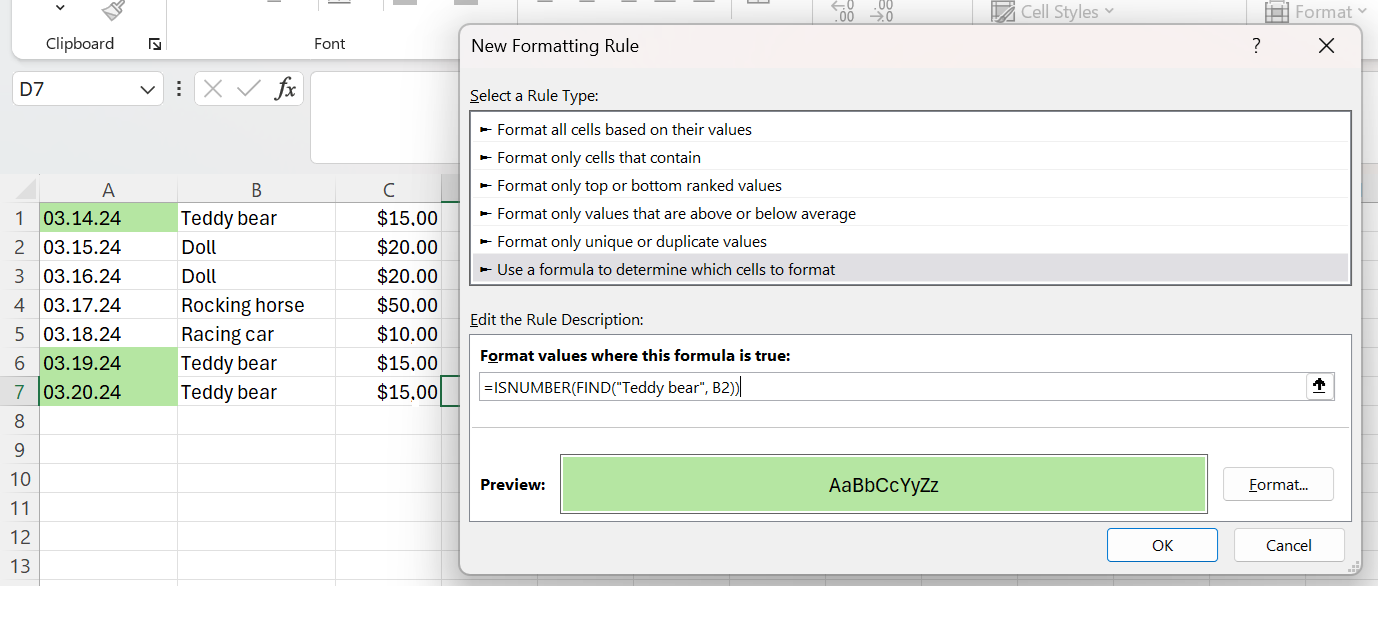
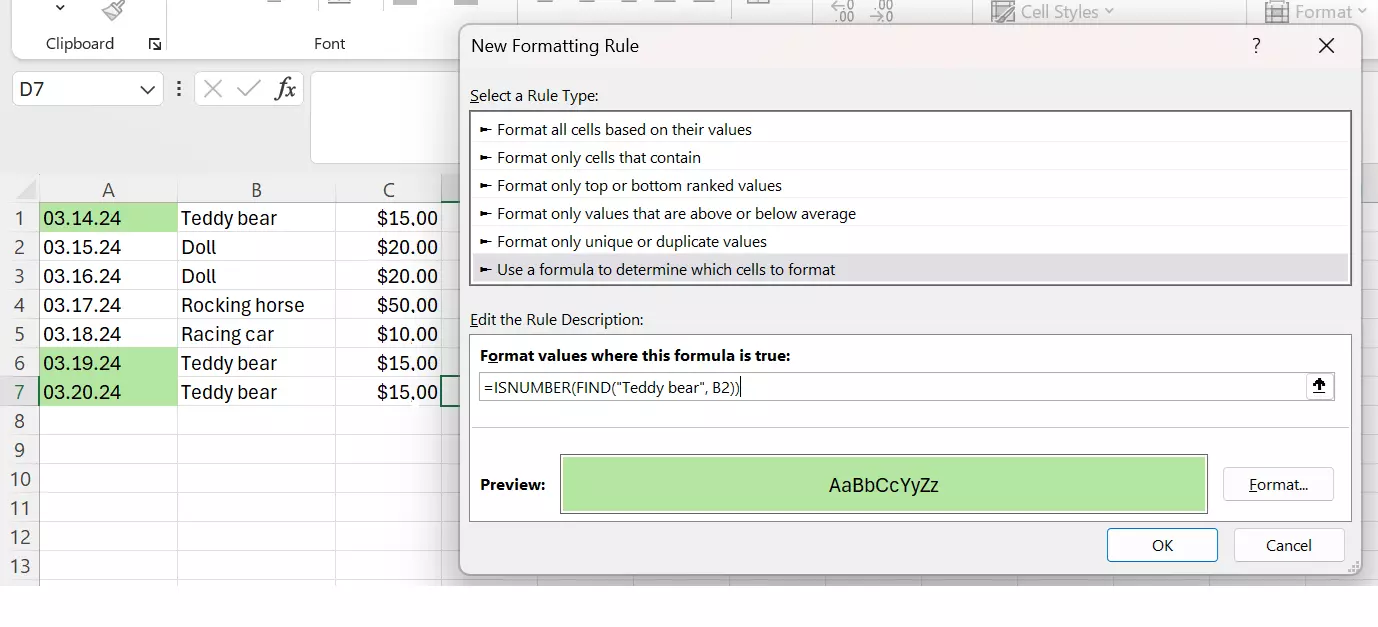
=ISNUMBER(FIND("Teddy bear", B2))The ISNUMBER function returns the value TRUE if the result of FIND is a number, otherwise it will return FALSE. Since the FIND function in Excel specifies the position of the term as a whole number, the ISNUMBER function can respond to it. If the text does not contain the search term, FIND returns an error message, which of course is not a number, and ISNUMBER responds accordingly with FALSE.
You may also be interested in seeing where search terms appear. You can do this if you’ve entered data in multiple cells, such as a list of products sold. You can add this formula (like any other formula) to the conditional formatting rules. This allows you to select any sales entry related to teddy bears, for example.
FIND & MID for extracting characters
Product codes can be very long and confusing, so you may want to extract a certain number of characters from a string. Excel provides three functions for this purpose: LEFT, RIGHT and MID. Suppose your product codes always follow a specific pattern consisting of letters, numbers, and hyphens: ABCDE-A-12345-T. You want to extract the numerical part in the middle.
However, because the string does not have a fixed length, you can’t use the basic extract functions. But thanks to the hyphens, you can use the FIND function. It gives you the position information you need.
Since there are multiple hyphens in the string, you have to nest the FIND function. In this example, we’re assuming that the number part always contains five characters.
=MID(A2, FIND("-", A2, FIND("-", A2, FIND("-", A2) + 1) + 1) + 1, 5)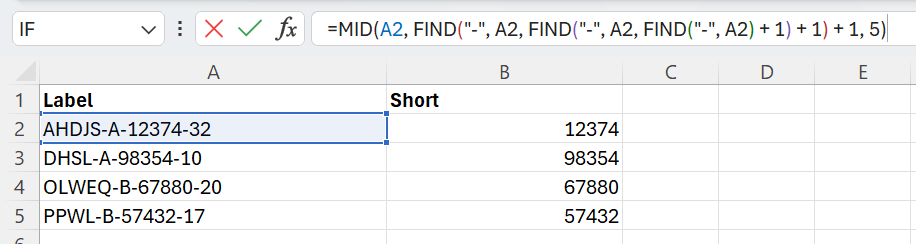
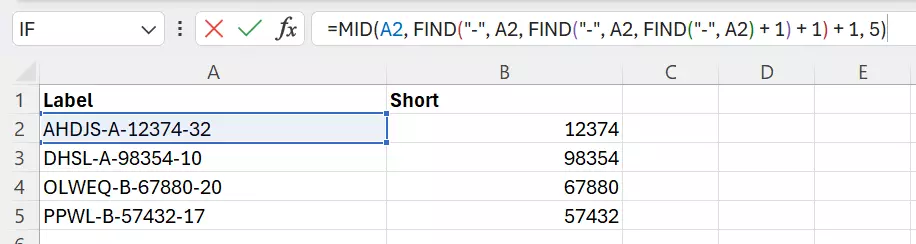
If the length is not specified, you can use additional nested FIND functions. To determine the length of the string you want to find, search for the hyphen at the end of the string.
=MID(A2, FIND("-", A2, FIND("-", A2, FIND("-", A2) + 1) + 1) + 1, FIND("-", A2, FIND("-", A2, FIND("-", A2) + 1) + 1) - FIND("-", A2, FIND("-", A2, FIND("-", A2) - 1)) - 3)Admittedly, this formula is very confusing, but it actually manages to achieve the goal. No matter how many characters you place between the two hyphens, Excel will always extract the correct characters using the FIND function.


FIND & IF for if, then, otherwise
You can also easily combine FIND with IF. For example, you may want a certain action to happen if a specific string occurs in the cell. You can do this by combining IF and FIND. If the string appears, this will happen, otherwise that will happen. A problem may arise if FIND returns an error if the string does not appear. Therefore, you have to use the ISERROR function in addition.
=IF(ISERROR(FIND("bear",A2)),"No","Yes")If the FIND function doesn’t find the search term (‘bear’ in this example), it returns an error message. For ISERROR, this means the condition is met and IF returns the first option: No, the search term does not appear. However, if the FIND function finds the string, it returns a number, which does not meet the condition for ISERROR. The alternative is returned: Yes, the search term appears.
The FIND function is particularly useful, especially when used in conjunction with other functions. It offers a broad range of combination possibilities and diverse applications. This compact yet powerful function can assist in resolving numerous challenges you may face when developing formulas in Excel.