

Inserting Excel into PowerPoint

Have you created a presentation in PowerPoint and want to insert an Excel spreadsheet into it? It’s relatively simple and straightforward, since Microsoft Office products are highly compatible. You basically have three options to choose from: You can link or embed an Excel spreadsheet in PowerPoint, create a new Excel spreadsheet in PowerPoint or insert an existing Excel spreadsheet into PowerPoint as an image. In this guide, we’ll explain the differences between these options and give you step-by-step instructions.
Linking PowerPoint to Excel: Advantages and instructions
Have you created an Excel spreadsheet and want to show its contents in PowerPoint, but still be able to edit the spreadsheet later? In that case, you should insert the Excel file into your PowerPoint by creating a link to the Excel data. Changes to your original Excel spreadsheet will then be automatically updated in your presentation when you reopen the file after saving and closing.
Proceed as follows:
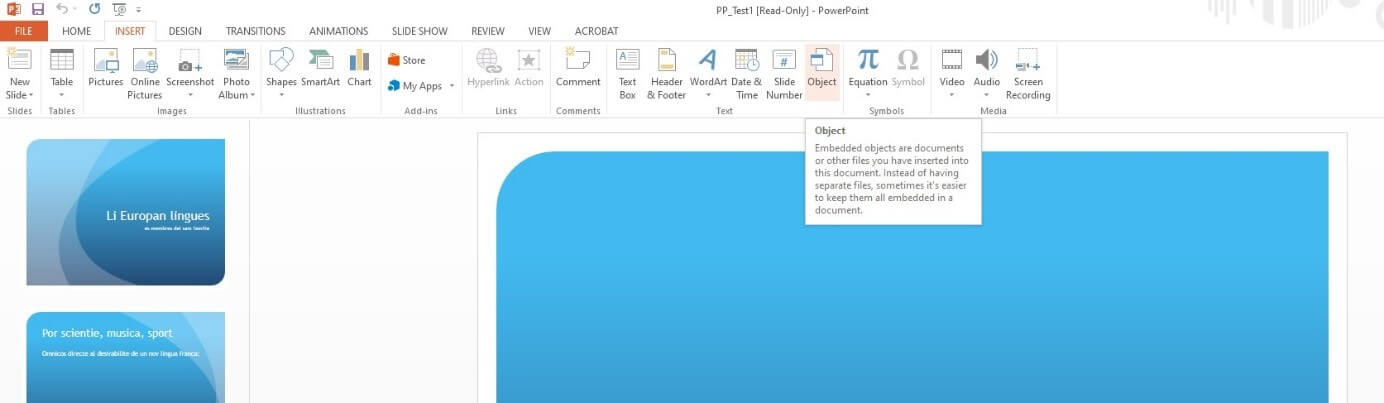
- Open your PowerPoint presentation and position your cursor in the place where you want to insert the Excel data in the slide. In the menu bar of the ‘Insert’ tab, select the Object button.

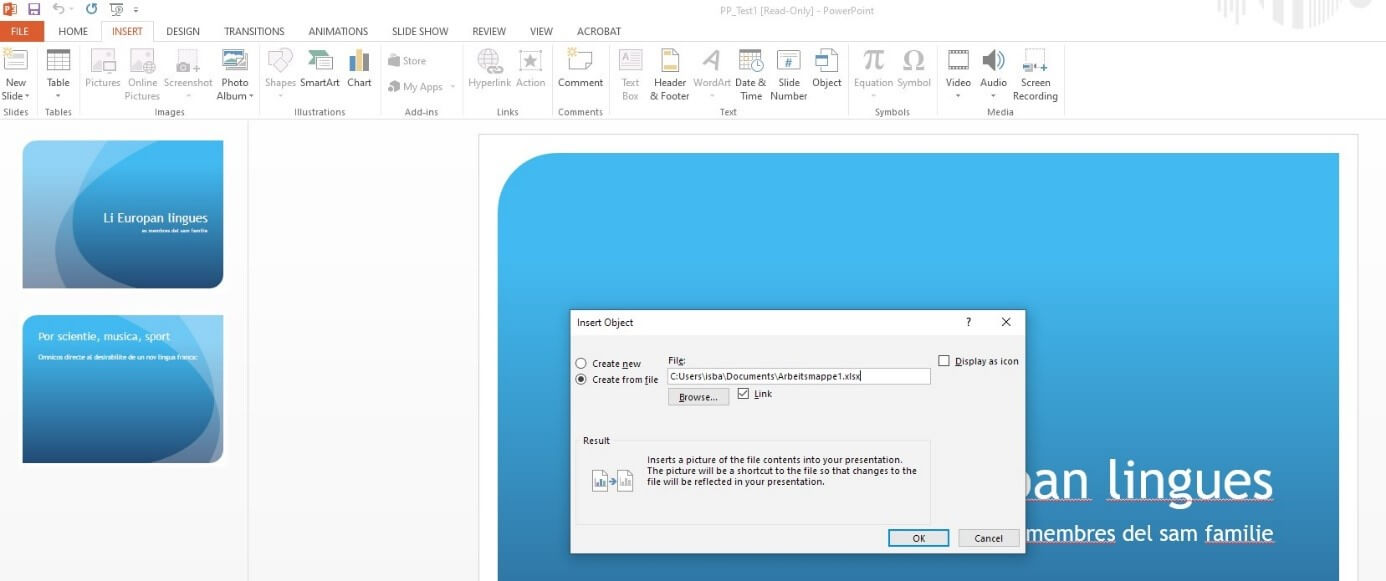
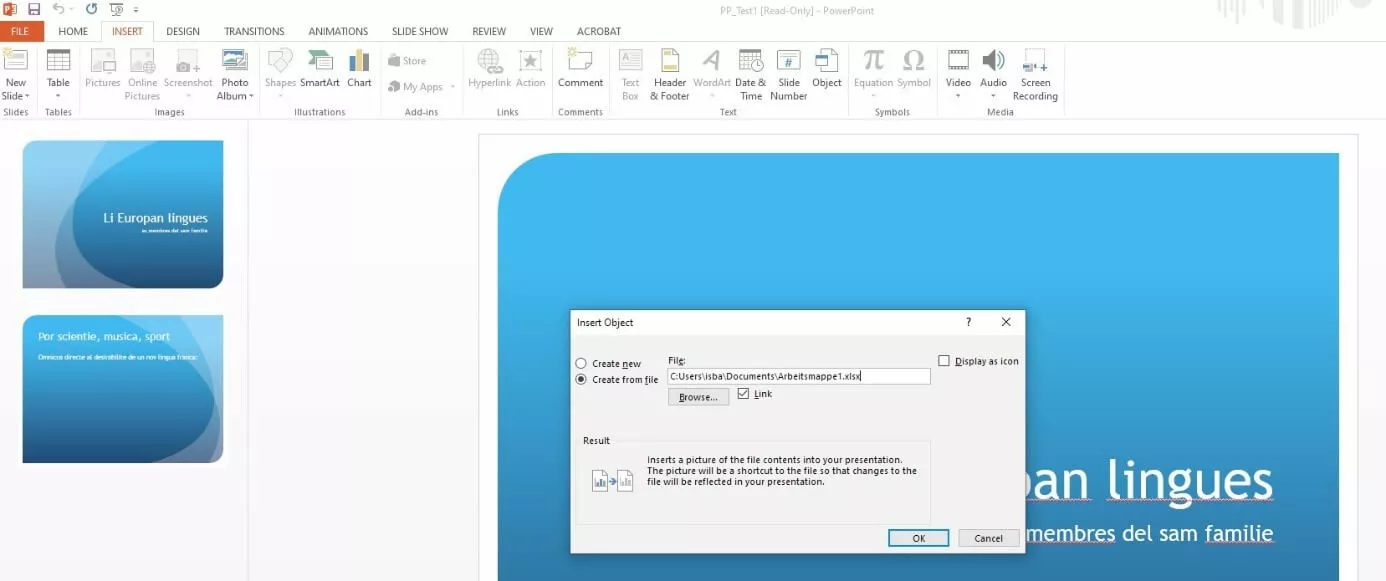
- A dialogue box appears. Click Create from file and select the file location of your Excel worksheet. Finally, select the Link checkbox and click OK. The spreadsheet has now been inserted into your presentation. If necessary, you can adjust the size of the spreadsheet using the appropriate PowerPoint shortcut.
- If you want to edit your Excel spreadsheet, double-click the spreadsheet you inserted into PowerPoint. You will automatically be taken to your spreadsheet, opened in Excel.
With Microsoft 365 from IONOS, you can work on your documents in any Office application from any location and on different devices. Inserting an Excel spreadsheet into Word is also a cinch with the Office suite.
How to create a new Excel spreadsheet in PowerPoint
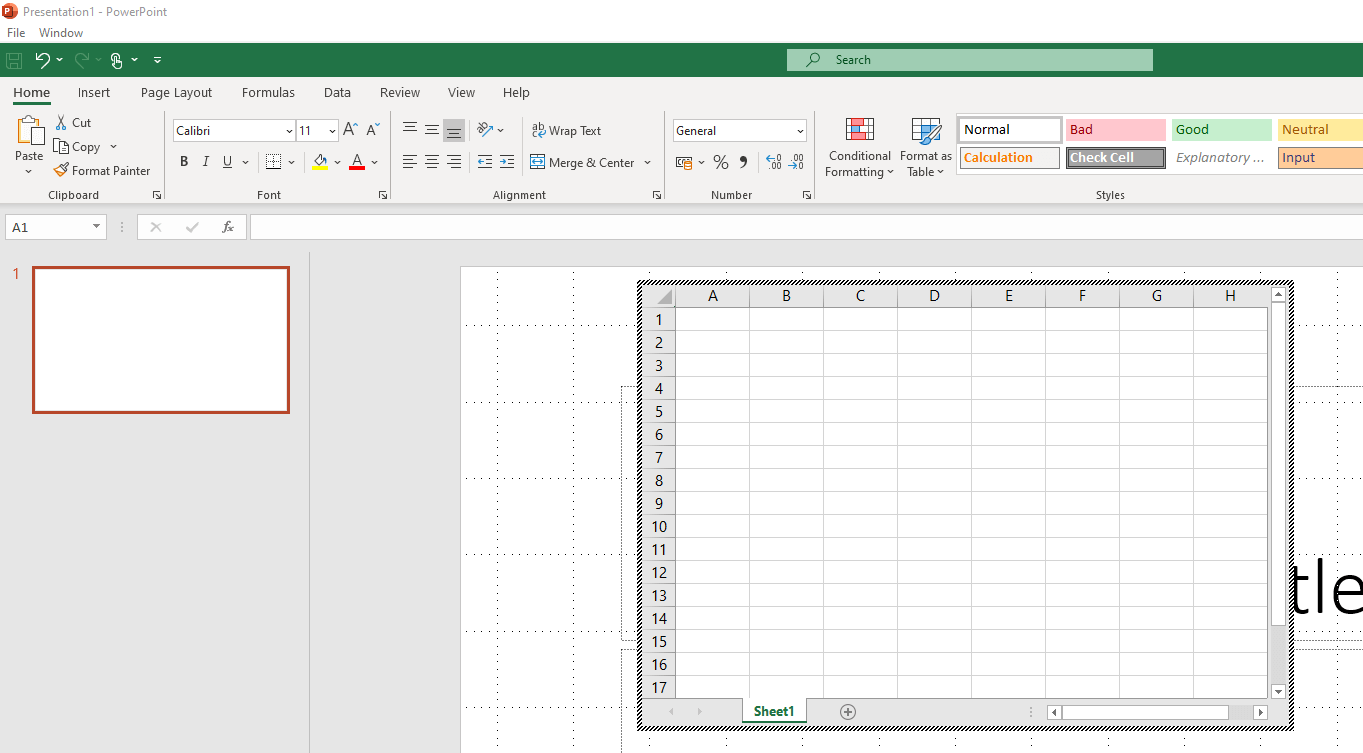
Want to create a new spreadsheet for your PowerPoint presentation and still be able to use Excel’s functions? In that case, you can create the Excel spreadsheet directly in PowerPoint. Here’s how it’s done:
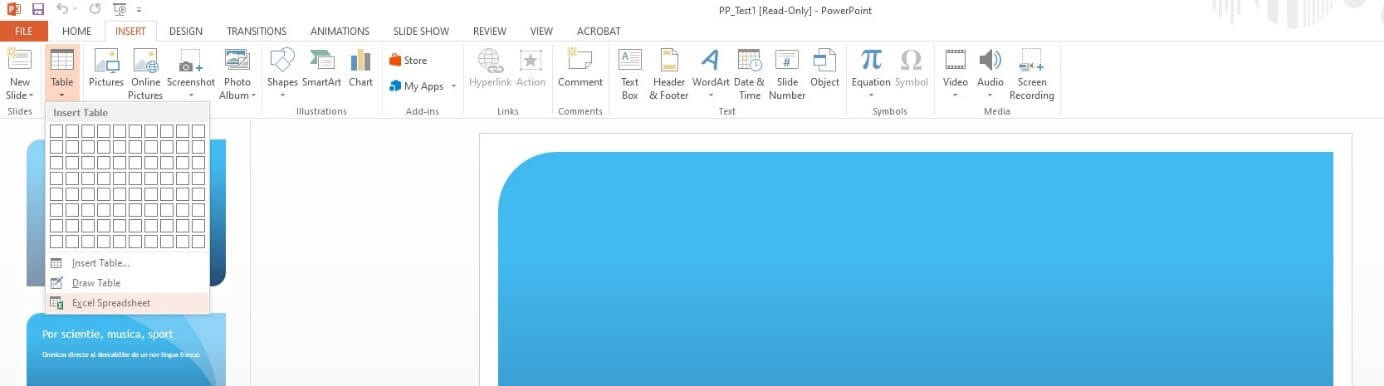
- Open your PowerPoint presentation and place the cursor exactly where you want your spreadsheet to appear in the slide. Open the ‘Insert’ tab and click Table.
- Select Excel Spreadsheet or Insert table at the bottom of the dropdown menu.

- PowerPoint will create an empty spreadsheet. You can now add your content. All the functions you already know from Excel are available in the PowerPoint menu. When you’re finished with your spreadsheet, click outside the spreadsheet to return to your PowerPoint menu.
Inserting an Excel spreadsheet into PowerPoint as a picture
What if you no longer need to make changes to an Excel spreadsheet and you simply want to insert it into PowerPoint while maintaining the existing formatting? In that case, you can insert the spreadsheet as a picture:
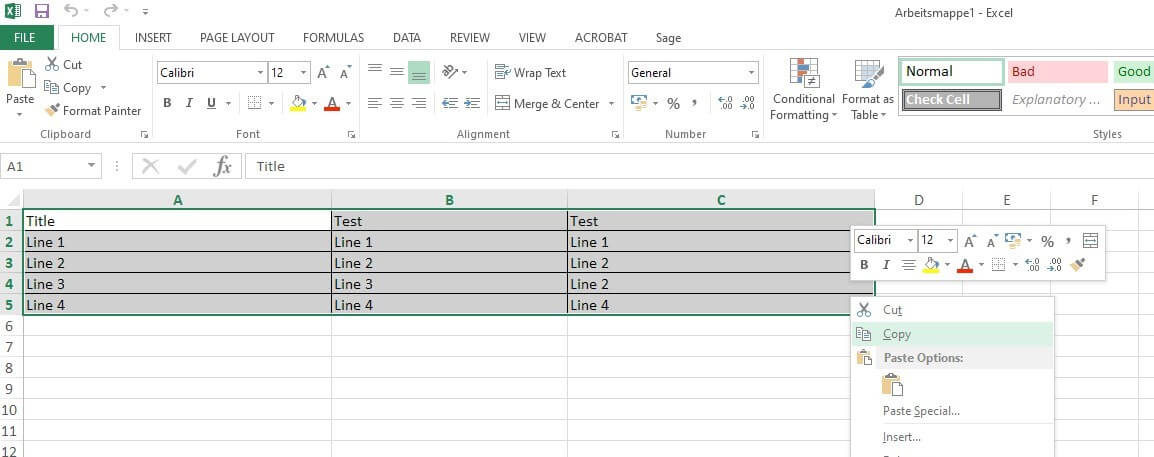
- First, open your Excel spreadsheet and use your cursor to select the entire spreadsheet or the section of data that you want to show in your PowerPoint presentation. Copy the selected area either by right-clicking and choosing Copy or using the Excel shortcut Ctrl + C.
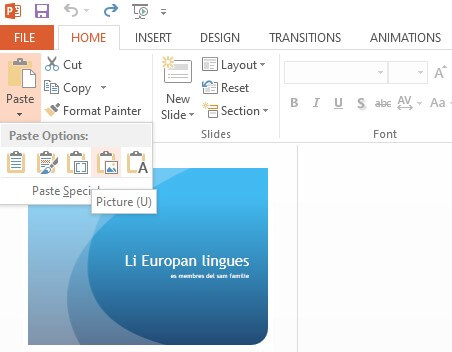
- Now open the PowerPoint presentation and position your cursor in the place where you want the Excel data to appear in the slide. Under ‘Home’, select the ‘Paste’ button and then Picture.
- You can then freely adjust the size of the table as you would any image.
If your PowerPoint presentation is very long, use the PowerPoint outline view to maintain a general overview and make your work much easier.