

Zoom breakout room: All you need to know

In large Zoom meetings, it quickly gets confusing – especially because the free version of Zoom allows up to 100 participants and the Pro version plus add-on allows up to 10,000 participants. To discuss matters in smaller groups even in large meetings, Zoom offers breakout rooms for up to 50 separate meetings.
Ask, create and research with the European alternative to ChatGPT. Robust security and unlimited chats give you peace of mind.
Quick guide: How to create your own Zoom breakout room
- Enable the breakout room option in your account on the Zoom website.
- Open a breakout room in the desktop app.
- Allow participants to freely select rooms or assign them manually.
To create breakout rooms, you must be using the desktop software. It’s not possible to create a Zoom breakout room via the mobile app.
What is a Zoom breakout room?
Whether in large video conferences, webinars, or other large-scale virtual events, if you’ve ever had to create a Zoom meeting or participated in a Zoom meeting with over 100 participants, you will know how difficult it is to hold constructive discussions.
To enable small discussion groups when there are fifty, a hundred, or even more participants in a meeting, Zoom provides breakout rooms (unfortunately not available in webinars). With a Zoom breakout room, you can open 50 separate rooms or meetings parallel to the main meeting. The host decides whether to assign all participants automatically or manually to breakout rooms or allow meeting attendees to enter and leave Zoom breakout rooms as desired. If the meeting is being recorded, it is important to note that only the main room can be recorded. Locally recording the breakout rooms is only possible with the host’s permission.
How to enable the Zoom breakout room feature
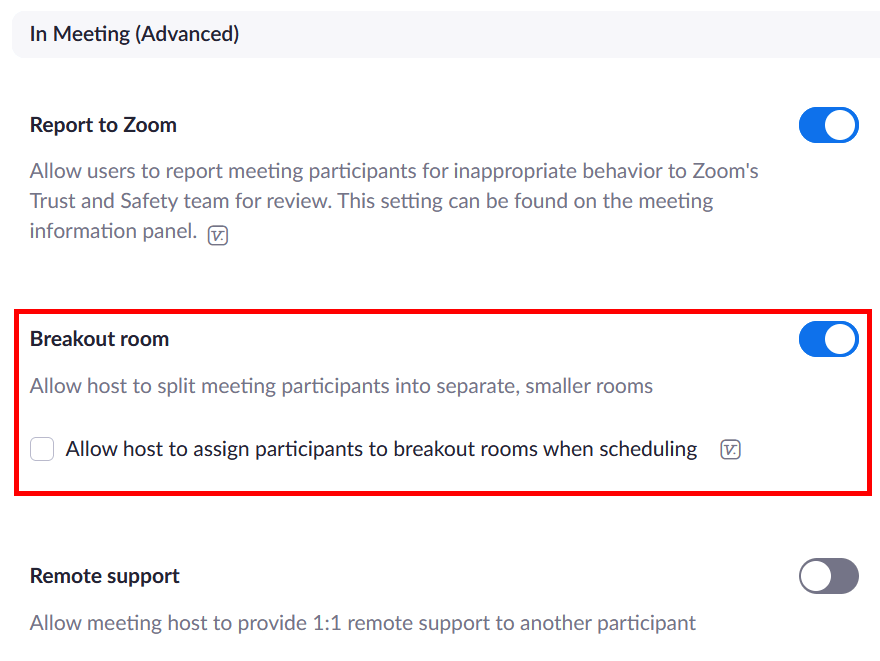
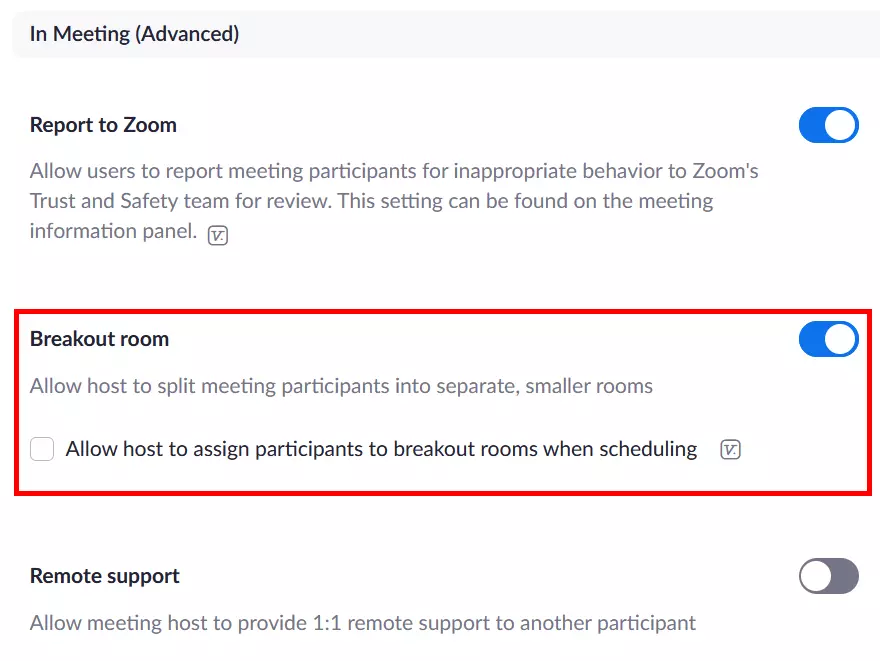
Before the host and participants can use breakout rooms, the host or administrator must first enable the feature in the Zoom account. Proceed as follows:
- Step 1: Log in to the Zoom Web Portal with your user credentials.
- Step 2: Go to ‘Settings’ in the left sidebar.
- Step 3: Under the ‘Meeting’ tab, scroll down to the ‘In Meeting (Advanced)’ section and click on the toggle for ‘Breakout room’ if the feature is disabled. This will give the meeting host permission to split participants into breakout rooms.
How are Zoom breakout rooms created and ended?
To create a Zoom breakout room in the meeting as a host, follow these steps:
- Step 1: Log in to the Zoom desktop app and create a meeting.
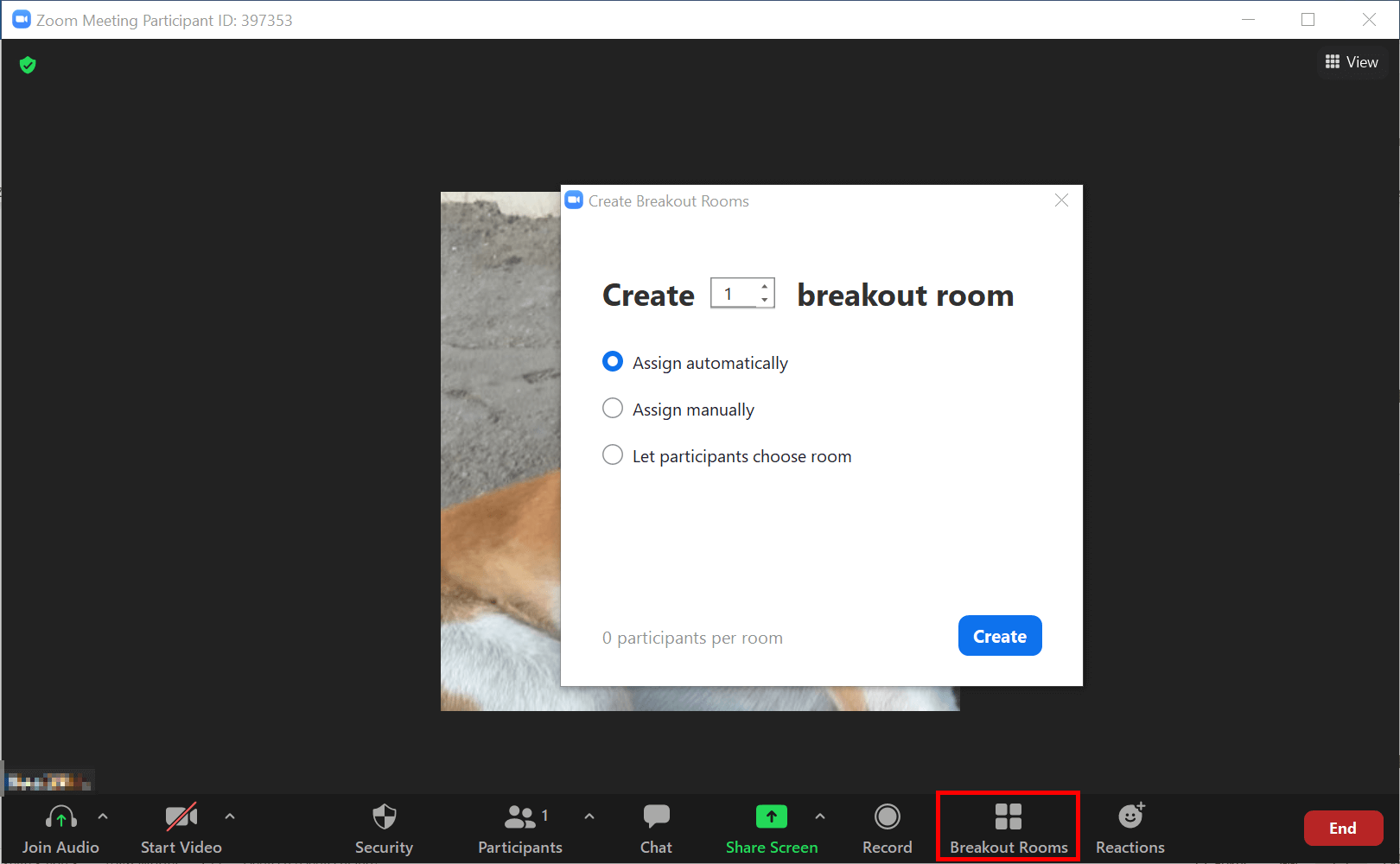
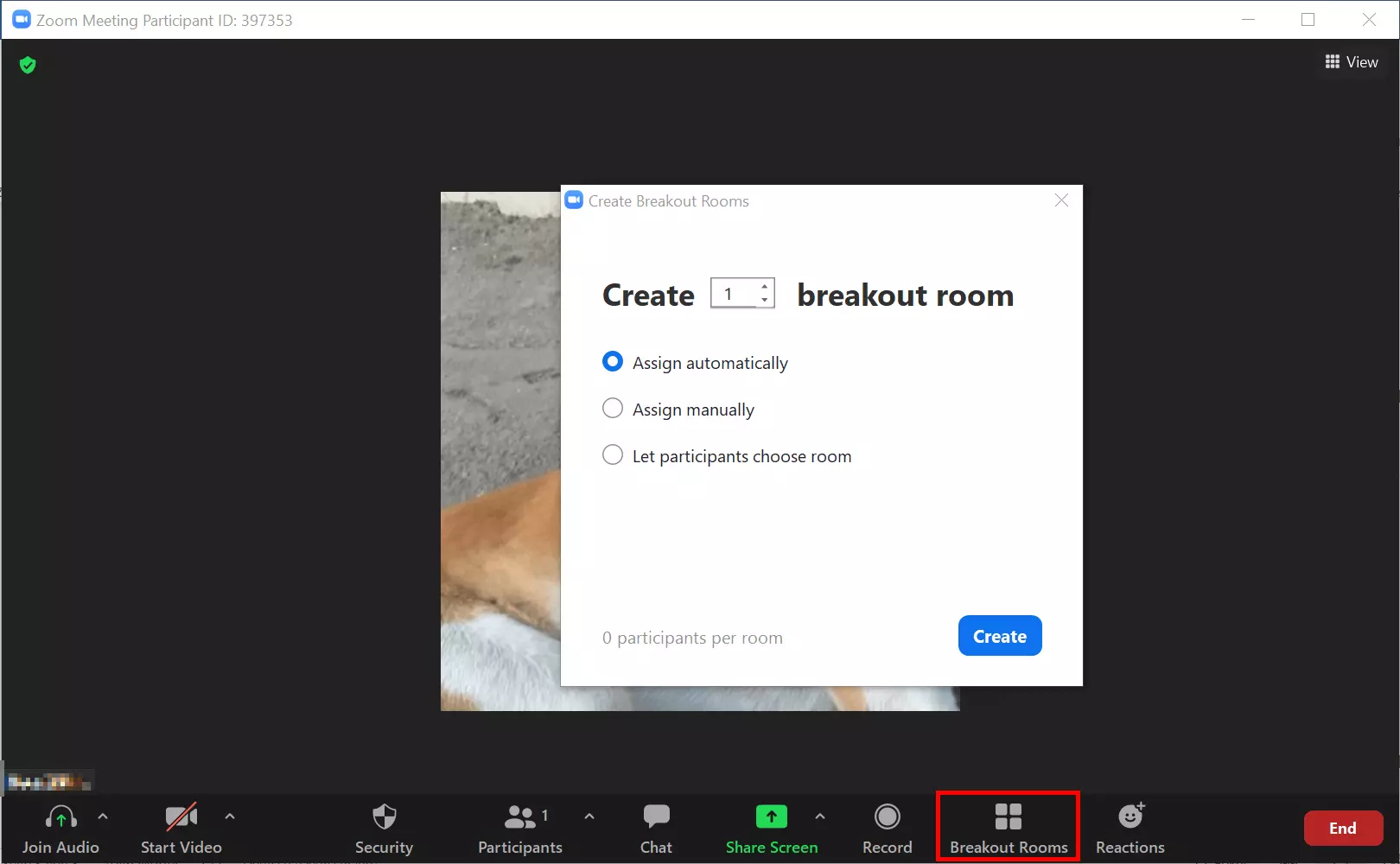
- Step 2: Go to ‘Breakout Rooms’ in the sidebar.
- Step 3: The menu window for breakout rooms will open. Under ‘Create _ breakout room’, select the number of separate rooms you want to create. Specify whether the allocation should be automatic or manual and whether you want to allow participants to choose their own rooms.
- Step 4: Click on ‘Create’ when all settings are properly configured. A separate window will now open for breakout rooms that have not yet been started. Here you can make further changes to settings for separate rooms.
- Step 5: To start the Zoom breakout rooms, click ‘Open All Rooms’. All participants will then be prompted to enter the appropriate room.
- Step 6: To delete a room, move the mouse over the room and click on ‘Delete’. If you want to stop all rooms, go to ‘Stop All Rooms’ in the menu.
Prepare a Zoom breakout room
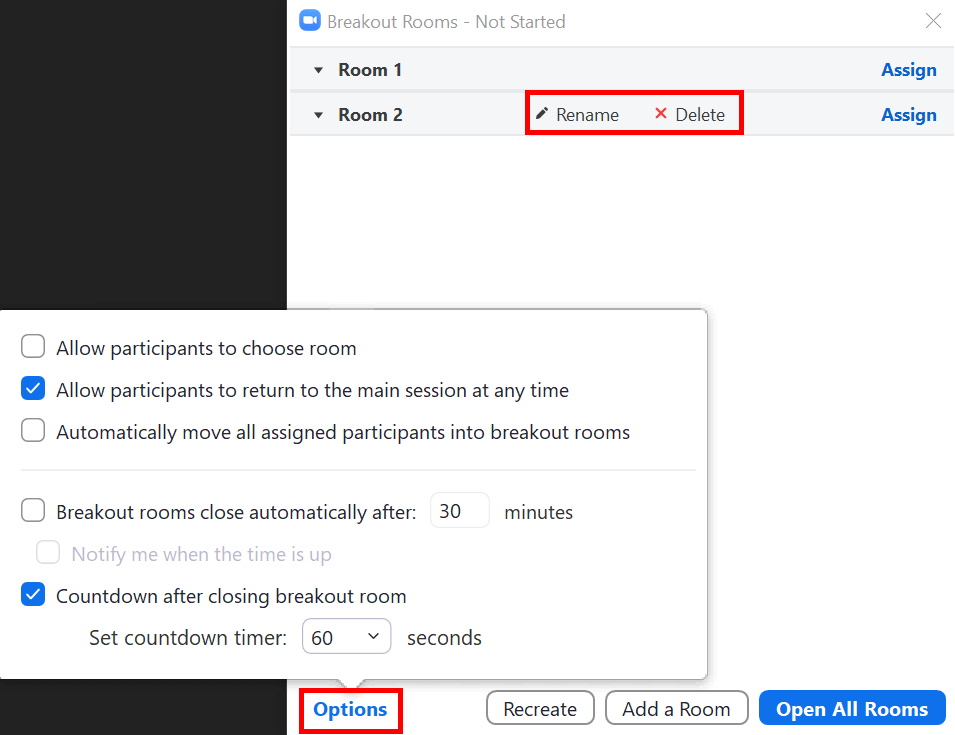
- Step 1: In the breakout room menu, click ‘Options’ in the lower right corner.
- Step 2: This is where you can decide whether participants are automatically distributed to rooms, whether they can choose between rooms, or whether it’s possible to return to the main meeting.
- Step 3: To set a time limit for breakout meetings, specify a time in ‘Options’ after which the breakout rooms automatically close and participants return to the main meeting. You can set a countdown so that participants know when the meeting is over.
Assign participants to a Zoom breakout room
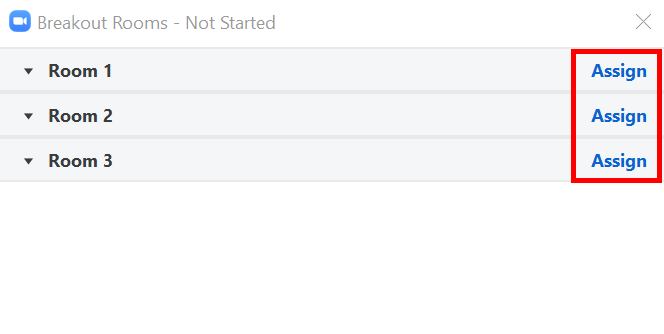
- Step 1: To be able to assign participants to rooms, you must first activate manual allocation.
- Step 2: Next to the room name you will then find the option ‘Assign’. With this function, you can distribute participants to rooms as desired. Participants that are not manually assigned a room will remain in the main room with the host.
How do users join a Zoom breakout room?
As soon as you start one or more breakout rooms, either all or only the participants that were selected manually receive an invitation to enter a room.
How do you switch between breakout rooms?
If participants are free to choose between Zoom breakout rooms, they can leave the breakout room by clicking ‘Leave Room’ at the bottom right. After leaving the room, users are free to join another room. The host can manually join rooms or stay in the main room.
How many participants can use Zoom breakout rooms?
Zoom allows up to 50 separate breakout rooms. The number of participants you can assign to a room depends on whether you specify the breakout rooms while the meeting is taking place or before the meeting starts. The number of participants in the rooms also depends on the number of rooms as well as the add-on for large meetings.
The following numbers of participants are possible for large meetings when you create breakout rooms during the meeting. Without an add-on, your meetings are a bit more limited regarding capacity.
- 20 breakout rooms: Up to 500 meeting participants
- 30 breakout rooms: Up to 400 meeting participants
- 50 breakout rooms: Up to 200 meeting participants
Reviewer

Jeanna Raffa
With over 18 years of experience in online marketing, Jeanna Raffa possesses extensive expertise in digital marketing. Since 2020, her focus has been on providing practical information regarding email, office, and cloud storage solutions.