

0x800f081f | How to fix this Windows update error

During a Windows update, problems frequently occur and users may see error messages like the error code 0x800f081f. Often, the problem occurs during the update process in Windows 10 because one important update file is missing. In the following article, you’ll learn what you can do to troubleshoot this error.
Fixing error 0x800f081f with the troubleshooter
Microsoft has long struggled with a paradoxical fact: Its Update Centre regularly causes problems that prevent users from implementing improvements and upgrades by downloading and installing new updates. For this reason, a troubleshooting tool was included with Windows 10 that automatically fixes most errors, including the error 0x800f081f.
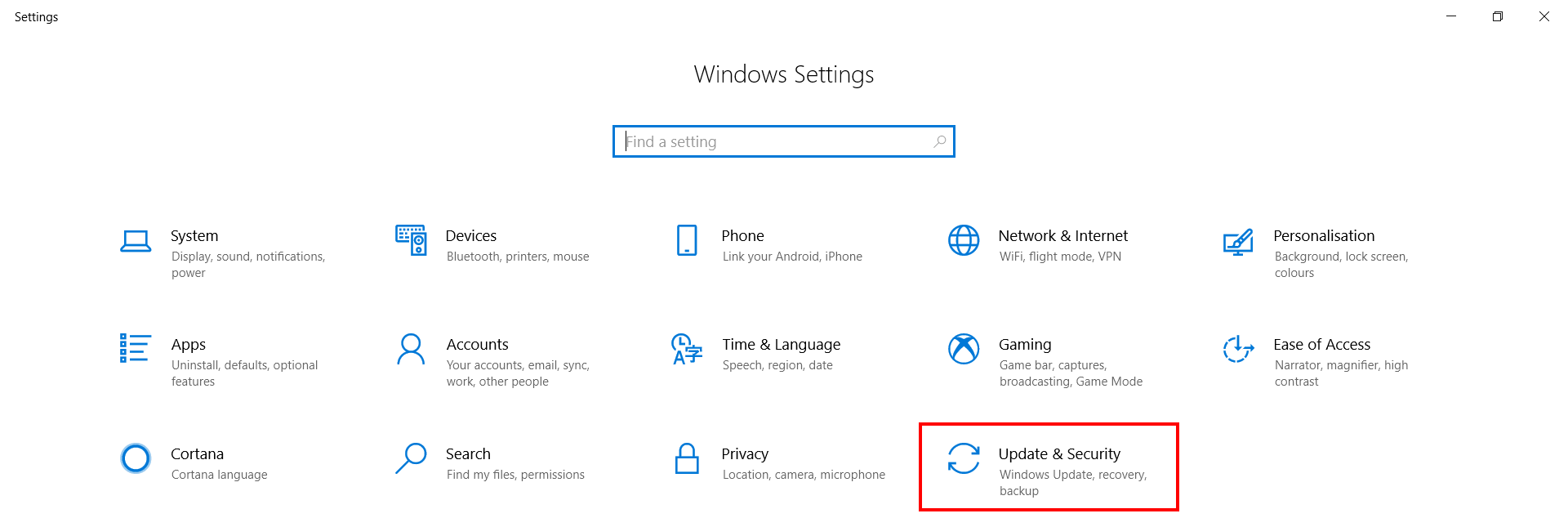
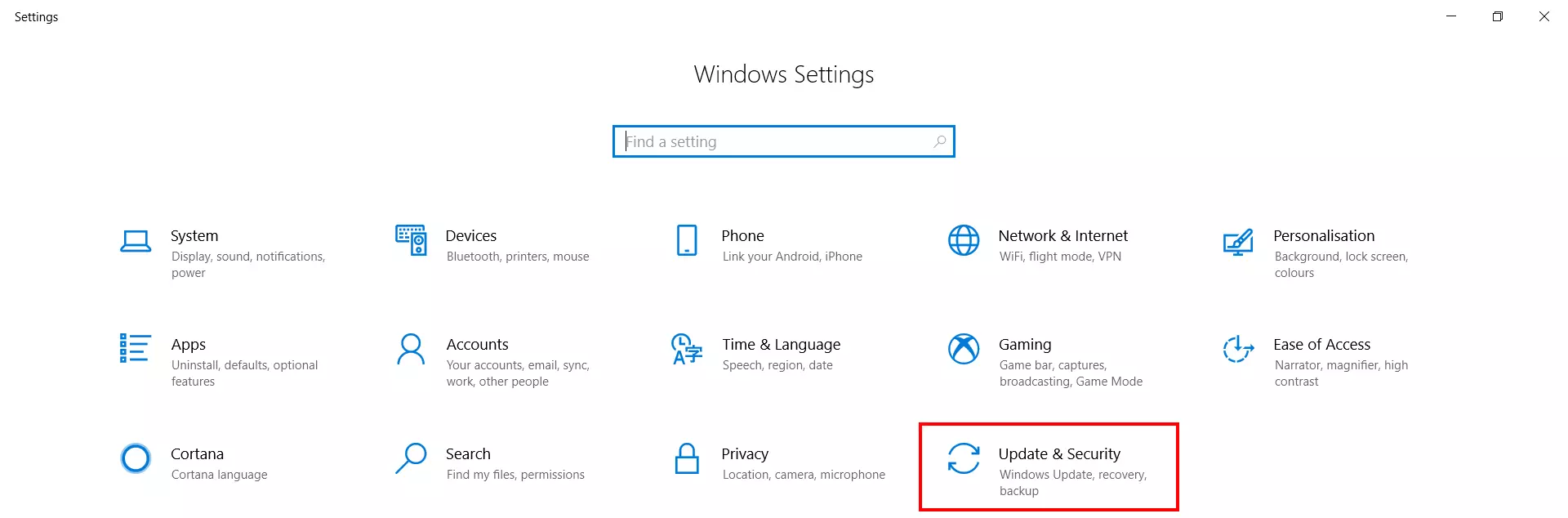
To use the tool, first open the Windows settings app by choosing the Settings button in the Start menu or using the keyboard shortcut Windows key + i. Next, select the Update & Security section:
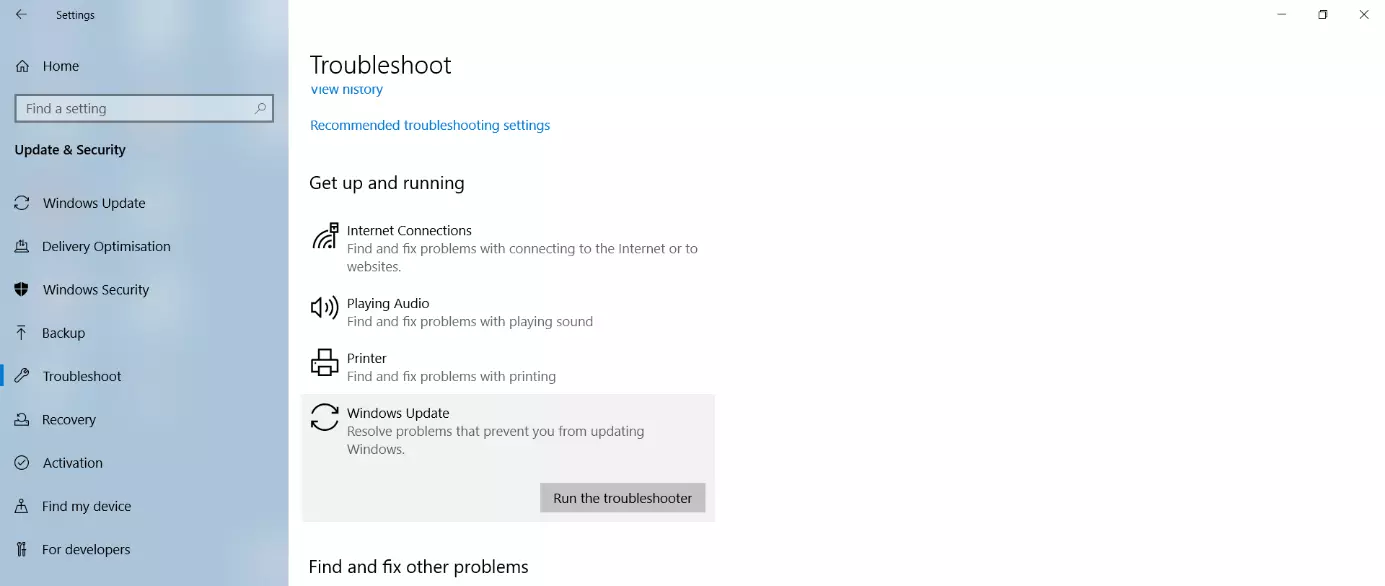
Select Troubleshooting from the menu on the left side of the window. On the right side, scroll down to the “Get up and running” section. Now, you’ll see the Windows Update options, among others. Click the option and then choose Run the troubleshooter:
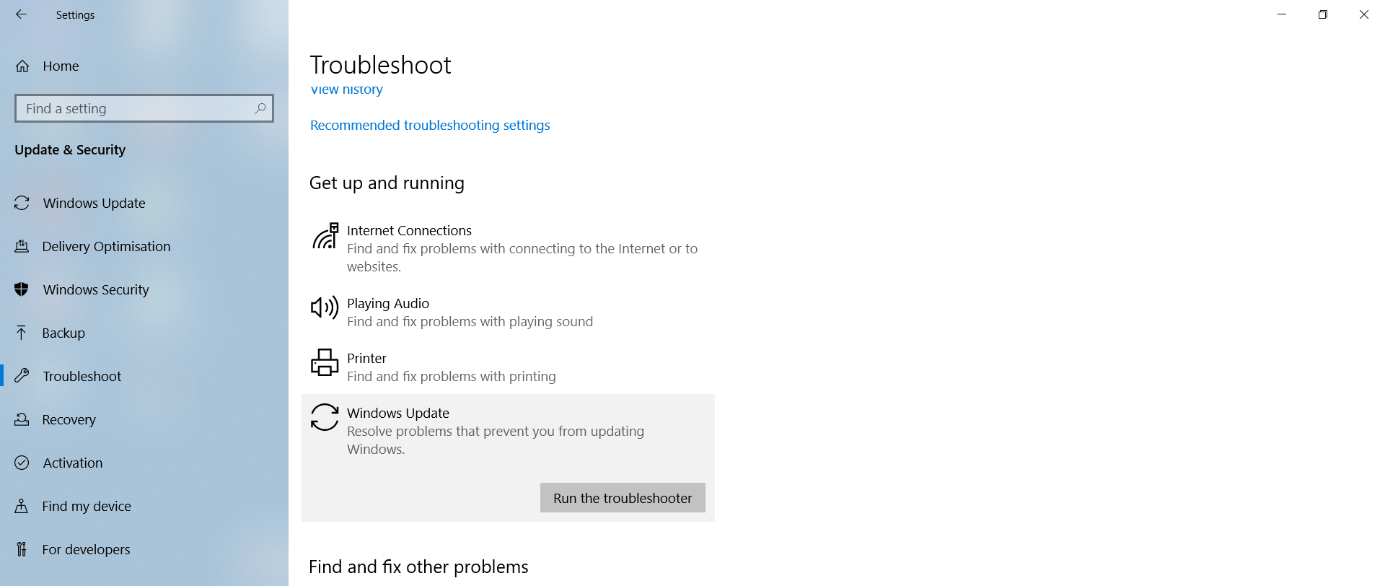
The troubleshooter will run automatically and requires no further action on your part. Once it finishes, a message will appear, notifying you whether the problem was resolved or not.
Fixing error 0x800f081f using the Reset Windows Update Script
Over time, Microsoft has collected a wide range of tools, registry hacks, and command line tips for troubleshooting update errors in a Windows support database. These tools are helpful when basic troubleshooting for the Update Centre and other Windows features fail. For example, the Reset Windows Update Agent script is very effective to troubleshoot problems that result in error code 0x800f081f.
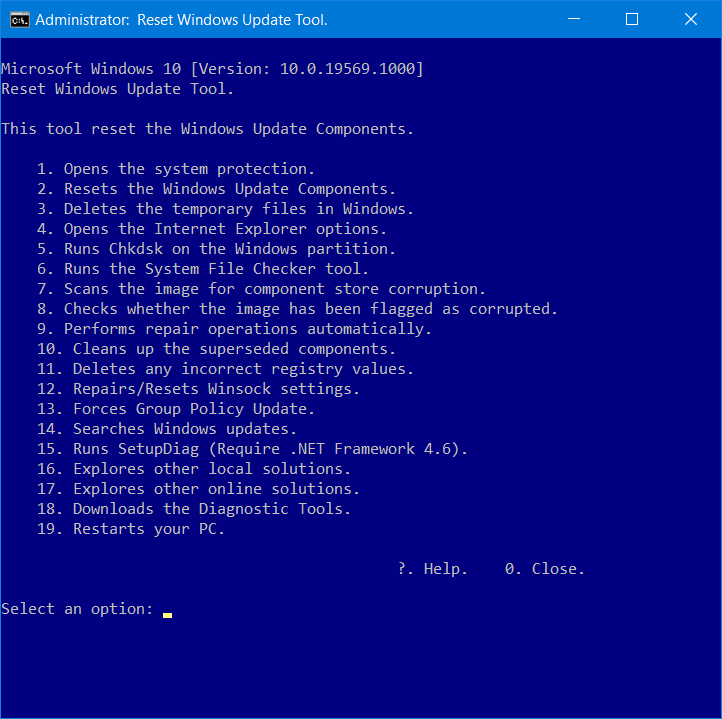
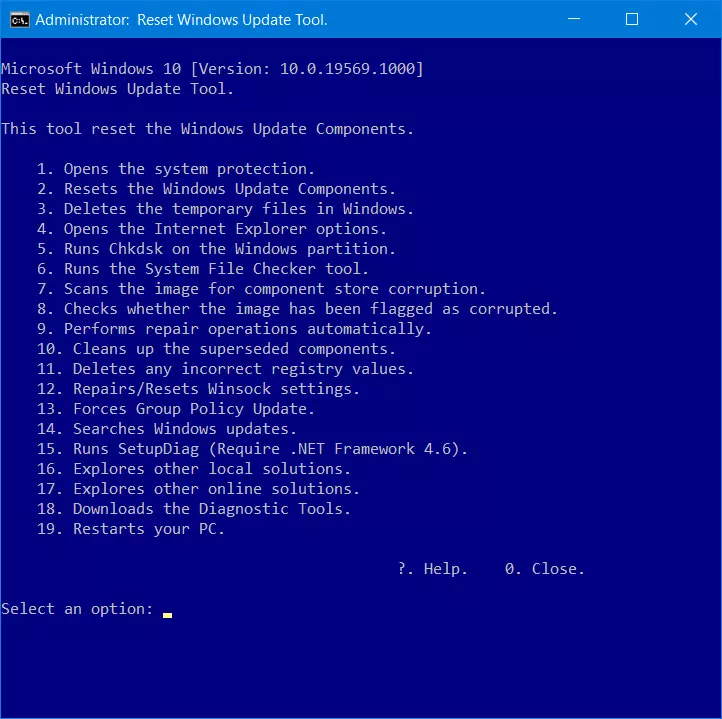
Simply download the tool using the provided download link and unzip the archived file. The file contains the ResetWUEng.cmd script. Right-click it and run it as an administrator.
Turn off all security software except Windows Defender before running the script file because third-party software often blocks access to critical system components. In addition, the script could mistake the reactions of the antivirus software for actual errors.
Run the individual components of the script by entering numbers. To resolve the 0x800f081f error, run script components 1, 2, and 3 one at a time. In most cases, the error will no longer appear during future Windows updates.
Fixing the 0x800f081f error using the DISM command line program
Finally, you can also use the DISM command line tool and Windows System File Checker to resolve Windows Update problems such as 0x800f081f. These troubleshooting tools come pre-installed with Windows and can be run from the command line. Although they don’t have a graphical user interface, they’re still very efficient.
To fix the 0x800f081f error using the command line tool, proceed as follows:
Right-click the Windows logo in the taskbar to open the Start menu. Select Command Prompt (Admin) or Windows PowerShell (Admin). Only one of these options will be displayed, depending on your Windows configuration or version.
Once you've opened the command line tool, type the following command:
DISM /Online /Cleanup-image /ScanhealthWhen you confirm your input by pressing the Enter key, Windows automatically checks for errors, which can take a few minutes. If an error is found and displayed, type the following command:
DISM /Online /Cleanup-image /RestorehealthThe detected errors are successively repaired, which can take much longer.
If a message appears notifying you that the Source files could not be found, you have to restore them from a Windows installation DVD or an ISO file.
If you don’t have the original Microsoft DVD, you can download and generate an ISO file using the Windows Media Creation Tool.
Always download the Windows Media Creation Tool directly from Microsoft. Some untrustworthy vendors offer fake versions that may contain malware.
To restore the source files for the repair using the DVD or ISO file, enter the drive path for the Windows installation image in the DISM command tool:
DISM /Online /Cleanup-Image /RestoreHealth /Source:wim:X:\sources\install.wim:1 /LimitAccessReplace the drive letter X: with the drive letter of your DVD drive or the virtual drive of the ISO file.
After DISM successfully completes the repair, start the System File Checker in the same Command Prompt window:
sfc /scannow.Finally, go to the Update Centre. In many cases, you’ll immediately see one or more updates to install in the Update Centre. You can now download and install these updates, and error code 0x800f081f will not reappear.