

How to install Docker Compose on Windows

Docker Compose lets you run complex applications using a single command. This means that containers can be deployed faster and more efficiently. Our tutorial guides you through the Docker Compose Windows installation step by step.
What are the requirements of Docker Compose on Windows?
Docker Compose is an integral part of Docker Desktop for Windows. To use the standalone version of Docker Compose, the following requirements must be met:
- Docker Engine: Compose is an extension of Docker Engine. So you need to have the Docker Server and Client binaries installed.
- Operating System: Windows, administrator rights
Our guide shows you how to install Docker Compose on Ubuntu and Docker Compose on macOS.
How to install Docker Compose on Windows step by step
To install and use Docker Compose, Docker Daemon and Docker Client should be running on your Windows server. Before getting started it’s best to ensure that the Docker service is running error-free.
Step 1: Start PowerShell
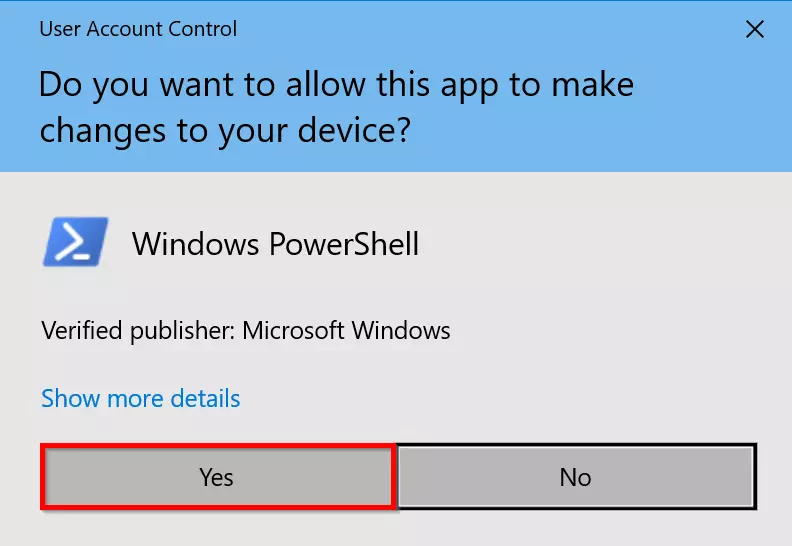
First, launch PowerShell using your administrator rights. Confirm ‘Yes’ to allow the app to make changes to your device.

Step 2: Set up TLS security protocol
GitHub requires TLS1.2 as the default security protocol. Run the following command in Windows PowerShell:
[Net.ServicePointManager]::SecurityProtocol = [Net.SecurityProtocolType]::Tls12Step 3: Download and install Docker Compose
Download the latest version of Compose (v2.17.2) from GitHub:
Start-BitsTransfer -Source "https://github.com/docker/compose/releases/download/v2.17.2/docker-compose-Windows-x86_64.exe" -Destination $Env:ProgramFiles\Docker\docker-compose.exeTo install a different version, simply replace v2.17.2 in the target address with the desired version number.
Step 3: Test Docker Compose
Check if the installation was successful by displaying the current version of Compose:
docker compose versionYou should see the following output:


To get started with Docker, check out our Docker Tutorial or find out more about Docker Commands and Docker Orchestration using Swarm and Compose.
Reviewer

Christian Heldmaier
Christian Heldmaier is an experienced online marketing and SEO specialist from Karlsruhe. He has been working as an SEO Manager at IONOS since July 2020.