How to find and retrieve your Windows 10 product key
The Windows 10 product key is a dedicated 25-digit, letter, or number code which acts as a product key or code to unlock a software licence and install the Windows operating system on your PC. The software can only be unlocked, installed, and used after it is unlocked.
A product key is usually subdivided into multiple parts comprised of a combination of various letters and numbers. Each licencing key is unique and can only be used with a single version of a purchased software. Through a special procedure, the licencing key is tested for its authenticity. The first ever licencing key was used as part of the Windows 95 operating system and was displayed on the installation disc cover. Windows justified the issue of a licencing code by saying that it was trying to avoid illegal usage of its licenced software.
Nowadays, you’ll either need a 25-digit code or a digital licence to install Windows. Users without a digital licence will need to retrieve their Windows 10 product key.
- Free website protection with SSL Wildcard included
- Free private registration for greater privacy
- Free Domain Connect for easy DNS setup
When do you have to retrieve your Windows key?
With the launch of Windows 10, product keys have become less important because Microsoft launched digital licences in 2016. Digital licences allow for the simple installation of an operating system without requiring a bootable device. The operating system can be activated via your Microsoft account. Even when you’re reinstalling Windows 10, the system detects the licence automatically.
You’ll get a digital licence if:
- You purchased a new PC with a Windows operating system
- You upgrade Windows 7 or 8 to Windows 10
- You purchase an operating system via the Microsoft Store
If you’ve purchased a digital licence, you may be able to view the Windows 10 licence and get a product key afterwards.
In the following situations it may be necessary to retrieve the Windows 10 product key:
- You’ve purchased the disc-based Windows 10 version
- You’ve got a digital version of the operating system from an authorised dealer
- You have a volume licencing contract or MSDN subscription
In addition, to deinstall or reinstall another Windows version you might need a Windows 7 product key or Windows 8 product key. However, the steps to retrieve product keys for older Windows versions may differ.
Get your Windows 10 product key: step by step
If you need to find the product key for your Windows 10 installation, you’ve got a few options. The key can be retrieved via the BIOS i.e. the bootloader of your system or the command window. You can also use external software to retrieve your Windows 10 key.
Find Windows 10 product key using third-party solutions
The easiest way to retrieve a Windows 10 product key is to use a special program. Because Microsoft doesn’t currently offer its own solutions, users will have to default to third-party providers such as Belarc which has developed a relevant tool. For example, the Belarc Advisor can be used to read the licencing code from the Registry or BIOS. To find your licencing code, follow these steps:
- Download the third-party software from the website by filling in your email details
- Install the Belarc Advisor
- Start the tool by running it
- Once installed, the software will automatically generate the product key
Windows 10 key retrieval using CMD
The command line or CMD can be used to gain information about a Windows installation key. However, you may only be able to view the last five digits of a Windows 10 code this way. Here’s how to do it:
Open the command line by searching for “CMD” or “command line.” Select the correct search result. Alternatively, launch a Run window and enter “cmd” to launch it.
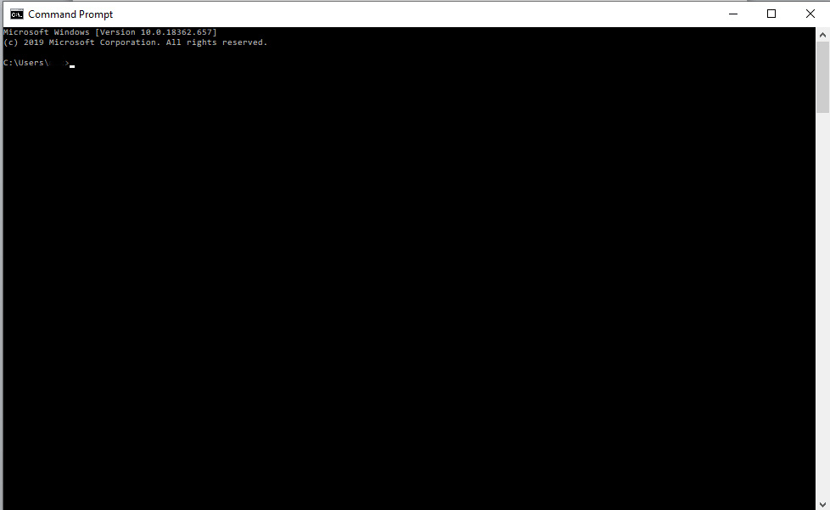
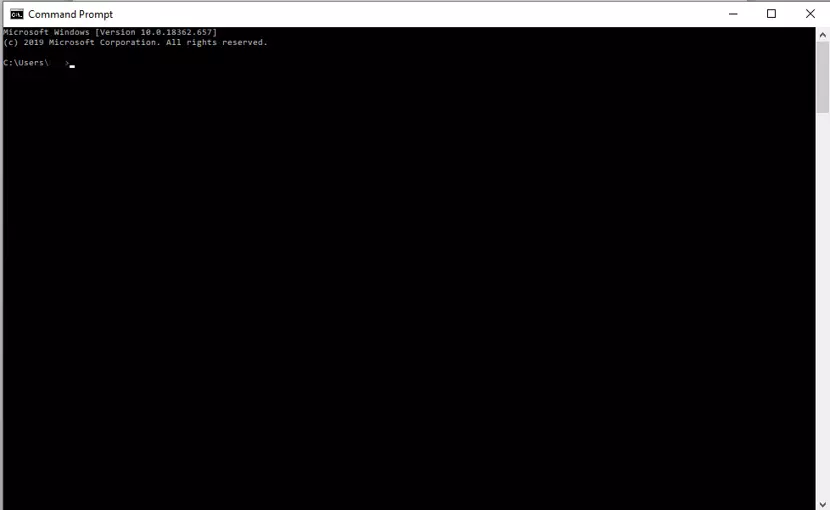
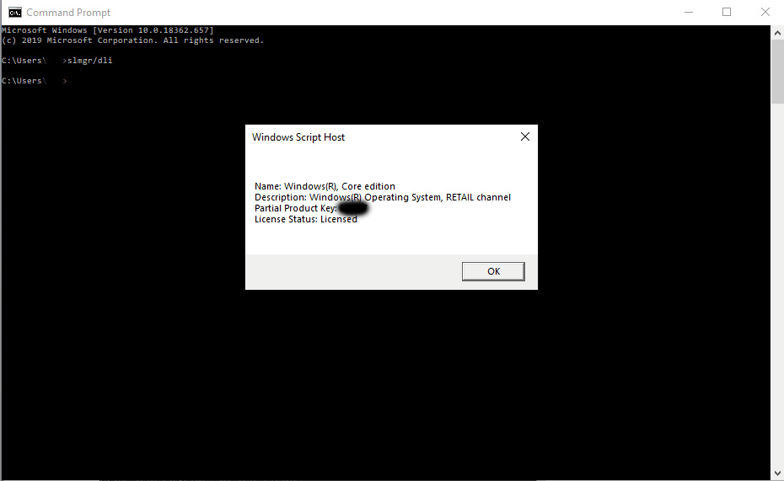
Type the command “slmgr/dli“ and hit “Enter.”
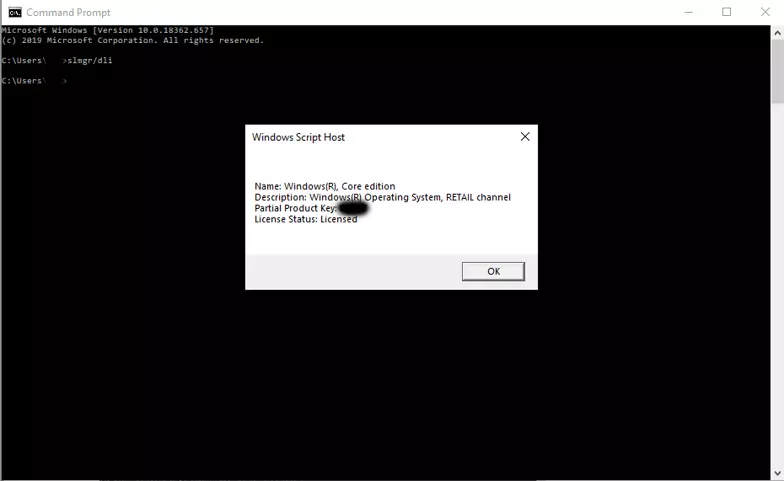
After a short while, the last five digits of the product key will be displayed in a pop-up window:
Get your Windows 10 product key from BIOS
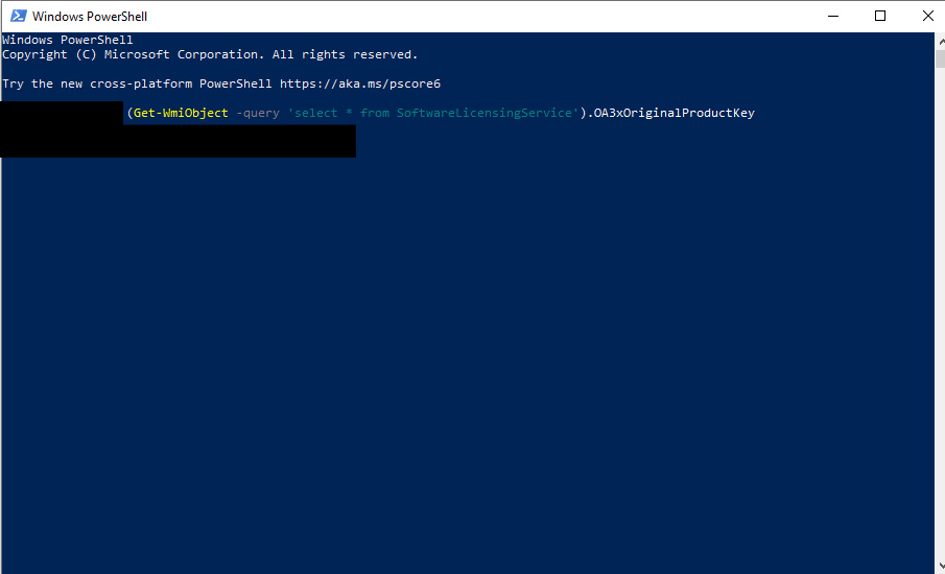
If your Windows key is stored in the BIOS – the boot software of your Windows PC – you can retrieve it quickly by using the PowerShell program.
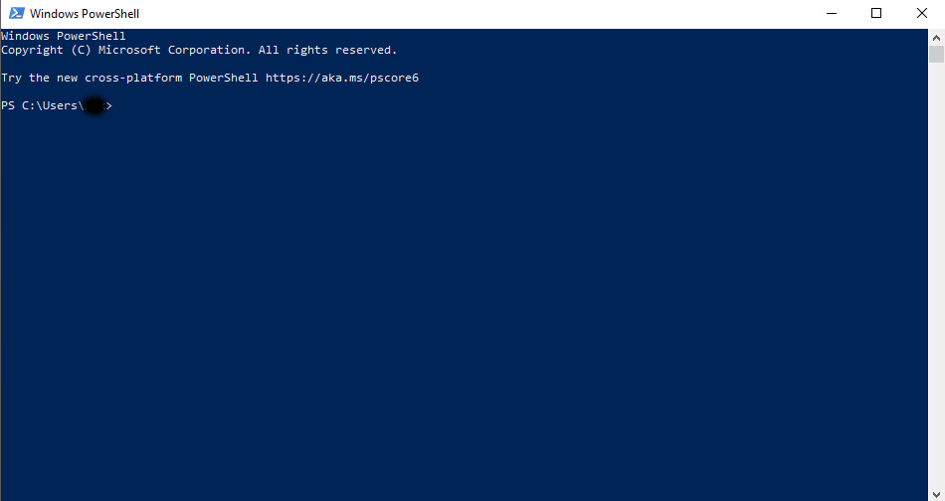
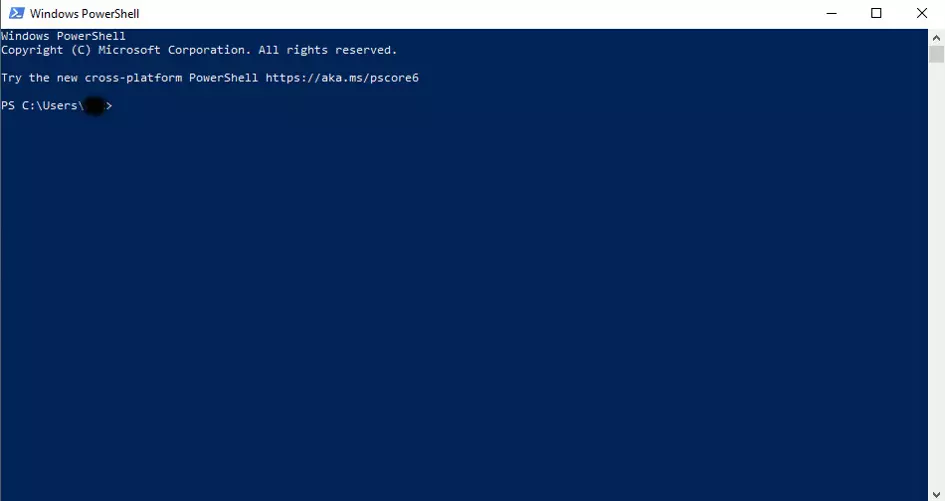
Launch the Windows PowerShell by searching for “PowerShell” in the search bar. Select the program and open it. The Windows configuration framework will be launched:
Add the following commands to the PowerShell command line and confirm by hitting “Enter.”
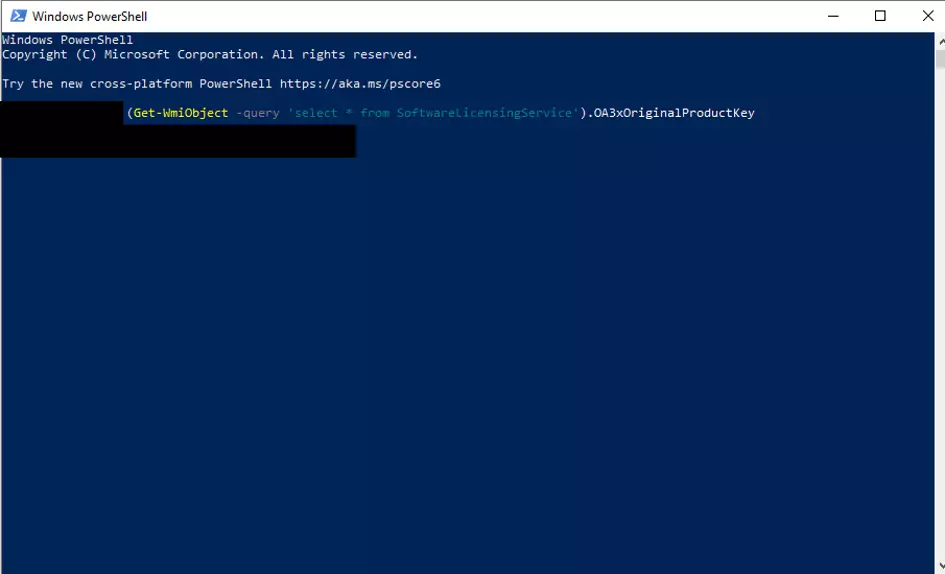
(Get-WmiObject -query 'select * from SoftwareLicensingService').OA3xOriginalProductKeyIf your Windows key is in the BIOS, you can now view it: