

How to check your Apache version

A big advantage of Apache is its flexibility. The open-source software can be changed depending on your needs and expanded using core modules. However, you always need to take Apache’s compatibility into account. In this guide, we explain step by step how to check the Apache version you have installed.


How does Apache work?
Apache is a popular cross-platform software, which makes communication between servers and clients possible. When opening a website the browser sends a request to the web server and Apache sends the requested files back as an answer in either HTML, CCS or JPEG.
Apache Spark is an open source framework of the Apache Software Foundation. Learn how it can be used for data processing in our article on this topic.
If you want to install an Apache webserver, you can add different modules. There are some which can improve the security and performance of your website. In this way you can personalise Apache. To ensure the module works properly, or if you want to install Apache for WordPress, you need to ensure that you’re using a suitable Apache version.
With Linux hosting from IONOS you can operate your own Apache webserver. IONOS offers you scalable performance, DDoS protection, geo-redundance and many other features.
How to check your Apache version step by step
You have different options to find your current Apache version. For example, you can open the information from the WebHost Manager, cPanel or via a shell. We will introduce you to the tools and commands you need.
Check your Apache version with the WebHost Manager
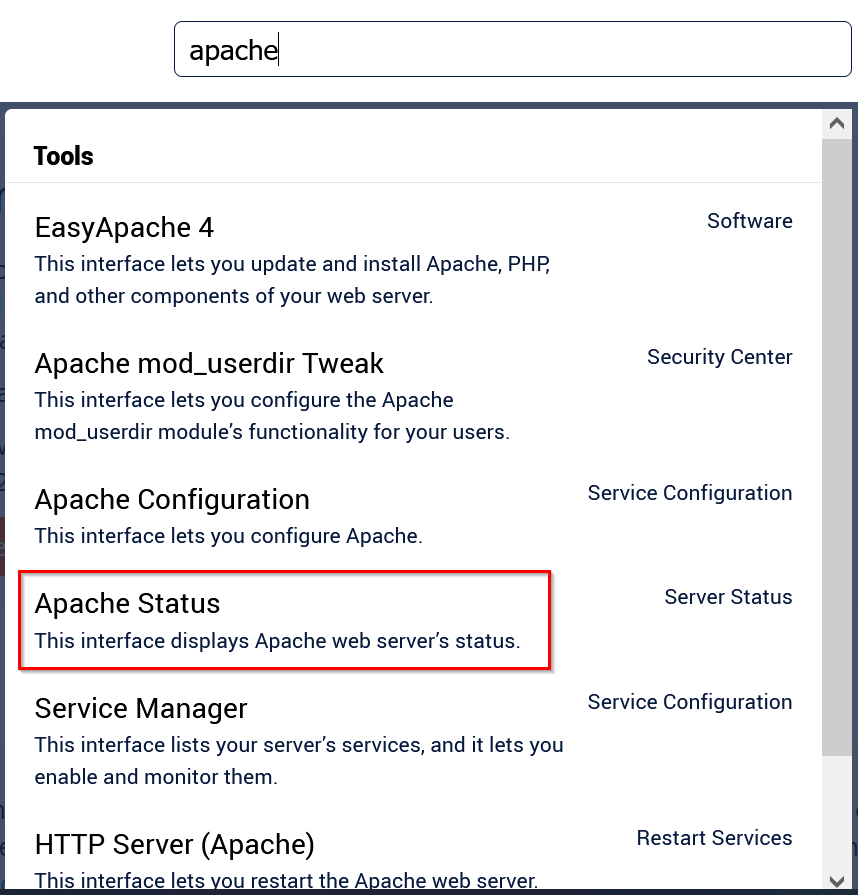
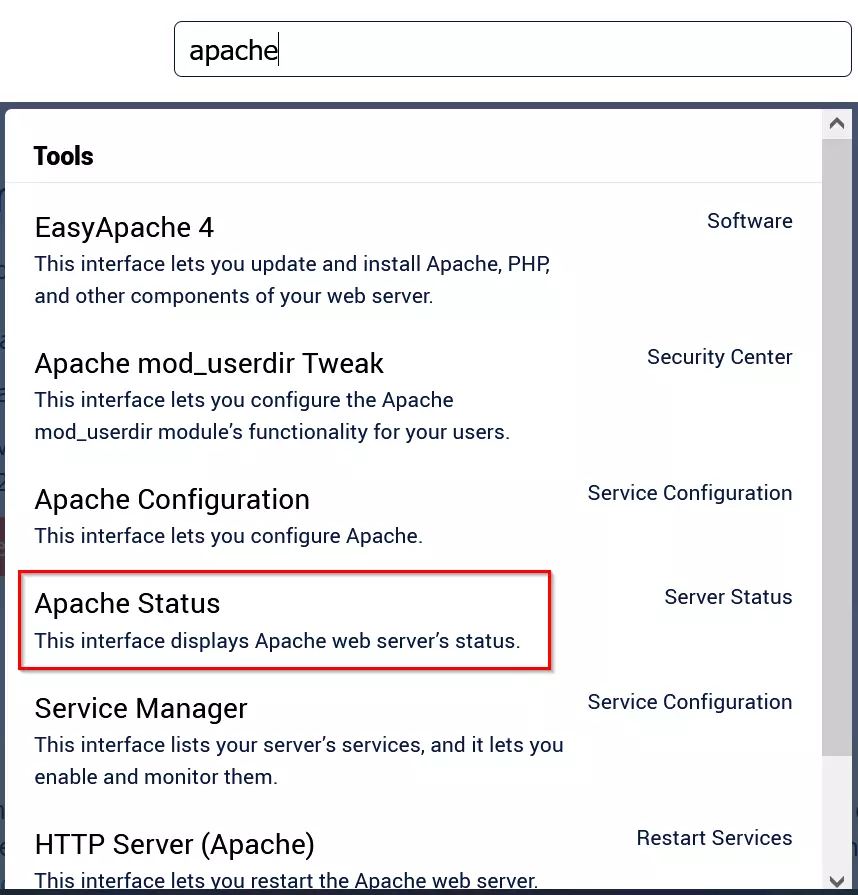
Enter ‘apache’ in the search bar.


Select ‘Apache Status’.
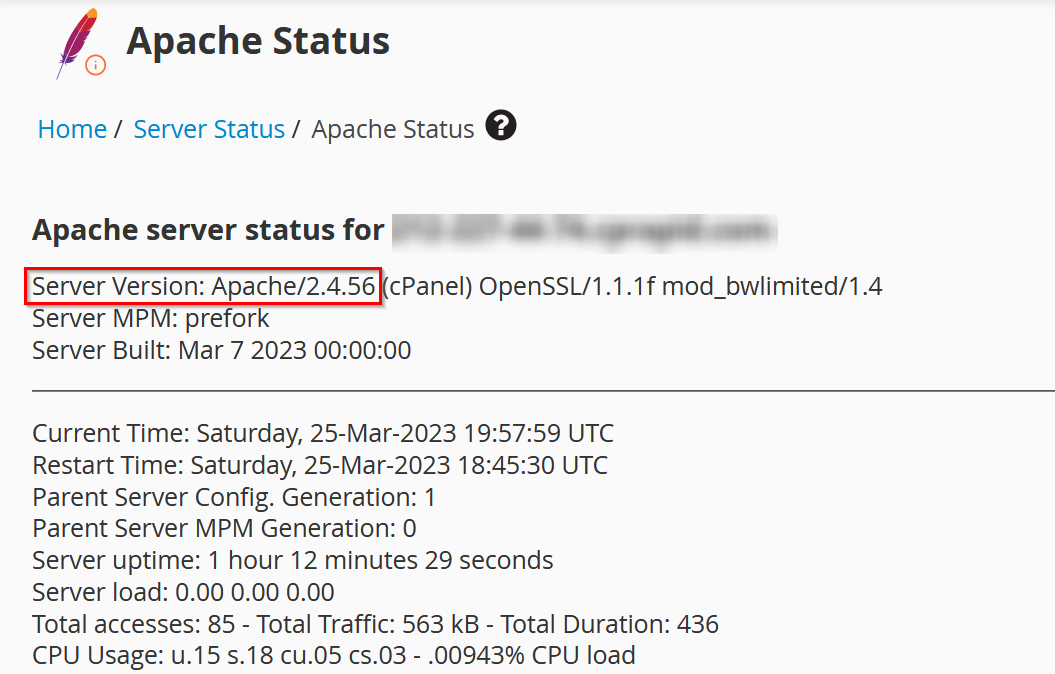
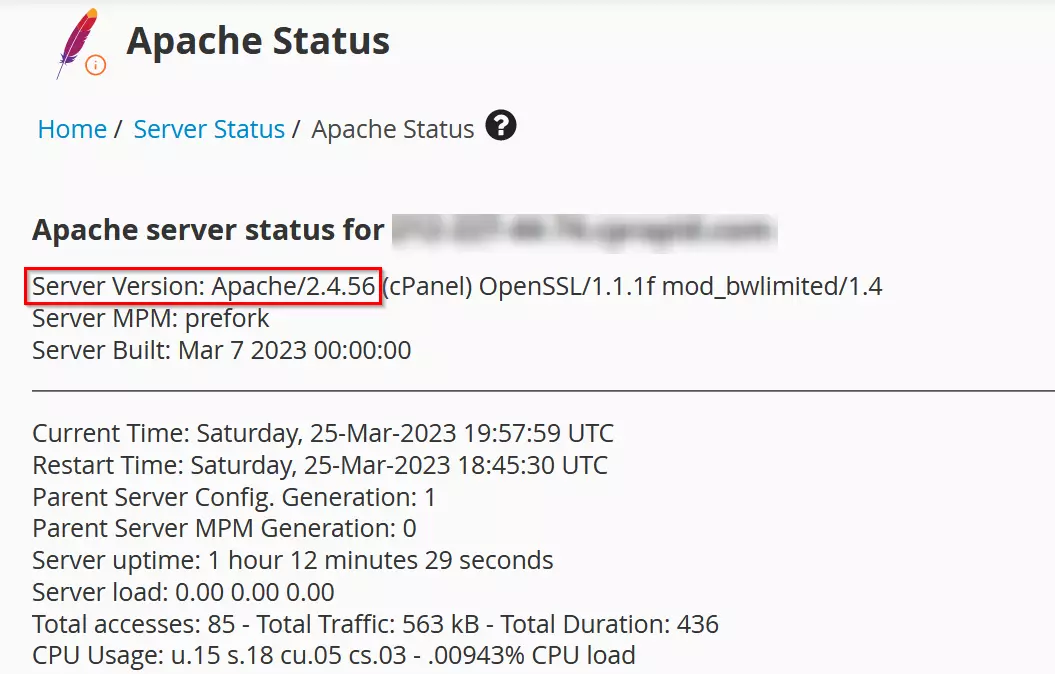
Your current version of Apache can be found directly next to ‘Server Version’. In this case, the Apache version running is 2.4.56.
Check your Apache version with cPanel
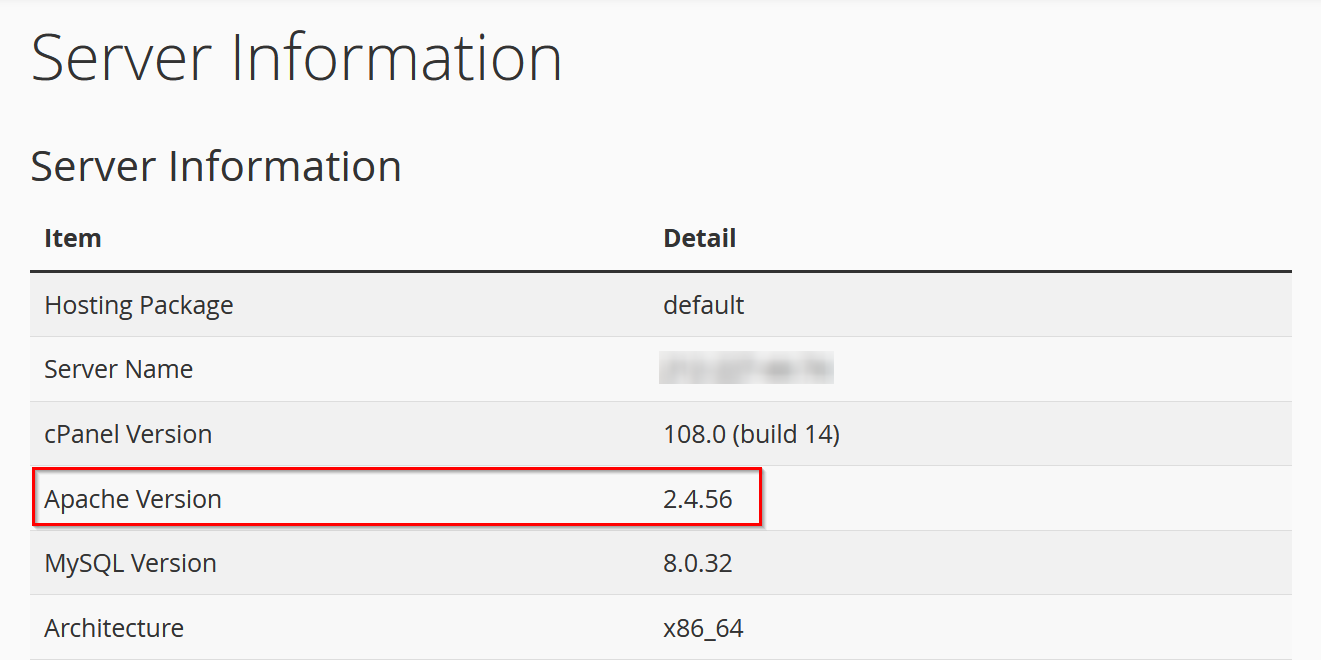
In cPanel you can view your Apache version in the ‘Server Information’ section.


Here you can see which Apache version is installed.
Check Apache version with Shell
For this method you need to connect with your server as a root user via SSH. Enter the following command with the option ‘-v’ into the terminal:
$ /usr/local/apache/bin/httpd -vYou can also use the short version:
$ httpd -vThis will give the following result:
Server version: Apache/2.4.56 (cPanel)
Server built: Mar 7 2023 00:00:00With a managed server from IONOS you can run a powerful server without any technical knowledge. IONOS will take on the admin and maintenance work for you to make your infrastructure more efficient.