

CPU vs. vCPU: A comparison of physical and virtual CPUs

The main difference between CPUs and vCPUs is that CPUs are physical in nature, whereas vCPUs are a virtual variant that is based on software. The two types of central processing units also differ in terms of performance and when they are used.
Difference 1: Technological basis
The crucial difference in the CPU vs. vCPU comparison is a technical one. A CPU is a piece of computer hardware that is commonly referred to as a ‘processor’. Modern CPUs typically have multiple cores, which they can distribute processes to that need to be carried out.
A vCPU, on the other hand, is a software-based variant of a computer control unit. It does not exist in physical form but is based on a physical CPU. Depending on requirements, several vCPUs can be derived from a classic physical CPU. Although it is not possible for a vCPU to be based on multiple physical CPUs, the vCPU can use multiple cores of a physical CPU.
To create and assign vCPUs to a virtual machine (VM), hypervisors access the cores or threads of physical processors that are available.


Difference 2: Performance
When it comes to performance, you’ll notice a distinct difference in the processing power capabilities of vCPUs and CPUs. This is due to the fact that vCPUs are, strictly speaking, software-based subunits of a CPU. If you compare a single vCPU and a single CPU with the same clock speed (gigahertz), the virtualised variant is not as powerful as its hardware counterpart. This is partly due to the fact that coordinating with the physical CPU takes time. While the amount of time this takes is often negligible, it does become noticeable when undertaking particularly demanding tasks.
In addition, the physical CPU with its subdivided cores and threads can process several instructions or processes directly and simultaneously. The vCPU would have to be supplemented by further vCPUs in order to do this, which can end up being quite problematic. With an increasing number of vCPUs, regulating the time execution of various processes becomes increasingly complex for the CPU scheduler. The resulting wait times mean that the performance of the virtual CPU network cannot be used to its full potential.
More information about CPU utilisation can be found in our separate article on the topic. In other guides, we also explain how you can display the CPU temperature and how you can overclock your CPU.
Difference 3: Area of application
CPUs are the heart of the classic computer. Without sufficient computing power, PCs would not be able to perform a wide range of tasks such as gaming, streaming, image and video editing and calculations. Physical CPUs are also used in many other everyday devices such as coffee machines, dishwashers, refrigerators and, of course, smartphones and other mobile devices.
vCPUs assume the role of the central computing component in virtualised environments. Numerous usage scenarios can also be covered when it comes to virtual machines with their own operating system. Testing environments and server/application hosting such as database servers, cloud storage and virtual private servers (VPS) are particularly popular. Here, it becomes quite clear that it is not so much about CPU vs. vCPU but more about how physical and virtualised computing power can interact with each other. The underlying physical CPU can be used as the basis for several virtualised environments that run at the same time for several users. This is what makes vCPUs so interesting for providers and those using cloud services.
How are CPUs converted into vCPUs?
If you want to use the physical CPU of your computer to provide vCPUs for one or more virtual machines, the following formula can be used to roughly calculate the number of vCPUs that can be provided:
(Threads x Cores) x Physical CPU Number = Number of vCPUs
For example, if you have installed a CPU with four cores and eight threads, you can provide up to 32 vCPUs:
(8 Threads x 4 Cores) x 1 = 32 vCPUs
You can find out the number of cores and threads your CPU has at any time in just a few steps. If you are working on a Windows PC, you can take the following steps:
- Use the key combination Ctrl + Shift + Esc to open the Task Manager.
- Click on the Performance menu.
- There you should find a list of information where you will find the values for cores, logical processors (threads) and sockets (physical CPUs).
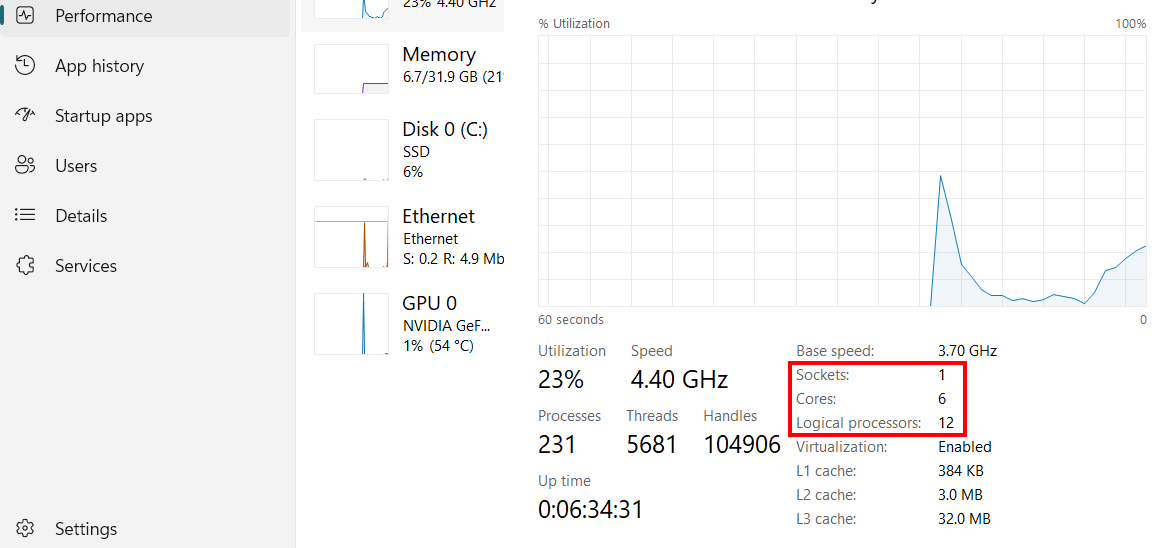
If you are using a Linux operating system, you can find out the CPU information via the terminal and by using the following command:
lscpu- Cost-effective vCPUs and powerful dedicated cores
- Flexibility with no minimum contract
- 24/7 expert support included