

Which image format suits your project? JPG vs PNG

JPG and PNG have been among the most important graphic formats for decades (especially on the web). Both have various advantages and disadvantages. Newer formats like HEIF or WebP are becoming more popular but are still far from the widespread use of JPG or PNG.
- Intuitive website builder with AI assistance
- Create captivating images and texts in seconds
- Domain, SSL and email included
What is JPG or JPEG?
JPEG is the most common image format for photos. The image compression used by this format was already defined in 1992 in the ISO/IEC 10918-1 standard. The name JPEG comes from the Joint Photographic Experts Group, which developed this standard. Since file extensions typically use only three characters, JPG was agreed upon as the extension for image files.
What is PNG?
PNG is a graphic format that is particularly suitable for pixel graphics, screenshots, and logos. The PNG format, short for Portable Network Graphics, was developed by a working group of the World Wide Web Consortium (W3C) starting in 1994 and later documented in the ISO standard ISO/IEC 15948:2003.
PNG works losslessly and offers the possibility to set different colour depths and flexibly definable colour palettes. PNG was also developed with the intention of creating a modern, freely available alternative to the licensed GIF format. Like GIF, PNG also includes an alpha channel to define transparent areas in the image, which are necessary for creating logos and icons for websites and apps. Unlike the GIF format, where only one of the maximum 256 possible colours can be transparent, PNG offers a true alpha channel, which also allows for semi-transparent areas – e.g., for blending.
How does compression affect quality when it comes to JPG?
As a general rule, the higher the compression rate of a JPG photo, the worse the quality becomes. Image-editing programs specify compression as a quality value. For example, a value of 100 means 100% quality with no compression. However, the relationship between the compression level and file size is not linear. Even small amounts of compression that barely affect quality can significantly reduce the file size.
The photo shown has an uncompressed size of 22.16 MB with a resolution of 4,000 x 1,936 pixels. Even at the displayed quality level of 95, JPEG compression reduces the file size to 1.25 MB. For most cameras and smartphones, 95 is the default for saving photos in JPG format.
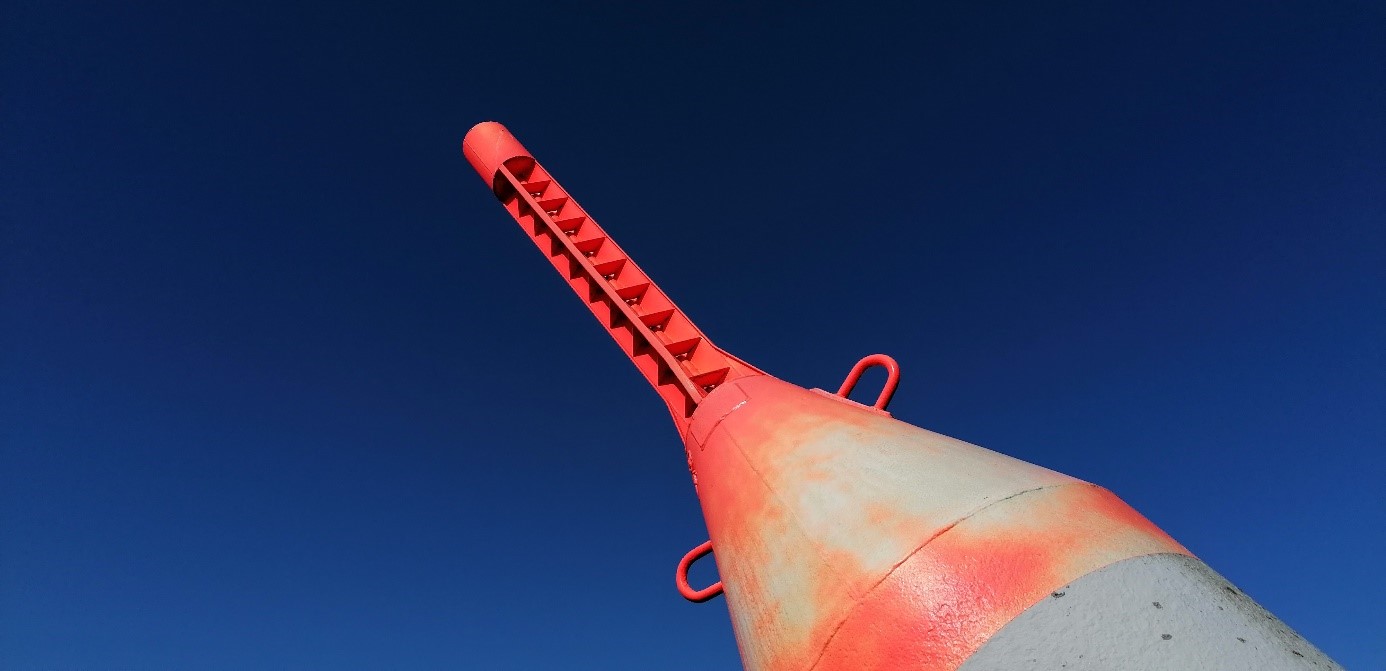

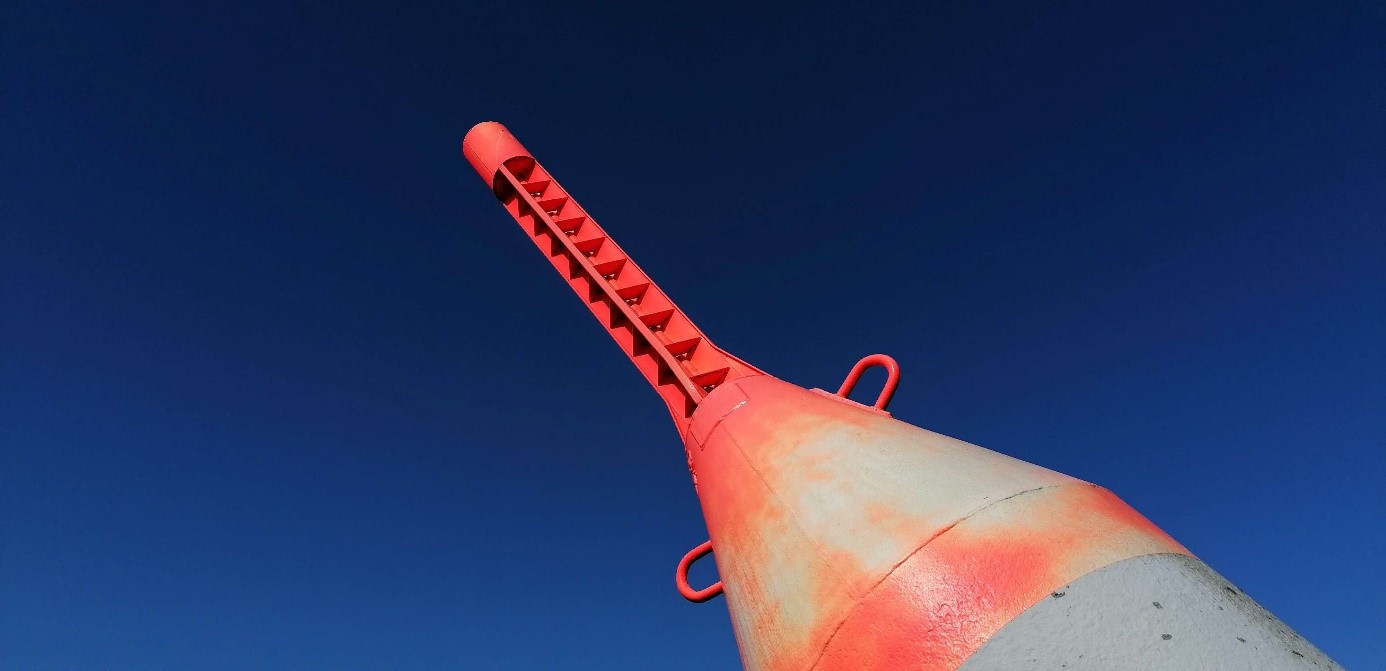
Compressing the photo to a quality setting of 60 reduces the file size to 194 KB, which is about 15 percent of the size of the version with a quality setting of 95. The difference is barely noticeable in the photo:
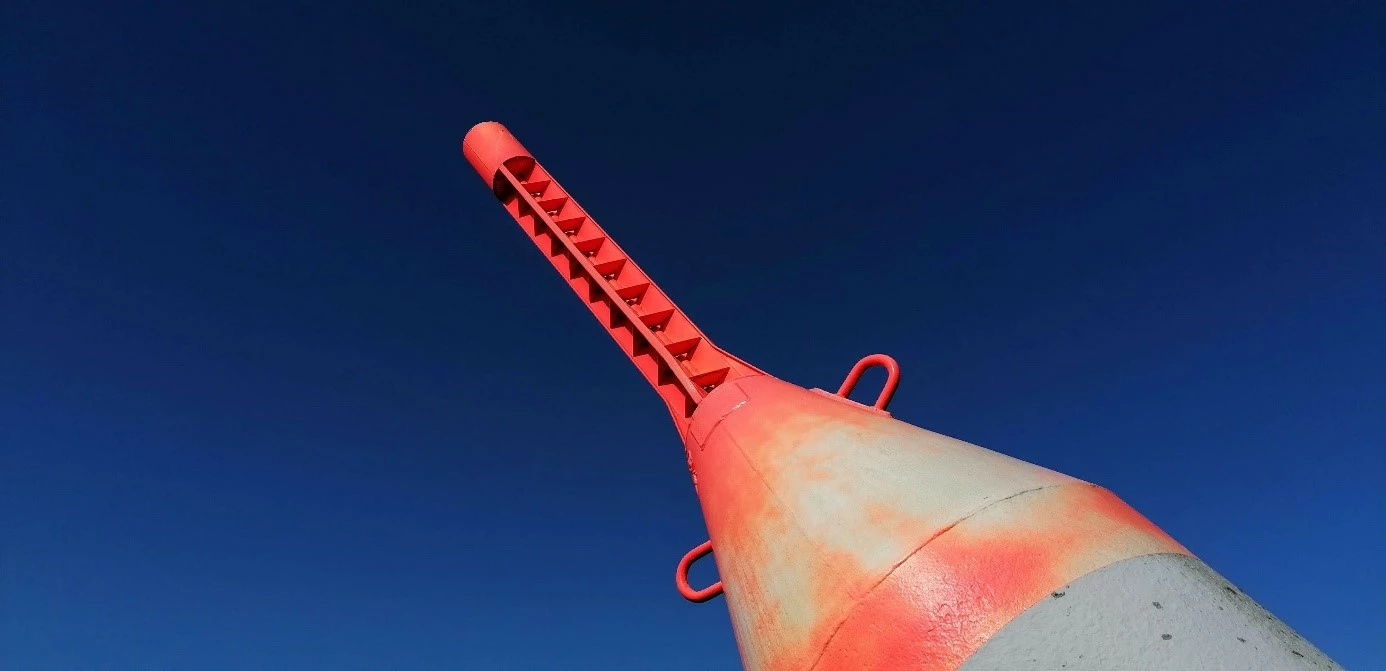
With stronger compression, the image quality significantly deteriorates while the file size only reduces slightly. In the blue sky of the example image, at quality level 25, artifacts in the form of colour bands are noticeable and the colour gradient is no longer smooth:
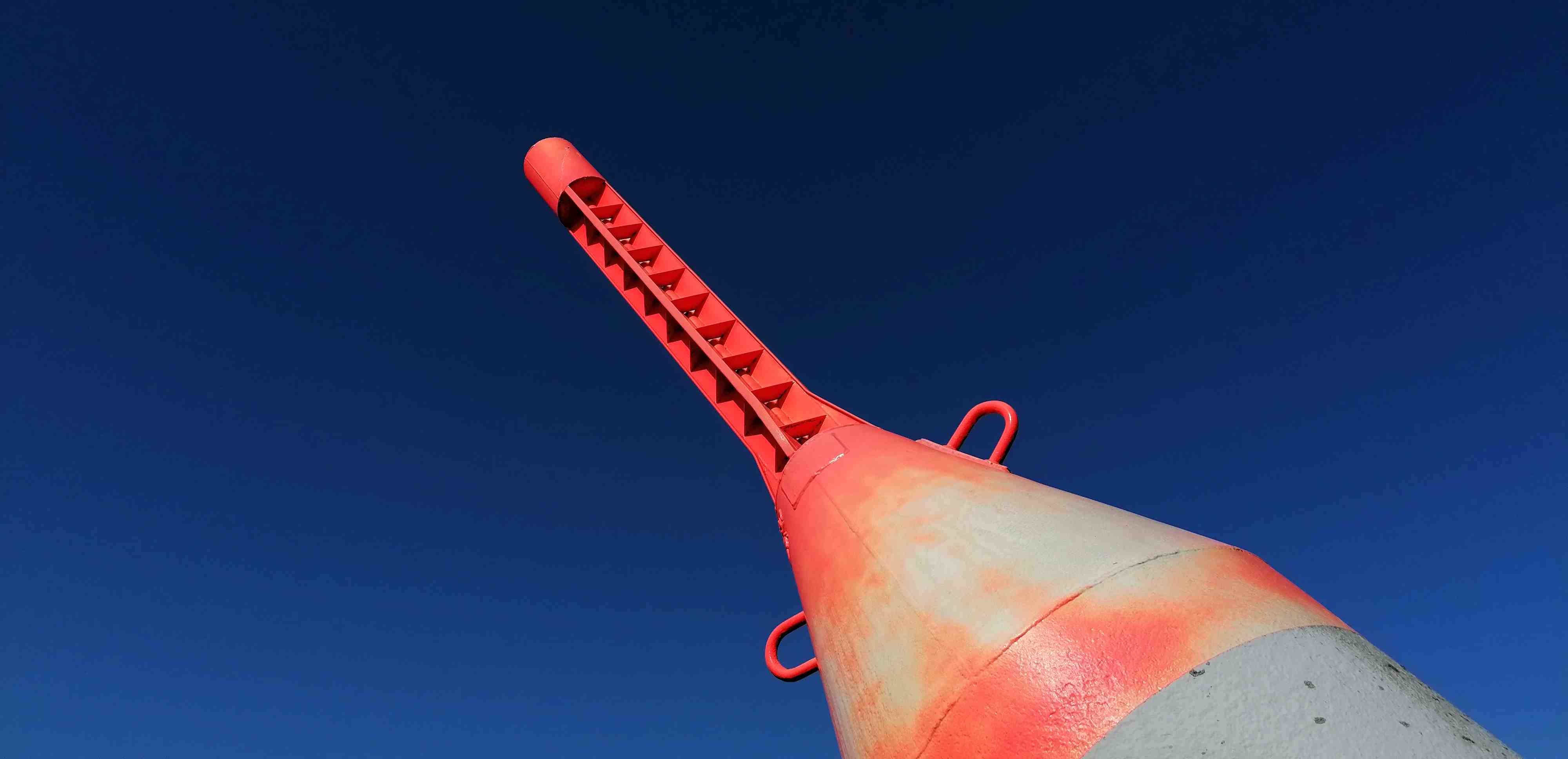
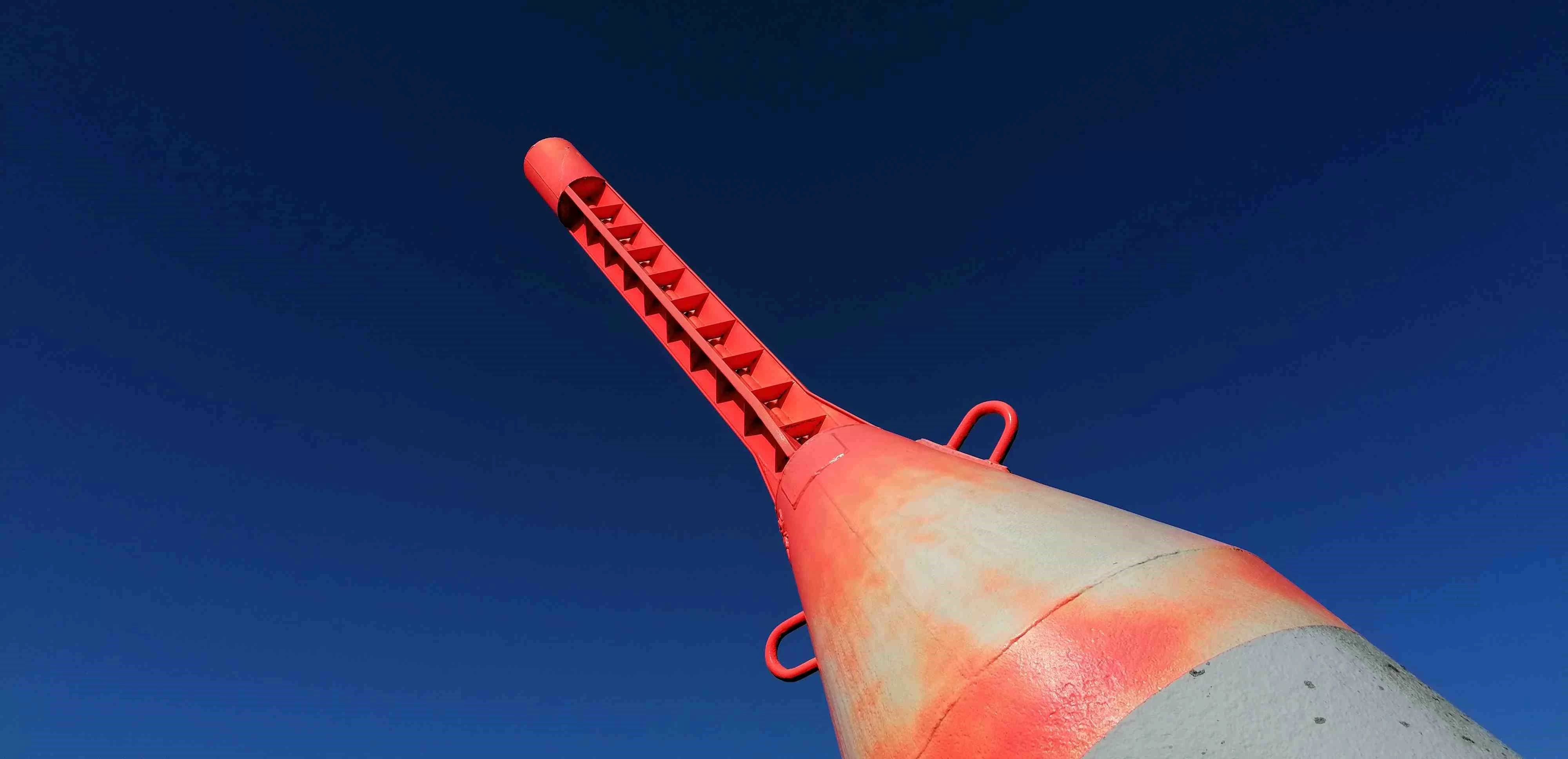
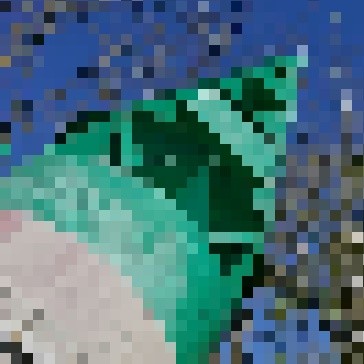
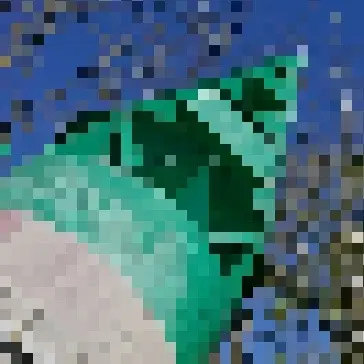
When the photo is magnified, JPEG compression artifacts are visible even at medium quality settings, as the example below shows. This is why you shouldn’t change the JPG quality setting when you’re ordering high-resolution prints of your photos from an online printing service or photo lab.
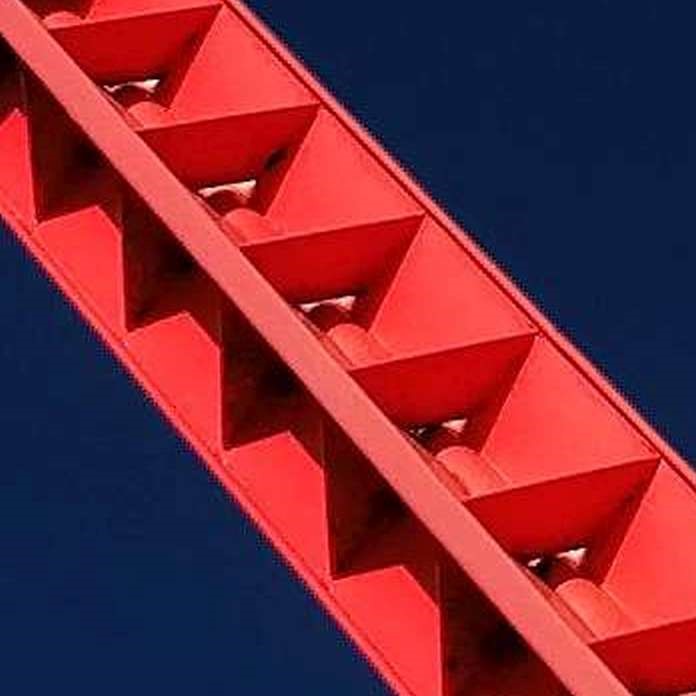
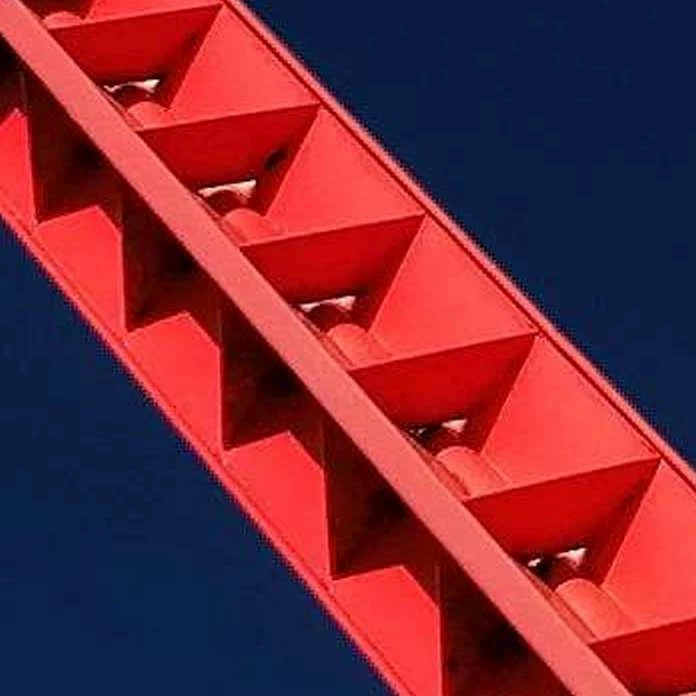
The magnified image shows that compression artifacts are most prominent in monochromatic areas and around high-contrast edges. For this reason, the JPG format is not suitable for solid-colour graphics, screenshots, and icons.
Progressive JPEG for Faster Display
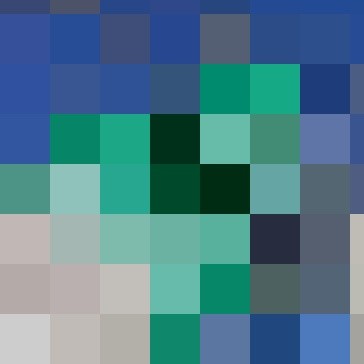
The display of a very large photo can – depending on the system’s performance and transmission rate – take some time. JPG photos are composed of so-called coefficients, blocks of 8 x 8 pixels that are stored sequentially by default. Thus, the image builds up line by line.
In a progressive JPEG, the average colour value of each coefficient is stored first. This allows a blurry image with rough pixels to be displayed very quickly. Then, colour information follows for a quarter and a sixteenth of each coefficient. Over time, the display quality continuously improves. Viewers can get an initial idea from the start and don’t have to wait for the line-by-line loading.
Compression losses due to image editing
Image editing programs process every pixel of an image as it appears in the file, including pixels whose colour has been distorted by compression. If you apply a colour or effect filter to an image or scale it, it will be re-compressed the next time it’s saved, which diminishes quality. Once edge contrasts or colours are lost, they cannot be recovered. When trying to sharpen an image afterward, compression artifacts are particularly intensified. The lower the quality level of a photo, the more significantly editing affects the quality. Increasing the quality level afterward doesn’t help here.
The JPG format allows for lossless rotation of the image in 90° increments. However, the photo editing software must support this. Otherwise, losses occur due to recompression. Some programs also allow for rectangular cropping without recompressing the cropped area when saving.
JPG vs PNG – screenshots
Screenshots of Windows windows or smartphone apps are frequently needed in all types of program documentation. It’s best to create these in PNG format, which is the default setting for almost all screenshot tools. For example, Android smartphones automatically save screenshots in PNG format.
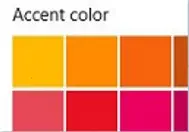
Screenshots contain precise, straight lines with clear contrasts and solid colour areas without gradients. Both are significant weaknesses in the JPG format. The following screenshots of a dialog box from Windows 10 show the difference between the JPG and PNG formats.
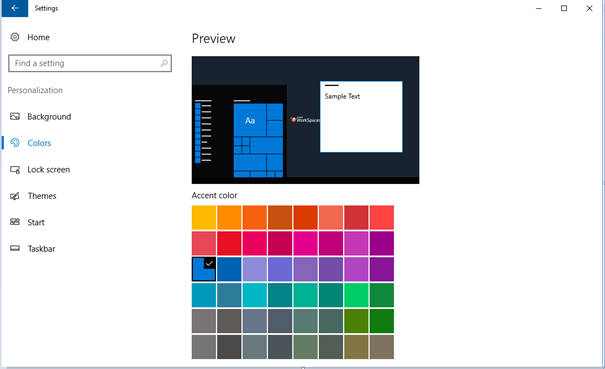
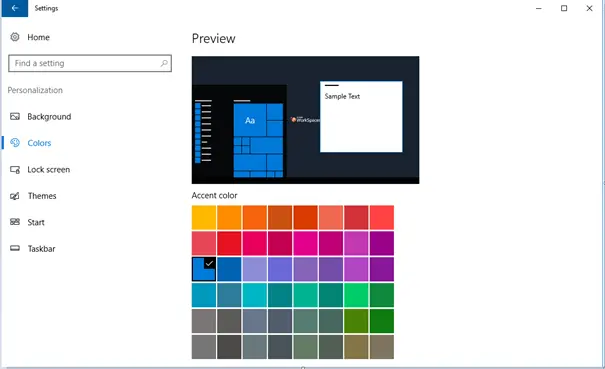
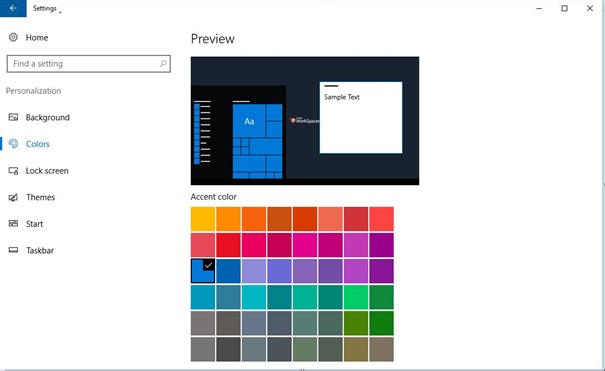
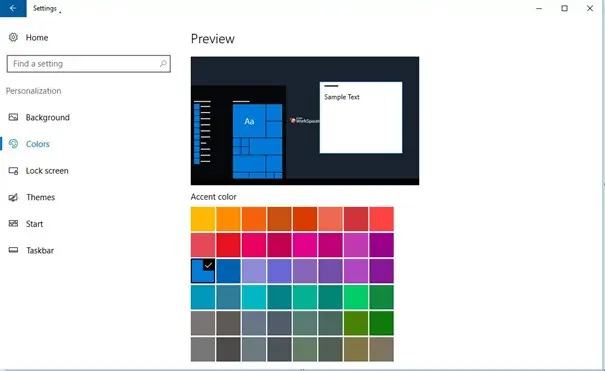
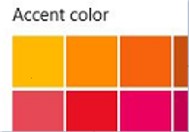
The difference in quality between JPG and PNG becomes more obvious when you magnify the images. The following screenshot shows JPG artifacts in the area of the colour palette and around the black letters on the white background.
Overview of the advantages and disadvantages of JPG and PNG
There are many differences between the formats JPG and PNG. Both image formats have advantages and disadvantages, which are summarised in the table.
| JPEG | PNG | |
|---|---|---|
| Compression | Lossy, adjustable | Lossless |
| File size | Very small depending on compression | Significantly larger than JPG |
| Colours | 16.7 million | Up to 16.7 million; lower colour depths possible, which saves file size. |
| Progressive rendering | Yes | No |
| Transparency | No | Yes with alpha channel |
| Lossless editing | 90° rotation and cropping, if supported by the program | Yes |
| Metadata in the image | EXIF and IPTC standard | Possible, but not standardised (not readable by all programs) |
| GPS position in the image | Possible, depending on camera functions | No |
| Automatic saving on the smartphone | Photos | Screenshots |
| Maximum image size | Longer side: 65,535 pixels | System-dependent, theoretically unlimited |
JPG or PNG? Extensions and new formats
Alongside newer formats like HEIF for photos or WebP for graphics, there have been repeated attempts to expand the two well-known image formats JPG and PNG. However, none of these formats have yet achieved anywhere near the distribution level of JPG or PNG.
JPEG 2000
The JPEG 2000 format, which is incompatible with JPEG, allows for better compression with the same quality or lossless compression. Certain detailed image regions can be displayed in better quality than less important areas. It supports more than 8 bits per colour channel and significantly larger image dimensions. Various progression modes are available for display, and the metadata can contain arbitrary information in XML format. Possible file extensions include: .jp2, .j2k, .jpf, .jpg2, .jpx, .jpm. Despite numerous advantages, JPEG 2000 has not yet been able to replace the classic JPG.
JNG
JPEG Network Graphics (JNG) extends the JPEG format by adding an alpha channel, which can be losslessly integrated in the form of a PNG data stream. The format does not have its own registered MIME type.
APNG
Animated Portable Network Graphics (APNG) adds animations to the PNG format, similar to what is possible in the GIF format.
PNG +
Extension of the PNG format to include image layers and multi-page layouts. This format was only used by the now-discontinued program Microsoft Picture It! and did not catch on.
Neither JNG nor APNG or PNG+ are W3C recommendations, which explains their limited distribution.
WebP
The image format WebP was developed by Google and released in 2010 to combine JPEG, PNG, and GIF into a single modern format. It supports both lossy and lossless compression, including transparency (alpha channel) and animations. WebP delivers significantly smaller file sizes than JPG or PNG at comparable image quality. The standard is now supported by all major browsers (Chrome, Firefox, Edge, Safari) and is particularly optimised for use on the web. The file extension is .webp.
AVIF
AVIF (AV1 Image File Format) is based on the modern AV1 video codec and offers very efficient image compression while maintaining high image quality. It supports both lossless and lossy compression, high colour depth, HDR, transparency, and animations. Compared to WebP, AVIF typically achieves smaller file sizes for the same quality but requires more computing power for encoding and decoding. It is increasingly supported by modern browsers and platforms. The file extension is .avif.
JPEG XL
JPEG XL was also designed as a modern successor to classic formats like JPEG, PNG, and GIF, offering both lossless and lossy compression. It supports high colour depths, large image dimensions, animations, transparency and is also backward compatible with JPEG; existing JPGs can therefore be converted without quality loss. Acceptance is currently still limited, as major platforms like Google Chrome have temporarily ceased support. The file extension is .jxl.
JPG or PNG – which format is suitable for what?
The JPG format was developed for photos and is best suited for them. Especially with landscape or portrait shots, the compression artifacts are hardly noticeable. Thanks to the small file size, websites can be illustrated well with JPG files. Only for product photos with details and sharp edges can artifacts become visible. Also, isolating objects in product photos is made more difficult by the compression.
PNG is ideal for all types of graphics with precise edges and solid colour areas. This also applies to screenshots and converting vector graphics to raster formats on systems that can’t display vector graphics. The alpha channel allows for transparent image areas, which is especially important for icons for apps and websites.
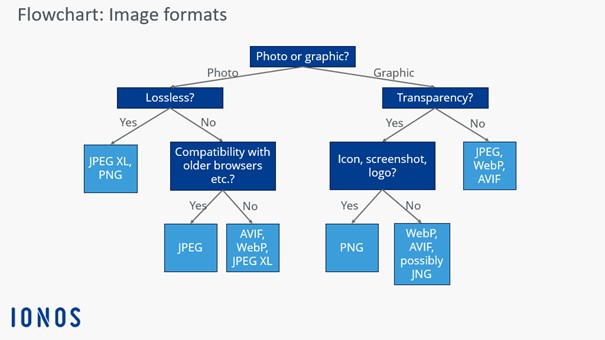
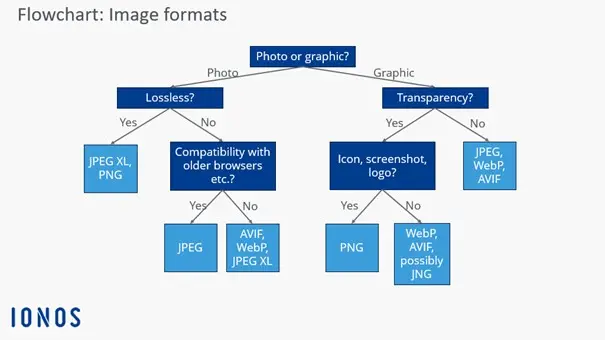
For quick decision-making on which image format is suitable for your use case, our flowchart can help:
- Professional templates
- One-click design changes
- Free domain, SSL and email
Reviewer

Melissa Senn
Melissa Senn has been with IONOS since 2016 and focuses on website, e-commerce, social media, and AI in the Digital Guide. As a digital strategist, she uses her extensive SEO and GEO experience to transform complex technological trends into practical content.