

Which free image editing software programs are the best?

If having the best quality possible isn’t a priority for you, free image editing software is a good alternative to Photoshop and other photo editors. Here you can find a comparison of some of the best free image editing solutions.
- Up to 50 GB Exchange email account
- Outlook Web App and collaboration tools
- Expert support & setup service
What should photo editing software be able to do?
The range of features is the main and most important difference when it comes to differentiating between paid photo editing software and programs that are free of charge. The fact that freeware products usually have fewer editing options is not necessarily a disadvantage. Amateur photographers, in particular, often stand to benefit from the simplicity of a free tool, while still being able to get a good result. However, free photo editing software should definitely offer the following functionality:
- Simple correction of sharpness, colour, and exposure
- Cropping and rotating
- Lossless scaling when possible
- Isolation of specific elements and removal of background or unwanted elements
- Customisation with filters and effects
- Ability to work on several layers
- Support for different image formats
What are the best free photo editors?
| Operating system | Standout feature | |
|---|---|---|
| Adobe Express | Web, iOS, Android | Tailored to social media content |
| GIMP | Windows, macOS, Linux | Modular design |
| Krita | Windows, macOS, Linux | Various tools for artists |
| Paint.NET | Windows | Extensive plugin directory |
| Pixlr Editor | Web, Windows, iOS, Android | Apps for iOS and Android |
| Raw Therapee | Windows, macOS, Linux | Editing RAW files |
- Store, share and edit data easily
- ISO-certified European data centres
- Highly secure and GDPR compliant
Overview of the best free image editing software
In the following sections you’ll find information on some of the best picture editing software that is free. The comparison table summarises the most important similarities and differences between the desktop and web applications.
Paint.NET (Windows)
Originally a small student project at Washington State University, Paint.NET is now among the best photo editing software in the freeware sector. The photo editing software was released in 2004 under a free MIT license and is now distributed under a proprietary license. The basic framework of the application is the Microsoft .NET framework, which is automatically added during installation. Since the framework only runs on Windows, Paint.NET is not available for other platforms.
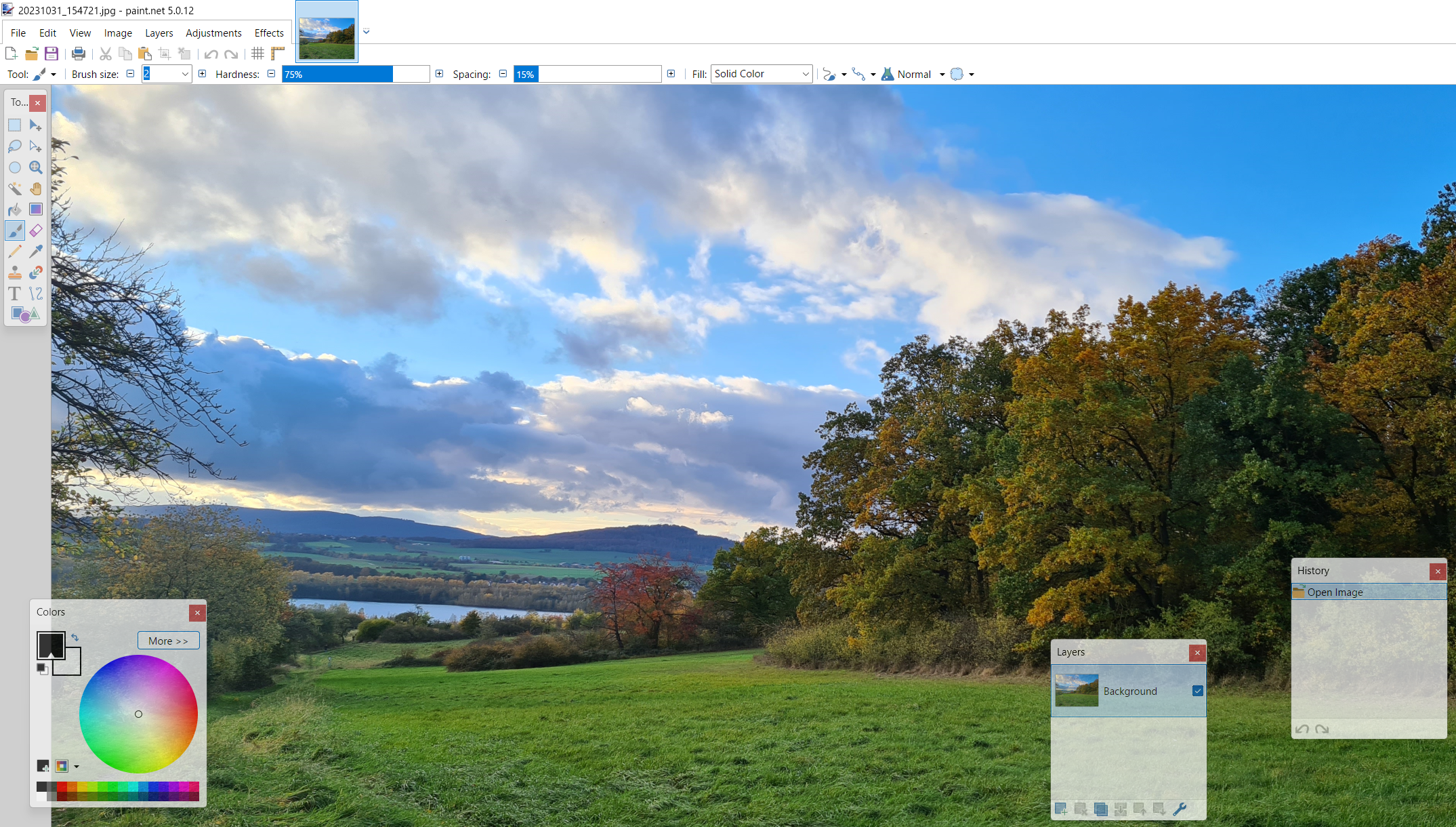
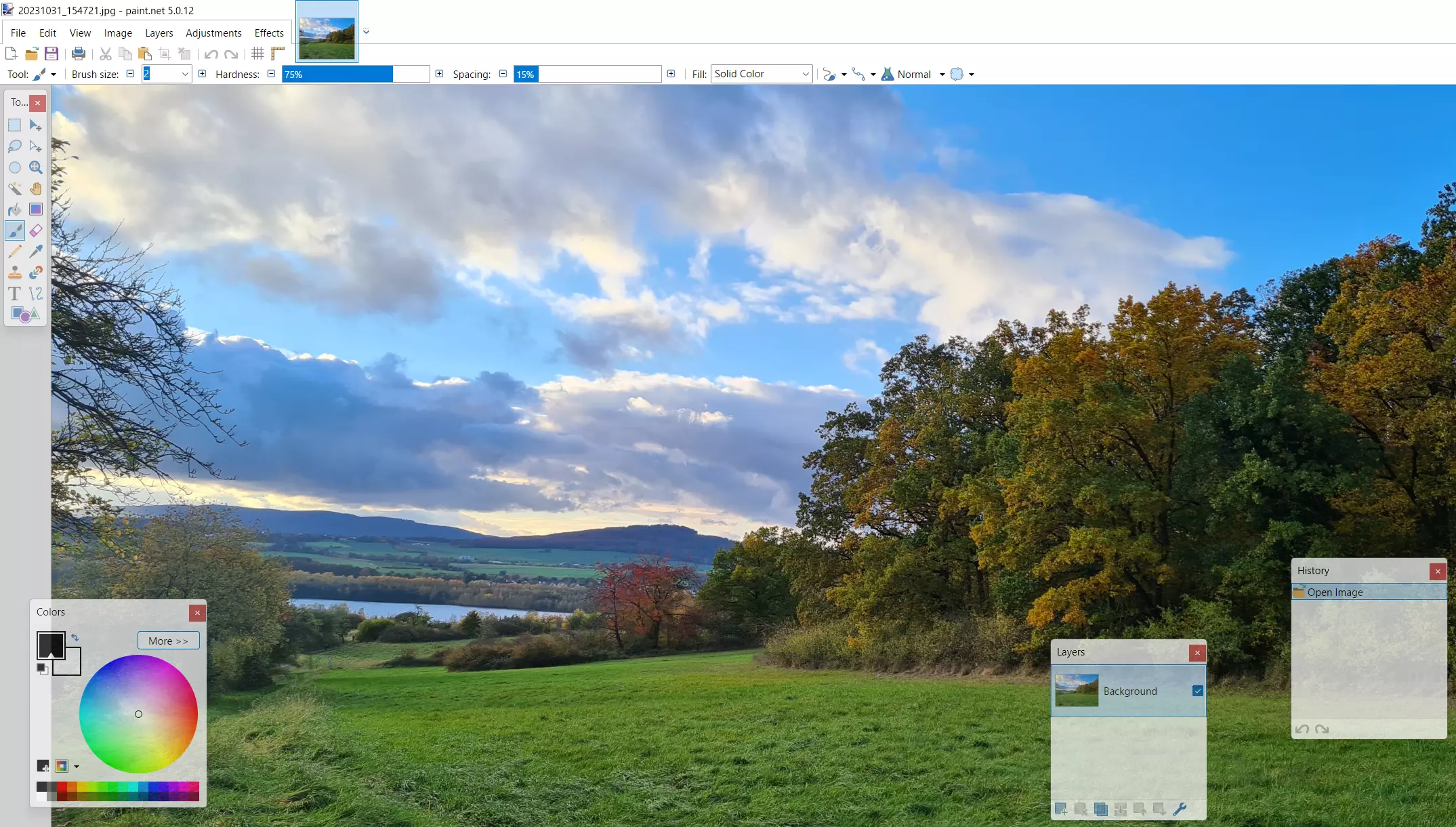
This Microsoft Paint alternative is developed continually, making it suitable for more demanding tasks. This means you can work on multiple layers with parallel processing of various projects. You can easily move back and forth between your projects using tabs. Each tab has a small thumbnail, making it easy to navigate to your chosen project. Basic optimisation tools for brightness, saturation, contrast and hue are included as well as a graduation curve for tonal value correction and a tool for removing the red-eye effect. Paint.NET also provides the following features:
- Softener and sharpener
- 3D rotation and zoom effect
- Black and white filters and sepia filters
- Gradient generator
- Selection tool (Magic Wand)
While the standard scope of features is quite impressive, there is also a lengthy plug-in directory Plug-in group in the Paint.NET forum. With this directory, you can enhance the functionality of the program and incorporate effects or filters that are missing. In addition to numerous tools for the tool palette, you can also find extensions that allow you to import and export additional file formats (such as the Photoshop format .psd). Paint.NET records every step of your progress, which means you can undo changes at any time.
| Pros | Cons |
|---|---|
| ✓ Expandable using plugins | ✗ Only available for Windows |
| ✓ Unlimited undo function for erasing individual work steps | ✗ Without extensions, only supports a small range of file formats (.pdn) |
Pixlr Editor (Web, Windows, iOS, Android)
After a year in development, the Swedish developer Ola Sevandersson published his cloud-based image processing software Pixlr Editor. You don’t need to sign up to use the photo editing software, and it can be used free of charge with all common browsers. In addition to the web version, there are also apps for Android and iOS as well as a Windows desktop edition. A slimmed-down version named Pixlr Express is also available for smaller image optimisations.
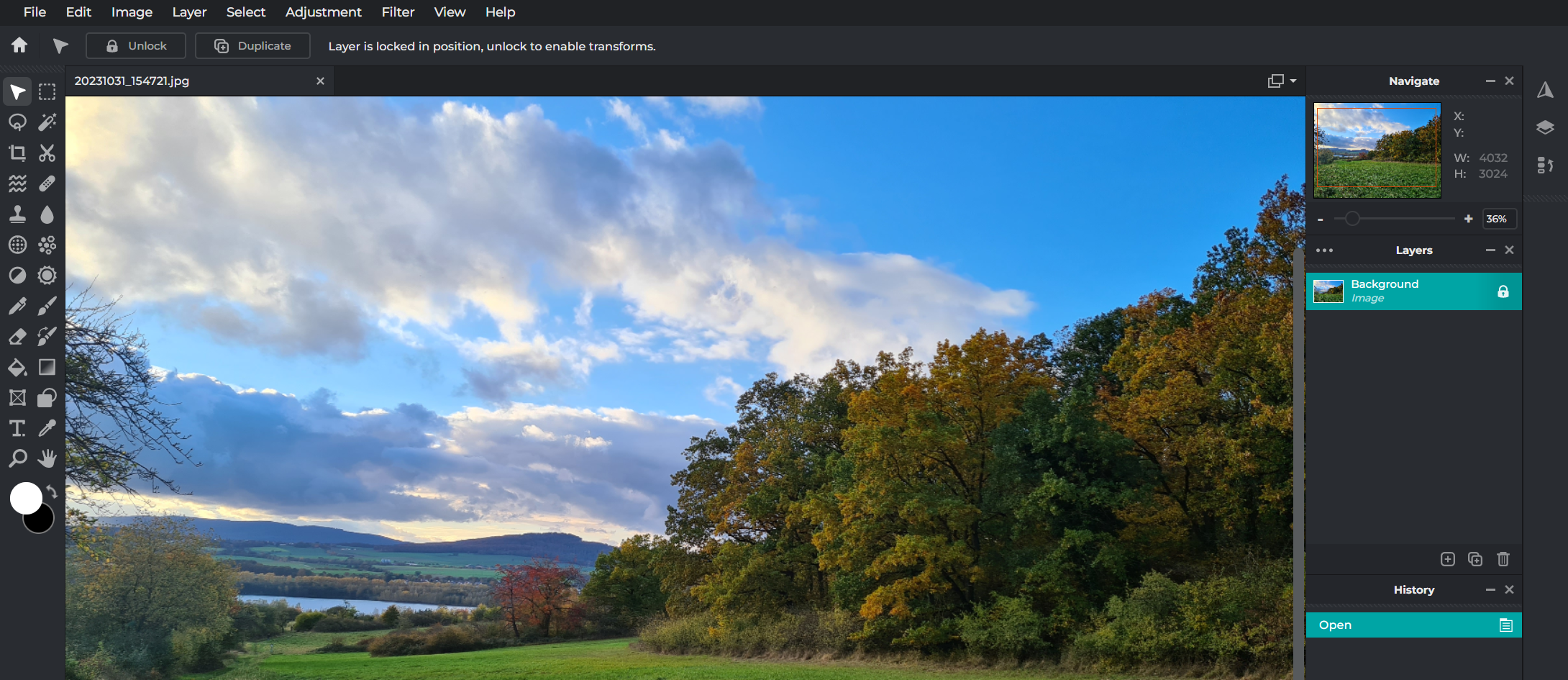
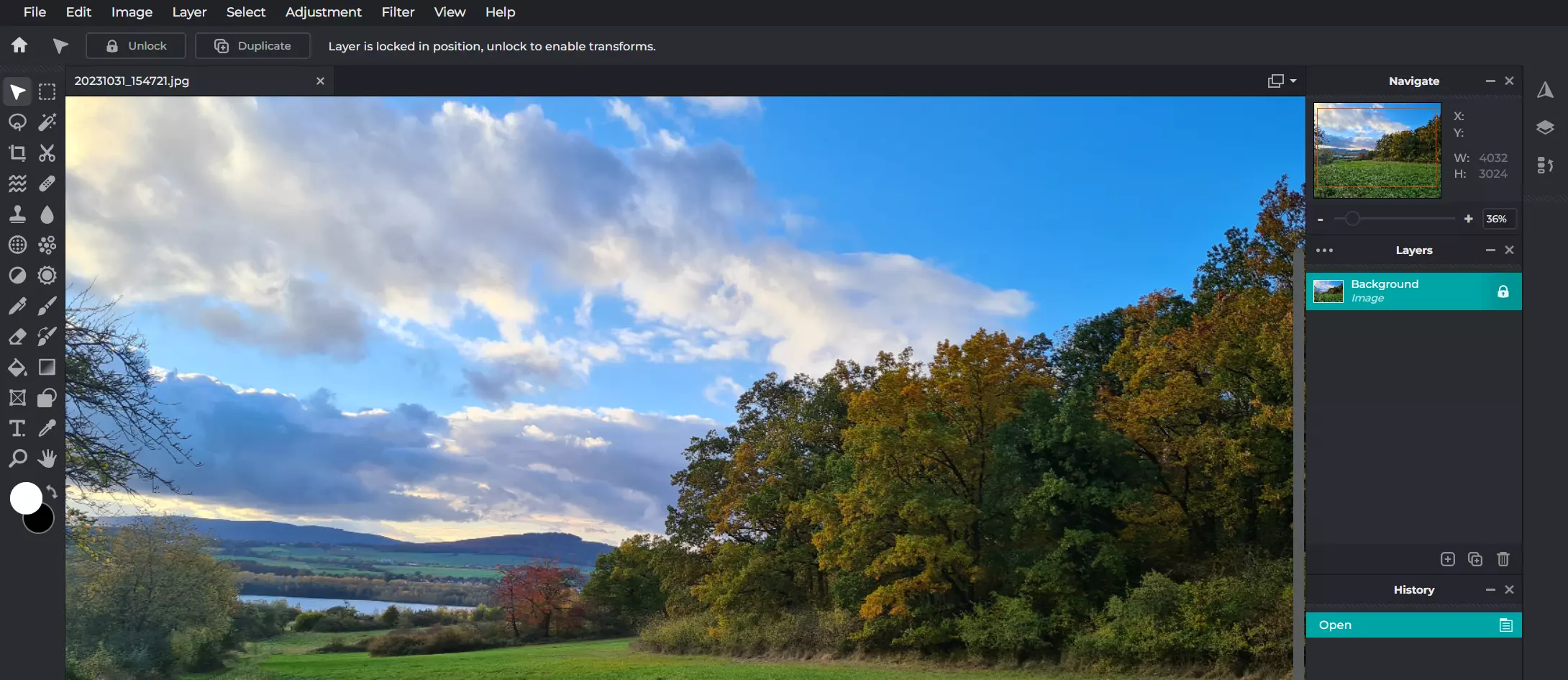
Pixlr Editor is the best proof that even free online photo editing software can keep up with the established, paid versions. The visual display and the standard editing controls make it easy to forget that it is a web browser app – especially when using the full-screen mode. The clear, intuitive, visually appealing menu bars and boxes are easily recognisable from comparable programs, so experienced users and beginners alike will quickly feel comfortable using the program. The image editing software provides the following image customisation features:
- Softener and sharpener
- Burn corrector
- Red-eye remover
- Gradation curves
- Automatic tonal correction
In addition to the versatile selection of correction tools, Pixlr Editor also offers numerous filters for altering photos and graphics. You can blur them, pixelate them, transform them into reliefs or apply a sepia or warm tone to images. There are plenty of customisation options available throughout the entire editing process.
A few aspects of Pixlr Editor make it clear, however, that you are using a free photo editing software program. For example, you can only export three edited photos or images per day. The app also has advertisements, which you can close by clicking on them. However, these restrictions are removed in the paid premium editions. In addition to other benefits, these editions also come with credits for various AI features in the Pixlr Suite.
| Pros | Cons |
|---|---|
| ✓ Desktop feel thanks to the full-screen mode | ✗ Free version contains advertising |
| ✓ Versions for iOS and Android available | ✗ Only three image exports per day in the free version) |
GIMP (Windows, macOS, Linux)
In 1998, the first official release of the GNU Image Manipulation Program appeared in version 1.0, better known as GIMP. With the graphics library Generic Graphics Library (GEGL) as its foundation, GIMP has become a competitive all-in-one solution for image optimisation and editing. Originally designed for GNU/Linux, the program now runs on all popular Windows and MacOS systems.
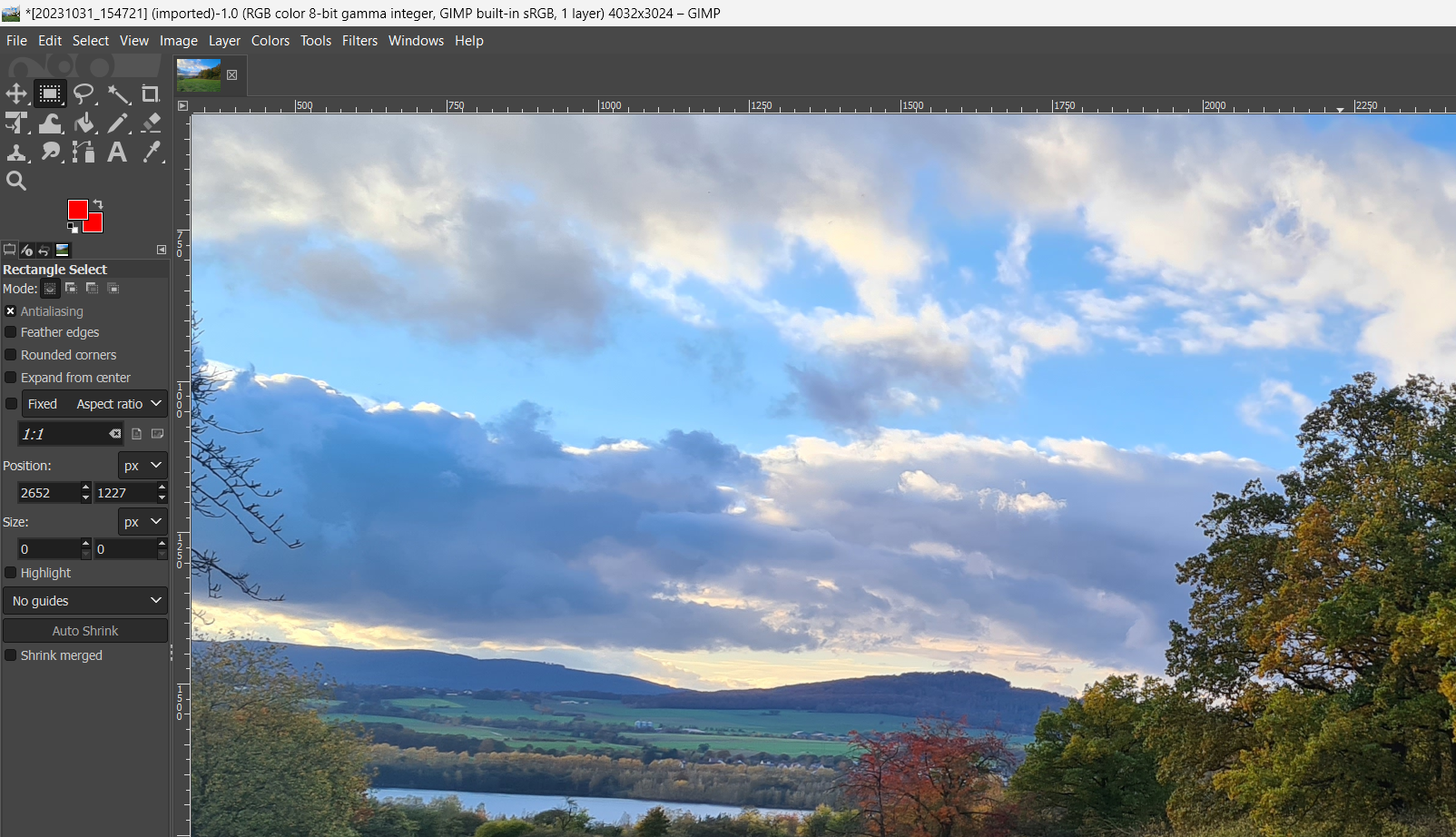
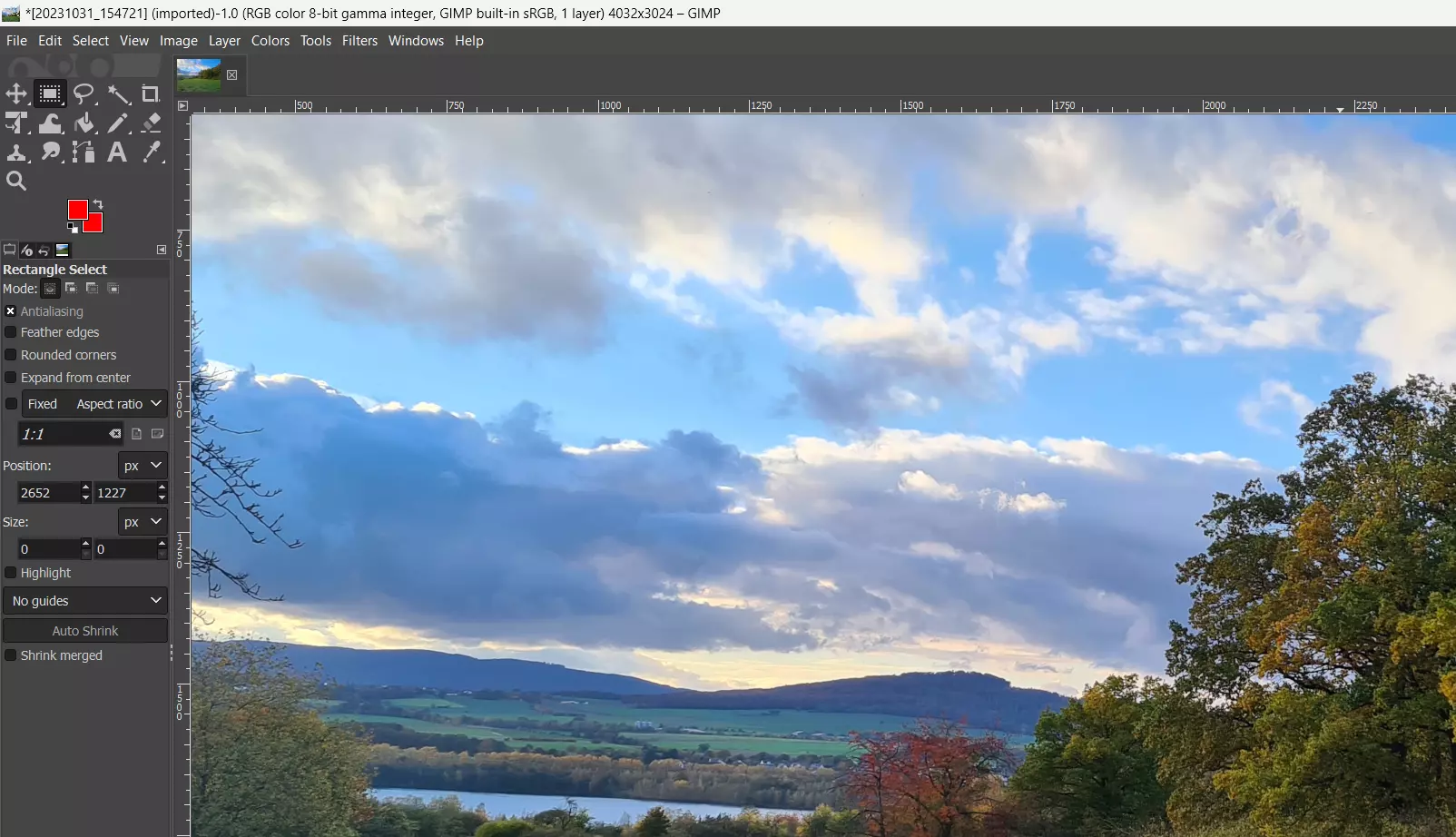
Like most open-source applications, GIMP is modular, so it can be expanded at any time. In addition, control elements can be organised and turned on and off as desired. In terms of functionality, GIMP is in no way inferior to other popular photo editing software. For example, the following filters and effects are available for unlimited use:
- Soft drawing (e.g. Pixels, motion blur)
- Enhancements (e.g. red-eye removal, blurring edges)
- Light and shadow effects (e.g. glitter, lens reflex)
- Artistic changes (e.g. cartoon, oil painting effects)
- Borders and effects (e.g. coffee stains, rounded edges)
- Animations (e.g. shading, waves)
Touch-ups, such as colour distribution, contrast, and brightness can be adjusted with GIMP in just a few clicks. There are also tools for trimming, scaling and rotating images, as well as tools for editing individual elements. Considering the large variety of export formats available, one might find it hard to believe that this image editing software is free. GIMP offers a wide range of options including typical image formats (such as .jpg, .gif or .bmp), archive formats (like .gz or .bz2) and web formats (like .html or .xhtml).
| Pros | Cons |
|---|---|
| ✓ Highly expandable and customisable | ✗ Hard to get started with |
| ✓ Compatible across platforms | ✗ No support offered |
Krita (Windows, macOS, Linux)
The open-source application Krita is the result of a long-standing development process. The first version of Krita based on the Qt library was finally released in 2004 as part of the KOffice office software. In the recent past, KDE developers have focused on tools for drawing and turning the program into one of the best open-source solutions for cartoonists, illustrators and concept artists. And this is without neglecting classic image editing.
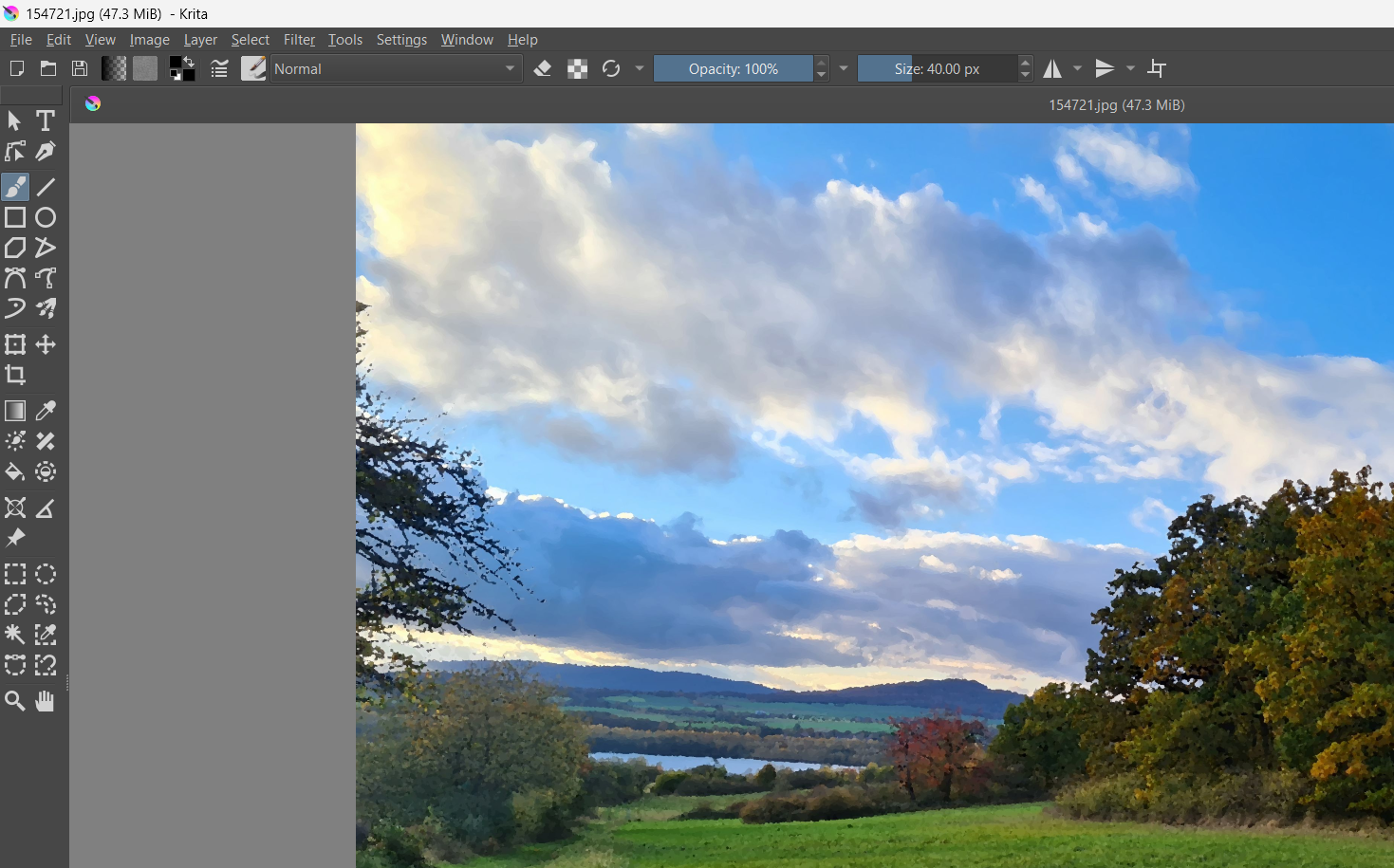
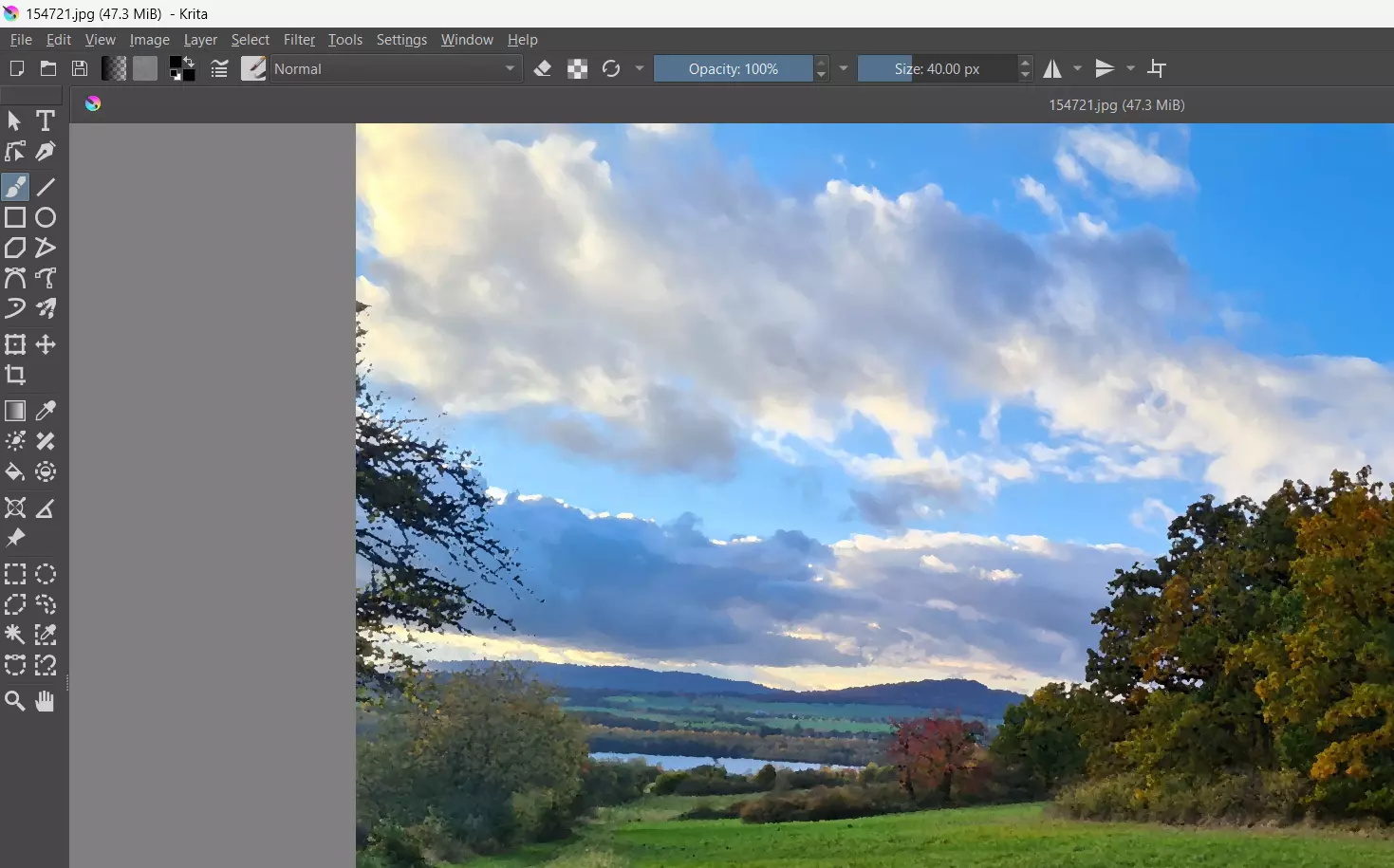
Krita does not just attach importance to useful tools like brush stabilisers and a large selection of brush types, but also offers a modern design to provide artists with the best platform for their work process. Tool specifications can be adapted to the user’s own preferences using a drag and drop function in the settings menu. The impressive selection of rework, filter and transformation tools is a testament to the fact that Krita is a first-class, free photo editing software program. Among other things, the application contains the following editing features:
- Brightness/contrast curve
- Burn mode
- Colour balance
- Blur
- Sharpen
- Edge detection
- Oil painting
The mask feature allows you to apply effects to the various image layers of a project. There are also options for cropping, mirroring or scaling images to a new size. You can also document the steps you take during a project. This feature may need to be activated as a dockable dialog in some preconfigured layouts. With this feature, you can jump back a few steps at any time in order to undo changes.
| Pros | Cons |
|---|---|
| ✓ Extensive toolbox which permits far more than simple image editing | ✗ Limited international language options |
| ✓ Available on multiple platforms | ✗ Somewhat long delays after applying filters |
Adobe Express (Web, iOS, Android)
With Adobe Express, Adobe offers free photo editing software as a web application and as an app for iOS and Android. You can download the app in each of the app stores.
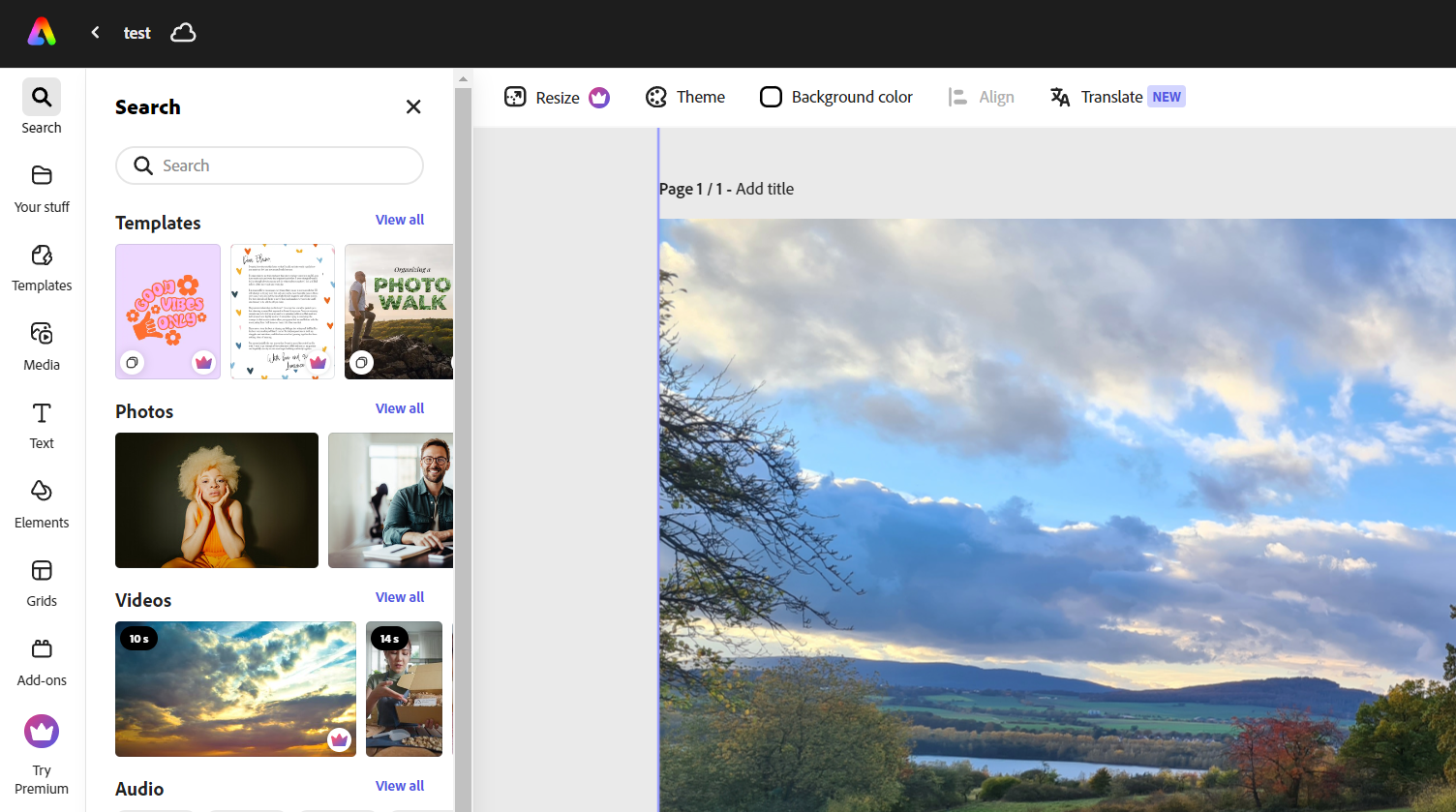
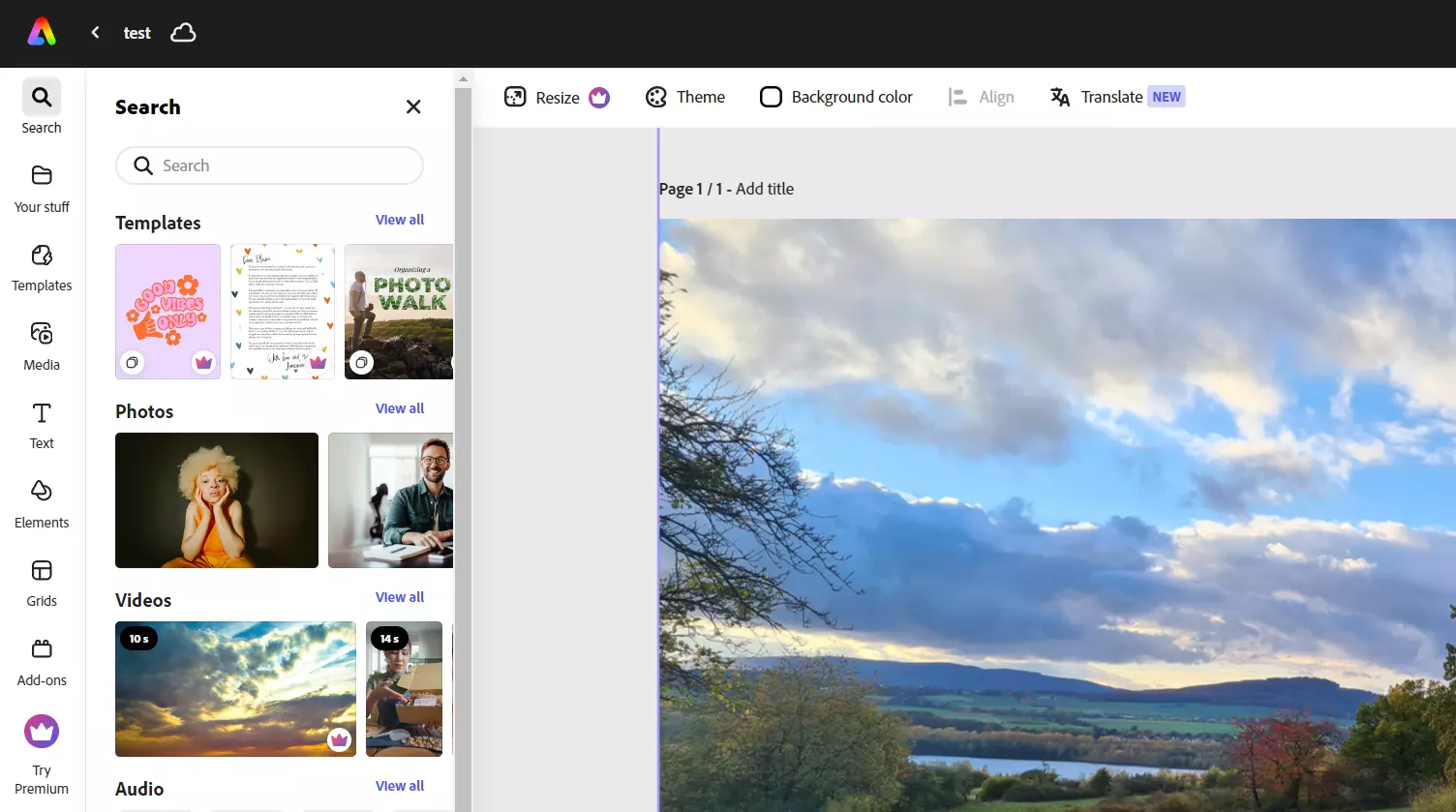
The simple tool offers various functions for quick and easy editing of image and video material. For this reason, Adobe Express is the perfect solution for creating reels and videos for TikTok and similar platforms, flyers, resumés, banners or logos. You can easily work in a team thanks to various collaboration features such as the comments feature. The free picture editing software offers the following additional features:
- Effortless ability to combine video clips, graphics, animations and music via drag and drop
- Generate text effects and images based on a description (generative AI from Adobe Firefly)
- Access to thousands of professionally designed templates as well as photos, videos and music (Adobe Stock; mostly fee-based)
- Synchronisation with other Adobe services
This free image editing software is very intuitive and has a well-structured interface plays. To use the program, you need an Adobe account, which you can create for free. However, if you want to edit your images with Adobe Express on a larger scale, you’ll need the paid Premium Edition.
| Pros | Cons |
|---|---|
| ✓ Very beginner-friendly | ✗ Limited range of image editing functions |
| ✓ Perfectly suited for preparing social media content | ✗ Does not work with every browser |
RawTherapee (Windows, macOS, Linux)
Raw Therapee RawTherapee was developed by Gábor Horváth and has been licensed under the GNU GPL license (version 3) since 2010. The photo editing software is open source and free so it can be used and modified without restriction. The program has a version of the conversion software dcraw integrated into it, which makes it possible to import raw data images (RAW data) from digital cameras and edit them. RawTherapee is also compatible with JPEG, PGN and TIFF, making it possible to also work with these image formats.
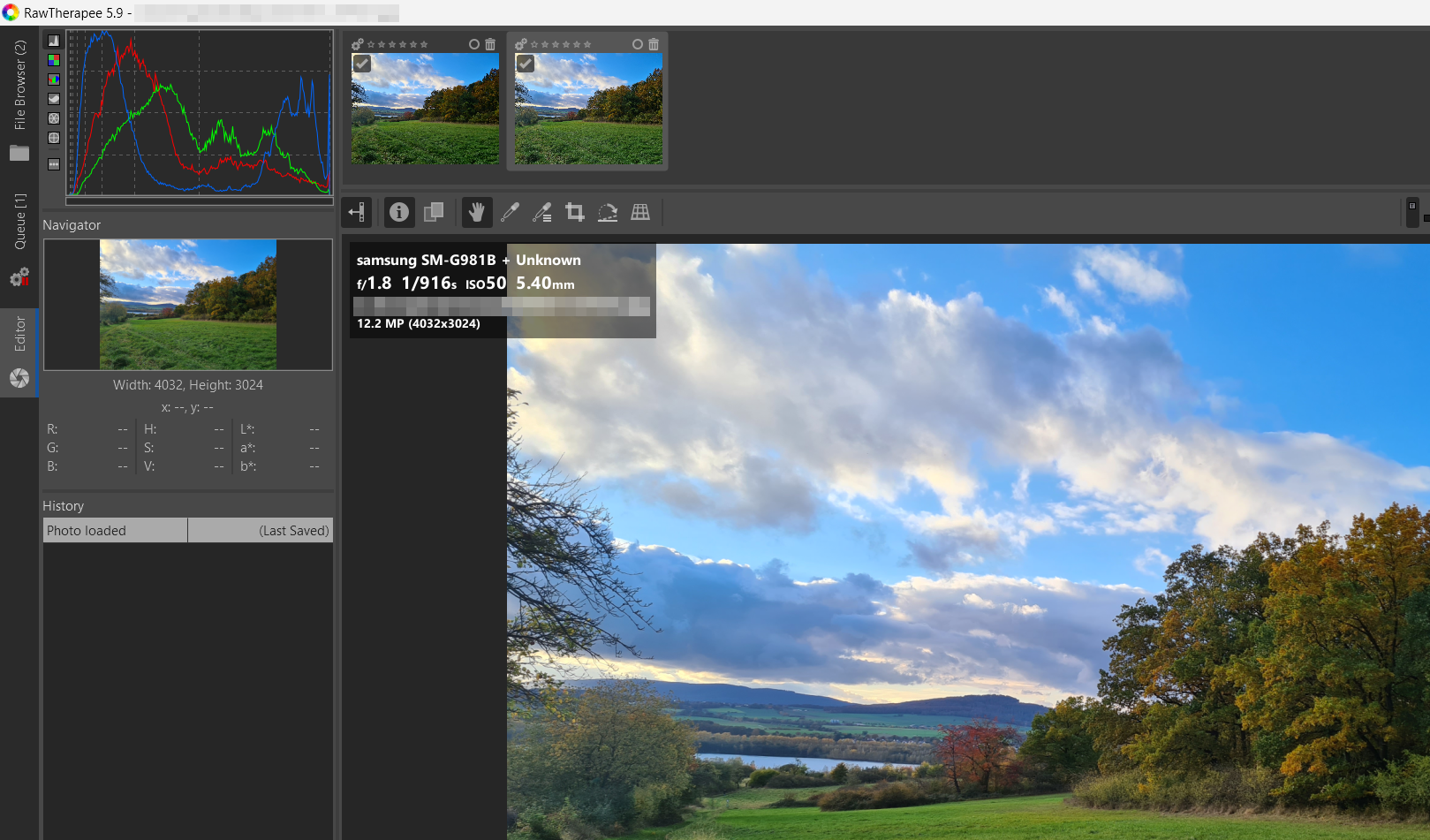
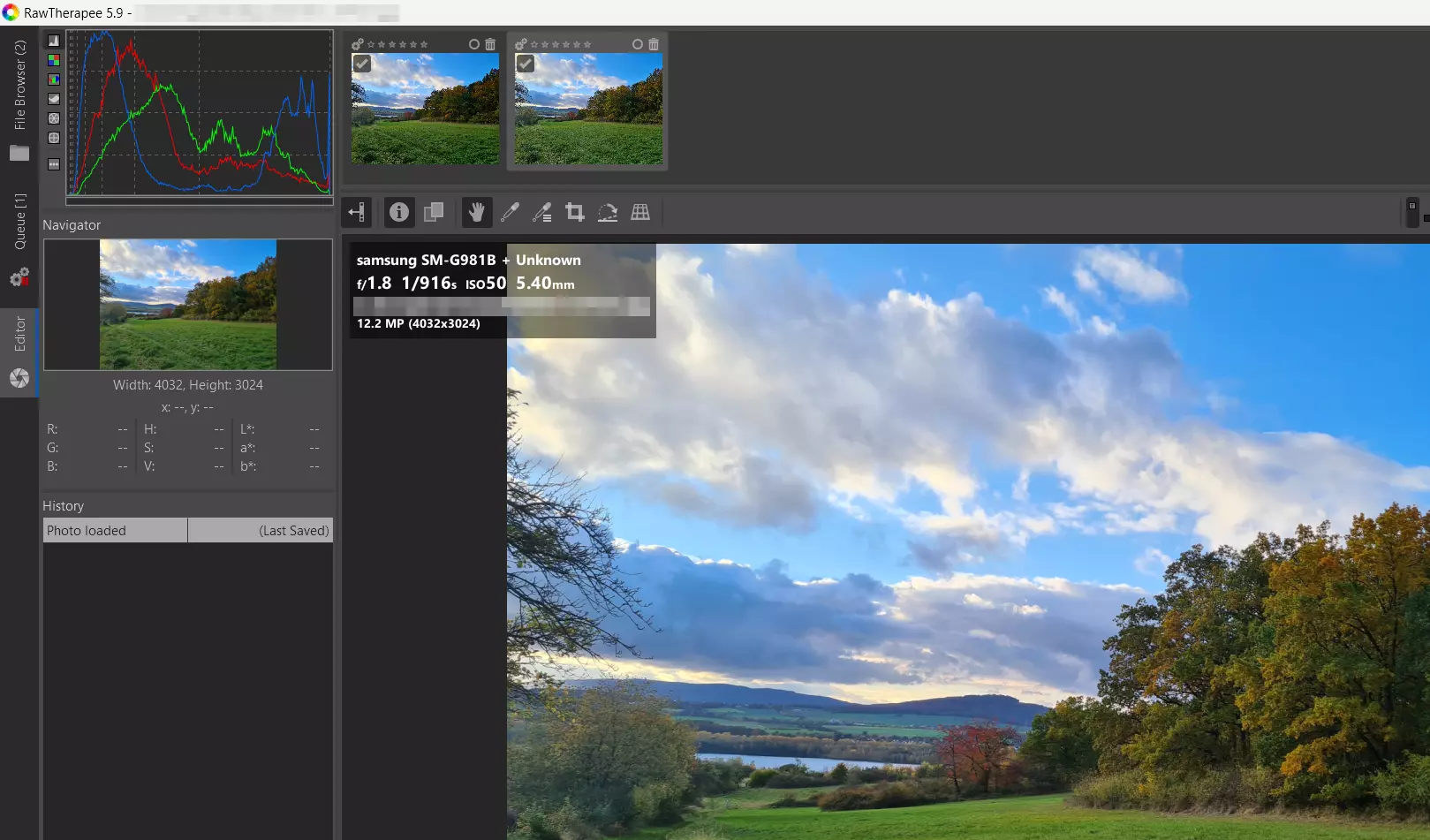
It is clear that a lot of development work has gone into RawTherapee. The various menus and quick-start bars allow you to edit imported images down to the smallest detail. Since RAW files can be very large, the queue provides an ongoing conversion process that does not interfere with the project you’re working on. Multiple images can be edited at the same time with the program. Due to the comparatively high system load, however, this should not be done with older computers. RawTherapee handles each step of the process non-destructively so that the images retain their best quality. In addition, all steps are stored in order so you can jump back at any time during the editing process. RawTherapee includes features like:
- White balance
- Adjustment of saturation, contrast and brightness
- Exposure compensation
- Sharpener
- Colour filtering
- RGB tone curves for maximum control of colours and exposure
RawTherapee is, undoubtedly, one of the best photo editing software programs for RAW files on the open-source and freeware market. Users are provided with everything necessary to improve and edit their photos. Since you can personalise and save your dashboard settings, it is easy to optimise numerous images with the same settings.
| Pros | Cons |
|---|---|
| ✓ Supports numerous RAW formats | ✗ Confusing user interface |
| ✓ Compatible with multiple platforms | ✗ Images cannot be imported using drag and drop |
In the Digital Guide you can find many other exciting articles on different topics related to photography and image editing: