

Web app WhatTheFont

You come across an exotic font online and wonder, ‘What font is this?’. WhatTheFont is a practical online tool that can easily answer this question. You simply upload an image with the desired text, and the tool displays matching fonts from a huge database.
- Intuitive website builder with AI assistance
- Create captivating images and texts in seconds
- Domain, SSL and email included
What is WhatTheFont?
WhatTheFont is an online service from MyFonts, developed by Kevin Woodward. This tool helps you easily identify fonts. You simply upload an image containing the desired text, and WhatTheFont analyses the letter shapes to suggest similar or exact fonts. Multiple fonts in one image are not an issue. The service can draw on a database of over 230,000 different fonts for recognition. The tool is especially suitable for designers, typography enthusiasts, or anyone looking for a specific font for their projects. In addition to the web version, there is also a mobile app for iOS and Android, allowing you to identify fonts on the go.
Find a font with WhatTheFont
To find out the name of a font, you just need a small text excerpt as an image file. The font recognition via WhatTheFont involves the three steps upload, crop, and display result, leading to the result in seconds. Here’s how to use the web app:
Step 1: Access the website
Access the ‘WhatTheFont’ web app.
Step 2: Take a screenshot of the font
Take a screenshot of the section of text you want to analyse. A free screenshot tool is already integrated with the Snipping Tool in Windows. This was also used in our test to create the following image file of a sample text:


Pay attention to the Web App’s guidelines for screenshots: WhatTheFont delivers the best results with good image quality. The text section should contain enough characteristic letters of the font and be aligned as horizontally as possible. It should also be in the Latin alphabet. Moreover, try to provide a single line of text; the letters should not touch.
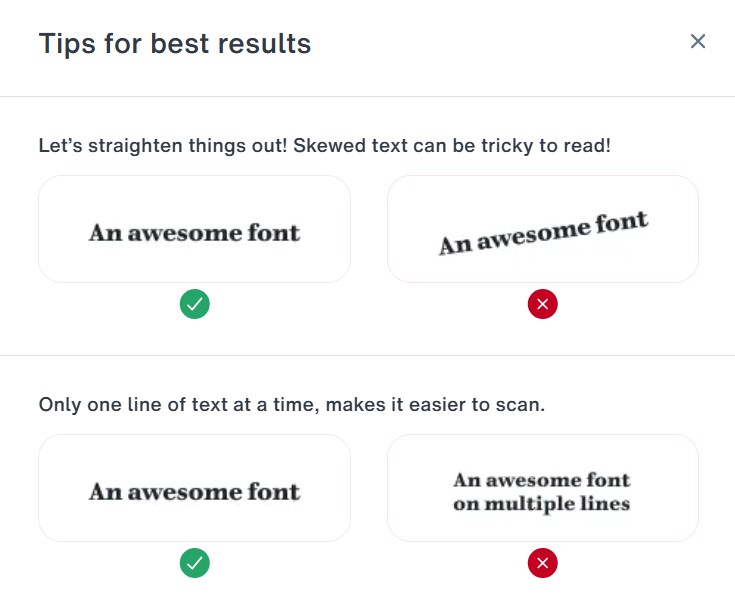
Step 3: Upload screenshot
After saving your screenshot locally, use the upload function of the web app in the third step to match the text section with the WhatTheFont database. Click on the ‘or upload an image’ button and select the image file from the appropriate directory on your computer or simply drag and drop the image onto the page.
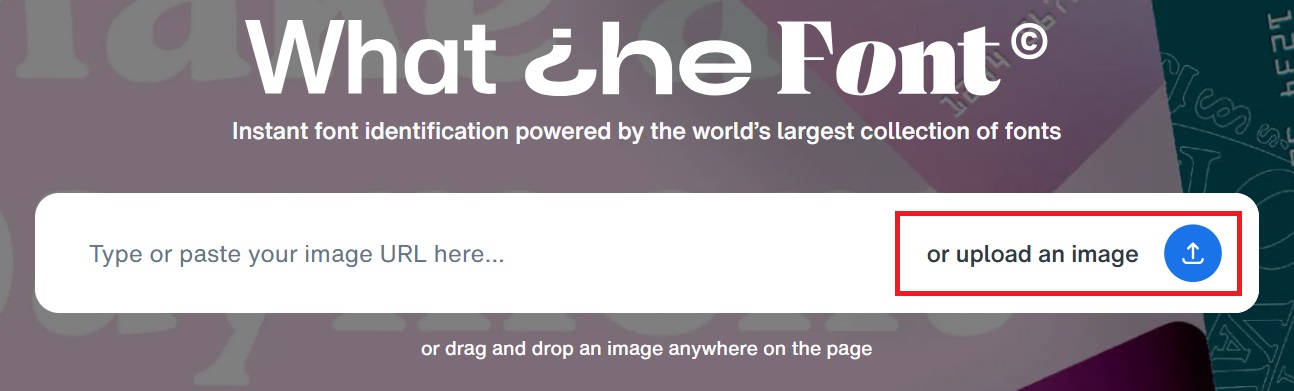
Step 4: Define crop in web app
After uploading, you will have the option to crop your screenshot accordingly. In this step, WhatTheFont automatically identifies words in your sample. Check the assignment and make corrections if necessary.
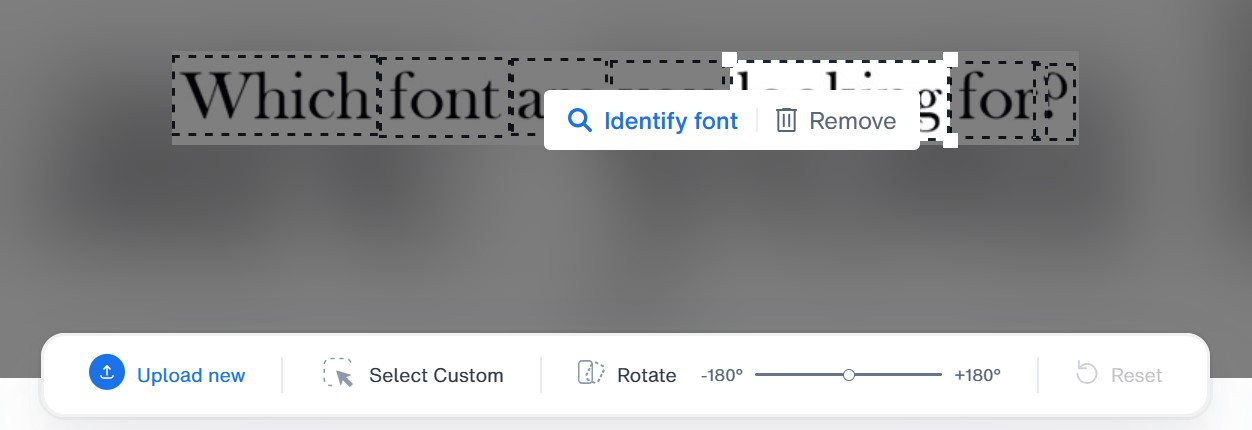
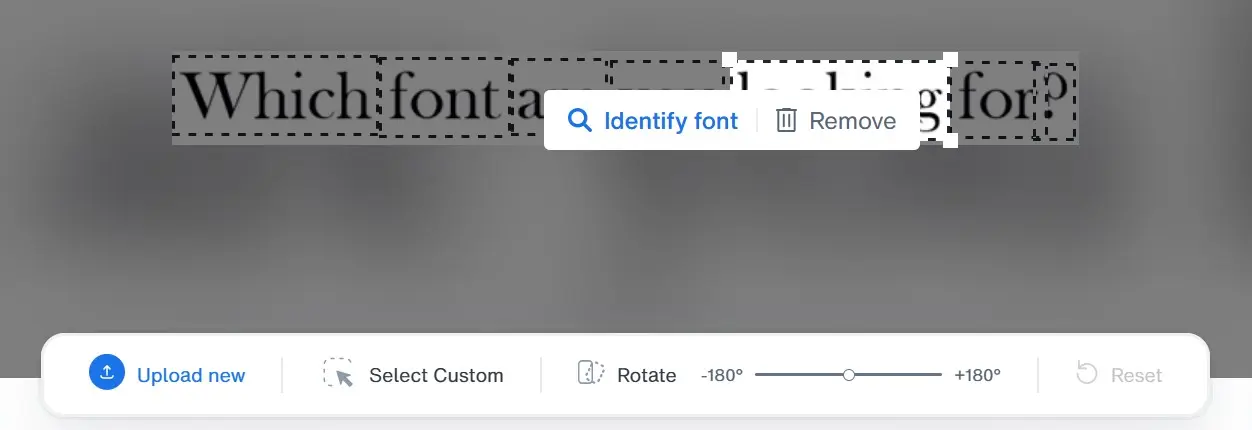
Confirm your crop by clicking on ‘Identify font’.
Step 5: Result
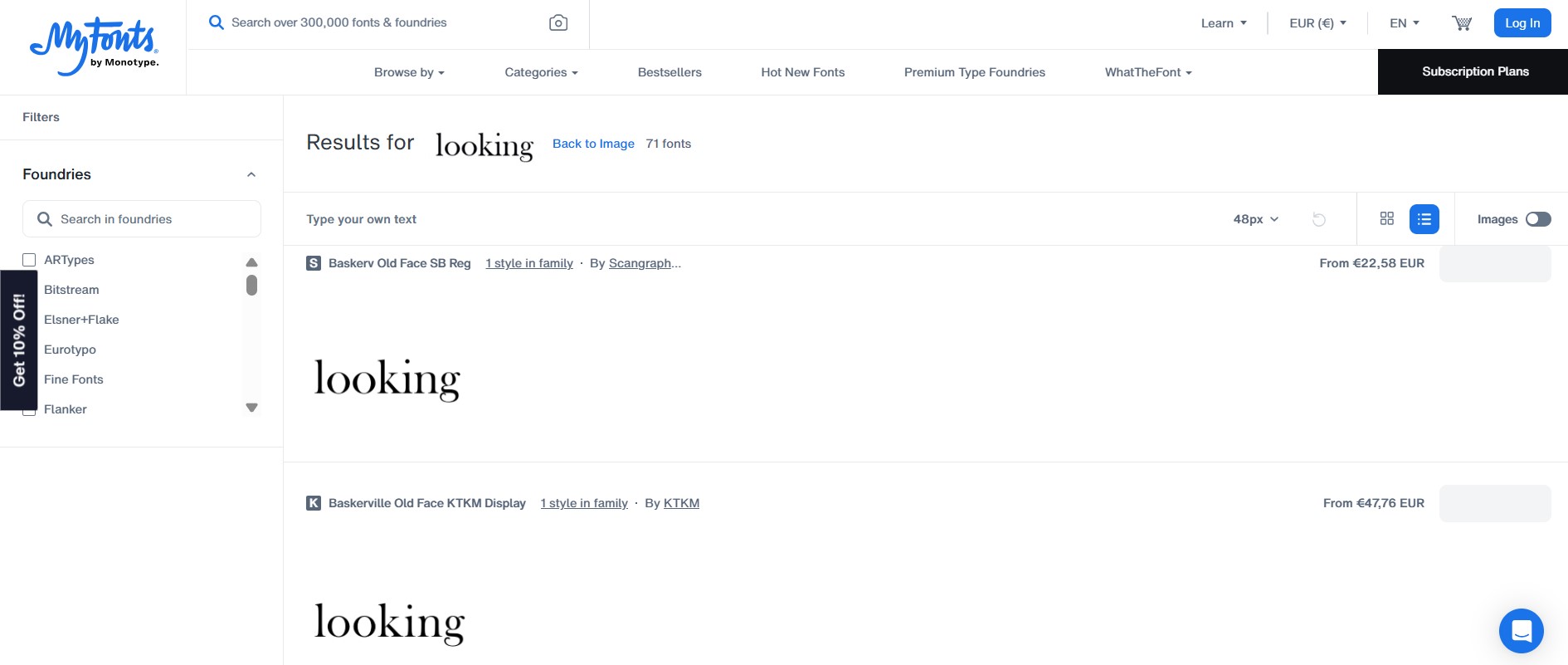
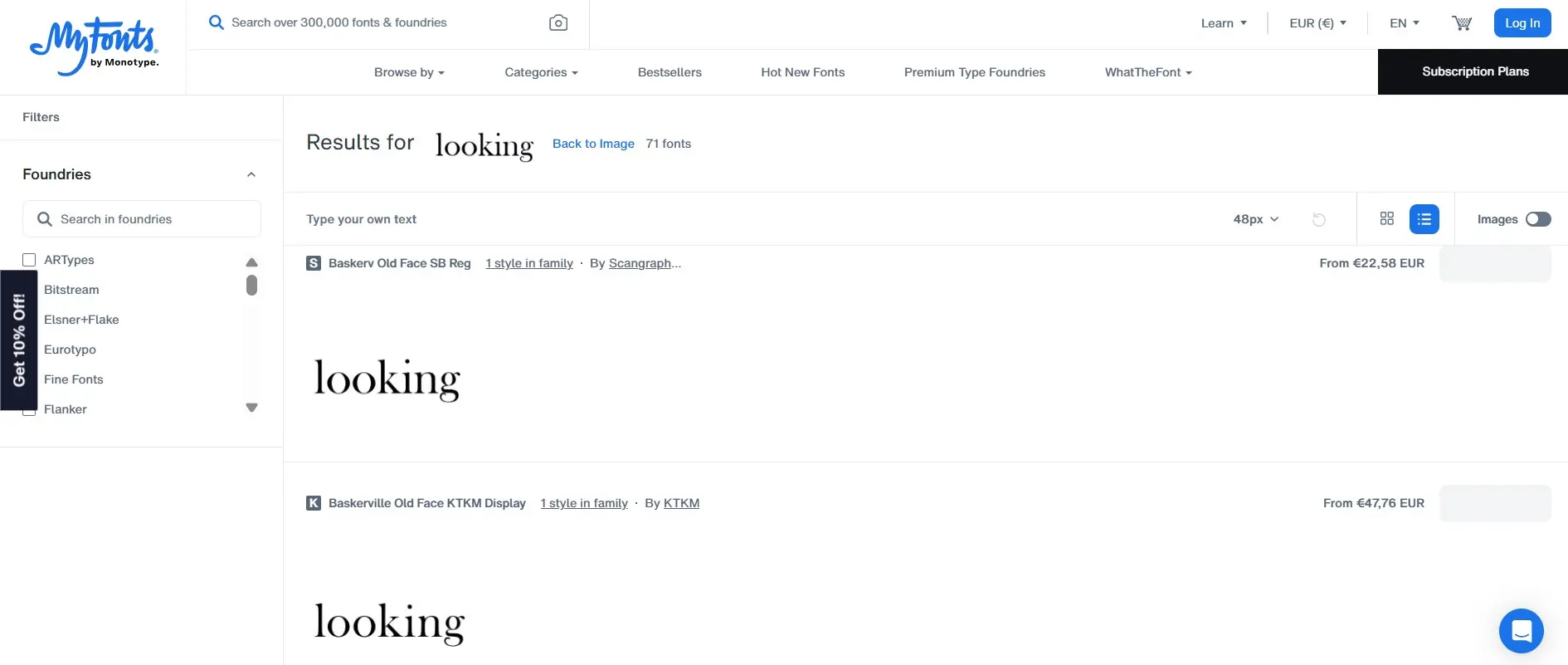
The web app will then present you with a selection of fonts from the WhatTheFont database that match your text segment. If the desired typeface is found, you can purchase it directly via MyFonts.
Alternatives to WhatTheFont
WhatTheFont is not the only tool of its kind. There are a number of other services that allow you to easily identify fonts. We will show you the three best alternatives for recognising fonts.
Font Squirrel Matcherator
The Font Squirrel Matcherator is also a powerful tool for automatic font recognition using images and is very similar to WhatTheFont. You upload an image, and the service, available as a web app, analyses the letters to suggest matching fonts. Particularly useful is the support for OpenType features and web fonts. Font Squirrel places high value on fonts that are free to use, making the tool especially appealing for people with a small budget.
Identifont
Identifont works quite differently from image-based tools: Instead of uploading an image, you answer questions about specific features of the font, such as ‘Does the font have serifs?’ or ‘What does the capital J look like?’. Based on your answers, Identifont suggests possible fonts. This is especially useful when no image is available or the lettering is heavily distorted. Identifont also provides information about designers, related fonts, and font foundries.
Adobe Capture
Adobe Capture is a mobile app that offers, among other things, a font recognition feature. Simply point your camera at the text, and the app analyses the letters in real-time to suggest matching Adobe Fonts. The tool is seamlessly integrated into Adobe Creative Cloud, simplifying use in Photoshop, Illustrator & more.
- Professional templates
- One-click design changes
- Free domain, SSL and email
Reviewer

Melissa Senn
Melissa Senn has been with IONOS since 2016 and focuses on website, e-commerce, social media, and AI in the Digital Guide. As a digital strategist, she uses her extensive SEO and GEO experience to transform complex technological trends into practical content.