

How to set up a family email address

Setting up a family email address is easy even if you don’t have IT know-how. All you need is a domain and a bit of time to prepare customised mailboxes for your family members.
Why it makes sense to have your own family email address
Many families opt for shared mailboxes through their trusted email service provider. With the help of individual folder structures and filter rules, incoming messages are presorted so each family member has their own small area for digital communication. Although this type of shared family email address requires a lot of effort, it’s the only way to make good use of a general address such as familybloggs@xyz.com.
A more elegant solution is to have individual email addresses for each family member. With your own email domain, you have complete freedom and access to numerous exclusive benefits. Unlike when hosting your own email server, you don’t need any technical expertise or hardware to set up your own email domain. Typically, you only need to complete a few steps in the account you have with your hosting provider.
What are the advantages of having a custom email address?
Having a custom domain or email address for the family isn’t just a convenient way to provide all family members with a private mailbox, it’s also easy to set up and offers various advantages over mail accounts with standard email services:
- Cross-device availability: Thanks to IMAP support, you can retrieve received messages at your address anywhere and at any time from any device.
- Advertising-free mailboxes: Custom domain addresses typically incur low monthly costs but ensure ad-free, clutter-free mailboxes.
- Protection against spam and other threats: Opting for your own family domain provides access to highly effective security mechanisms offered by professional providers, surpassing those of standard webmail solutions.
- Legally compliant archiving: Many providers offer optional email archiving, which allows you to store all your messages in a legally compliant and secure manner.
- More individuality: Family email addresses, featuring first and last names, allow for easy differentiation and convey professionalism when communicating via email.
Want to set up an email address with a custom domain for your family? Get your own email address with IONOS today and add as many additional mailboxes as you need for the whole family!
How to set up a family email account
You can set up personalised addresses for the whole family in a matter of minutes. The exact process varies from provider to provider, however, the basic procedure is generally the same. The basic steps are as follows:
- Select a domain: First you need to register a domain that suits your family. This is the part that comes after the @ sign. A good option would be lastname.com, so that you can set up family email addresses along the lines of
firstname@lastname.com.
2 Purchase a mail package: Explore providers that offer customisable email hosting packages with ample storage space. Think about all the family members you want to set up an address for and select a package that offers a sufficient number of mailboxes.
- Set up family email addresses: Once the domain and storage/mailbox are activated, you can create the email addresses you want (along with passwords) through the provider’s customer account. Additional settings, such as configuring spam filters or mail forwarding, are often available as well.
If you want to take mail storage and email security measures into your own hands, consider running your own mail server.
How to set up your own family email addresses with IONOS
With IONOS, you can establish personalised family email addresses effortlessly. You’ll receive all the essential components, including a domain, suitable mail packages with 2 gigabytes or more of storage space, spam filters and 24/7 expert support.
Below we have summarised the individual steps for setting up an email address with IONOS.
Step 1: Register a domain
The foundation for your custom family email addresses is your domain. You can acquire this directly as part of an IONOS mail package or separately.
If you’ve already registered a domain with another provider, you can move it to IONOS or set it up as an external domain.
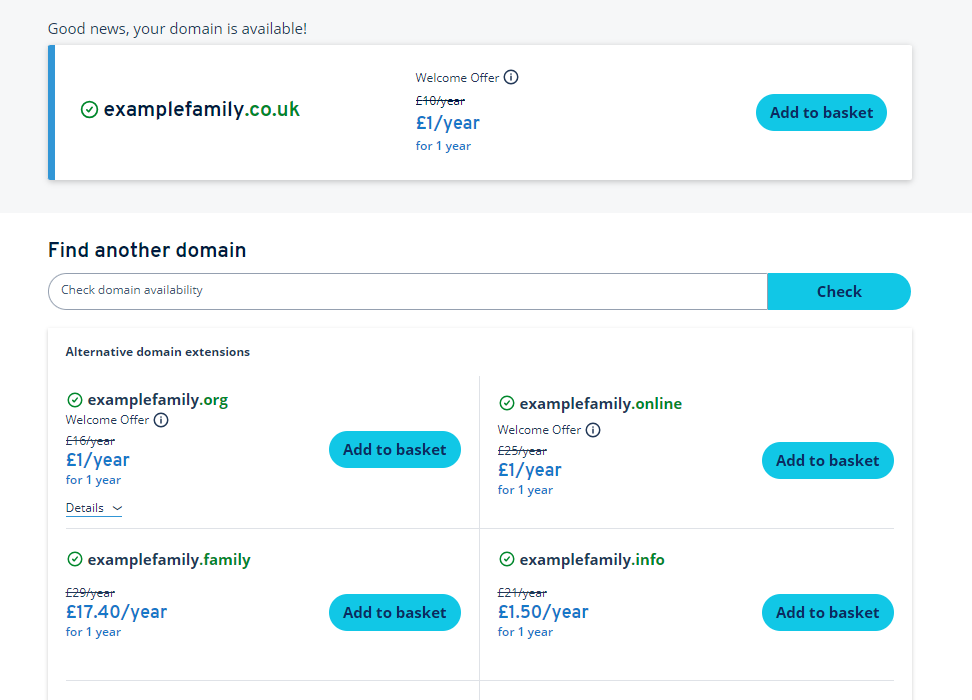
The domain checker helps you to check the availability of your desired domain. If your first choice is taken, the tool automatically suggests alternatives, including alternative top-level domains.
Step 2: Log in to your customer account and select your email product
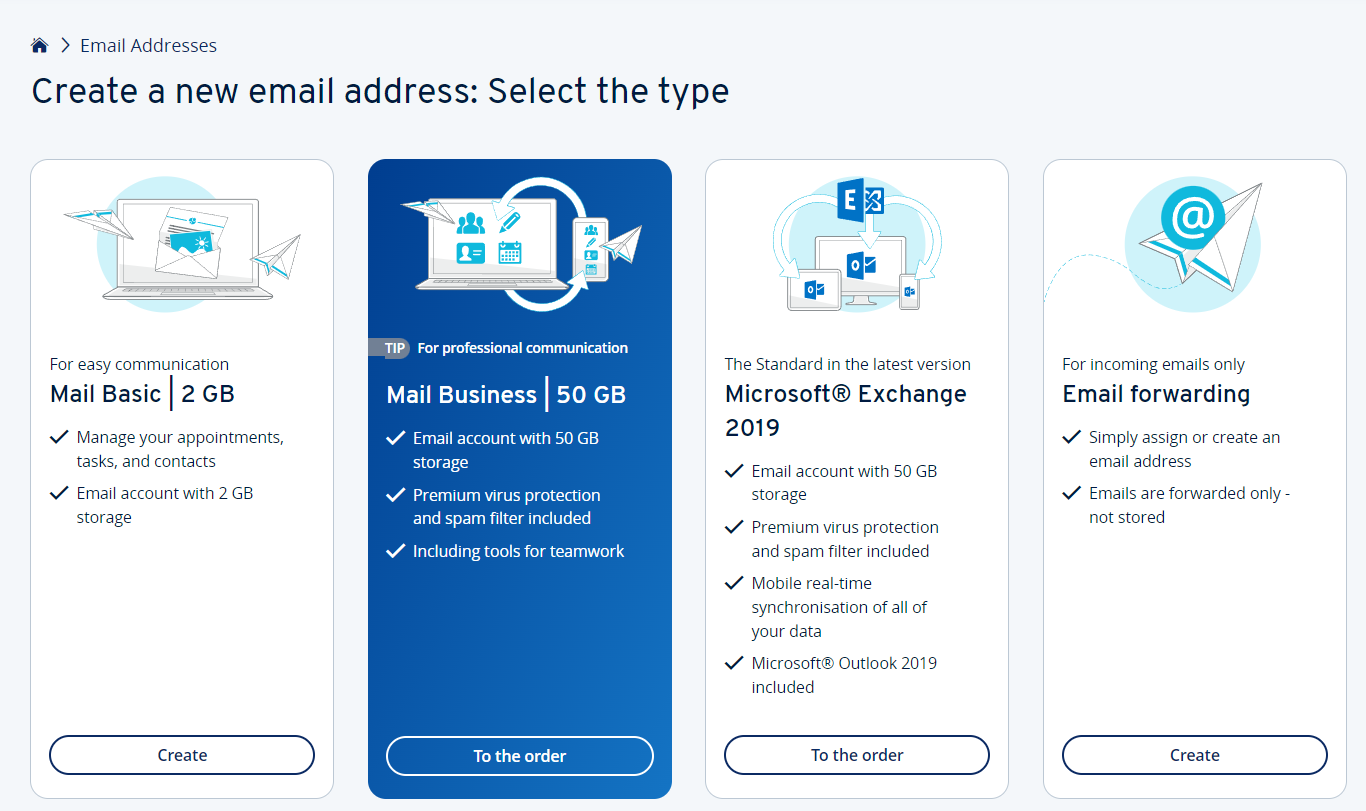
Once you’ve secured a domain, you can start setting up your family email address. To do this, navigate to the Login page for the IONOS Cloud Panel and log in with your account data. Then select Email and an email product, e.g., Mail Basic.
Step 3: Set up family email address
Once you’ve selected a domain and email package, click on Create new email address and fill out the following fields:
- Email: The part of the family email address that comes before the @ sign
- @: Select the domain you want to use
- Password: Create a password for the email address
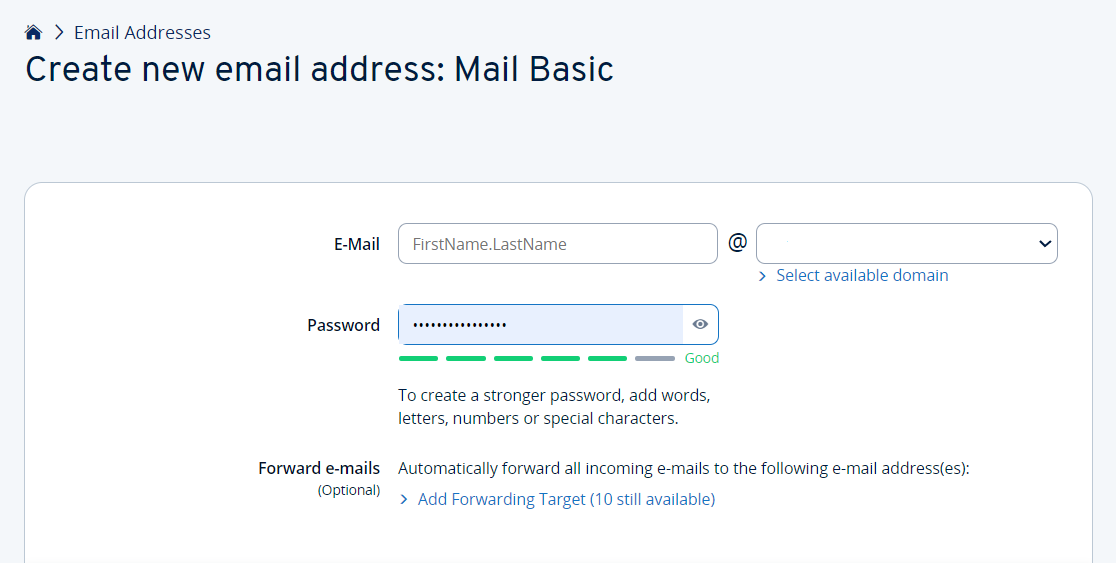
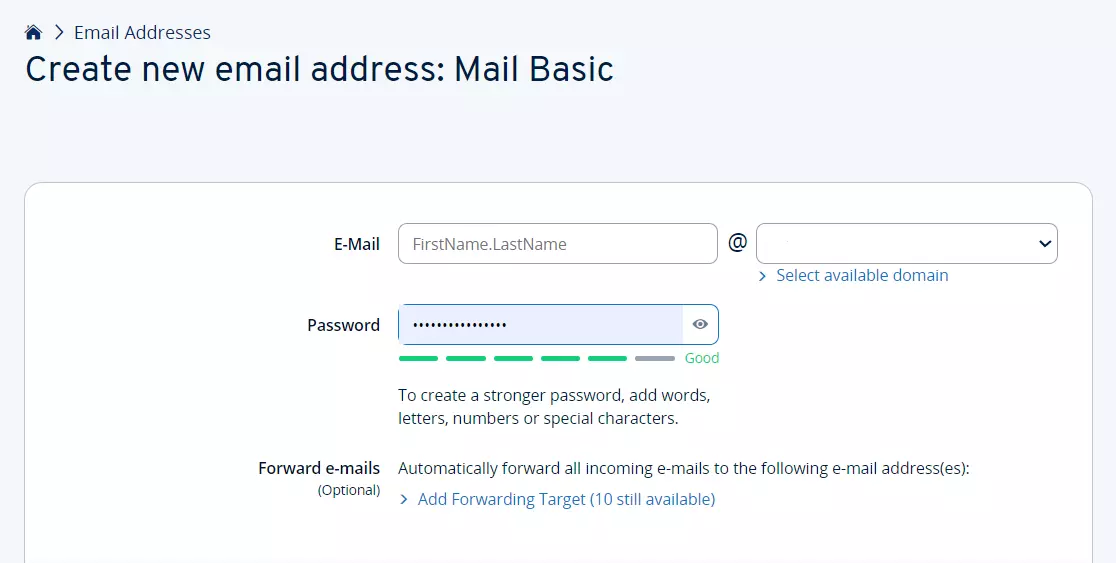
Optionally, you can also add up to ten forwarding destinations for incoming messages by selecting Add forwarding target and typing in the addresses. You can also add virus protection and email archiving at an additional cost.
Click Save to finish setting up your new mailbox.
Want to add email accounts to Outlook? Follow the step-by-step instructions in our article ‘How to add a new account in Outlook’.
Step 4: Adding emails
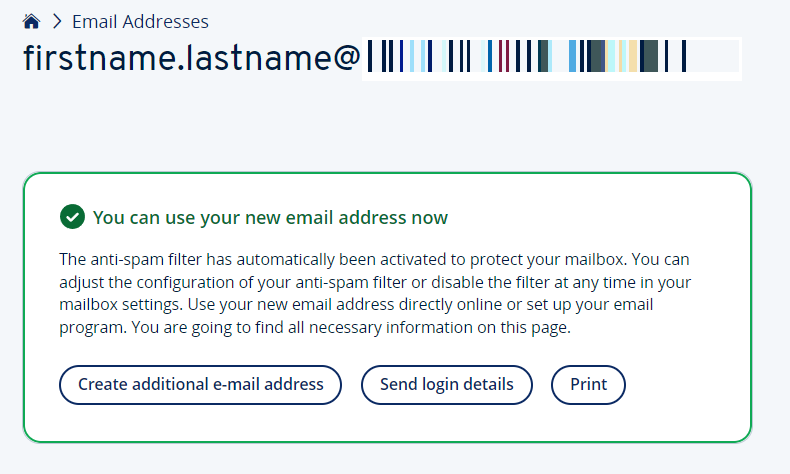
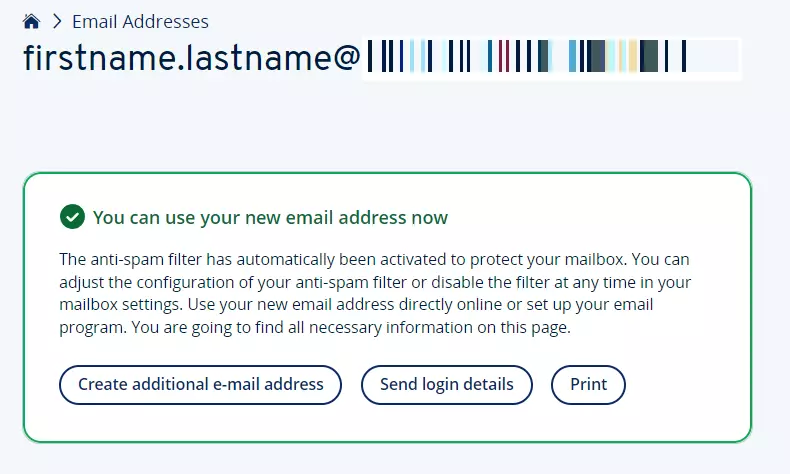
You’ll receive a message to confirm successful account creation as soon as the email account has been set up. Click on Create another e-mail address to continue setting up address for your family members.
If required, you can purchase additional domains at any time to add further email addresses—for example, for professional purposes.
You can also check out the IONOS Help Centre page about setting up email addresses if you need more information.