

How to import contacts to Outlook

Even in times of Facebook and WhatsApp, emails are a central means of communication, especially in companies. Microsoft Outlook is particularly suitable as a mail client for frequent users due to its flexible contact management options. Thanks to the integrated Import and Export Wizard, existing contact data can be easily imported into Outlook. We will show you how to add your most important contacts to the Outlook address book in just a few steps.
- Up to 50 GB Exchange email account
- Outlook Web App and collaboration tools
- Expert support & setup service
How to import contacts to Outlook quick guide
- In Outlook, go to File > Open & Export > Import/Export
- In the Import and Export Wizard, select Import from another program or file > Next
- Select Comma Separated Values > Next > Click on Browse, select the CSV file and then import variant > Next
- Click on the Contacts target folder > Next > Finish
These instructions apply to the Outlook versions of Microsoft 365 as well as Outlook 2021, Outlook 2019 and Outlook 2016. The user interface differs depending on the version and Outlook view settings. However, the process for exporting contacts from Outlook is basically the same.
What are the requirements for importing Outlook contacts?
There are different reasons why it is useful to import contacts into Outlook. Typically, you’ll have external lists of contacts that you would like to import into your Outlook address book. However, it’s also possible that you’ll want to import contacts that you have previously exported from Outlook – for example, to create a backup or because you want to change the version. In the latter case, the contact list already exists in the required import format CSV. If you have your own contact list, e.g. in the form of an Excel spreadsheet, you must first save it in CSV format before you can import it into your Outlook address book.
- Write perfect emails with optional AI features
- Includes domain, spam filter and email forwarding
- Best of all, it's ad-free
How to save your spreadsheets as a CSV file
All common spreadsheet programs such as Microsoft Excel, OpenOffice, or LibreOffice Calc offer the option of saving workbooks as CSV files. For Excel users, for example, this works as follows:
-
In the first step, click the worksheet that contains the contact information that you want to import into the Outlook address book. Then navigate to the File tab and click Save As.
-
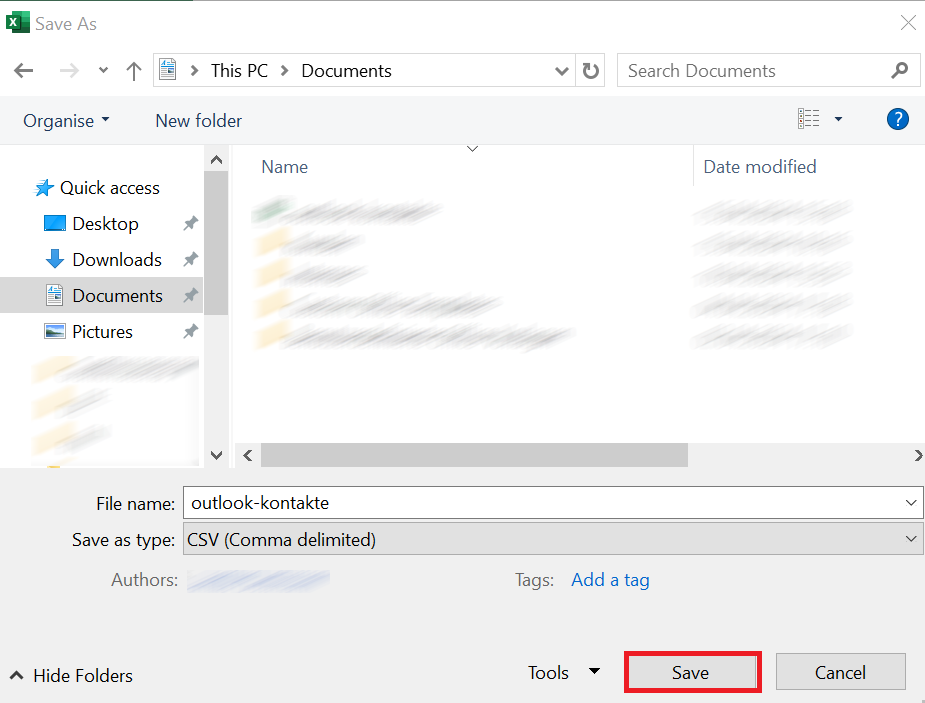
Click on Browse and decide where you want to save the file and open the menu in the Save as type field by clicking the small, downward-pointing arrow icon.
-
Locate and select CSV (Comma delimited). Finally click Save. Excel will inform you that some features of the workbook will be lost (due to the switch to CSV format), which you accept by clicking OK.
- The world’s leading email and calendar solution
- Secure hosting from a single source
- Anytime mobile access via the Outlook app
How to import contacts in Outlook desktop app
If you have the desired contacts in CSV form, you can start importing them into the Outlook address book immediately. You do not need any additional software for this since the aforementioned Import and Export Wizard from Microsoft Outlook is integrated as standard. The procedure differs slightly depending on whether you are working with the desktop or web client. We have summarised the import process in the different Outlook editions for you below.
How to import contacts in the Outlook desktop app
Users of newer Outlook versions will find the Import and Export Wizard in the File menu. In the first step, open this via the tab of the same name:
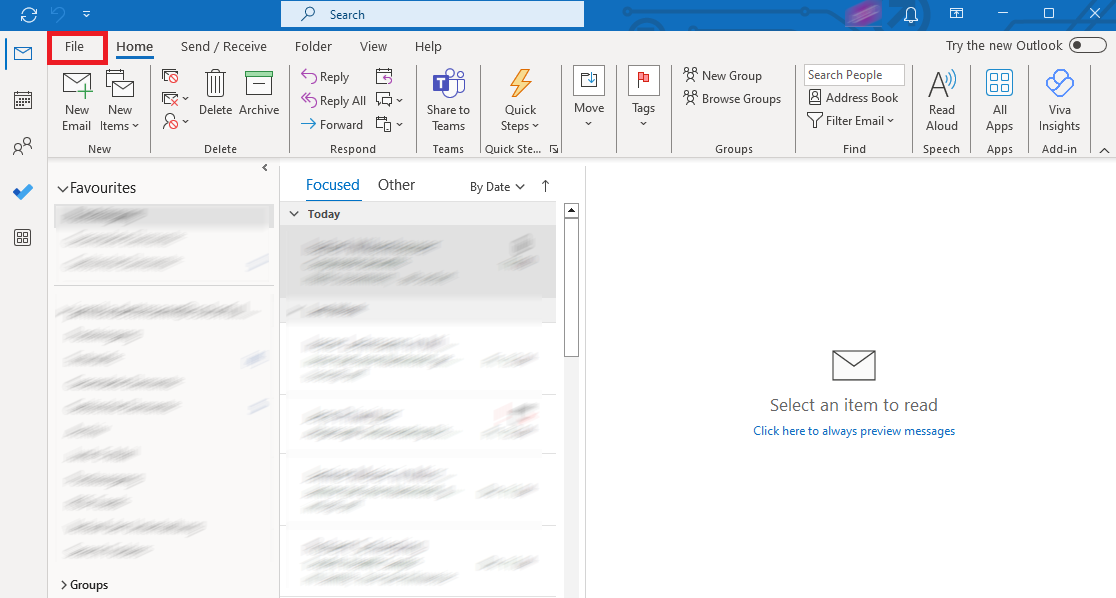
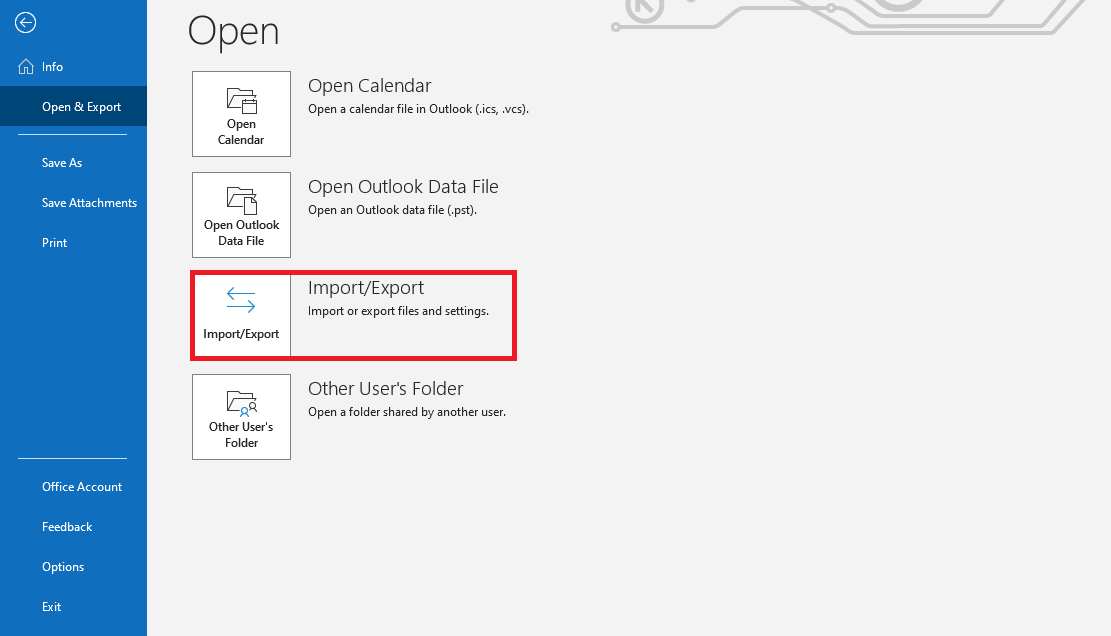
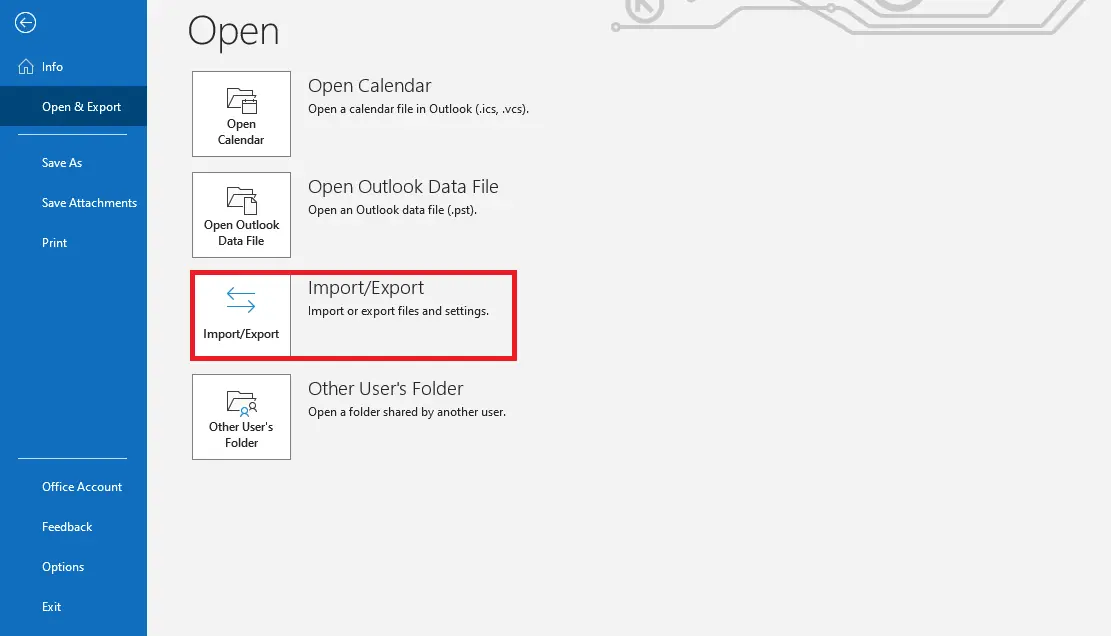
In the menu bar on the left, navigate to Open & Export, where you start the wizard by clicking on Import/Export.
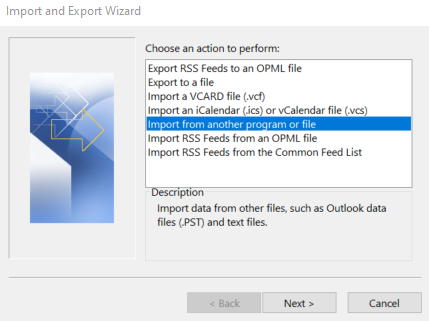
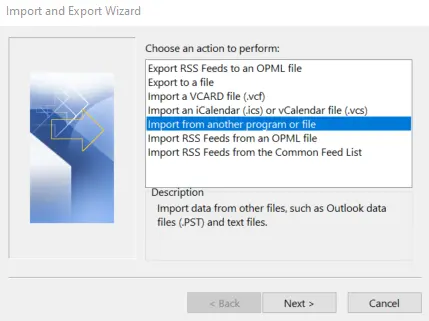
In the start menu of the Import and Export Wizard you can select various actions. The action Import from another program or file required for the import is already marked by default, so that you only have to press the Next button.
In the next dialog box, you can also keep the selection Comma Separated Values and switch directly to the next menu by clicking Next. You can use the Browse function to specify where the file to be imported should be saved:
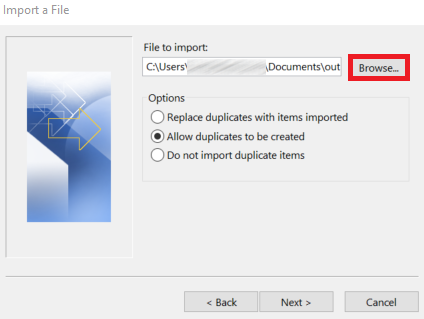
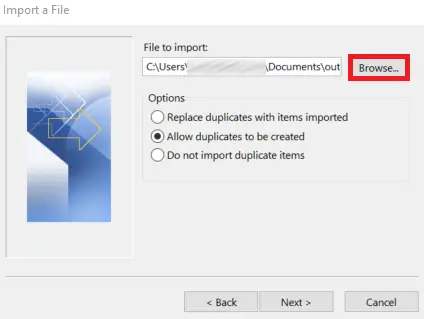
Before you click Next you have the option of selecting one of three import variants:
- Replace duplicates with items imported: If a contact already exists in Outlook, the listed information for this contact is discarded and replaced by the information from the import file.
- Allow duplicates to be created (default option): If a contact already exists in Outlook, the Import and Export Wizard creates a duplicate of this contact. Later, you can combine the information in the address book or remove the desired version.
- Do not import duplicate items: If a contact already exists in Outlook, the information to import it is discarded.
Irrespective of the selection made, you will be prompted to specify the destination folder in the following menu. Search for the entry Contacts and click on Next.
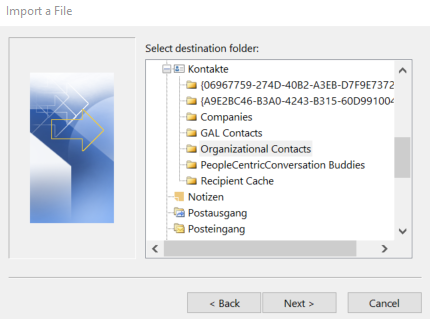
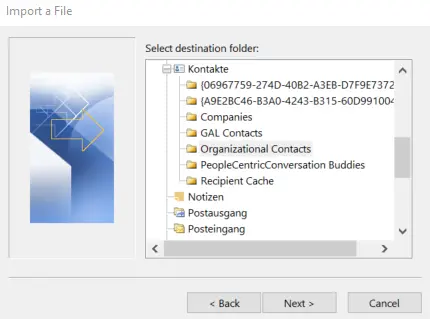
After a final click on Finish, Outlook will start the import process.
- Up to 50 GB Exchange email account
- Outlook Web App and collaboration tools
- Expert support & setup service
How to import contacts in Outlook on the web
You can also import new contacts into your Outlook address book in Outlook on the web. To do this, log on to the web application and then click the small people icon in the toolbar in the bottom left:
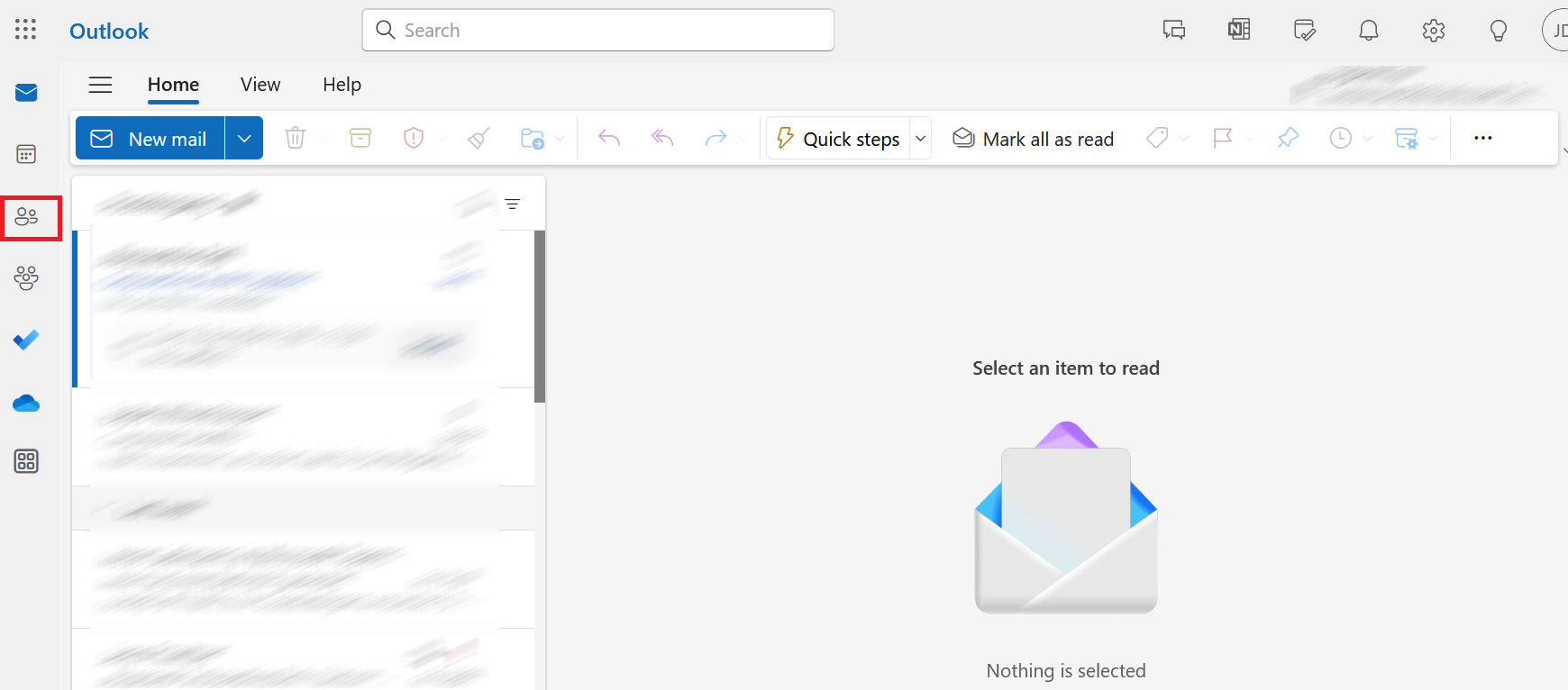
In the next step, go to the ‘Manage contacts’ button and select the ‘Import contacts’ option.
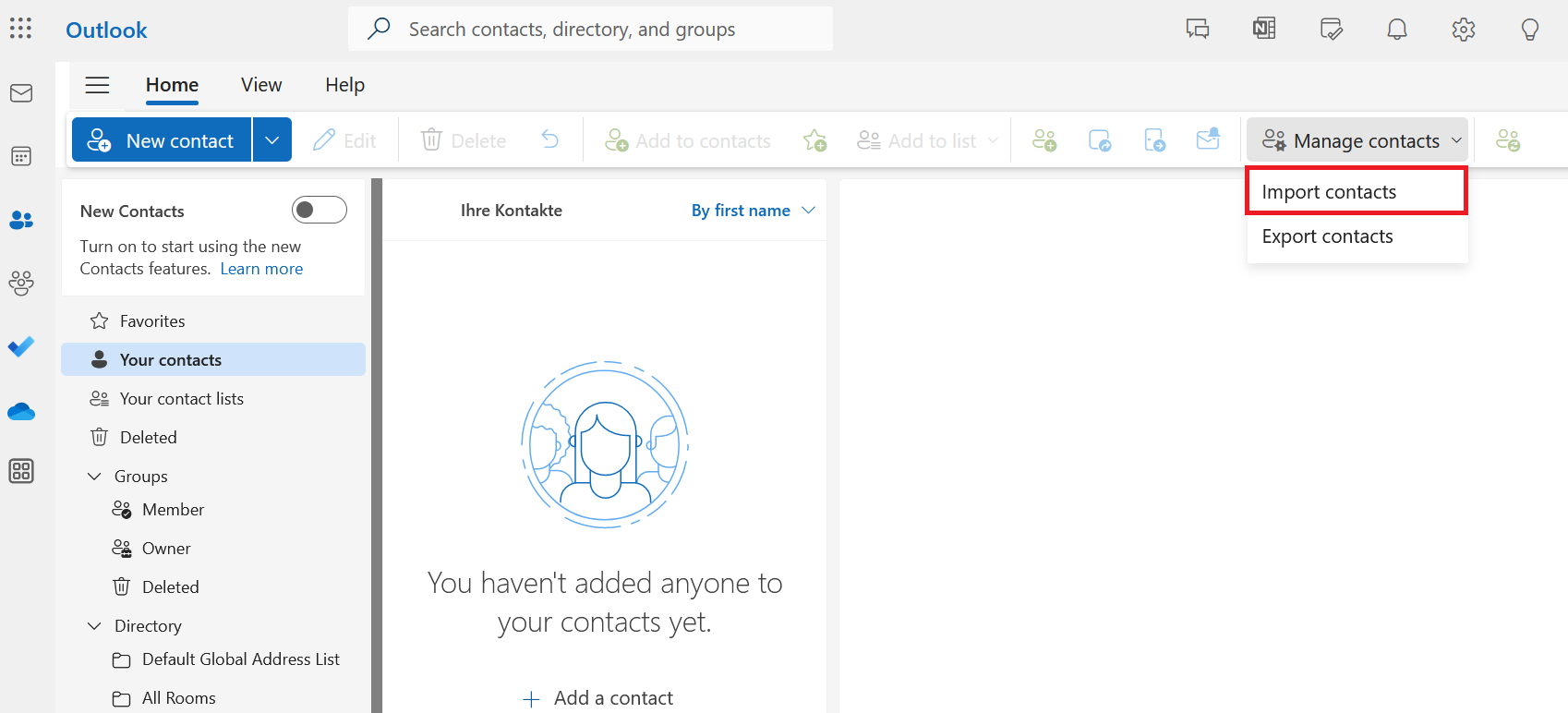
The import menu will then open. Here you click on Browse, select your CSV file and then Open. Finally, click on Import.
Importing contacts in the desktop version of the ‘new Outlook’ follows the same procedure as in the web version.
Reviewer

Jeanna Raffa
With over 18 years of experience in online marketing, Jeanna Raffa possesses extensive expertise in digital marketing. Since 2020, her focus has been on providing practical information regarding email, office, and cloud storage solutions.