How to change Permalink in WordPress

Meaningful permalinks are helpful, especially for search engines and for a better orientation of users on your site. By default, WordPress only shows the page or post ID in the URL. We show you how to change the WordPress permalink quickly and easily.
- Free website protection with SSL Wildcard included
- Free private registration for greater privacy
- Free Domain Connect for easy DNS setup
What are permalinks and why are they important?
A permalink defines the address where a specific page, blog post, or archive can be reached. In doing so, each page is given an independent and unique URL. ‘Perma’ stands for permanent - which suggests that it is not actually intended to edit the WordPress permalink. However, if it is necessary, you should set up a WordPress redirect to the new URL for the old one. This way you avoid the situation where links don’t work anymore and you therefore end up with a 404 error page.
For example, a permalink looks like this:
https://domain-name.com/blog/first-blogarticle#Especially the last part - in this case ‘first-blogarticle’ - determines the uniqueness of the URL. This part is called ‘slug’ and is different for each page and blog article.
Permalinks for a better user experience
Well-chosen permalinks and slugs are especially helpful for a better website orientation. It is important to keep the URL as short as possible so that users can remember it and type it in themselves if necessary. Nevertheless, the slug should be as long as necessary to describe the topic of the page.
Change the WordPress permalink for better visibility
A permalink that accurately describes the topic of the page not only helps website visitors. It also means that Google and other search bots rank the page better and list it accordingly in the search results. Not only the described topic plays a role, especially for search engines. The keyword, which is most relevant for the page and with which you want to be found, should be included in the permalink. Search engine optimisation through internal linking and a good website structure will help you gain more visibility with the major search engines.
Hosting for WordPress by IONOS gives you a quick and easy way to get started on a platform optimised specifically for WordPress. This is all thanks to design templates.
Change WordPress permalink: How it works
You change a WordPress permalink just as you change the WordPress URL - directly in the admin area of your website.
Step 1: Change WordPress permalink: Set the general structure
In the WordPress dashboard under ‘Settings’ > ‘Permalinks’, set the structure of the permalinks.
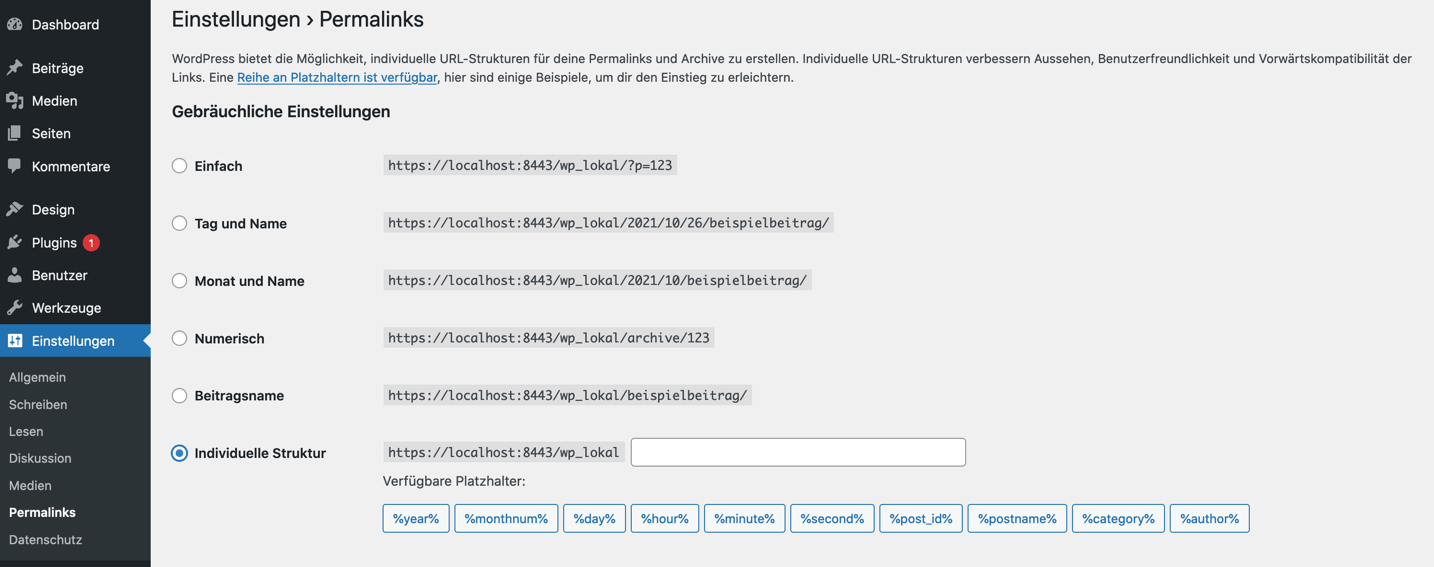
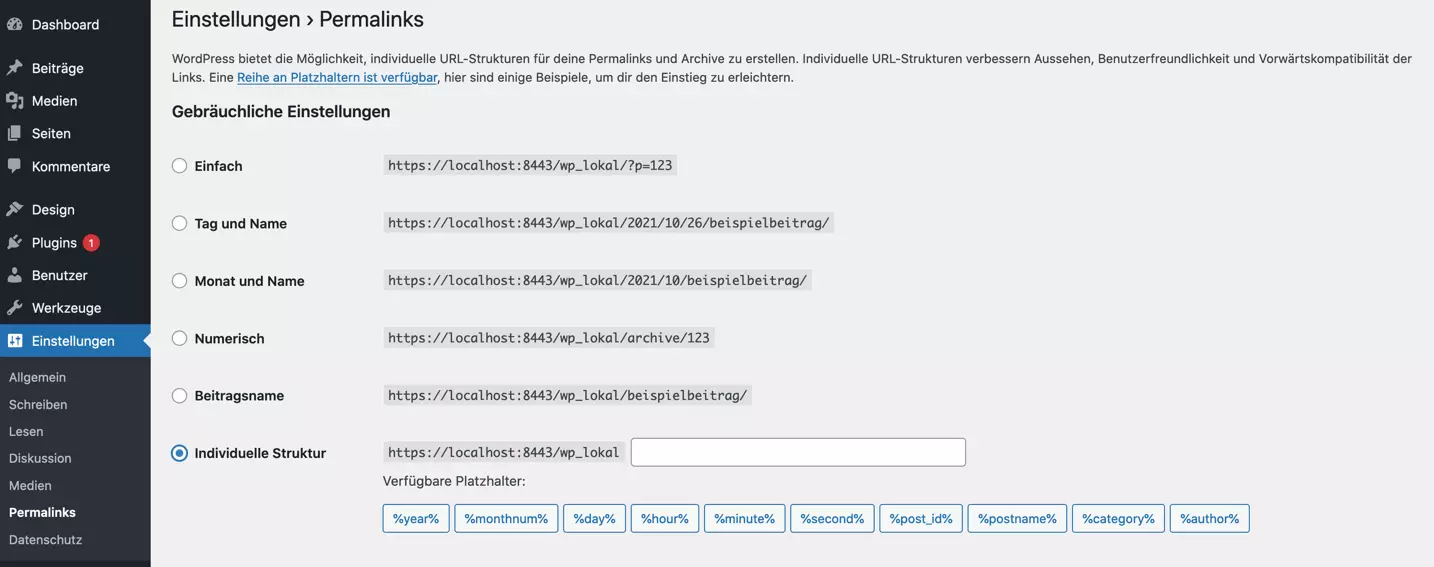
By default, the ‘Simple’ setting is selected directly after WordPress is installed. This shows the respective page or post ID as a slug. This is neither meaningful enough for search engines nor for website visitors. Therefore, you should change the WordPress permalink structure in the first step. The following settings are available for selection:
- Simple: The slug displays the page ID or post ID.
- Tag and Name: The full date of the post’s publication can be seen in the URL. The slug contains the name of the page or post.
- Month and Name: The date is included in the URL only up to the respective month. Again, the slug displays the name of the post or page.
- Numeric: Like the ‘Simple’ setting, WordPress uses the post or page ID and assigns it to the archive.
- Post Name: With this option, no other information, except for the post or page name, is included in the URL.
- Custom Structure: Here you can specify your own structure using tags. If there is a certain part of the URL that does not change for the individual posts and pages, simply write it as static text in the field.
To change the WordPress permalink structure and get meaningful URLs, the options ‘Post name’ and ‘Individual structure’ are the best choice. In addition to the general structure, you can also create custom structures for category and keyword URLs. After the structure that suits you is set, click ‘Save changes’.
You don’t have a domain yet? Register your desired domain with IONOS quickly and easily now.
Step 2: Change WordPress permalink: Optimised slugs for individual pages
After the general structure of the WordPress permalink is fixed, you can edit the slugs of pages and posts individually. If you have selected the ‘post name’ structure, WordPress will automatically generate the slug based on the name of the page or post. However, often the page or post has a different name than should be in the slug. In this case, it is necessary to edit the WordPress permalink slug.
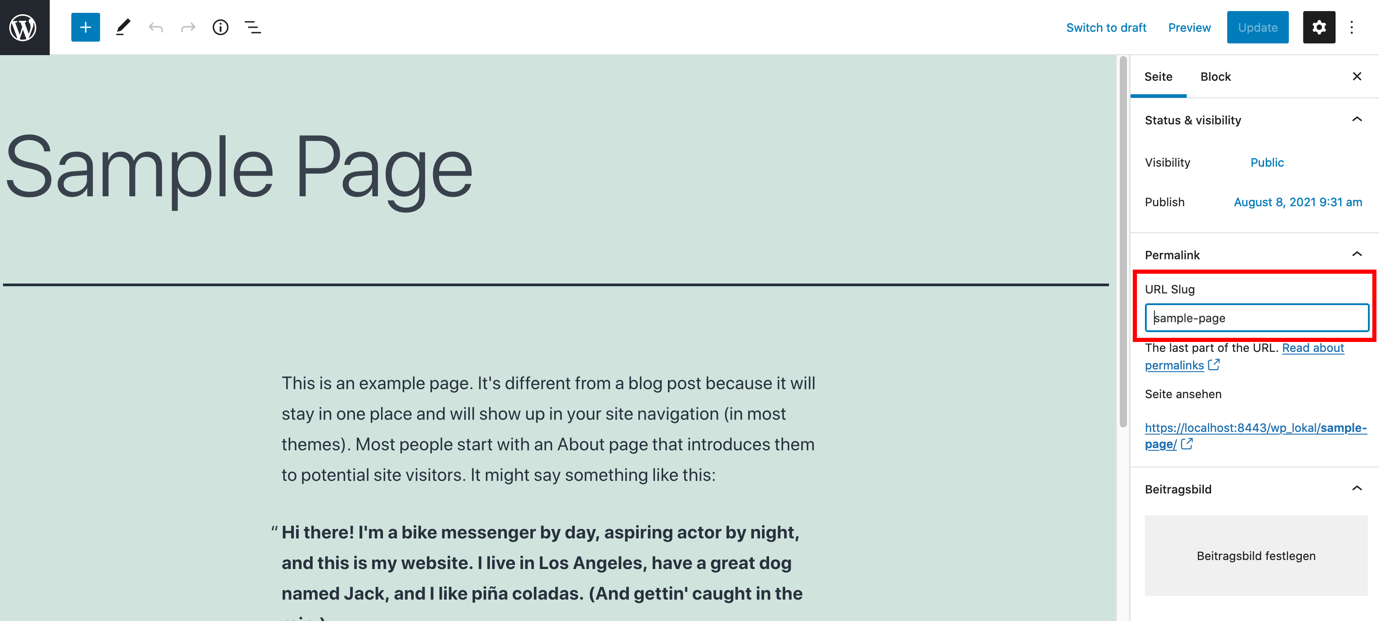
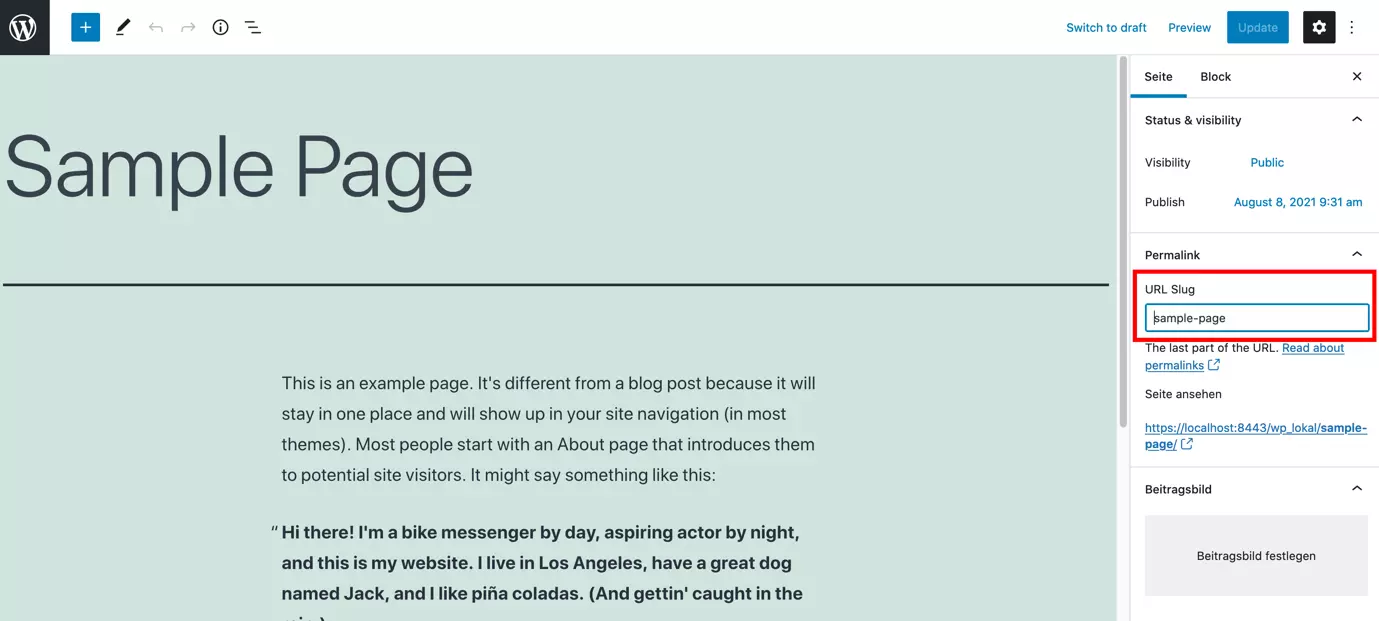
To do this, navigate to the appropriate page in the WordPress admin area and click Edit. In the edit screen, there is an option titled ‘Permalink’ in the column on the right. In the input field, change the name and then click ‘Update’.
- Stress-free, no matter your skill level with easy AI tools
- Full customisation with themes and plugins
- Hassle-free updates and less admin
WordPress permalink can’t be changed - what to do?
Usually, the WordPress permalink can be changed without any problems. However, it may happen that the .htaccess file is read-only and blocks the permalink changes. In this case, you should unprotect it for a short time until the changes are made.
Create a backup of your WordPress site before making major changes. With a suitable WordPress backup plugin you can automatically back up all files of your WordPress installation and the database. This way, if something stops working, you can always revert to a working version of your site.
Conclusion: Changing WordPress permalink can be useful
Changing the WordPress permalink structure and setting individual slugs is very easy thanks to the internal solution. Ideally, the desired structure is already in place when the page is created. But also afterwards, taking into account SEO and UX-relevant measures, the WordPress permalink can be changed. Meaningful permalinks are important, especially for the visitors of the website and for search engines, which is why it is worthwhile to put time into a well thought-out structure.
Whether you’re looking for the best WordPress Instagram plugins, a how to embed video for WordPress, or tips on how to make WordPress faster, the IONOS Digital Guide has many interesting topics that will help you to create an optimal WordPress website.