How to create a website with WordPress for beginners

In today’s world, no entrepreneur can afford to not have their own website. But what should you do if you lack the necessary coding skills to create one? A content management system (CMS) can fix everything. Once installed, you can use this system to create, design and manage a website without needing in-depth knowledge of HTML. In this article, we’ll explain how to make a website using WordPress so that you can benefit from all the advantages that the CMS has to offer.
Ask, create and research with the European alternative to ChatGPT. Robust security and unlimited chats give you peace of mind.
How to create a website with WordPress
To create a website with WordPress, there are a number of things you need to keep in mind. Use the following list as a guide to ensure you don’t forget anything:
- Install the CMS: You can either opt for WordPress packages in which the necessary files have already been deposited on the server, like Hosting for WordPress from IONOS, or you can carry out the installation process on your own. To install the CMS on your own, you’ll need web hosting, FTP access, a domain and the latest version of WordPress. This guide on how to install WordPress can help you with this process.
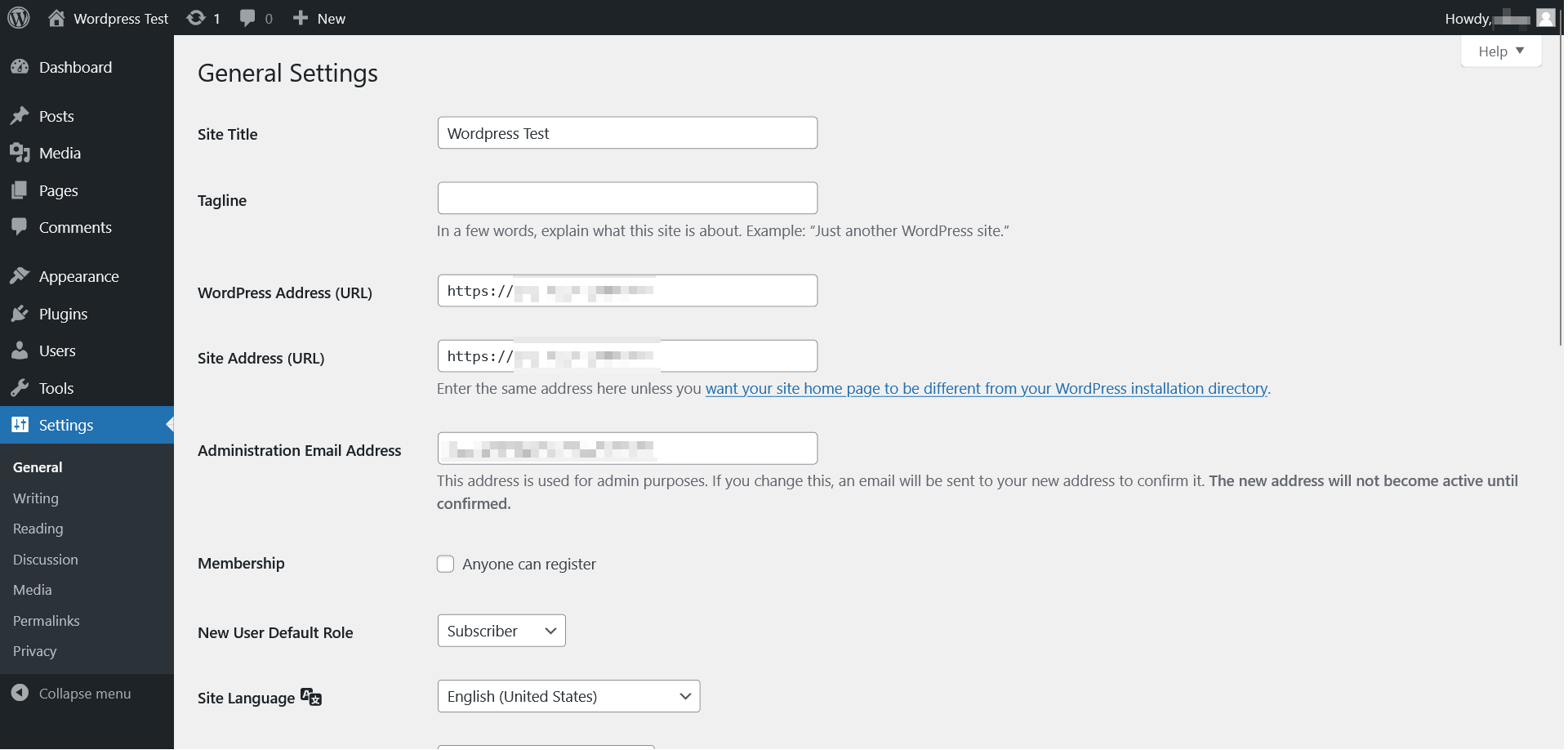
- Edit the general settings: Here you enter the site title, your site’s URL, your email address as the admin as well as other information.

- Edit content settings: To do this, make adjustments to the read and write settings. Establish whether users can comment on publications and whether these comments require prior approval for publication. In this area, you can also specify whether pings and pingbacks should be activated when posting articles. This means that other websites will be informed when you link to them in a post.
 To display this video, third-party cookies are required. You can access and change your cookie settings here.
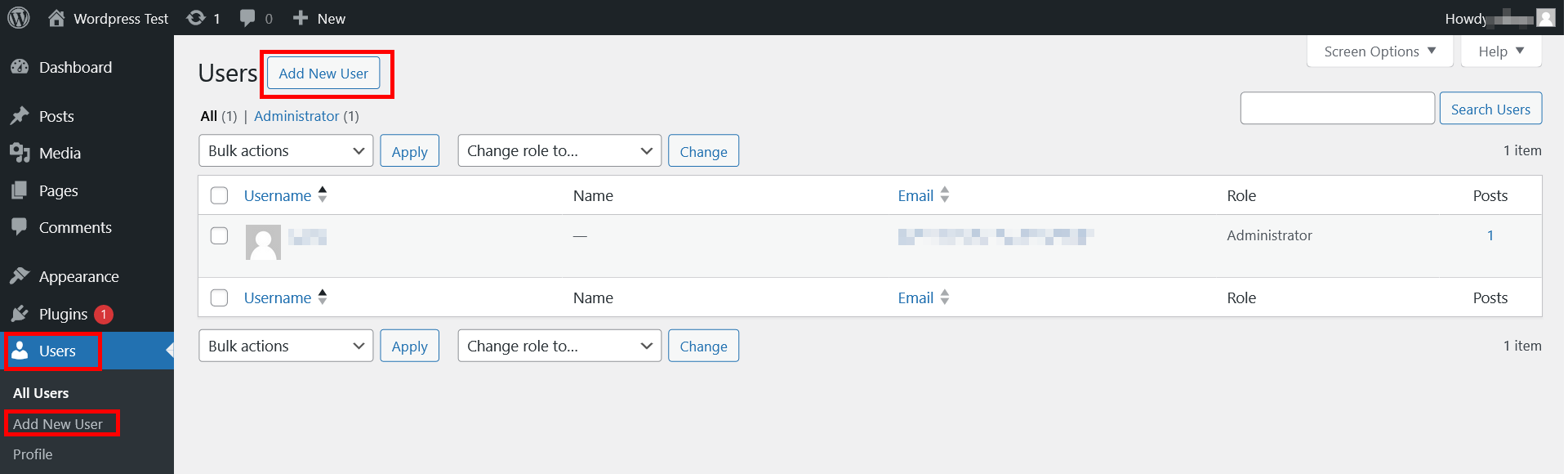
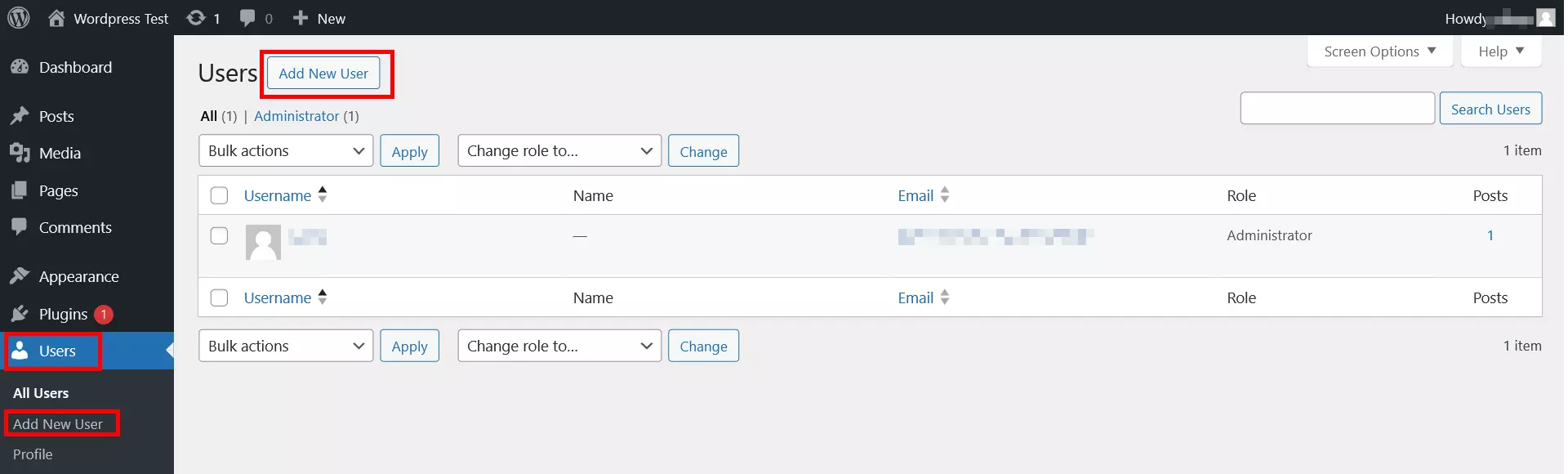
- Distribute roles and permissions. If your project is going to be managed by several users, you can add users and establish who can do what with WordPress user roles.
- Install themes: Your choice of WordPress theme will determine how your website looks and how the frontend content of WordPress is displayed. Third-party (free and paid) themes are also available, but make sure to check that the design is responsive and use widgets if necessary.
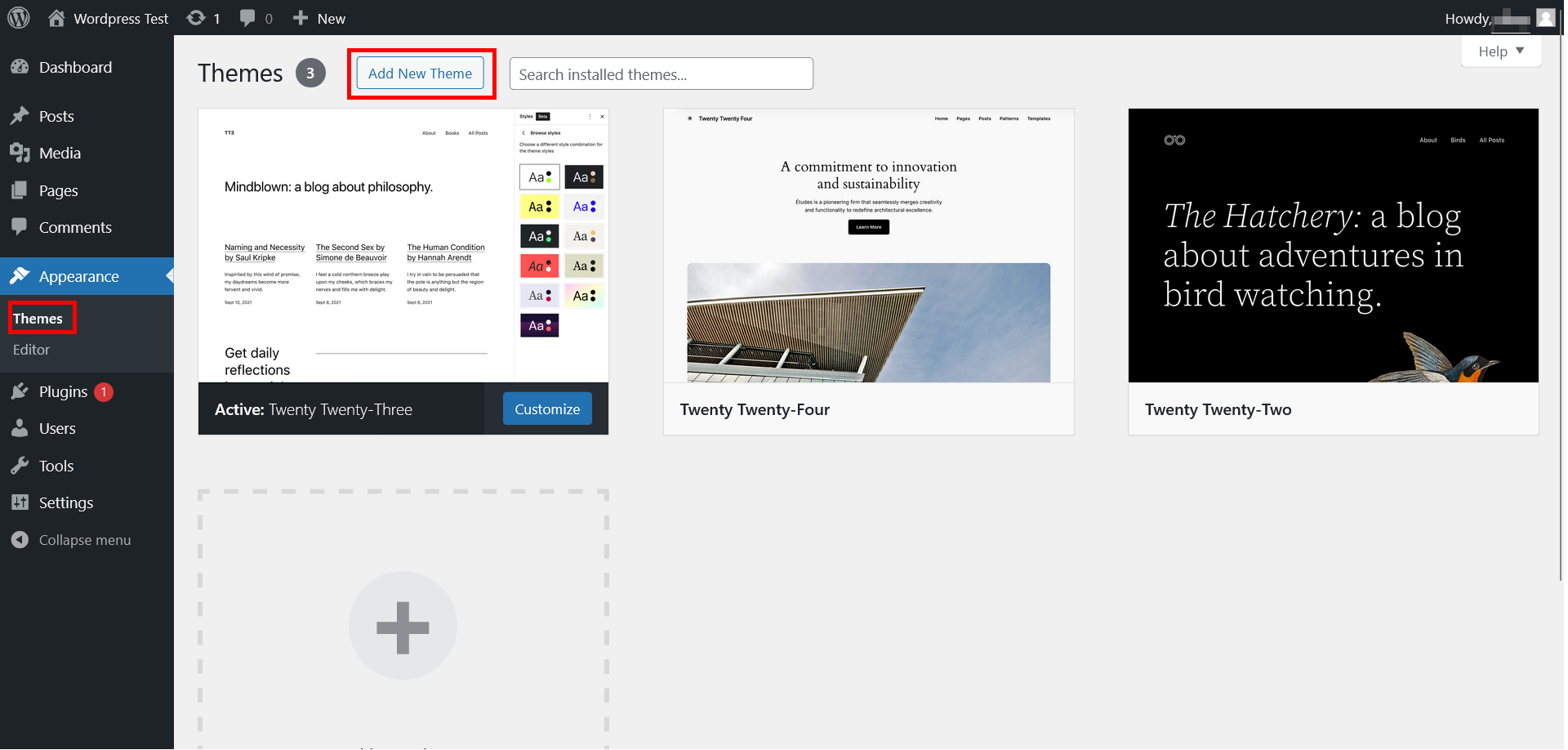
Some themes require plugins in order to function. If this is the case, it will be indicated when you install the theme.
- Use a menu to help your visitors with navigation. You can link to static pages or display certain post categories.

- Install plugins to extend the page’s functionality. Regardless of whether they are free or paid for, it’s important to assess their effect on the page as a whole and take possible security risks into account.
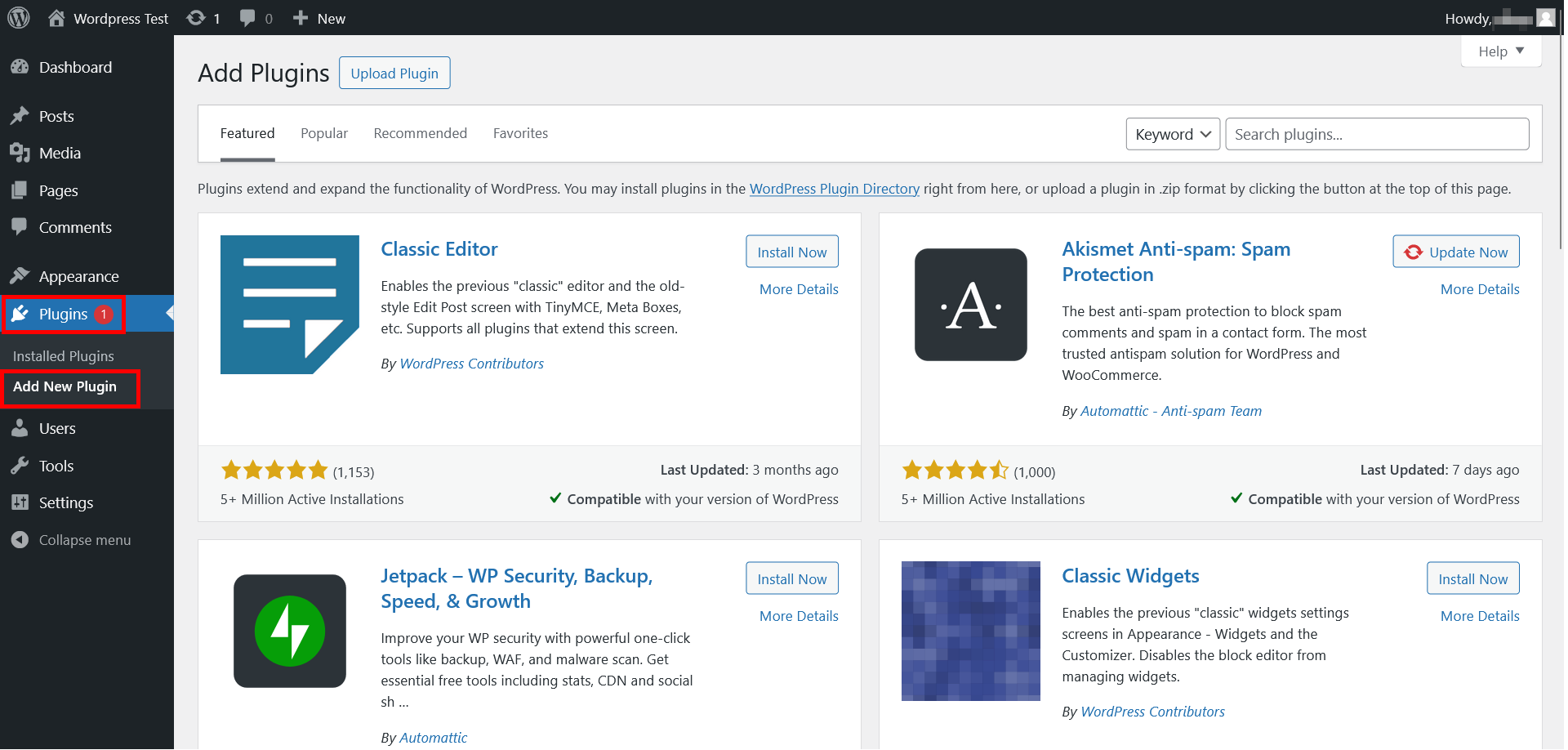
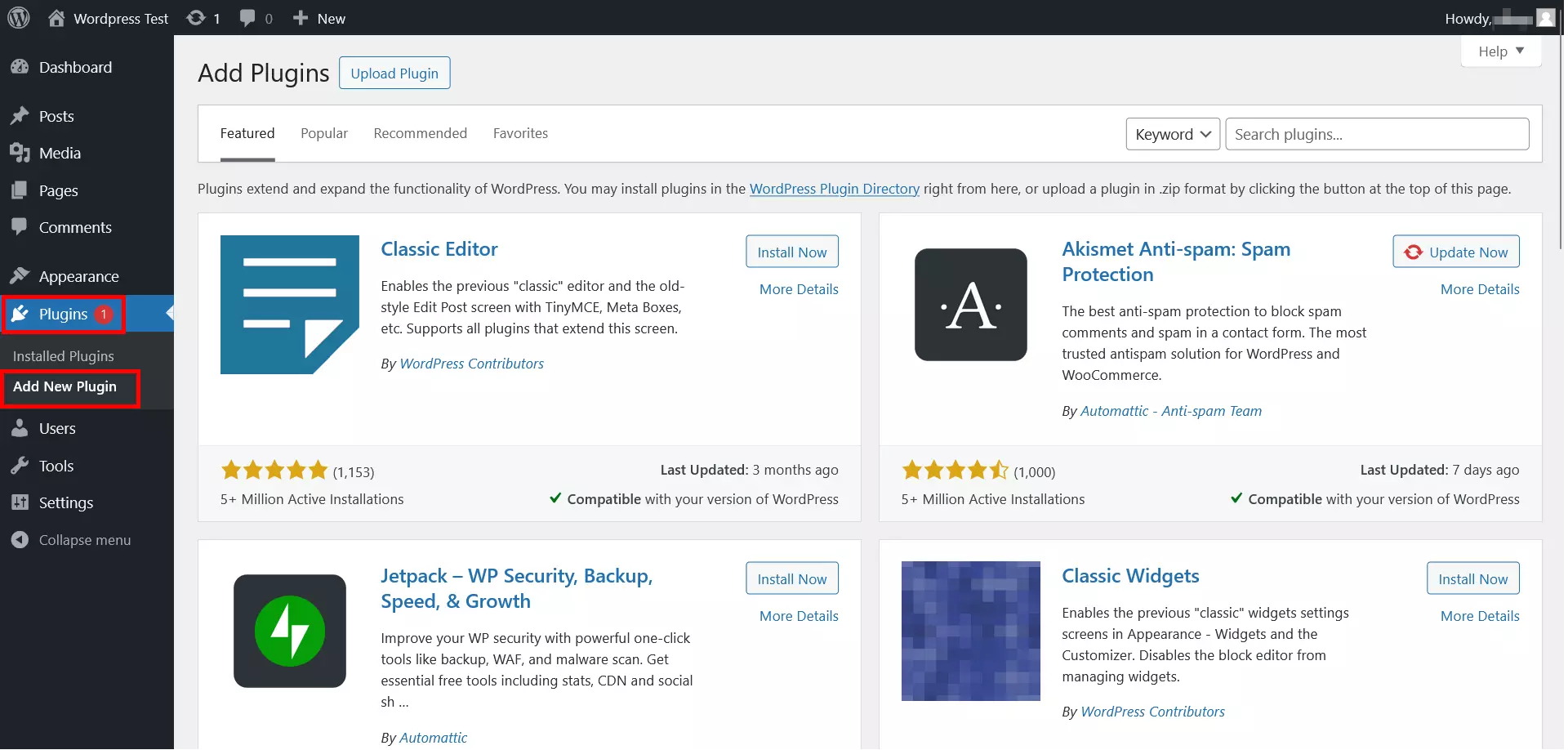
Some plugins, like themes, are free. So, before you decide to use a paid one, it’s a good idea to first check if there’s an alternative with similar features among the free ones.
- Create individual web pages whenever you need static content.
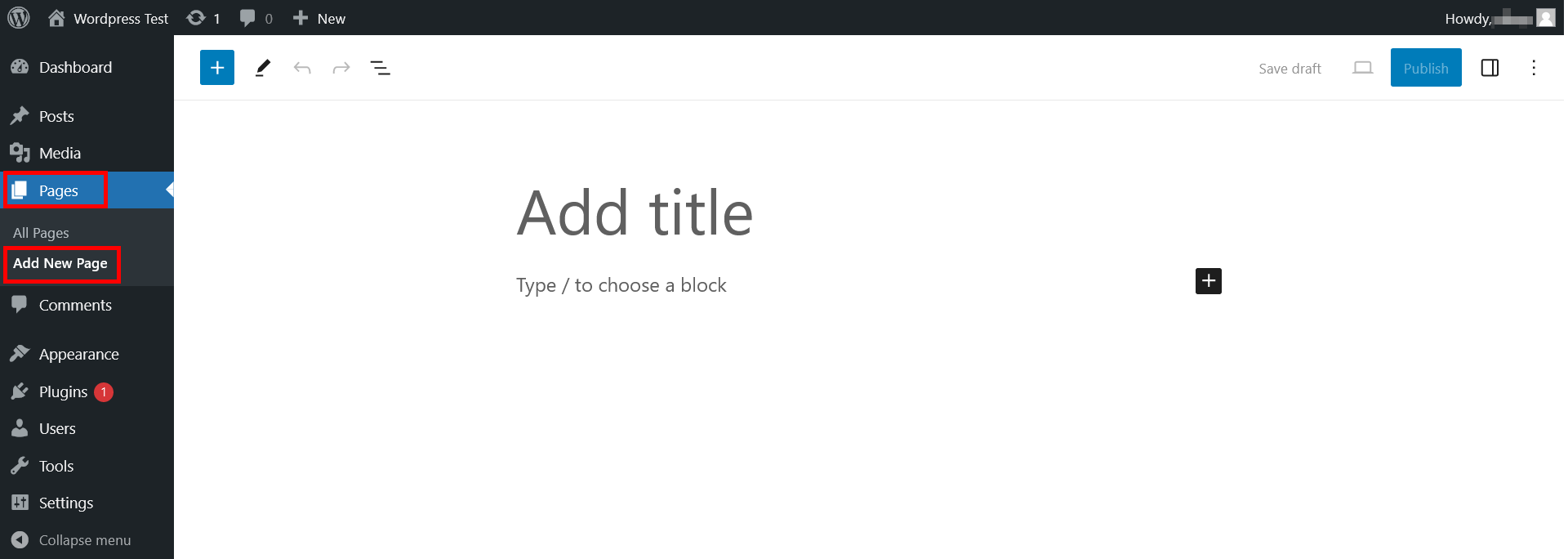
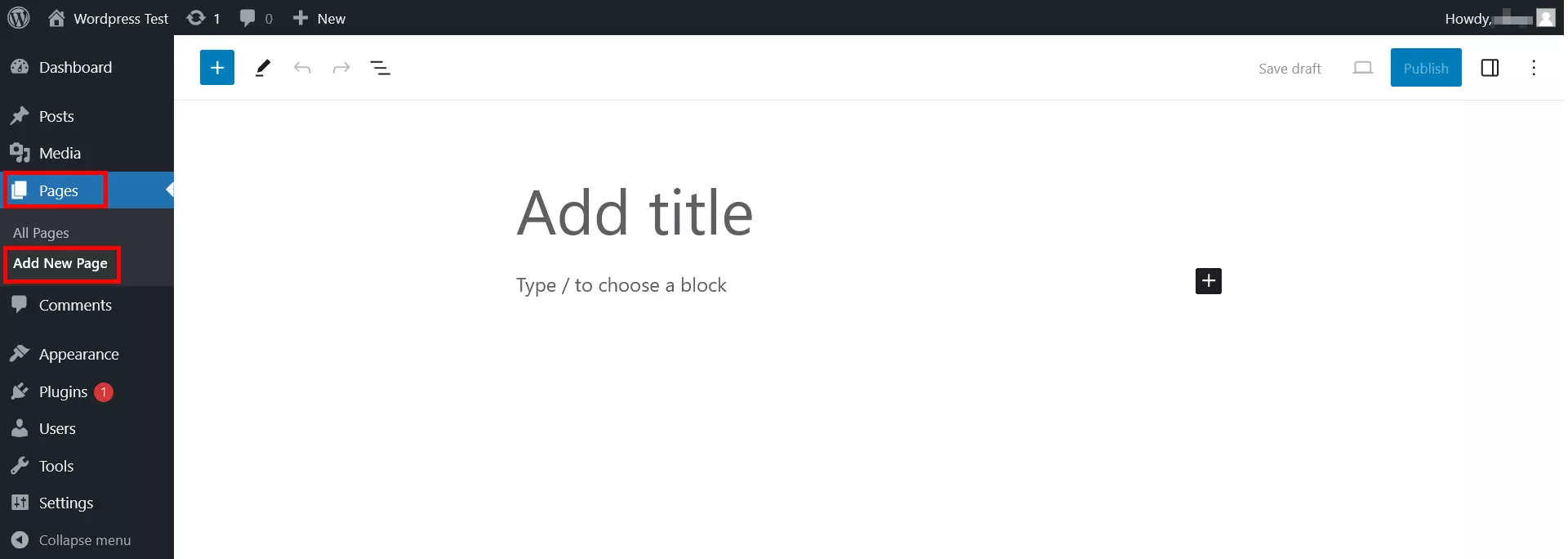
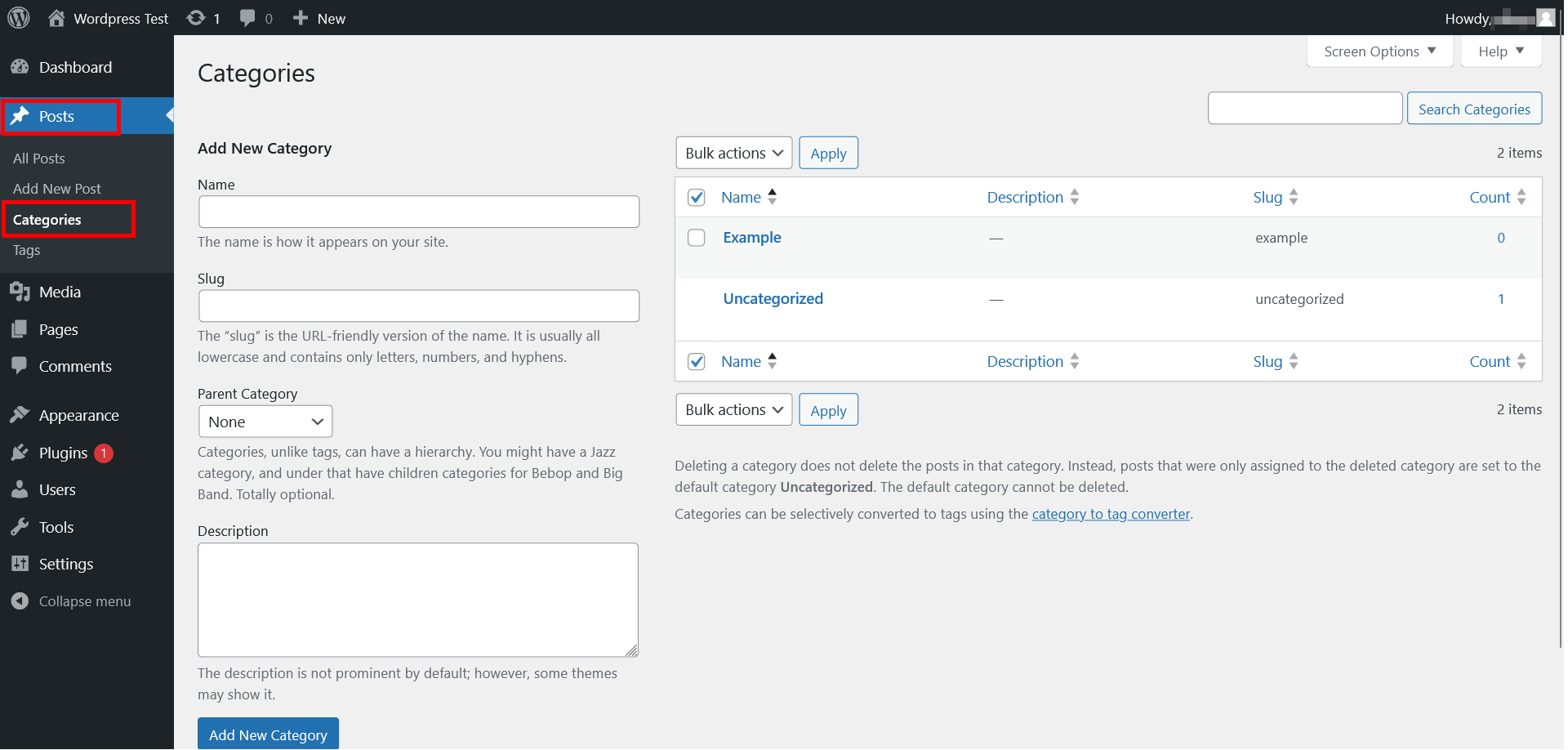
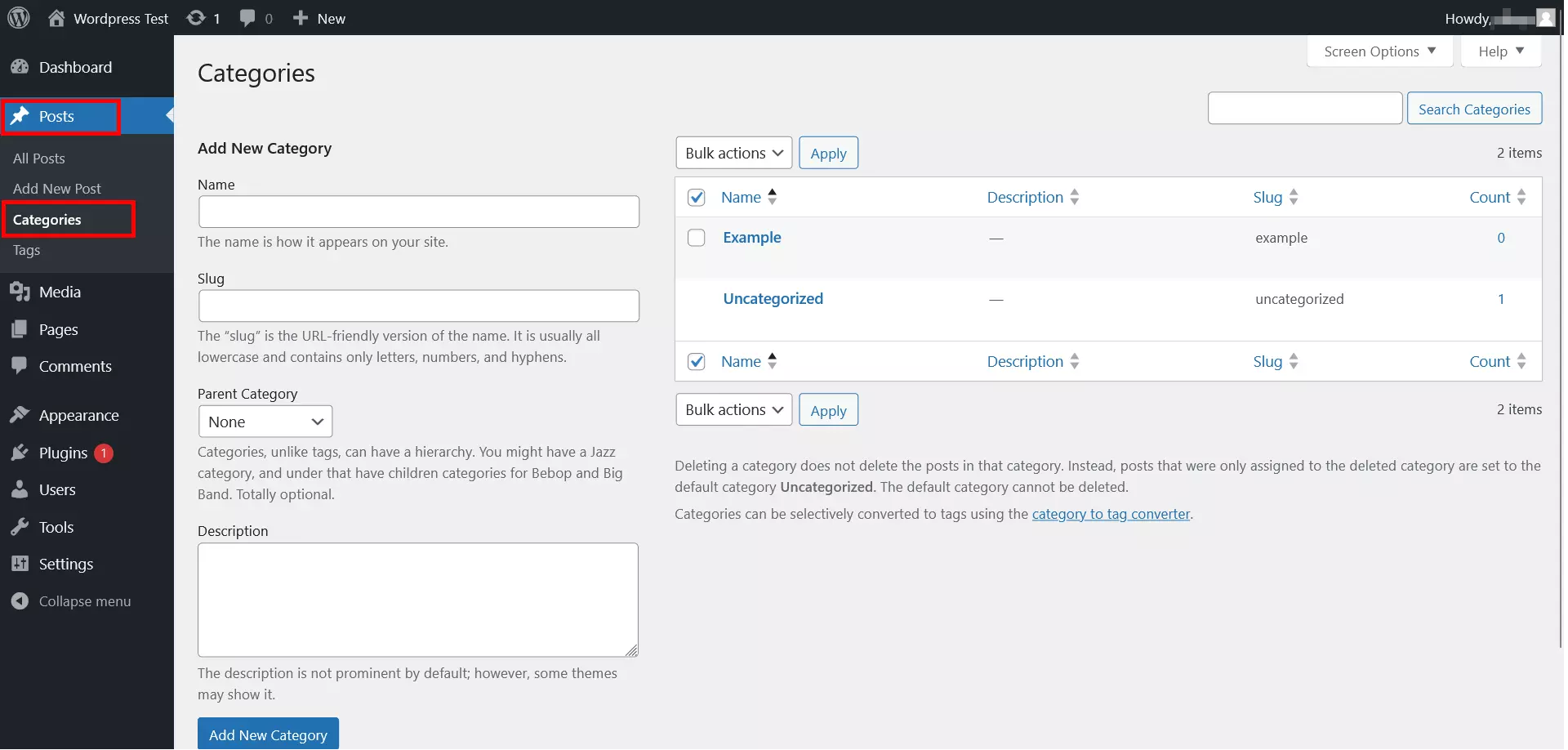
- Publish entries. It is important to assign appropriate categories and labels to publications so that users can easily find them.
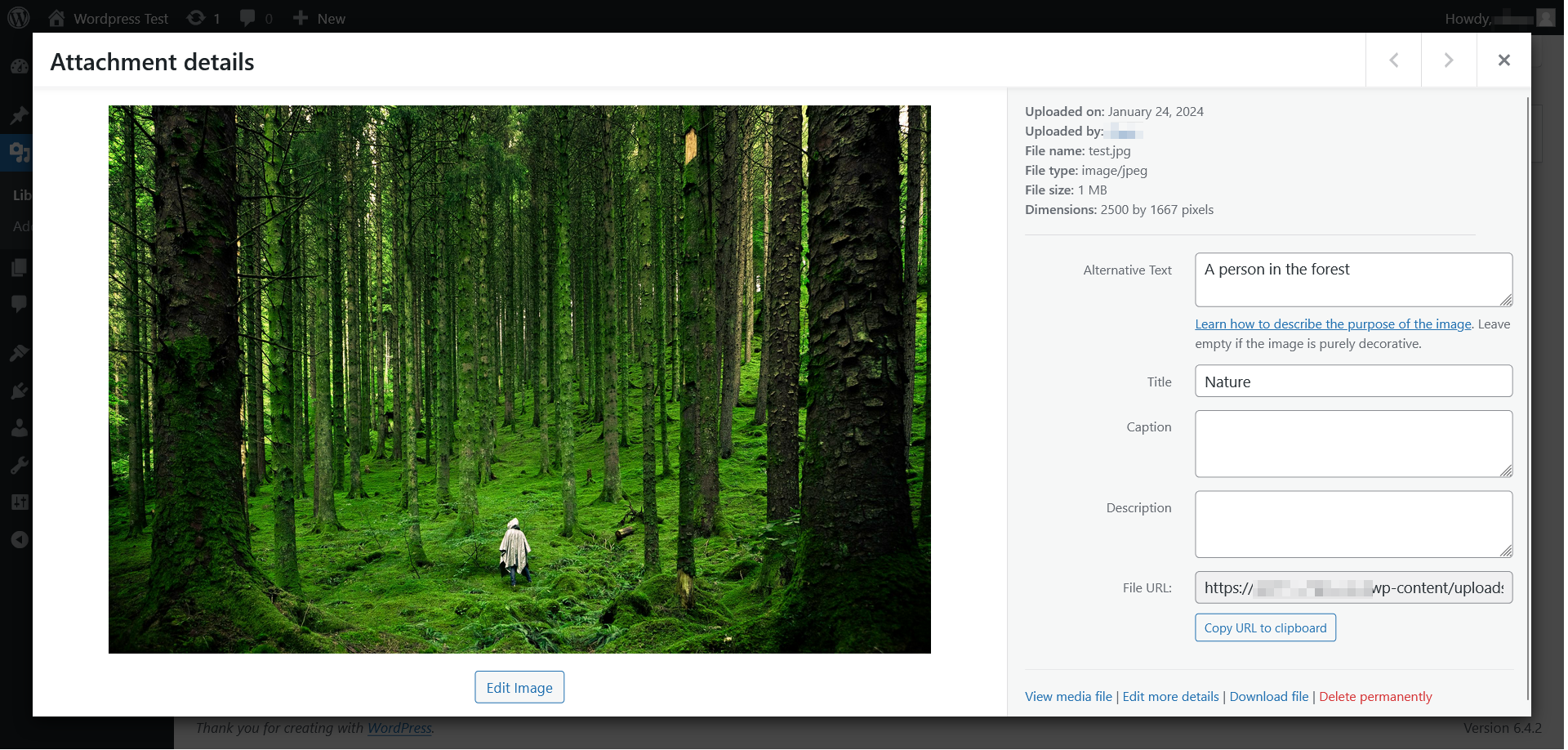
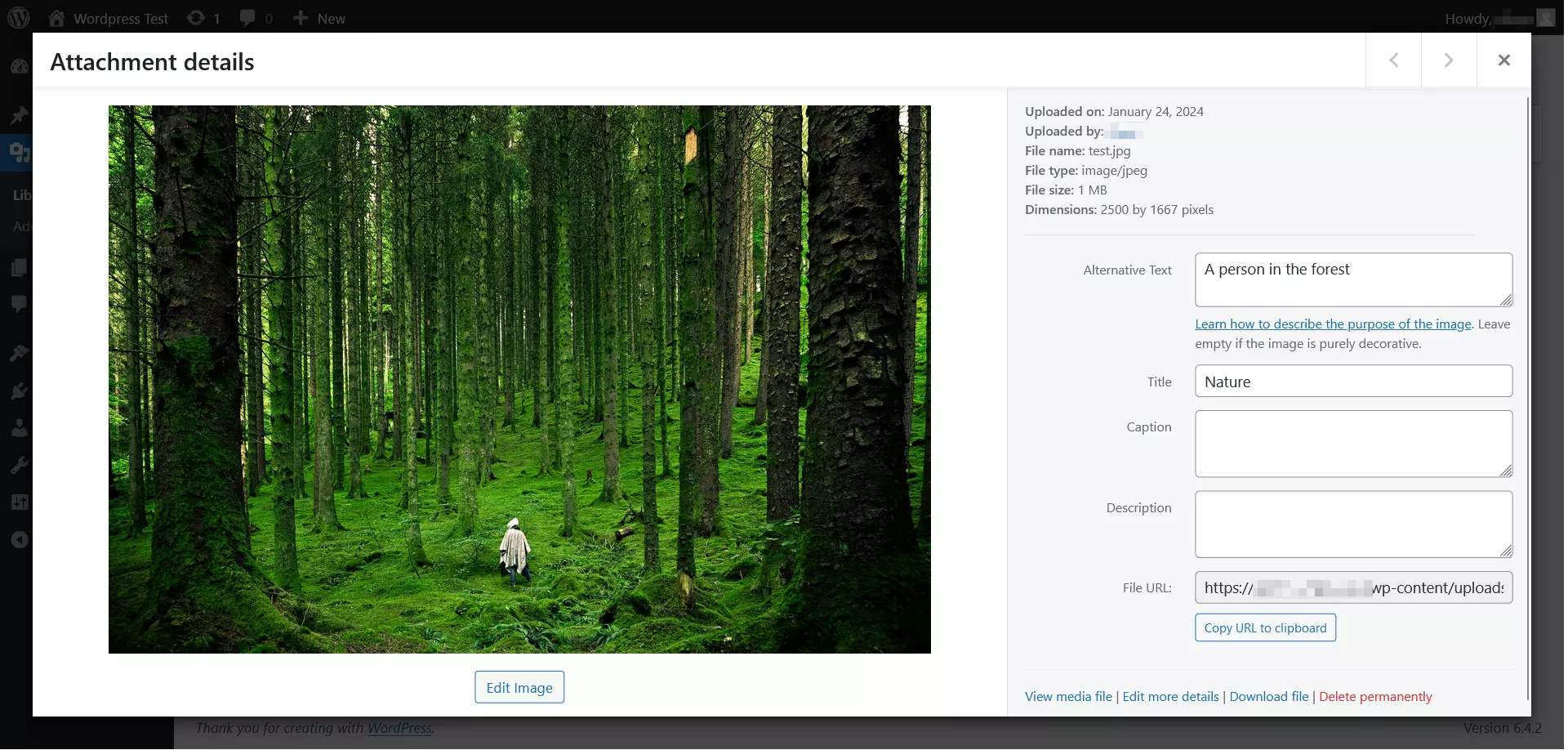
- Use the media library to store multimedia files used in publications. The images can also be accompanied by an alternative text that briefly describes what they show. In addition to being essential in SEO, alternative texts serve to make your website more accessible.
How to create suitable content for your WordPress site
Different types of websites need different content. What content is right for your WordPress website depends heavily on your target group and what you want to achieve. Does your audience want more information on a particular topic? Or are you trying to share specific information about your company? Try and put yourself in your visitors’ shoes or ask friends and acquaintances for their opinions. Regardless of what you write about, there are some rules that apply to all website texts.
- Stress-free, no matter your skill level with easy AI tools
- Full customisation with themes and plugins
- Hassle-free updates and less admin
How much a website costs also depends a lot on the intended use of the website. Our article on this topic can provide you with further information.
| What’s needed? | How to implement it |
|---|---|
| Informative content | -The information must be relevant, reliable and of good quality -Objective: To make the reader want to visit the site regularly -Method: Link to other external or internal articles and use explanatory graphics, images, etc. |
| Simple page structuring | -The information has to be available and localisable, the structure of the website has to be logical and intuitive -Objective: To attract the reader’s attention visually, to enhance the presentation of the content -Method: Titles, short paragraphs and lists, F-shaped reading pattern, inverted pyramid principle, menus, categories, labels and clouds of labels, etc. -Attention! Overused graphic elements can distract the user from what is essential. If the site is hard to navigate, most visitors will leave the page quickly. |
| Entertaining information | -Readers value this because it is very difficult to pay attention to a text that, although informative, is difficult to understand. -Objective: To present information in a way that makes the reader want to remain on the site. -Method: Get to know the target group of readers, investigate how content is presented on similar pages, use images, videos and graphics. -Attention! When introducing multimedia material from third-party sites, it is important to pay attention to image rights. |
It is now possible to generate compelling content with many generative AI models. You can use these to create text, images and even videos for your website. We present the best AI websites and the best AI text generators.
What to keep in mind when operating a WordPress website
Now that you have learned how to build a website with WordPress, it’s time to learn about maintaining and backing up your website.
Relevancy
If you have created a static WordPress website with the purpose of providing information about your company, you need to ensure that all the information you provide is up to date. If your company changes location, you expand your range of services or your prices change, you need to immediately change the information on your website.
If you maintain a blog or a news site, it’s important to provide interesting content on a regular basis. In order to keep producing regular material in the long run, it may be useful to create an editorial plan. This is especially helpful when you have a team working together to create content.
- Get online faster with AI tools
- Fast-track growth with AI marketing
- Save time, maximise results
Security
There are a few steps you can take to ensure the accessibility and security of your website:
- Install updates: Installing updates will help you minimise possible security breaches.
- Create regular backups: This may be of great help against possible structural failures. You can create backups manually, through security plugins or with free or paid programs.
- Ensure password protection: WordPress is the most widely used CMS in the world. It is therefore often the target of criminal hackers. You can increase the safety of your password by choosing long passwords made up of letters, numbers and special characters.
- Check extensions: The vast majority of plugins and themes for WordPress are provided by independent developers, which means they may not always be safe. You can avoid risks by using tried-and-tested extensions from well-known manufacturers.
Analysis
To get the most out of your site, you should keep track of performance and visitor statistics. This allows you to react promptly to poor results and adjust your strategy or technology. To obtain visitor statistics, you can use Google Analytics or one of the Google Analytics alternatives. Most website operators rely on the open-source analytics tool Matomo (formerly Piwik) if they don’t want to use Google. To integrate this into WordPress, you can use the plugin, WP-Matomo (WP-Piwik). However, numerous other plugins can also measure visitor statistics.
The term ‘performance’ describes the loading times of individual web pages. Performance is important for the user-friendliness of your website and is therefore also critical for Google rankings.
To test the performance of your WordPress website, you can use the free IONOS website checker. This will tell you exactly where you can make improvements on your site.
Scope
The higher your website is in search engine search results (especially Google’s results), the easier it will be for visitors to find your site. Google will eventually notice your site on its own through its crawlers, but this can take some time. You can shorten this time by entering your website’s URL in the Google Search Console. In addition to submitting your website to Google, which is the most widely used search engine, you should also submit your website to other search engines as well.
You can also increase your website’s reach by becoming active on other channels. Get involved in relevant discussions on social networks and try to get backlinks from other websites. When link building, however, make sure that your links come from reputable and respected websites. Quality over quantity applies here.
Quick recap of what to consider when choosing WordPress for your website
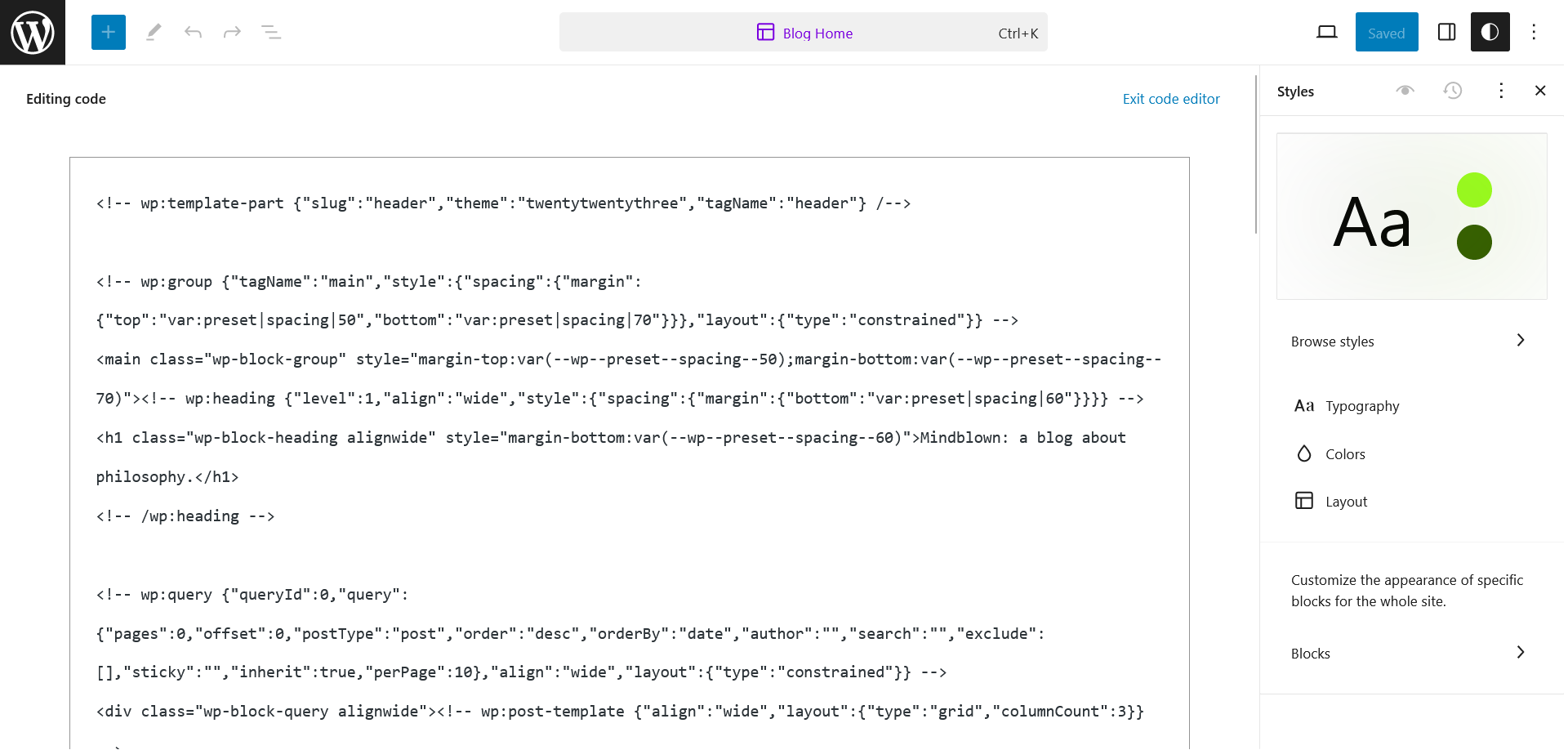
WordPress is an easy tool to use and doesn’t take long to get familiarised with. If you are running a website with regularly updated content, it is always advisable to use a CMS. You can use the backend to create, manage and publish your content, and thanks to numerous themes and plugins, your website does not have to look like an ordinary blog.
Beginners, however, will reach a limit in their ability to alter the design and make individual adjustments. But if you have a small amount of programming knowledge, you can customise WordPress to make it even more versatile. The source code of the themes and plugins can be modified in the backend editor, although it is better to avoid this option if you haven’t worked with CSS or PHP code before, as you can accidentally jeopardise the content on your website.

WordPress is not necessarily the right option for everyone. The website builder from IONOS also provides many design templates, allowing you to quickly set up your own website.
Reviewer

Julia Hertler
With over 18 years of experience in content marketing, Julia Hertler has deep expertise in digital communications. For the past 10 years, she has specialised in the areas of domains and hosting at the IONOS Digital Guide, making complex technical topics easy to understand.