

How to customise a WooCommerce product page

A unique, original product page is sometimes the decisive factor in generating more sales and creating interest in your online store. WooCommerce’s default features leave little room for custom product pages. Not to worry, in addition to built-in WordPress features, plugins like StoreCustomizer, or page builders like Elementor offer flexible settings and designs. Let’s take a look at editing a WooCommerce product page.
Why is it beneficial to edit a WooCommerce product page?
The answer is simple. An individual style, consistent product branding, and user-friendly UX will lend your online store a certain credibility and help sale conversions. As with store displays, the way a product shows itself off is almost as important as its quality. Visitors will be persuaded to buy a product more reliably if it is branded and presented well.
If you use the default WooCommerce product pages, you will quickly notice that the options for custom settings are limited. However, you don’t have to settle for the default design if you want to jazz up your online store. Seeing as it is relatively complicated and not without risks to redesign product pages with changes in the source code, we recommend various free plugins as well as features that are already included in WordPress and WooCommerce.
For an optimal WooCommerce online store experience, fast loading times are key, achieved through best hosting practices. Take advantage of WooCommerce Hosting by IONOS, including e-commerce plugins, an SSL certificate, and managed WooCommerce hosting.
Methods for customising a WooCommerce product page
From WooCommerce product page templates to WordPress. Use the following options to customise product pages as needed:
Via Plugins (using StoreCustomizer as an example)
The easiest way to edit your online store including product pages are plugins like SeedProd, StoreCustomizer or WooBuilder, which work in a similar way to page builders. SeedProd is one of the most popular page builders, is updated regularly and has already been installed by over a million users. However, the most important functions for product pages are only available in the paid Pro version. Therefore, using StoreCustomizer as an example, we will explain how to edit your product pages with a drag-and-drop plugin completely free of charge. Note that you cannot install plugins with the free WordPress.co.uk package.
Step 1: Install the plugin StoreCustomizer from the manufacturer’s site or directly from the download page for WordPress-Plugins. After installation you need to activate the plugin.
Step 2: Now go to ‘Design’ on your WooCommerce store page and then ‘Customize’ > ‘StoreCustomizer’ > ‘WooCommerce Store Page’. You can use different features in the plugin to customise the page. You can find all the settings and features in the left menu bar. These include settings for font size, colours, page design and layout.
Step 3: An important feature of StoreCustomizer includes removing pre-installed WooCommerce page elements like store titles or sorting results. Simply place a checkmark next to elements you want to remove.
Step 4: You can also set the number of displayed products per page and per row and add a label for new products with ‘New badge for recently added products’. For this, you specify how long items are considered new after they are added. You can also enable front-end sales statistics for products to highlight top sellers.
Step 5: Use editor functions to customise store buttons or product descriptions or change the design for store buttons or page elements such as banners and margins.
Step 6: For product pages, StoreCustomizer offers customisation for all page elements. This includes product tabs, the shopping cart button, the product price, the product photo, the number of sold products, the description and the display of similar products or product reviews.
Without Plugins (Using Editor, Customisation and CSS-Coding)
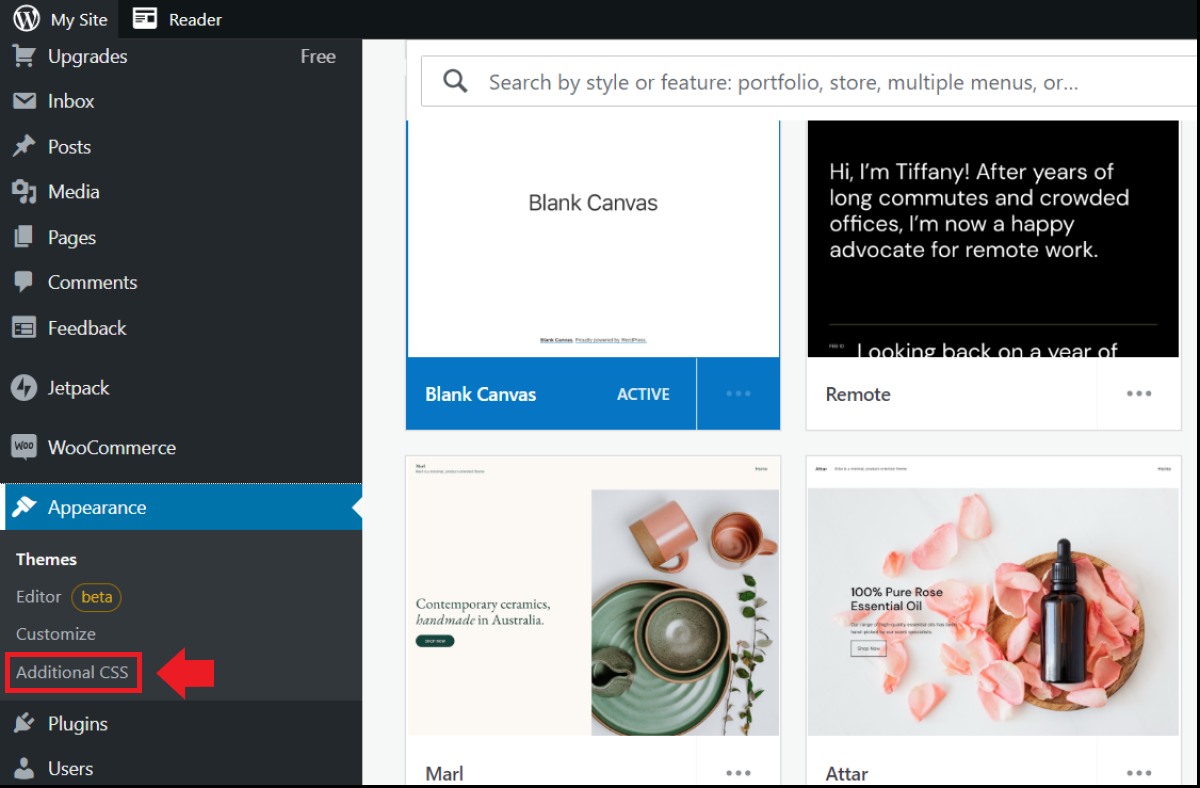
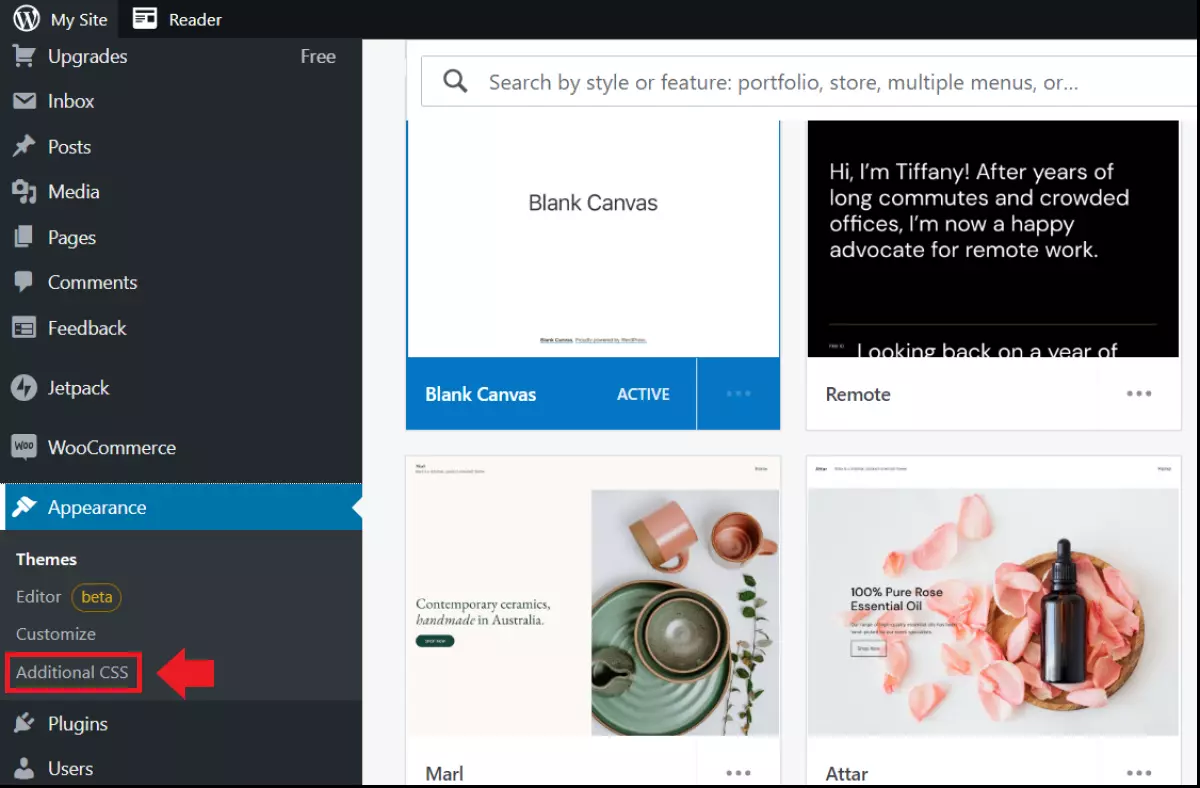
If you don’t want to install plugins, use three of WordPress’ built-in features, which you can find in the left dashboard menu under ‘Design’: the Editor, Customise and Additional CSS features.
WordPress-Editor
With the integrated full-site editing of the WordPress block editor, custom adjustments can be made to store pages. The editor works in the beta version according to the drag-and-drop principle. Page elements such as paragraphs, images or videos can thus be inserted and edited as blocks.
Step 1: Click on ‘Design’ and on ‘Editor’ in the left menu bar.
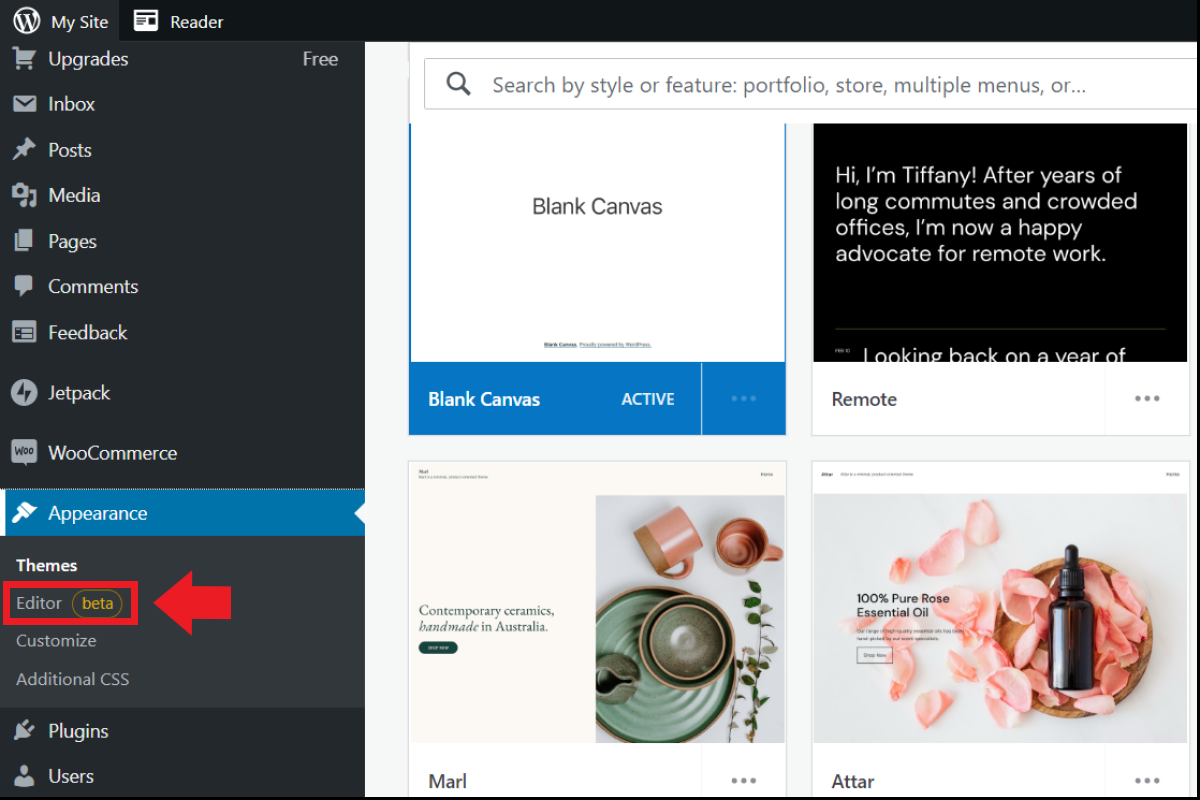
Step 2: To add a new content block, click the ‘plus’ icon in the editor.


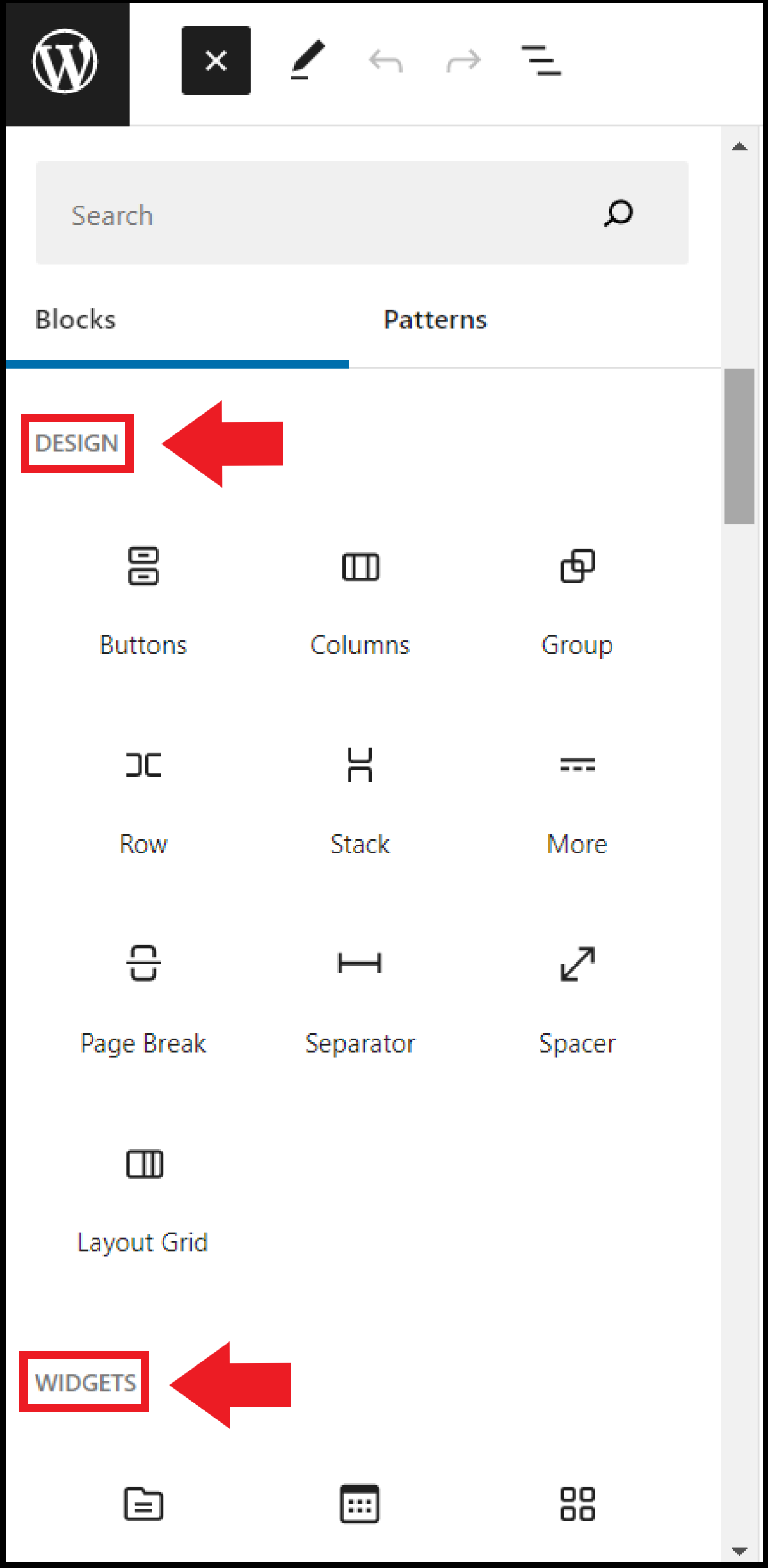
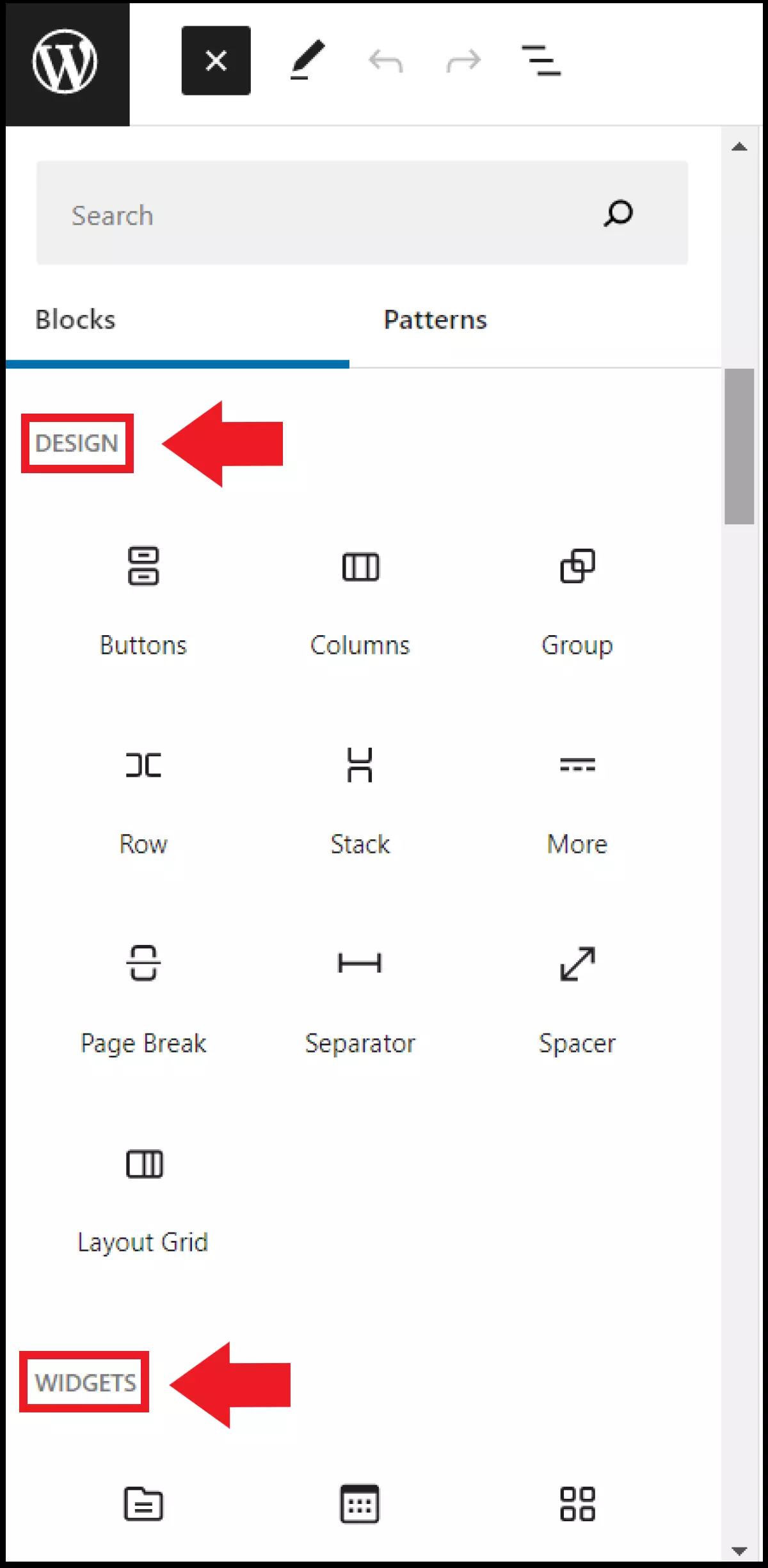
Step 3: Now you’ll see a list of blocks with different choices for posts and page elements. If you want to use an element on the page, click and drag it to the appropriate page block. Possible elements include text contributions such as paragraphs, lists, tables, or quotes.
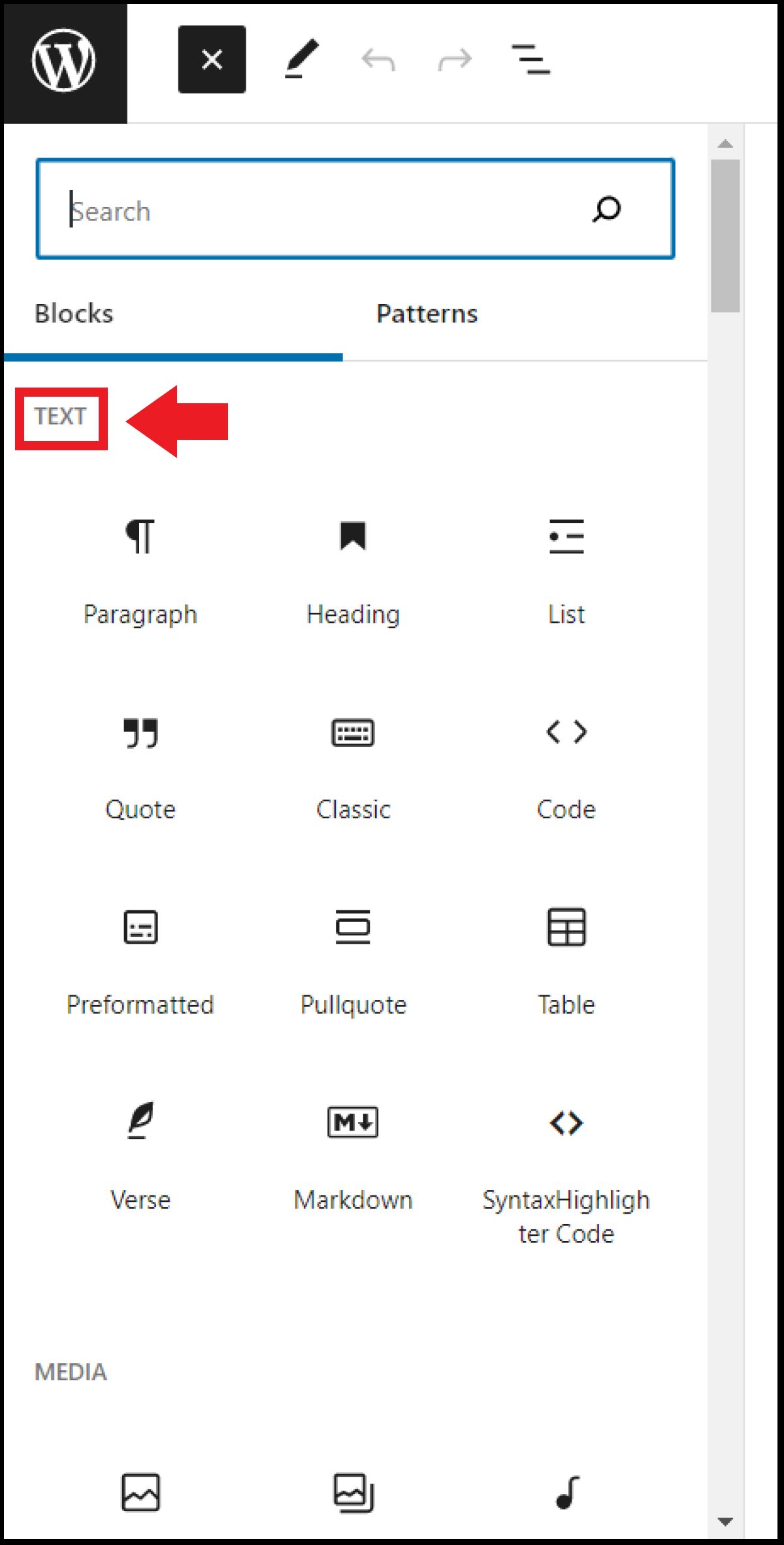
Step 4: Other page elements include media elements, multiple design/layout options and widgets.
Customise
The ‘Customise’ feature allows you to make changes to the layout, design or page elements on existing pages.
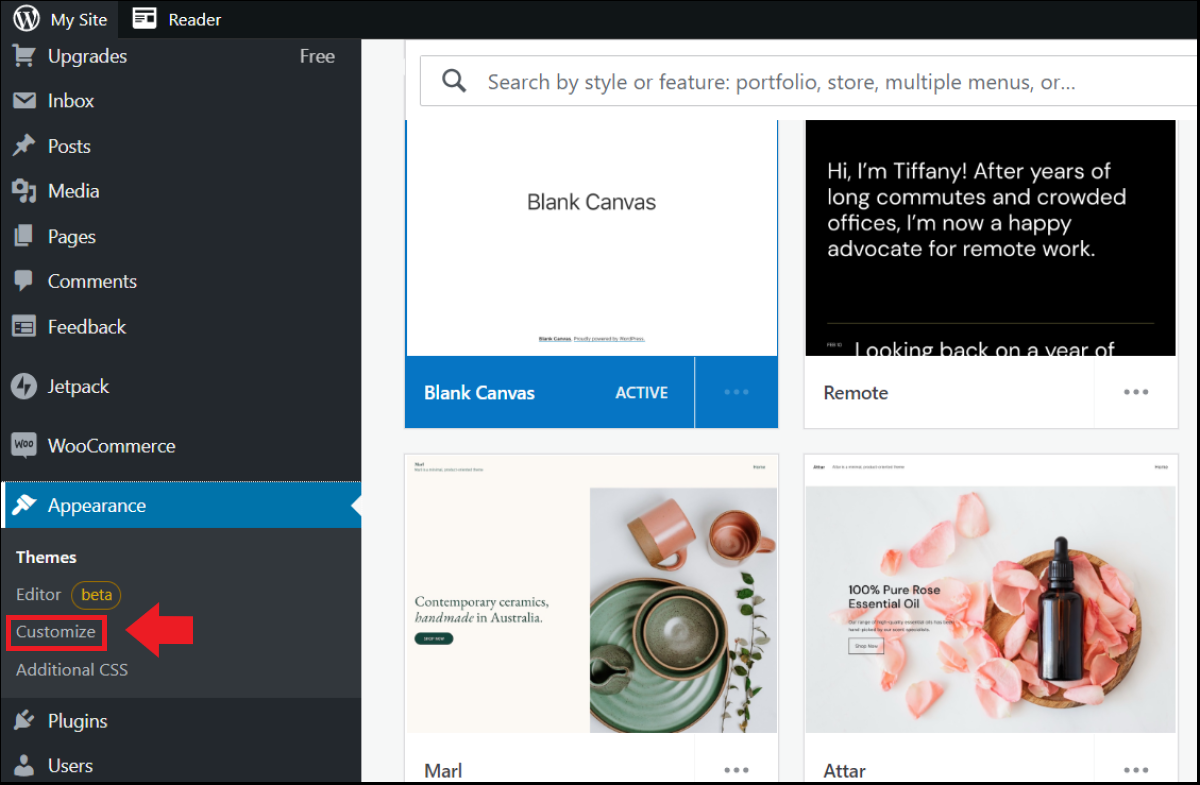
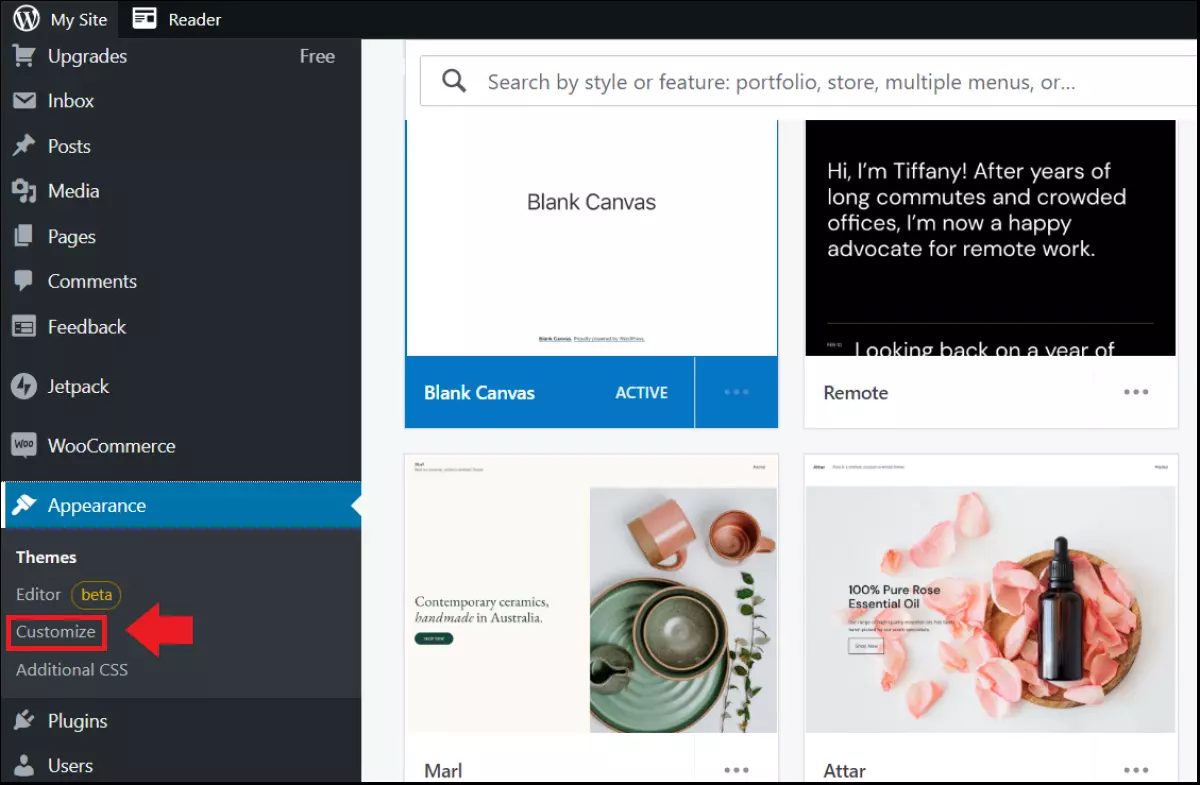
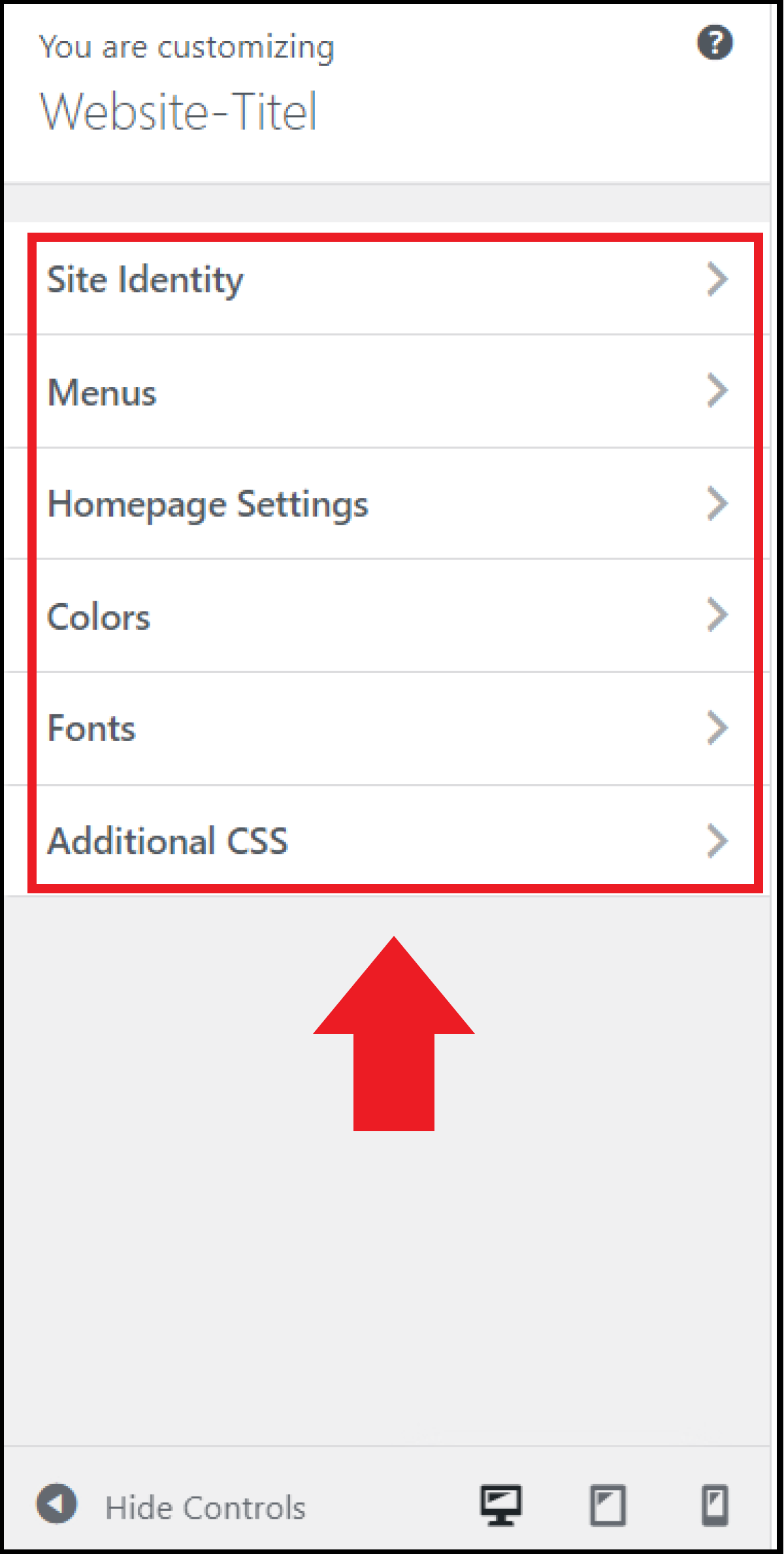
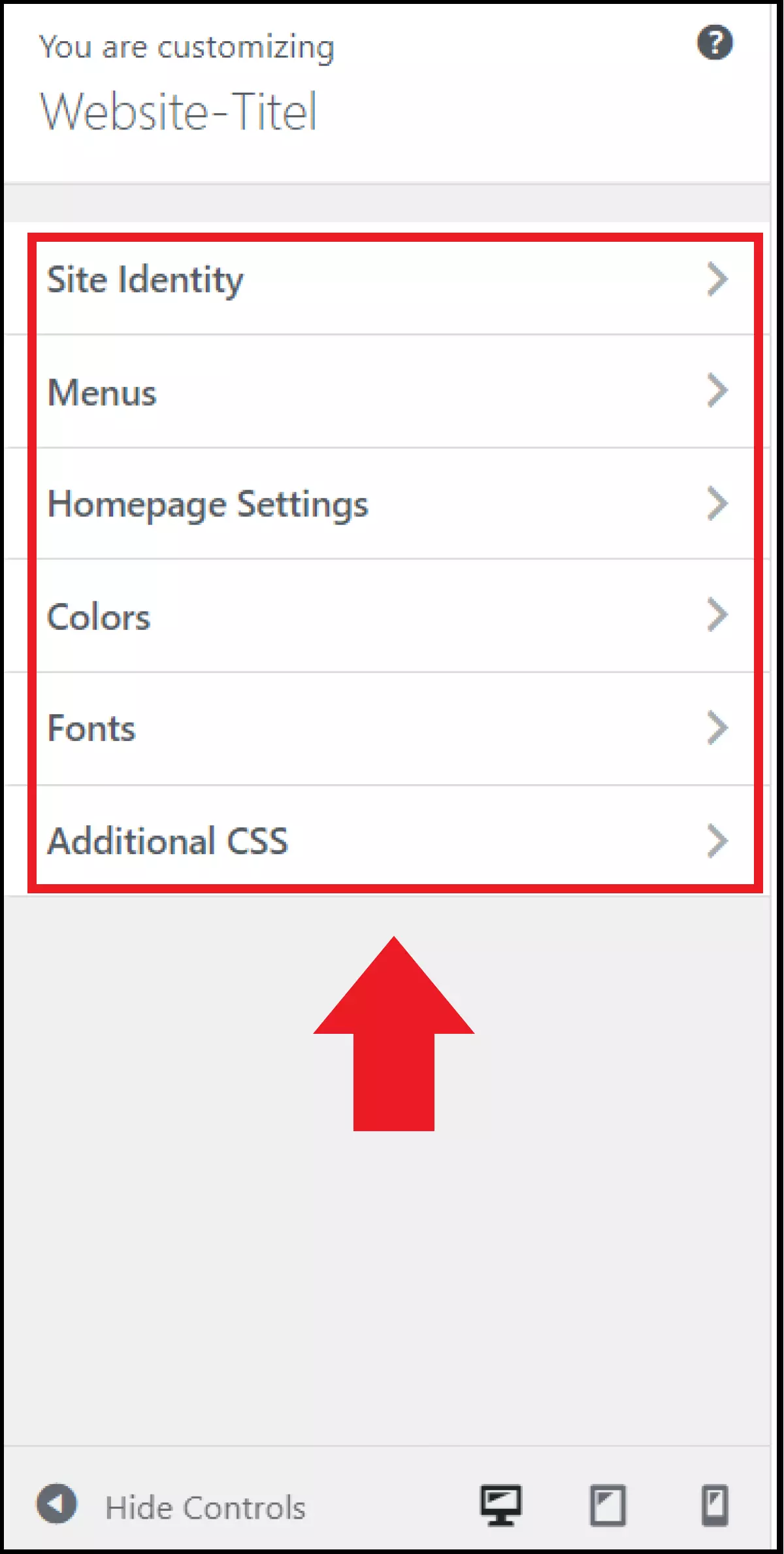
The configurations available to you with ‘Customise’ include options for colour settings, fonts, or even custom CSS.
Additional CSS
With the ‘Additional CSS’ option, simple changes can also be made manually via CSS with appropriate coding skills. However, for this you should have at least begin to learn programming or already have basic programming skills. For ‘Additional CSS’ the paid Pro package of WordPress.co.uk is required.
Via page builder tools
If you are already using a WordPress page builder like Elementor or Divi, you can also use them to configure your product pages. However, make sure that your page builder offers specific block features for WooCommerce. Elementor, for example, includes preloaded WooCommerce templates for product pages that will help you present your products in an appealing way in no time. As a rule, good page builders are paid, or features for WooCommerce pages can only be used in paid packages.
Powerful page builders we’d recommend are:
- Elementor
- Visual Composer
- WPBakery
- Oxygen
- Beaver Builder
- Divi
Looking for more information on WooCommerce? See also our guides on topics like WooComerce dropshipping plugins, WooCommerce shortcodes, WooCommerce costs or even on WooCommerce alternatives for information on WooCommerce competition.
Practical WooCommerce extensions/plugins for product pages
WooCommerce itself offers several extensions and plugins that add a variety of features to your product page. We’d recommend the following extensions:
- Add-ons for products: With add-ons like Product Add-Ons you can offer additional services like gift wrapping, custom greeting messages, engraving, donations or similar. Your site visitors simply tick selectable add-ons to add them.
- Alternative product images: Be it different colours, imprints, sizes or shapes - if you offer a product in different versions, it is recommended to also integrate alternative product images and image galleries. This can be done, for example, with the plugin Additional Variation Images.
- Reviews and Recommendations: With an extension like Recommendation Engine, you include extras like product reviews, recommendations of similar products, or goods frequently purchased in the set.
- Product Videos: By default, you can only add product images on WooCommerce, but a tool like Product Video creates the possibility to include product videos from YouTube, Facebook or even Vimeo to illustrate the use or design of your products.
- Badges & Labels: If you run frequent special offers and discount promotions, these can be identified with special badges and labels in a distinctive design. Use a plugin like Product Badges for this purpose.
A distinctive domain is marker of a professional online store. With IONOS you can easily register your dream domain name and benefit from services like Wildcard SSL, Domain Lock and an email box with 2 GB.
These details are a must for any online store
In order to create an online store with WordPress you need to know what belongs on a product page. The following aspects are important for good product presentation:
- Product photo: Make sure you have your own professional product photos that match the style of your store or offer aesthetic value. This strengthens the credibility of your brand. Multiple perspectives of your product, preferably from all sides, are ideal.
- Product title: The title should contain the most important information about the product and is usually displayed in the SERPs of search engines. Keep in mind that a product should sound appealing on Google.
- Price, special offers, shipping costs: Visible prices including sales tax is particularly important. Visible indications of special offers, discounts as well as shipping costs should be clearly displayed.
- Product description: Make sure you have a detailed, understandable product description that conveys all the important information in an easy-to-understand way and convinces hesitant customers that it is the right decision.
- Additional product and shipping information: Depending on the type of product, additional information on weight, dimensions, material or origin is an important addition for an informed purchase. Different shipping options or weight-dependent shipping costs can be displayed or calculated by plugins.
- Payment methods/checkout: If possible, offer your site visitors the most important common WooCommerce-payment-methods in order not to let the purchase fail due to a lack of payment options.
- Position, colour and size of the shopping button: Insider tip! The shopping button, also known as the shopping cart button, can be game changing. The button is ideally placed near the product image and title and above the product description. If it is only found by scrolling down to the bottom of the page, you’re losing sales. An eye-catching colour and a vivid design can also generate more sales.
- Similar products/cross-sells: A ‘similar products page’ can invite customers to buy other things in your store by offering alternatives. It allows you to display more products on a product page without cluttering the page. Cross-sells, which are recommended products that complement the displayed product, can also increase sales.
- Reviews: The reviews of other customers and clients are often decisive purchasing factors. Especially when good products receive positive reviews, it would be a wasted opportunity not to place these reviews on the product page, e.g. in the form of stars or quotes. Reviews can be integrated through the WordPress-review-plugins. You can also prompt buyers and shoppers for reviews or remind them to review a product.
Summary: How to create an unmistakeable product page on WooCommerce
WordPress and the WooCommerce plugin are powerful tools, but WordPress-themes, an original web design with effective color scheme or a large product selection do not make a successful online store. So, remember that it also depends on the presentation of your products with clear, modern product pages and suitable features.
Use plugins like StoreCustomizer or SeedProd to edit your product pages or use a powerful page builder like Elementor. Built-in WordPress features like the ‘Editor’, ‘Customise’ or ‘Additional CSS’ can also be enough for quick, efficient customisations. Never forget that attractive product pages can win over your customers and generate more sales.
Reviewers

Melissa Senn
Melissa Senn has been with IONOS since 2016 and focuses on website, e-commerce, social media, and AI in the Digital Guide. As a digital strategist, she uses her extensive SEO and GEO experience to transform complex technological trends into practical content.

Julia Hertler
With over 18 years of experience in content marketing, Julia Hertler has deep expertise in digital communications. For the past 10 years, she has specialised in the areas of domains and hosting at the IONOS Digital Guide, making complex technical topics easy to understand.