

Insert a Word document into PowerPoint: how to

The Microsoft Office package contains popular programs for a wide range of applications suited to the office and everyday life. The Word software, for example, is ideal for creating and editing texts. However, the word processing program is not as suited for presenting what’s been written. For this purpose, Microsoft offers the presentation software PowerPoint.
If you only need to use a short section of text from Word in your presentation, the copy and paste function is usually enough. For longer texts, Microsoft offers two practical options for adding a Word document to PowerPoint. We’ll explain the two options step by step.
Insert Word document into PowerPoint as an object: here’s how
Inserting a Word file into PowerPoint as an object is ideal when things have to get done quickly. It allows you to insert short texts on a slide of your presentation with just a few clicks. Splitting up the text into several slides is done manually. In the following, we explain step by step how to insert your Word document as an object in PowerPoint.
The fastest way to create a new slide for a “Word object” is through a shortcut. To do this, press down the keys [Ctrl] + [M] at the same time. Find out about other PowerPoint shortcuts in our article “The best PowerPoint shortcuts”.
Step 1: Open “Insert object” window
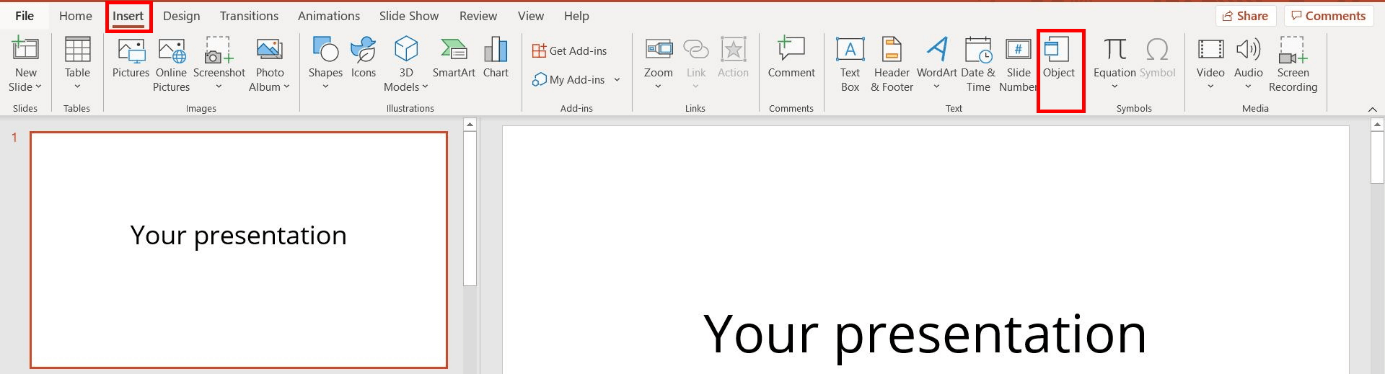
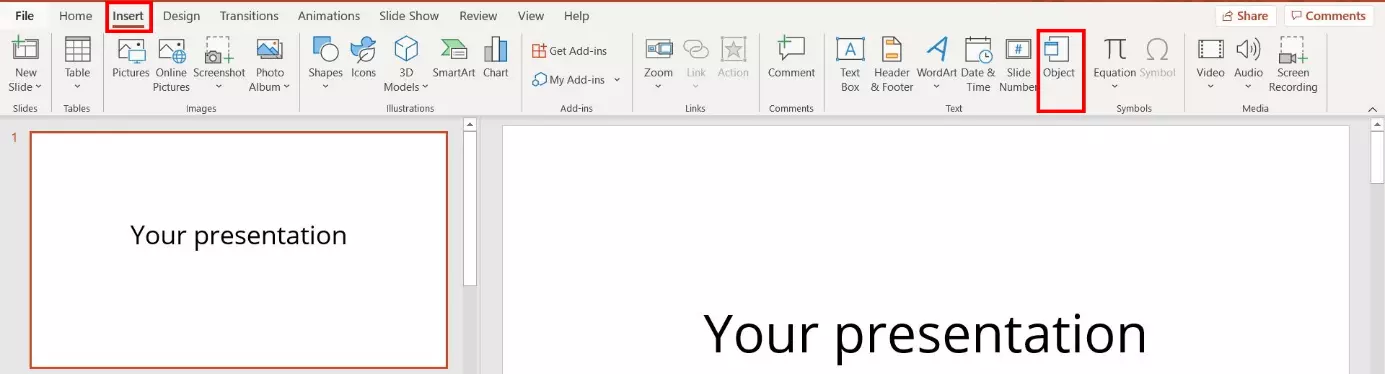
Open an empty or existing PowerPoint presentation. Select the “Insert” tab from the menu. Then, under “Text” in the menu ribbon, click on the icon for objects:
Step 2: Select Word file
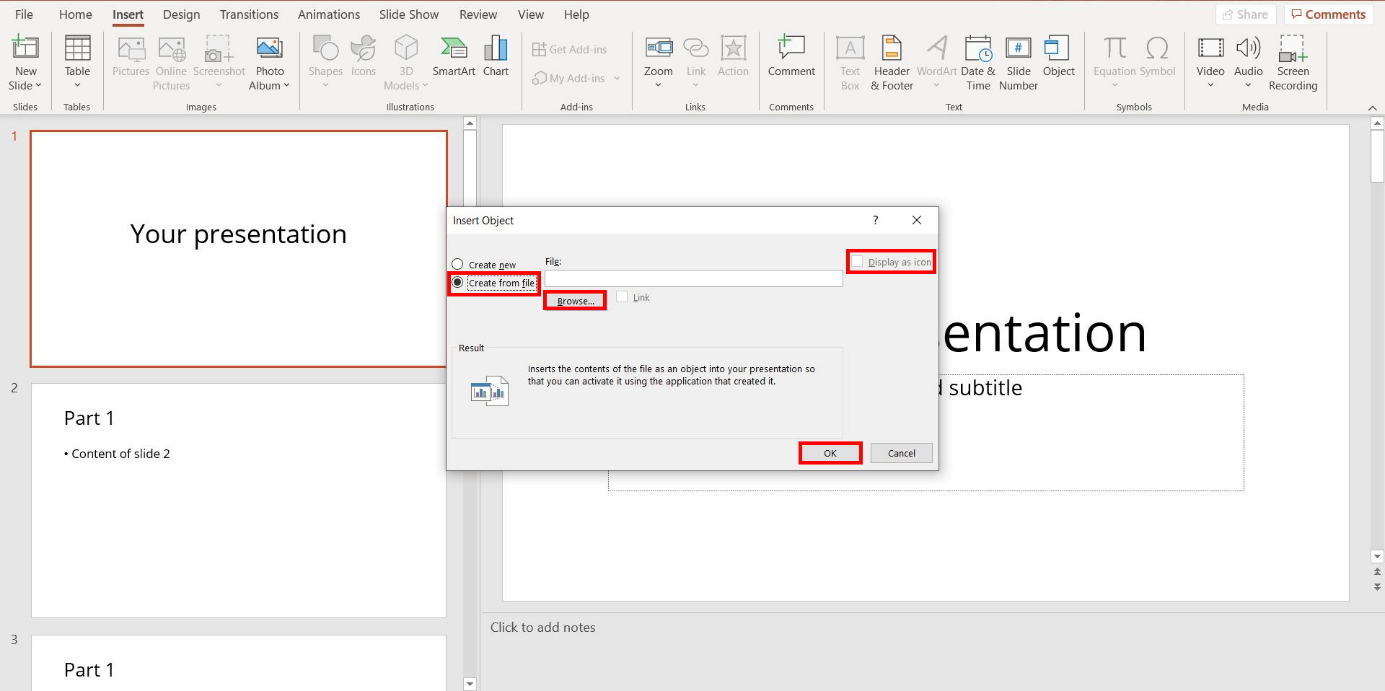
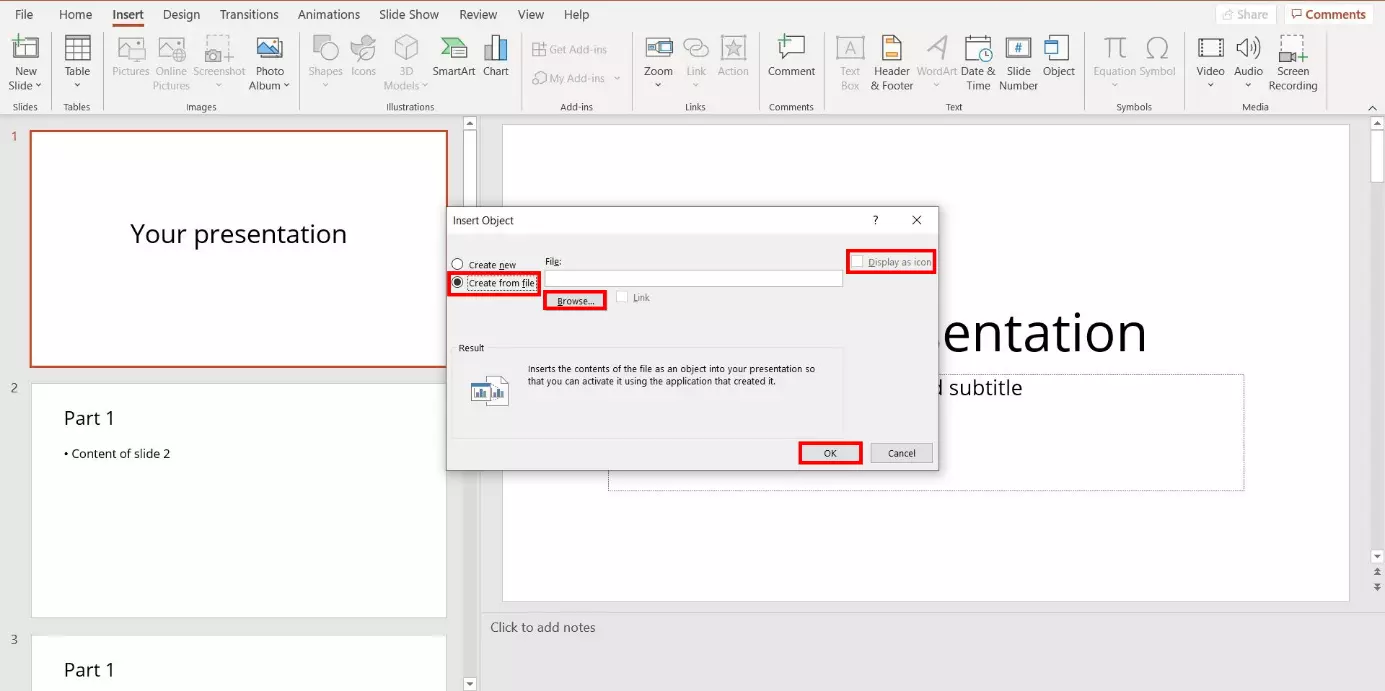
The window “Insert object” will now open. With your left mouse, select the option “From file” and then click on “Search.” Using the file path, select your Word document and confirm by clicking on “OK.”
Make sure that the option “Display as icon” is deactivated.
Step 3: Edit object
PowerPoint inserts the Word file into the selected slide. You then have the option of moving the object or adjusting its size. To do this, select it with the left side of your mouse. Keep it pressed and drag the object to the desired position or format.
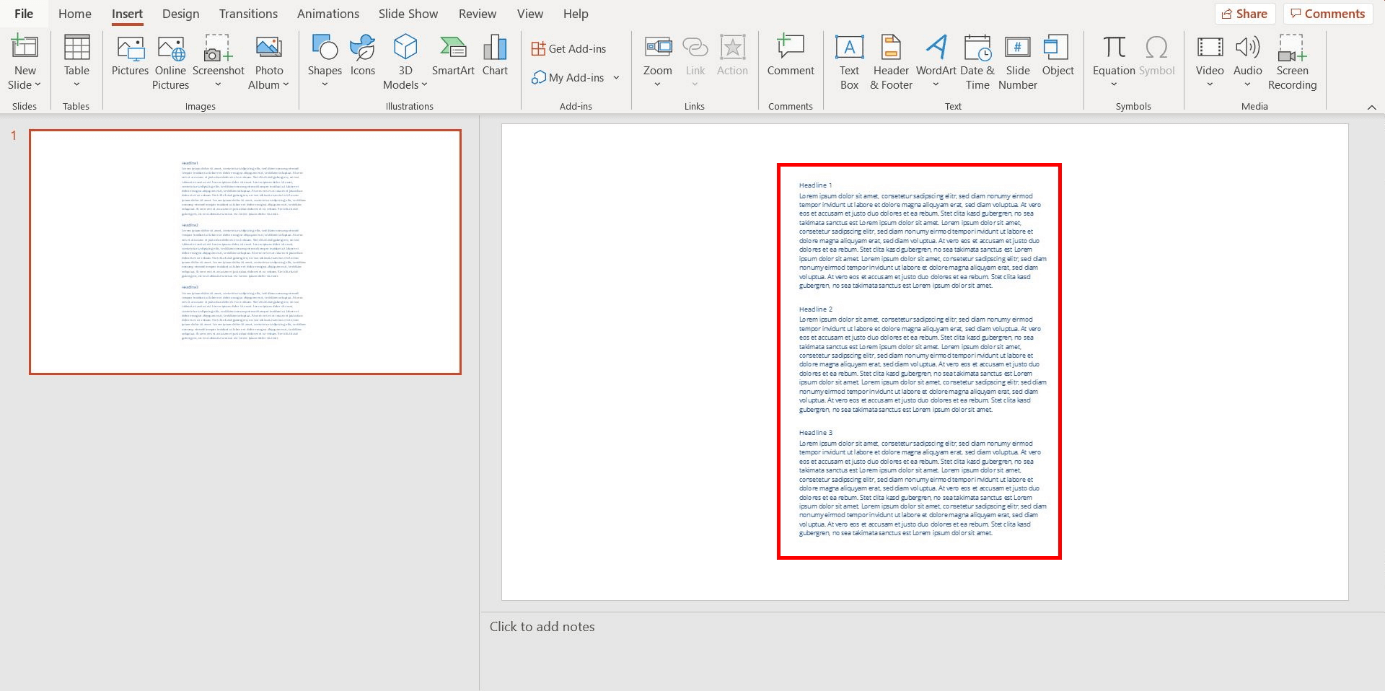
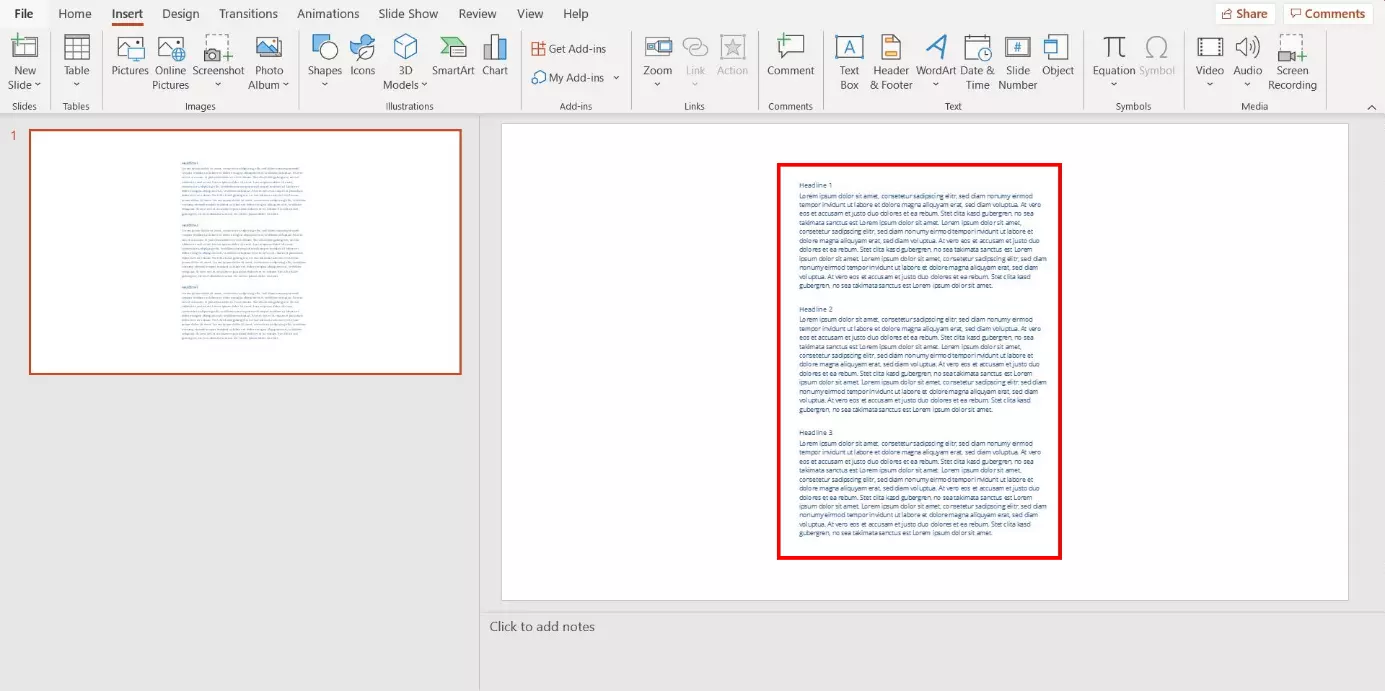
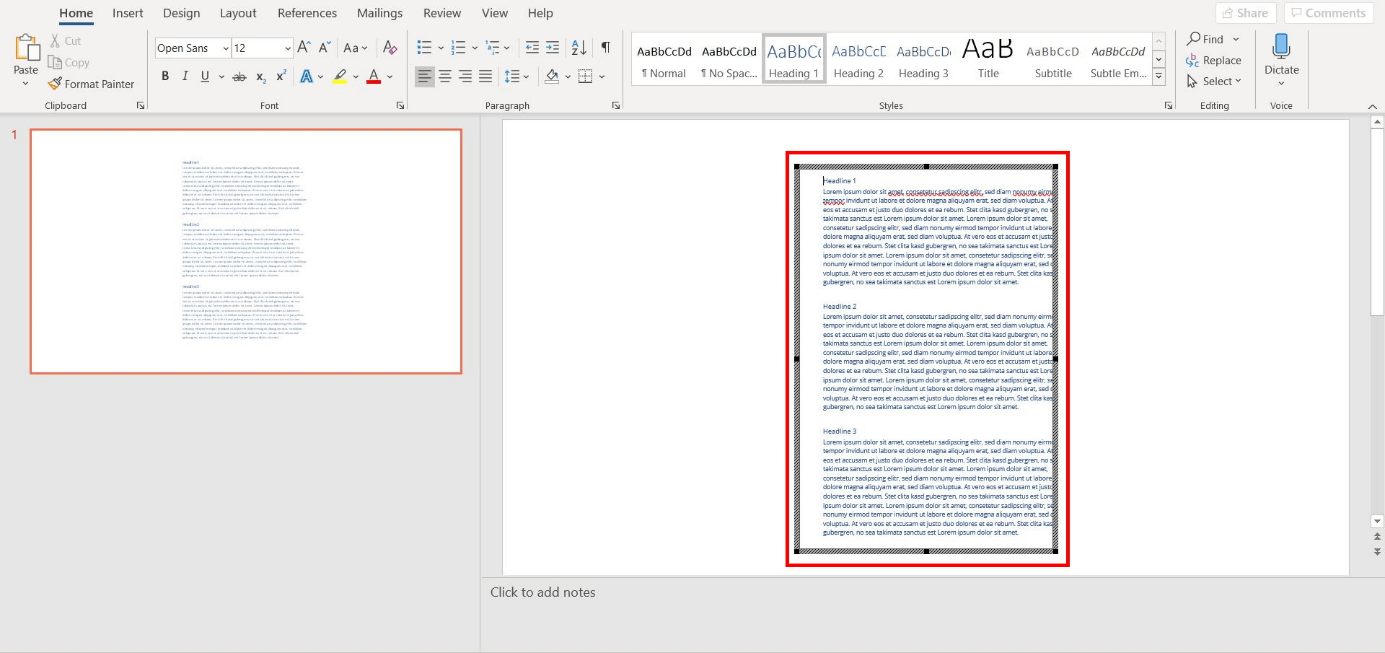
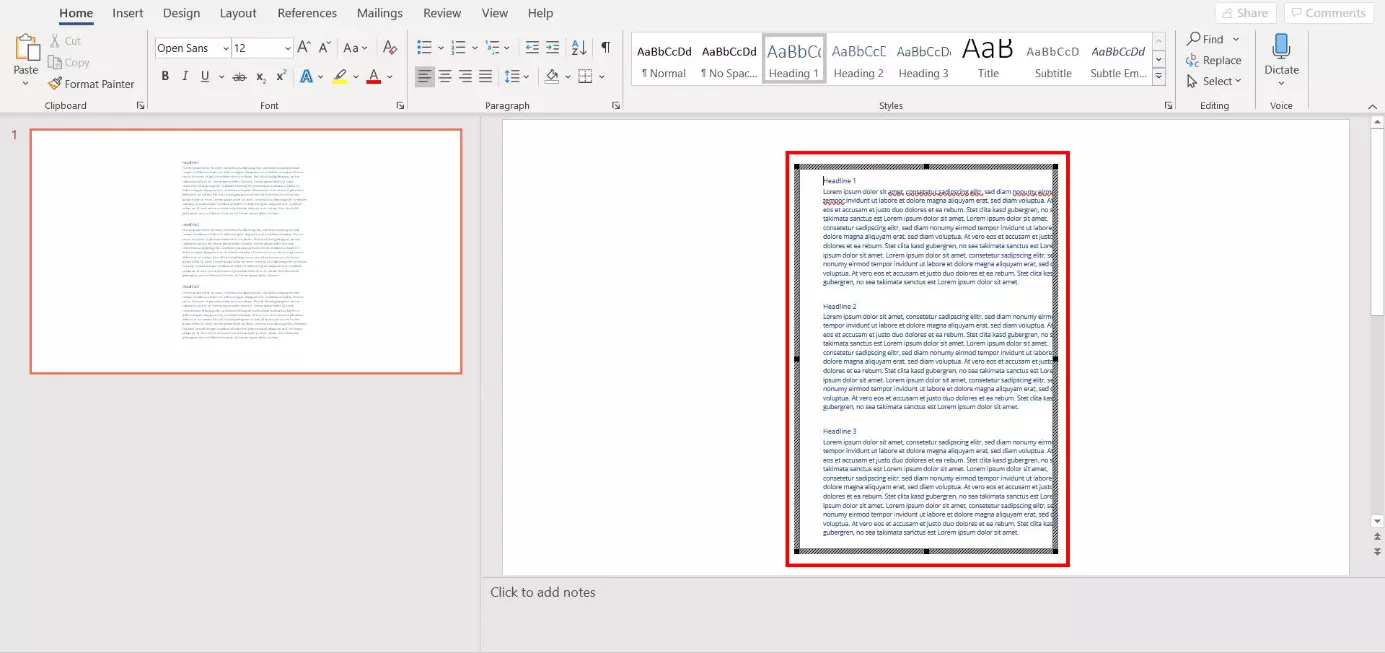
To make changes to the text, select the object by double clicking on it. You now have the option to adjust the text as usual in PowerPoint.
PowerPoint and Word can be purchased at a great price with the Microsoft 365 package through IONOS. Use the popular Office programs on up to five devices per user!
Insert formatted Word document in PowerPoint: step-by-step instructions
The second way to add a Word document to PowerPoint requires that you adjust the formatting in the Word file. The advantage of this option is that PowerPoint automatically splits the content across several slides. With the appropriate formatting, you specify how the splitting is done. Follow the step-by-step instructions to insert a formatted Word file into PowerPoint.
- Up to 50 GB Exchange email account
- Outlook Web App and collaboration tools
- Expert support & setup service
You don’t have time to adjust the format of your Word document? Then you can start with step 3 and follow the instructions from there. In this case, PowerPoint will create a new slide in the presentation for each paragraph.
Step 1: Adjust Word format
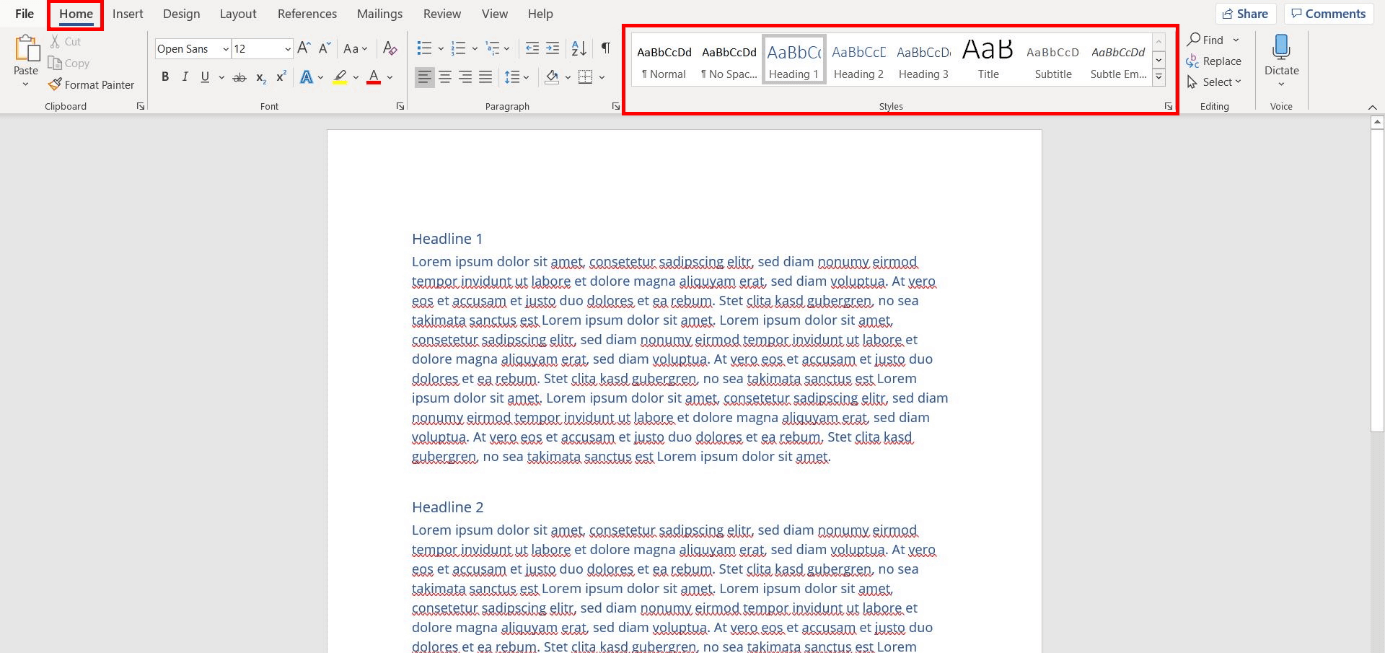
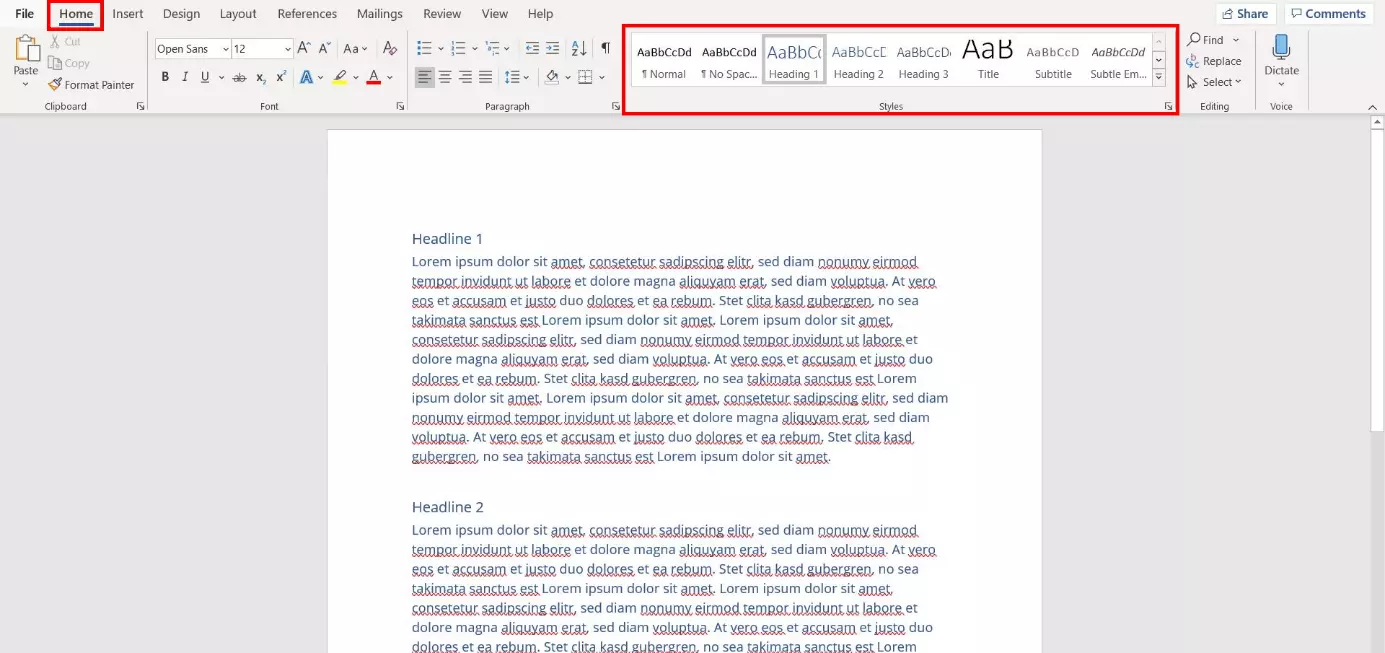
Open your Word document and go to the “Start” tab. Under the “Formatting” section you’ll find various format templates. To insert the text with formatting into your PowerPoint presentation, you only need to use two format templates:
- PowerPoint generates the slide titles of your presentation from text sections with the format template “Heading 1”
- PowerPoint generates text on the slides from sections with the format “Heading 2”
Step 2: Save changes and close Word
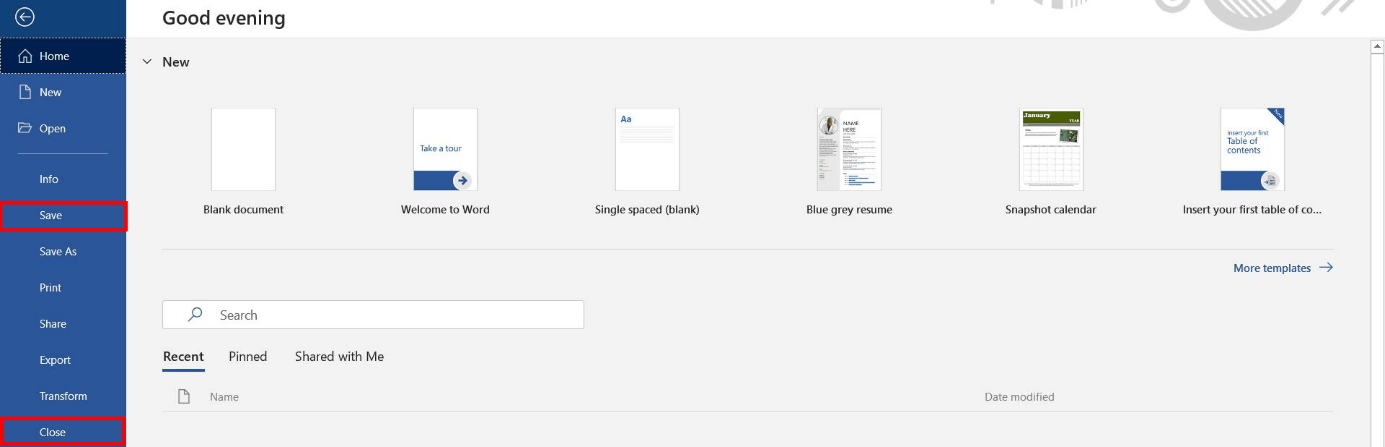
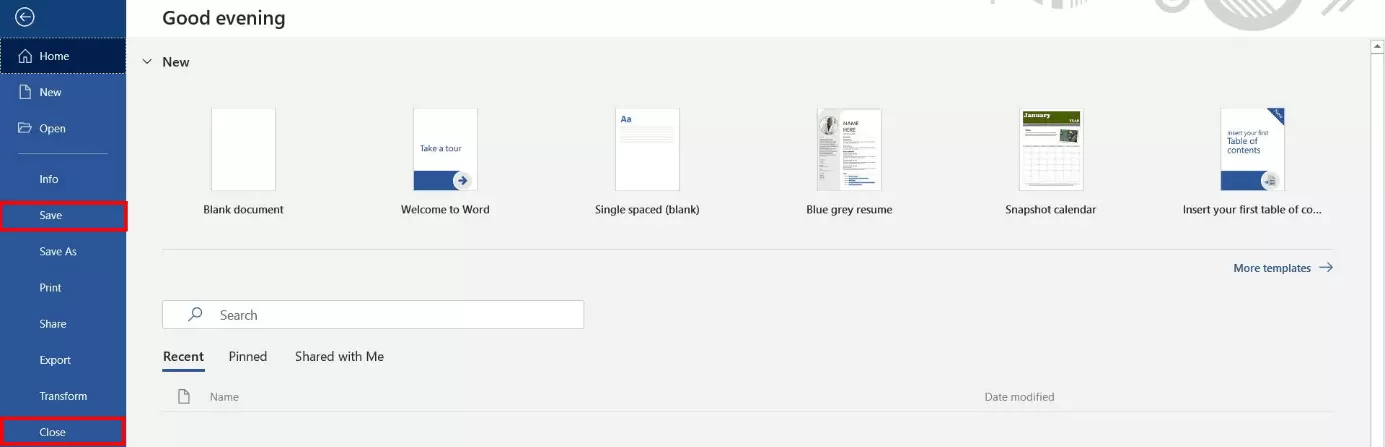
Save and close the file before inserting the Word document into PowerPoint. To do this, select the path “File” > “Save” from the menu and then “File” > “Close.”
Step 3: Insert Word document into PowerPoint
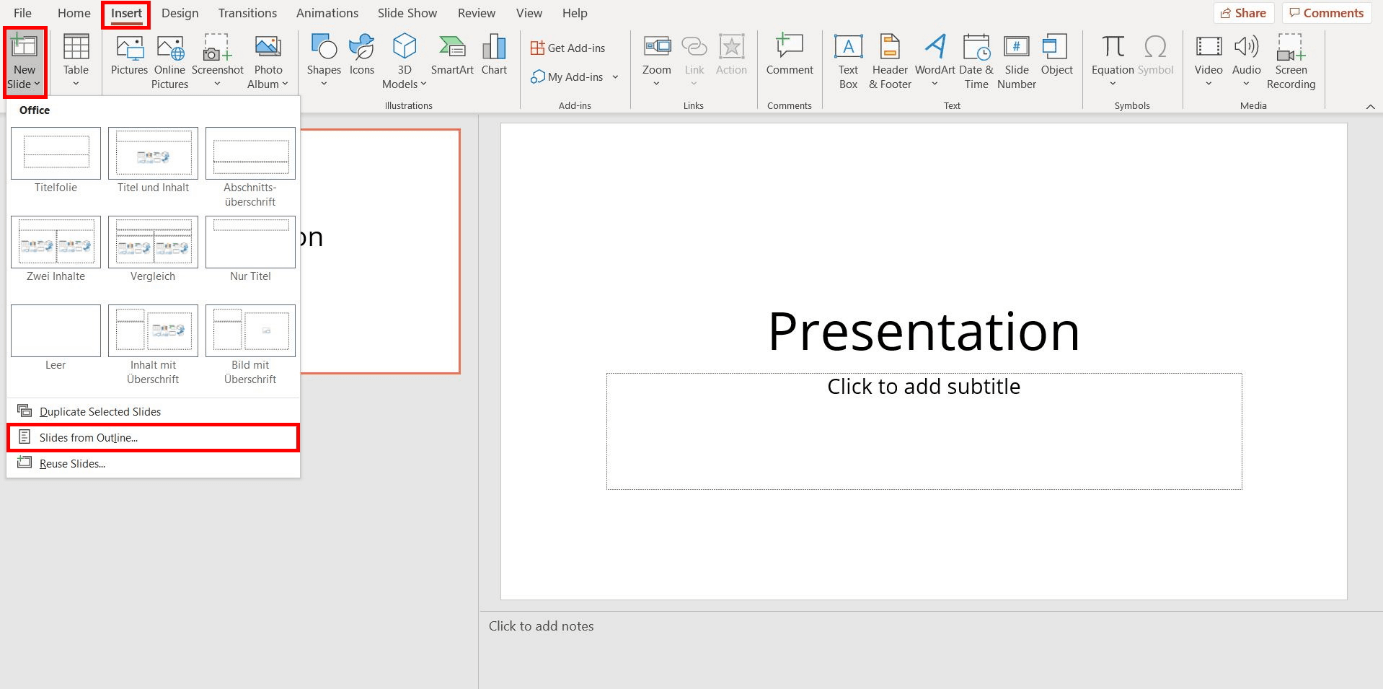
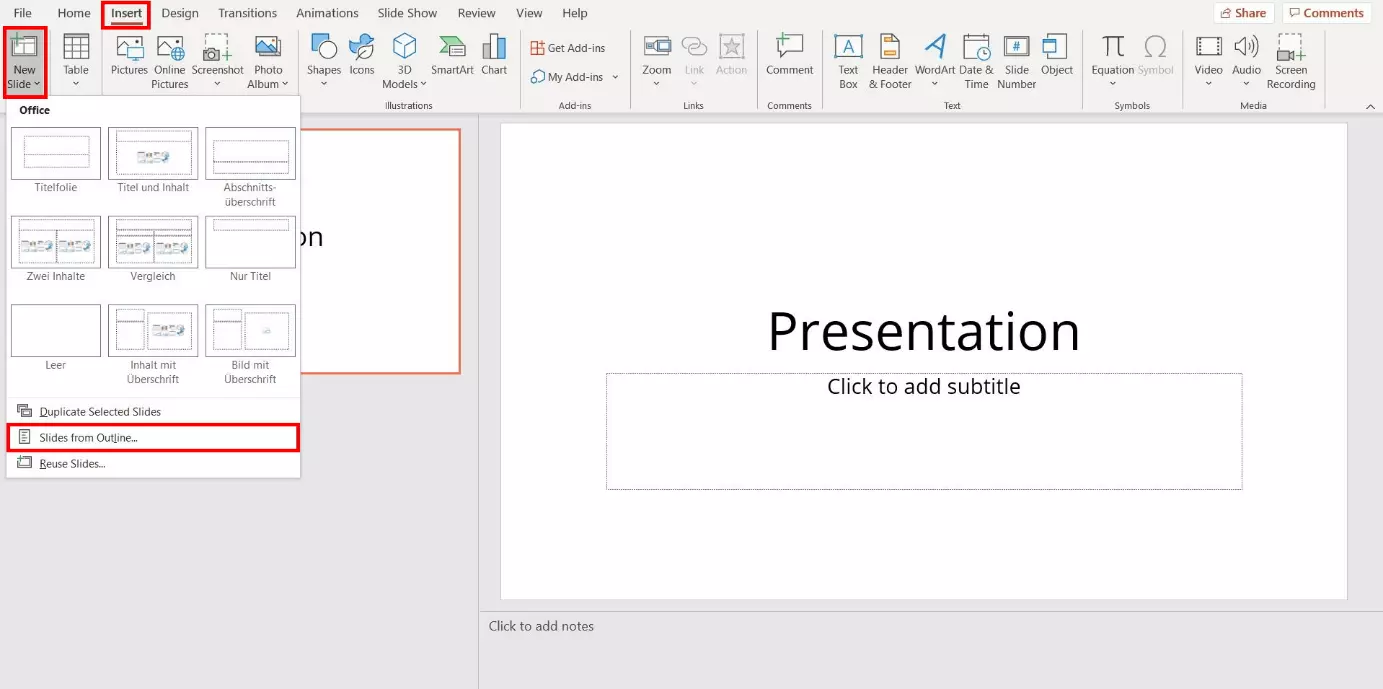
Open your PowerPoint presentation. On the “Insert” tab, select “New slide” from the drop-down menu. Here, click on the “Slides from outline” option and then open the Word document using the corresponding file path.
Step 4: Change text format
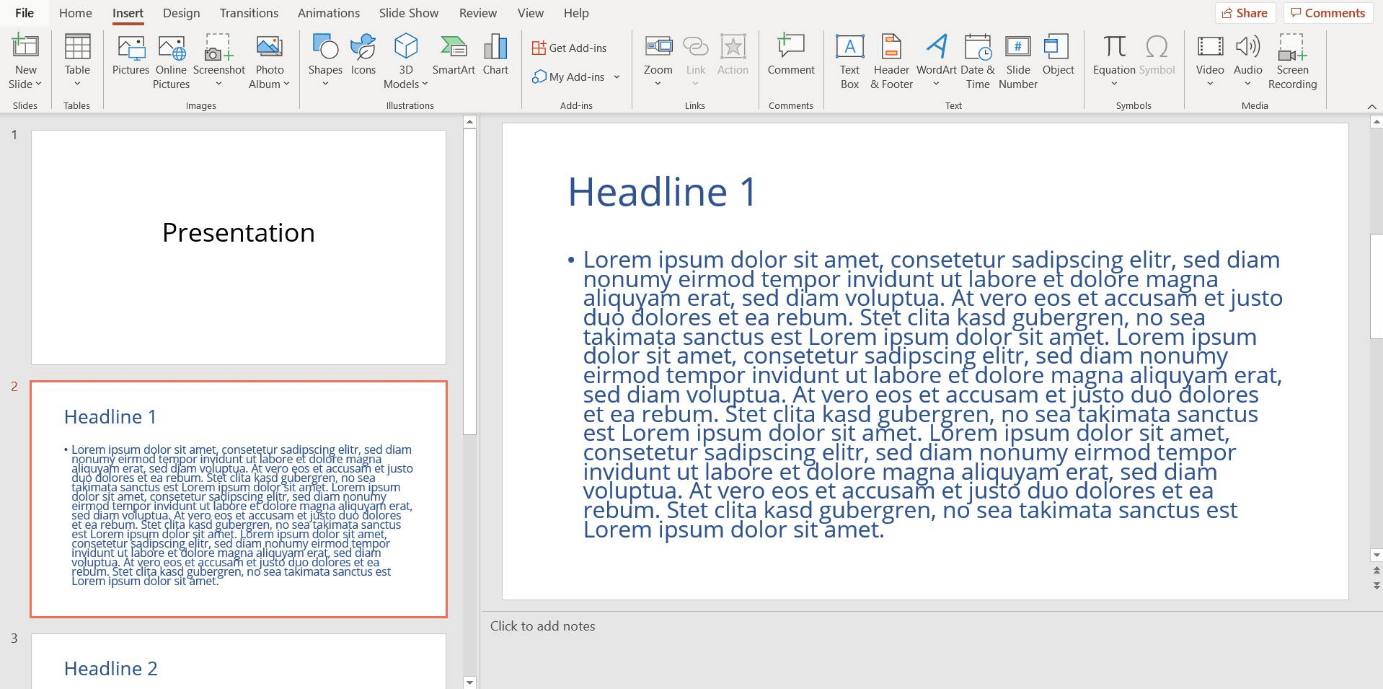
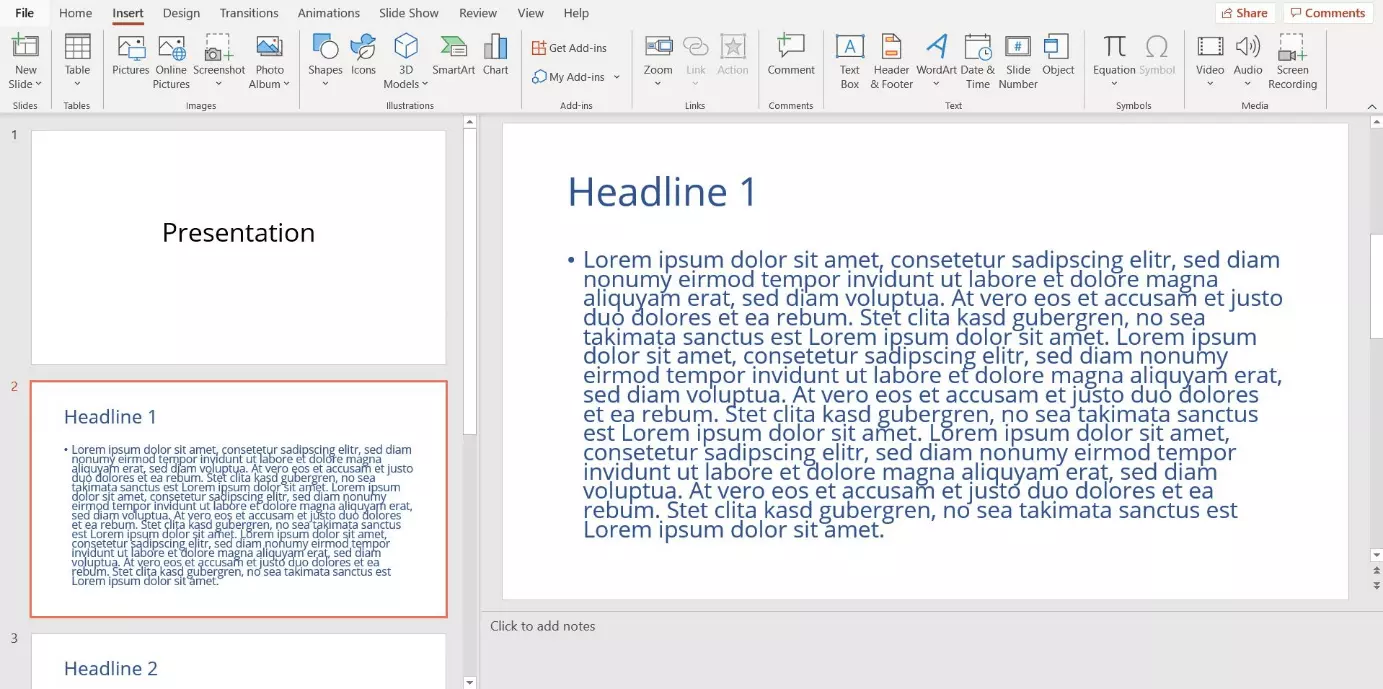
PowerPoint inserts the Word file and splits the text over several slides. Later, you have the option to adjust the font as usual.
Using PowerPoint Macros can make frequent tasks and actions easier. In this way, you can save keystroke and mouse click sequences and use them at any time.
Reviewer

Jeanna Raffa
With over 18 years of experience in online marketing, Jeanna Raffa possesses extensive expertise in digital marketing. Since 2020, her focus has been on providing practical information regarding email, office, and cloud storage solutions.