

How to set up WhatsApp in a few easy steps

Activating WhatsApp only takes a few simple steps. First, you’ll need to install the app and verify your account. After that, you can customise WhatsApp with your personal settings. This guide will walk you through the process step by step.
Step 1: Install WhatsApp
To create a WhatsApp account, start by downloading the app. You can do this on Android via the Google Play Store and on iOS via the Apple App Store.
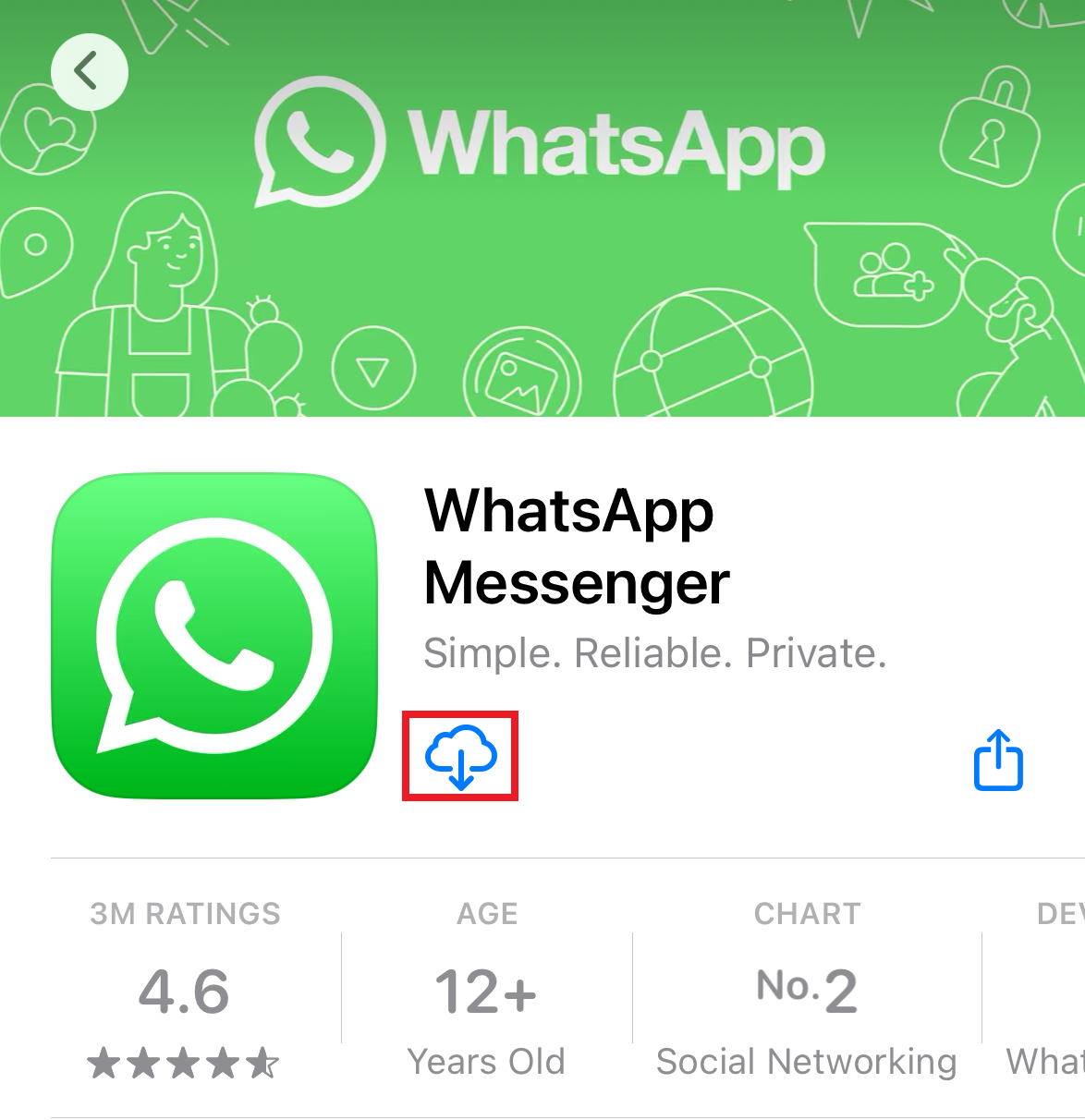
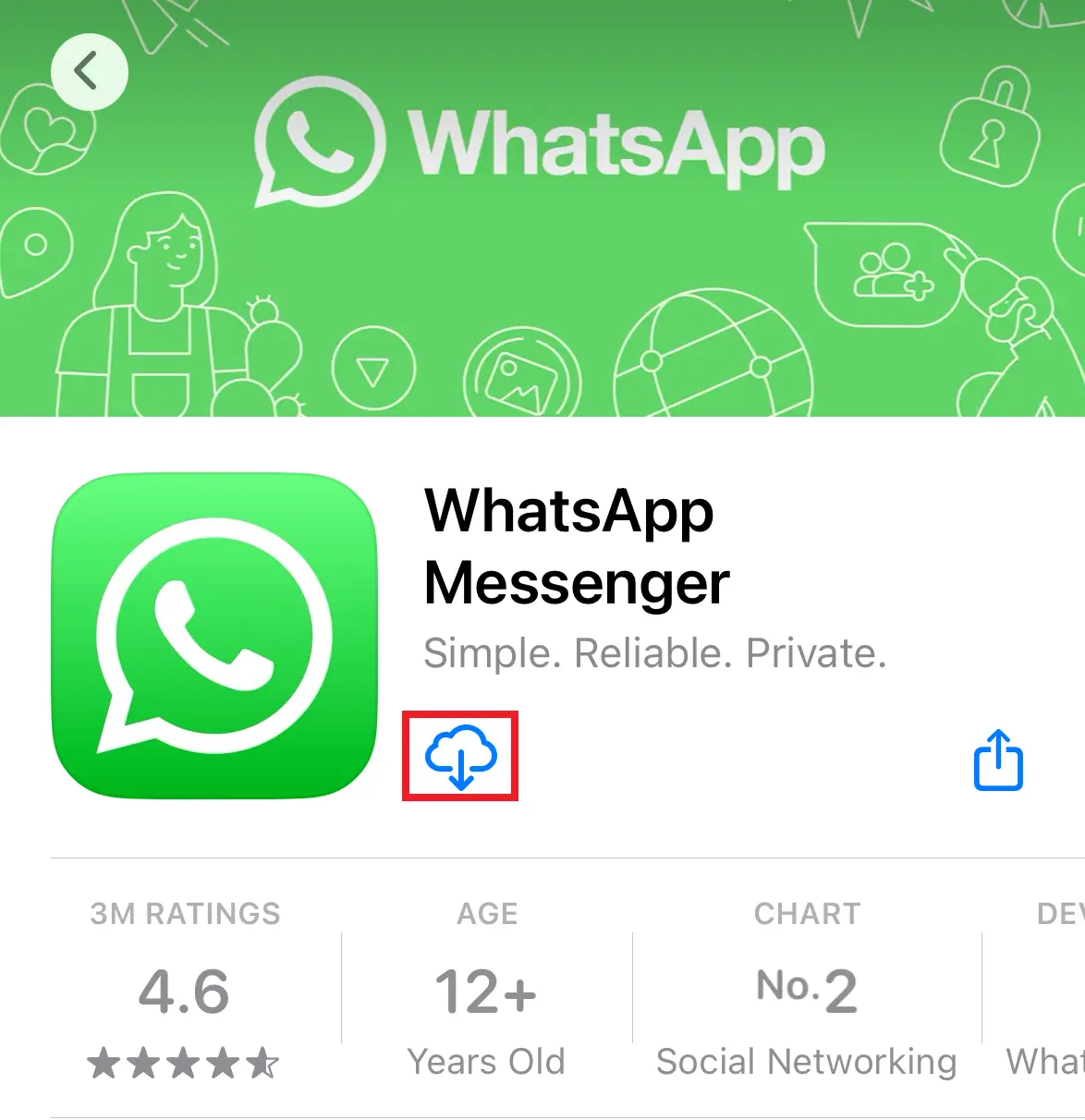
If you want to use WhatsApp for PC or Mac, you can download WhatsApp directly from your browser.
WhatsApp allows you to send text messages and make phone calls or WhatsApp video calls using mobile data or a Wi-Fi connection. Beyond this simple setup guide, there are also plenty of useful WhatsApp tips and tricks you can explore.
- Free WordPress with .co.uk
- Free website protection with one Wildcard SSL
- Free Domain Connect for easy DNS setup
Step 2: Verify your WhatsApp account
After you have downloaded the app, you need to activate WhatsApp or verify yourself. To do this, WhatsApp first asks you to read the privacy policy and agree to the terms of use.


Now, the first thing you need to do is allow WhatsApp to send messages to your smartphone.
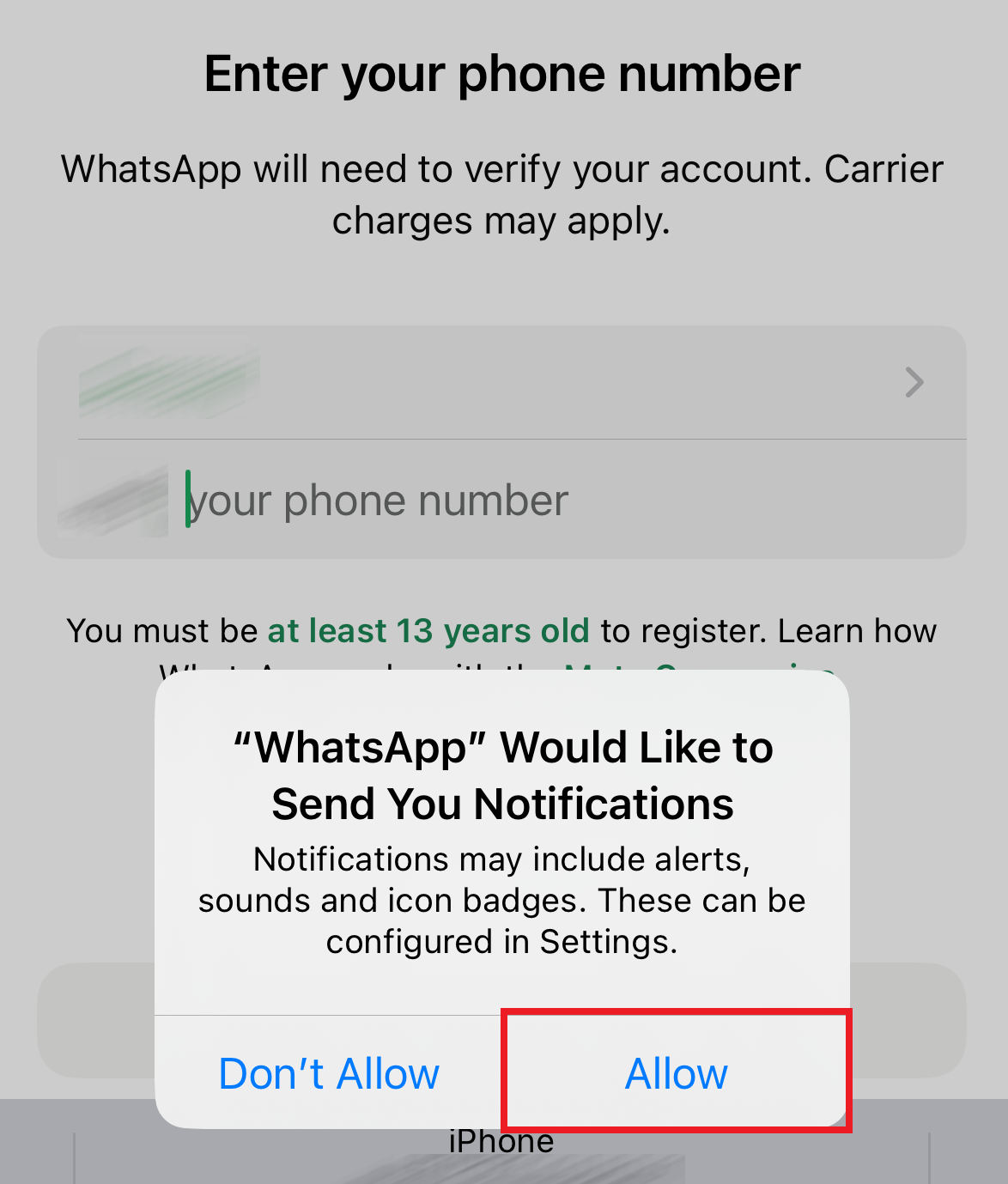
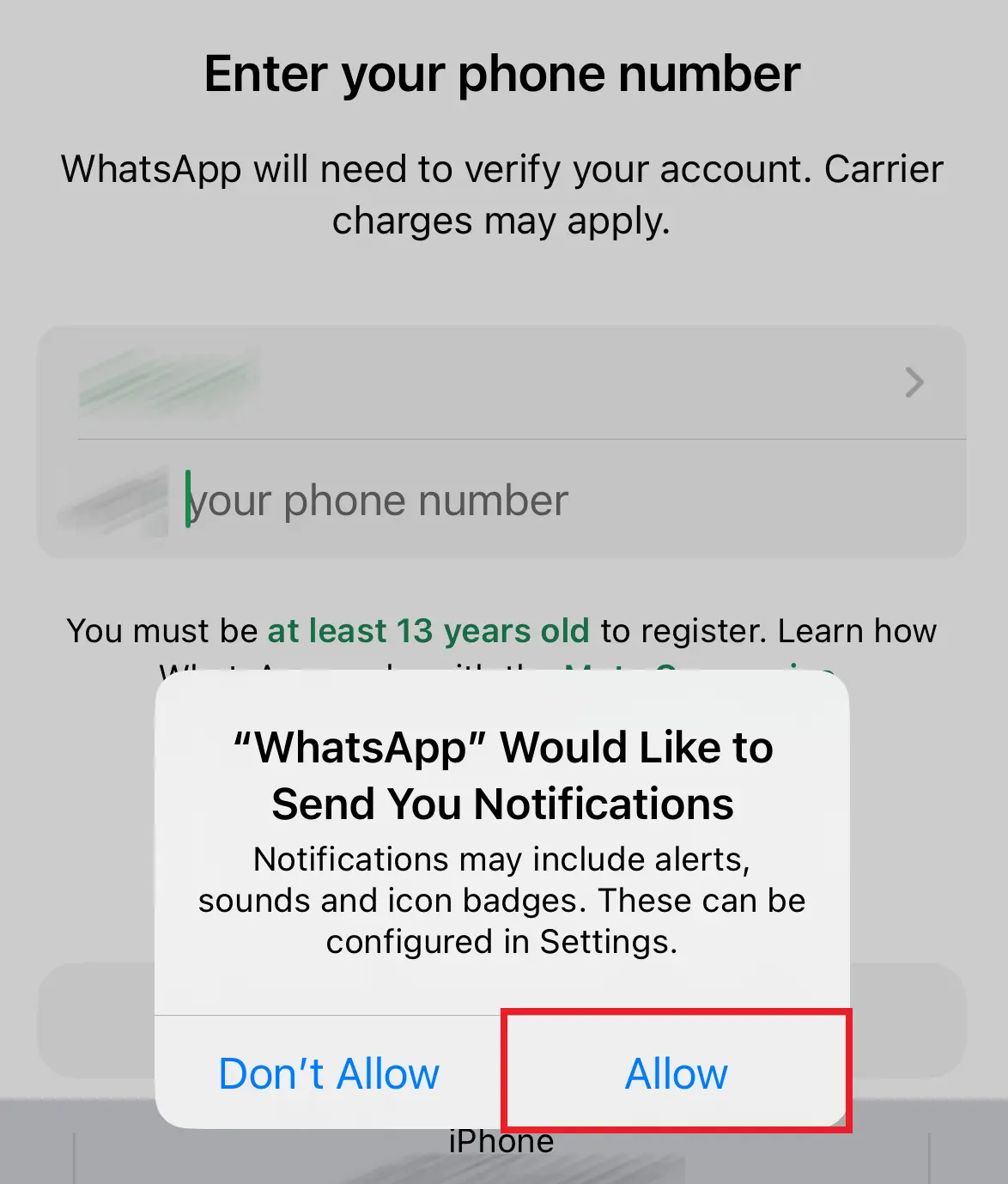
WhatsApp then verifies the device used. For this purpose, an SMS is sent to the smartphone’s number.
To do this, enter the mobile number of the device on which WhatsApp was downloaded. WhatsApp then sends a verification code which completes the verification process.
WhatsApp makes it easy to send a variety of files, such as photos and videos. If your smartphone is running out of internal storage, using a cloud service is a great way to back up all your data. The HiDrive Next Cloud Storage solution is ideal for safely storing large amounts of data in the cloud.
Step 3: Set up your WhatsApp profile
Once WhatsApp is installed and verified on your smartphone, you have the option to make some adjustments to your profile. This way, you can set up a slightly individualised WhatsApp account.
You can change your WhatsApp profile picture, assign a username and set a status that will be continuously displayed to your WhatsApp contacts.
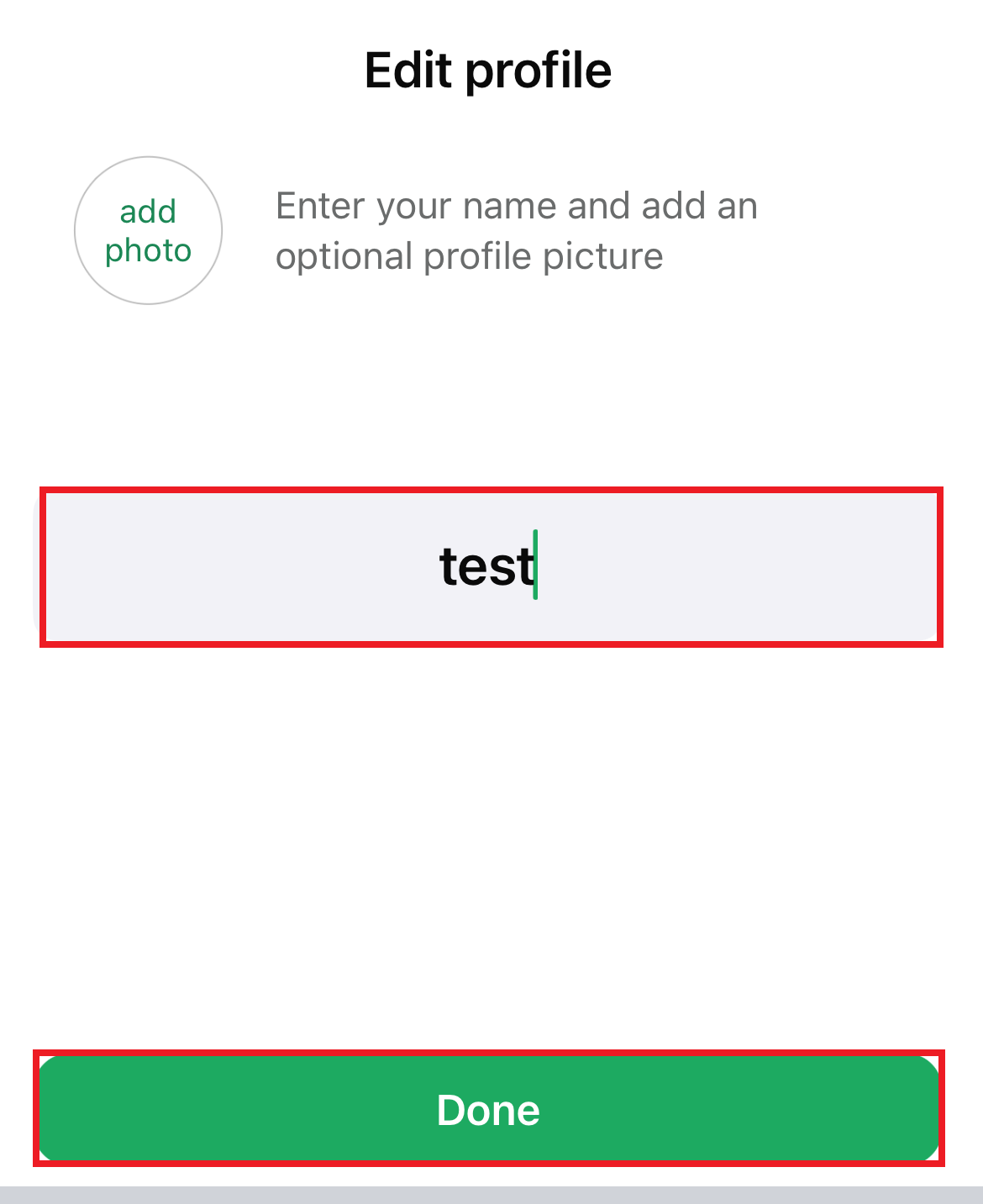
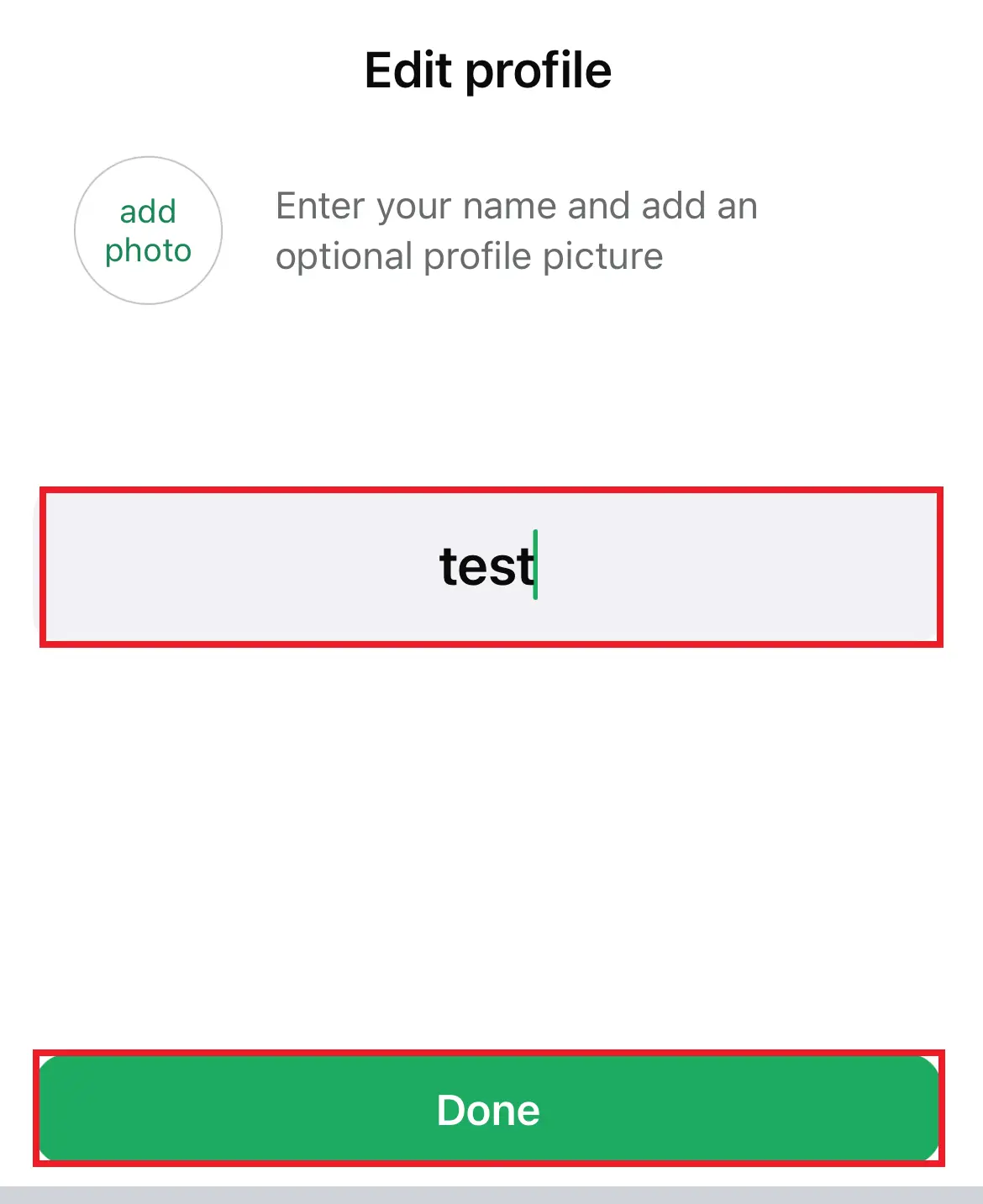
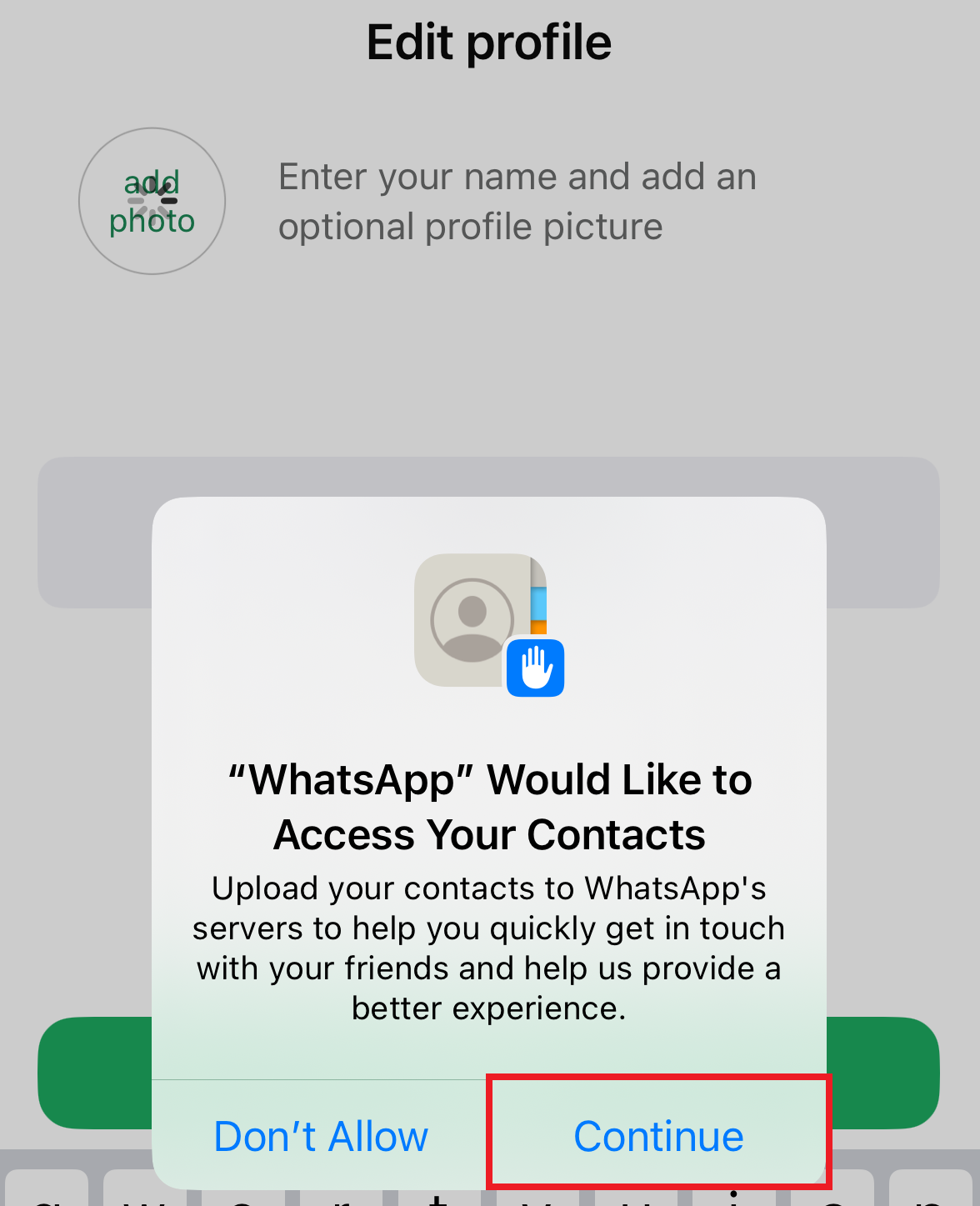
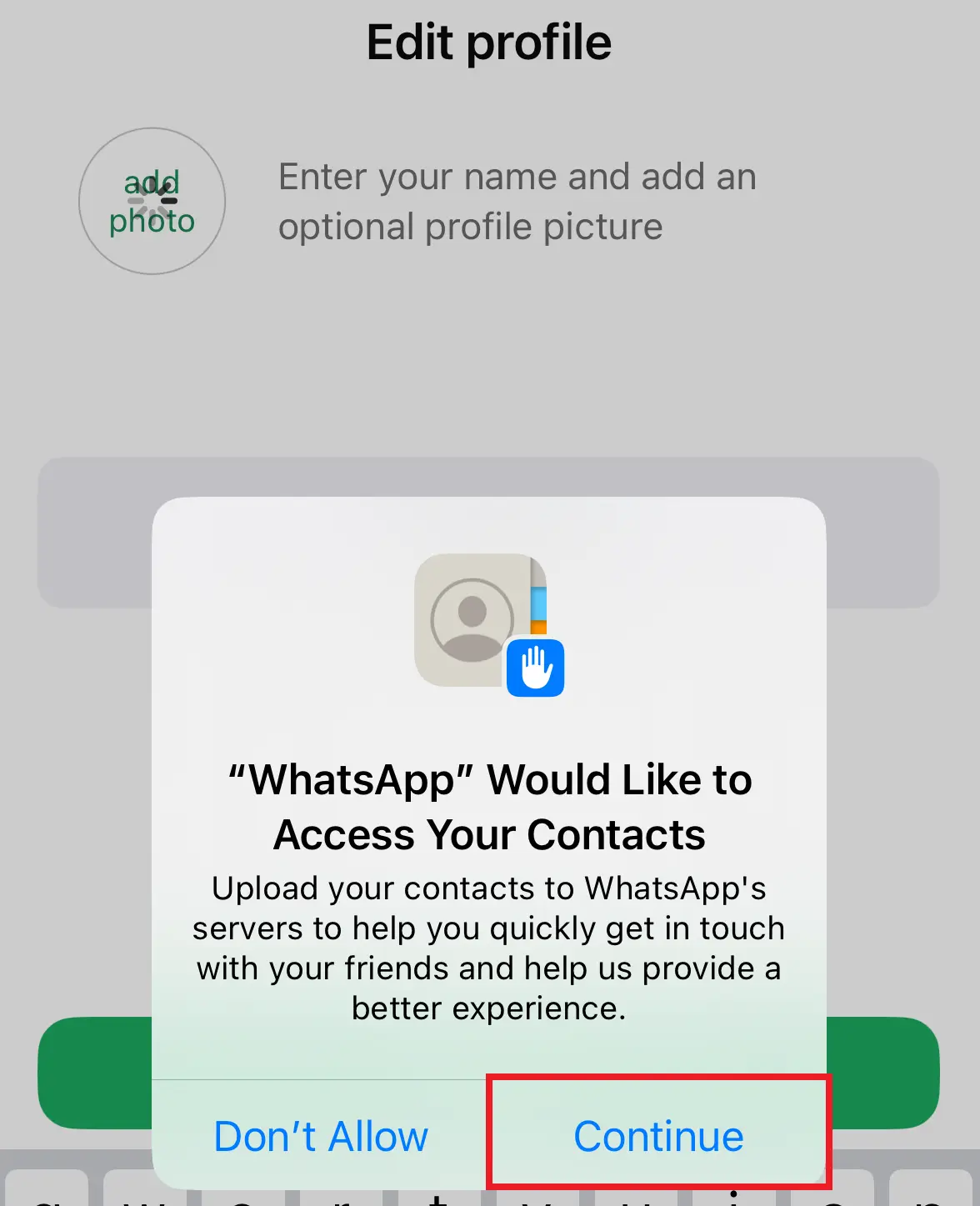
Once you’ve completed all the steps, you can import contacts from your smartphone’s contact list who are already using WhatsApp. WhatsApp will automatically request access to your ‘Contacts’ and ‘Media’. If you grant permission for ‘Contacts’, WhatsApp will automatically import them. You can also grant this permission later through your phone’s settings.
After completing the basic steps to set up your WhatsApp account, a window will appear recommending that you add an email address. This step is optional but can be helpful for adding an extra layer of security and making account recovery easier. Once that’s done, you’re ready to use WhatsApp and start chatting.
You’ve followed all the steps in this guide or have been using the app for a while, but WhatsApp still isn’t working? Check out our troubleshooting guide to identify and resolve common issues.
- Write perfect emails with optional AI features
- Includes domain, spam filter and email forwarding
- Best of all, it's ad-free
Reviewer

Jeanna Raffa
With over 18 years of experience in online marketing, Jeanna Raffa possesses extensive expertise in digital marketing. Since 2020, her focus has been on providing practical information regarding email, office, and cloud storage solutions.