

How to set up an Instagram store with Instagram Shopping

With Instagram Shopping, you can sell products directly via an Instagram business account. If you want to set up Instagram Shopping, link your Instagram account to your Facebook account and choose a category, your preferred design, and products to import from your Facebook catalogue. The Instagram shop and products are managed via the Commerce Manager.
- Sell on social media in minutes
- Manage everything from one platform
- Works with any product or service
What is Instagram Shopping?
Introduced by Mark Zuckerberg in 2020, Instagram Shopping is a newish, free feature provided by the social app. It builds on the discovery that many businesses are now selling via Instagram. In a nutshell, Instagram Shopping is a microsite for products integrated into an Instagram account. Products are imported by linking to a Facebook business account and selected product catalogues.
The shopping feature lets you manage product images, descriptions, prices, and links so customers can check out via an Instagram profile. Depending on the shop software in use, customers won’t even have to navigate away from the Instagram app. The benefits of Instagram Shopping should not be underestimated: out of around one billion users globally, 50 to 80 percent follow at least one business profile according to surveys. The opportunities for social commerce, social selling, and influencer marketing are enormous.

How does Instagram Shopping work?
With Instagram Shopping, you use an Instagram-integrated shop to feature products and collections. These can be tagged in profile photos, Instagram Stories, and Instagram Reels to direct visitors to your Instagram shop. In addition, the Shop button and Shop tab in your profile list products imported from Facebook and invites visitors to browse your portfolio. Customers can use the checkout function to make in-app purchases or buy from your online shop.
You can tag up to five products in your shopping posts. Instagram carousels let you tag up to 20. In Stories or Reels, you can tag one product each. Your visitors will see the product name and pricing, a link to the product page, and a shopping basket icon. Product tags and stickers redirect users to the Instagram shop. If a product is tagged, you’ll be notified in your shopping feed on your business profile
Want to sell goods or services on Instagram and other social media? Use the Social Buy Button from IONOS. The simple and intuitive interface supports multi-channel selling, payment methods, a shipping wizard, and synchronisation of all your channels.
How much is Instagram Shopping?
Setting up and using Instagram Shopping is free, but the platform charges to place ads to direct potential customers to your shop. There are also sales fees for products sold or chargebacks. For sales, taxes and payment processing fees are deducted from a seller’s pay out. More information about fees can be found in the Commerce Manager financial reports.
Activate Instagram Shopping: here’s how
To get started with your Instagram shop and boost product reach, follow these steps.
Step 1: Check requirements for seller qualification
Before setting up your Instagram shop, check Facebook’s or Meta’s Retail Qualification Requirements. The following conditions must be met:
- You must adhere to Facebook guidelines.
- Your shop must contain only products (not services) that are related to your company, your website, or online shop.
- Your products and company must be located in a market supported by Facebook.
- Your Instagram business account and online shop must be serious, transparent, and customer friendly.
Step 2: Create Instagram Business account
If your Instagram account is not yet a professional account, i.e. not a business account, you need to convert it and link it to your Facebook account. Proceed as follows:
Step 1: Click the three dashes icon and tap on ‘Settings’.
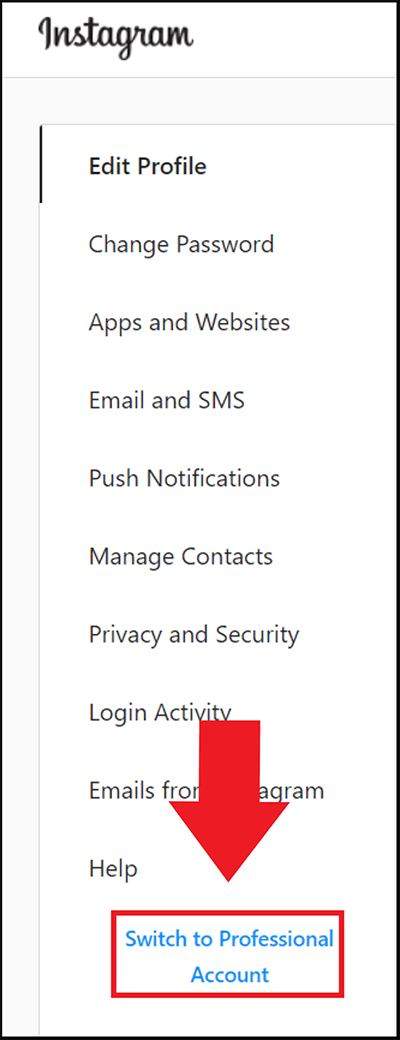
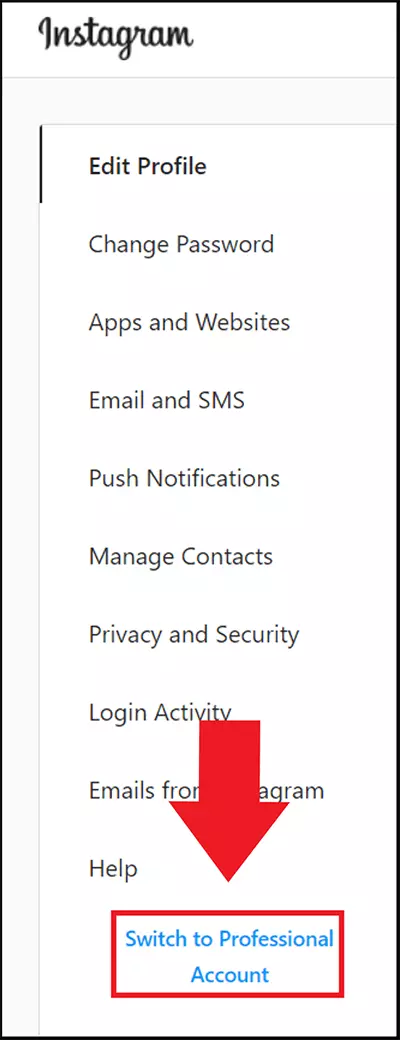
Step 2: Go to ‘Account’ and click ‘Switch to Professional Account’.
.
Step 3: Select a suitable business category and confirm your contact information.
Step 4: Connect your activated business account to your Facebook account. To do this, navigate to ‘Settings’ and ‘Account’. Head to ‘Linked accounts’ and log in. Alternatively, navigate to ‘Settings’ > ‘Instagram’ > ‘Link account’. After successfully linking accounts, the shop tab should appear in your Instagram account.
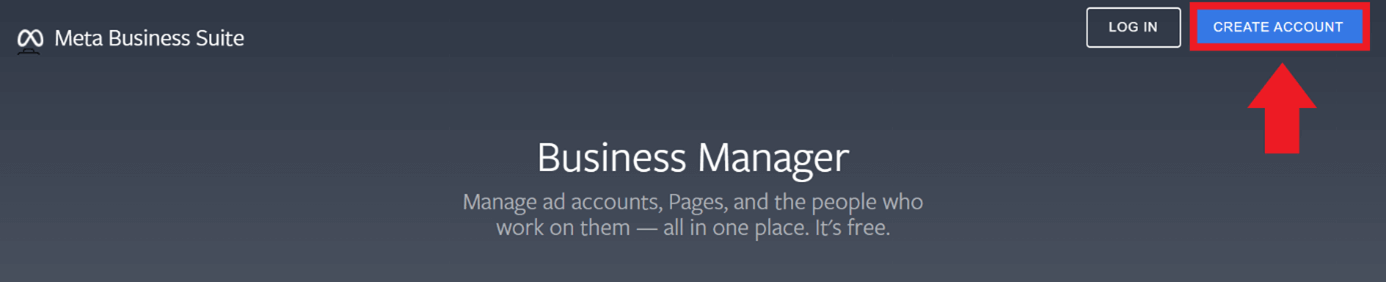
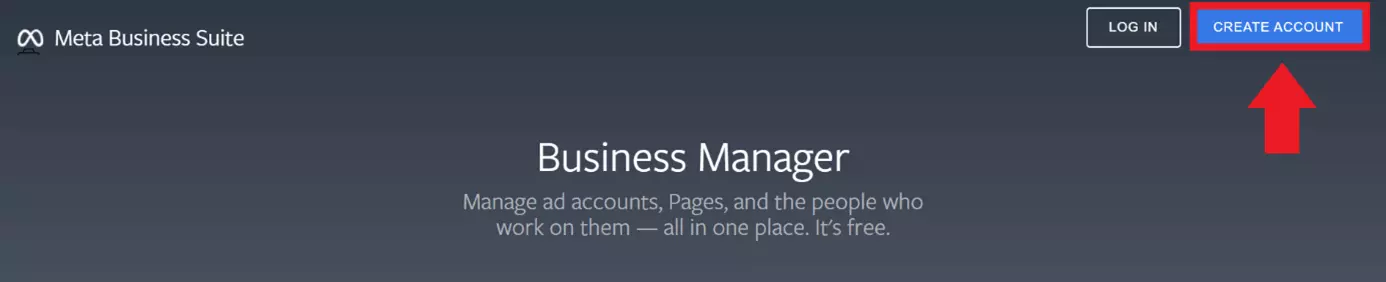
Step 5: If you haven’t already, set up a Business Manager account in Facebook via the Meta Business Suite and click on ‘Create Account’. Enter the required contact details and click ‘Next’. Enter your company details and confirm with ‘Submit’. The Business Manager account is required to manage your shop in Commerce Manager.
Step 3: Onboarding and setting up an Instagram shop
Start by setting up the shop in Commerce Manager or import it from your shop platform via Facebook. The advantage is that you can synchronise your product listing and include information from your Instagram shop. Some of the eCommerce platforms supported for product import are:
- Shopify
- WooCommerce
- Magento
- BigCommerce
- CommerceHub
- Feedonomics
- OpenCart
Set your preferred checkout method and sales channel in the Commerce Manager. Select whether you want the shop to be used primarily for Instagram or Facebook too. Now link existing product catalogues to your shop or build a new catalogue by adding products, prices, and descriptions.
Step 4: Activate your shop for Instagram approval
Select ‘E-commerce’ as the category for your shop to add product tags and product stickers to Instagram posts. In your profile, navigate to ‘Settings’ > ‘Business’ > ‘Instagram Shopping’ to submit your shop to Instagram for verification. This should only take a few days. Following confirmation, you can tag products via ‘Tag products’ in Instagram posts and expand your shop.
Secure your desired website name by registering a professional domain with IONOS. Wildcard SSL and Domain Lock are included.
How to use Instagram Shopping correctly: 4 tips
Instagram Shopping should be accompanied by additional marketing efforts focused on attracting new Instagram followers and customers. These include a professional Instagram bio, Instagram Ads, and strategies to measure campaign success using Instagram statistics tools.
To use Instagram Shopping optimally, follow these tips:
Tip 1: Consistent style
Whether you’re selling hardware, fashion, or art, be sure to customise your shopping stickers and shopping feed to match your style, brand, and company profile. Be transparent and reach out to your target audience in a professional manner, e.g. by adding testimonials, reviews, or price-performance comparisons.
Tip 2: Use Instagram Ads
Although shopping stickers can’t be integrated in adverts, you can schedule Instagram Ads, link to your shopping feed, and motivate people to click through.
Tip 3: Serve the algorithm with captions
The Instagram algorithm counts the number of users reading captions and hashtags. Successful captions improve the ranking and visibility of your profile on the Instagram Explore page. Think about useful, explanatory, or interesting captions for posts in a shopping feed and integrate hashtags.
Tip 4: High-quality images and designs
Sad, but true: many users instinctively consider shopping posts to be adverts and scroll past them. That’s why it’s important to create an eye-catching shop that includes quality product photos and consistent branding. Try to avoid spelling errors in captions, product names, and prices.