

How do UTM parameters help with google UTM tracking and campaigns?

UTM parameters are added to URLs to help analytics tools track where website traffic is coming from and how it performs. Without UTM tracking, data insights are limited and often imprecise. For instance, you might see traffic from Facebook, but not know whether it was triggered by your company’s post or someone else’s.
What are UTM parameters?
The abbreviation UTM comes from the predecessor of Google Analytics, which was called Urchin Tracking Monitor. UTM parameters, also referred to as UTM codes, are used in google UTM analytics to identify the origin of every click such as how many clicks came from the last Facebook post? How many from display ads? What share came from organic Google search, and so on?
Technically speaking, UTM parameters are nothing more than URL parameters (query strings) appended to the URL, as shown in the following example (the UTM parameters are all parameters after the question mark):
https://ionos.com/digitalguide/example?utm_campaign=alfa&utm_medium=social&utm_source=facebook&utm_content=cta1How does UTM tracking work?
The different UTM parameters are each marked with the prefix utm_. They consist of a key-value pair separated by an equals sign:
Parameter=ValueThe values can largely be chosen freely. It’s best to use commonly understood terms like ‘ad’, ‘facebook’, ‘newsletter’, ‘internal’, and so on.
Individual parameters—like any other query string—are appended after an initial question mark using &. In addition to the UTM parameters, a query string may also include other URL parameters. Thanks to the utm_ prefix, Google can identify which parameters are meant for URL tracking and extract them from the query string.
- Improve your Google ranking without paying an agency
- Reply to reviews and generate social media posts faster
- No SEO or online marketing skills needed
UTM parameters in detail
There are six UTM parameters in total, two of which are mandatory: utm_source and utm_medium must always be included together. You can’t use just utm_source on its own. The remaining parameters—utm_term, utm_campaign, utm_content, and utm_id—are optional and can be included as needed. The following sections explain each UTM parameter in more detail.
utm_source
The utm_source parameter identifies the website or publication where the traffic originated. This could be the name of a social media platform (e.g., Facebook), an email service (e.g., Mailchimp), or a website (e.g., the name of a blog).
Note: Using your own domain name as utm_source is not recommended, as it can confuse your analytics. Instead, use a term like ‘internal’ or something similar.
utm_campaign
This parameter labels all links associated with a particular campaign. It allows you to evaluate your campaign across all channels and marketing assets in Google Analytics. Use a campaign name that is clearly understood by your entire team.
utm_medium
The utm_medium parameter specifies the type of advertising or marketing medium. This might be a display ad, newsletter, or blog post. Google recommends using broad terms rather than very specific ones: ‘email’, ‘cpc’, ‘display’, ‘social’, and so on.
utm_content
If you’re running two display ads within the same campaign, the utm_campaign and utm_medium parameters alone won’t be enough to compare their performance. That’s where utm_content comes in: assign different content names for the ads, such as utm_content=slogan1 and utm_content=slogan2.
utm_term
The utm_term parameter identifies the paid keyword associated with the link in a PPC campaign. For Google Ads, this parameter is not required, as Google already tracks this information. However, utm_term is useful for search engine advertising outside of Google’s network—such as Bing—to distinguish paid traffic from organic.
utm_id
The utm_id parameter specifies a unique campaign ID used to identify and attribute a marketing campaign. In Google Ads, this UTM tracking parameter helps link campaigns with specific tracking data, enabling consistent cross-channel analysis. It’s also useful outside of Google Ads, such as with external ad networks or partner campaigns, to ensure unified attribution and detailed reporting in Google Analytics.
How to set up UTM parameters
The easiest way to set up UTM parameters is by using the Campaign URL Builder.
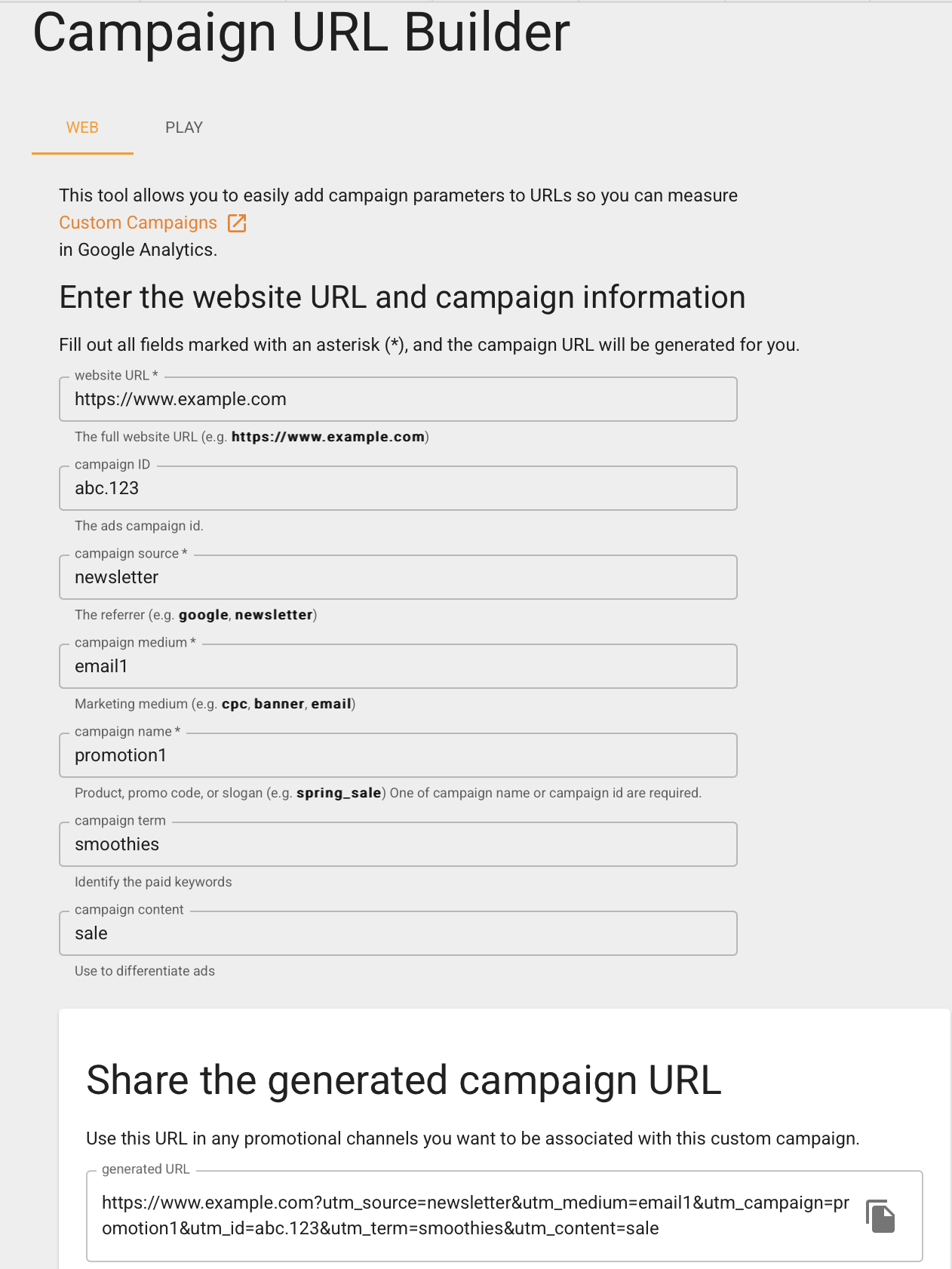
The URL generated by the tool—technically a URL with an appended query string—can be copied and pasted. In this example, you might use the URL as a call-to-action link in a promotional email. To avoid overwhelming users with detailed parameters, you can shorten the URL using an optional tool. The ‘Shorten Link’ button redirects to Bitly, where you’ll need to create an account.
How to analyse UTM parameters
In Google Analytics, you can view the values you’ve set for the UTM parameters under ‘Acquisition’ > ‘Report for new sessions generated’. This section displays the data for the parameters you’ve configured.
- Fast drag and drop editing
- AI-powered text generation
- Seamless syncing with IONOS eCommerce