

How to make the taskbar transparent in Windows 10

A transparent taskbar adds a sleek look to the desktop. However, Windows 10 doesn’t offer full transparency, so you’ll need third-party tools to make the taskbar fully transparent. Free tools such as TranslucentTB is a good solution to achieve a completely transparent taskbar behind the icons.


Windows 10 has an option for “Transparency effects” in Windows “Personalisation” settings. However, if you want a completely transparent taskbar, you will have to use third-party tools such as TranlucentTB or you can make a change in the Windows registry. A transparent taskbar in Windows 11 is possible which is good news for those upgrading their Windows.
How do I make the Windows 10 taskbar transparent?
People who have used a completely transparent taskbar will know how appealing the design is. Follow these steps to get a totally transparent taskbar.
Windows 10 offers several options to customise Windows in addition to Transparency effects. For example, you can use Windows 10 Dark Mode or adjust the Windows 10 font size as required.
Option 1: TranslucentTB
TranslucentTB is a free tool which allows you to customise the taskbar in Windows 10. The tool’s settings include a completely transparent, a slightly transparent and a completely opaque taskbar. You can also choose the colour of the taskbar.
Follow these steps to make the Windows taskbar transparent with TranslucentTB:
Step 1: Open the Microsoft Store using the Start menu or the Windows search bar.
Step 2: Enter ‘TranslucentTB’ in the Microsoft Store and install the tool by clicking ‘Download’. You can also download the tool from another reliable store if you wish.
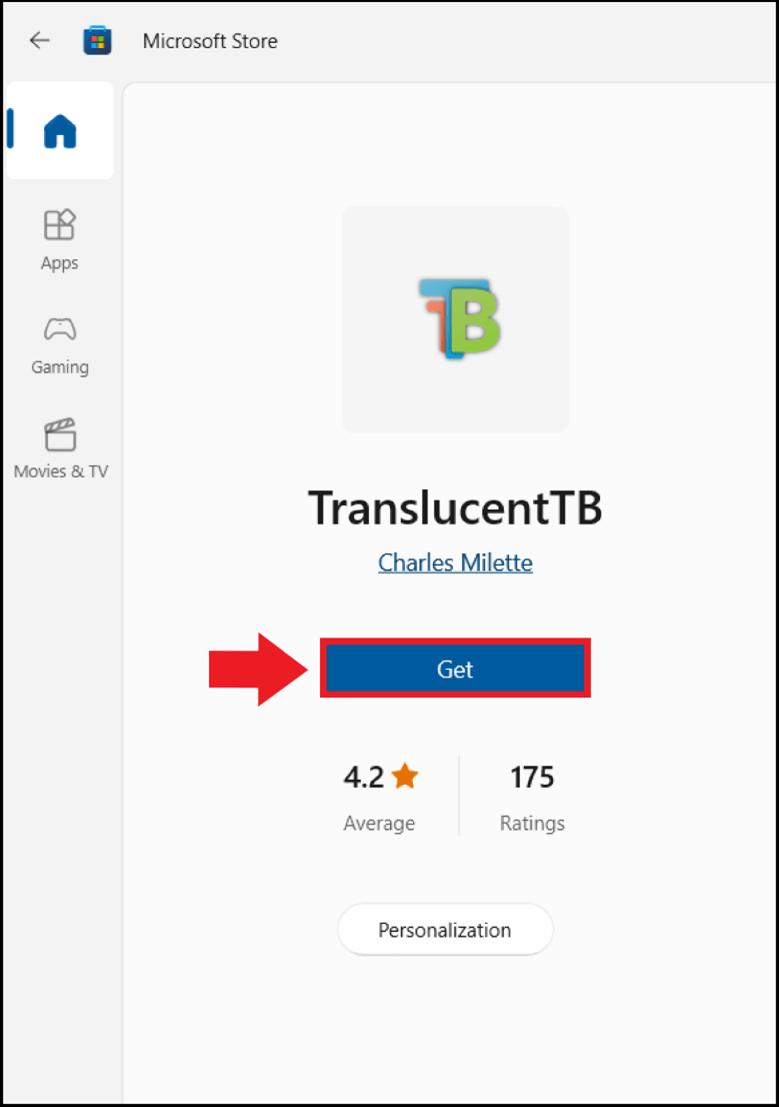
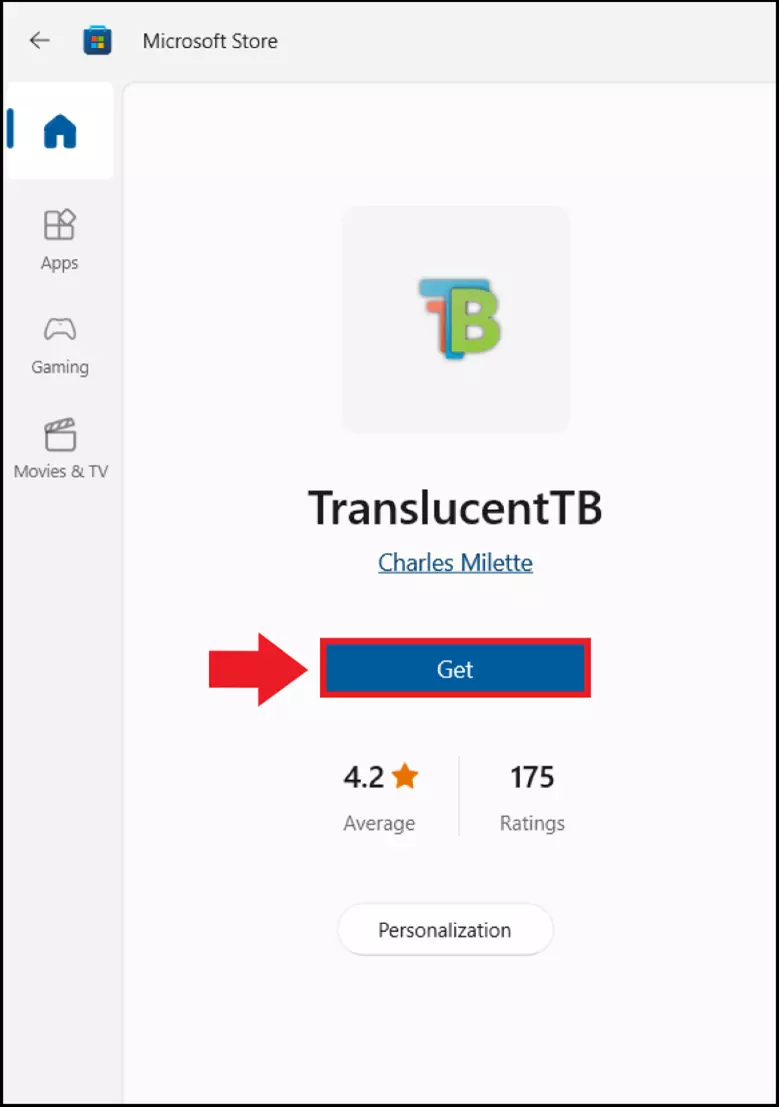
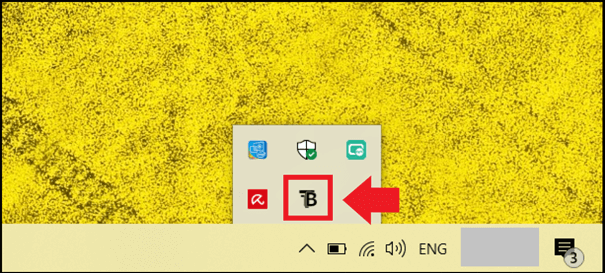
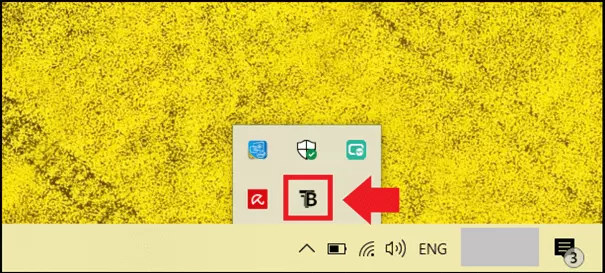
Step 3: Type ‘TranslucentTB’ into the Windows search bar and open the app. You can then decide you want to pin the app to the taskbar or ‘Start’. You can also find the app by clicking ‘Show hidden icons’ which is the arrow icon at the bottom right side of the taskbar.
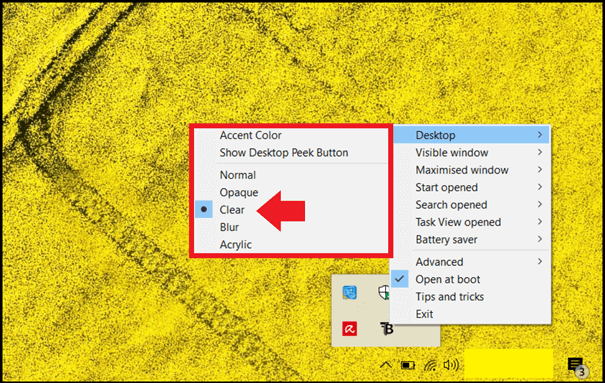
Step 4: There are several options to choose from in the TranslucendTB menu. These include the completely transparent taskbar (‘Clear’) or a milky blurry taskbar (‘Blur’). Click “Clear” to make the taskbar in Windows 10 completely transparent.
Option 2: Windows registry
If you don’t want to use a third-party tool, you can change a registry key in the Windows registry to get a transparent taskbar in Windows 10. However, proceed with caution because an incorrect change can permanently damage the Windows system’s registry. Only experienced users should choose this option.
This is how to proceed:
Step 1: Open the ‘Run’ menu with the Windows shortcut [Windows] + [R] and enter the CMD command ‘regedit’ to open the Windows registry editor.
Step 2: Enter the following path in the registry editor: HKEY_LOCAL_MACHINE\SOFTWARE\Microsoft\Windows\CurrentVersion\Explorer\Advanced
Step 3: Firstly, save the registry entry in question by clicking on ‘File’ and ‘Export’. This creates a registry backup of the registry entry you want to change in the location you want.
Step 4: When you are in this folder, right click on an empty space in the right section. Go to ‘New’ and ‘DWORD (32-bit) value’.
Step 5: Now enter ‘UseOLEDTaskbarTransparency’ as the new string. Double click on the new string and set the value from 0 to 1. Accept the changes with ‘OK’.
Step 6: Restart the computer. The taskbar will now be transparent.
One advantage of Windows is that you can make Windows 10 faster whenever you wish. For example, you can disable autostart programs using autostart in Windows 10, open Windows 10 without password or make browsing easier by pinning a webpage to taskbar.
Reviewer

Christian Heldmaier
Christian Heldmaier is an experienced online marketing and SEO specialist from Karlsruhe. He has been working as an SEO Manager at IONOS since July 2020.