

The best Adobe Acrobat alternatives

When it comes to PDFs, Adobe Acrobat is the first port of call for many. After all, Adobe developed the PDF format, and the Acrobat applications are the benchmark for other software solutions in their range of functions. But Adobe Acrobat alternatives do offer advantages such as simple programs with fewer tools that are often more than enough for many users. Some solutions are also cheaper. We present five alternatives to Adobe Acrobat, with which you can create, edit, view, and save PDF files.
Ask, create and research with the European alternative to ChatGPT. Robust security and unlimited chats give you peace of mind.
What are the Adobe Acrobat alternatives?
Adobe Acrobat is a product family for PDF solutions. For a long time, anyone who wanted to use the tools to their full extent had to buy the rather expensive complete version of the product. In the meantime, a subscription system was introduced that lowered the price. For large business customers, this is a practical solution since updates and support are included. But if you want to avoid ongoing costs or constant updates, other providers also offer this one-time payment model. Alternatives to Adobe Acrobat are often less expensive - whether as a subscription or as a purchase version. Many of them offer a similarly large range of functions.
For private users who only want to read PDFs or create them from other formats, a free PDF reader is often sufficient. Office programs are now equipped with plugins that convert documents to PDF by default. Readers also usually have commenting functions included. If you want the full range of functions, go for standard or professional versions.
| Mobile App | Create PDF/A/E/X | Cloud storage integration | Price | |
| Foxit PDF Editor | yes | yes | Google Drive, OneDrive, Box, Dropbox, SharePoint | From around £40 / year (cloud edition); Reader: free |
| Nitro PDF Pro | no | PDF/A | Google Drive, OneDrive, Box, Dropbox, SharePoint | Mac: around £115 Windows: around £150 |
| Qoppa PDF Studio | no | PDF/A (only Pro) | Google Drive, OneDrive, Dropbox | Standard: around £65 Pro: around £95 (2 devices per license) |
| PDF-XChange Editor | no | PDF/A, PDF/X | Google Drive, OneDrive, Box, Dropbox, SharePoint | Standard: around £30 Plus: around £45 (70% basic functionality available without license) |
| Sejda PDF Editor | no | no | no | From around £4 / month; restricted volume: free |
Correct as of September 2021
This is what a good PDF editor should be able to do:
- Convert PDF from other file formats like .docx, .xlsx, or .pptx
- PDF for scanned print media
- Create a PDF document itself
- Convert PDF to many other formats
- Search and edit text using OCR technology
- Optimise text for readers with tags (e.g., to play it back via voice output)
- Edit PDFs like a text document (e.g., add, edit, and delete text, adjust images and set links)
- Allow reviewing and commenting on the document (popular features: marker, notepad, comment boxes, Freehand drawing tool, stamps)
Foxit Phantom PDF
Foxit offers the powerful Foxit PDF Editor as an alternative to Adobe Acrobat in basic, Pro, and cloud versions. In addition, the vendor provides mobile apps for Android and iOS. With the help of these tools, you can easily edit, share, and comment on PDF documents from anywhere. Even in the free Foxit Reader version, there are some features beyond simple reading. You can easily add comments or notes and insert call-out boxes and text markers. With a digital signature you can also ensure the authenticity of the document.
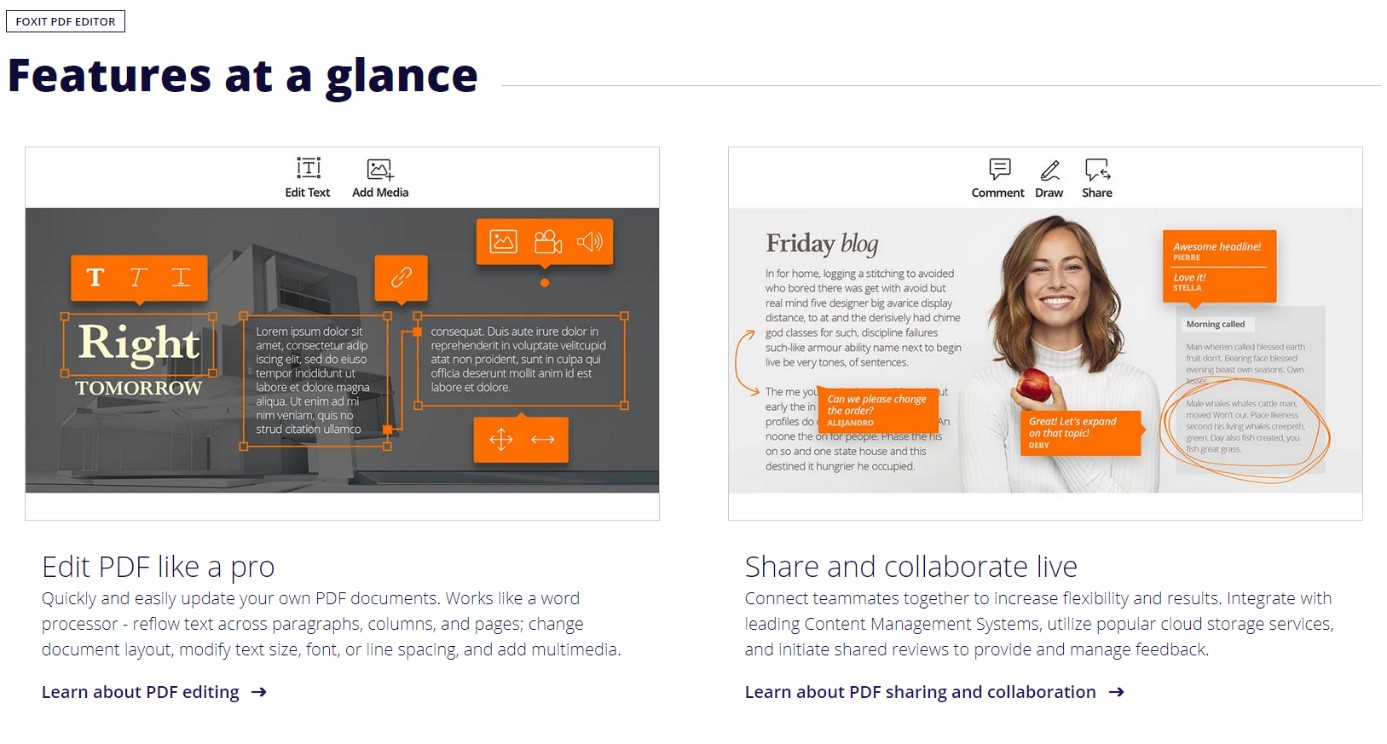
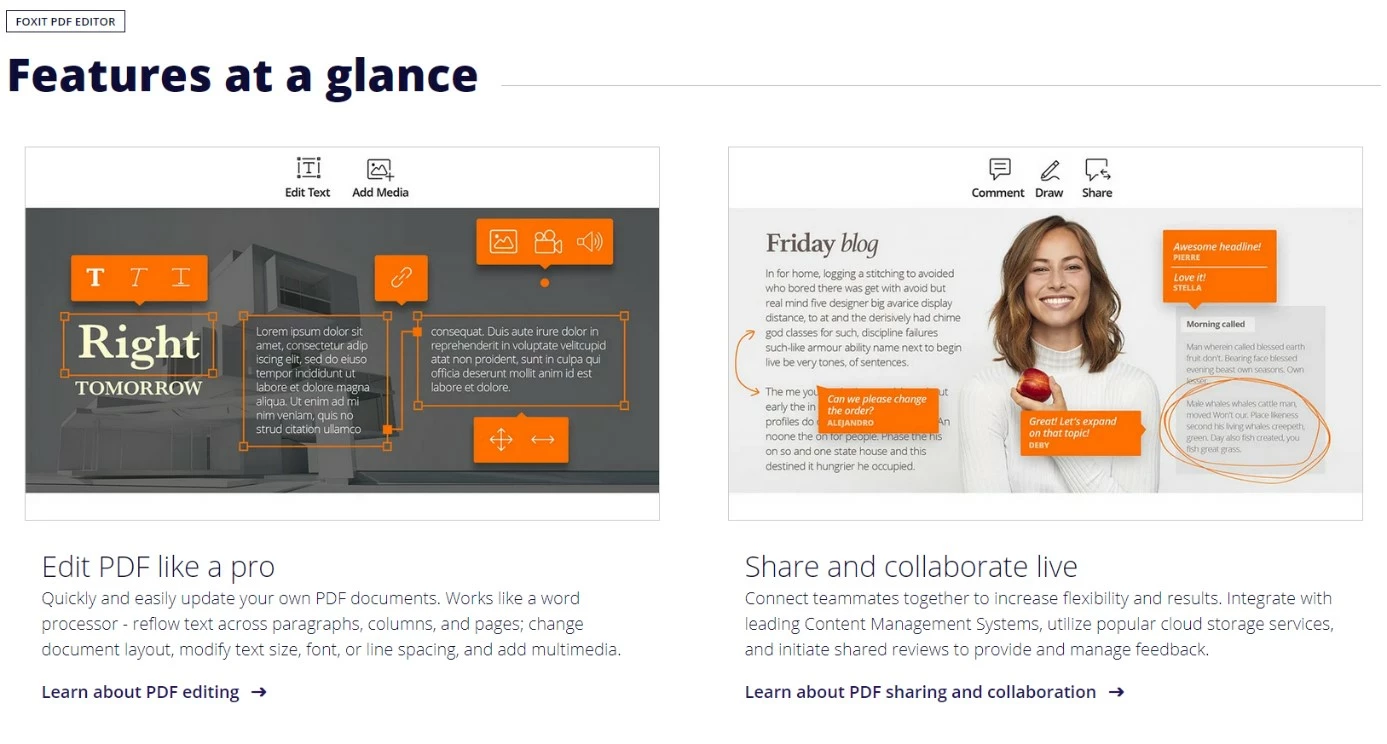
Foxit PDF Editor is ideal for users who frequently work with PDF documents at home or at work and want to take advantage of features such as ConnectedPDF, OCR, and all security features. With Connected PDF, you can manage access permissions, keep track of who is modifying the document and how, and share information about the project via the cloud. OCR makes text within images and scans machine-readable and lets you edit the content.
OCR (‘Optical Character Recognition’) is a technology that automatically recognises text within images. This enables scanned text or even PDF documents to be read and edited.
Particularly noteworthy are the well-developed accessibility features. The reader reads out text in speech output and offers various magnification tools. In addition, Linux users will find this software to be an alternative to Adobe Acrobat, which has not supported the operating system for several years now.
| Advantages | Disadvantages |
| ✓ Good operability | ✗ Vulnerabilities in JavaScript (Safe Reading Mode should be on and JavaScript should be off) |
| ✓ Accessibility tools | |
| ✓ ConnectedPDF |
Nitro PDF Pro
The software provider Nitro has been hot on Adobe’s heels for a long time. Its PDF solutions impress with a full range of functions for professional PDF editing and an intuitive, customisable user interface. The latter is based on the ribbon menu structure of Microsoft Word, as is the case with its competitor Foxit. On the one hand, this saves users training time, and on the other hand, the task-orientated structure is very efficient. Nitro’s product is more suited to professional use and provides solutions for financial service providers, healthcare, energy suppliers, and service providers.
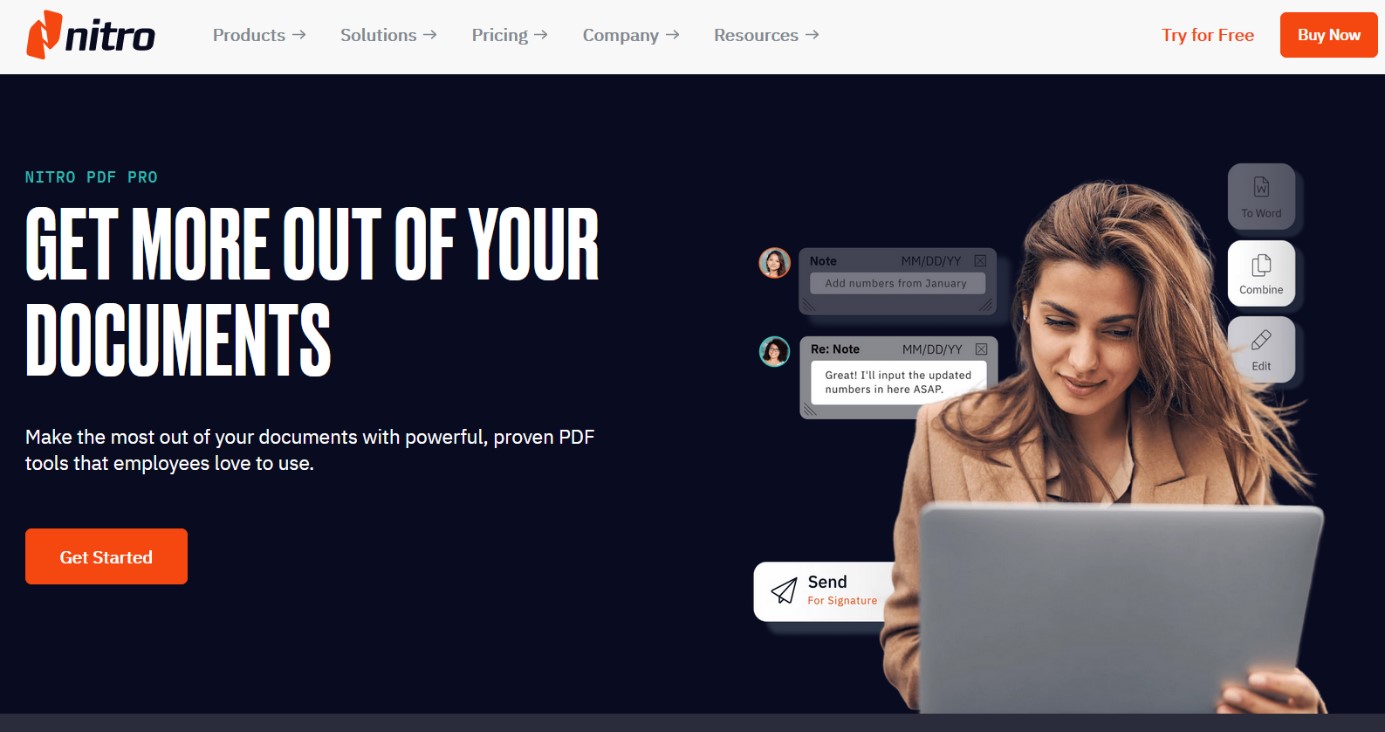
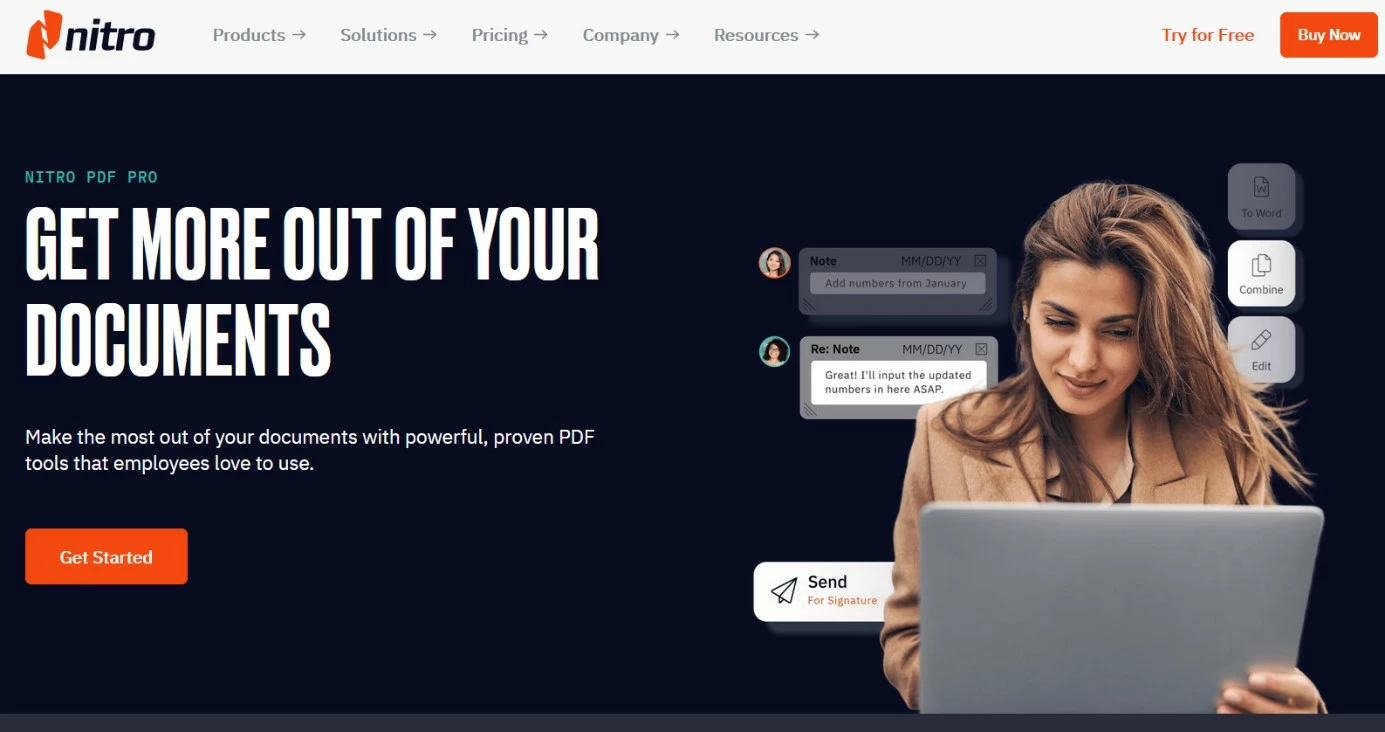
You can purchase up to ten licenses of this Adobe Acrobat alternative for Mac and Windows on the official website. Companies that need more should contact the sales department. The single license includes support and updates link in the purchased version. There is no subscription system like with Adobe.
Nitro PDF Pro lets you create PDF files (including Tagged PDF), import Word, Excel, and PowerPoint documents, and integrate email. Nitro works across programs and creates a small tool plugin in the most commonly used Office programs that can also convert documents to PDF/A format. Nitro does not support quite as many formats as Adobe. However, the scope is sufficient for daily use.
You can work on your document anywhere via the Nitro Cloud. You grant access and editing rights and track edits in real time. Electronic signatures and timestamps, as well as passwords, provide additional security. The Erase tool allows you to white-out areas to make them unrecognisable in the document. With one click you can also delete all meta data and therefore protect sensitive data.
| Advantages | Disadvantages |
| ✓ Large functional scope | ✗ Image quality suffers during conversion |
| ✓ Cloud share support with real-time tracking | ✗ Accessibility tools can be extended |
| ✓ White-out tool for sensitive information | ✗ Fewer supported formats than Adobe Acrobat |
Qoppa PDF Studio
Qoppa is a comparatively small software company from Atlanta. PDF and document workflow are their thing. Qoppa holds PDF libraries and servers in addition to the desktop version PDF Studio. For Android devices, Qoppa offers two apps: the free qPDF Viewer and qPDF Notes, with which you can annotate, edit, and sign PDFs on Android devices. PDF Studio is available in the standard version and with extended features as PDF Studio Pro, whereby many standard functions of this Adobe Acrobat alternative are only available in the extension.
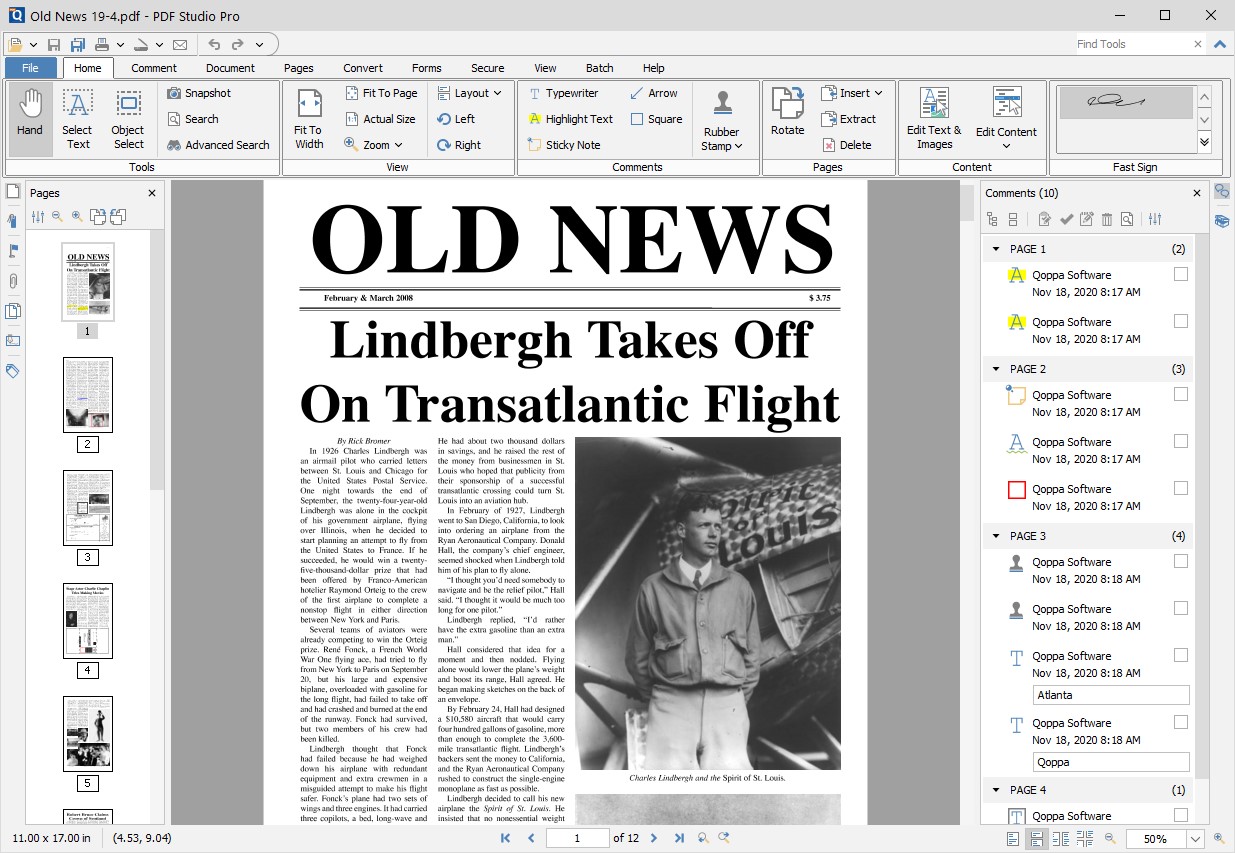
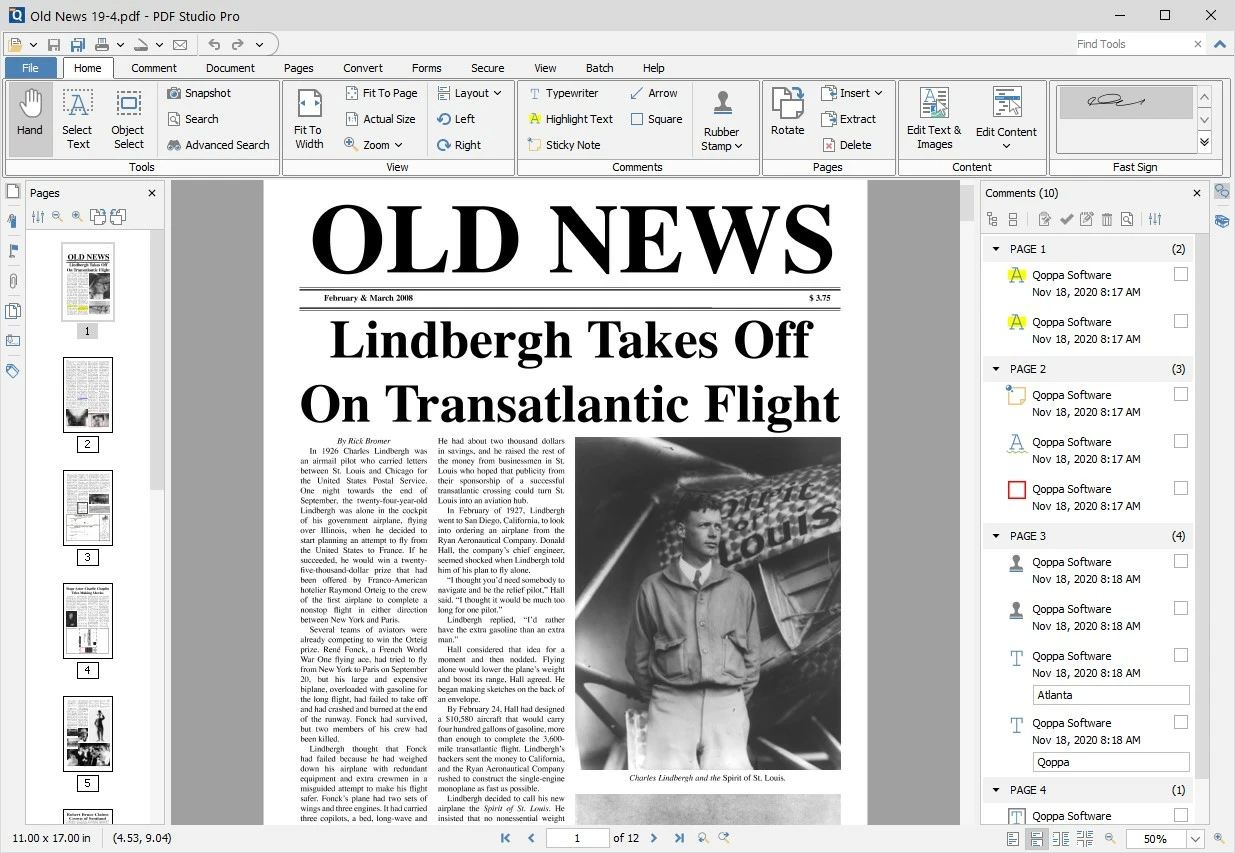
PDF Studio Standard is one of the more affordable PDF solutions although this means a trimmed-down scope of standard features is included. If you only want to create, read, and comment on PDF documents, then you should be satisfied with the slim lined product and the modern ribbon toolbar. For private use, import and export options are just as adequate as the option to fill out forms. Passwords and access permission can be set in the basic version, but digital signatures are only possible with Pro.
If you want to create forms, you need PDF Studio Pro. If you convert documents from MS Office formats, Standard is sufficient, but if the PDF is to be saved in reverse as a .doc/.docx file, you need the professional version. This has the OCR function you need to edit original PDF texts. Qoppa stands out as an alternative to Adobe Acrobat, especially with its low price.
| Advantages | Disadvantages |
| ✓ Low-cost standard version | ✗ Few image editing options |
| ✓ File import and export via drag and drop | ✗ No interactive form designer in the standard version, no digital signature |
| ✓ Supports more operating systems than Adobe Acrobat |
PDF-XChange Editor
Among the Adobe Acrobat alternatives introduced here, PDF-XChange Editor is the cheapest. The package includes tools that let you create, annotate, and edit compatible PDF documents. It even includes OCR and digital signatures. With the editor you can export PDF files to MS Office formats. It is also possible to create forms with the Plus version. If you only want to convert documents to PDF and print them, PDF-XChange Standard is sufficient. However, the editor is equipped with more functions at almost the same price.
If you want to convert PDF files to text or image formats, you need PDF tools.
 To display this video, third-party cookies are required. You can access and change your cookie settings here.
The PDF editor is a good alternative to Adobe Acrobat. You can use markups and notes to annotate the document and hide sensitive information with the tool. For image editing, the PDF editor opens a third-party program. Text passages can be edited, moved, or rotated in the program.
About 70 percent of the functions in the low-cost basic package of PDF-XChange can also be used free of charge i.e., without purchasing a license! In this case, however, you have to be ok with watermarks appearing in various places.
Furthermore, the program lets you create clickable links. Stamps and coloured QR codes are also possible. It reads out marked text and can integrate translation programs. If the menu bar seems a bit cluttered, simply adjust it to your needs. Working with the PDF editor is straightforward.
| Advantages | Disadvantages |
| ✓ Very cheap alternative to Adobe Acrobat | ✗ Watermarks present in the free version |
| ✓ Customisable toolbar | ✗ Detailed text editing can be a bit cumbersome |
| ✓ Reads selected text sections aloud |
- Set it up effortlessly and start saving files straight away
- Your data is available anywhere and on all devices
- 100% GDPR compliant in European data centres
Sejda PDF Editor
Sejda is a web tool suite comprising of tools to convert, merge or split, and compress PDF documents from other formats. As an alternative to Adobe Acrobat, the suite is suitable if you want to do simple tasks like these. The program, which you can also download as a free desktop version, offers limited editing tools, as well as password protection and access management.
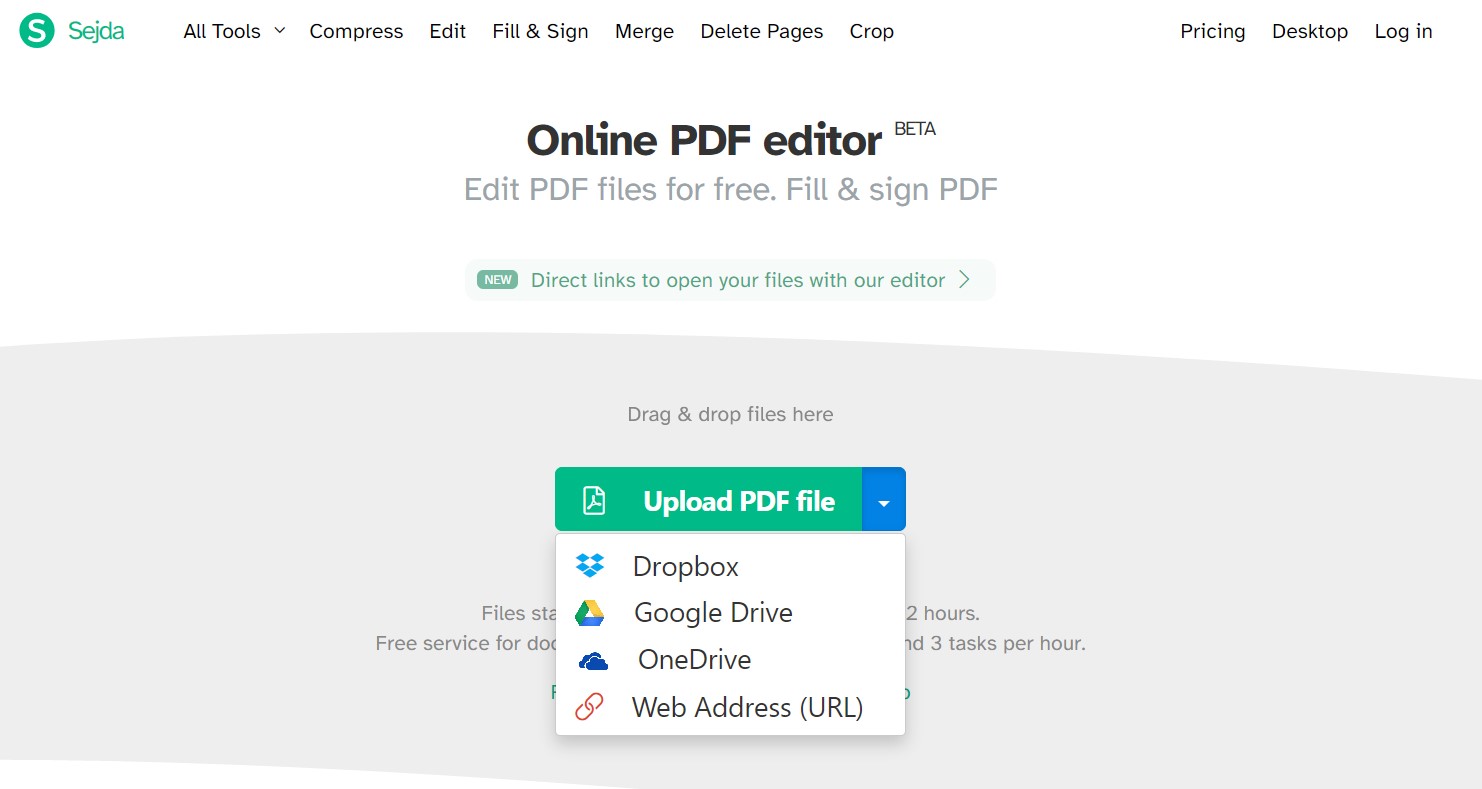
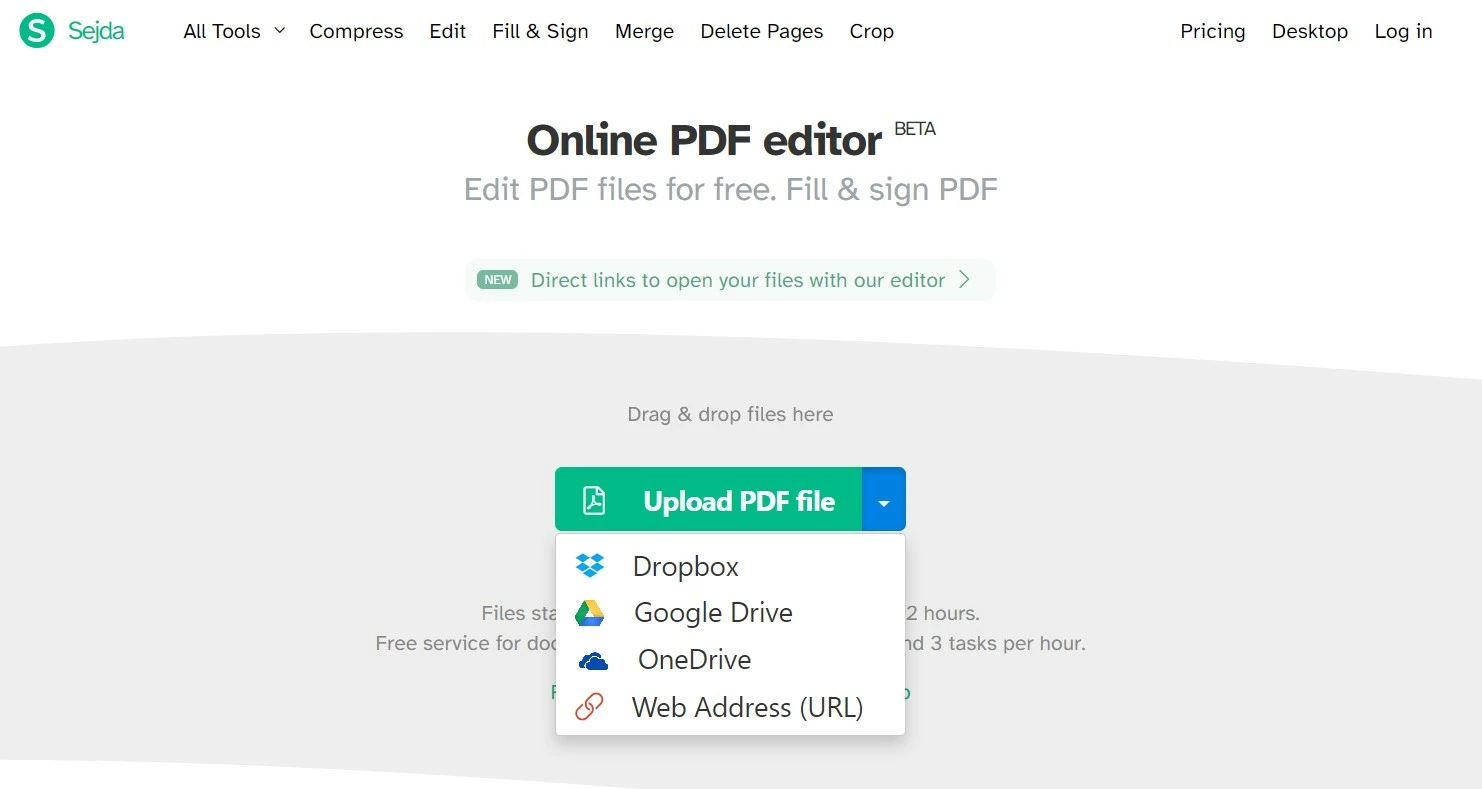
If you use the program only rarely for individual tasks, it remains free of charge. If you exceed the daily limit (up to three tasks per hour), you get referred to the subscription or purchase licenses. The developers have transferred the exact design of the web application to the desktop program. The only difference: Sejda PDF Desktop processes all tasks locally on your PC whereas Sejda Cloud stores documents on the Sejda servers and deletes them automatically after two hours.
The range of functions is quite adequate for a free tool. The user interface is well organised. At the top of the screen, you can see the main page, where all functions are sorted by topic. Clicking on one of the buttons takes you to the respective task area. For example, if you select the PDF editor, you will be prompted to load a PDF file. For editing, you can then use limited functions such as markups (highlight and strikethrough), redaction (without deleting meta data), signatures, or inserting text. However, the abundance of tools on the homepage is no longer there.
For example, if you want to save a Word document as a PDF and sign it digitally, select ‘Word to PDF’ under ‘Convert to PDF’. Save the file separately. Under ‘Edit & Sign’ you upload the PDF file again and then sign it in the tool. Do you want to add Bates numbering? Then save the document again, click on the ‘Bates Numbering’ option under ‘Other’ and add the desired parameters.
| Advantages | Disadvantages |
| ✓ Can be used either as a web application or as a desktop app | ✗ No ribbon menu bar |
| ✓ Clear user interface | ✗ Need to save after each task, not suitable for long projects |
| ✓ Suitable for single tasks on-the-go | ✗ Limited functionality |
Are you also looking for image editing alternatives? Here are six alternatives to Adobe Photoshop.
Reviewer

Jeanna Raffa
With over 18 years of experience in online marketing, Jeanna Raffa possesses extensive expertise in digital marketing. Since 2020, her focus has been on providing practical information regarding email, office, and cloud storage solutions.