

WooCommerce Google Product Feed: How to create it

Placing your WooCommerce store’s products on Google Shopping is a very good way to invite potential customers to your site. Even though you can create a product feed on WooCommerce manually, it is much easier to use a plugin – read on for more tips and recommendations.
Ask, create and research with the European alternative to ChatGPT. Robust security and unlimited chats give you peace of mind.
How do you promote products via WooCommerce?
It’s hardly news that online shoppers use Google rather than searching for a product through individual sites at random – this is especially the case when searching for specified products. There, the respective offers are listed clearly and ideally, you can get the desired product at the lowest price with just a few clicks. Alongside Google Ads, Google Shopping is a good choice for your WooCommerce store. Using Google Shopping, you can promote individual items in a highly efficient way. To do this, you generate a WooCommerce Google Product feed and this in turn attracts new customers. This is best done with a suitable plugin that facilitates your product’s placement and takes into account the fields that Google requires.
Get the most out of your online store! With WooCommerce Hosting from IONOS, you can install and maintain your store securely and always stay up to date. Choose from three plans to suit your needs.
What are the advantages of using Google Shopping for your WooCommerce store?
There are several benefits of getting your WooCommerce store placed prominently in the Google Shopping Feed. The most important ones include:
- Better visibility: One advantage of presenting your WooCommerce store in a Product Feed is the better visibility of your products. Even small stores have the opportunity to appear in a prominent position.
- Lead Generation: This step will not only make your store easier to find, it will also attract the ‘right’ visitors, i.e. (potential) customers who have searched for exactly the product that you have to offer.
- Lower drop-off rate: Visitors stay longer on your website and possibly find more products you offer.
- SEO: Better product visibility helps search engines find your product, which ultimately benefits your entire site. In combination with an optimised AdWords campaign you can hold your own on the market this way, even with a smaller store.
An advertising strategy that gets you ahead! With the Google Ads Management Service from IONOS, our experts work closely with you to develop the optimal online advertising for your purposes. This will make your store even more successful.
What kind of product information does Google need?
Google requires a lot of product information for an item from your WooCommerce store to be included in the shopping feed. Some details may vary depending on the type of product. The information provided could be:
- Product ID
- Product name
- Product Description
- URL
- Product Category
- Google Product Category
- Image URL
- Availability URL
- Regular price
- Condition
- Manufacturer
- Global Trade Item Number (GTIN)
- Manufacturer Number
- Identifier
- Content for adults
- Multipack
- Bundle
- Material
- Age group
- Colour
- Gender
- Size
- Pattern
- Item group ID
Populate Google Shopping with a WooCommerce plugin
Just like with Shopify and similar alternatives there are also lots of different WooCommerce plugins for Google Shopping. These ensure that individual products are well placed, and also make it easier for you to get an overview of your assortment. Although it is also possible to store Google Sheets directly in the Merchant Center, using a WooCommerce Google Product Feed plugin is much more recommended. These usually work by creating a feed of your products and it is synchronised with the Google Merchant Center in real time. The plugins automatically request the data that is later requested by Google.
Google Product Feed by WooCommerce
An ideal option is the Google Product Feed plugin by WooCommerce. It costs around £60 per year and is easy to use. The plugin offers numerous fields so that you can describe your products very precisely and thus place them better on Google. In addition, you can set up default settings for product groups, create variations and quickly make adjustments.
Product Feed Pro for WooCommerce
Product Feed Pro is also a very popular plugin, with which you can create feeds for Google as well as for Bing or Facebook. The plugin impresses with a good filter function, with which you can also weight and rate products according to their popularity. Product Feed Pro also offers the additional fields required by Google. The plugin is available in a free and a commercial version, which offers more features.
YITH Google Product Feed for WooCommerce
With YITH you can create unlimited feeds for Google Shopping. The usage is very simple and intuitive through WooCommerce shortcodes. In just a few minutes you can generate feeds that are optimised for Google and contain all necessary fields. You can create the feeds either as XML or TXT files.
Product Feed Manager For WooCommerce (PFM)
The Product Feed Manager For WooCommerce also offers feed creation for Facebook and other online sales platforms besides Google. The plugin is very user-friendly and logically structured, so the feed creation takes a few minutes. There are lots of filter options and, in addition to the mandatory fields, there are also additional fields for categories, so that you always have a good overview and your product line remains up to date.
Create a Google Product Feed in WooCommerce in ten steps
If you want to get your products well-placed in searches, you’ll need to generate a Google Product feed in WooCommerce. We’ll explain how this works step by step. The important thing to note here is that you should take the Google specifications into account when creating your feed. A plugin will provide you with the necessary steps for this. If you want to create the feed manually, you can follow the list above. Below, we’ve shown an example of the creation with the Product Feed Manager For WooCommerce.
Step 1: First, go to the dashboard of your online store created with WordPress and open the WooCommerce plugin for Google Shopping.
Step 2: Click on ‘Create Feed’ to create a new feed.
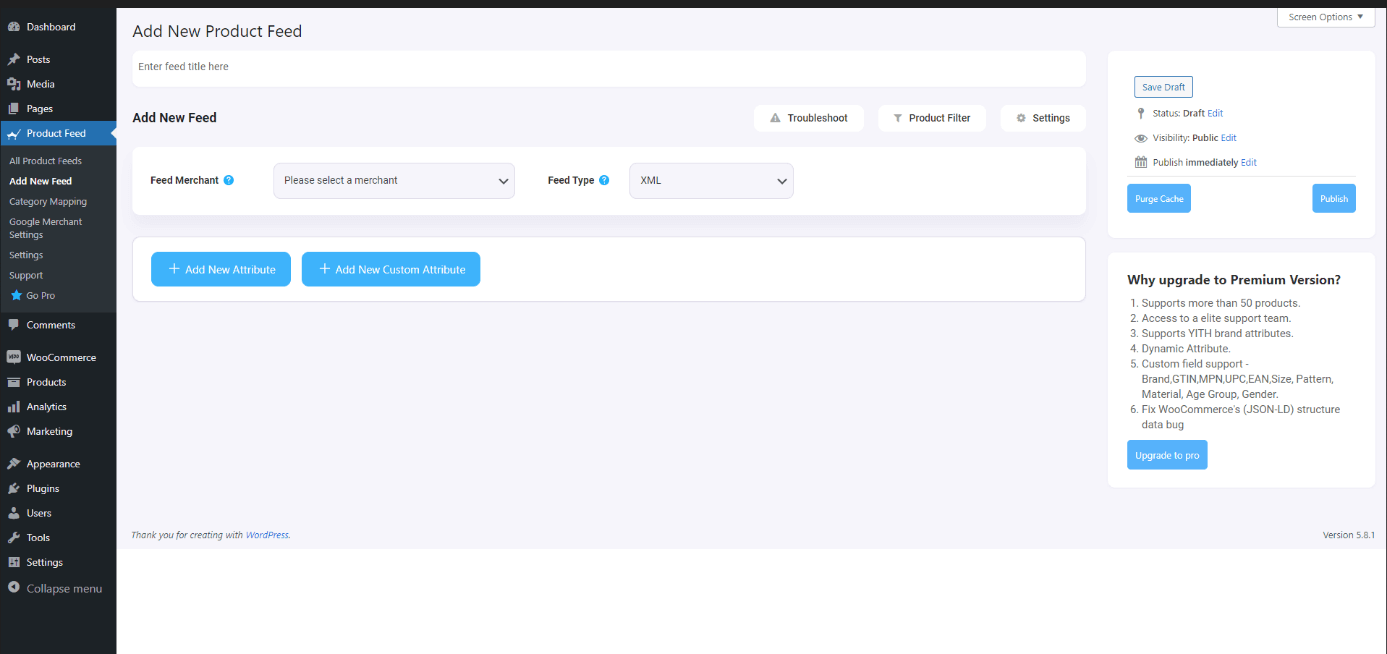
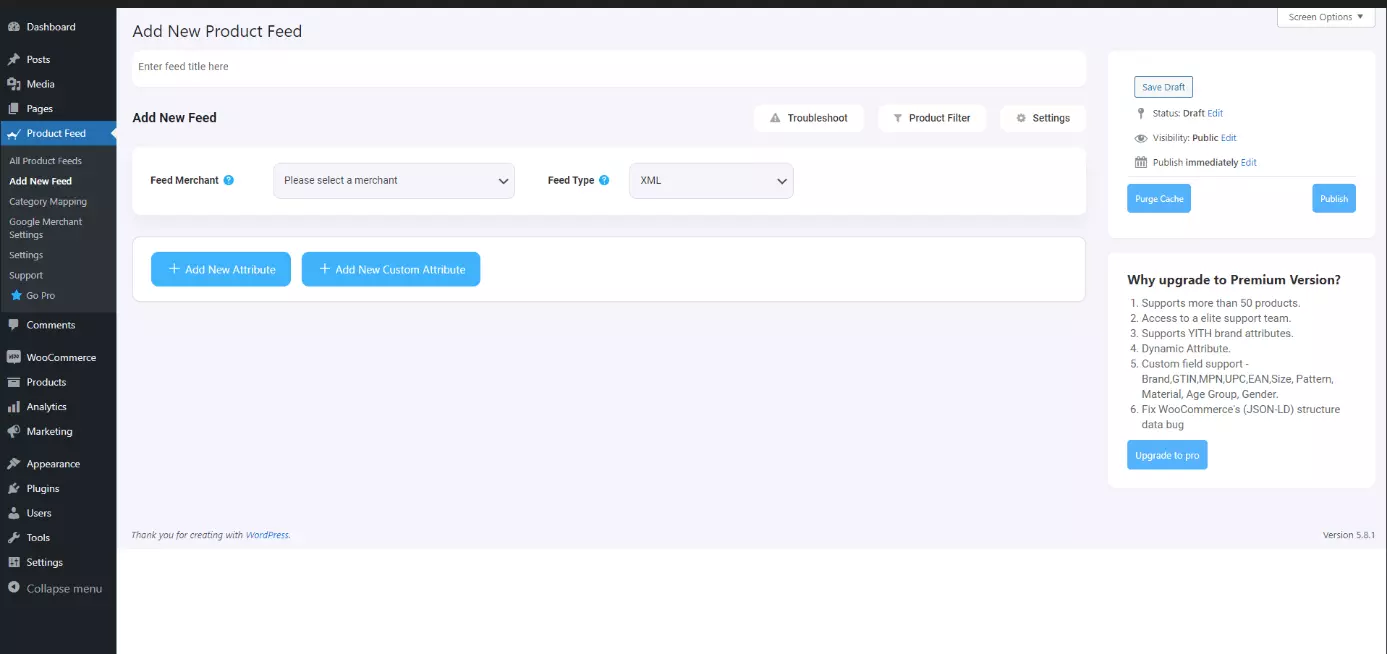
Step 3: Here you can make some basic settings. The name, the file format and the rules for variations are requested.
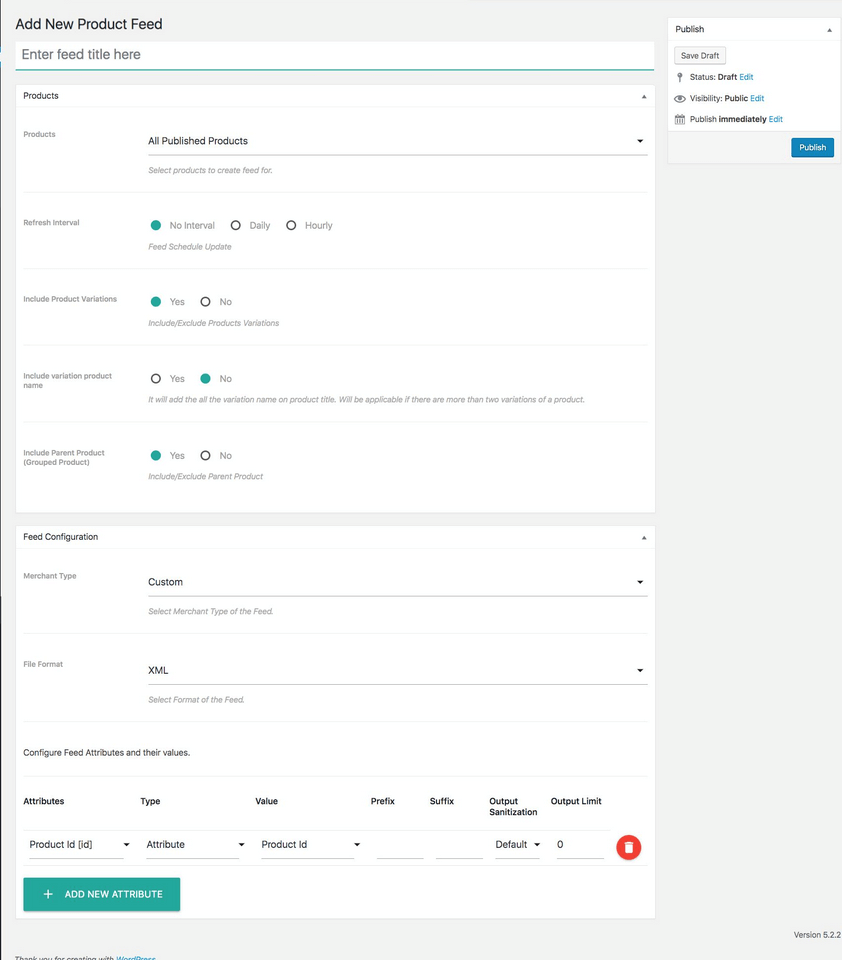
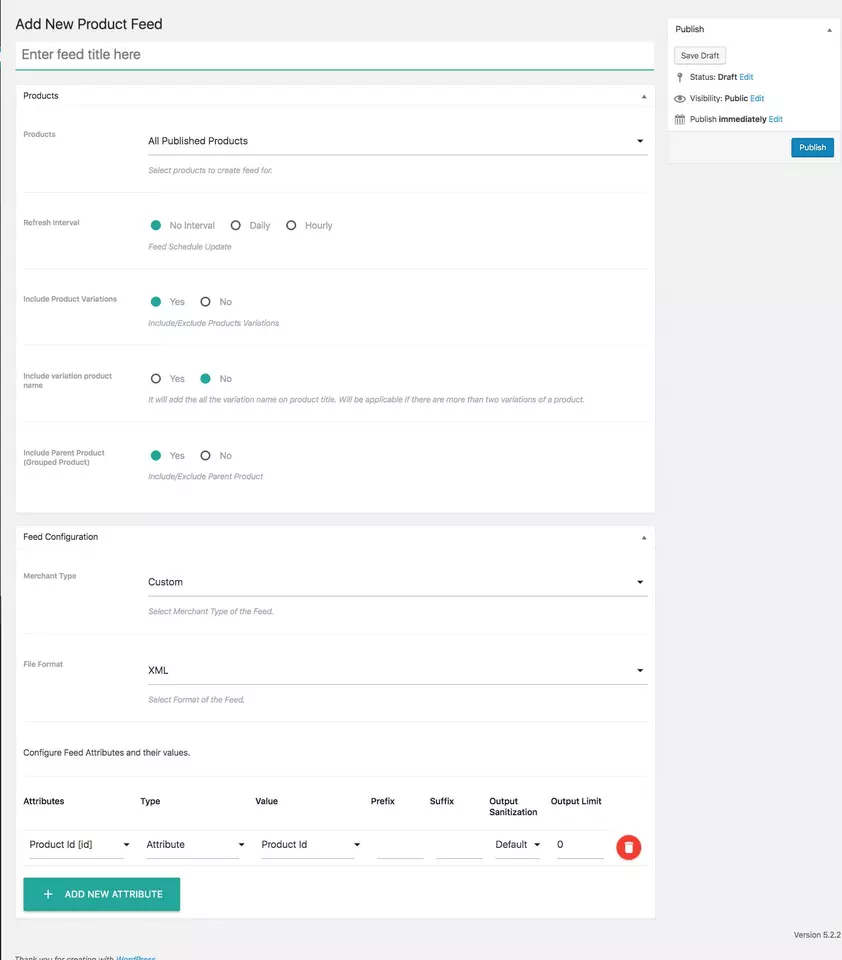
Step 4: Now you have the possibility to select or exclude products. You can place your entire assortment or only individual articles.
Step 5: Next, set the intervals at which you want your product feed to be updated by WooCommerce. You can also decide whether to include variations of individual products and different names.
Step 6: Now select the desired merchant type from a list. Besides Google, you have other options with many plugins, but they may require different specifications.
Step 7: If you choose Google, the plugin will automatically show all mandatory fields for the platform. The file format also adjusts automatically, since Google only accepts XML.
Step 8: Now add the individual items and fill in the necessary fields.
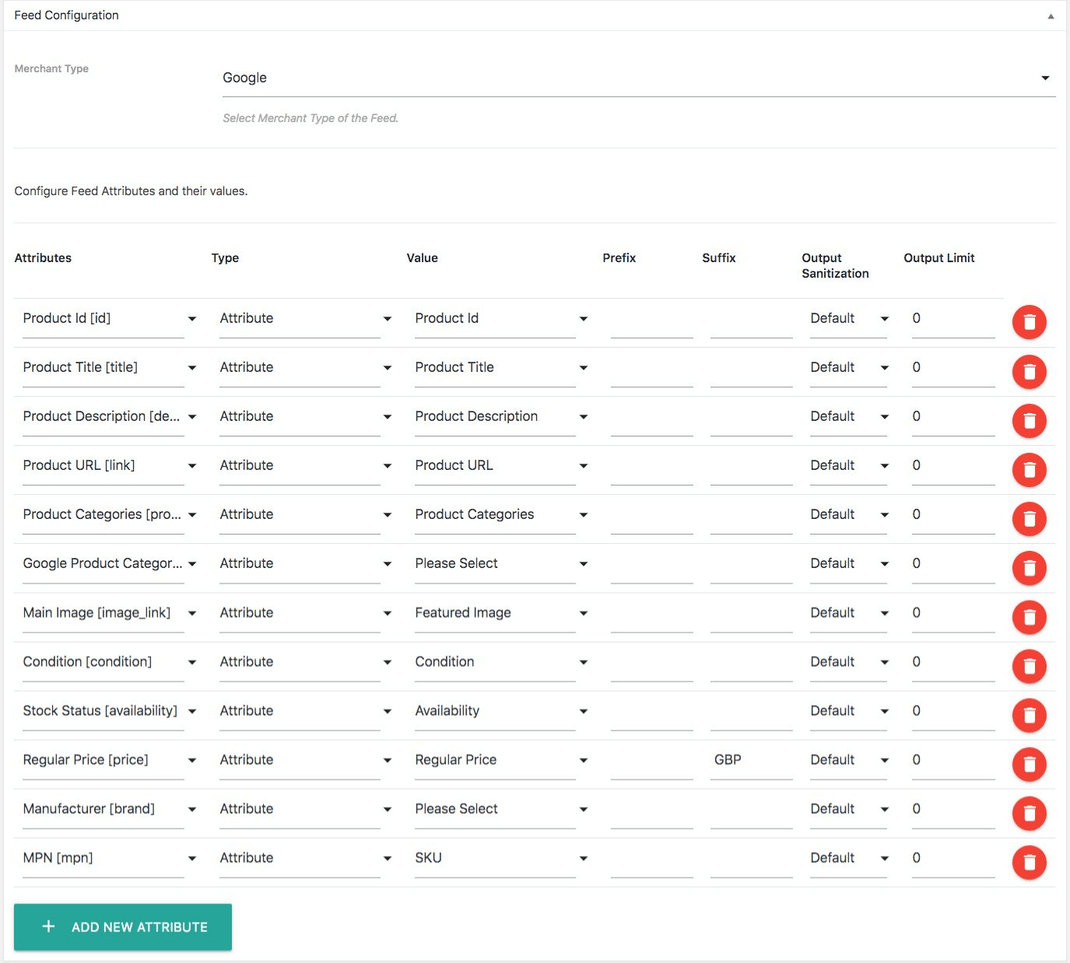
Step 9: Once you have filled in everything, generate the feed. Check all the information again thoroughly.
Step 10: Finally, send the feed to Google Merchant with one click. For this, you can specify the intervals at which it should be updated.
For other plugins, the order of the individual steps may vary a little, but the basic principle is usually similar.
Create your online shop with IONOS and benefit from loads of features. Our experts will provide you with professional support right from the start and are sure to find the right package for your needs.
Reviewers

Melissa Senn
Melissa Senn has been with IONOS since 2016 and focuses on website, e-commerce, social media, and AI in the Digital Guide. As a digital strategist, she uses her extensive SEO and GEO experience to transform complex technological trends into practical content.

Julia Hertler
With over 18 years of experience in content marketing, Julia Hertler has deep expertise in digital communications. For the past 10 years, she has specialised in the areas of domains and hosting at the IONOS Digital Guide, making complex technical topics easy to understand.