

Using Zoom Chat: How to chat in Zoom during a meeting

Zoom meetings often require multi-tasking, especially for the meeting hosts. The Zoom Chat feature is particularly useful for this. To avoid interrupting a presentation, to organise a team meeting, or to answer individual participants, you can send private chat messages or group messages via Zoom Chat. The host determines who can chat with whom in the meeting.
Enable Zoom Chat in a meeting
The chat feature for Zoom meetings is self-explanatory and is easy to enable and disable. You can use the Zoom Chat in both the Zoom desktop app and the mobile app. Before or during a meeting, determine whether you want to allow attendees to use the private or public chat feature, or keep it disabled. Follow these steps to use Zoom Chat.
In the desktop app
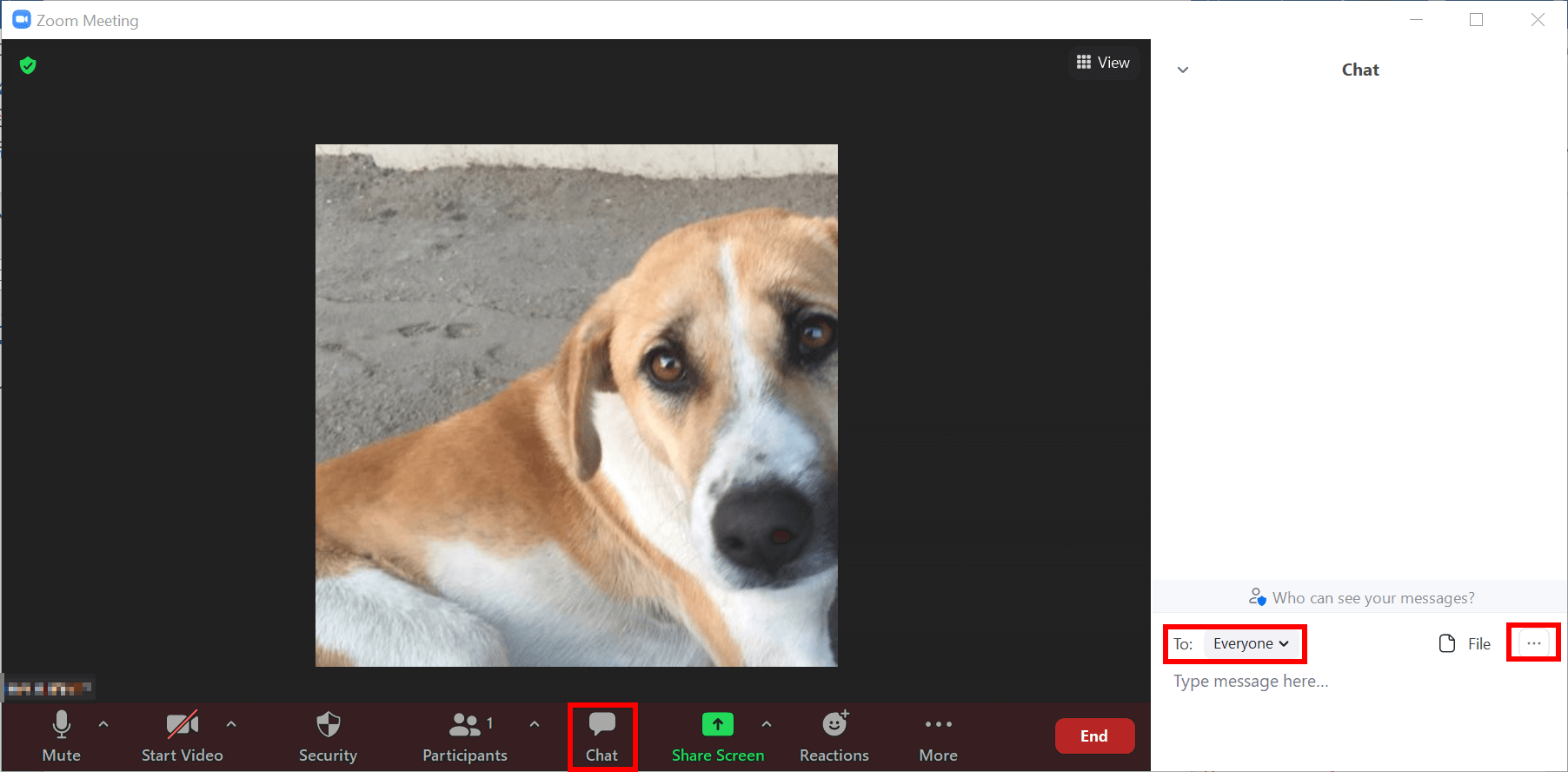
- Step 1: Create a Zoom meeting and click on ‘Chat’ in the menu bar after the meeting has started.
- Step 2: A chat window will now open in which you can write messages to individual participants or to everyone.
- Step 3: If you only want to write to one specific participant, click on the name field next to ‘To:’ and select the name.
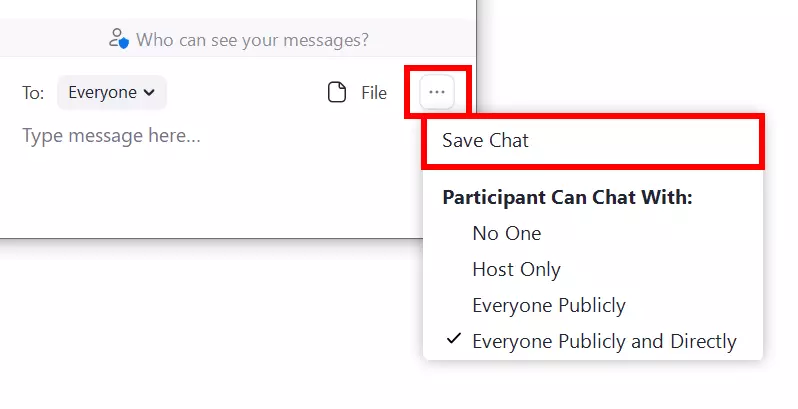
- Step 4: To manage the chat function, go to the ‘...’ symbol. Here you can define whether only the host is allowed to use the Zoom Chat or all the participants. You can also specify whether users can send private messages to other participants or only public chat messages.
- Step 5: New messages are displayed in the form of a preview message and by a number appearing next to the chat symbol.
- Step 6: Meeting participants can use the chat function by clicking on ‘Chat’ in the bottom bar and, depending on the settings, selecting participants to chat with or writing a group message.
- Step 7: To use Zoom Chat while screen sharing, go to the ‘Chat’ symbol to use the unanchored chat menu with the same sharing and sending options.
In the mobile app
- Step 1: Start a meeting and tap the screen to make the controls visible.
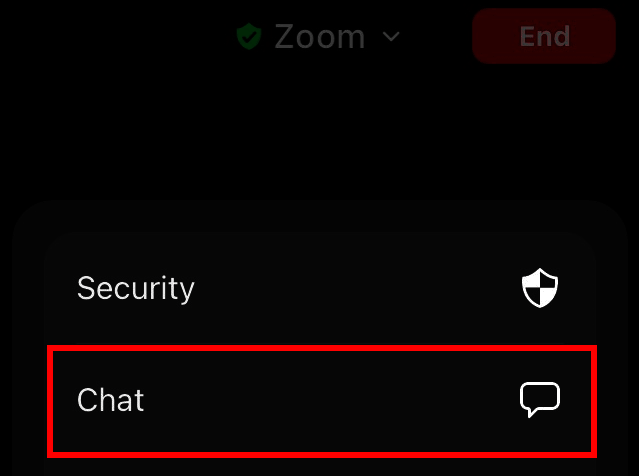
- Step 2: Tap the ‘...’ symbol and select ‘Chat’ below.
- Step 3: Under ‘To’, you select whether you want to send a message to all participants or whether you want to send a private message to individual participants.
- Step 4: Incoming messages are displayed at the bottom of the screen. To read them, go back to ‘...’ and ‘Chat’.
How do you disable Zoom Chat?
If you want to make sure that the Zoom Chat feature is disabled from the start of a scheduled meeting, you can do so via the Zoom profile settings. Proceed as follows:
- Step 1: Log into your profile on the Zoom Web Portal.
- Step 2: Go to ‘Settings’.
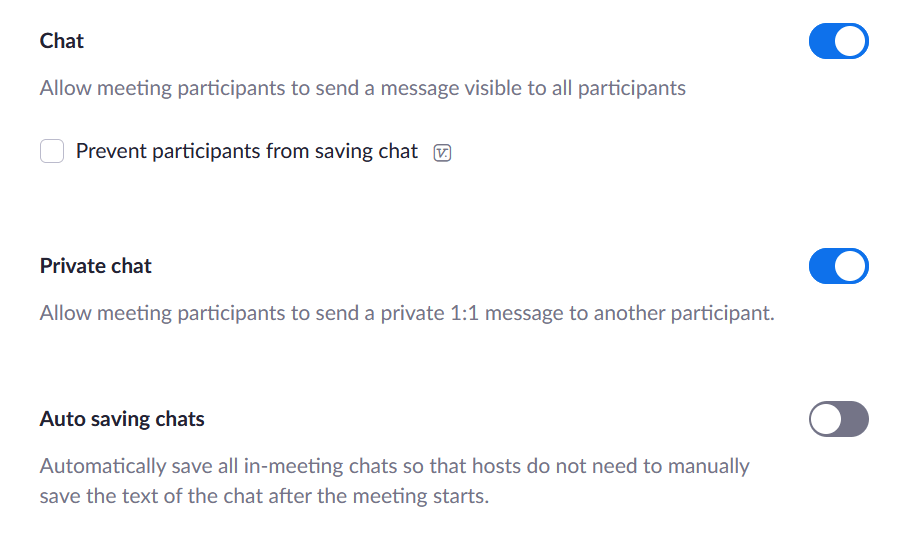
- Step 3: In the ‘Meeting’ tab, scroll down to the ‘Chat’ section.
- Step 4: You can now disable the public group chat under ‘Chat’ and/or disable the private chat under ‘Private chat’.
Save a Zoom Chat automatically or manually
Zoom realises that chat meetings can still be of importance even after a meeting has ended and therefore provides a save function for Zoom Chats. You can choose to save chats automatically or manually.
How to save chats automatically
- Step 1: Go to your profile on the Zoom web portal.
- Step 2: Go to the ‘Chat’ section under ‘Settings’ in the ‘Meeting’ tab.
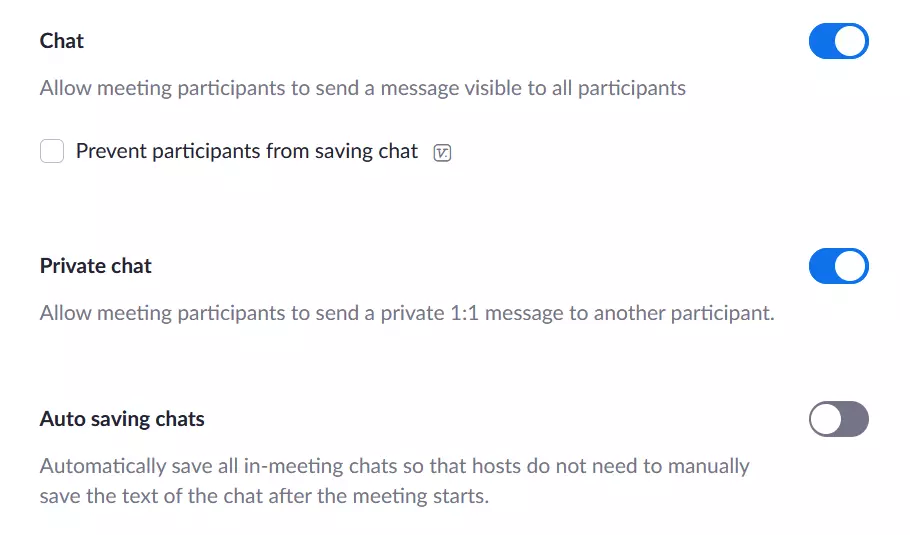
- Step 3: Activate the function ‘Auto saving chats’.
How to save chats manually and locally
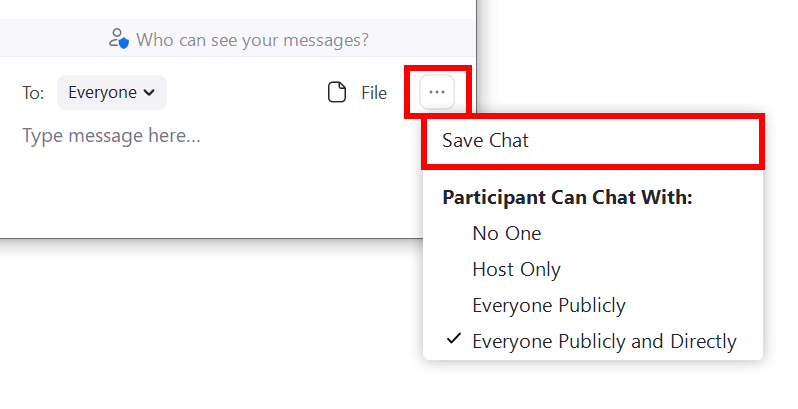
- Step 1: In the meeting, go to ‘Chat’ in the menu bar.
- Step 2: Click ‘Save Chat’ to save the current chat locally on your device. The location is usually your Zoom folder in ‘Documents’.
What is the Zoom Chat?
As a meeting host and administrator, you have many responsibilities on Zoom. When creating a Zoom meeting, you have to decide who should attend the Zoom meeting, who can record a Zoom meeting, share the screen, and even whether participants are allowed to use a virtual Zoom background. Another important job is taking care of the Zoom Chat in meetings.
Zoom Chat allows participants and hosts to send private chat messages or public group messages during a meeting. The host decides in advance whether to allow participants to chat with each other or to disable the chat during the meeting. Private chat messages between Zoom participants cannot be viewed by the meeting host. You can also save the Zoom Chat locally to your device or to the cloud when the meeting is over.
Reviewer

Jeanna Raffa
With over 18 years of experience in online marketing, Jeanna Raffa possesses extensive expertise in digital marketing. Since 2020, her focus has been on providing practical information regarding email, office, and cloud storage solutions.